Best Practices
Enable Passwordless Authentication
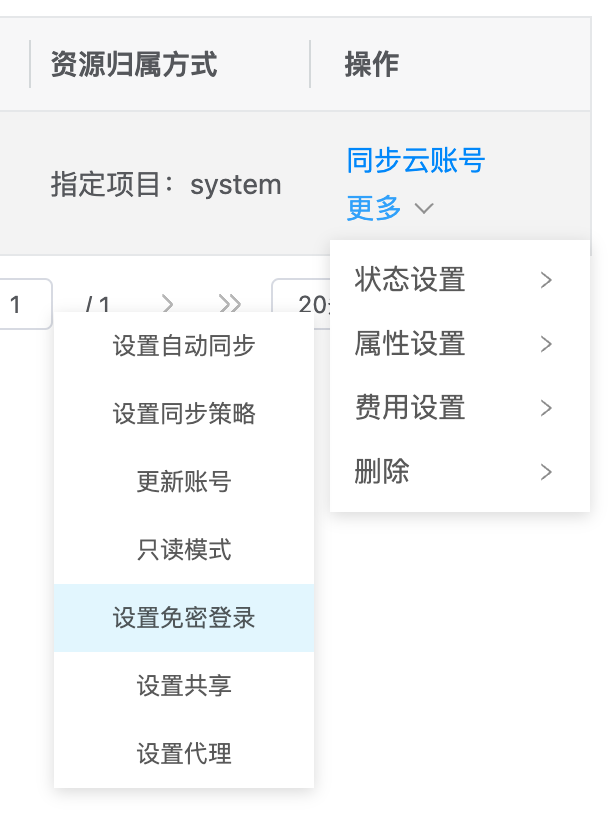
- Find the cloud account that needs to enable passwordless login
- View the right side of the cloud account, click More > Property Settings > Set Passwordless Login as shown below
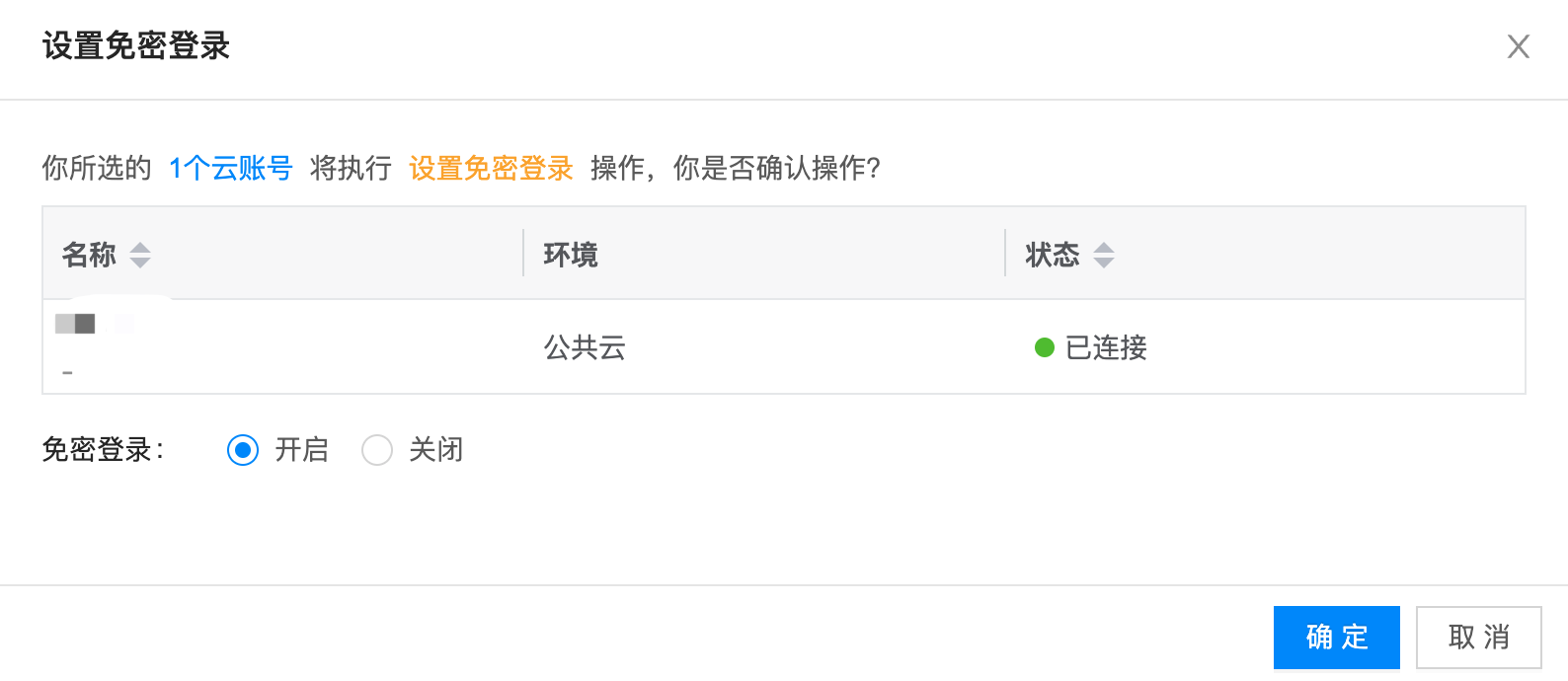
- Click the Enable button, then click OK to enable passwordless login as shown below
tip
If passwordless login is disabled, the cloud account will not delete the passwordless login resources underneath, it will only prohibit users from passwordless login
Identity Provider
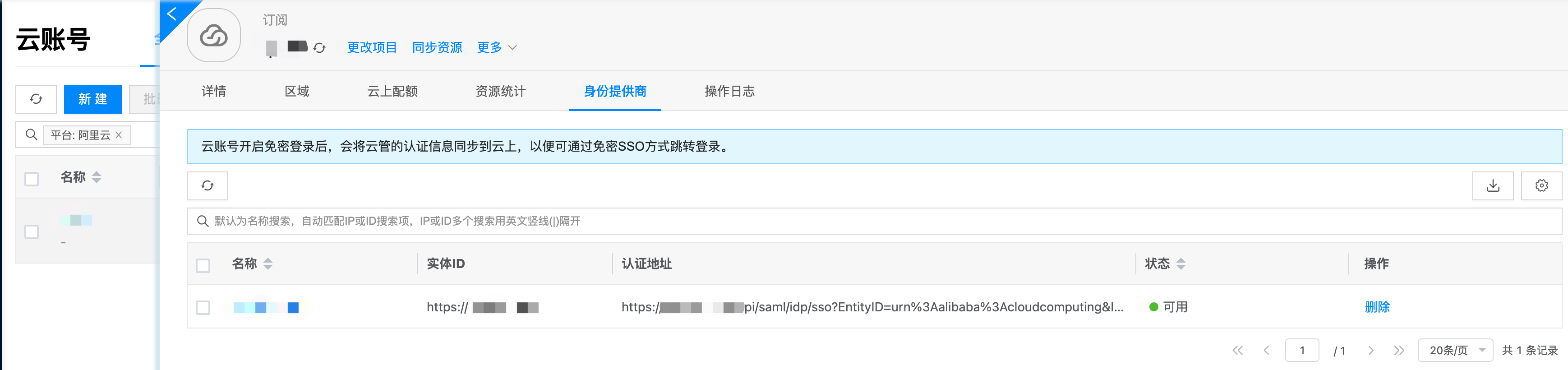
After enabling, the cloud platform will create identity providers in each cloud subscription under this cloud account
- Select any cloud subscription under this cloud account to check if the identity provider was created normally, as shown below
tip
The platform will synchronize other registered identity providers, as long as one of them is available. Some public clouds have limits on the number of identity providers. If the limit is exceeded, after deleting some identity providers, enable and disable the cloud account again, and the platform will start creating identity providers again
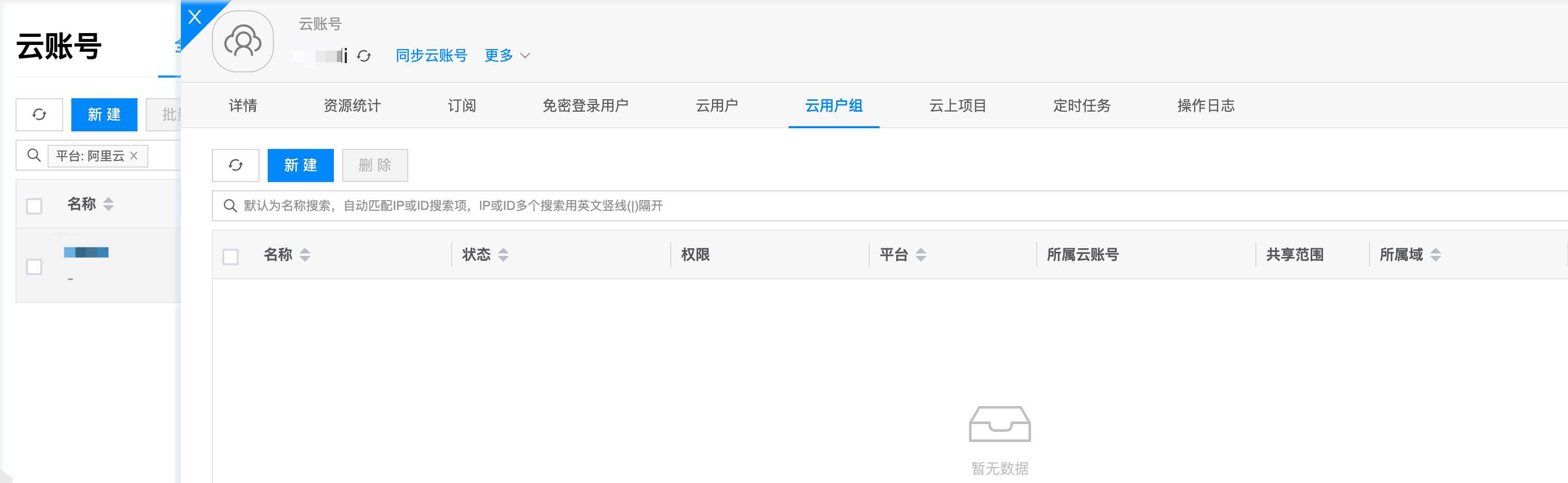
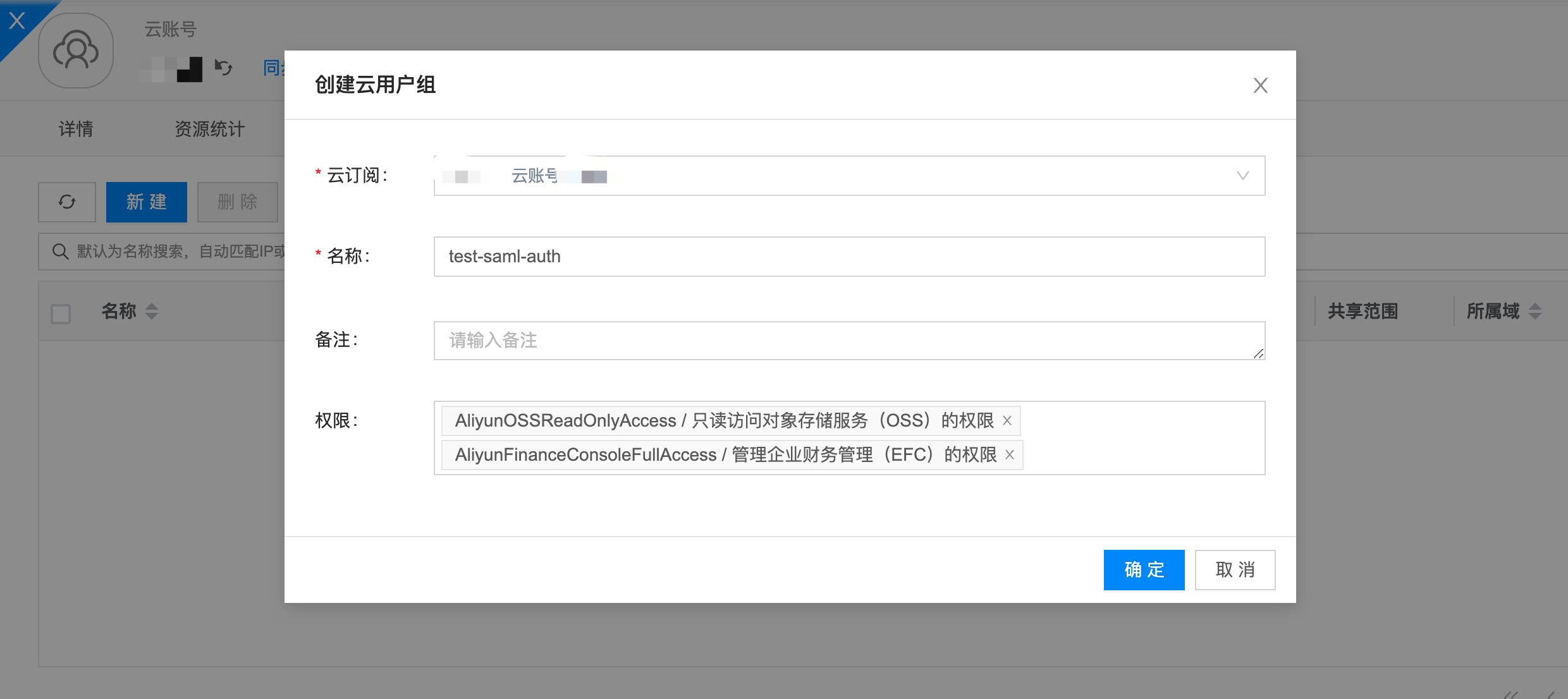
Create Cloud User Group
- As shown below
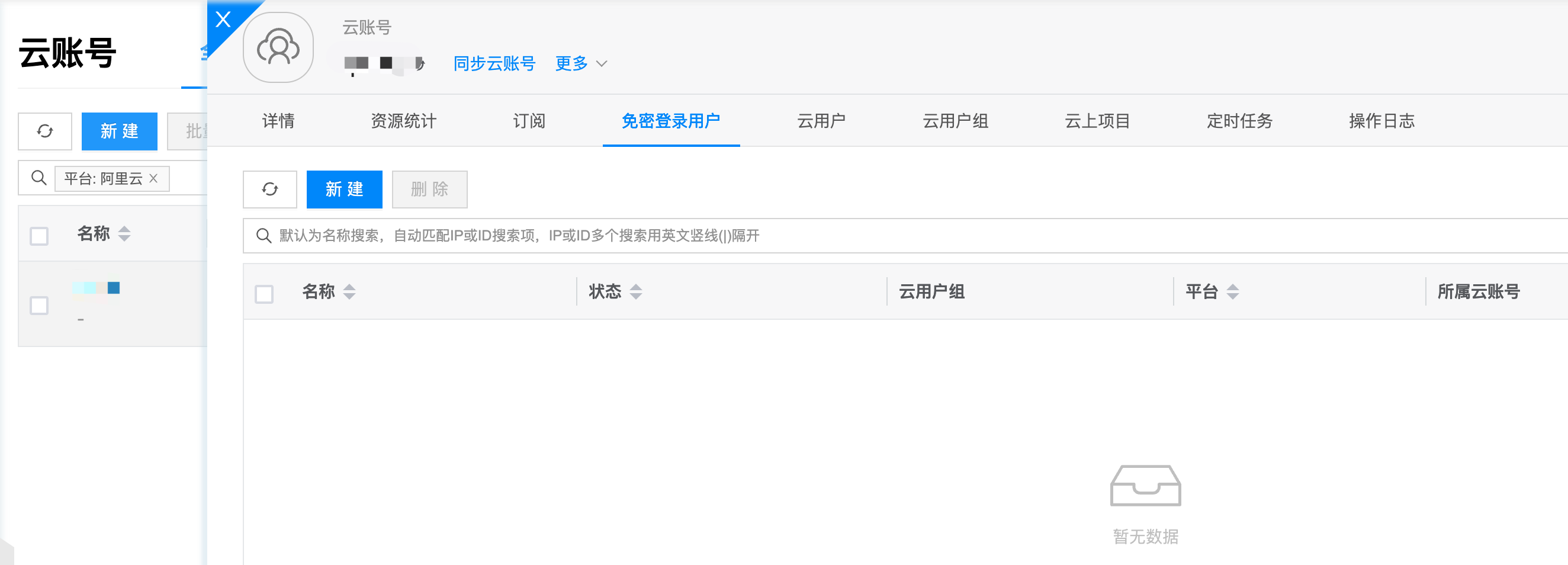
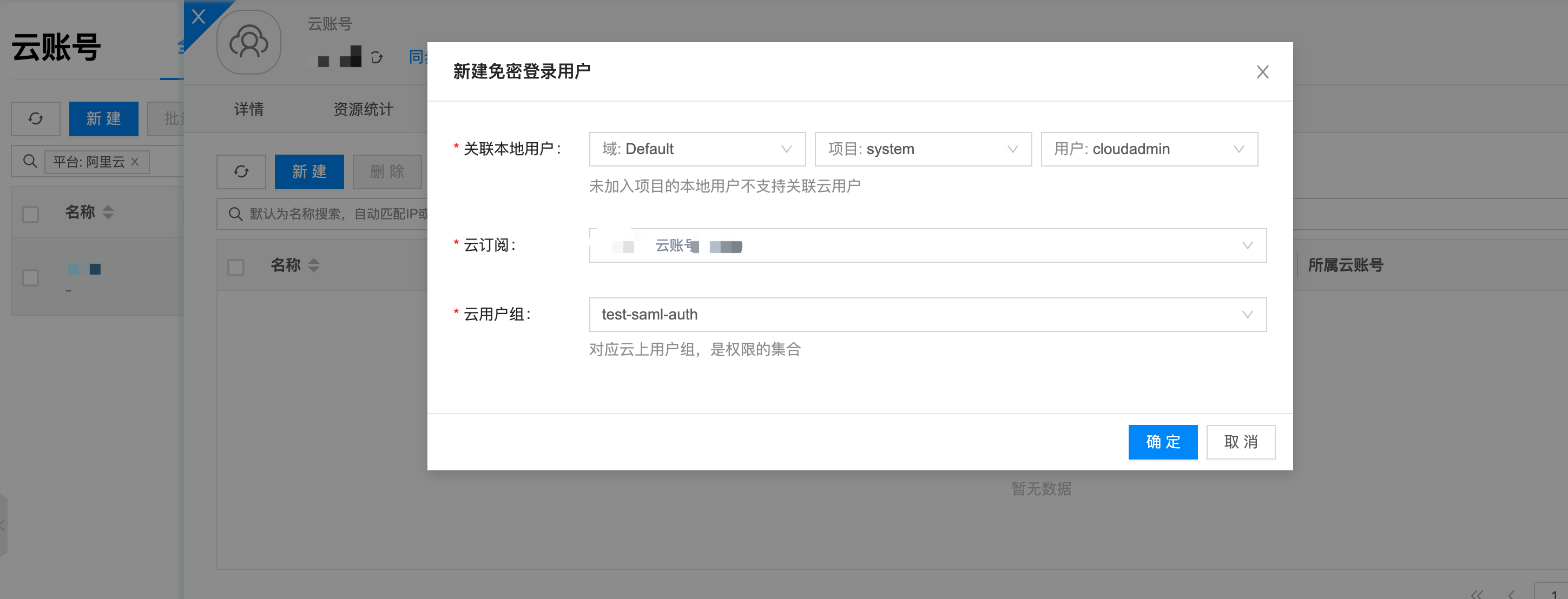
Create Passwordless User
- As shown below
Test Passwordless Login
- Click the username in the upper right corner of the platform, then click Multi-Cloud Unified Login as shown below

- Click Passwordless Login Users to switch to the passwordless user list, as shown below

- Click Passwordless Login on the right side of the user list to test