Ocboot Quick Installation
Use the ocboot deployment tool to quickly deploy the private cloud version in an All in One manner.
- This chapter covers quickly setting up Cloudpods services through the deployment tool. For production environment high-availability cluster deployment, please refer to: High Availability Installation .
Environment Preparation
- The operating system needs to be a clean version, because the deployment tool will build a k3s cluster of the specified version from scratch, so ensure that the system does not have kubernetes, containerd and other container management tools installed, otherwise conflicts will occur causing installation exceptions.
- Minimum configuration requirements: CPU 8 cores, memory 8GiB, storage 200GiB.
- The storage paths for virtual machines and services are all under the /opt directory, so ideally it is recommended to set up a separate mount point for the /opt directory.
- For example, partition /dev/sdb1 separately as ext4 and mount it to the /opt directory via /etc/fstab.
Depending on the CPU architecture, the supported distributions are also different. The currently supported distributions are as follows:
Note: 3.11, 3.10, etc. represent Release/3.11, Release/3.10. The same applies to others.
| Operationg system and Arch | 3.11 | 3.10 |
|---|---|---|
| OpenEuler 22.03 LTS SP3 x86_64+aarch64 | ✅ | ✅ |
| OpenEuler 22.03 LTS SP4 x86_64+aarch64 | ✅ | |
| OpenEuler 24.03 LTS SP2 x86_64+aarch64 | ✅ | |
| CentOS 7 2009 x86_64+aarch64 | ✅ | ✅ |
| CentOS 8 Stream x86_64+aarch64 | ✅ | |
| CentOS 9 Stream x86_64+aarch64 | ✅ | |
| CentOS 10 Stream x86_64+aarch64 | ✅ | |
| Debian 11 x86_64+aarch64 | ✅ | ✅ |
| Debian 12 x86_64+aarch64 | ✅ | |
| Debian 13 x86_64+aarch64 | ✅ | |
| Ubuntu 20.04 LTS x86_64+aarch64 | ✅ | |
| Ubuntu 22.04 LTS x86_64+aarch64 | ✅ | |
| Ubuntu 24.04 LTS x86_64+aarch64 | ✅ | |
| Ubuntu 25.04 x86_64+aarch64 | ✅ | |
| Rocky Linux 8.x x86_64+aarch64 | ✅ | |
| Rocky Linux 9.x x86_64+aarch64 | ✅ | |
| Rocky Linux 10.x x86_64+aarch64 | ✅ | |
| AlmaLinux 8.x x86_64+aarch64 | ✅ | |
| AlmaLinux 9.x x86_64+aarch64 | ✅ | |
| AlmaLinux 10.x x86_64+aarch64 | ✅ | |
| OpencloudOS 8.x x86_64+aarch64 | ✅ | |
| OpencloudOS 9.x x86_64+aarch64 | ✅ | |
| AnolisOS 8.x x86_64+aarch64 | ✅ |
Install Cloudpods
Download Deployment Tool
The deployment tool code is at https://github.com/yunionio/ocboot/release, select the corresponding version, and download the tar.gz package of the code.
$ wget https://github.com/yunionio/ocboot/archive/refs/tags/master-v4.0.4-1.tar.gz
$ tar xf master-v4.0.4-1.tar.gz
$ cd ocboot-master-v4.0.4-1
Run Deployment Tool
Next, execute ocboot.sh run.py to deploy the service. Where host_ip is the IP address of the deployment node, this parameter is optional. If not specified, the network interface that goes out through the default route will be selected to deploy the service. If your node has multiple network interfaces, you can select the corresponding network interface to listen to the service by specifying host_ip.
- Mainland China
- Other Regions
# Directly deploy and pull the container image from registry.cn-beijing.aliyuncs.com
$ ./ocboot.sh run.py virt <host_ip>
For some network environments, if registry.cn-beijing.aliyuncs.com is slow or unreachable, you can specify the image source: docker.io/yunion to install, with the following command:
$ IMAGE_REPOSITORY=docker.io/yunion ./ocboot.sh run.py virt <host_ip>
The ./ocboot.sh run.py script will call ansible to deploy the service. If the script exits due to problems during the deployment process, you can repeat the script to retry.
Deployment Complete
....
# After deployment is complete, there will be the following output, indicating successful operation
# Open https://10.168.26.216 in the browser, this ip is the <host_ip> set earlier
# Use admin/admin@123 username and password to log in to access the frontend interface
Initialized successfully!
Web page: https://10.168.26.216
User: admin
Password: admin@123
Then use a browser to access https://10.168.26.216, enter admin for username and admin@123 for password to enter the Cloudpods interface.
When accessing the environment using a domain name, you need to modify the api_server access endpoint (optional)
The api_server configuration is the access endpoint address of the entire platform, which will affect the connection of frontend virtual machine VNC or Web SSH and CloudShell. Generally, if you cannot enter the virtual machine through Web SSH or open CloudShell, it is because the api_server configuration is not set correctly.
You need to refer to the documentation: Modify Service api_server Entry Configuration, and manually modify it according to your environment's network situation.
Start Using Cloudpods
Create the First Private Cloud Virtual Machine
To create the first virtual machine, follow these three steps:
1. Import image
Go to CentOS 7 cloud host image and choose a GenericCloud image. Copy the image URL.
In the Host menu, select System image, and then select Upload. Enter the image name, select Input image URL, paste the CentOS 7 image URL, and click OK.
Visit https://docs.openstack.org/image-guide/obtain-images.html for more virtual machine images.
2. Create network (VPC and IP subnet)
[Create VPC] In the Network menu, select VPC submenu, and then select Create. Enter the name, such as vpc0, and select the target network segment, such as 192.168.0.0/16. Click Create.
[Create IP subnet] After VPC creation, select the IP subnet submenu, and then select Create. Enter the name, such as vnet0, select the VPC as the created VPC vpc0, select the availability zone, enter the subnet network segment, such as 192.168.100.0/24. Click Create.
Typical network configuration provides several common host network configurations for reference.
3. Create virtual machine
In the Host menu, select Virtual Machine, and then select Create. Enter the hostname, select the image and IP subnet, and create the virtual machine.
FAQ
1. No host in the host list after All in One deployment?
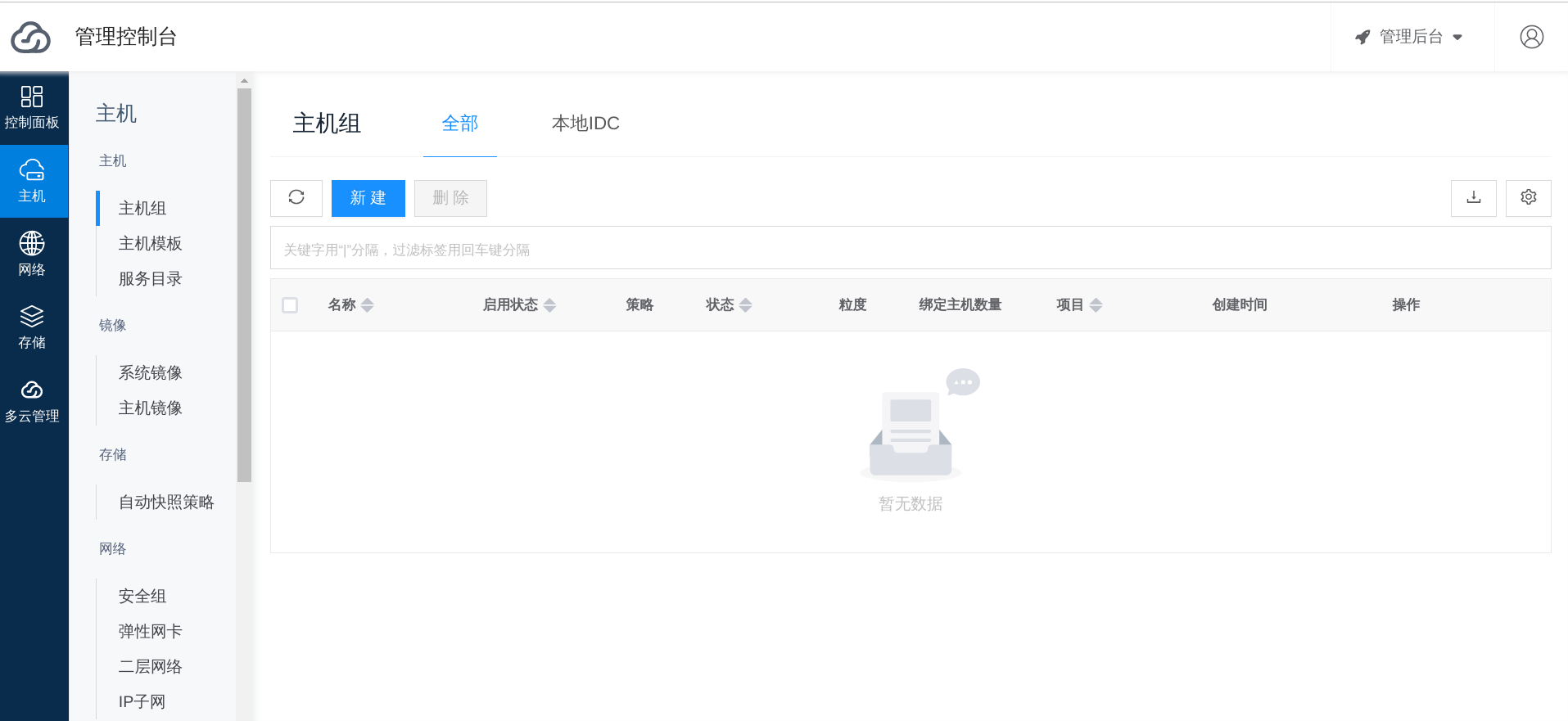
As shown in the figure below, if there is no host in the host list after the environment is deployed, you can troubleshoot as follows:
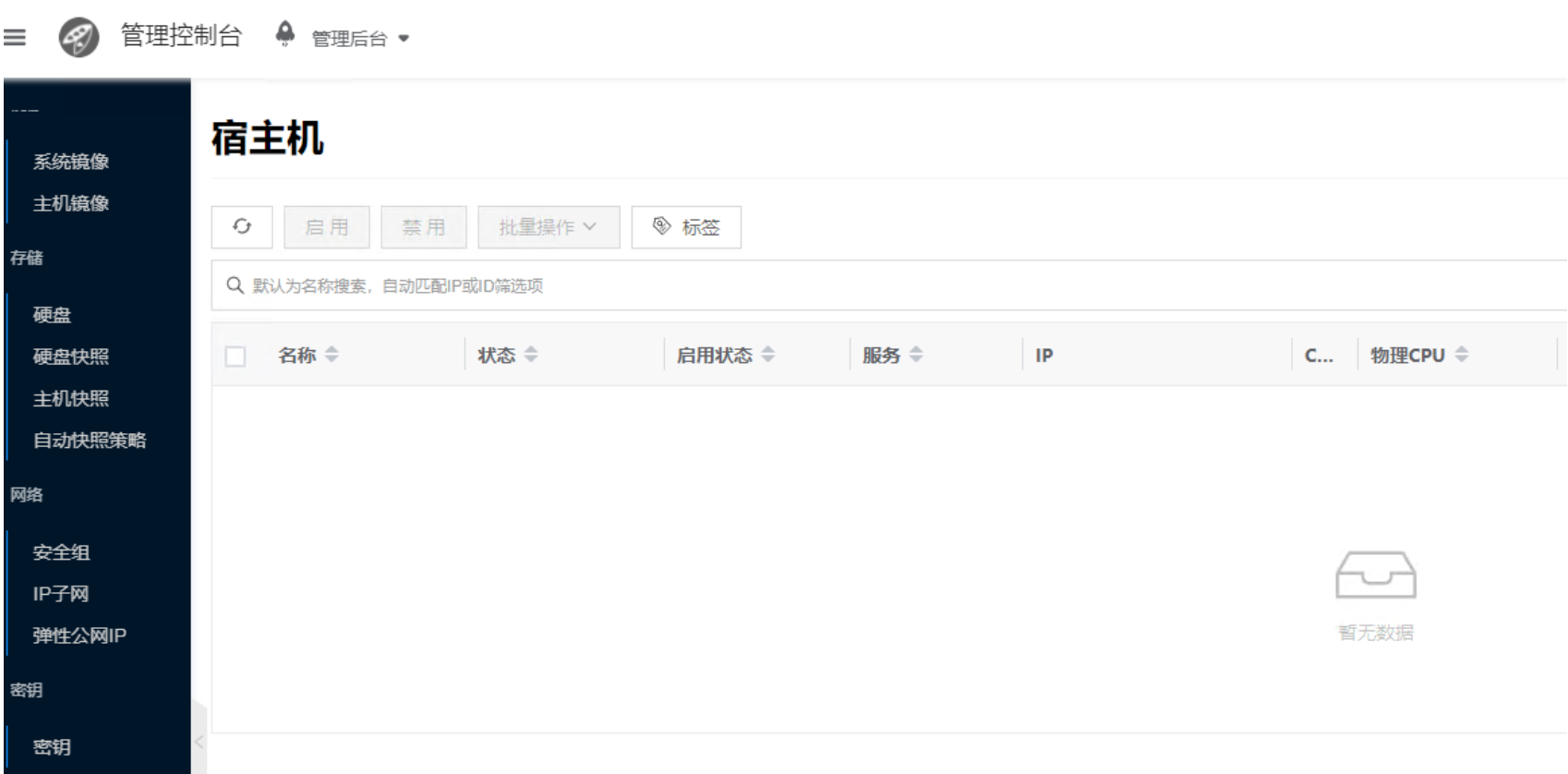
-
To troubleshoot host issues on the control node, please refer to: Troubleshooting Host Service Issues
- If the log error message contains "register failed: try create network: find_matched == false", it means that the IP subnet containing the host has not been successfully created, resulting in host registration failure. Please create an IP subnet containing the host network segment.
# Create an IP subnet containing the host network segment$ climc network-create bcast0 adm0 <start_ip> <end_ip> mask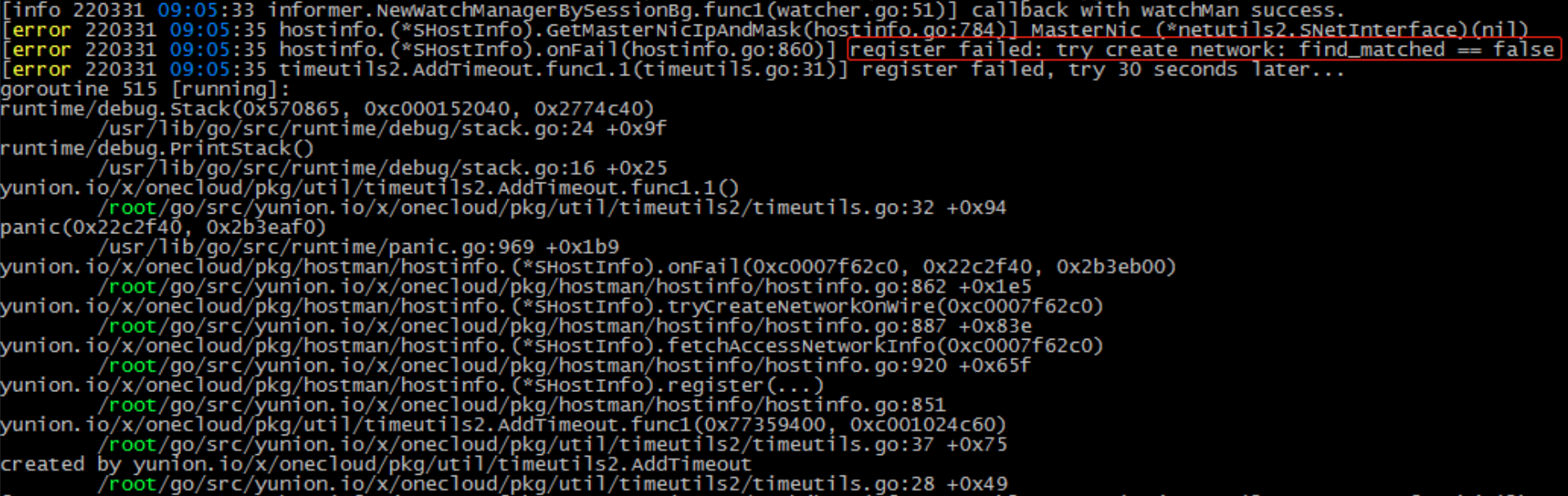
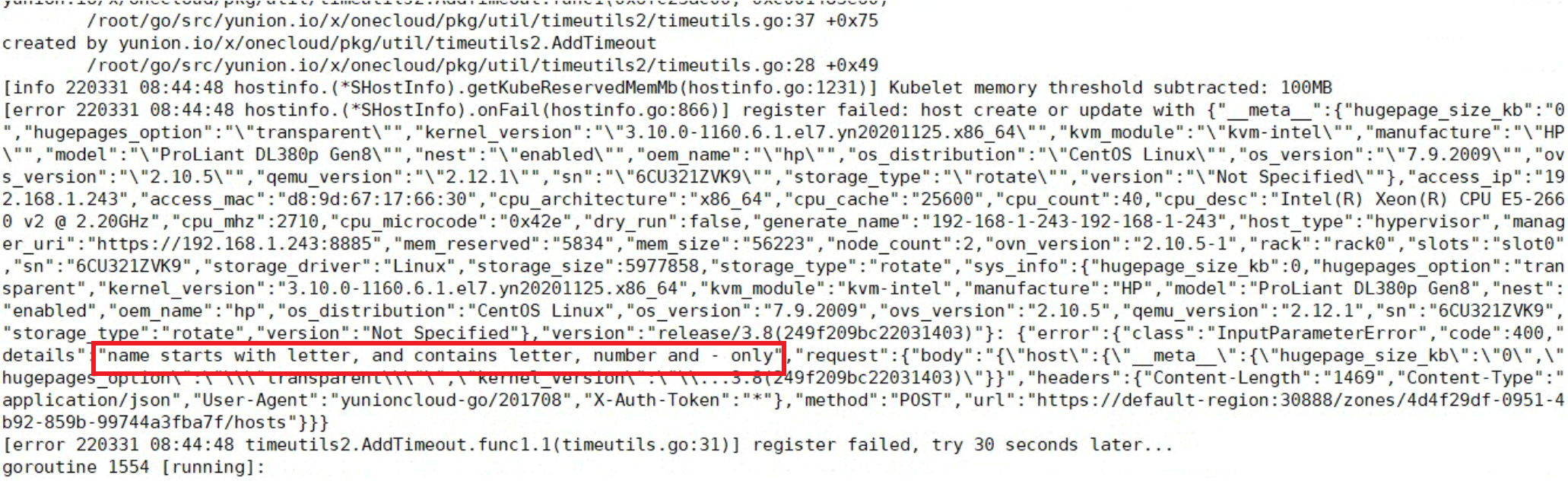
- If the log error message contains "name starts with letter, and contains letter, number and - only", it means that the hostname of the host is not compliant and should be changed to a hostname starting with a letter.
2. Cannot find the virtual machine interface in All in One?
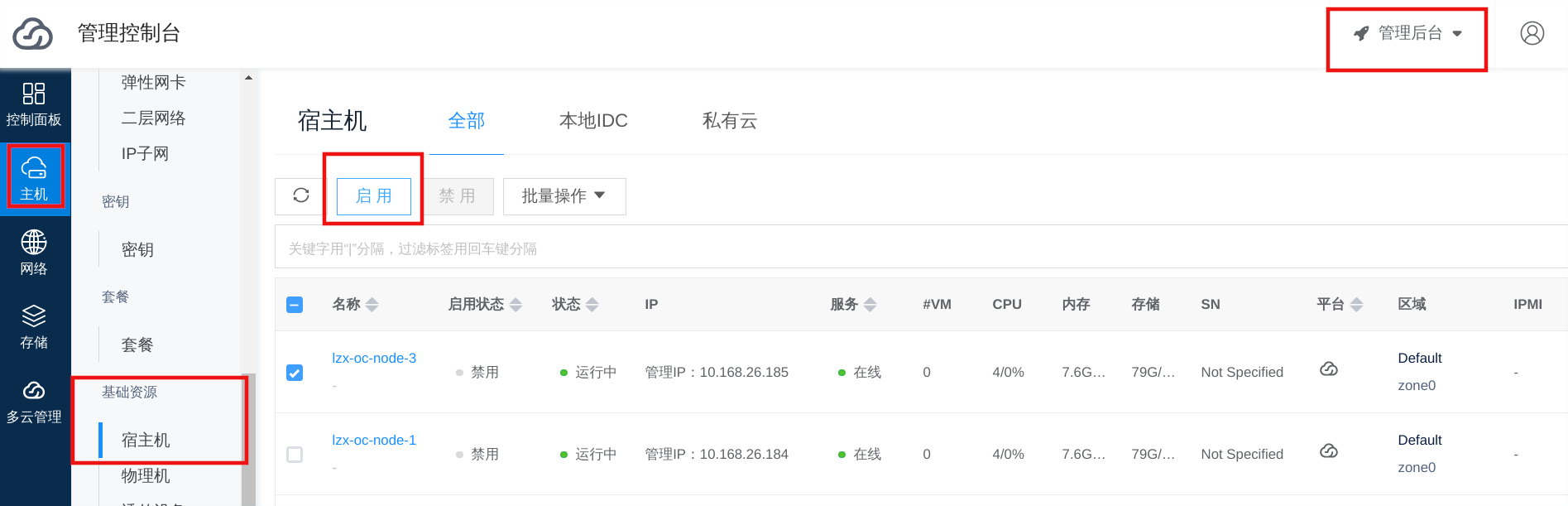
The nodes deployed by All in One will deploy the Cloudpods host computing service as the host machine, which has the ability to create and manage private cloud virtual machines. If there is no virtual machine interface, it means that the host machine is not enabled in the Cloudpods environment.
Please go to the Management Console interface, click Host/Basic Resources/Host to view the host list, enable the corresponding host, and refresh the interface to display the virtual machine interface.
If you want to use Cloudpods private cloud virtual machines, and the host machine is a distribution of CentOS 7, the host machine needs to use the kernel compiled by Cloudpods. You can use the following command to check if the host machine is using the Cloudpods kernel (containing the keyword "yn").
# Check whether to use the yn kernel
uname -a | grep yn
Linux office-controller 3.10.0-1160.6.1.el7.yn20201125.x86_64

# If the kernel version does not contain the keyword "yn", it may be the first time the ocboot is installed, and you can enter the yn kernel by restarting.
reboot
3. Why can't the service start after modifying the node's hostname?
Cloudpods uses Kubernetes at the bottom layer to manage nodes. Kubernetes node names depend on hostname. Changing the hostname will cause nodes to fail to register with the Kubernetes cluster. Therefore, do not modify the hostname. If you have modified it, please change it back to the previous name, and the service will automatically recover.
4. How to reinstall?
Follow the steps below to reinstall:
-
Execute
kubeadm reset -fto delete the Kubernetes cluster. -
Run the
run.pyscript of ocboot again.
5. How to add more nodes?
Refer to the documentation Add Compute Nodes .
6. How to upgrade?
Refer to the documentation Upgrade via ocboot .
7. Other questions?
For other questions, please submit them on the Cloudpods github issues page: https://github.com/yunionio/cloudpods/issues , and we will reply as soon as possible.