Webhook
Introduces the platform event callback mechanism.
The platform's notification service (notify) provides a callback webhook mechanism that allows external systems to receive platform events and related resource information in real time.
How to Enable Webhook Notifications
1. Create a webhook robot
In Authentication & Security -> Message Center -> Robot Management, click the New button and select a robot of type Webhook.
2. Configure Webhook
About the header, body, and msg_key fields:
  header: Refers to additional webhook request headers, can be empty. X-Auth-Token cannot be specified.
  body: Refers to additional webhook message body, can be empty.
  msg_key: Refers to the key for the required message text, can be empty. When empty, the default key is Msg.
  secret_key: Used for signature verification. When specified, the receiver will receive the X-Auth-Token signature.

  Note: When body and msg_key have the same name, body takes priority, which will cause the main message information to be lost. Therefore, msg_key and body must not have the same name.
Example:
Webhook configuration:
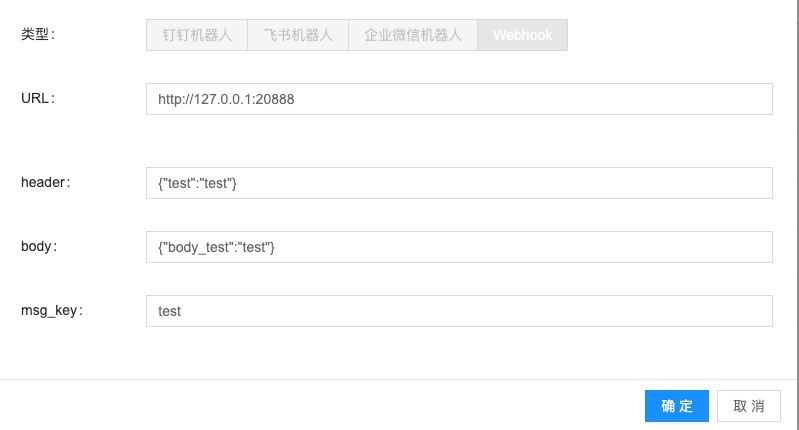
After configuration is complete, click OK, then confirm the webhook robot status is enabled.
3. Enable message subscription and specify recipients
In Authentication & Security -> Message Center -> Message Subscription Settings, create a robot-type recipient in the recipient management for messages you are interested in, and select the Webhook robot created above.
Currently, it is common to configure: "Send notification on resource creation/deletion", "Send notification on resource configuration adjustment", "Send notification on resource attribute changes (including password changes)", and "Send notification on resource synchronization" (may also be called "resource sync").
- Send notification on resource attribute changes (including password changes): Refers to sending notifications when modifying basic resource attributes, such as: modifying resource name, modifying resource remarks, etc.
- Send notification on resource operation failure: Represents sending notifications when resource operations fail, such as: resource creation failure, resource configuration adjustment failure, etc.
- ...
After configuration is complete, click OK, then confirm the message subscription status is enabled.
4. Final Webhook Effect
The message received by webhook is as follows:
response header:
Host: xxx
User-Agent: yunioncloud-go/201708
Accept: */*
Accept-Encoding: *
Content-Type: application/json
Test: test // This is an additional request header
X-Request-Id: 60ec3e
X-Yunion-Event: HOST/UPDATE
X-Yunion-Parent-Id: 0
X-Yunion-Peer-Service-Name: notify
X-Yunion-Span-Id: 0.0
X-Yunion-Span-Name:
X-Yunion-Strace-Debug: true
X-Yunion-Strace-Id: e7b586c9
X-Auth-Token: 63ecc25f3f398e6d6a8b30388ddd7b788e81337989980ae768d8709b1fbd895f

response body:
{
    "body_test":"test", // This is an additional message body
    "test":"{\"action\":\"update\",\"resource_details\":{\"access_ip\":\"\",\"access_mac\":\"\",\"name\":"yunion",...\"}, \"resource_type\":\"host\",\"result\":\"succeed\"}", // When msg_key is empty, the key defaults to Msg
    "action":"update",
    "resource_details":{ // This is detailed resource information
        "access_ip":"",
        "access_mac":"",
        "is_baremetal":false,
        "is_emulated":false,
        "is_import":false,
        "is_maintenance":false,
        "is_prepaid_recycle":false,
        "is_public":true,
        "isolated_device_count":0,
        "manager_uri":"",
        "mem_cmtbound":1,
        "mem_commit":0,
        "mem_commit_bound":1,
        "mem_commit_rate":0,
        "mem_reserved":1328,
        "mem_size":11957,
        "metadata":{},
        "name":"yunion",
        ...
    },
    "resource_type":"host",
    "result":"succeed"
}
Resources Supported for Webhook Event Notifications
- Resources that the cloud management platform supports creating, deleting, updating, and deleting: hosts, virtual machines, disks, RDS, Redis, LB, EIP, VPC, IP subnets, security groups, certificates, DNS, NAT, object storage OSS, NAS;
- Resources that the cloud management platform only supports updating: virtual machines, users, hosts
- Resources that the cloud management platform only supports synchronizing: Webapp, Azure LB;
- Resources that the cloud management platform supports synchronizing and deleting: CDN, WAF, Kafka, Elasticsearch, MongDB, TDSQL (RDS), Memcached (RDS)
Webhook Message Format
All webhook callback requests carry the HTTP header 'X-Yunion-Event', representing the event type that triggered the webhook callback notification.
Except for "validation events", the response body example is as follows:
{
  "action": "<action>",
  "resource_type": "<resource_type>",
  "resource_details": {...}
}
All include the following three fields: Resource synchronization notification: Represents the synchronization of local resource data with cloud resource data triggered by cloud account synchronization.
- action: Represents the action (create/update/delete, etc.)
- resource_type: Represents the resource type, such as server, user, etc.
- resource_details: Represents detailed resource information, the content is consistent with the detailed resource information obtained through the API
Resource Synchronization Events
There are three special action events: sync_create/sync_update/sync_delete, representing the synchronization of local resource data with cloud resource data triggered by cloud account synchronization.
- sync_create: Synchronized a new cloud resource
- sync_update: Local resource updated based on cloud resource
- sync_delete: The cloud resource corresponding to the local resource has been deleted
Validation Events
When adding a webhook, the platform will initiate a VALIDATE type call to the webhook. The webhook needs to handle this type of request and return a 200 success response.
Method: POST
Header:
 Content-Type: application/json
 X-Yunion-Event: VALIDATE
 User-Agent: yunioncloud-go/201708
 Content-Length: 37
 Accept: */*
 Accept-Encoding: *
Body:
{
 "Msg": "This is a validate message."
}
Template Enablement
Currently, you can also adjust whether the webhook uses templates through the climc command: climc notify-robot-update <robot-id> --use-template true
After enabling templates, the sent messages will be consistent with regular robot notifications, and will no longer return JSON data, but will return text information.
Possible Reasons Why Messages Are Not Sent Normally
-
Confirm whether message subscription, recipients, and robots are enabled. If it's a recipient, ensure the notification channel is normal.
-
Confirm whether the resource is within the scope of message subscription.
-
Confirm whether template exceptions caused notification failure
Check operation logs: climc action-show --type notification --fail

If the template keyword appears, you can delete the notify.topic_tbl and notify.subscriber_tbl tables, then restart the notify service to re-cover template text (Note: This will cause loss of all message subscription associations).
Or modify the title_cn, title_en, content_cn, content_en fields in notify.topic_tbl. For related syntax, refer to go-template.
Signature Verification
Signature Principle
- The sender uses the shared secret + raw message body to generate a hash (signature) via HMAC-SHA256.
- The sender puts the signature in the HTTP request header (X-Auth-Token).
- The receiver uses the same shared secret and the received message body to recompute the signature, then compares it with the signature in the request header:
- Match: message is valid and unaltered.
- Mismatch: message is invalid or has been tampered with.
Preconditions for Verification
- Sender and receiver must share the same secret key (Secret Key). A random string (length ≥ 32) is recommended.
- The receiver must obtain the raw, unmodified message body (no JSON formatting, whitespace changes, etc.).
- Ensure the X-Auth-Token request header is present and correctly formatted.
Verification Steps (General Process)
Step 1: Read request data
Read the raw message body of the HTTP POST request (as bytes; avoid string conversion that may cause encoding issues). Read the X-Auth-Token value from the request header (e.g., 7f9a8a9f8e7d6b5c4a3b2a1f0e9d8c7b6a5b4c3d2e1f0a9b8c7d6e5f4a3b2c1d0).
Step 2: Recompute the signature
- Use the HMAC-SHA256 algorithm with the shared secret as the key and the raw message body as the data to produce the hash:
h := hmac.New(sha256.New, []byte(secretKey))
h.Write(payloadBytes)
expectedSig := h.Sum(nil)
- Convert the hash to a hexadecimal string (same format as the sender).
Step 3: Compare signatures securely
Do not use plain string comparison (e.g., ==). Use a constant-time comparison (e.g., Go's hmac.Equal) to prevent timing attacks.
Result:
true: signature verification passed; process the message.false: signature verification failed; reject and return 401.