Azure Create Subscription Settings
Describes how to grant permissions to applications to support creating subscriptions
Prerequisites
- Azure account is an international account
- Azure account is an enterprise account
- The account entered in the platform and the application in this document are the same
Log in to Azure Console, Enable CloudShell
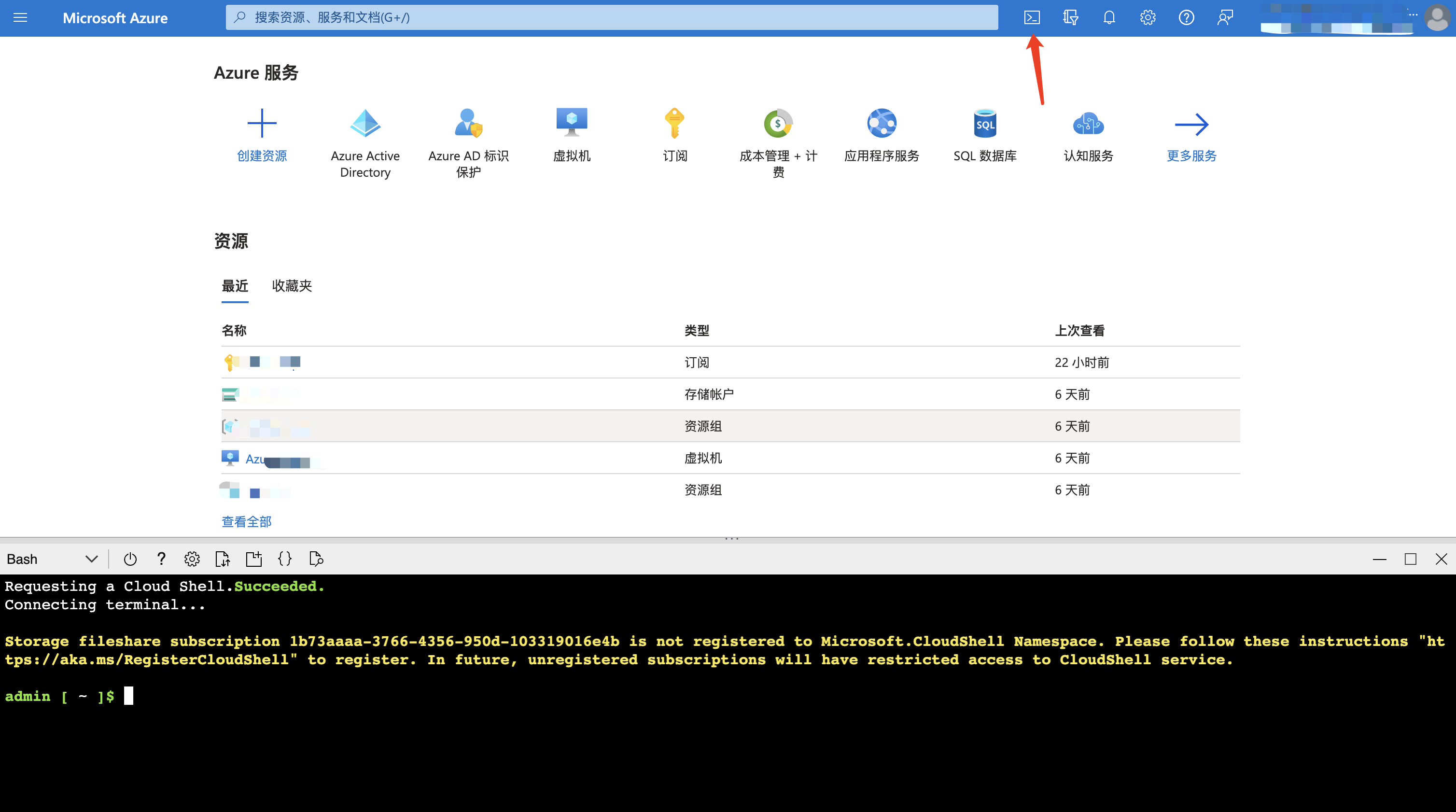
Get enrollment account id
Execute az billing enrollment-account list in the cloud shell above, as shown below

Here assume the id is /providers/Microsoft.Billing/enrollmentAccounts/747ddfe5-xxxx-xxxx-xxxx-xxxxxxxxxxxx, save it for later use
Get Application Id
Go to Azure Active Directory => App registrations, find the application in use, and obtain the Application (client) ID, then execute in cloud shell
az ad sp show --id 7ffdacec-8769-4802-9975-4ba7a2906ec8 | grep id
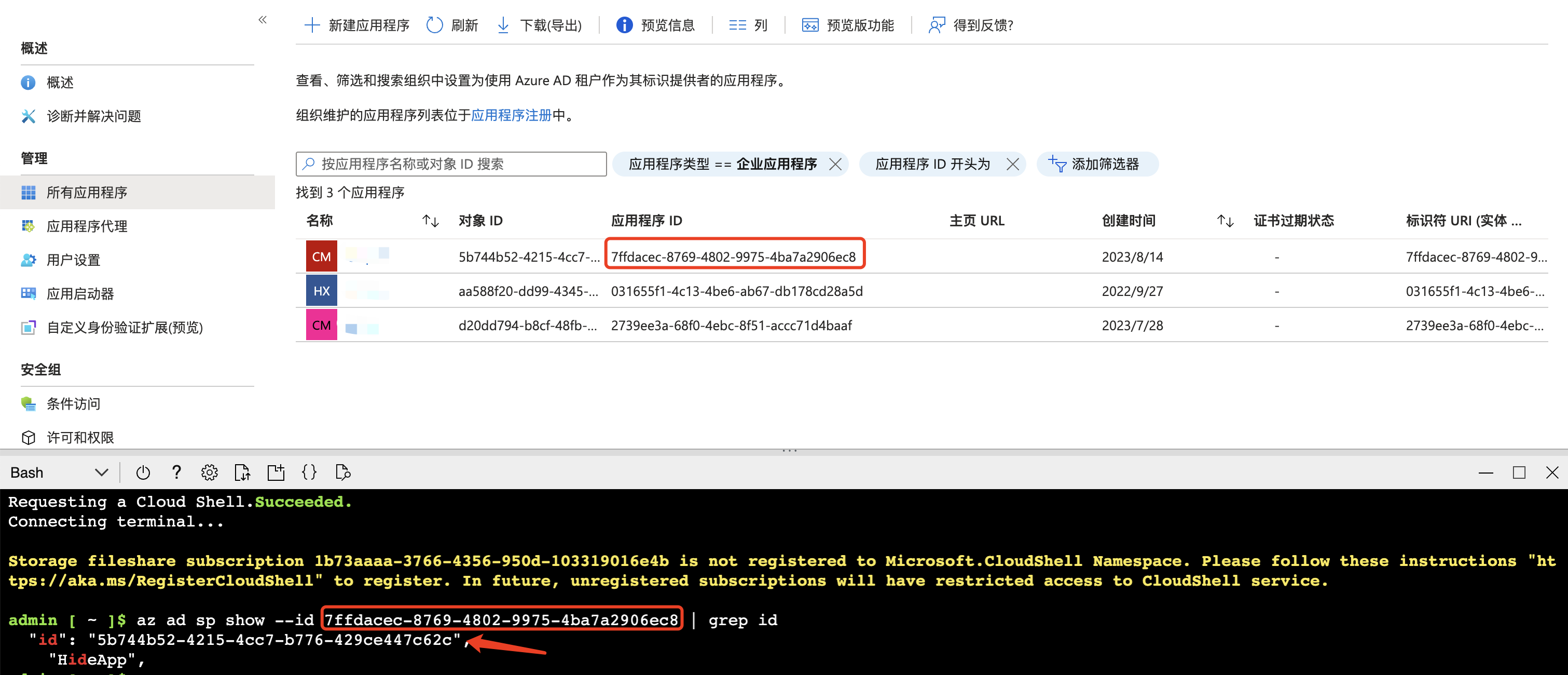
Obtain the Application Id as 5b744b52-4215-4cc7-b776-429ce447c62c, save it for later use
Grant Application enrollment account Owner Permission
Open cloud shell and execute
# Here 5b744b52-4215-4cc7-b776-429ce447c62c is the Application Id
# /providers/Microsoft.Billing/enrollmentAccounts/747ddfe5-xxxx-xxxx-xxxx-xxxxxxxxxxxx is the enrollment account id
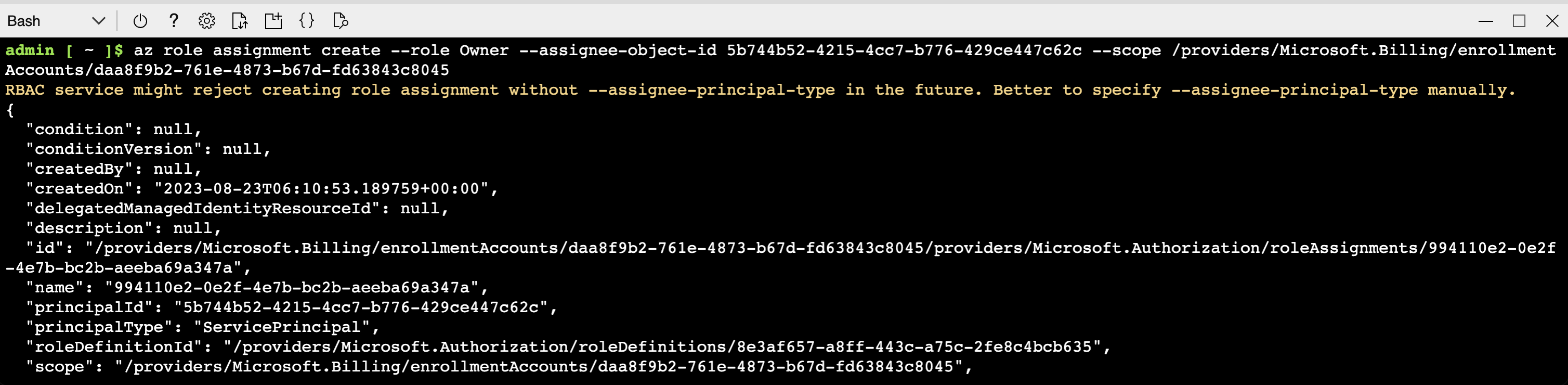
az role assignment create --role Owner --assignee-object-id 5b744b52-4215-4cc7-b776-429ce447c62c --scope /providers/Microsoft.Billing/enrollmentAccounts/747ddfe5-xxxx-xxxx-xxxx-xxxxxxxxxxxx
As shown in the figure, the permission has been granted successfully
If you encounter an EntitlementNotFound error when creating a subscription, you need to enable Create Subscription Permission on ea according to the documentation