Cloud Account
Cloud accounts are used to establish connections with private cloud and public cloud platforms, synchronize related resources, and perform management operations.
The Cloud Management Platform establishes connections with different platforms through cloud accounts and synchronizes platform resources to the Cloud Management Platform for management. Resources of a cloud account belong to a specific domain. Resources in different domains are isolated, and the sharing feature can be used to allow other domains to use cloud account resources. When three-level permissions are not enabled in the system, all cloud resources belong to the default domain by default.
Currently, the platform supports managing the following platforms:
- Public Cloud: Alibaba Cloud (Public Cloud and Finance Cloud), Azure, Tencent Cloud, AWS, Huawei Cloud, UCloud, Google Cloud, China Telecom Cloud, etc. More cloud platforms will be supported in the future to meet user needs.
- Private Cloud: VMware, ZStack, DStack, OpenStack, Alibaba Apsara Stack, HCSO, etc.
Public cloud platform billing collection rules:
- Only Alibaba Cloud, AWS, Azure, Huawei Cloud, and Google support configuring billing file access information for billing collection. Tencent Cloud can collect billing information via API.
- When users configure or modify billing file information, the current month's bills will be collected. For example: if billing file access information is configured on the 3rd, bills from the 1st to 2nd will be collected; if configured on the 30th, bills from the 1st to 29th will be collected. If configured on the 1st, bills from the 1st to 31st of the previous month will be collected.
- When billing triggers multiple collections, the last collection result prevails.
Entry: In the Cloud Management Platform, click the navigation menu in the upper left corner, and in the pop-up left menu bar, click the "Multi-Cloud Management/Cloud Accounts/Cloud Accounts" menu item to enter the Cloud Accounts page.
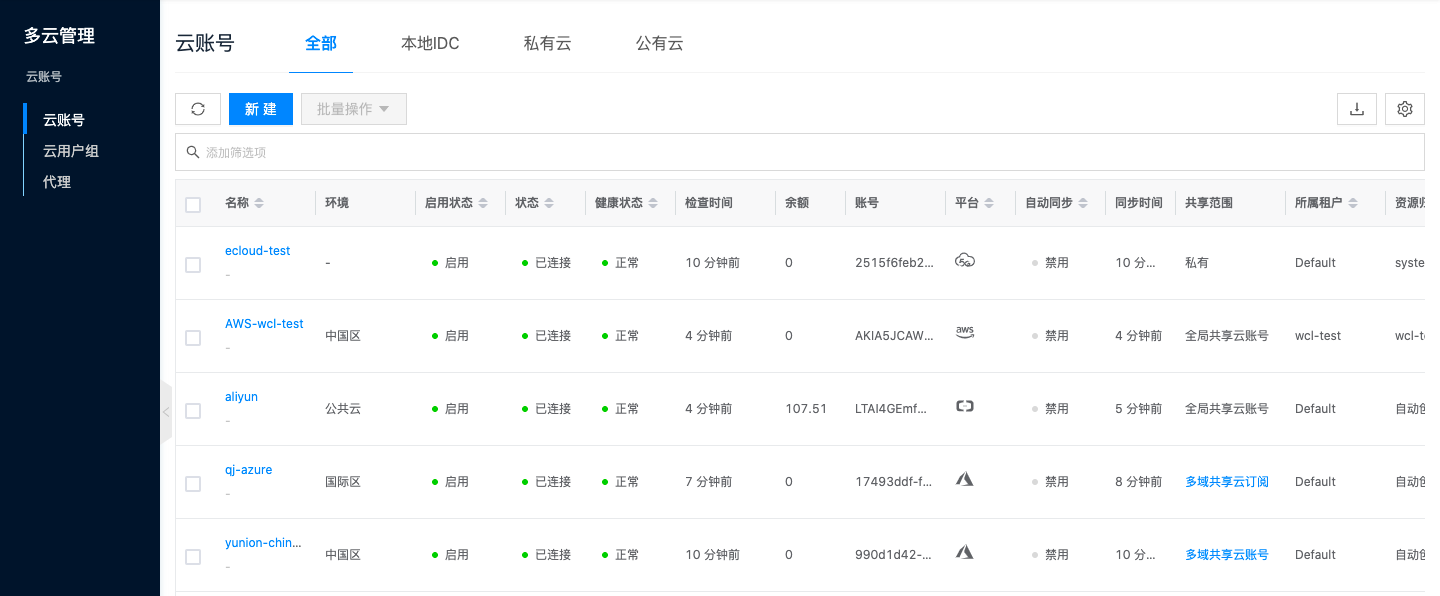
Create Cloud Account
- To manage public cloud platforms on the platform, the cloud account must have at least management permissions for the operated resources. It is recommended to grant the cloud account management permissions for all platform features.
- The domain of an added cloud account cannot be changed. If a user needs to synchronize cloud account resources to another domain, they can delete the cloud account on the platform and re-add the cloud account to the specified domain. Deleting a cloud account on the platform only removes the management of cloud account resources and will not affect the resources on the cloud account.
Create Alibaba Cloud Account
- On the Cloud Accounts page, click the "Create" button above the list to enter the Create Cloud Account page.
- Select the cloud platform as Alibaba Cloud, click the "Next: Configure Cloud Account" button to enter the Configure Cloud Account page.
- Configure the following parameters:
- Name: The name of the Alibaba Cloud account.
- Account Type: Currently supports connecting to Alibaba Cloud accounts for Public Cloud and Finance Cloud.
- Key ID/Secret: Connect to the Alibaba Cloud platform through Access Key authentication. The Access Key consists of a Key ID (Access Key ID) and Secret (Access Key Secret). For details, please refer to Alibaba Cloud Parameter Retrieval Methods.
- Domain: Select the domain to which the cloud account belongs. When the cloud account is in private state, all project users under the domain can use the cloud account to create resources.
- Resource Ownership Method: Defaults to specified project, also supports ownership based on cloud project.
- Resource Ownership Project: When the resource ownership method is set to specified project, you can select a local project on the platform to synchronize cloud account resources to. Local projects are filtered by domain. When the resource ownership method is set to based on cloud project, resources will be synchronized to local projects with the same name as the cloud project. If a resource has no cloud project attribute, it will belong to the specified project.
- Sync Policy: When enabled, resources are assigned to specified projects based on tag-to-resource-project mapping rules. The sync policy only takes effect during cloud account synchronization.
- Sync Policy Scope: Displayed after enabling sync policy, supports selecting resource tags and project tags.
- Block Sync Resources: When enabled, supports selecting resource types to block. Multiple selections are supported. Blocked resource types will not be synchronized during cloud account synchronization.
- Proxy: Set this when the cloud account requires a proxy for normal access. Leave empty for direct connection. If there is no suitable proxy, click the "Create" hyperlink directly, and set the relevant parameters in the pop-up Create Proxy dialog to create a proxy.
- Enable SSO Login: After enabling this, the system's SAML information will be automatically synchronized to the cloud account, becoming the identity provider for cloud login. This enables single sign-on from this system to the public cloud platform.
- Read-Only Mode: When enabled, the cloud account will only perform resource synchronization operations and cannot perform other task operations such as creating, deleting, or modifying.
- Sharing Scope: Set the sharing scope of the cloud account. The default is not shared, meaning only the domain where the cloud account resides can use the account. If set to global sharing, all users on the platform can use this cloud account to create resources.
- Click the "Connection Test" button to test whether the input parameters are correct.
- After successful testing, click the "Next: Configure Sync Resource Regions" button to enter the Configure Sync Resource Regions page. This configuration can be modified on the cloud account details page - Subscriptions - Regions (all regions are synchronized by default). To synchronize all regions by default on the platform, you can directly click the "Skip" button.
- After successful configuration, click the "Next: Billing File Access Information (Optional)" button to enter the Billing File Access Information page to configure the cloud account's billing parameters so that users can view the cloud account's billing information in the Expenses section. The Billing File Access Information page is optional. If you do not need to view cloud account billing information on the platform, you can directly click the "Skip" button. If you need to view billing information on the platform, please configure the relevant parameters. After configuration is complete and the test is successful, click the "OK" button, and proceed to the Scheduled Sync Task Settings page to configure the cloud account's sync tasks to make the cloud account's automatic sync behavior more controllable.
If the added Alibaba Cloud account is a new account, please first enable OSS service on the Alibaba Cloud platform.
- Cloud Account Type: Includes primary account and associated account. Before using an associated account, please ensure the primary account has been imported to the platform, and select the primary account when using the associated account.
- Bucket URL: The URL of the bucket where billing files are stored. For details, please refer to How to Get the Billing Bucket URL?.
- File Prefix: When the billing bucket contains files other than billing files, you need to configure the file prefix to only retrieve billing files from the bucket. The billing file prefix for Alibaba Cloud is the account ID, which can be viewed in Account Management - Security Settings.
- Billing Analysis Scope: Set the scope for the platform to analyze cloud account billing. Currently only supports accounts managed by this platform.
- Accounts Managed by This Platform: Collects billing information for the primary account and sub-accounts associated with the primary account. If the primary account only serves as a payment account for other accounts, billing files collected from other accounts will be discarded.
- Collect Bills Immediately: The platform automatically collects bills at 4 AM every day by default. After enabling this, bills will be collected immediately after configuring the billing file access information.
- Time Range: When immediate bill collection is enabled, you can set a time range to immediately collect bills within that range. Please ensure there is billing data within the selected time range. It is recommended to collect bills within 1-6 months, otherwise too much data may cause excessive system pressure and affect daily bill collection tasks.
- The Scheduled Sync Task Settings page is optional. If you do not need to set up automatic sync tasks on the platform, you can directly click the "Skip" button. If you need to set up automatic sync times for the cloud account on the platform, please configure the relevant parameters. After configuration is complete and the test passes, click the "OK" button to create the Alibaba Cloud account.
Alibaba Cloud Parameter Retrieval Methods
Primary Account AccessKey Retrieval
-
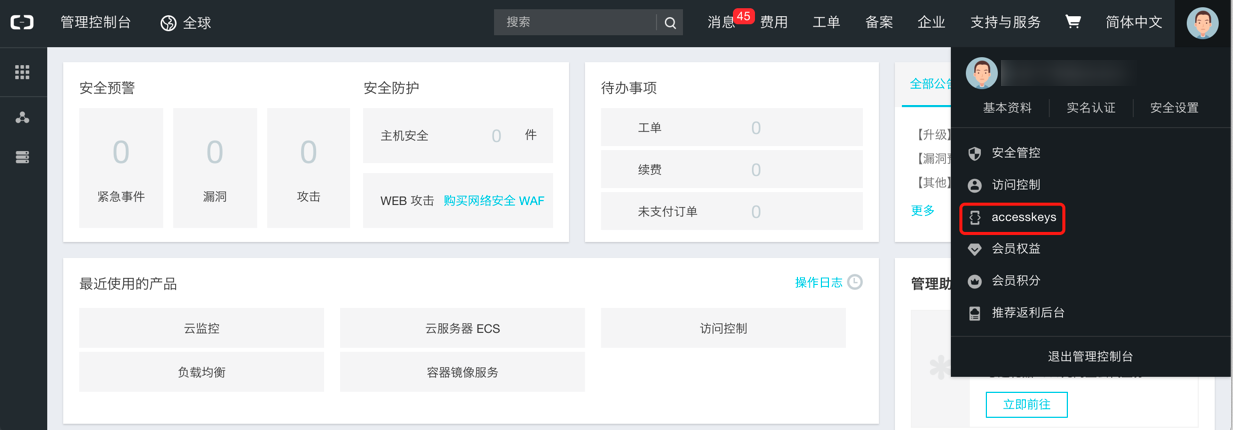
Log in to the Alibaba Cloud console using the primary account, click the personal information in the upper right corner of the page, expand the dropdown menu, and click the "accesskeys" menu item to enter the Security Information Management page.
-
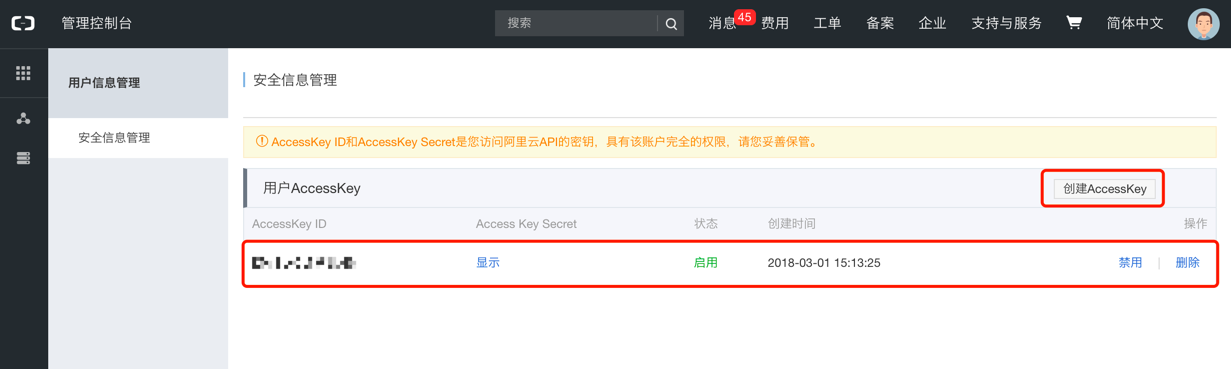
On the Security Information Management page, you can view existing AccessKey information, or click the "Create AccessKey" button to create a new user AccessKey. When creating a new AccessKey, Alibaba Cloud will send a verification code to the account contact's phone, and the AccessKey can only be created after verification.
-
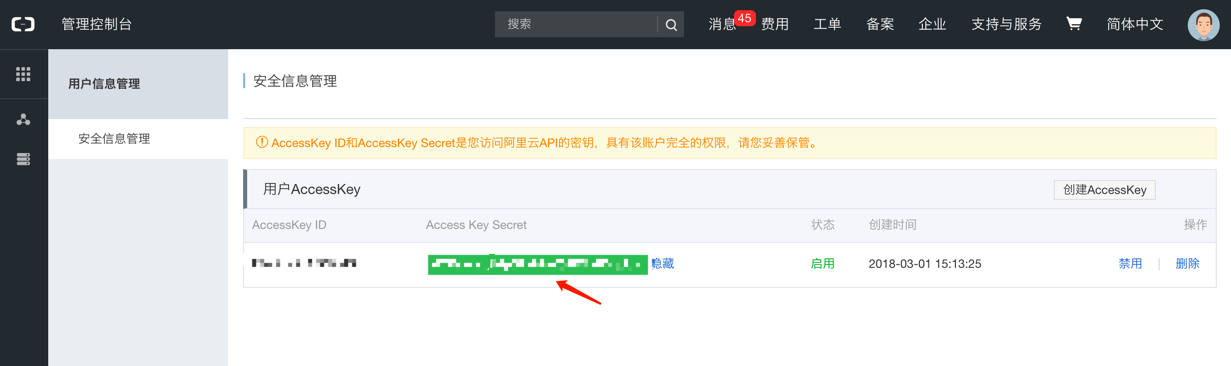
The Access Key Secret is hidden by default. Click the "Show" link, and Alibaba Cloud will send a verification code to the account owner's contact phone. The Access Key Secret will only be displayed after verification.
How RAM Sub-Account Gets Access Key
-
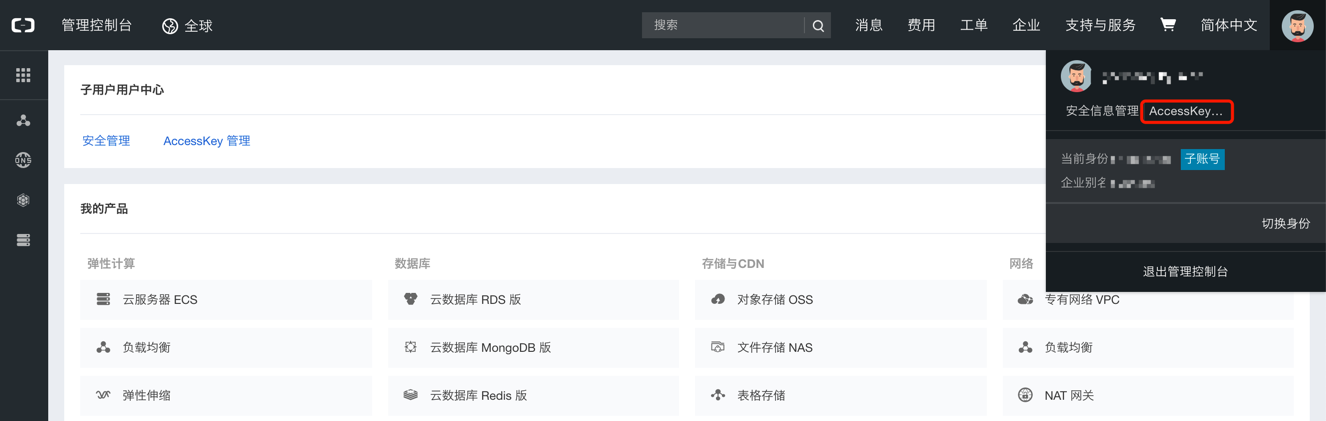
Log in to the Alibaba Cloud console using the sub-account, click the personal information in the upper right corner of the page, expand the dropdown menu, and click "accesskey..." to enter the Security Information Management page.
-
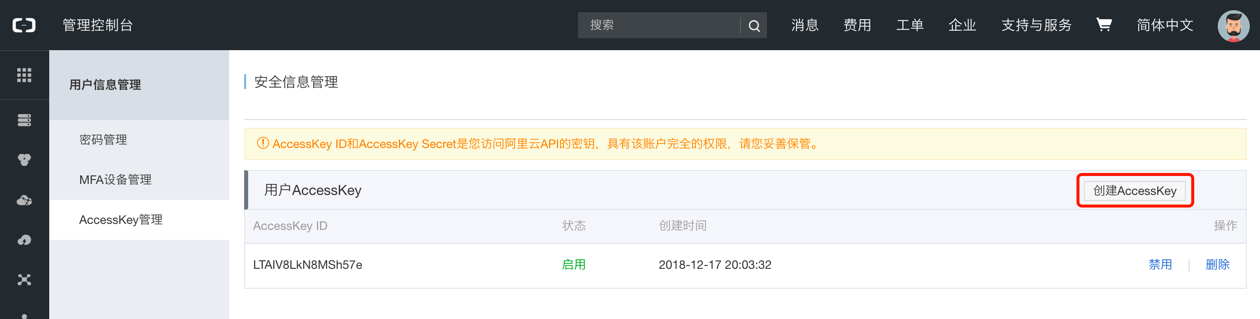
On the Security Information Management page, click the "Create AccessKey" button to create an AccessKey.
-
After successful creation, the AccessKeySecret information will only be displayed once. Please save it promptly.
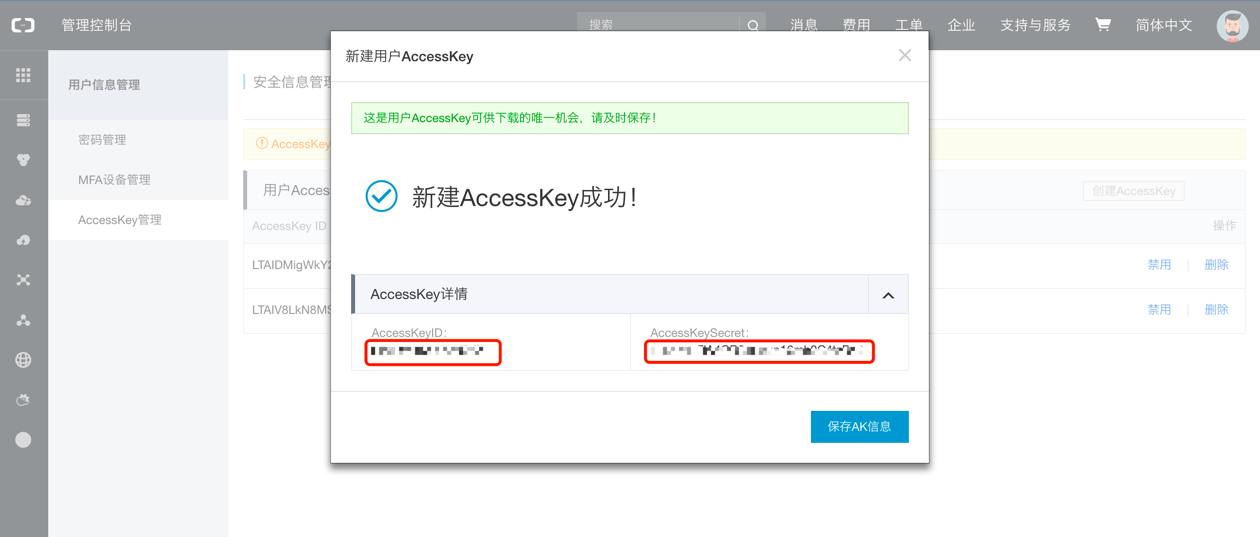
- The AccessKeySecret of an already created AccessKey cannot be viewed again.
- To synchronize Alibaba Cloud resource directory information, you need to additionally add AliyunSTSAssumeRoleAccess (permission to call the STS service AssumeRole API) and AliyunResourceDirectoryReadOnlyAccess (resource directory service read-only) permissions.
What Permissions Does the Cloud Account Need to Manage Alibaba Cloud Resources Through the Platform
To manage Alibaba Cloud resources using the platform, the connected cloud account needs sufficient permissions. Below are the permission policies used for managing cloud resources. If error messages occur due to the connected account not being authorized, please authorize the connected account according to the following instructions:
| Permission Notes | Read-Only Permission | Read-Write Permission |
|---|---|---|
| Permission to manage all Alibaba Cloud resources | ReadOnlyAccess | AdministratorAccess |
| Permission to manage Elastic Compute Service (ECS) | AliyunECSReadOnlyAccess | AliyunECSFullAccess |
| Permission to manage Virtual Private Cloud (VPC) | AliyunVPCReadOnlyAccess | AliyunVPCFullAccess |
| Permission to manage Elastic IP Address (EIP) | AliyunEIPReadOnlyAccess | AliyunEIPFullAccess |
| Permission to manage ECS Elastic Network Interfaces | AliyunVPCNetworkIntelligenceReadOnlyAccess | AliyunECSNetworkInterfaceManagementAccess |
| Permission to manage Object Storage Service (OSS) | AliyunOSSReadOnlyAccess | AliyunOSSFullAccess |
| Permission to manage NAT Gateway | AliyunNATGatewayReadOnlyAccess | AliyunNATGatewayFullAccess |
| Permission to manage Application Load Balancer (ALB) | AliyunALBReadOnlyAccess | AliyunALBFullAccess |
| Permission to manage Server Load Balancer (SLB) | AliyunSLBReadOnlyAccess | AliyunSLBFullAccess |
| Permission to manage ApsaraDB (RDS) | AliyunRDSReadOnlyAccess | AliyunRDSFullAccess |
| Permission to manage ApsaraDB for Redis (Kvstore) | AliyunKvstoreReadOnlyAccess | AliyunKvstoreFullAccess |
| Permission to manage ActionTrail | AliyunActionTrailFullAccess | AliyunActionTrailFullAccess |
| Permission to manage File Storage Service (NAS) | AliyunNASReadOnlyAccess | AliyunNASFullAccess |
| Permission to manage Web Application Firewall (WAF) | AliyunYundunWAFReadOnlyAccess | AliyunYundunWAFFullAccess |
| Permission to manage Resource Access Management (RAM), i.e., manage users and authorization | AliyunRAMReadOnlyAccess | AliyunRAMFullAccess |
| Permission to manage Public DNS (PubDNS) | AliyunPubDNSReadOnlyAccess | AliyunPubDNSFullAccess |
| Permission to manage DNS Resolution | AliyunDNSReadOnlyAccess | AliyunDNSFullAccess |
| Permission to manage Enterprise Finance Console (EFC) | AliyunFinanceConsoleReadOnlyAccess | AliyunFinanceConsoleFullAccess |
| Permission to manage CloudMonitor | AliyunCloudMonitorReadOnlyAccess | AliyunCloudMonitorFullAccess |
| Permission to manage Resource Directory | AliyunCloudMonitorReadOnlyAccess | AliyunResourceDirectoryReadOnlyAccess |
How to Authorize a Sub-Account
-
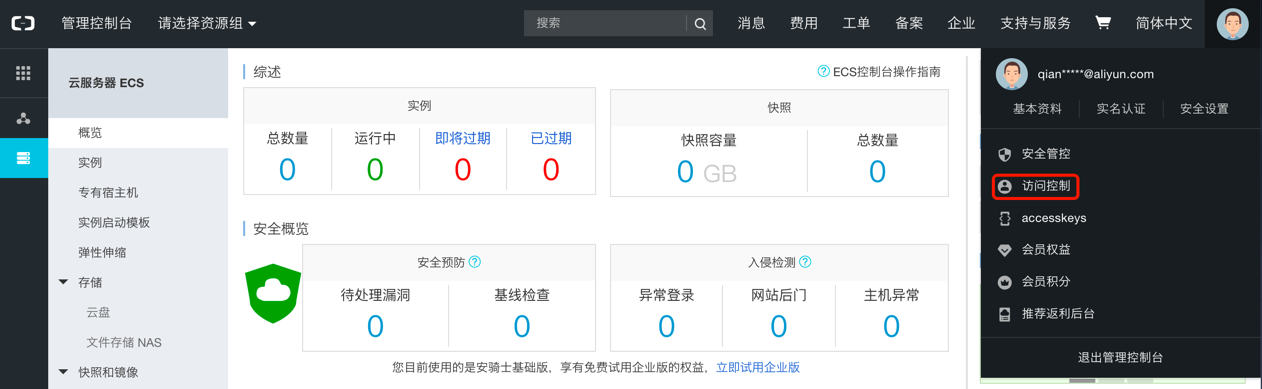
Log in to the Alibaba Cloud console using the primary account, click the personal information in the upper right corner of the page, expand the dropdown menu, and click the "Access Control" menu item to enter the Access Control page.
-
Click the "User Management" menu item in the left menu bar to enter the User Management page.
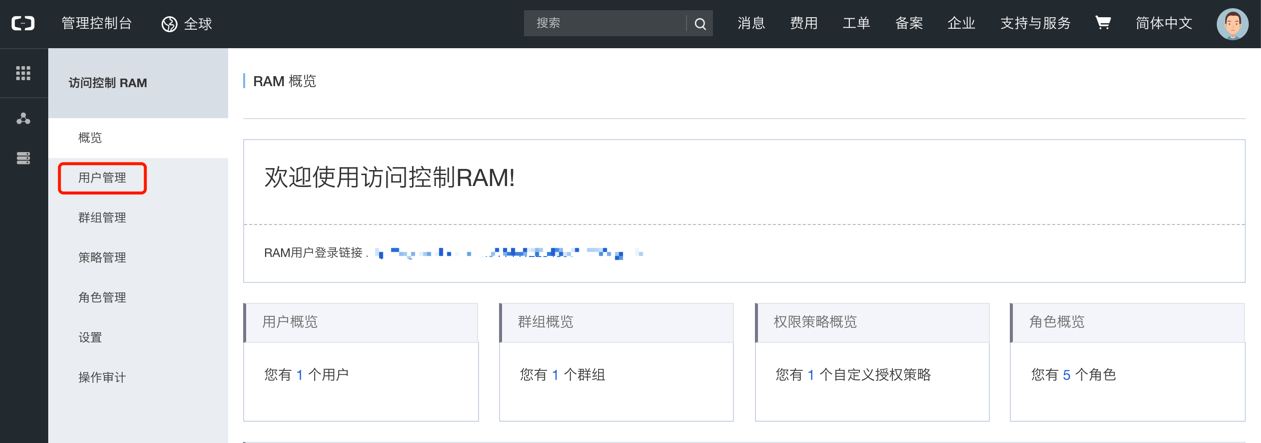
-
On the User Management page, click the "Authorize" button in the operation column of the specified user to perform authorization. For the permissions that the account must have to manage Alibaba Cloud resources through the platform, please see What Permissions Does the Cloud Account Need to Manage Alibaba Cloud Resources Through the Platform.
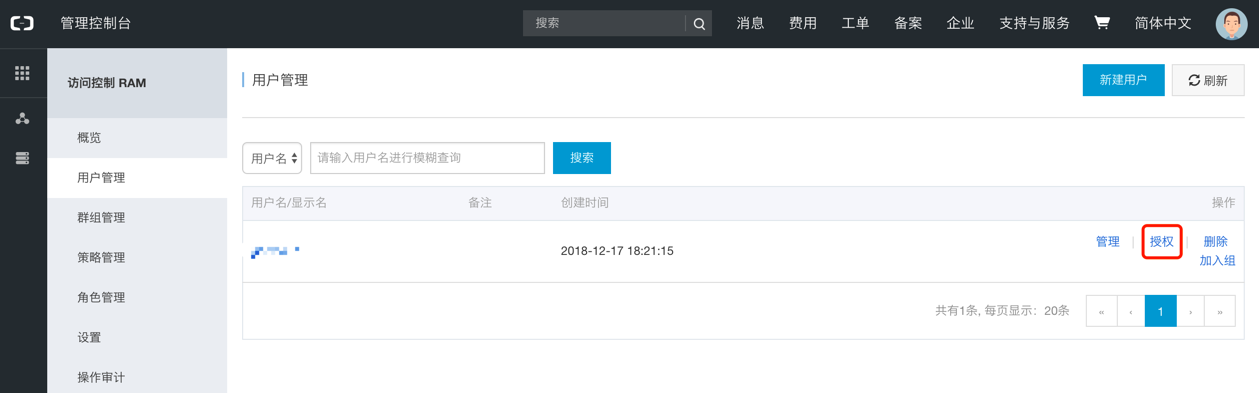
How to Get the Billing Bucket URL?
Alibaba Cloud international accounts do not have billing bucket configuration. You need to contact Alibaba Cloud customer service for assistance with pushing.
-
Taking an Alibaba Cloud primary account as an example, log in to the Alibaba Cloud console with the primary account, click the dropdown menu "User Center" under the top [Expenses] menu to enter the Expenses User Center page.
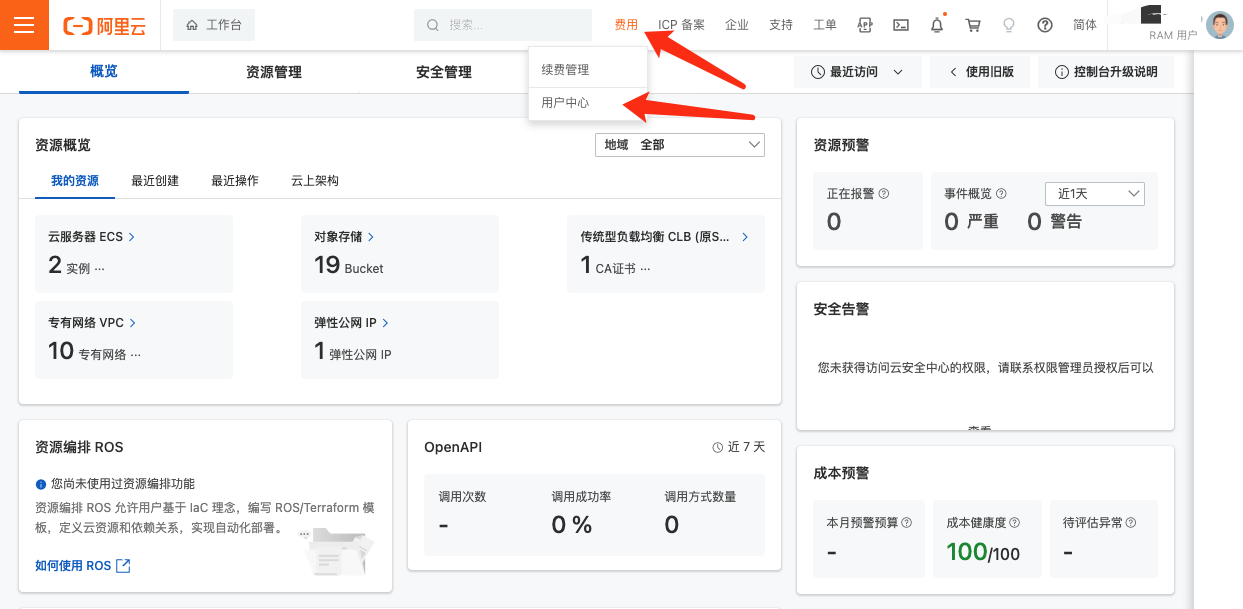
-
Click the "Set Bill Data Storage" button to enter the Bill Data Storage page.
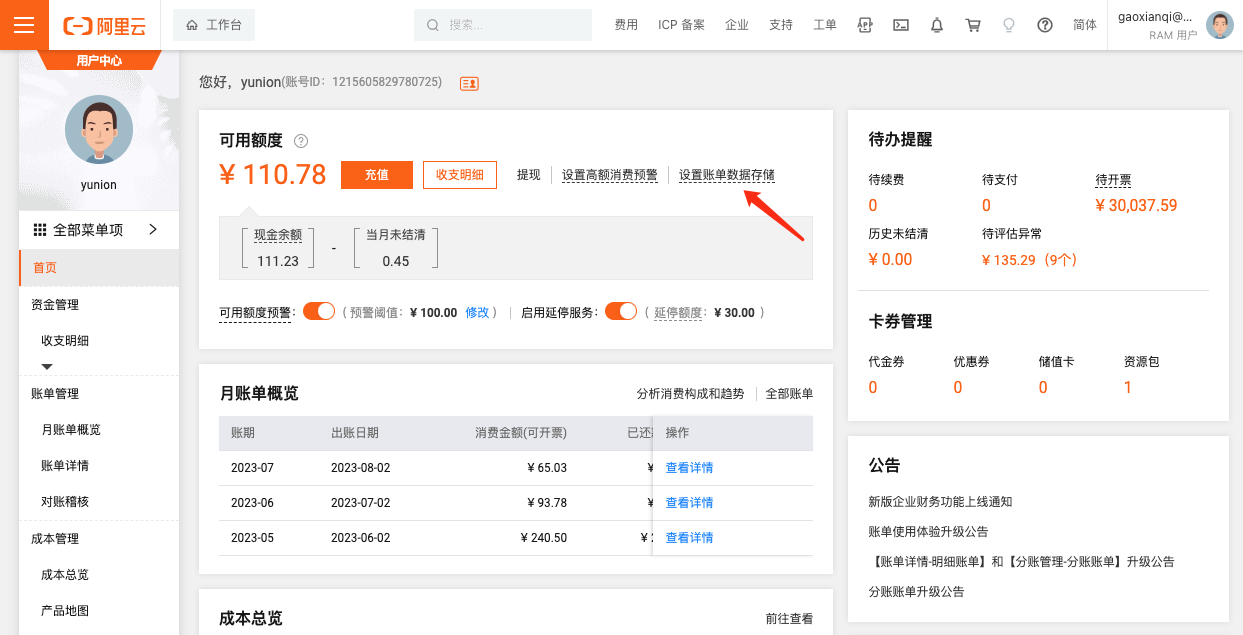
-
View and record the bucket names for BillingItemDetail and SplitItemDetailDaily. If not set, you need to subscribe these two bills to the same bucket on this page. After setup, daily incremental billing data will be synchronized to the corresponding OSS. It is recommended that the bucket only stores billing files.
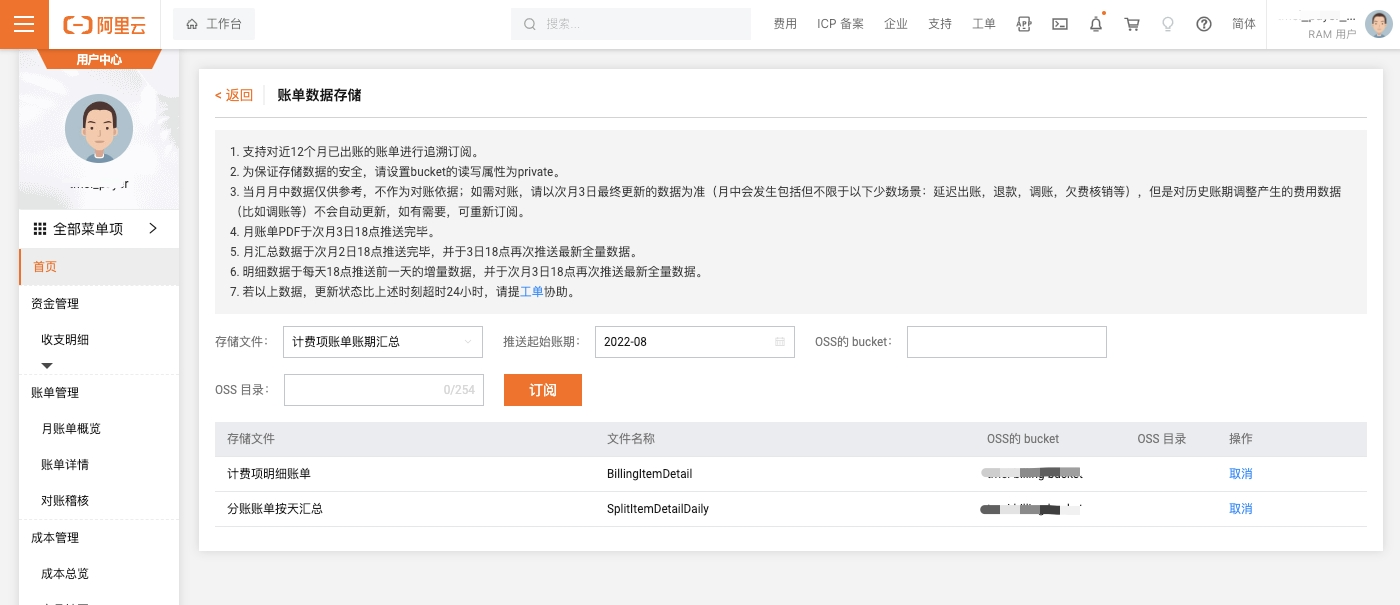
Since tags for Alibaba Cloud OSS and similar resource types are not available in the billing item consumption details, they only appear in the split bill. Therefore, if you need to use tags on expenses to analyze costs, please configure SplitItemDetailDaily to the storage bucket.
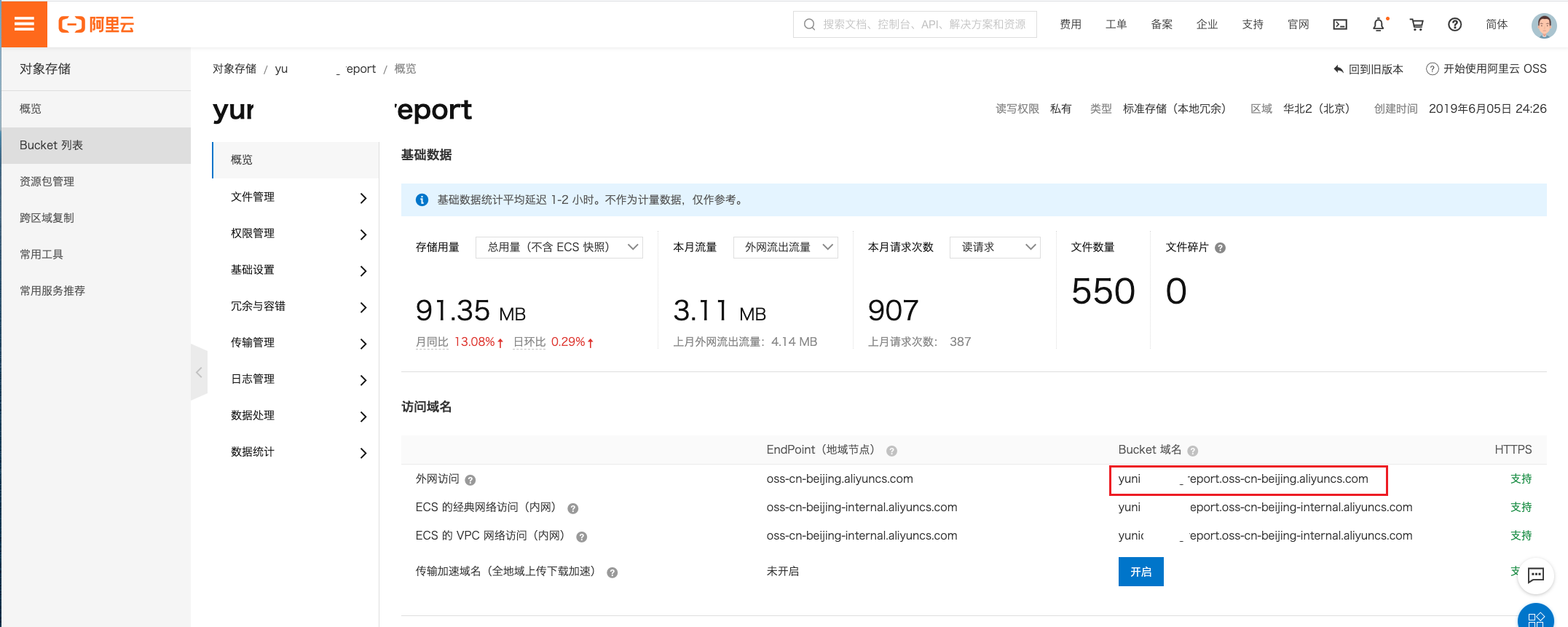
- On the Object Storage page of the Alibaba Cloud console, view the overview information of the corresponding bucket. The bucket domain name is the bucket URL.
Create AWS Account
- On the Public Cloud Accounts page, click the "Create" button above the list to enter the Create Cloud Account page.
- Select the cloud platform as AWS, click the "Next: Configure Cloud Account" button to enter the Configure Cloud Account page.
- Configure the following parameters:
- Name: The name of the AWS account.
- Account Type: Currently supports connecting to AWS cloud accounts in the Global region and China region.
- Key ID/Secret: The Key ID and Secret information for connecting to the AWS platform. For details, please refer to AWS Parameter Retrieval Methods. To manage AWS organization accounts, please refer to How to Manage AWS Organizations Accounts. AWS Organization-associated organization accounts will be displayed as cloud subscriptions.
- Domain: Select the domain to which the cloud account belongs. When the cloud account is in private state, all project users under the domain can use the cloud account to create resources.
- Resource Ownership Method: Defaults to specified project, also supports ownership based on cloud project.
- Resource Ownership Project: When the resource ownership method is set to specified project, you can select a local project on the platform to synchronize cloud account resources to. Local projects are filtered by domain. When the resource ownership method is set to based on cloud project, resources will be synchronized to local projects with the same name as the cloud project. If a resource has no cloud project attribute, it will belong to the specified project.
- Sync Policy: When enabled, resources are assigned to specified projects based on tag-to-resource-project mapping rules. The sync policy only takes effect during cloud account synchronization.
- Sync Policy Scope: Displayed after enabling sync policy, supports selecting resource tags and project tags.
- Block Sync Resources: When enabled, supports selecting resource types to block. Multiple selections are supported. Blocked resource types will not be synchronized during cloud account synchronization.
- Proxy: Set this when the cloud account requires a proxy for normal access. Leave empty for direct connection. If there is no suitable proxy, click the "Create" hyperlink directly, and set the relevant parameters in the pop-up Create Proxy dialog to create a proxy.
- Enable SSO Login: After enabling this, the system's SAML information will be automatically synchronized to the cloud account, becoming the identity provider for cloud login. This enables single sign-on from this system to the public cloud platform.
- Read-Only Mode: When enabled, the cloud account will only perform resource synchronization operations and cannot perform other task operations such as creating, deleting, or modifying.
- Sharing Scope: Set the sharing scope of the cloud account. The default is not shared, meaning only the domain where the cloud account resides can use the account. If set to global sharing, all users on the platform can use this cloud account to create resources.
- Click the "Connection Test" button to test whether the input parameters are correct.
- After successful testing, click the "Next: Configure Sync Resource Regions" button to enter the Configure Sync Resource Regions page. This configuration can be modified on the cloud account details page - Subscriptions - Regions (all regions are synchronized by default). To synchronize all regions by default on the platform, you can directly click the "Skip" button.
- After successful configuration, click the "Next: Billing File Access Information (Optional)" button to enter the Billing File Access Information page to configure the cloud account's billing parameters so that users can view the cloud account's billing information in the Expenses section. The Billing File Access Information page is optional. If you do not need to view cloud account billing information on the platform, you can directly click the "Skip" button. If you need to view billing information on the platform, please configure the relevant parameters. After configuration is complete and the test is successful, click the "OK" button, and proceed to the Scheduled Sync Task Settings page to configure the cloud account's sync tasks to make the cloud account's automatic sync behavior more controllable.
- Cloud Account Type: Includes primary account and associated account. Before using an associated account, please ensure the primary account has been imported to the platform, and select the primary account when using the associated account.
- Bucket URL: The URL of the bucket where billing files are stored. For details, please refer to How to Get the Bucket URL?.
- File Prefix: When the billing bucket contains files other than billing files, you need to configure the file prefix to only retrieve billing files from the bucket. The file prefix for AWS is the account ID.
- Billing Analysis Scope: Set the scope for the platform to analyze cloud account billing. Includes accounts managed by this platform and all accounts.
- Accounts Managed by This Platform: Collects billing information for the primary account and organization accounts associated with the primary account. If the AWS account only serves as a payment account for other AWS accounts, billing files collected from other AWS accounts will be discarded.
- All Bills: Collects all bills of the primary account. For billing entries where no corresponding cloud account can be found on the platform, the cloud subscription will be displayed as "this cloud account name - the numeric ID of the cloud account associated with that billing entry".
- Collect Bills Immediately: The platform automatically collects bills at 4 AM every day by default. After enabling this, bills will be collected immediately after configuring the billing file access information.
- Time Range: When immediate bill collection is enabled, you can set a time range to immediately collect bills within that range. Please ensure there is billing data within the selected time range. It is recommended to collect bills within 1-6 months, otherwise too much data may cause excessive system pressure and affect daily bill collection tasks.
- The Scheduled Sync Task Settings page is optional. If you do not need to set up automatic sync tasks on the platform, you can directly click the "Skip" button. If you need to set up automatic sync times for the cloud account on the platform, please configure the relevant parameters. After configuration is complete and the test passes, click the "OK" button to create the AWS account.
AWS Parameter Retrieval Methods
Getting AWS Access Keys
-
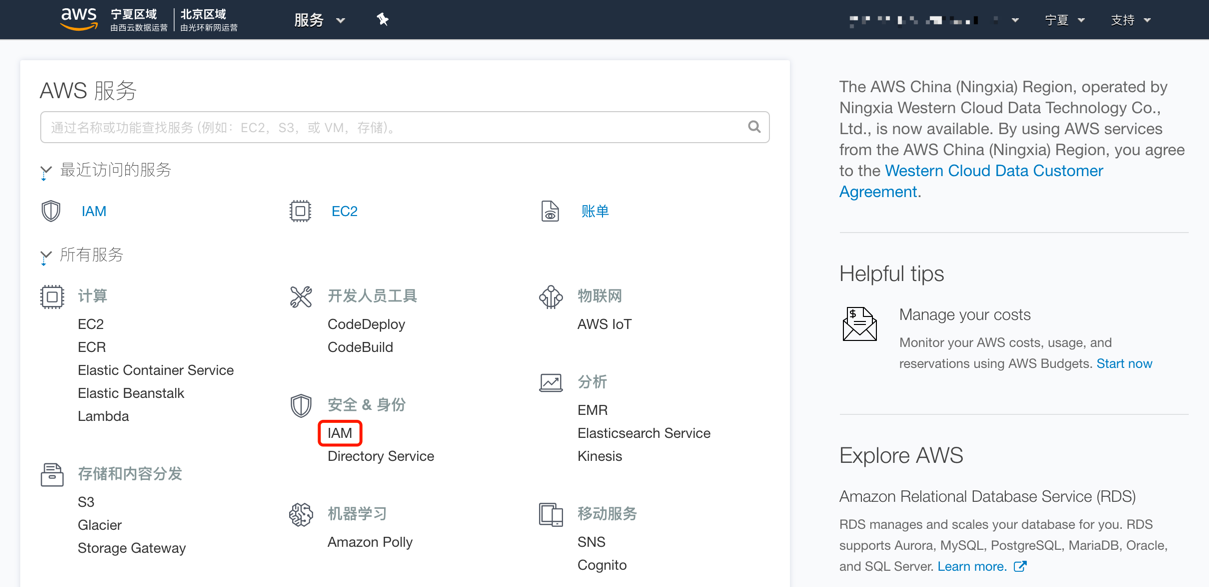
Log in to the AWS Management Console using the AWS primary account (or a sub-account with Administrator Access management permissions), and click the "IAM" menu item to enter the IAM Dashboard page.
-
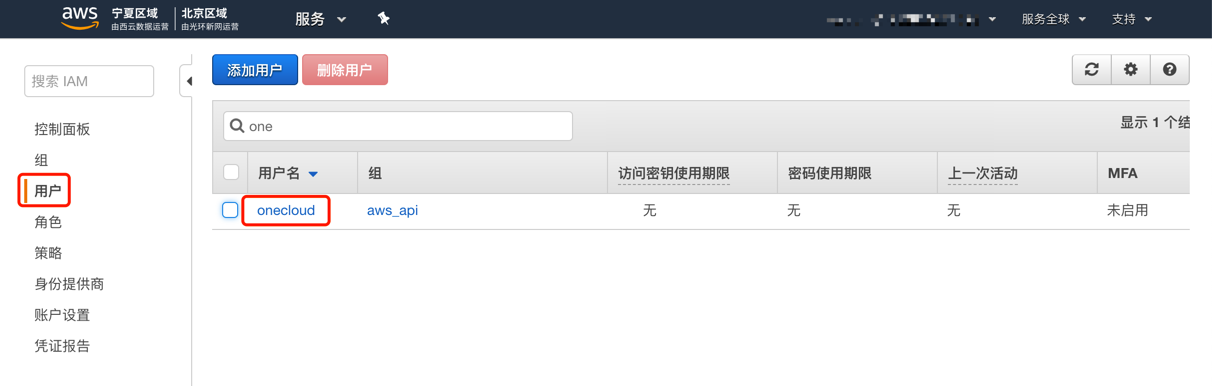
Click the "Users" menu item in the left menu bar to enter the user management list. Click the username to enter the specified user details page. Note that you need to select a user with sufficient management permissions.
-
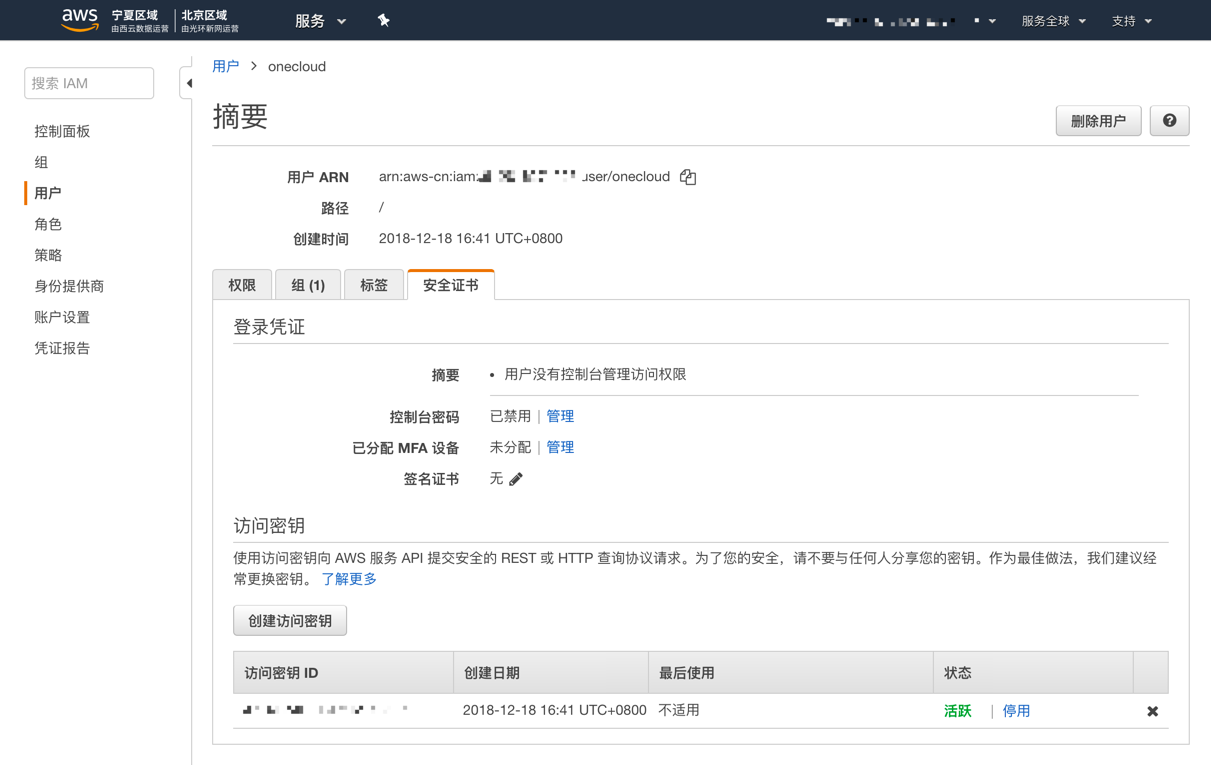
Click the "Security credentials" tab.
-
Click the "Create access key" button. In the pop-up Create Access Key dialog, you can see the key information, i.e., Key ID (Access Key ID) and Secret (Access Key Secret).
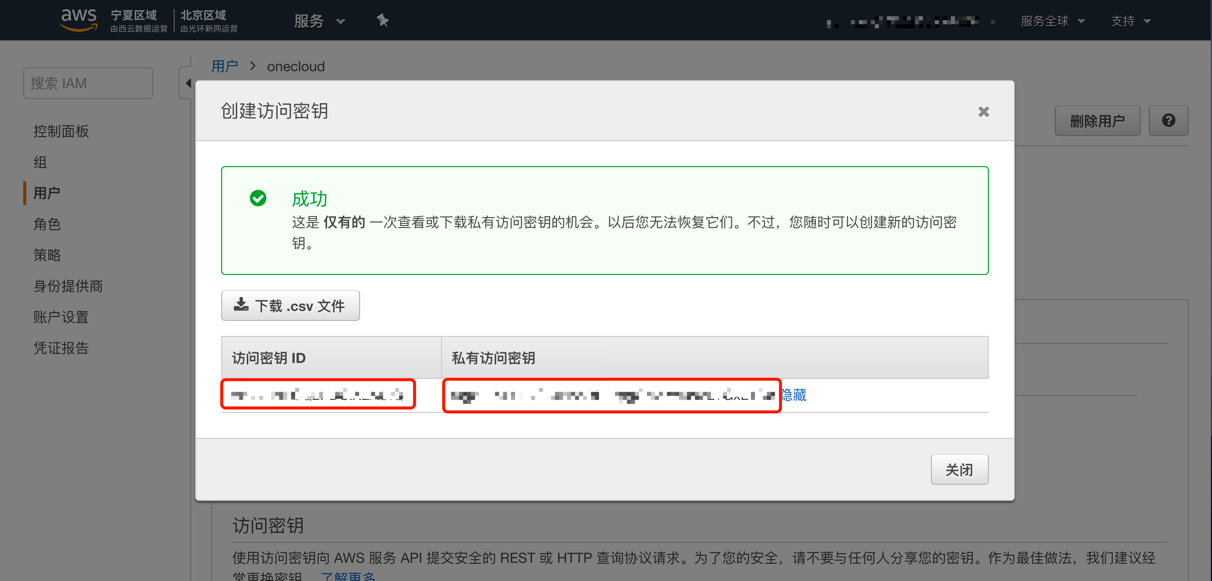
The private access key is only visible at creation time. Please copy and save it. If accidentally lost, simply create a new one.
What Permissions Does the Cloud Account Need to Manage AWS Resources Through the Platform?
| Permission Notes | Read-Only Permission | Read-Write Permission |
|---|---|---|
| Permission to manage all AWS resources | ReadOnlyAccess | AdministratorAccess |
| Permission to manage Amazon EC2 | AmazonEC2ReadOnlyAccess | AmazonEC2FullAccess |
| Permission to manage Amazon VPC | AmazonVPCReadOnlyAccess | AmazonVPCFullAccess |
| Permission to manage Amazon S3 | AmazonS3ReadOnlyAccess | AmazonS3FullAccess |
| Permission to manage Elastic Load Balancing (ELB) | ElasticLoadBalancingReadOnly | ElasticLoadBalancingFullAccess |
| Permission to manage Amazon RDS | AmazonRDSReadOnlyAccess | AmazonRDSFullAccess |
| Permission to manage Amazon ElastiCache | AmazonElastiCacheReadOnlyAccess | AmazonElastiCacheFullAccess |
| Permission to manage AWS CloudTrail | AWSCloudTrailReadOnlyAccess | AWSCloudTrail_FullAccess |
| Permission to manage Amazon EFS | AmazonElasticFileSystemReadOnlyAccess | AmazonElasticFileSystemFullAccess |
| Permission to manage Web Application Firewall (WAF) | AWSWAFReadOnlyAccess | AWSWAFFullAccess |
| Permission to manage Identity and Access Management (IAM) | IAMReadOnlyAccess | IAMFullAccess |
| Permission to manage Amazon Route 53 | AmazonRoute53ReadOnlyAccess | AmazonRoute53FullAccess |
| Permission to manage billing and costs | AWSBillingReadOnlyAccess | Billing |
| Permission to manage Amazon CloudWatch | CloudWatchReadOnlyAccess | CloudWatchFullAccess |
How to Get the Billing Bucket URL?
New Version
AWS accounts created after 2019/08/07 must use this method to configure and obtain the bucket URL and file prefix.
-
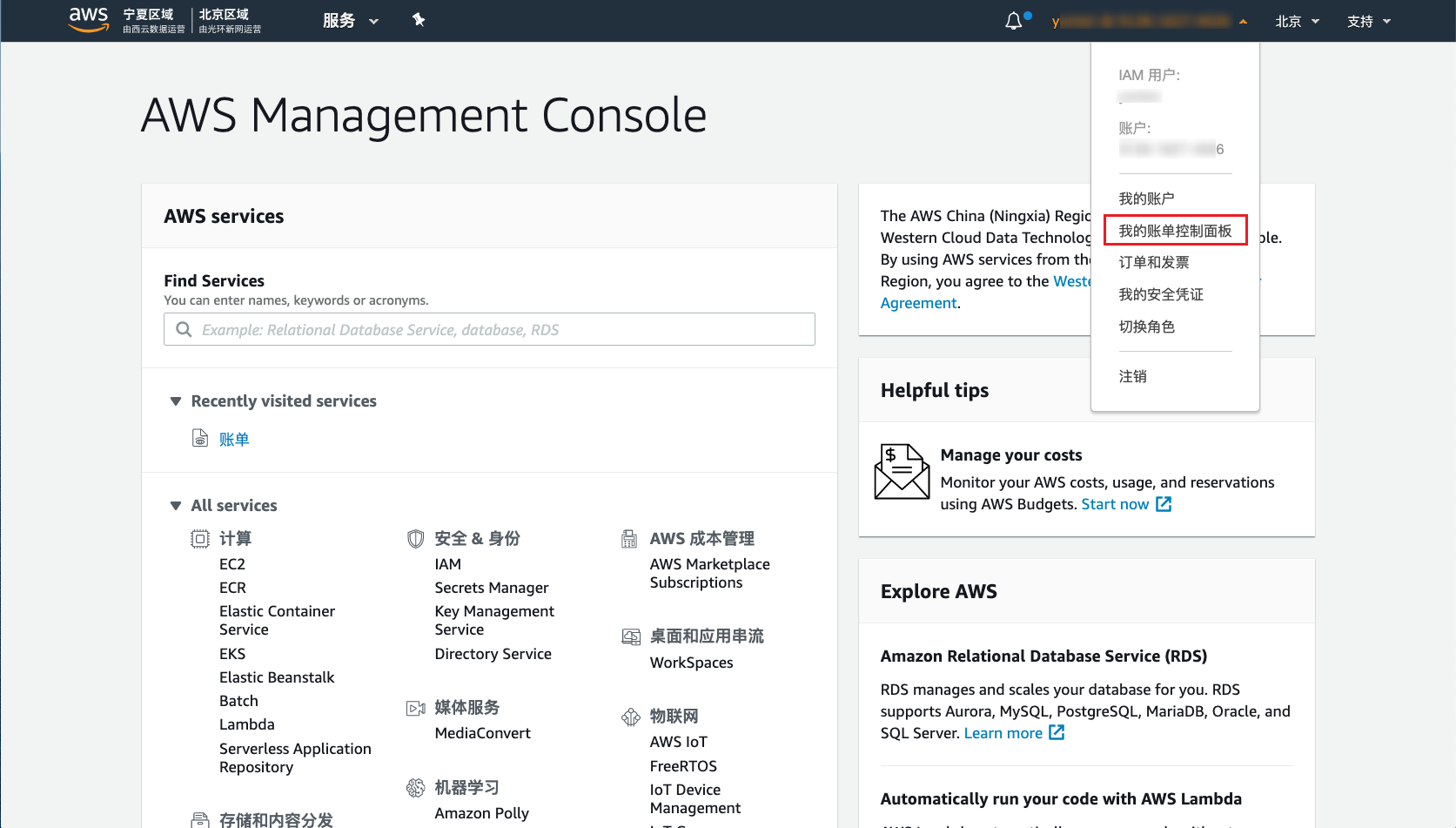
Log in to the AWS Management Console using the AWS primary account, click the dropdown menu "My Billing Dashboard" under the [username] in the upper right corner to enter the Billing and Cost Management Dashboard page.
-
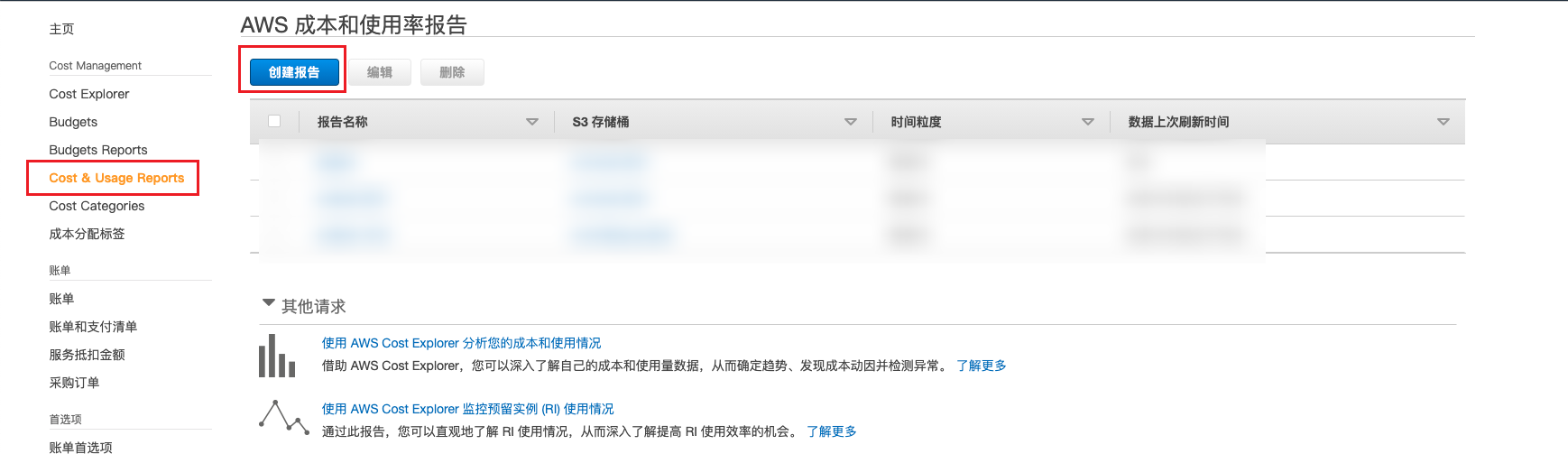
Click the "Cost & Usage Reports" menu item in the left menu, and on the AWS Cost and Usage Reports page, click the "Create report" button to enter the Create Report page.
-
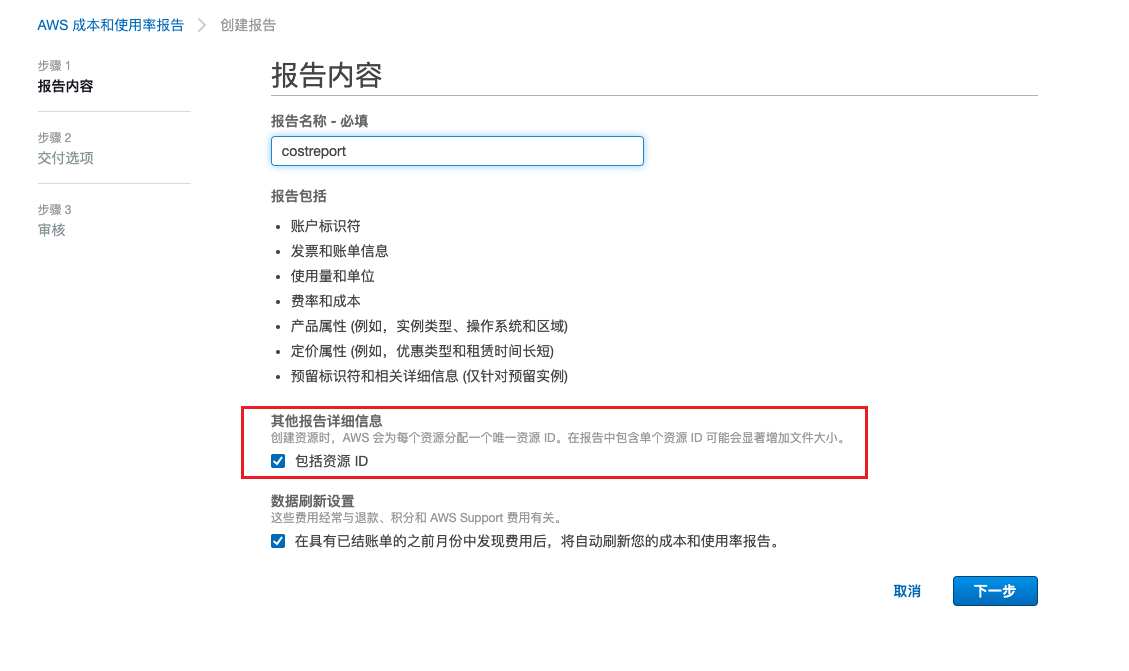
Configure the report name, check "Include resource IDs", and click the "Next" button to enter the Delivery Options page.
-
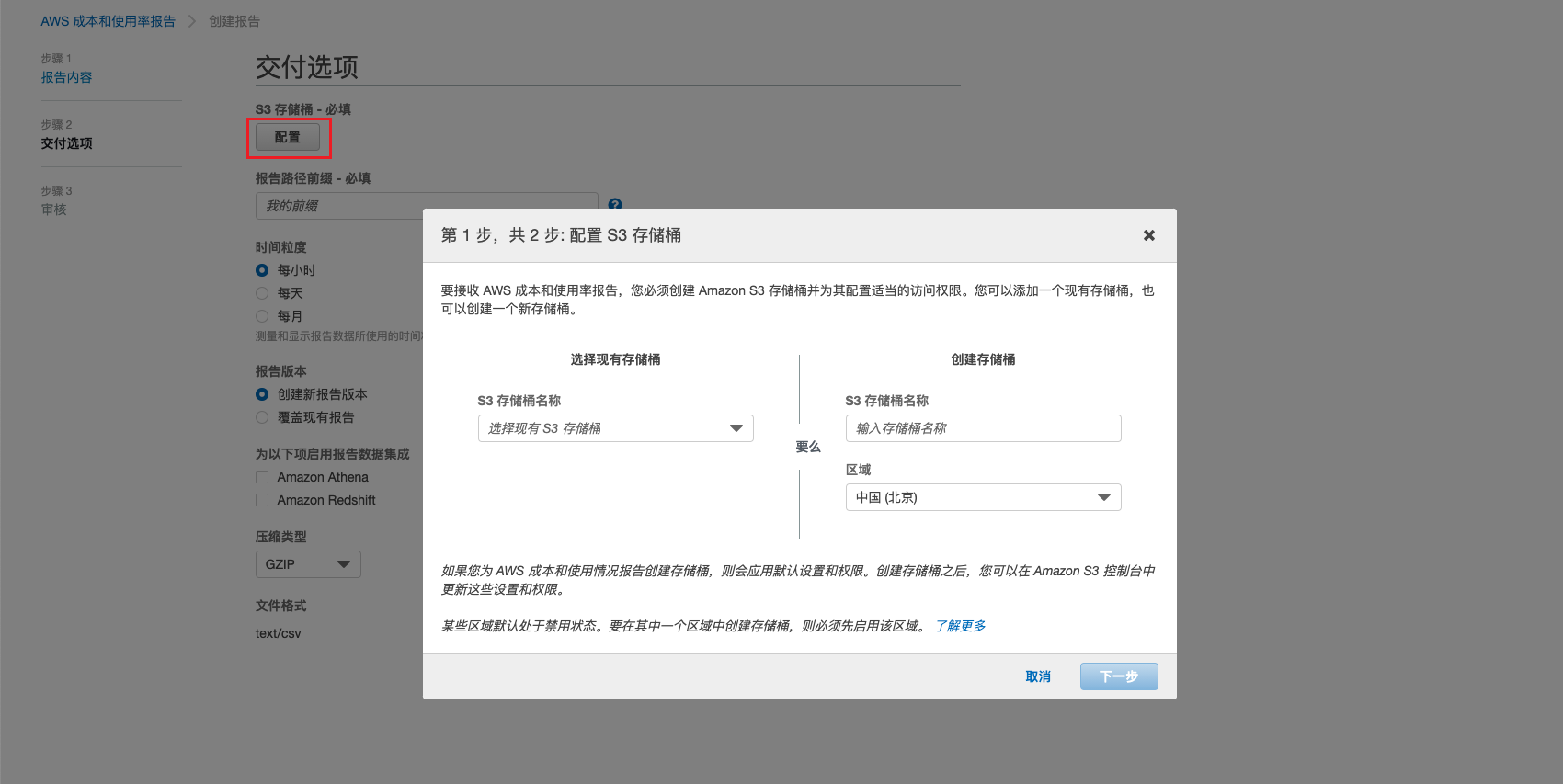
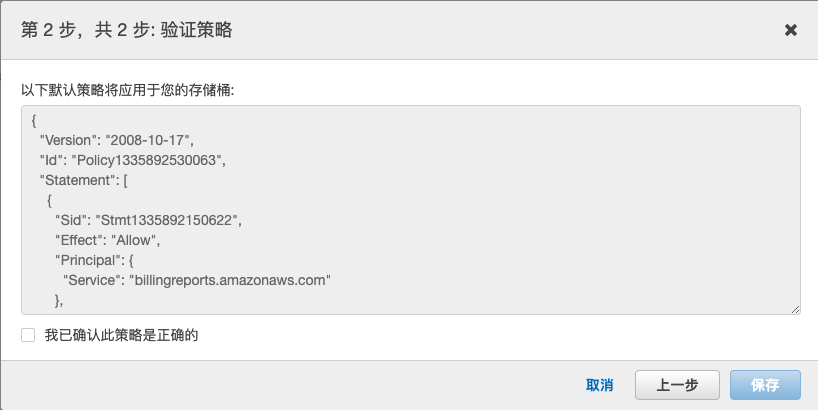
Configure the S3 bucket, which supports selecting an existing bucket or creating a new one.
-
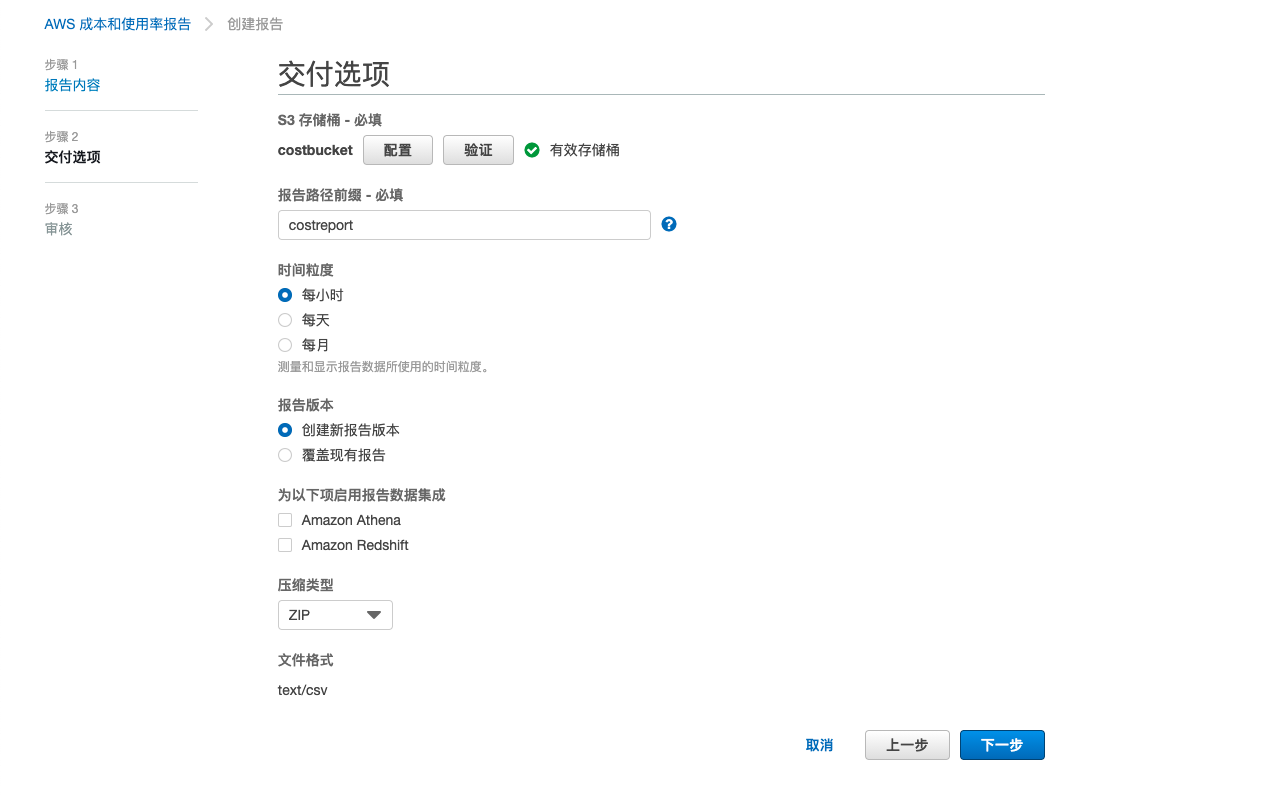
Configure the report path prefix, set the time granularity to "Hourly", set the report versioning to "Create new report version", set the compression type to "ZIP", and click the "Next" button to enter the Review page.
-
After confirming the configuration is correct, record the S3 bucket and report path prefix shown in the red box, and click the "Review and Complete" button to complete the configuration and create the report.
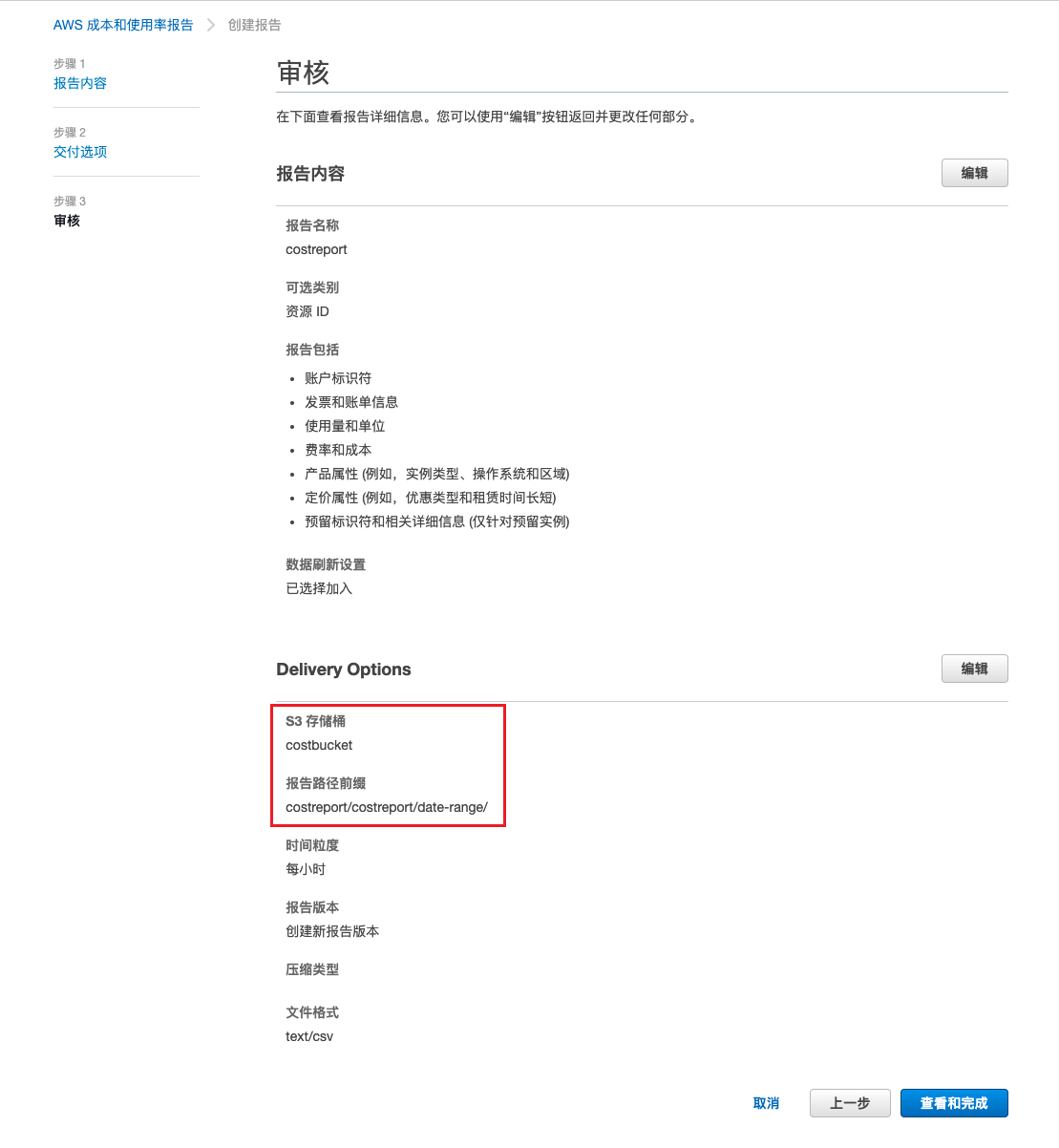
-
On the S3 Storage Management page of the AWS console, view the overview information of any billing file in the corresponding bucket and record the object URL. The bucket URL is the URL with the file name removed, as shown in the red box.
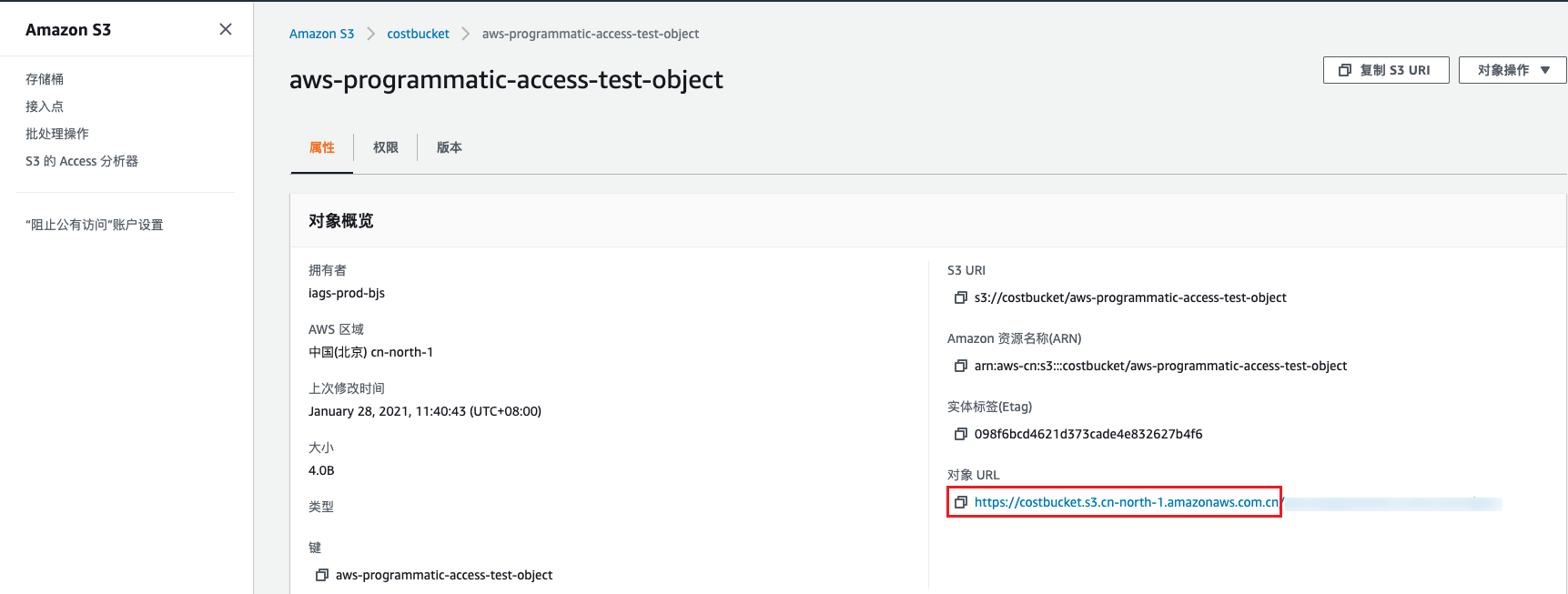
-
The file prefix is the report path prefix from step 6, shown in the red box.
Legacy Version
-
Log in to the AWS Management Console using the AWS primary account, click the dropdown menu "My Billing Dashboard" under the [username] in the upper right corner to enter the Billing and Cost Management Dashboard page.
-
Click the "Billing Preferences" in the left menu. On the Preferences page, in the "Cost Management Preferences" section, view and record the S3 bucket for "Receive Billing Reports". If not configured, you need to check "Receive Billing Reports" and configure and verify the S3 bucket. After setup, incremental billing data will be synchronized to the corresponding OSS according to the configured granularity. It is recommended that the bucket only stores billing files.
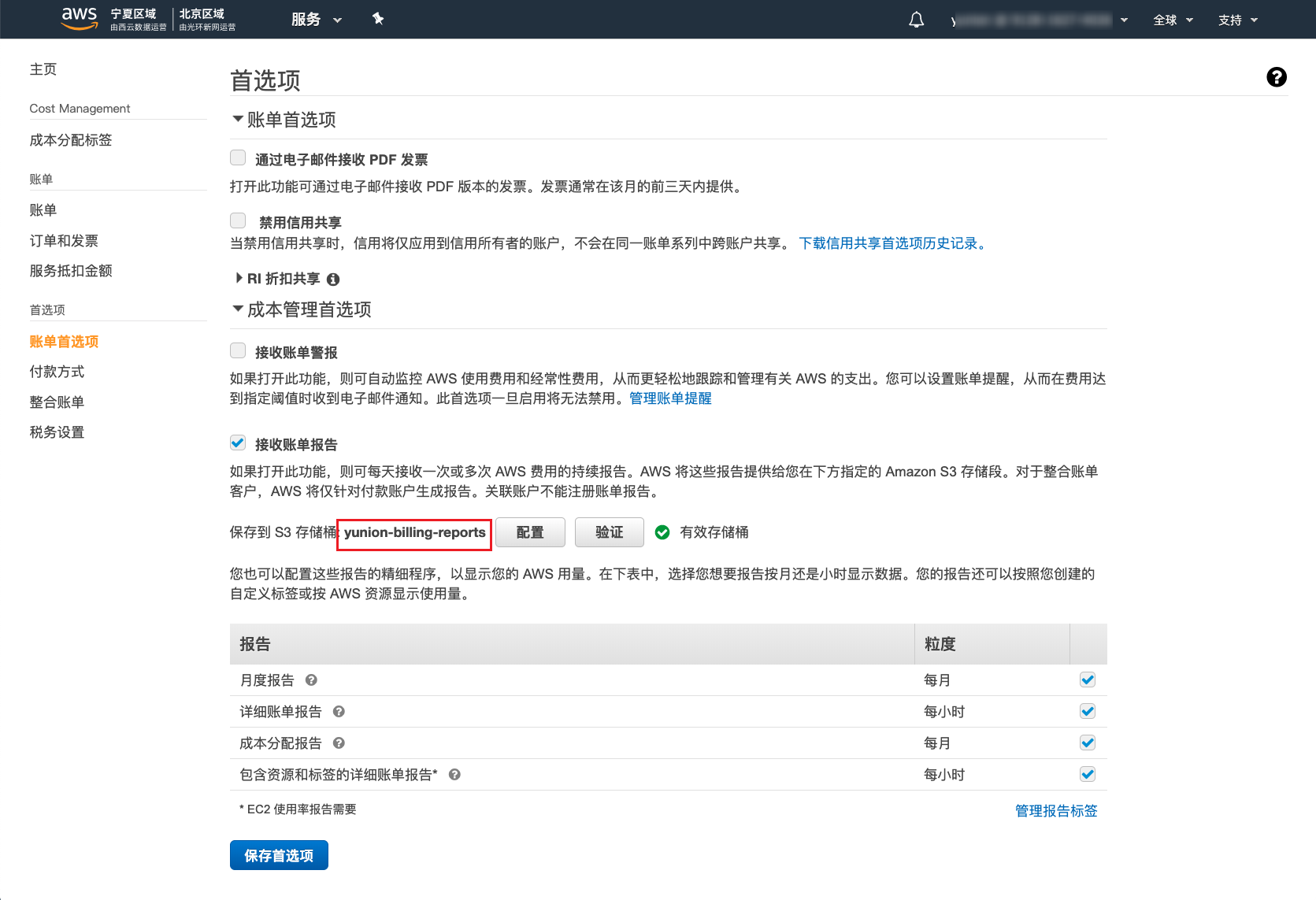
-
On the S3 Storage Management page of the AWS console, view the overview information of any billing file in the corresponding bucket and record the object URL. The bucket URL is the URL with the file name removed, as shown in the red box.
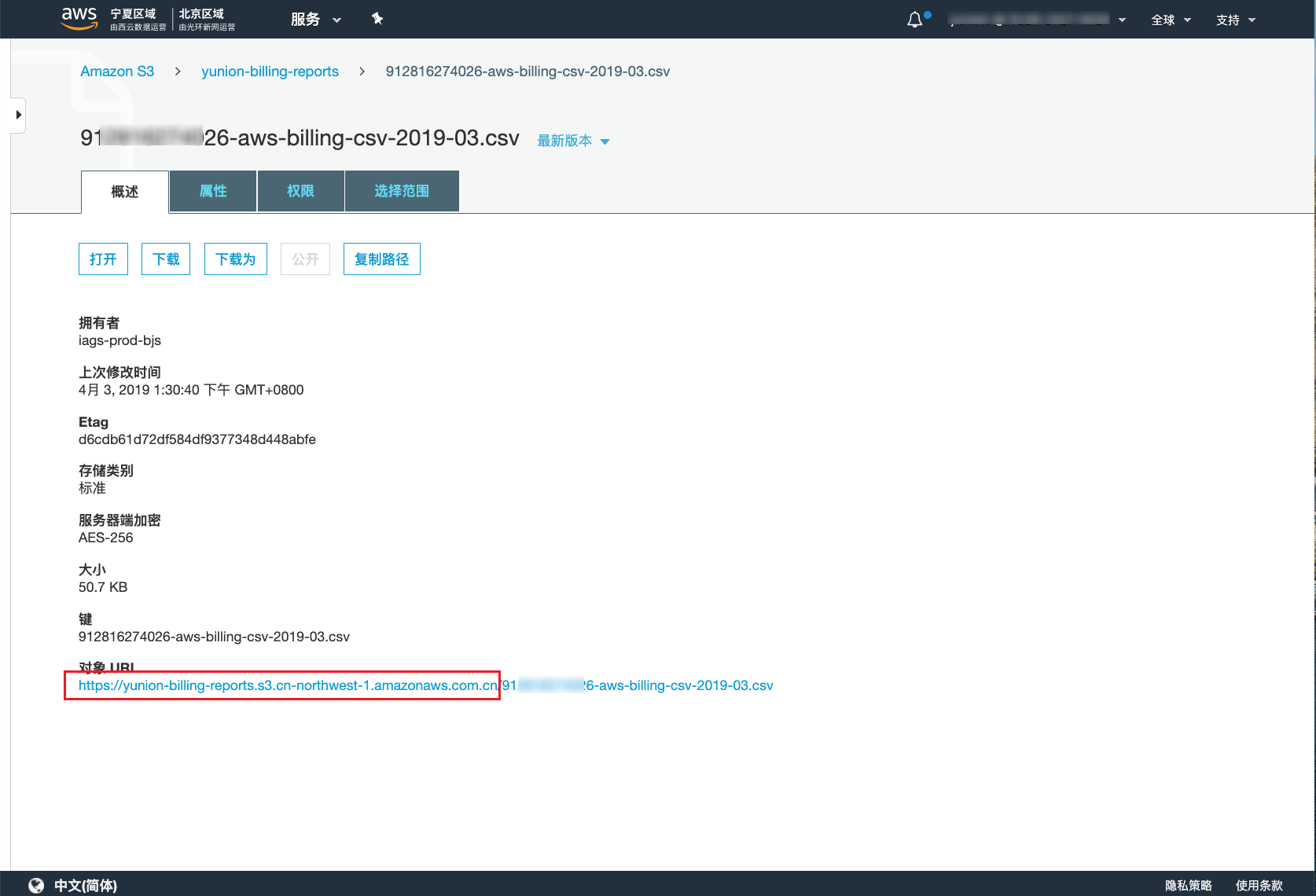
-
The file prefix for AWS is the AWS account ID.
When the billing bucket contains files other than billing files, you need to configure the file prefix to only retrieve billing files from the bucket.
How to Manage AWS Organizations Accounts?
- Configure AWS Organizations: Use an AWS organization account to associate AWS accounts. Supports creating new AWS accounts and inviting existing AWS accounts. The invited AWS account must have the "OrganizationAccountAccessRole" role.
- Get Access Keys: Create access keys for the IAM user of the management account in the AWS organization account. It is recommended to use a user with AdministratorAccess permissions.
Configure AWS Organizations
-
Log in to the AWS Management Console using the AWS primary account (or a sub-account with AdministratorAccess management permissions), click the dropdown menu "My Billing Dashboard" under the [username] in the upper right corner to enter the Billing and Cost Management Dashboard page.
-
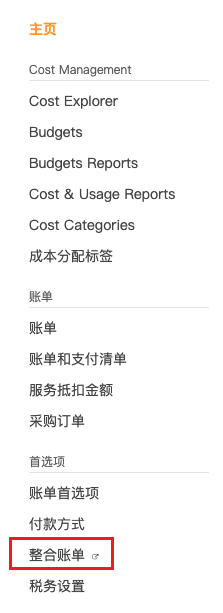
Click the "Consolidated Billing" menu item on the right to enter the AWS Organizations page.
-
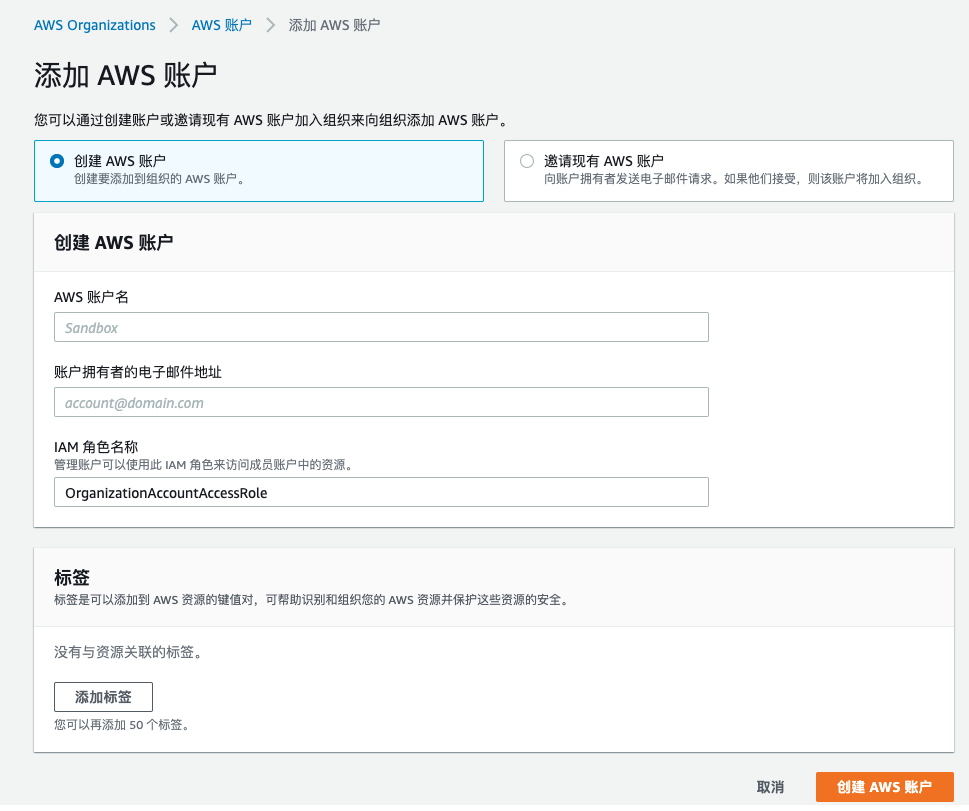
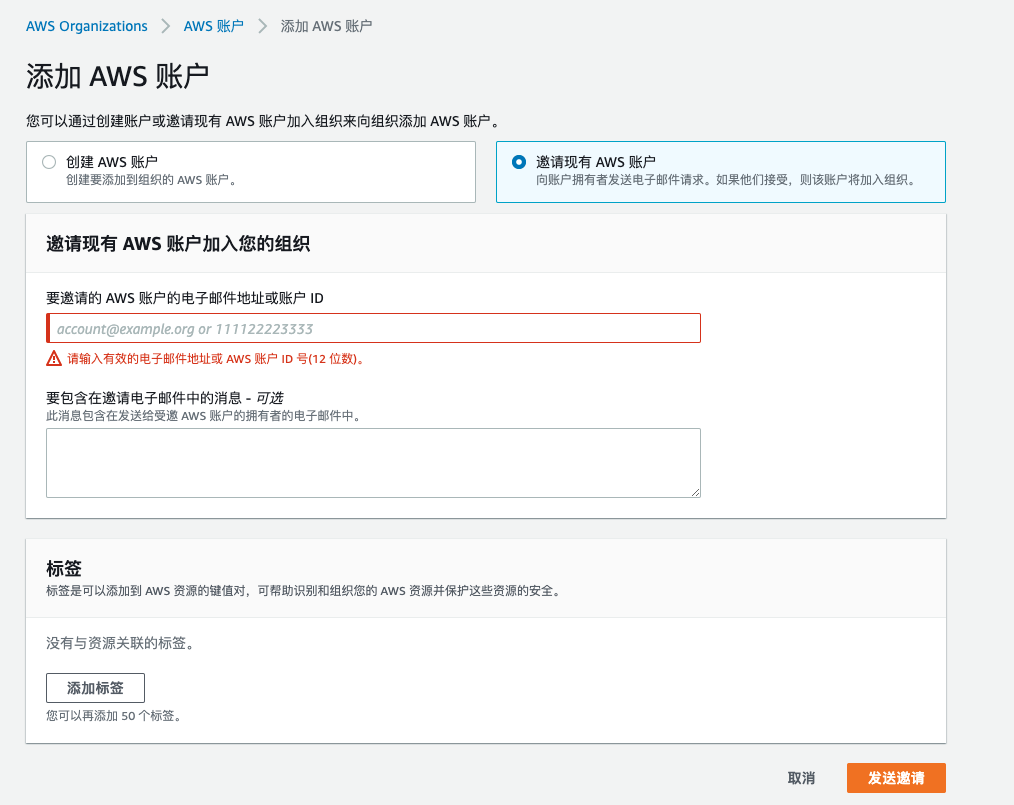
On the AWS Organizations - AWS Accounts page, add AWS accounts. There are currently two ways to add AWS accounts to an Organization.
-
Create AWS Account: Set the AWS account name, account owner email address, and IAM role name (OrganizationAccountAccessRole), and click the "Create AWS Account" button to create the AWS account.
-
Invite Existing AWS Account: Set the email address or account ID of the AWS account to invite, and click the "Send Invitation" button. Wait for the account owner to accept the request and join the Organization. Additionally, the existing AWS account must have the OrganizationAccountAccessRole role. If it does not exist, please refer to How to Add the OrganizationAccountAccessRole Role to an AWS Account?.
-
Get Access Keys
- Get access keys from the management account of AWS Organizations. It is recommended to use an IAM user with AdministratorAccess permissions to create access keys.
- For the specific steps to get access keys, please refer to Getting AWS Access Keys.
How to Add the OrganizationAccountAccessRole Role to an AWS Account?
-
Log in to the AWS Management Console using the AWS primary account (or a sub-account with AdministratorAccess management permissions), and click the "IAM" menu item to enter the IAM Dashboard page.
-
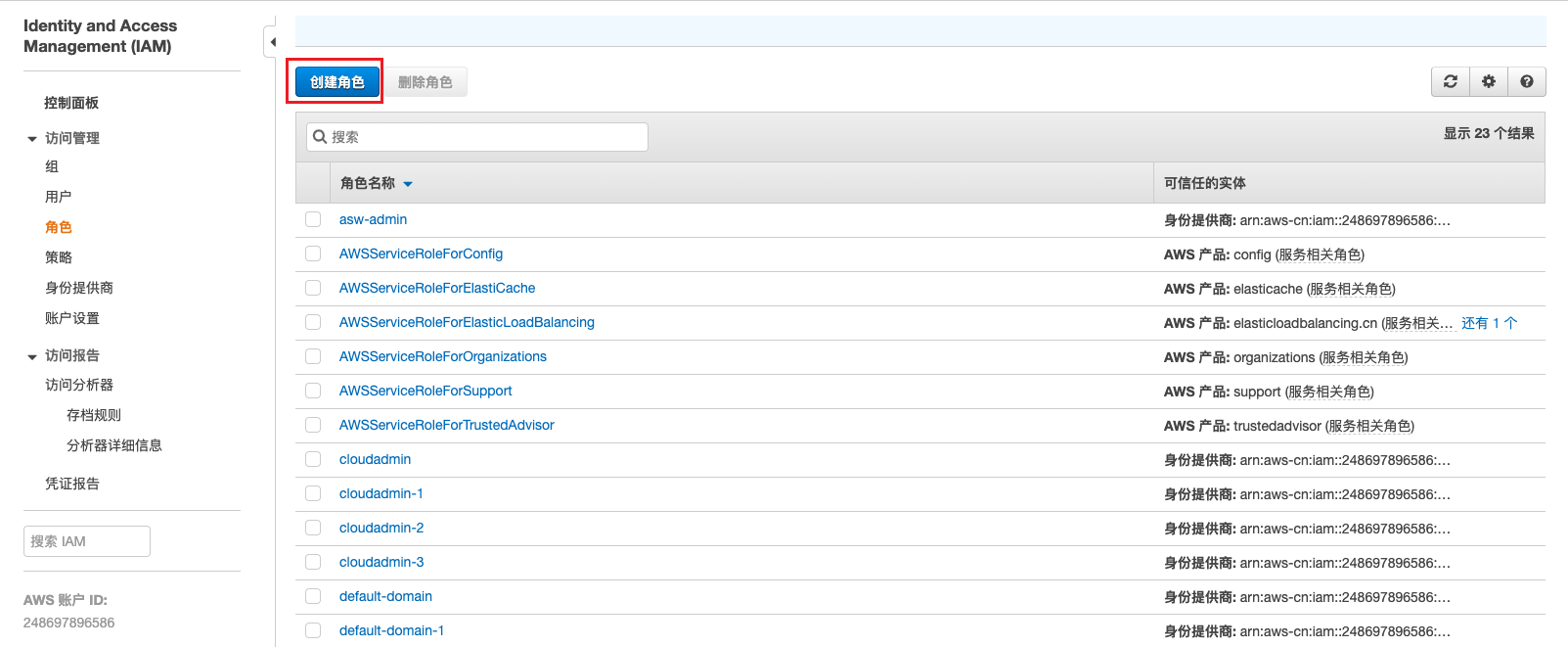
Click the "Roles" menu item on the right. On the Roles page, click the "Create role" button to enter the Create Role page.
-
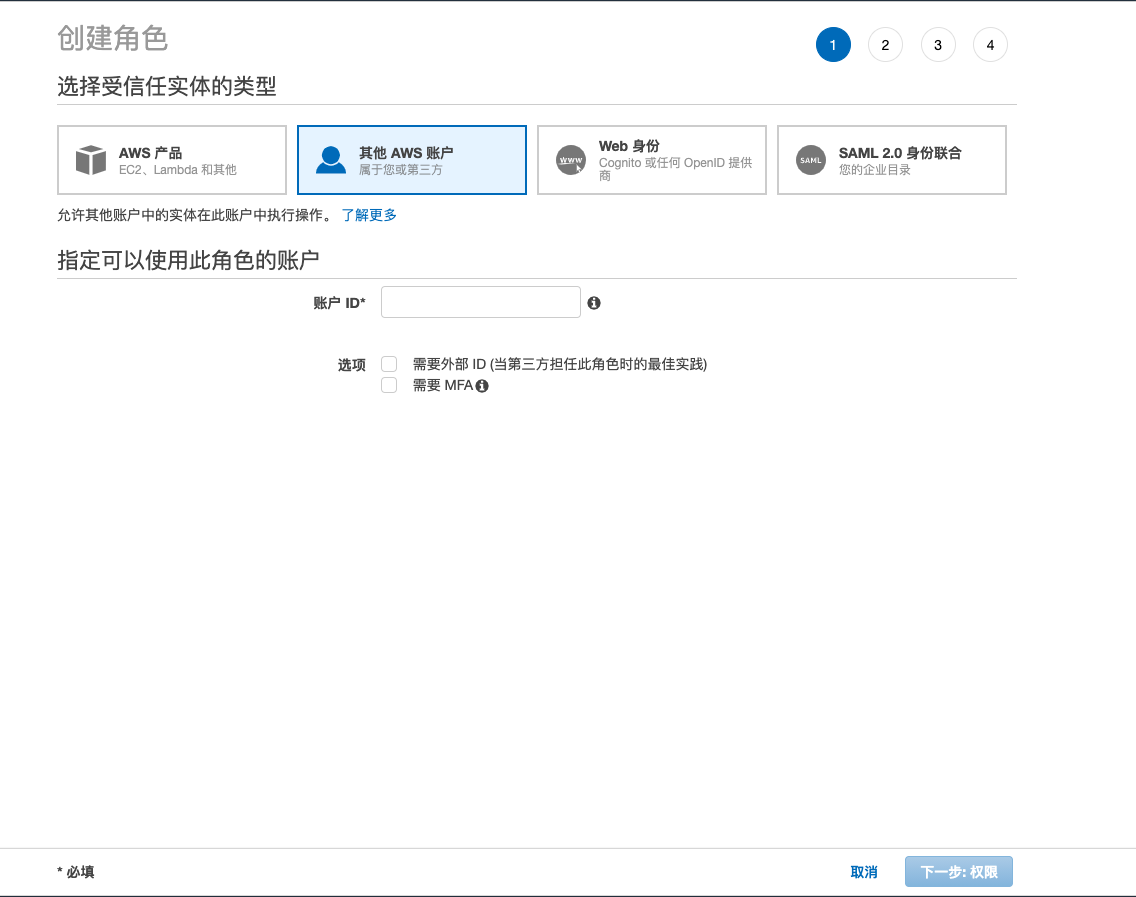
Select the trusted entity type as "Another AWS account" and enter the account ID of the AWS organization management account, then click the "Next: Permissions" button.
-
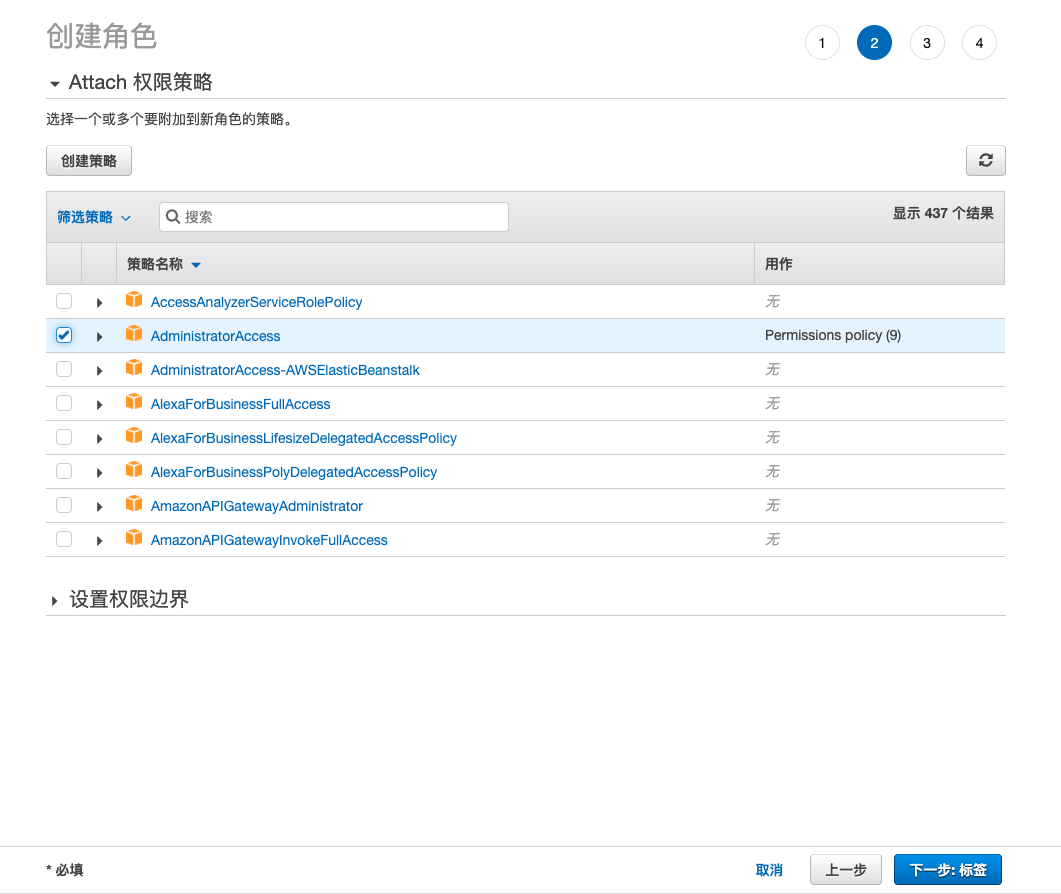
Attach the "AdministratorAccess" permission policy, and click the "Next: Tags" button.
-
Please configure tags according to your needs. After configuration, click the "Next: Review" button.
-
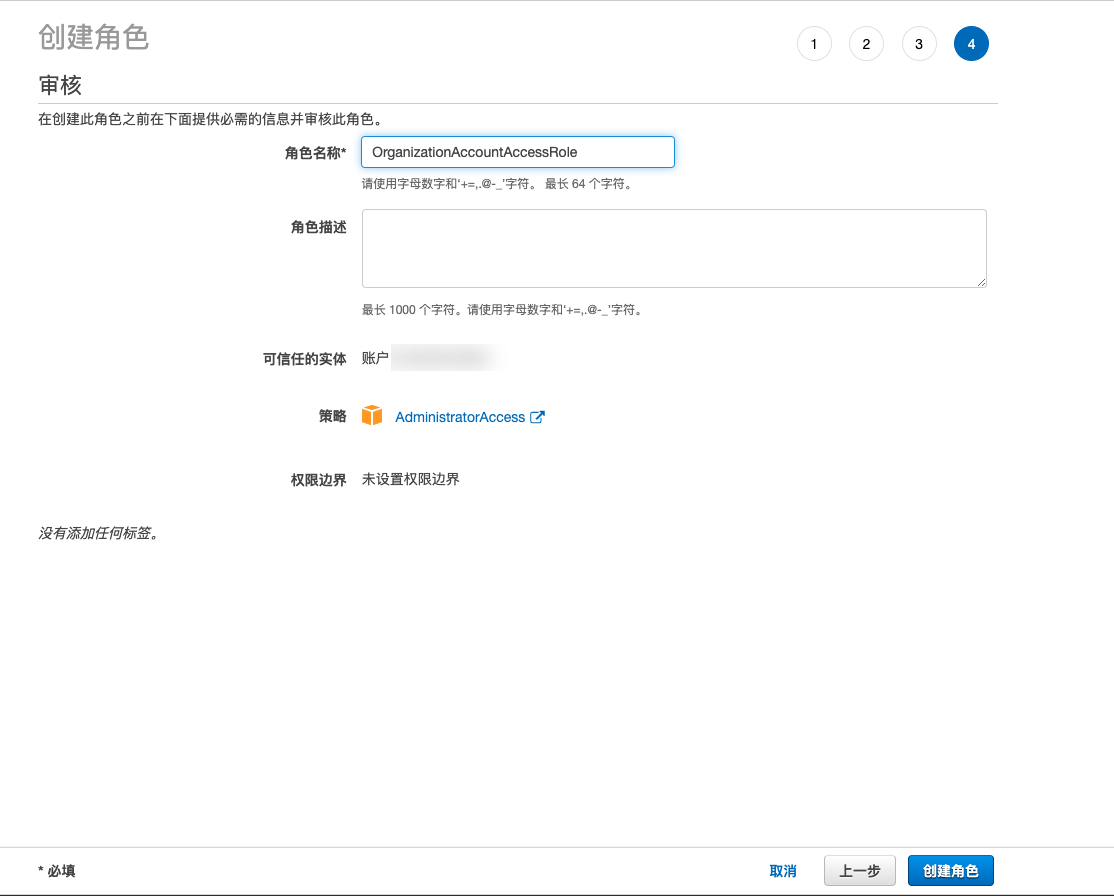
Set the role name to "OrganizationAccountAccessRole" and click the "Create role" button.
Create Azure Account
- On the Public Cloud Accounts page, click the "Create" button above the list to enter the Create Cloud Account page.
- Select the cloud platform as Azure, click the "Next: Configure Cloud Account" button to enter the Configure Cloud Account page.
- Configure the following parameters:
- Name: The name of the Azure account.
- Account Type: Currently supports connecting to Azure cloud accounts in the Global, China, US Government, and Germany regions.
- Tenant ID/Client ID/Client Secret: Please refer to Azure Parameter Retrieval Methods.
- Domain: Select the domain to which the cloud account belongs. When the cloud account is in private state, all project users under the domain can use the cloud account to create resources.
- Resource Ownership Method: Defaults to specified project, also supports ownership based on cloud project.
- Resource Ownership Project: When the resource ownership method is set to specified project, you can select a local project on the platform to synchronize cloud account resources to. Local projects are filtered by domain. When the resource ownership method is set to based on cloud project, resources will be synchronized to local projects with the same name as the cloud project. If a resource has no cloud project attribute, it will belong to the specified project.
- Sync Policy: When enabled, resources are assigned to specified projects based on tag-to-resource-project mapping rules. The sync policy only takes effect during cloud account synchronization.
- Sync Policy Scope: Displayed after enabling sync policy, supports selecting resource tags and project tags.
- Block Sync Resources: When enabled, supports selecting resource types to block. Multiple selections are supported. Blocked resource types will not be synchronized during cloud account synchronization.
- Proxy: Set this when the cloud account requires a proxy for normal access. Leave empty for direct connection. If there is no suitable proxy, click the "Create" hyperlink directly, and set the relevant parameters in the pop-up Create Proxy dialog to create a proxy.
- Read-Only Mode: When enabled, the cloud account will only perform resource synchronization operations and cannot perform other task operations such as creating, deleting, or modifying.
- Sharing Scope: Set the sharing scope of the cloud account. The default is not shared, meaning only the domain where the cloud account resides can use the account. If set to global sharing, all users on the platform can use this cloud account to create resources.
- Enable SSO Login: After enabling this, the system becomes the identity provider for cloud login. This enables single sign-on from this system to the public cloud platform. Currently, only Azure Global supports the SSO login feature, which requires selecting the Global region as the account type to display this option. Additionally, some necessary configurations need to be done on the Azure platform. For details, please refer to Configure Azure External Identities and Configure Chrome Browser.
- Click the "Connection Test" button to test whether the input parameters are correct.
- After successful testing, click the "Next: Configure Sync Resource Regions" button to enter the Configure Sync Resource Regions page. This configuration can be modified on the cloud account details page - Subscriptions - Regions (all regions are synchronized by default). To synchronize all regions by default on the platform, you can directly click the "Skip" button.
- After successful configuration, click the "Next: Billing File Access Information (Optional)" button to enter the Billing File Access Information page to configure the cloud account's billing parameters so that users can view the cloud account's billing information in the Expenses section. The Billing File Access Information page is optional. If you do not need to manage billing data on the Cloud Management Platform, you can click the "Skip" button. If you need to view billing information on the Cloud Management Platform, please configure the relevant parameters.
Azure previously synchronized bills through EA. Currently, Azure International no longer supports this method. Azure China currently supports it, but it is expected to expire this year. In the future, bills will be unified through bucket configuration.
Billing Bucket
- Cloud Account Type: Includes primary account and associated account. Before using an associated account, please ensure the primary account has been imported to the Cloud Management Platform, and select the primary account when using the associated account.
- Bucket URL: The URL of the bucket where billing files are stored. For details, please refer to How to Get the Azure Billing Bucket?.
- File Prefix: When the billing bucket contains files other than billing files, you need to configure the file prefix to only retrieve billing files from the bucket. The file prefix for AWS is the account ID.
- Billing Analysis Scope: Set the scope for the platform to analyze cloud account billing. Includes accounts managed by this platform and all accounts.
- Accounts Managed by This Platform: Collects billing information for the primary account and organization accounts associated with the primary account. If the AWS account only serves as a payment account for other AWS accounts, billing files collected from other AWS accounts will be discarded.
- All Bills: Collects all bills of the primary account. For billing entries where no corresponding cloud account can be found on the platform, the cloud subscription will be displayed as "this cloud account name - the numeric ID of the cloud account associated with that billing entry".
- Collect Bills Immediately: The Cloud Management Platform automatically collects bills at 4 AM every day by default. After enabling this, bills will be collected immediately after configuring the billing file access information.
- Time Range: When immediate bill collection is enabled, you can set a time range to immediately collect bills within that range. Please ensure there is billing data within the selected time range. It is recommended to collect bills within 1-6 months, otherwise too much data may cause excessive system pressure and affect daily bill collection tasks.
EA Account
- EA (Enterprise Agreement) account expenditure obtains billing information through enrollment number and key. Please configure the relevant parameters. After configuration is complete and the test is successful, click the "OK" button, and proceed to the Scheduled Sync Task Settings page to configure the cloud account's sync tasks to make the cloud account's automatic sync behavior more controllable.
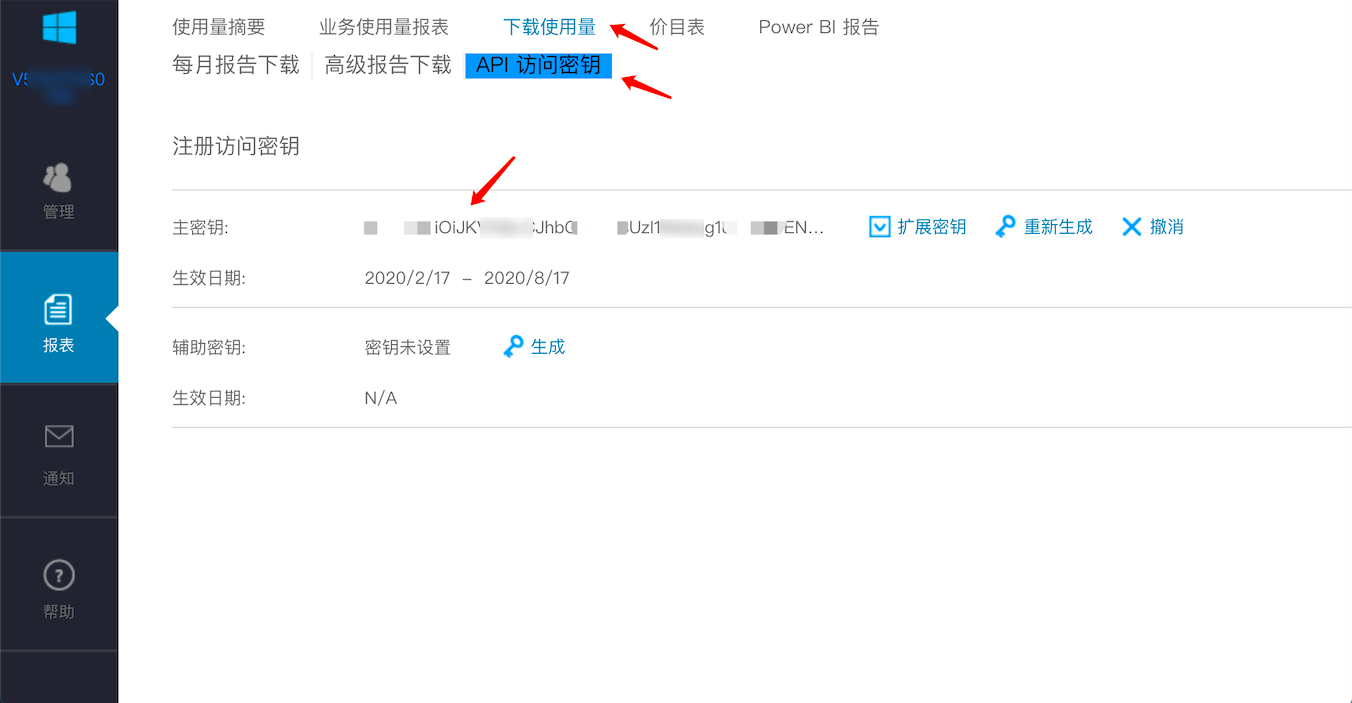
- Enrollment Number: A unique identifier associated with the online advanced service agreement, a number starting with V570.
- Key: API access key. For details, please refer to How to Get the Azure Enrollment Number and Key.
- Billing Analysis Scope: Set the scope for the platform to analyze cloud account billing. Includes accounts managed by this platform and all accounts.
- Accounts Managed by This Platform: Collects billing information for the primary account and organization accounts associated with the primary account. If the Azure account only serves as a payment account for other Azure accounts, billing files collected from other Azure accounts will be discarded.
- All Bills: Collects all bills of the primary account. For billing entries where no corresponding cloud account can be found on the platform, the cloud subscription will be displayed as "this cloud account name - the numeric ID of the cloud account associated with that billing entry".
- Collect Bills Immediately: The Cloud Management Platform automatically collects bills at 4 AM every day by default. After enabling this, bills will be collected immediately after configuring the billing file access information.
- Time Range: When immediate bill collection is enabled, you can set a time range to immediately collect bills within that range. Please ensure there is billing data within the selected time range. It is recommended to collect bills within 1-6 months, otherwise too much data may cause excessive system pressure and affect daily bill collection tasks.
- The Scheduled Sync Task Settings page is optional. If you do not need to set up automatic sync tasks on the platform, you can directly click the "Skip" button. If you need to set up automatic sync times for the cloud account on the platform, please configure the relevant parameters. After configuration is complete and the test passes, click the "OK" button to create the Azure account.
Azure Parameter Retrieval Methods
Getting Azure Tenant ID and Client Information
-
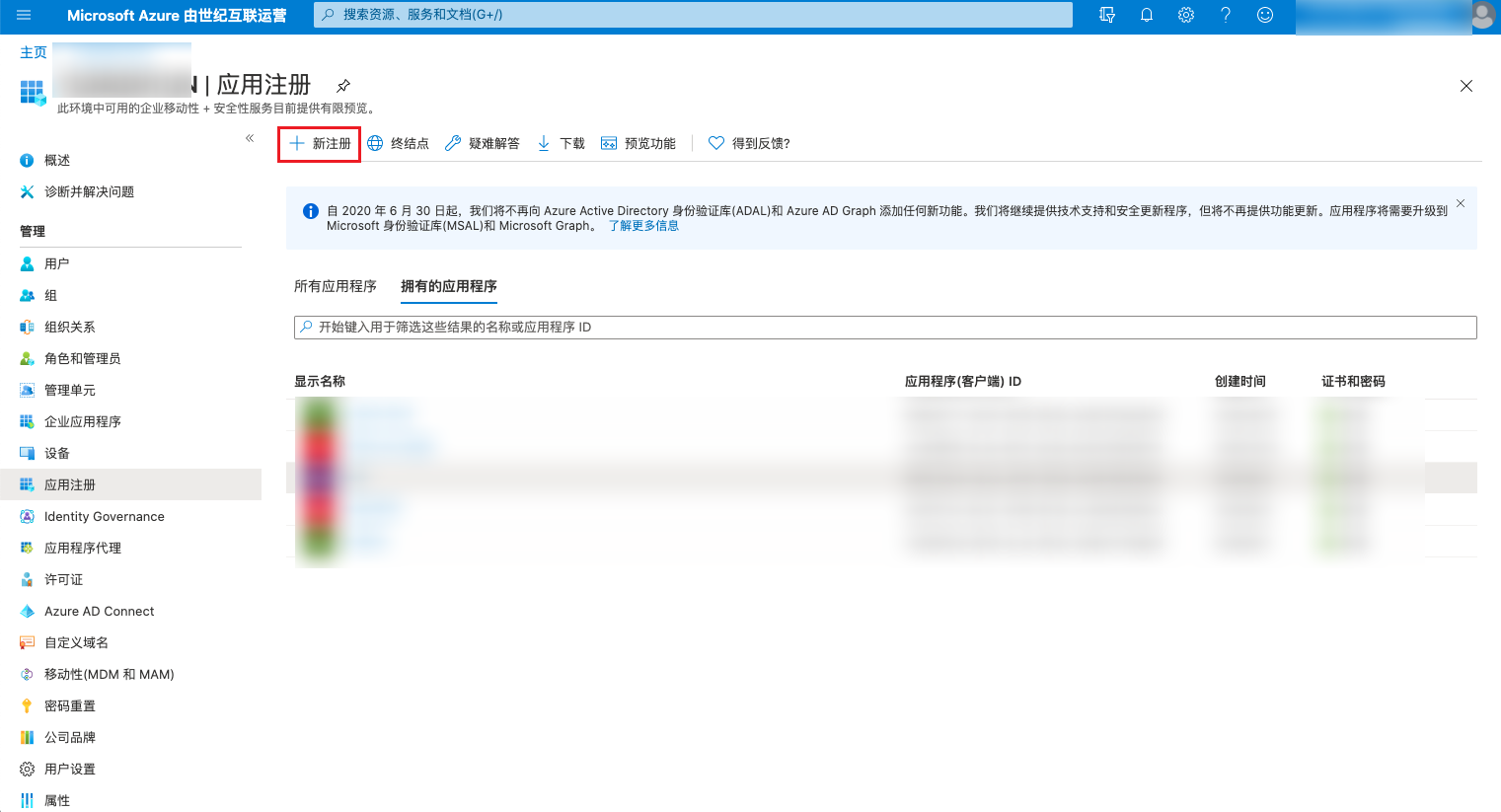
Log in to the Azure console, click the "Azure Active Directory/App registrations" menu item in the left navigation bar to enter the App Registrations page. It is recommended to create a dedicated application for the Cloud Management Platform to call Azure APIs.
-
Click the "New registration" button. On the Register an Application page, set the name to any value, set the supported account types to "Accounts in this organizational directory only", set the redirect URI to web, and enter a URL address starting with "https://" or "http://localhost", then click the "Register" button.
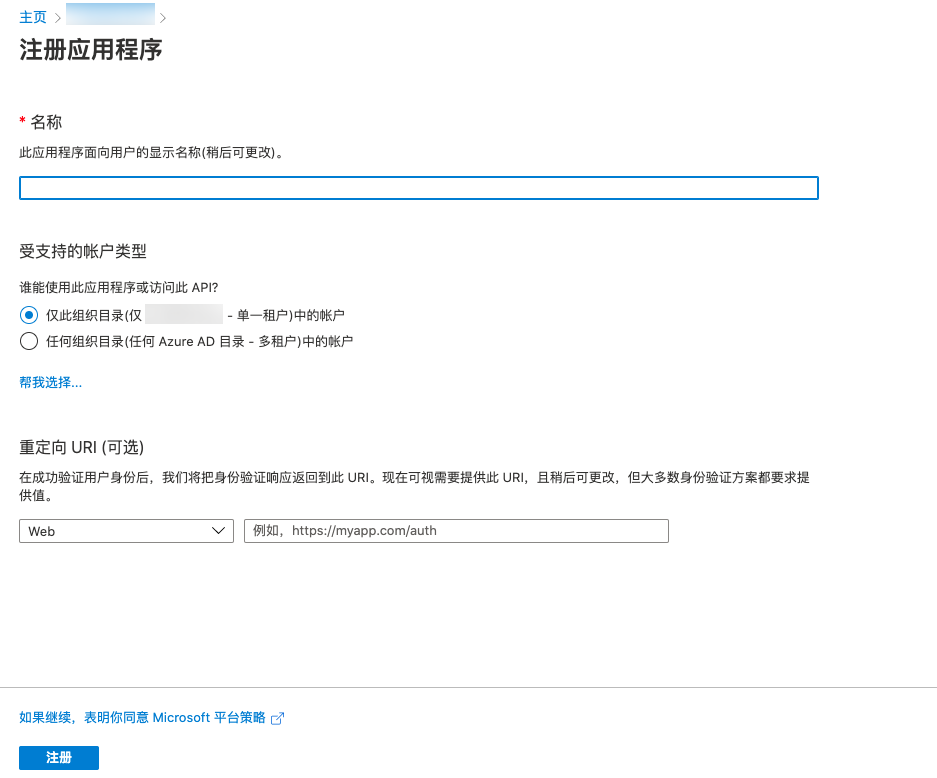
-
After successful creation, the system automatically displays the details page of the newly created application. The Application (client) ID on this page is the required Client ID, and the Directory (tenant) ID is the required Tenant ID.
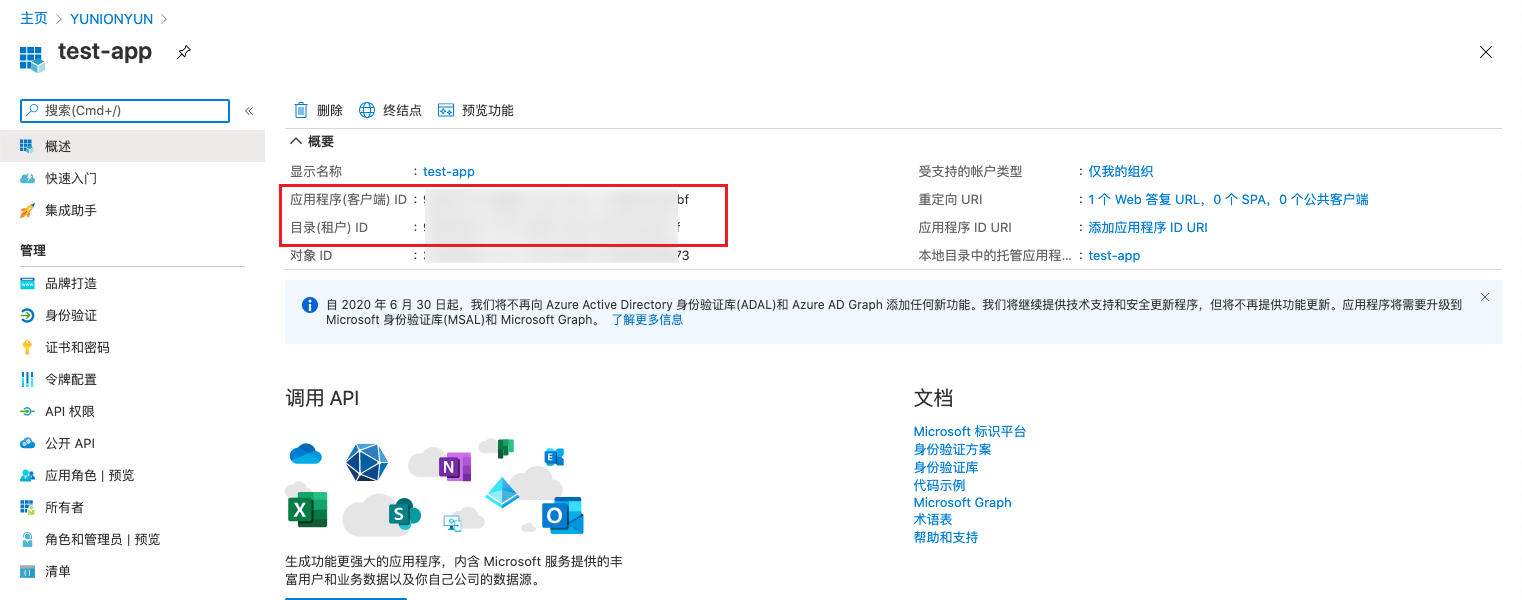
-
On the application details page, click the "Certificates & secrets" menu item to enter the Certificates & Secrets page. Click the "New client secret" button.
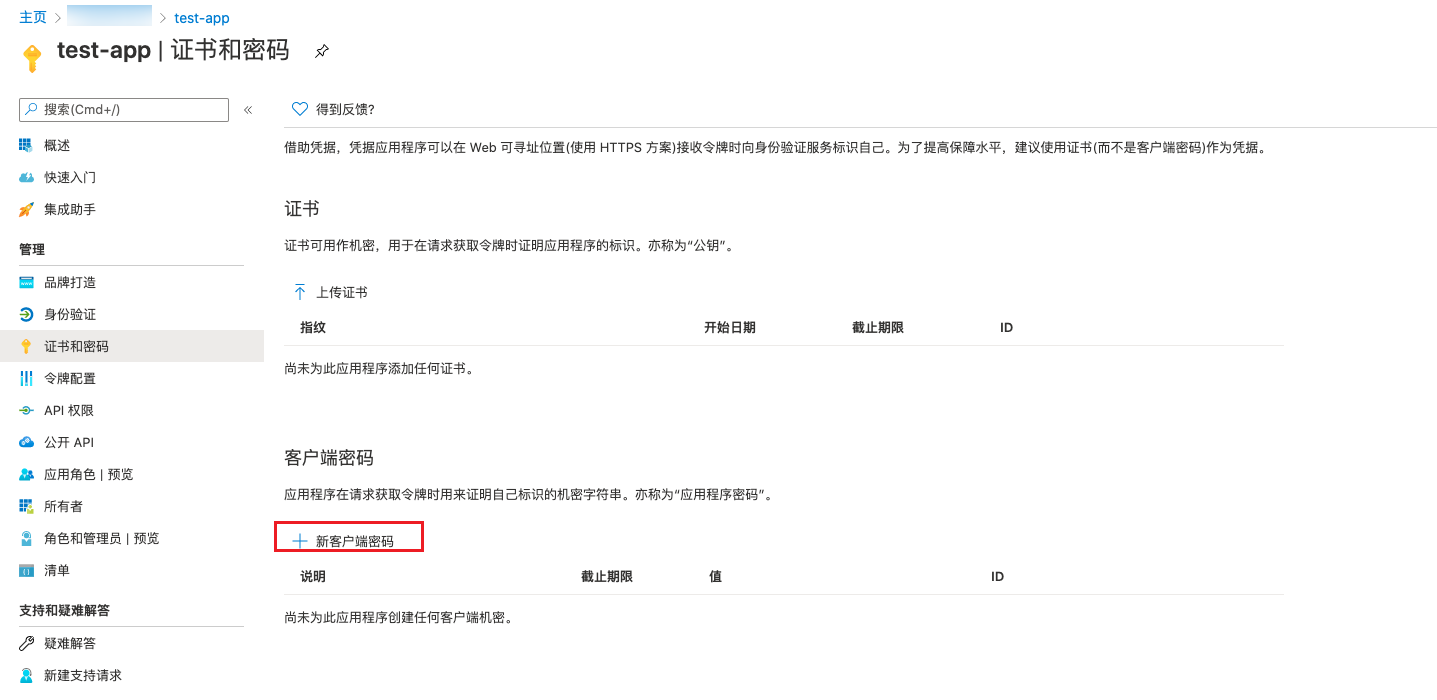
-
In the pop-up Add Client Secret dialog, enter a description and set the expiration to "Never", then click the "Add" button to create the client secret.
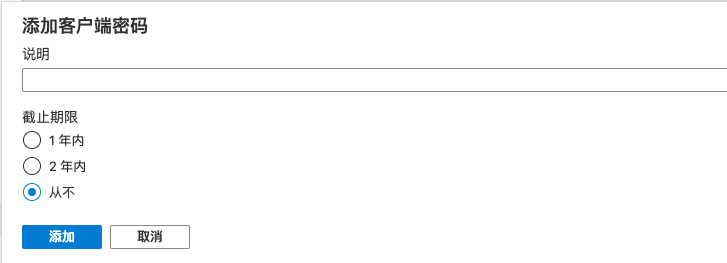
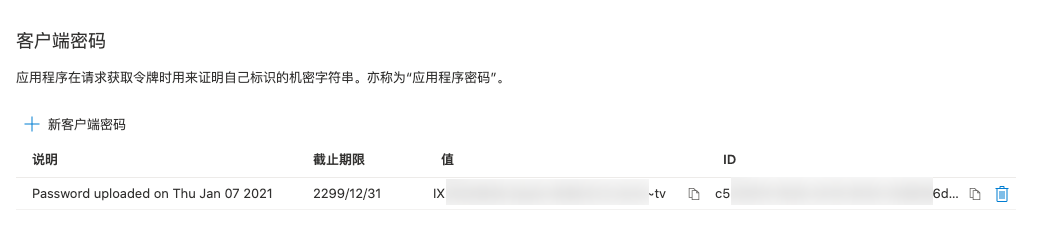
-
After saving successfully, the Value of the secret on the page is the required client secret information.
How to Authorize Subscription Permissions to an Application
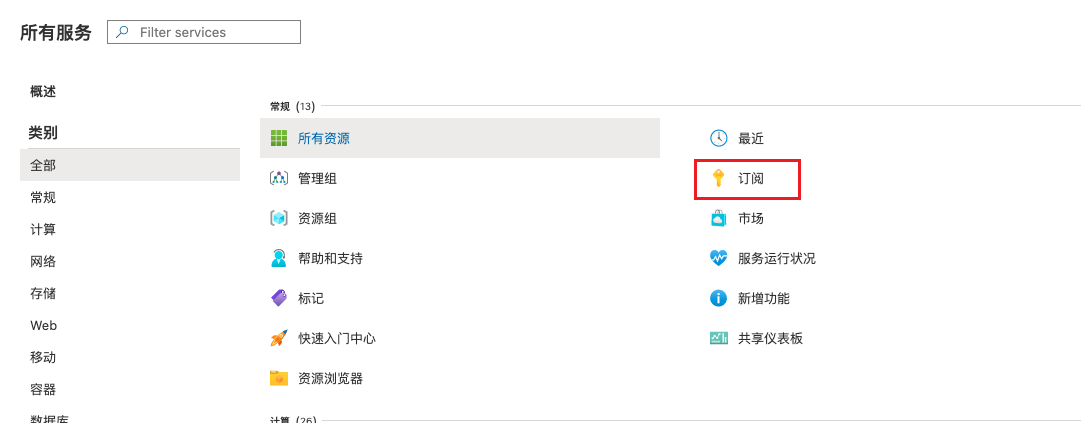
-
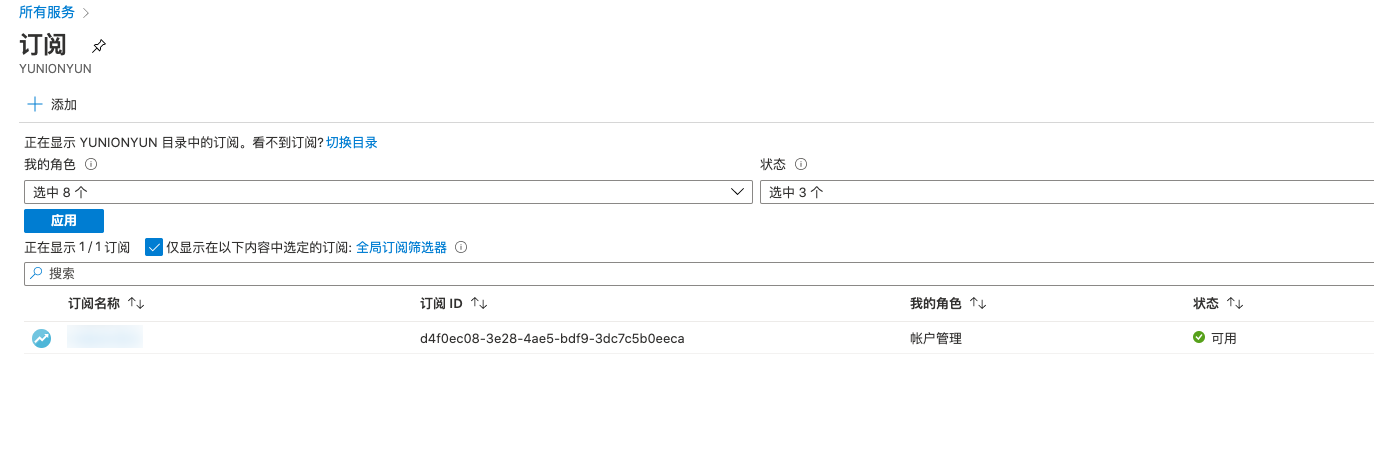
Log in to the Azure console, click the "All services" menu item in the left navigation bar, and select and click "Subscriptions" in the all services list to enter the Subscriptions list.
-
Click the subscription to be authorized to enter the subscription details page.
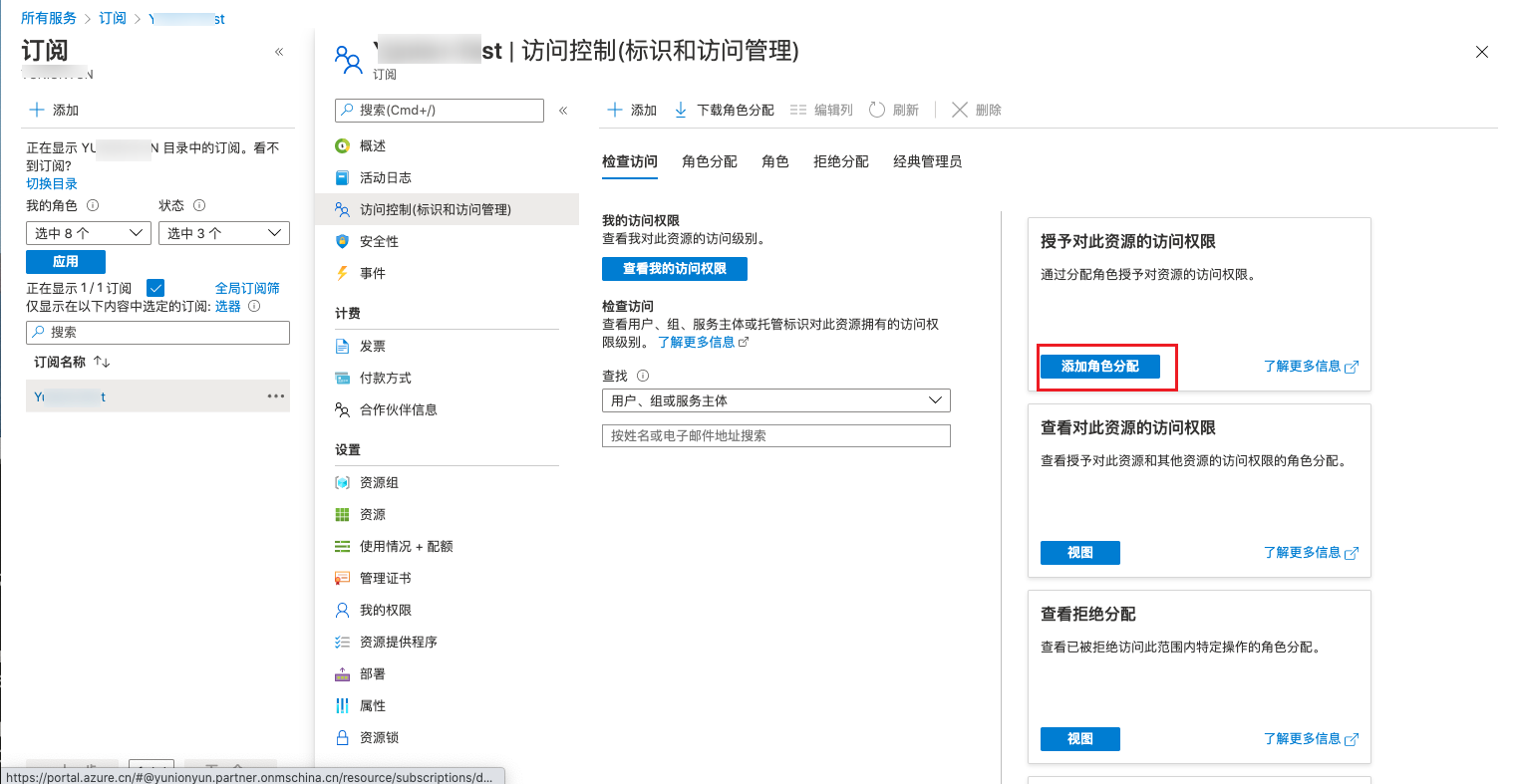
-
Click [Access control (IAM)], and on the Access Control page, click the "Add role assignment" button to enter the Add Role Assignment page.
-
Set the role to "Owner", click the "Next" button, set the access assignment to "User, group, or service principal", click the "Select members" button, search for the name of the application created in the previous step in the search box, select the application, click the "Next" button, then click the "Review + assign" button.
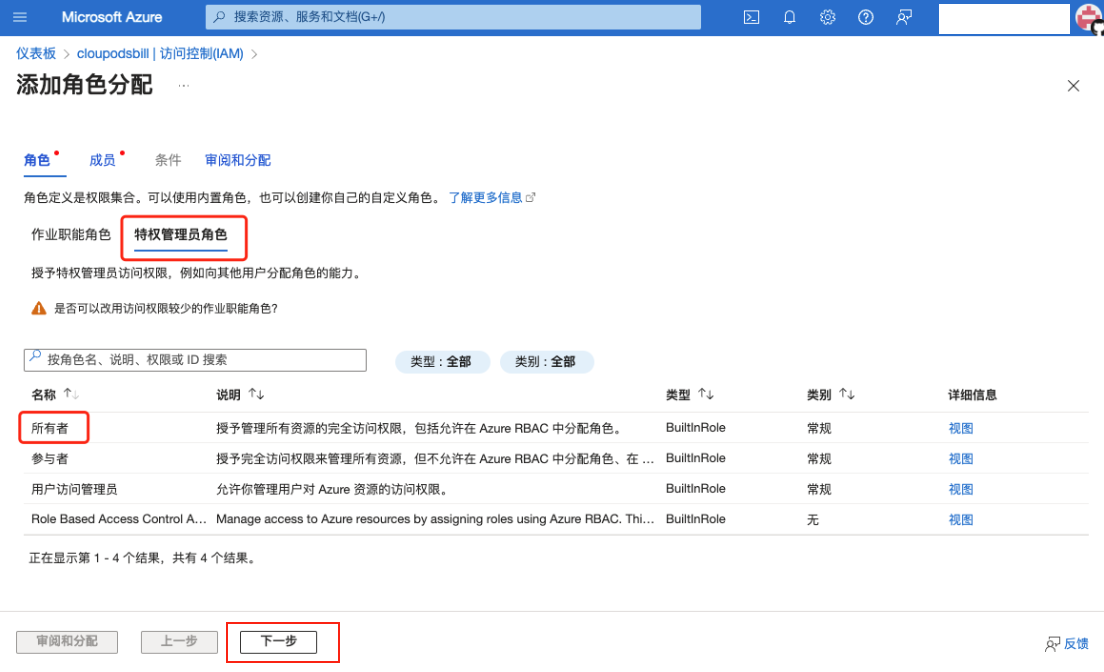
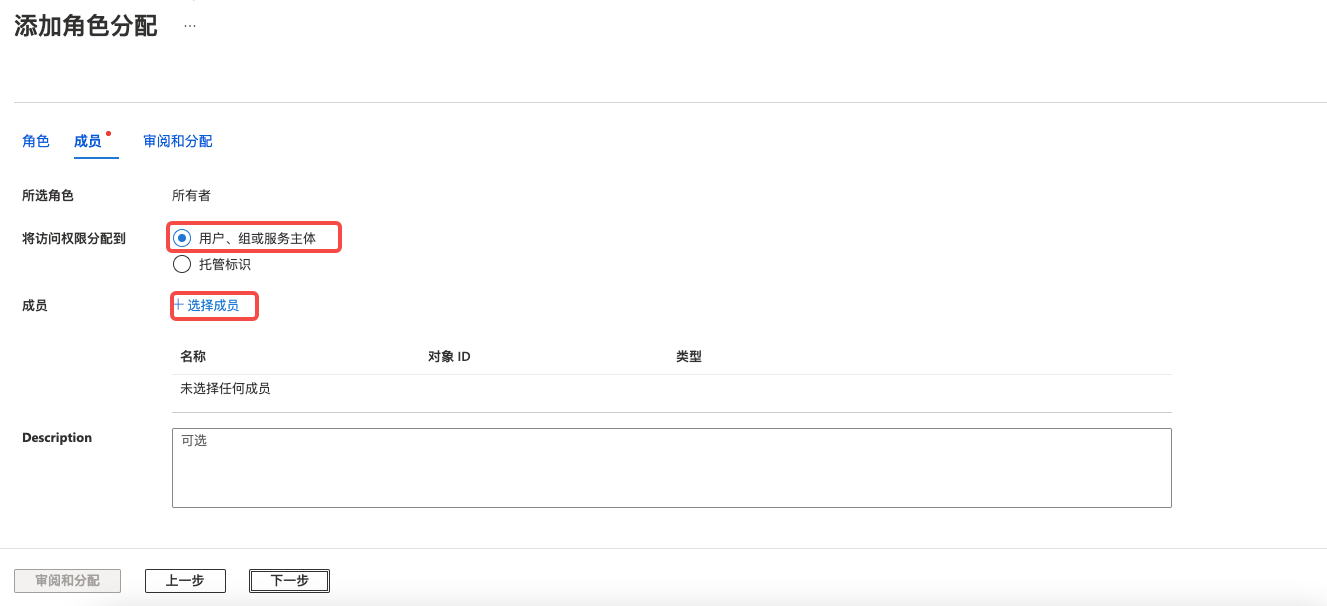
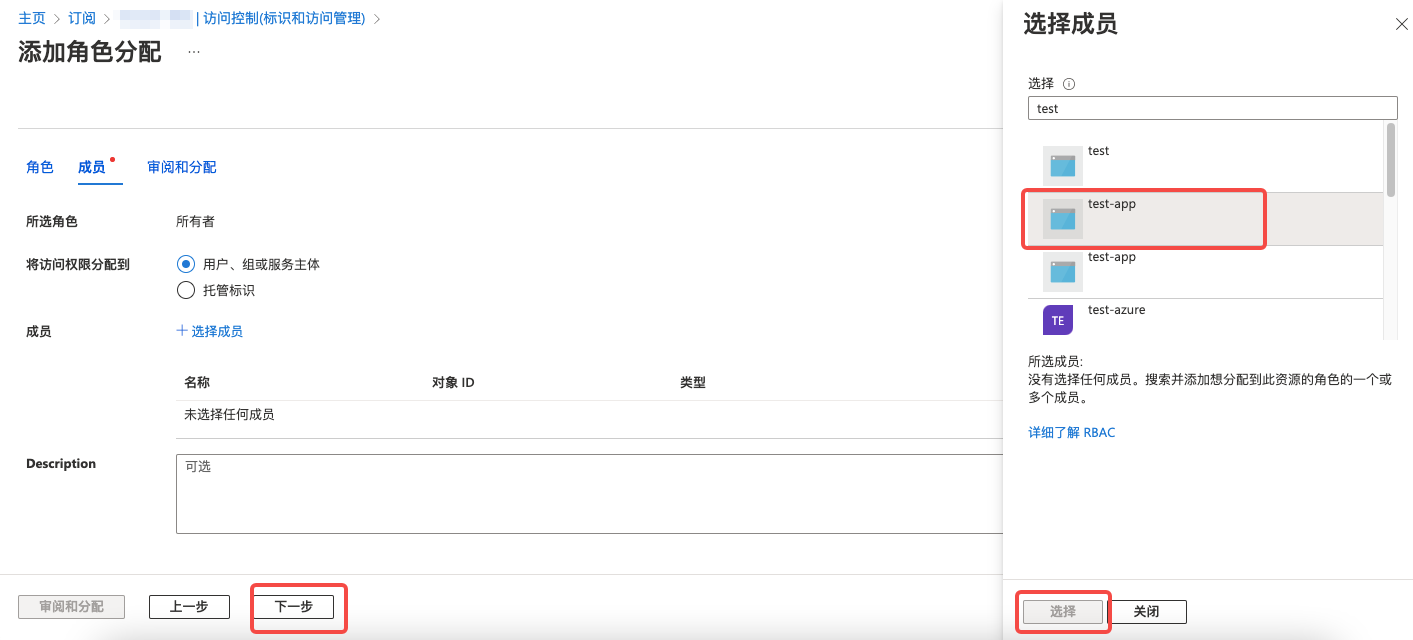
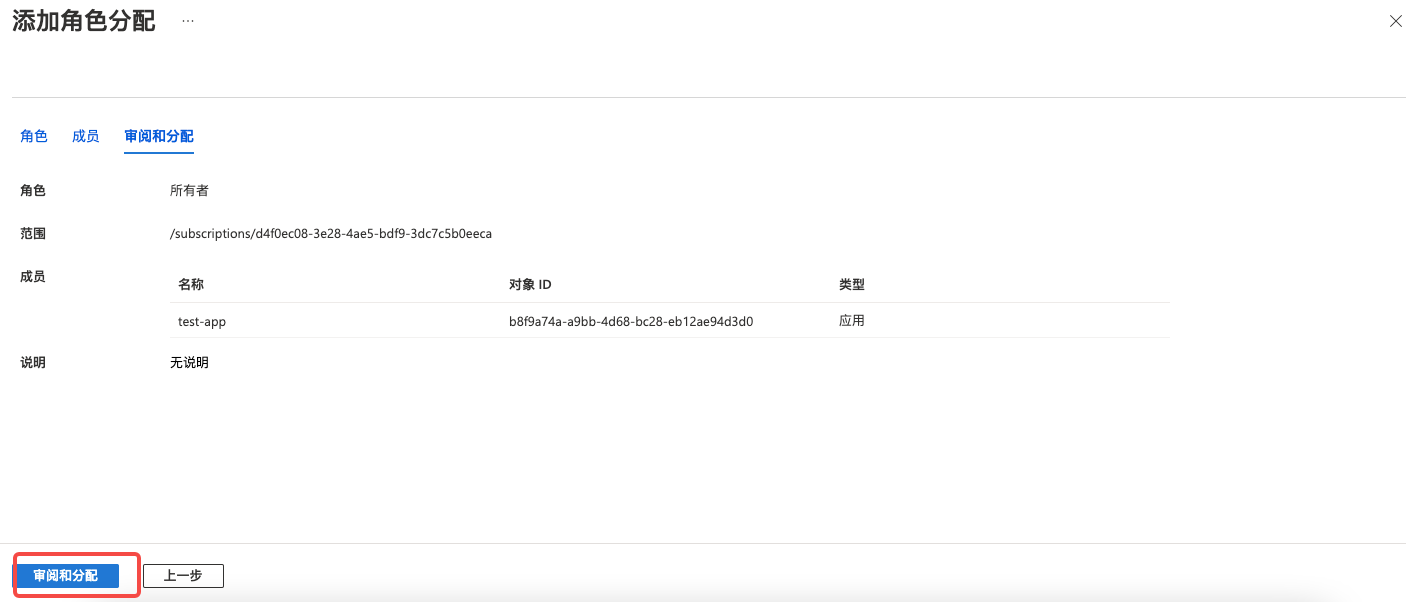
-
On the Role Assignments page, verify that the subscription permissions have been authorized to the application.
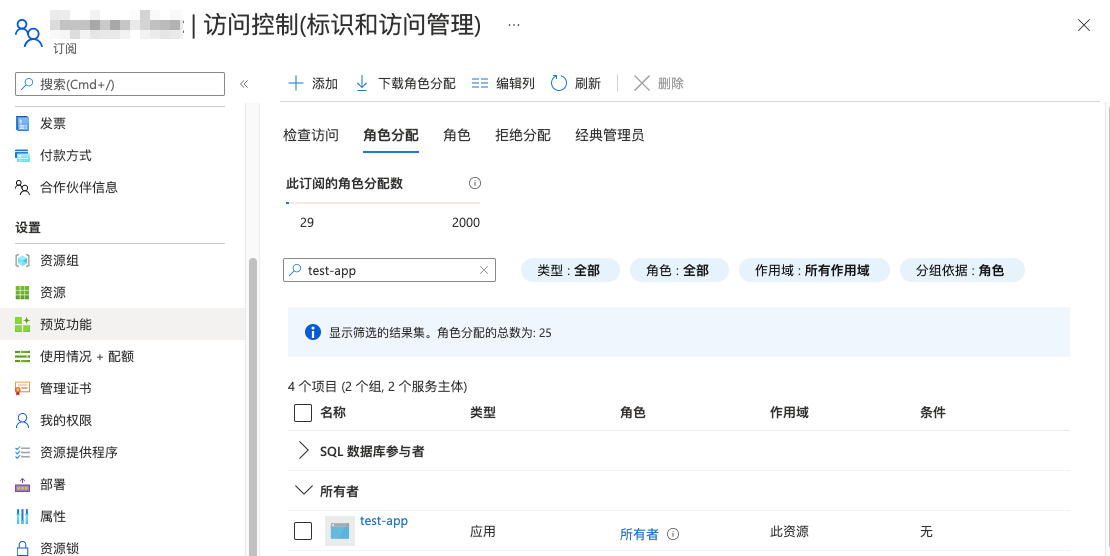
Application API Permission Settings
Please ensure the application has the following permissions under the Azure Active Directory API.
| Region | API Permissions |
|---|---|
| Azure China | Directory: Directory.Read.All, Directory.ReadWrite.All Domain: Domain.Read.All |
| Azure Global | Directory: Directory.Read.All, Directory.ReadWrite.All Domain: Domain.Read.All, Domain.ReadWrite.All; Member: Member.Read.Hidden; Policy: Policy.Read.All; |
View and Setup Steps
Taking Azure China as an example.
-
In the Azure console, click the "Azure Active Directory/App registrations" menu item in the left navigation bar to enter the App Registrations page.
-
On the details page of the newly registered application, click the "API permissions" menu item to enter the API Permissions page and view the API permissions.
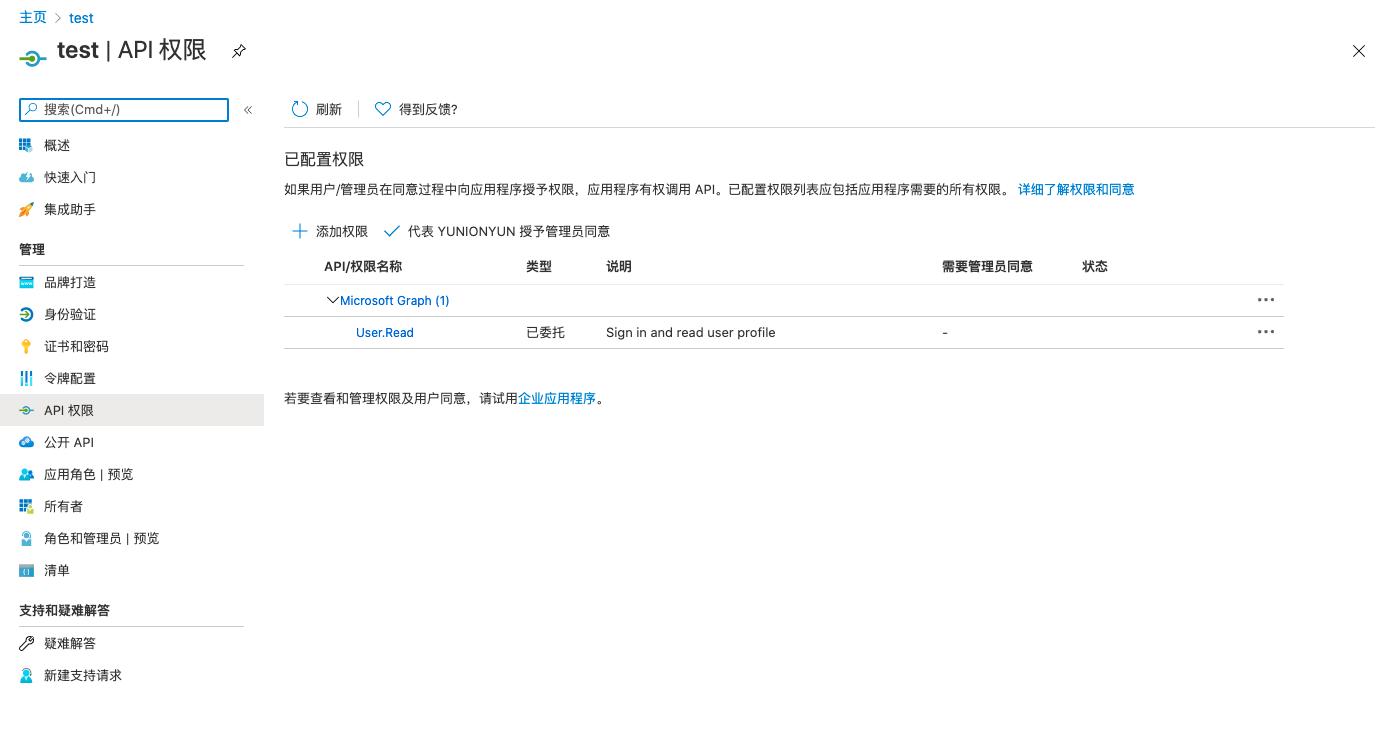
-
Check whether the application's API permissions meet the above requirements. If not, click the "Add a permission" button to open the Request API Permissions dialog.
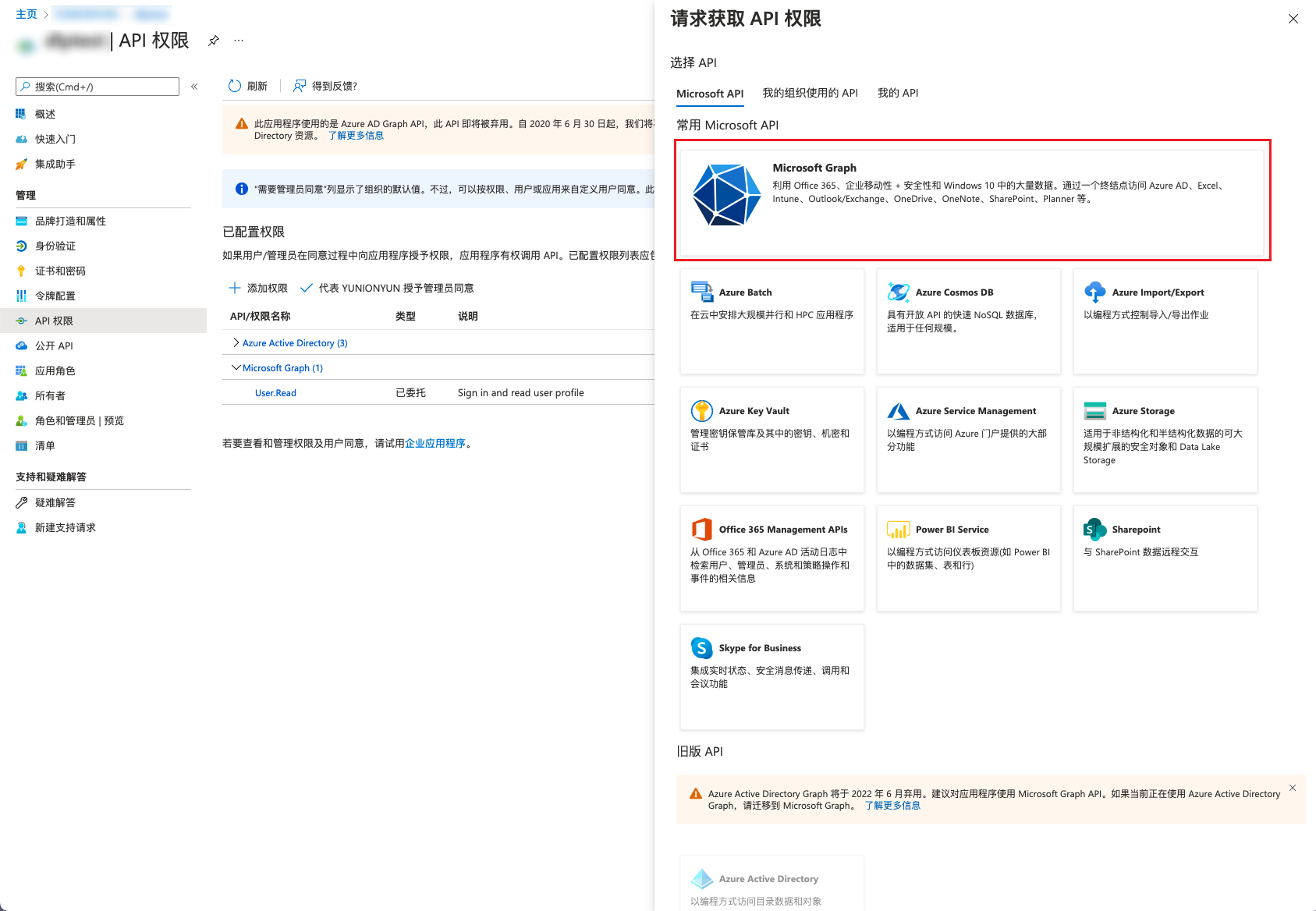
-
Select "Azure Active Directory", select "Application permissions" for the application, check all permissions under Directory and Domain, and click the "Add permissions" button to complete the configuration.
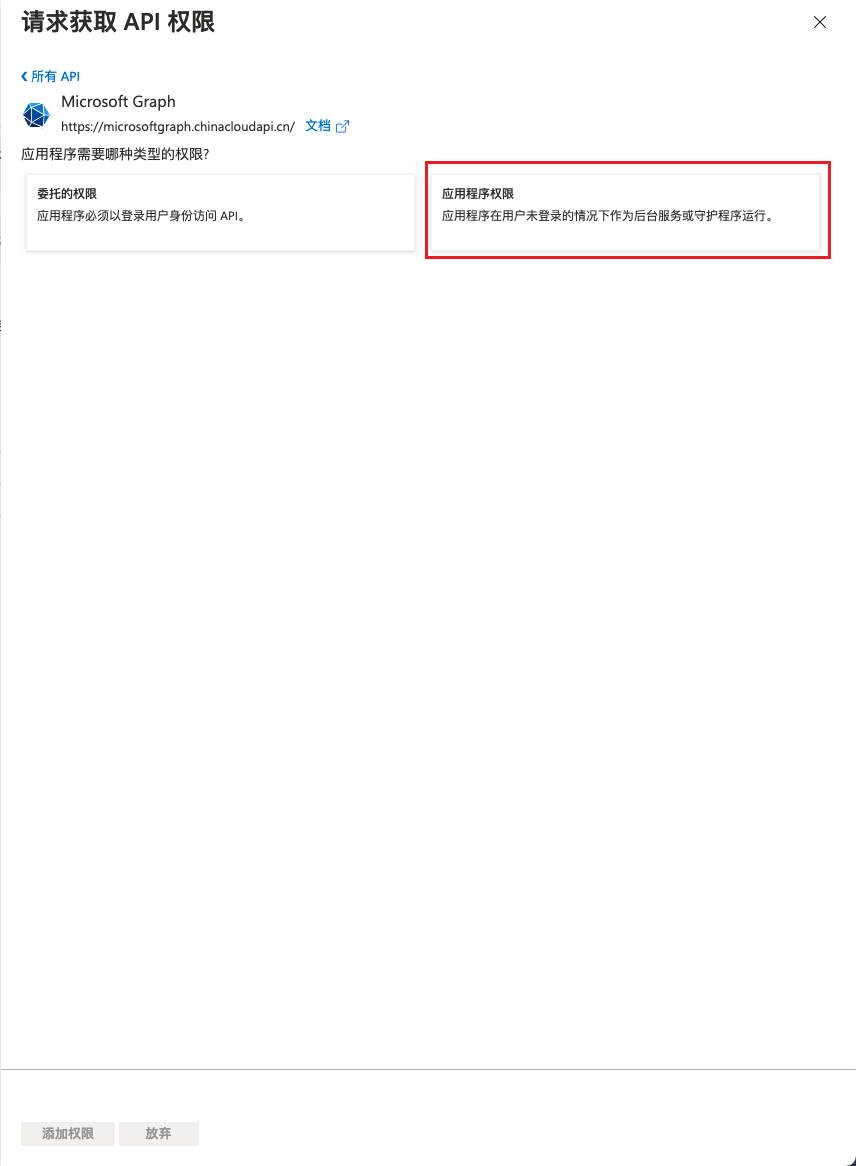
What Permissions Does the Cloud Account Need to Manage Azure Cloud Resources?
| Permission Notes | Read-Only Permission | Read-Write Permission |
|---|---|---|
| Permission to manage all resources | Reader | Owner |
| Permission to manage virtual machine resources | - | Virtual Machine Contributor Classic Virtual Machine Contributor |
| Permission to manage network resources | - | Network Contributor, Classic Network Contributor |
| Permission to manage object storage | Storage Blob Data Reader | Storage Blob Data Owner |
| Permission to manage cloud databases | Cloud SQL Viewer | Cloud SQL Admin |
| Permission to manage Redis | Redis Enterprise Cloud Viewer | Redis Enterprise Cloud Admin |
| Permission to manage file storage | Storage File Data SMB Share Reader | Storage File Data SMB Share Contributor |
| Permission to manage resource policies and roles | - | Graph Owner Resource Policy Contributor |
| Permission to manage DNS | - | DNS Zone Contributor Private DNS Zone Contributor |
| Permission to manage billing costs | Billing Reader Cost Management Reader | Cost Management Contributor |
| Permission to manage monitoring | Monitoring Reader | Monitoring Contributor |
How to Get the Azure Billing Bucket
-
Log in to the Azure console, search for "Cost Management", and click to enter the interface:
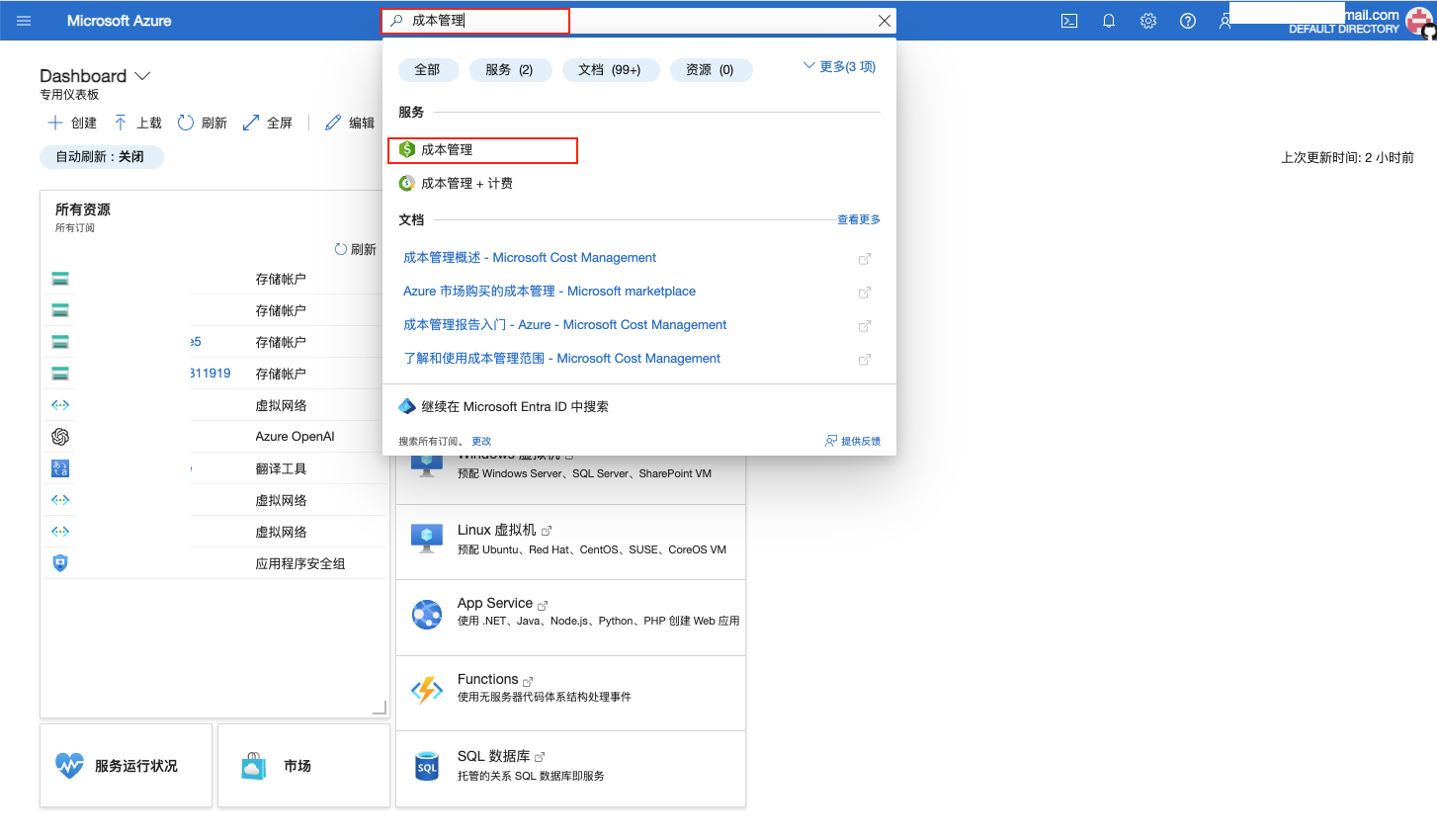
-
Click the "Export" menu, select the scope. Note that the scope should be set to a group (root directory requires administrator permissions), so that all subscription bills within the group can be merged into one file. If you only want to view bills for a specific subscription, just select the corresponding subscription.
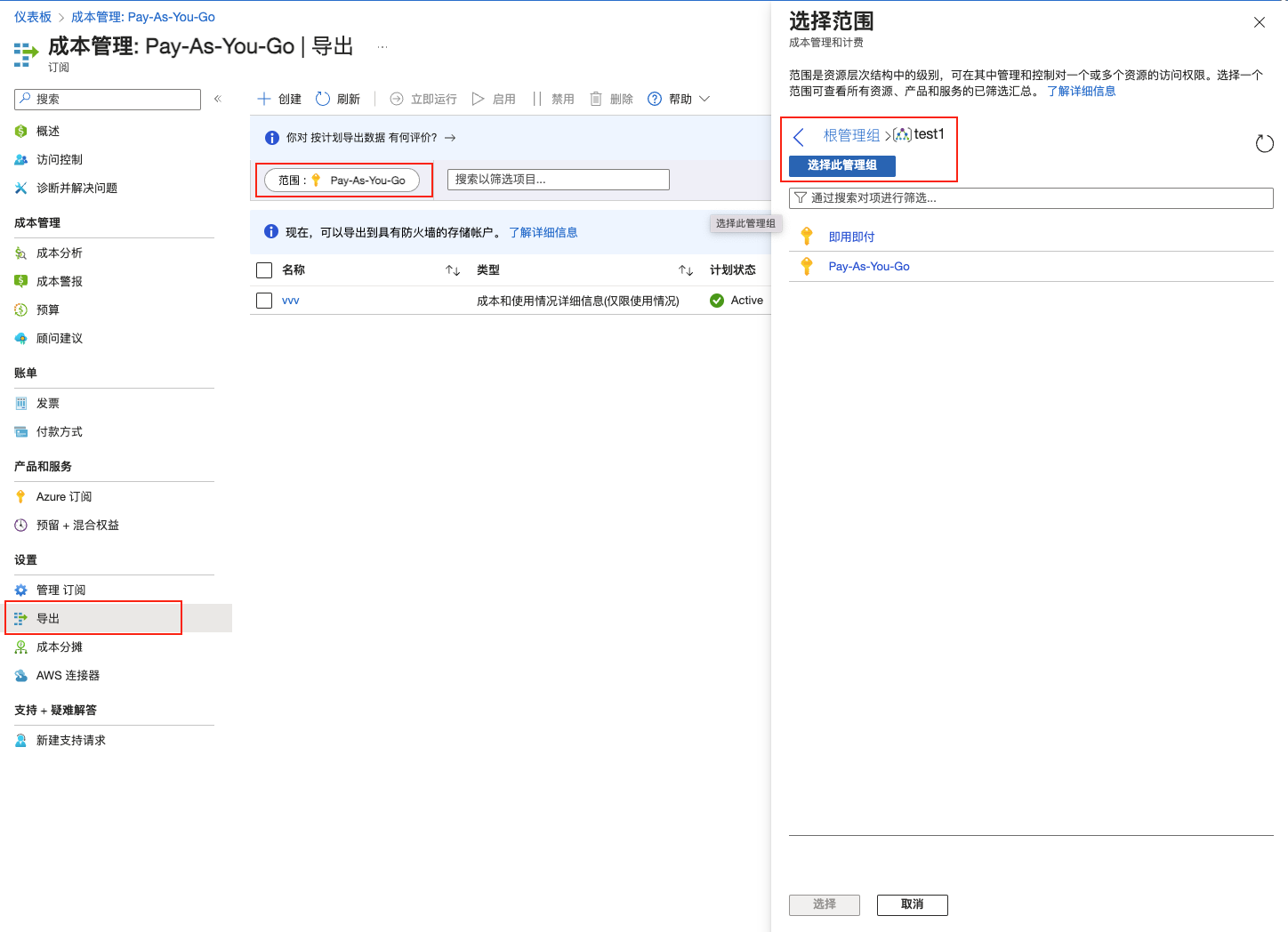
-
After selecting the corresponding group as scope, click the "Create" button. Select "Month-to-date costs with daily export" as the export type, and fill in other information as prompted.
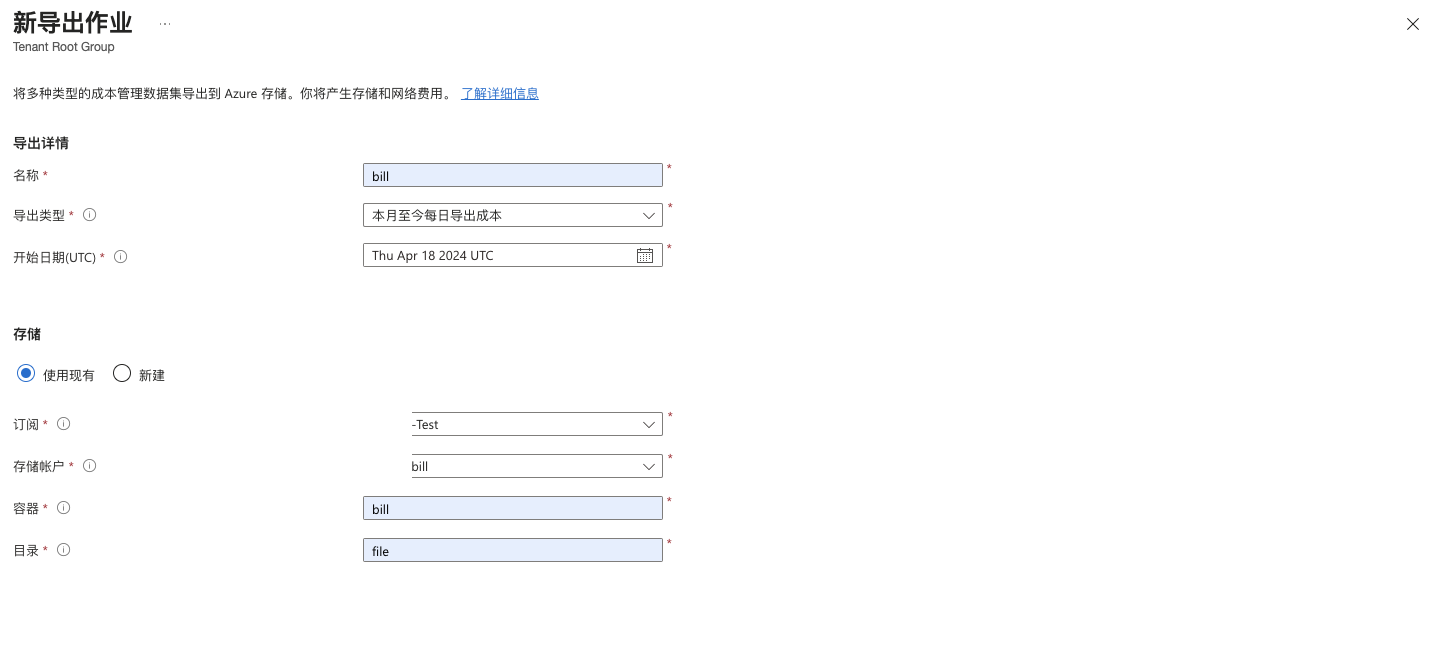
-
After successful creation, you can manually trigger the billing task to ensure there are billing files in the billing bucket for subsequent testing.
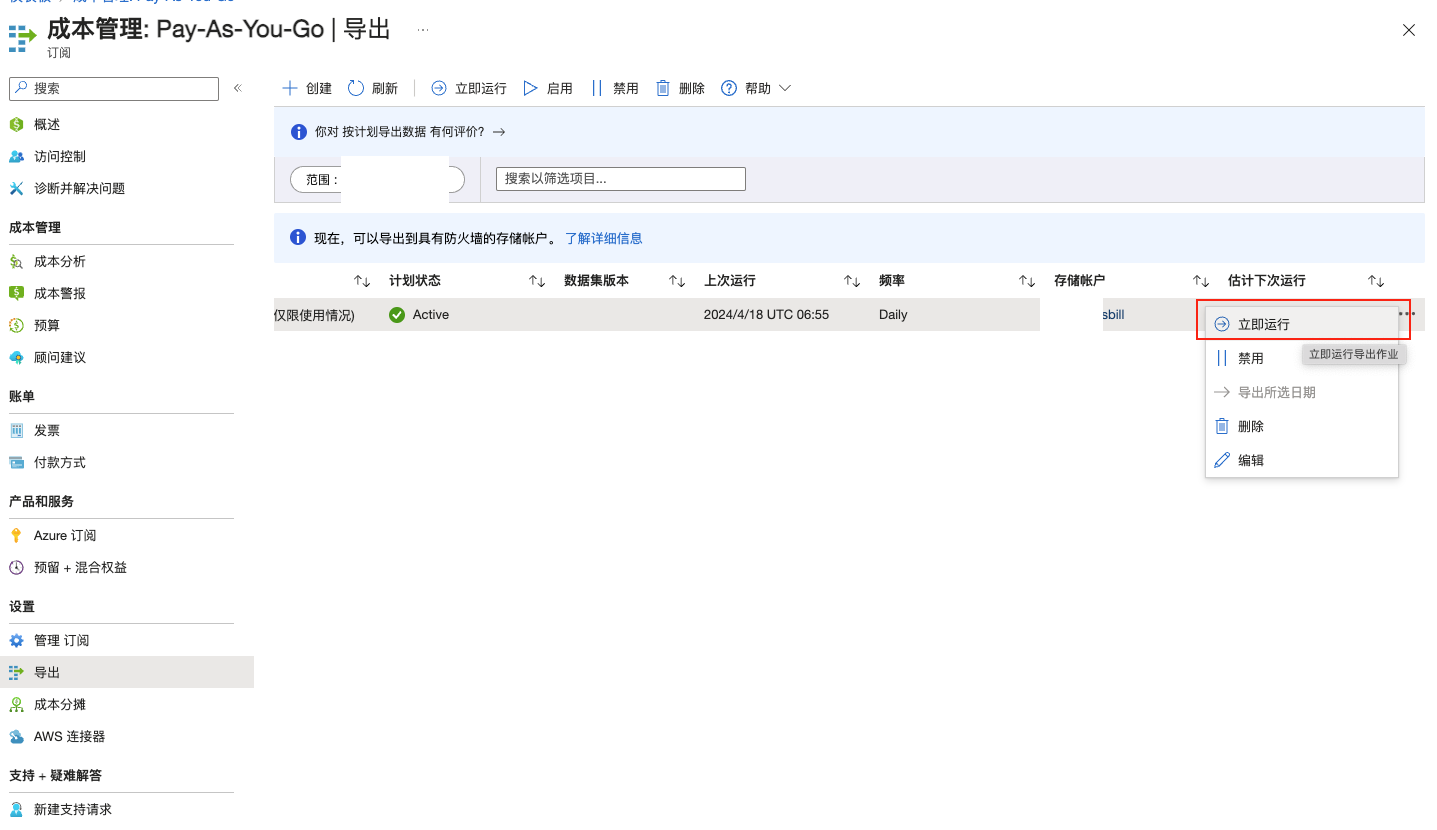
-
Find the storage account filled in the previous step (you can directly click the storage account in the task list), find the corresponding billing bucket URL, and fill the information into the Cloud Management Platform.
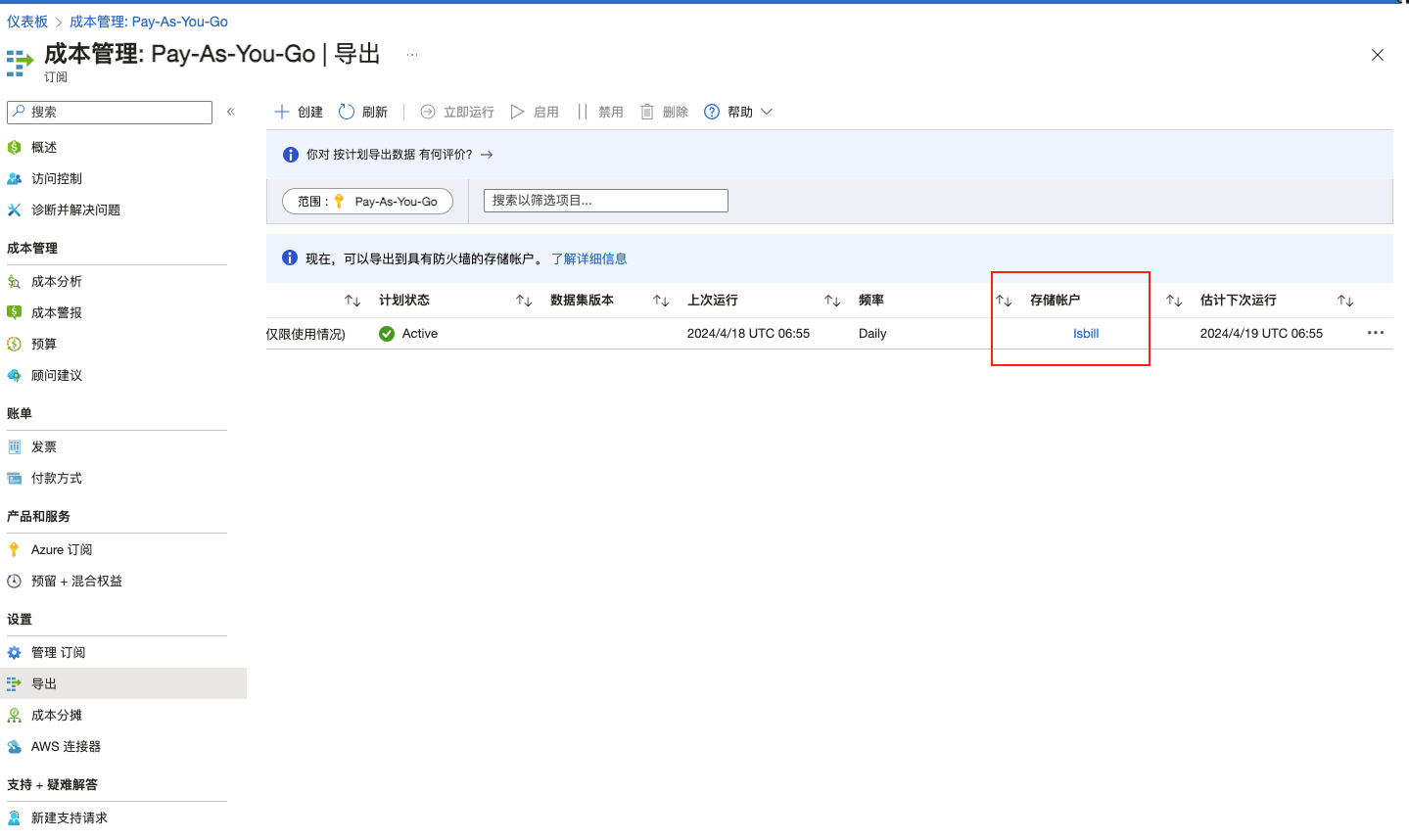
-
Click Container, select the container filled in the billing task, and click the name to enter details.
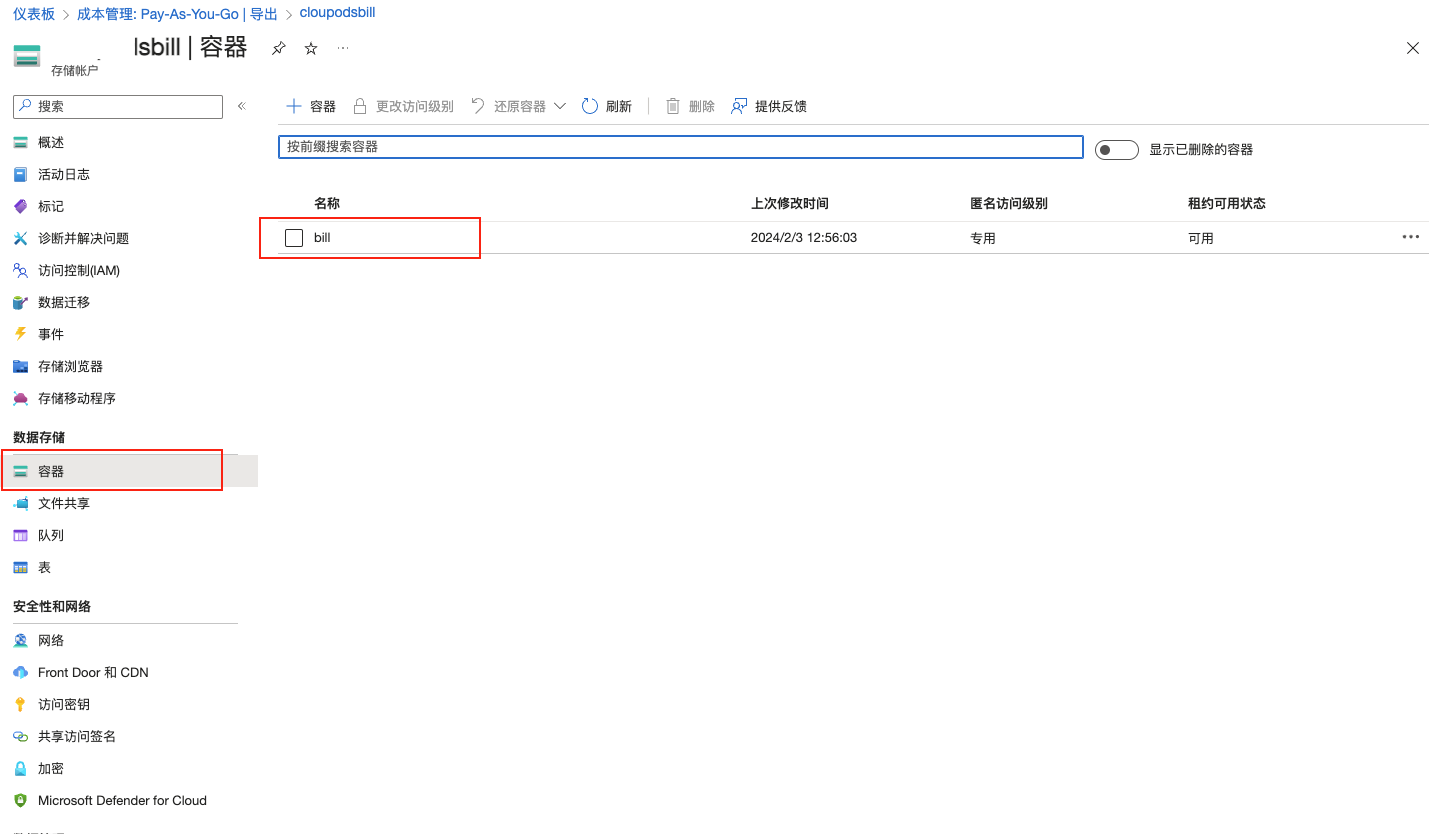
-
Click Properties to view the corresponding URL information, and fill this information into the Cloud Management Platform.
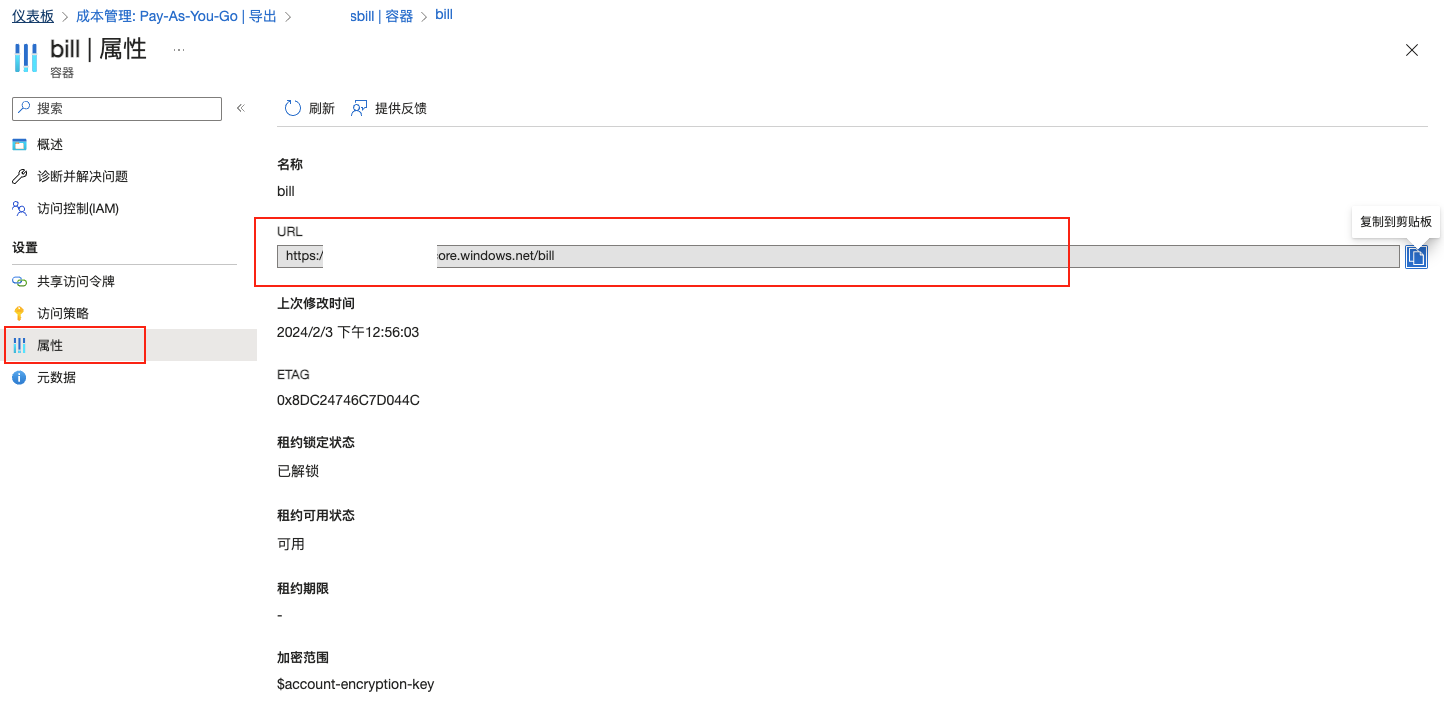
How to Get the Azure Enrollment Number and Key
-
Log in to Azure China EA Portal or Azure EA Portal. After logging in, the number in the upper left corner is the enrollment number.
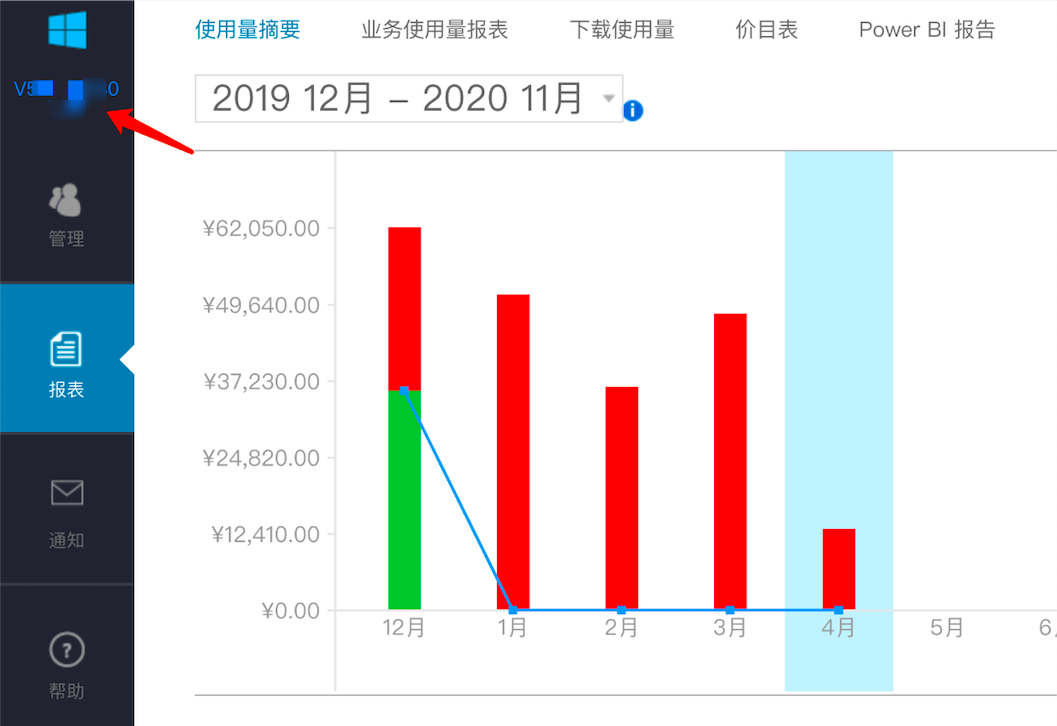
-
Click the "Reports" menu item in the left navigation bar, select the "Download Usage > API Access Key" tab. The Primary Key on this page is the key.
Create Huawei Cloud Account
- On the Cloud Accounts page, click the "Create" button above the list to enter the Create Cloud Account page.
- Select the cloud platform as Huawei Cloud, click the "Next: Configure Cloud Account" button to enter the Configure Cloud Account page.
- Configure the following parameters:
- Name: The name of the Huawei Cloud account.
- Key ID/Secret: The Key ID and Secret information for connecting to the Huawei Cloud platform. For details, please refer to Huawei Cloud Parameter Retrieval Methods.
- Domain: Select the domain to which the cloud account belongs. When the cloud account is in private state, all project users under the domain can use the cloud account to create resources.
- Resource Ownership Method: Defaults to specified project, also supports ownership based on cloud project.
- Resource Ownership Project: When the resource ownership method is set to specified project, you can select a local project on the platform to synchronize cloud account resources to. Local projects are filtered by domain. When the resource ownership method is set to based on cloud project, resources will be synchronized to local projects with the same name as the cloud project. If a resource has no cloud project attribute, it will belong to the specified project.
- Sync Policy: When enabled, resources are assigned to specified projects based on tag-to-resource-project mapping rules. The sync policy only takes effect during cloud account synchronization.
- Sync Policy Scope: Displayed after enabling sync policy, supports selecting resource tags and project tags.
- Block Sync Resources: When enabled, supports selecting resource types to block. Multiple selections are supported. Blocked resource types will not be synchronized during cloud account synchronization.
- Proxy: Set this when the cloud account requires a proxy for normal access. Leave empty for direct connection. If there is no suitable proxy, click the "Create" hyperlink directly, and set the relevant parameters in the pop-up Create Proxy dialog to create a proxy.
- Enable SSO Login: After enabling this, the system's SAML information will be automatically synchronized to the cloud account, becoming the identity provider for cloud login. This enables single sign-on from this system to the public cloud platform.
- Read-Only Mode: When enabled, the cloud account will only perform resource synchronization operations and cannot perform other task operations such as creating, deleting, or modifying.
- Sharing Scope: Set the sharing scope of the cloud account. The default is not shared, meaning only the domain where the cloud account resides can use the account. If set to global sharing, all users on the platform can use this cloud account to create resources.
- Click the "Connection Test" button to test whether the input parameters are correct.
- After successful testing, click the "Next: Configure Sync Resource Regions" button to enter the Configure Sync Resource Regions page. This configuration can be modified on the cloud account details page - Subscriptions - Regions (all regions are synchronized by default). To synchronize all regions by default on the platform, you can directly click the "Skip" button.
- After successful configuration, click the "Next: Billing File Access Information (Optional)" button to enter the Billing File Access Information page to configure the cloud account's billing parameters so that users can view the cloud account's billing information in the Expenses section. The Billing File Access Information page is optional. If you do not need to view cloud account billing information on the platform, you can directly click the "Skip" button. If you need to view billing information on the platform, please configure the relevant parameters. After configuration is complete and the test is successful, click the "OK" button, and proceed to the Scheduled Sync Task Settings page to configure the cloud account's sync tasks to make the cloud account's automatic sync behavior more controllable.
- Cloud Account Type: Includes primary account and associated account. Before using an associated account, please ensure the primary account has been imported to the platform, and select the primary account when using the associated account.
- Bucket URL: The URL of the bucket where billing files are stored. For details, please refer to How to Get the Billing Bucket URL?.
- Billing Analysis Scope: Set the scope for the platform to analyze cloud account billing. Currently only supports accounts managed by this platform.
- Accounts Managed by This Platform: Collects billing information for the primary account and sub-accounts associated with the primary account. If the primary account only serves as a payment account for other accounts, billing files collected from other accounts will be discarded.
- Collect Bills Immediately: The platform automatically collects bills at 4 AM every day by default. After enabling this, bills will be collected immediately after configuring the billing file access information.
- Time Range: When immediate bill collection is enabled, you can set a time range to immediately collect bills within that range. Please ensure there is billing data within the selected time range. It is recommended to collect bills within 1-6 months, otherwise too much data may cause excessive system pressure and affect daily bill collection tasks.
- The Scheduled Sync Task Settings page is optional. If you do not need to set up automatic sync tasks on the platform, you can directly click the "Skip" button. If you need to set up automatic sync times for the cloud account on the platform, please configure the relevant parameters. After configuration is complete and the test passes, click the "OK" button to create the Huawei Cloud account.
Huawei Cloud Parameter Retrieval Methods
How to Get the Huawei Cloud API Key
New Version
-
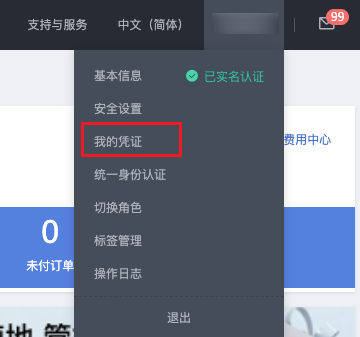
Log in to the Huawei Cloud console, hover over the username in the upper right corner, and select the "My Credentials" menu item from the dropdown menu to enter the My Credentials page.
-
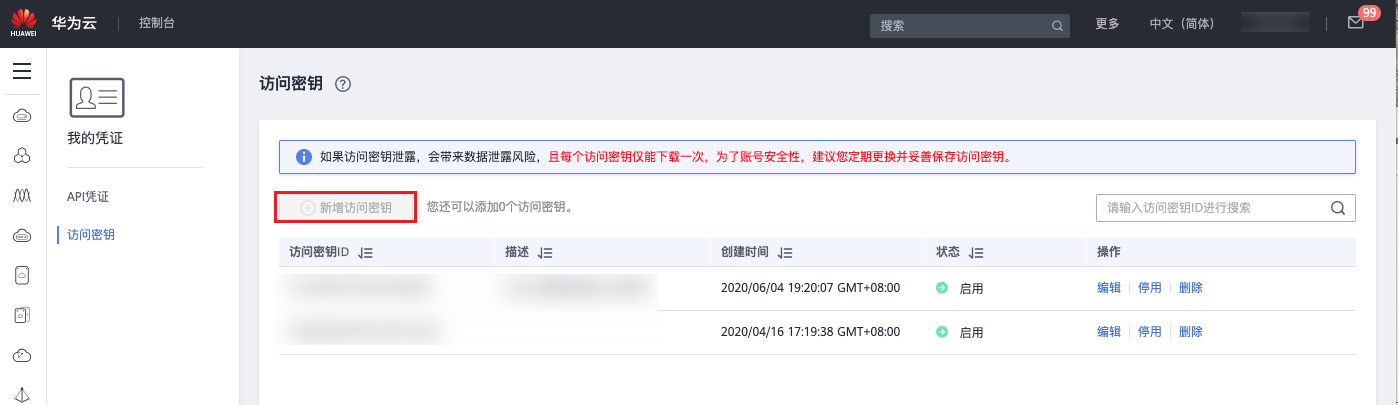
Click the [Access Keys] menu on the left, and on the Access Keys page, click the "Create Access Key" button.
-
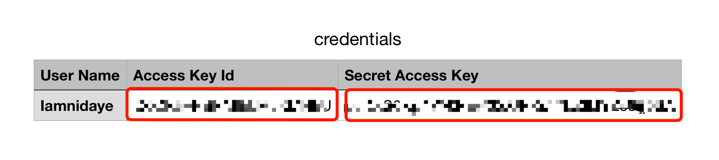
After verification, an Excel file named "credentials" will be downloaded. Open the file to get the Key ID (Access Key ID) and Secret (Secret Access Key).
Legacy Version
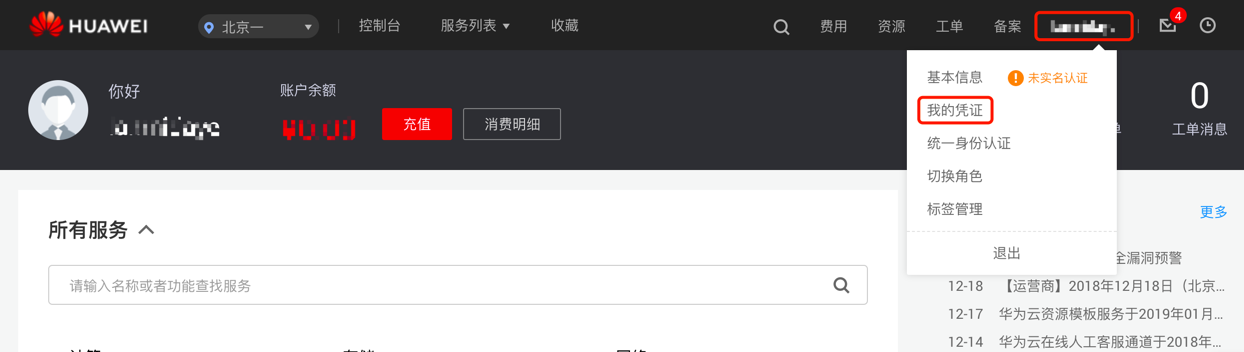
- Log in to the Huawei Cloud console, hover over the username in the upper right corner, and select the "My Credentials" menu item from the dropdown menu to enter the My Credentials page.
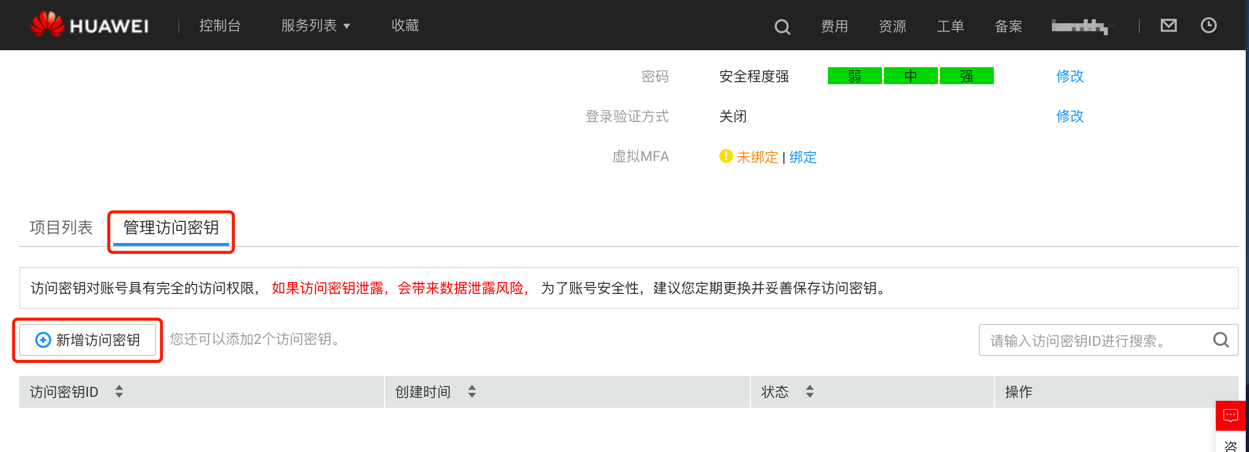
- Click the "Manage Access Keys" tab, and on the Manage Access Keys page, click the "Create Access Key" button.
- After verification, an Excel file named "credentials" will be downloaded. Open the file to get the Key ID (Access Key ID) and Secret (Secret Access Key).
What Permissions Does the Cloud Account Need to Manage Huawei Cloud Resources Through the Platform?
| Permission Notes | Read-Only Permission | Read-Write Permission |
|---|---|---|
| Permission to manage all Huawei Cloud resources (except IAM) | Tenant Guest | Tenant Administrator |
| Permission to manage Elastic Cloud Servers | ECS ReadOnlyAccess | ECS FullAccess |
| Permission to manage Elastic Volume Service | EVS ReadOnlyAccess | EVS FullAccess |
| Permission to manage Enterprise Project Management Service | EPS ReadOnlyAccess | EPS FullAccess |
| Permission to manage Image Management Service | IMS ReadOnlyAccess | IMS FullAccess |
| Permission to manage Virtual Private Cloud | VPC ReadOnlyAccess | VPC FullAccess |
| Permission to manage NAT Gateway Service | NAT ReadOnlyAccess | NAT FullAccess |
| Permission to manage Object Storage Service | OBS ReadOnlyAccess | OBS Administrator |
| Permission to manage Elastic Load Balance Service | ELB ReadOnlyAccess | ELB FullAccess |
| Permission to manage Relational Database Service | RDS ReadOnlyAccess | RDS FullAccess |
| Permission to manage Distributed Cache Service | DCS ReadOnlyAccess | DCS FullAccess |
| Permission to manage Cloud Trace Service | CTS ReadOnlyAccess | CTS FullAccess |
| Permission to manage Scalable File Service Permission to manage SFS Turbo | SFS ReadOnlyAccess SFS Turbo ReadOnlyAccess | SFS FullAccess SFS Turbo FullAccess |
| Permission to manage Web Application Firewall Service | WAF ReadOnlyAccess | WAF FullAccess |
| Permission to manage Identity and Access Management Service | IAM ReadOnlyAccess | Security Administrator |
| Permission to manage DNS Service | DNS ReadOnlyAccess | DNS FullAccess |
| Permission to manage Billing Center (BSS) | BSS Operator | BSS Administrator |
| Permission to manage Cloud Eye Service | CES ReadOnlyAccess | CES FullAccess |
How to Get the Billing Bucket URL?
New Version
-
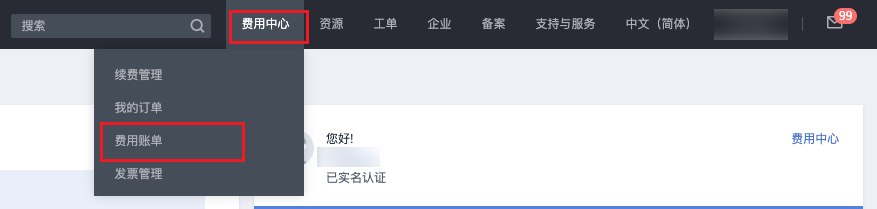
Log in to the Huawei Cloud platform, click the "Billing Center - Bills" menu item at the top to enter the Billing Center page.
-
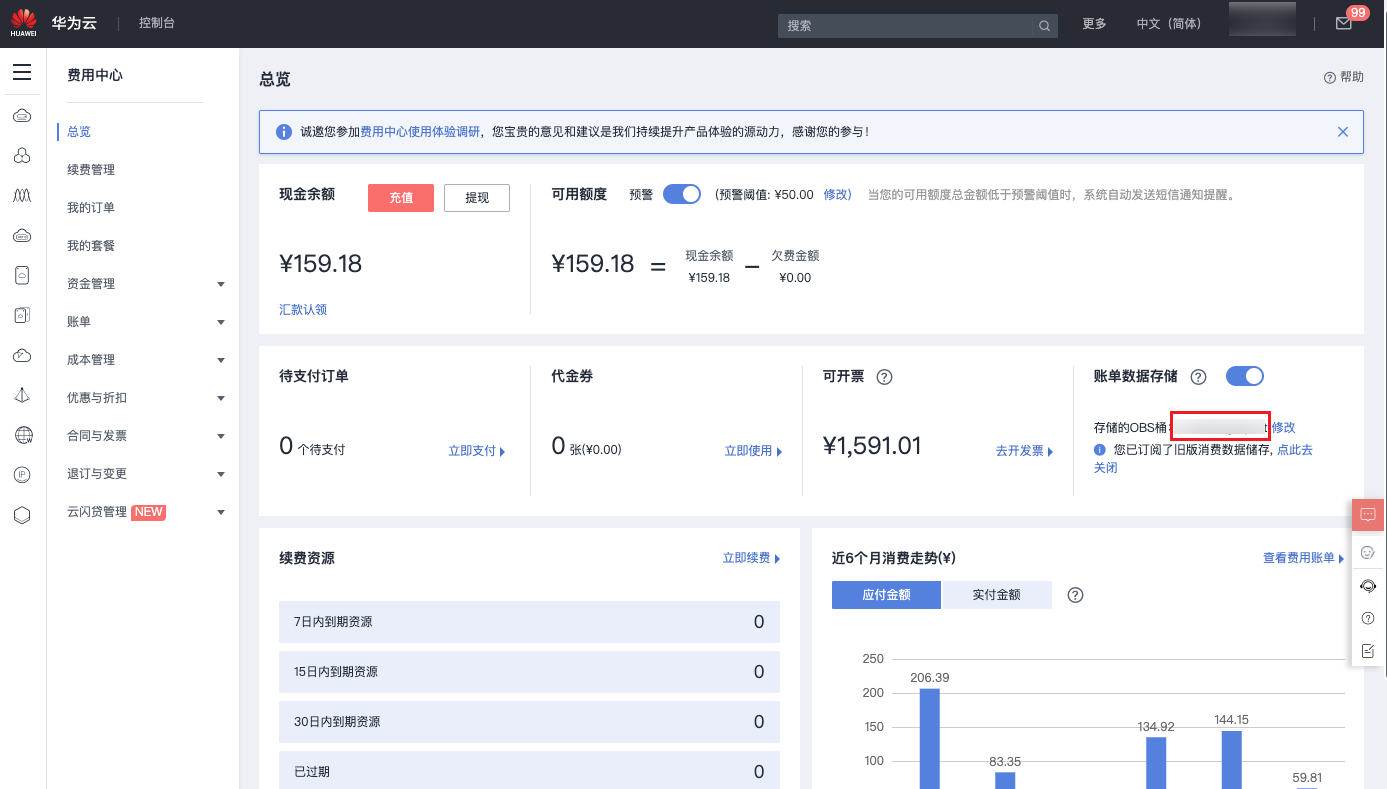
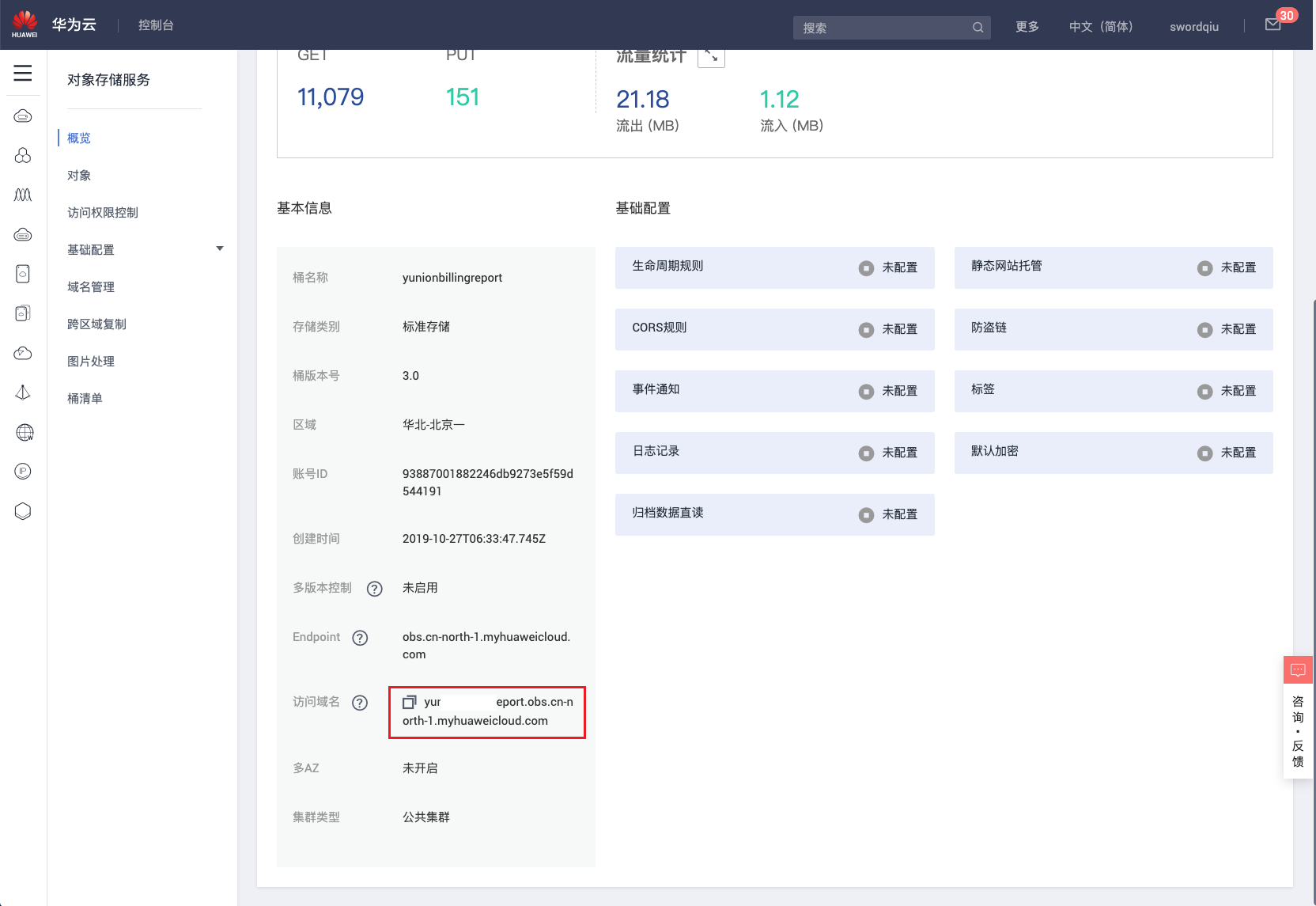
Click the [Overview] menu on the left. In the "Bill Data Storage" section on the right side of the Overview page, view and record the object storage name. If not configured, you need to enable bill data storage on this page, configure the OBS bucket for storage, and perform authorization verification. After setup, daily incremental billing data will be synchronized to the corresponding OBS. It is recommended that the bucket only stores billing files.
-
On the Object Storage Service (OBS) page of the Huawei Cloud console, view the overview information of the corresponding bucket and get the access domain name, which is the bucket URL.
Legacy Version
-
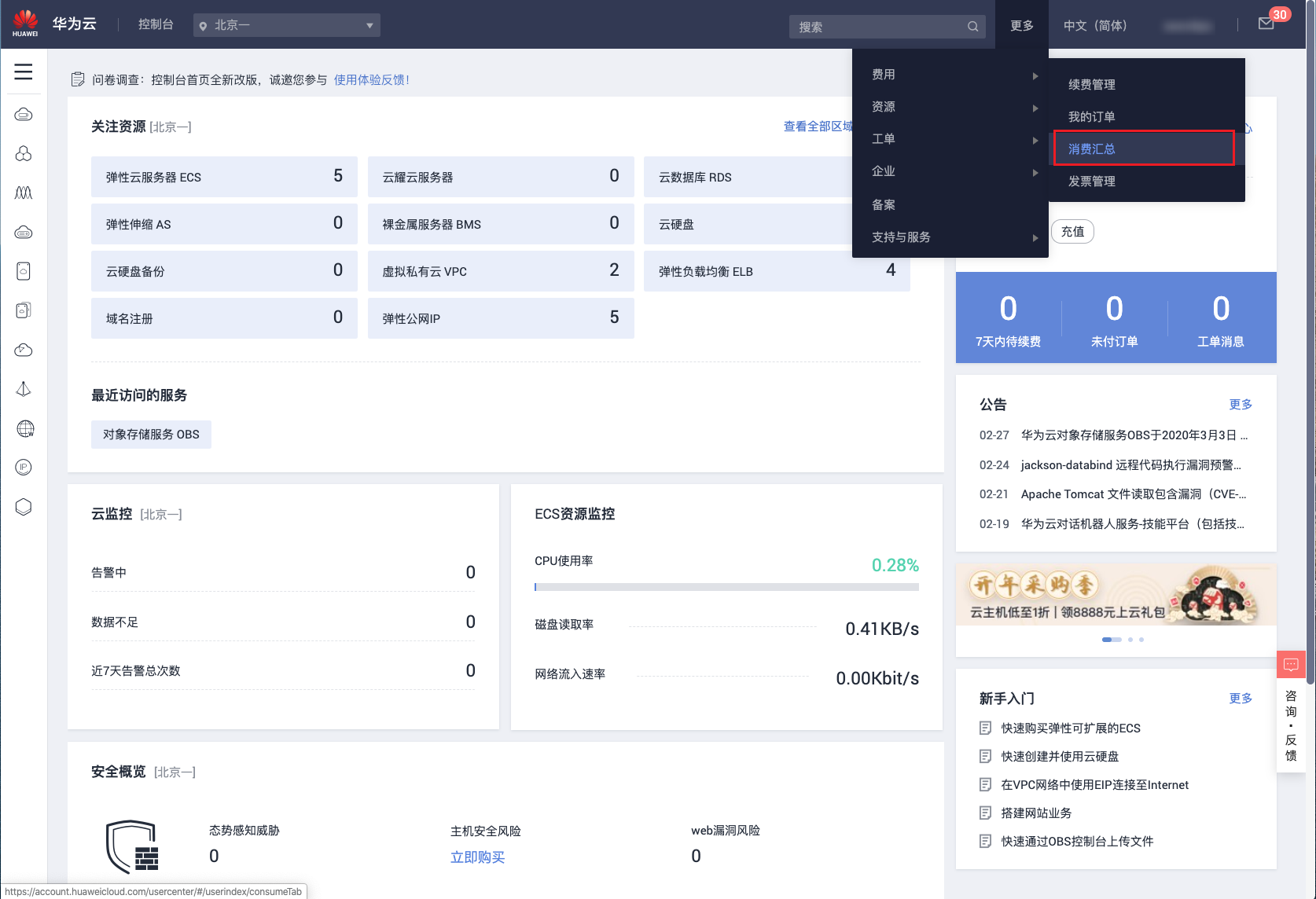
Log in to the Huawei Cloud platform, click the dropdown menu "Billing - Consumption Overview" under the top [More] menu to enter the Billing Center page.
-
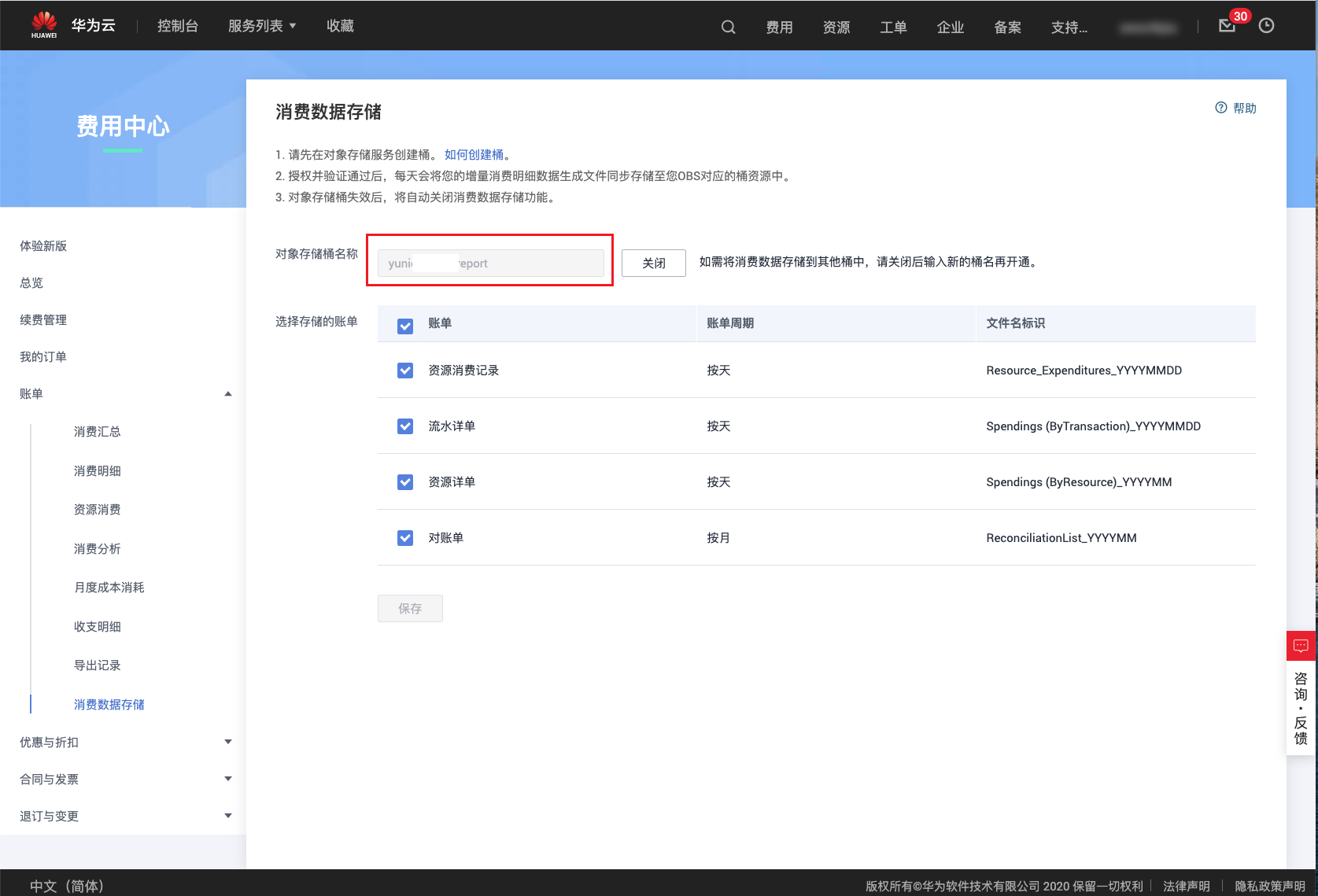
Click the [Consumption Data Storage] menu on the left. In the Consumption Data Storage page, view and record the object storage bucket name. If not configured, you need to set up the storage bucket and perform authorization verification on this page. After setup, daily incremental billing data will be synchronized to the corresponding OSS. It is recommended that the bucket only stores billing files.
-
On the Object Storage Service (OBS) page of the Huawei Cloud console, view the overview information of the corresponding bucket and get the access domain name, which is the bucket URL.
Create Tencent Cloud Account
- On the Cloud Accounts page, click the "Create" button above the list to enter the Create Cloud Account page.
- Select the cloud platform as Tencent Cloud, click the "Next: Configure Cloud Account" button to enter the Configure Cloud Account page.
- Configure the following parameters:
- Name: The name of the Tencent Cloud platform.
- APP ID/Key ID/Secret: The Tencent Cloud account's APP ID has a unique correspondence with the account ID. The APP ID/Key ID/Secret for connecting to the Tencent Cloud platform. For details, please refer to Tencent Cloud Parameter Retrieval Methods.
- Domain: Select the domain to which the cloud account belongs. When the cloud account is in private state, all project users under the domain can use the cloud account to create resources.
- Resource Ownership Method: Defaults to specified project, also supports ownership based on cloud project.
- Resource Ownership Project: When the resource ownership method is set to specified project, you can select a local project on the platform to synchronize cloud account resources to. Local projects are filtered by domain. When the resource ownership method is set to based on cloud project, resources will be synchronized to local projects with the same name as the cloud project. If a resource has no cloud project attribute, it will belong to the specified project.
- Sync Policy: When enabled, resources are assigned to specified projects based on tag-to-resource-project mapping rules. The sync policy only takes effect during cloud account synchronization.
- Sync Policy Scope: Displayed after enabling sync policy, supports selecting resource tags and project tags.
- Block Sync Resources: When enabled, supports selecting resource types to block. Multiple selections are supported. Blocked resource types will not be synchronized during cloud account synchronization.
- Proxy: Set this when the cloud account requires a proxy for normal access. Leave empty for direct connection. If there is no suitable proxy, click the "Create" hyperlink directly, and set the relevant parameters in the pop-up Create Proxy dialog to create a proxy.
- Enable SSO Login: After enabling this, the system's SAML information will be automatically synchronized to the cloud account, becoming the identity provider for cloud login. This enables single sign-on from this system to the public cloud platform.
- Read-Only Mode: When enabled, the cloud account will only perform resource synchronization operations and cannot perform other task operations such as creating, deleting, or modifying.
- Sharing Scope: Set the sharing scope of the cloud account. The default is not shared, meaning only the domain where the cloud account resides can use the account. If set to global sharing, all users on the platform can use this cloud account to create resources.
- Click the "Connection Test" button to test whether the input parameters are correct.
- After successful testing, click the "Next: Configure Sync Resource Regions" button to enter the Configure Sync Resource Regions page. This configuration can be modified on the cloud account details page - Subscriptions - Regions (all regions are synchronized by default). To synchronize all regions by default on the platform, you can directly click the "Skip" button.
- After successful configuration, click the "Next: Billing File Access Information (Optional)" button to enter the Billing File Access Information page to configure the cloud account's billing parameters so that users can view the cloud account's billing information in the Expenses section. The Billing File Access Information page is optional. If you do not need to view cloud account billing information on the platform, you can directly click the "Skip" button. If you need to view billing information on the platform, please configure the relevant parameters. After configuration is complete and the test is successful, click the "OK" button, and proceed to the Scheduled Sync Task Settings page to configure the cloud account's sync tasks to make the cloud account's automatic sync behavior more controllable.
If the added Tencent Cloud account is a new account, please first enable COS service on the Tencent Cloud platform.
- Cloud Account Type: Includes primary account and associated account. Before using an associated account, please ensure the primary account has been imported to the platform, and select the primary account when using the associated account.
- Bucket URL: The URL of the bucket where billing files are stored. For details, please refer to How to Get the Tencent Cloud Billing Bucket URL?.
- File Prefix: When the billing bucket contains files other than billing files, you need to configure the file prefix to only retrieve billing files from the bucket.
- Billing Analysis Scope: Set the scope for the platform to analyze cloud account billing. Currently only supports accounts managed by this platform.
- Accounts Managed by This Platform: Collects billing information for the primary account and sub-accounts associated with the primary account. If the primary account only serves as a payment account for other accounts, billing files collected from other accounts will be discarded.
- Collect Bills Immediately: The platform automatically collects bills at 4 AM every day by default. After enabling this, bills will be collected immediately after configuring the billing file access information.
- Time Range: When immediate bill collection is enabled, you can set a time range to immediately collect bills within that range. Please ensure there is billing data within the selected time range. It is recommended to collect bills within 1-6 months, otherwise too much data may cause excessive system pressure and affect daily bill collection tasks.
- The Scheduled Sync Task Settings page is optional. If you do not need to set up automatic sync tasks on the platform, you can directly click the "Skip" button. If you need to set up automatic sync times for the cloud account on the platform, please configure the relevant parameters. After configuration is complete and the test passes, click the "OK" button to create the Tencent Cloud account.
Tencent Cloud Parameter Retrieval Methods
How to Get the Tencent Cloud API Key
-
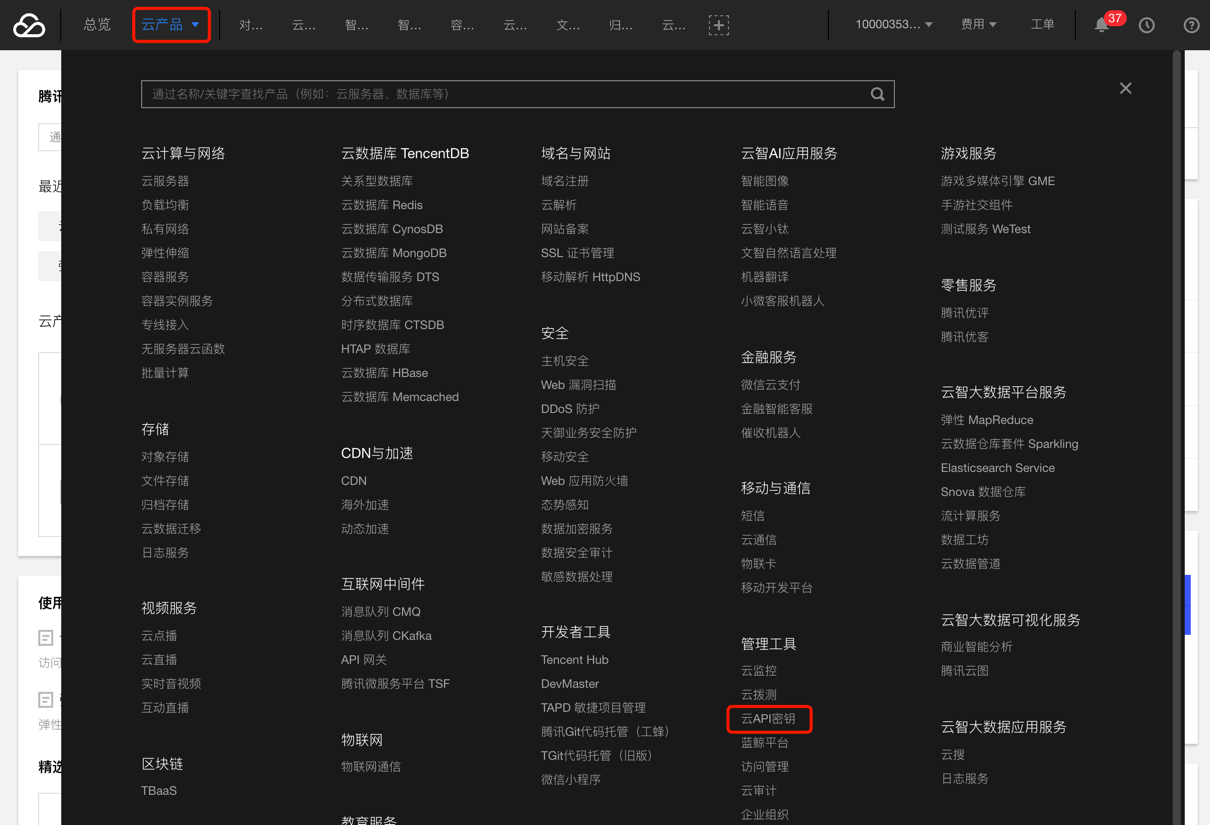
Log in to the Tencent Cloud console, click "Cloud Products" in the upper right corner, search for "Cloud API Key" in the expanded menu, and click to enter the API Key Management page.
-
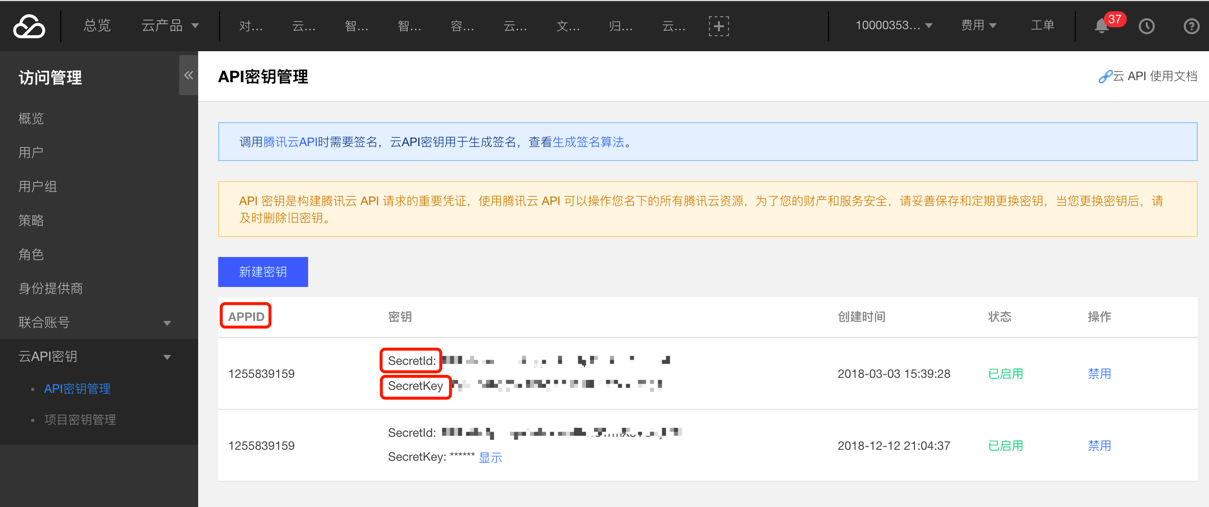
On the API Key Management page, get the values corresponding to APP ID, Key ID (SecretId), and Secret (SecretKey).
What Permissions Does the Cloud Account Need to Manage Tencent Cloud Resources Through the Platform?
| Permission Notes | Read-Only Permission | Read-Write Permission |
|---|---|---|
| Permission to manage all Tencent Cloud resources | ReadOnlyAccess | AdministratorAccess |
| Permission to manage Cloud Virtual Machines (CVM) | QcloudCVMReadOnlyAccess | QcloudCVMFullAccess |
| Permission to manage Virtual Private Cloud (VPC) | QcloudVPCReadOnlyAccess | QcloudVPCFullAccess |
| Permission to manage Elastic IP (EIP) | - | QcloudEIPFullAccess |
| Permission to manage Cloud Object Storage (COS) | QcloudCOSReadOnlyAccess | QcloudCOSFullAccess |
| Permission to manage Cloud Load Balancer (CLB) | QcloudCLBReadOnlyAccess | QcloudCLBFullAccess |
| Permission to manage TencentDB for MariaDB Permission to manage TencentDB for MySQL (CDB) Permission to manage TencentDB for SQL Server Permission to manage TencentDB for PostgreSQL | QcloudMariaDBReadOnlyAccess QcloudCDBReadOnlyAccess QcloudSQLServerReadOnlyAccess QcloudPostgreSQLReadOnlyAccess | QcloudMariaDBFullAccess QcloudCDBFullAccess QcloudSQLServerFullAccess QcloudPostgreSQLFullAccess |
| Permission to manage TencentDB for Redis | QcloudRedisReadOnlyAccess | QcloudRedisFullAccess |
| Permission to manage CloudAudit | QcloudAuditReadOnlyAccess | QcloudAuditFullAccess |
| Permission to manage Cloud File Storage (CFS) | QcloudCFSReadOnlyAccess | QcloudCFSFullAccess |
| Permission to manage Web Application Firewall and get SSL certificate list | QcloudWAFReadOnlyAccess | QcloudWAFFullAccess |
| Permission to manage Cloud Access Management (CAM) | QcloudCamReadOnlyAccess | QcloudCamFullAccess |
| Permission to manage Private DNS Permission to manage DNSPod | QcloudDNSPodReadOnlyAccess QcloudPrivateDNSReadOnlyAccess | QcloudPrivateDNSFullAccess QcloudDNSPodFullAccess |
| Permission to manage account finance-related content | - | QCloudFinanceFullAccess |
| Permission to manage Cloud Monitor | QcloudMonitorReadOnlyAccess | QcloudMonitorFullAccess |
How to Get the Tencent Cloud Billing Bucket URL
-
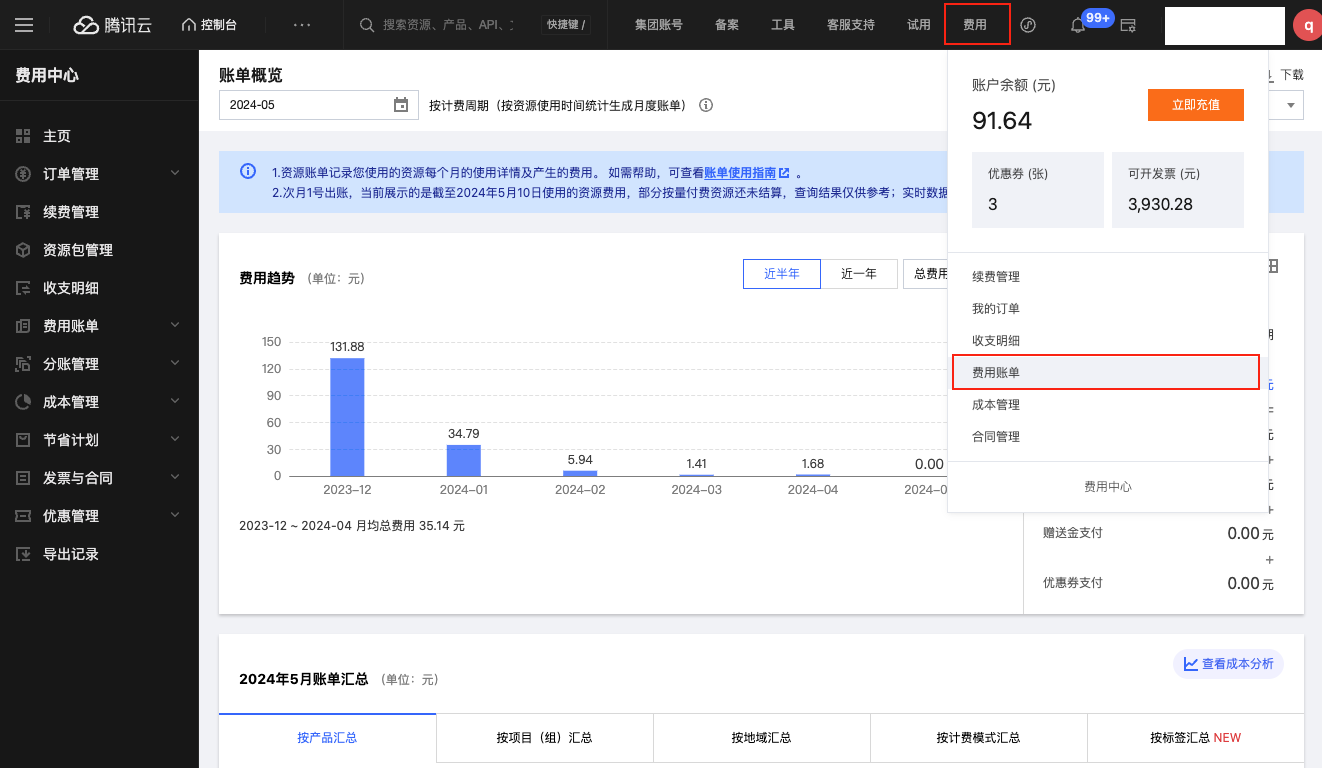
Log in to the Tencent Cloud console, click the dropdown menu "Billing" under the top [Expenses] menu to enter the Expenses User Center page.
-
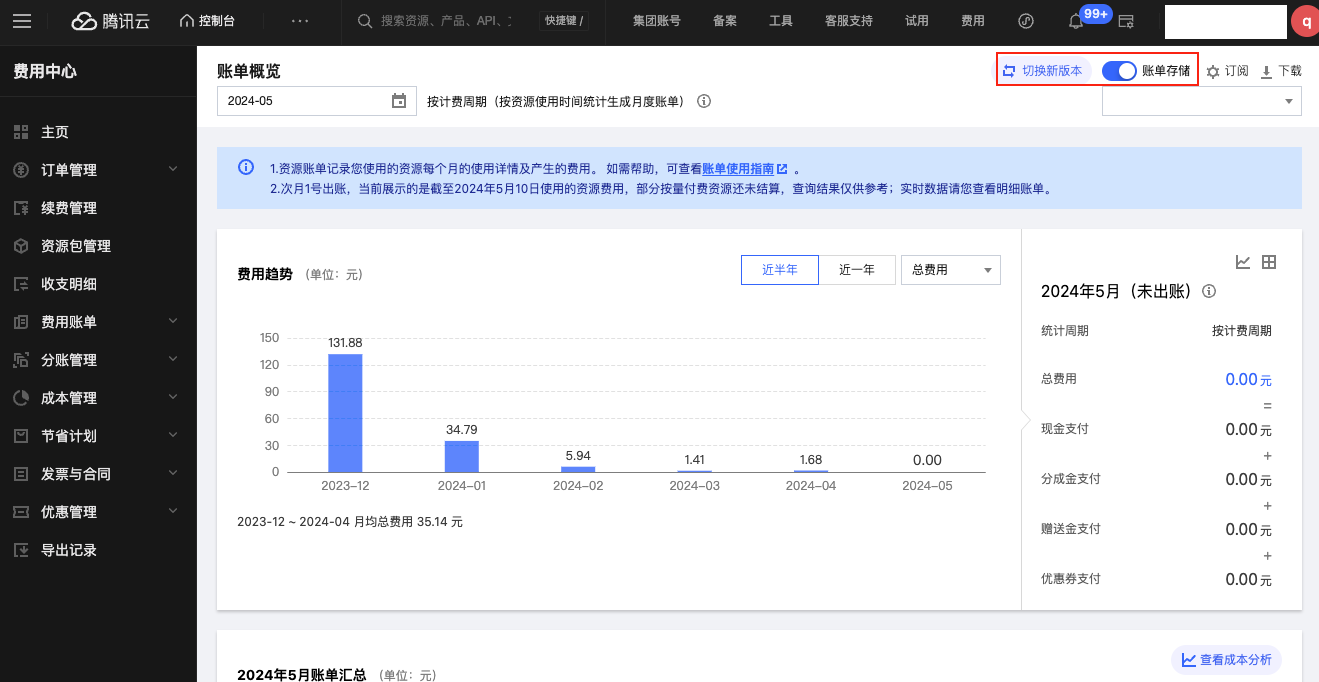
Click the "Bill Storage" button to enter the Bill Data Storage page.
-
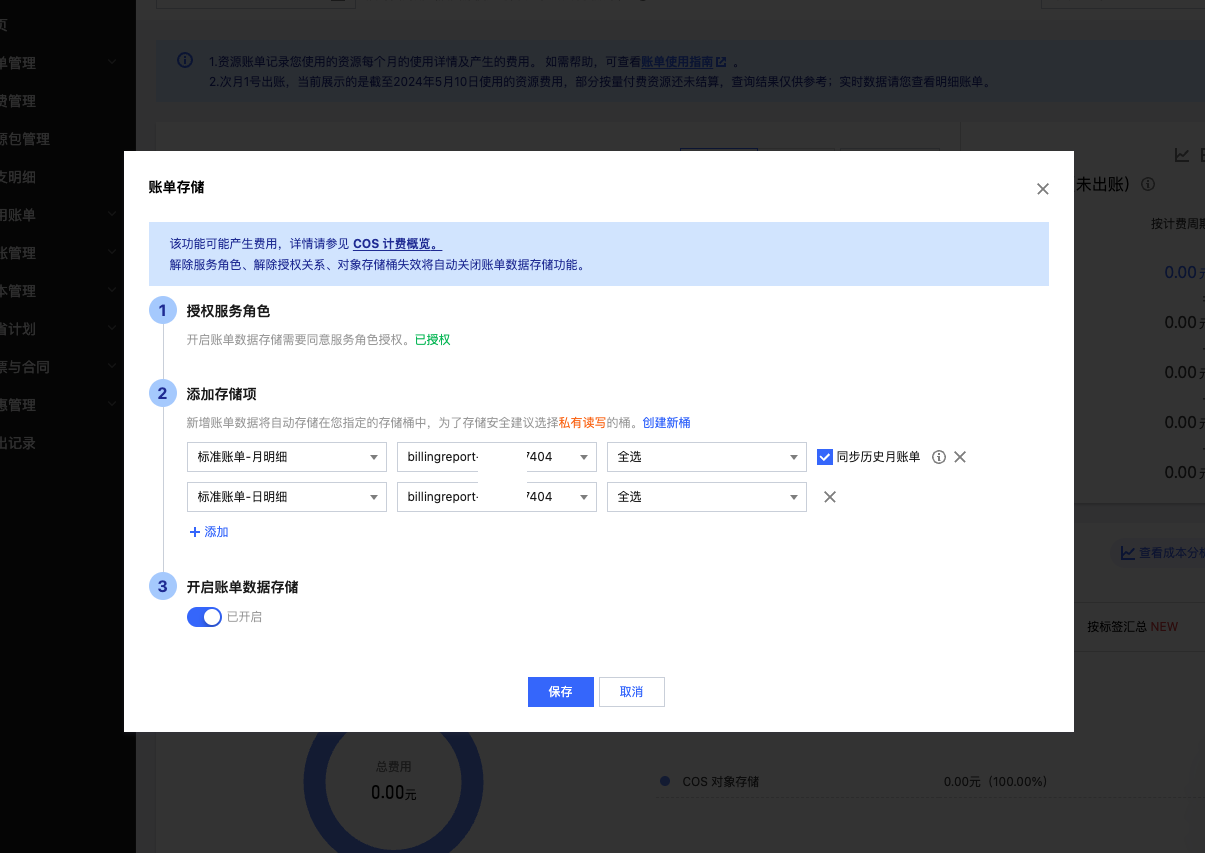
View and record the billing item detail bill bucket name. If not set, you need to subscribe to a bucket on this page. After setup, daily incremental billing data will be synchronized to the corresponding COS. It is recommended that the bucket only stores billing files.
-
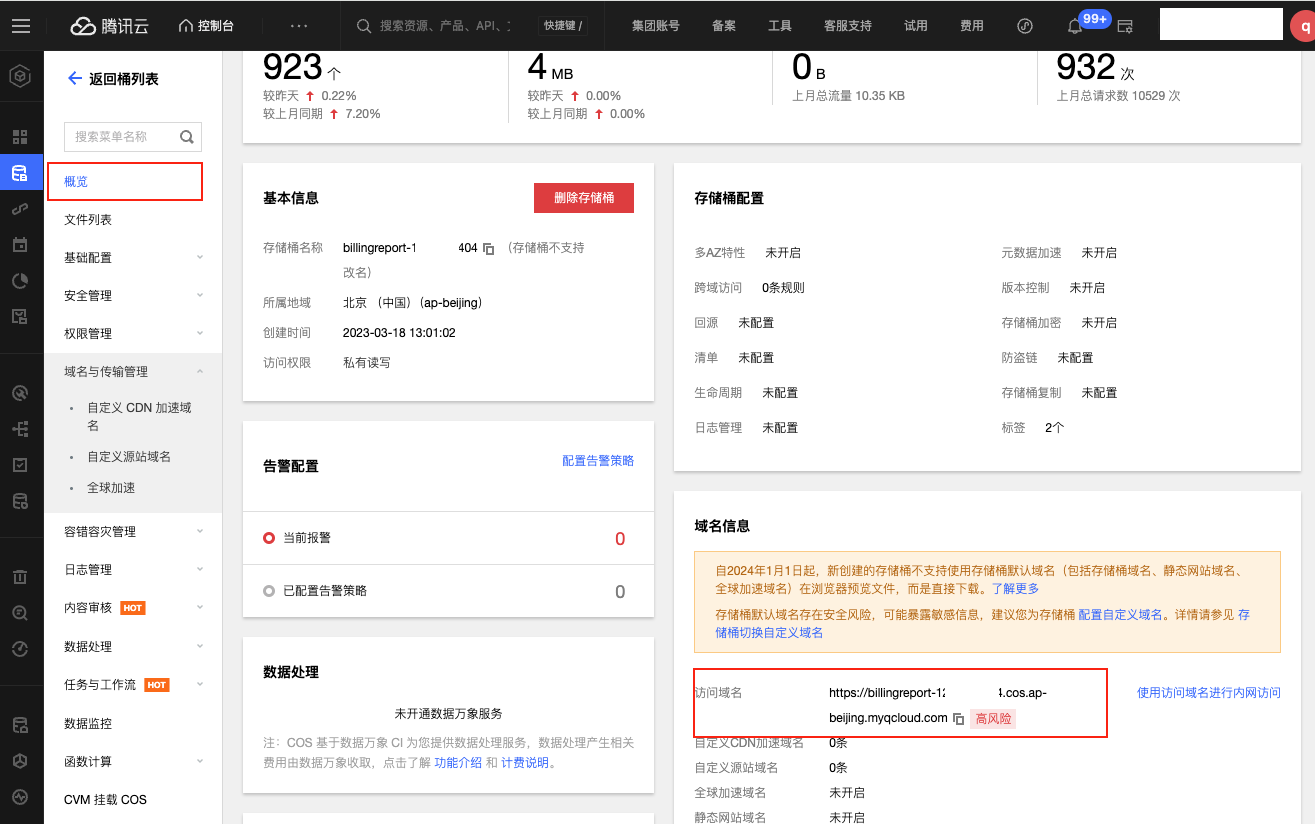
On the Object Storage page of the Tencent Cloud console, view the overview information of the corresponding bucket. The bucket domain name is the bucket URL.
Create Volcengine Account
- On the Cloud Accounts page, click the "Create" button above the list to enter the Create Cloud Account page.
- Select the cloud platform as Volcengine, click the "Next: Configure Cloud Account" button to enter the Configure Cloud Account page.
- Configure the following parameters:
- Name: The name of the Volcengine account.
- Key ID/Secret: Connect to the Volcengine platform through Access Key authentication. The Access Key consists of a Key ID (Access Key ID) and Secret (Access Key Secret). For details, please refer to Volcengine Parameter Retrieval Methods.
- Domain: Select the domain to which the cloud account belongs. When the cloud account is in private state, all project users under the domain can use the cloud account to create resources.
- Resource Ownership Method: Defaults to specified project, also supports ownership based on sync policy, cloud project, or cloud subscription.
- Resource Ownership Project: When the resource ownership method is set to specified project, you can select a local project on the platform to synchronize cloud account resources to. Local projects are filtered by domain. When the resource ownership method is set to based on cloud project, resources will be synchronized to local projects with the same name as the cloud project. If a resource has no cloud project attribute, it will belong to the specified project.
- Block Sync Resources: When enabled, supports selecting resource types to block. Multiple selections are supported. Blocked resource types will not be synchronized during cloud account synchronization.
- Proxy: Set this when the cloud account requires a proxy for normal access. Leave empty for direct connection. If there is no suitable proxy, click the "Create" hyperlink directly, and set the relevant parameters in the pop-up Create Proxy dialog to create a proxy.
- Read-Only Mode: When enabled, the cloud account will only perform resource synchronization operations and cannot perform other task operations such as creating, deleting, or modifying.
- Sharing Scope: Set the sharing scope of the cloud account. The default is not shared, meaning only the domain where the cloud account resides can use the account. If set to global sharing, all users on the platform can use this cloud account to create resources.
- Click the "Connection Test" button to test whether the input parameters are correct.
- After successful testing, click the "Next: Configure Sync Resource Regions" button to enter the Configure Sync Resource Regions page. This configuration can be modified on the cloud account details page - Subscriptions - Regions (all regions are synchronized by default). To synchronize all regions by default on the platform, you can directly click the "Skip" button.
- After successful configuration, click the "Next: Billing File Access Information (Optional)" button to enter the Billing File Access Information page to configure the cloud account's billing parameters so that users can view the cloud account's billing information in the Expenses section. The Billing File Access Information page is optional. If you do not need to view cloud account billing information on the platform, you can directly click the "Skip" button. If you need to view billing information on the platform, please configure the relevant parameters. After configuration is complete and the test is successful, click the "OK" button, and proceed to the Scheduled Sync Task Settings page to configure the cloud account's sync tasks to make the cloud account's automatic sync behavior more controllable.
If the added Volcengine account is a new account, please first enable TOS service on the Volcengine platform.
- Cloud Account Type: Includes primary account and associated account. Before using an associated account, please ensure the primary account has been imported to the platform, and select the primary account when using the associated account.
- Bucket URL: The URL of the bucket where billing files are stored. For details, please refer to How to Get the Volcengine Billing Bucket URL?.
- File Prefix: When the billing bucket contains files other than billing files, you need to configure the file prefix to only retrieve billing files from the bucket.
- Billing Analysis Scope: Set the scope for the platform to analyze cloud account billing. Currently only supports accounts managed by this platform.
- Accounts Managed by This Platform: Collects billing information for the primary account and sub-accounts associated with the primary account. If the primary account only serves as a payment account for other accounts, billing files collected from other accounts will be discarded.
- Collect Bills Immediately: The platform automatically collects bills at 4 AM every day by default. After enabling this, bills will be collected immediately after configuring the billing file access information.
- Time Range: When immediate bill collection is enabled, you can set a time range to immediately collect bills within that range. Please ensure there is billing data within the selected time range. It is recommended to collect bills within 1-6 months, otherwise too much data may cause excessive system pressure and affect daily bill collection tasks.
- The Scheduled Sync Task Settings page is optional. If you do not need to set up automatic sync tasks on the platform, you can directly click the "Skip" button. If you need to set up automatic sync times for the cloud account on the platform, please configure the relevant parameters. After configuration is complete and the test passes, click the "OK" button to create the Volcengine account.
Volcengine Parameter Retrieval Methods
-
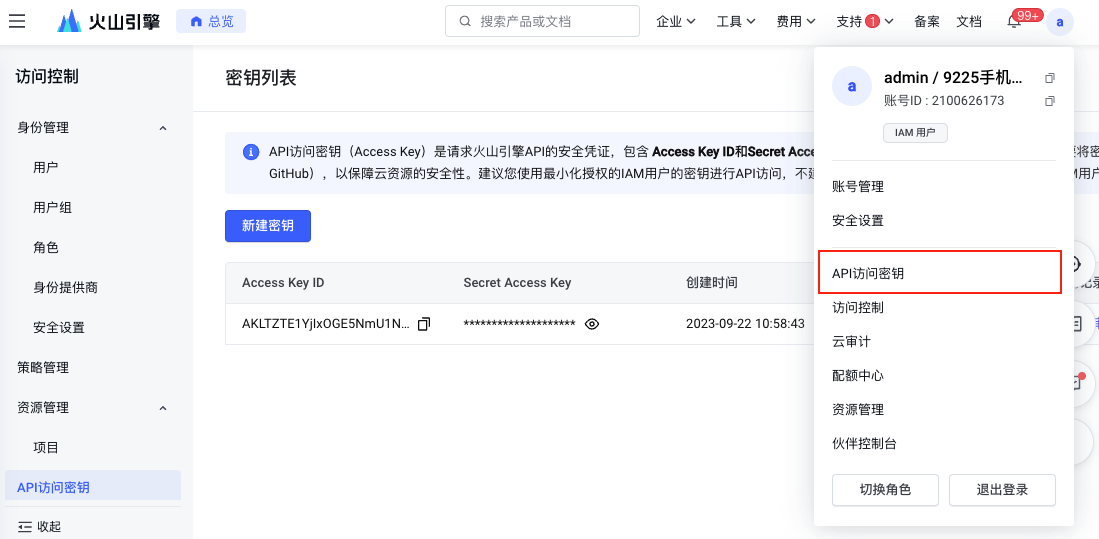
Log in to the Volcengine console using your account, click the personal information in the upper right corner of the page, expand the dropdown menu, and click the "API Access Key" menu item to enter the Security Information Management page.
-
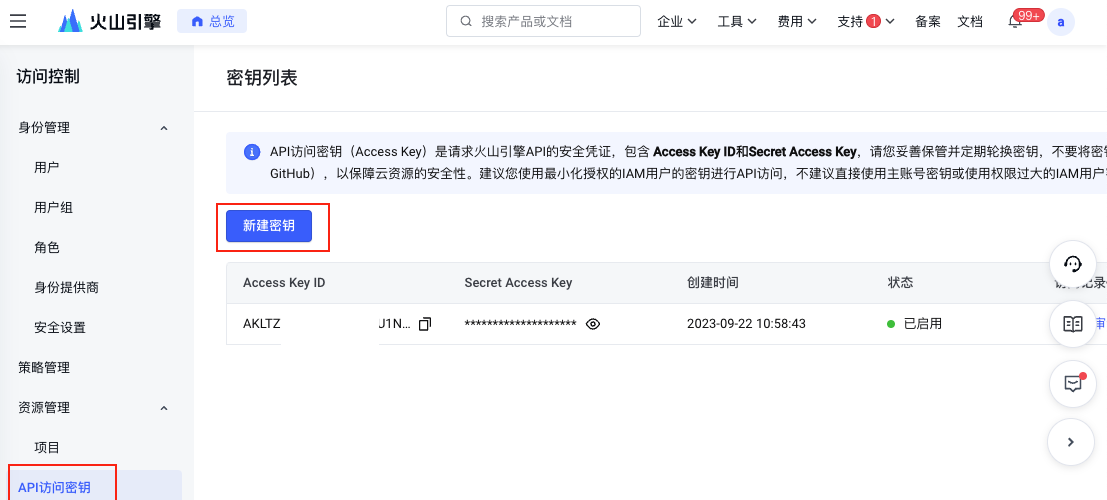
On the Key List Management page, you can view existing AccessKey information, or click the "Create Key" button to create a new user AccessKey. When creating a new key, Volcengine will send a verification code to the account contact. The AccessKey can only be created after verification.
-
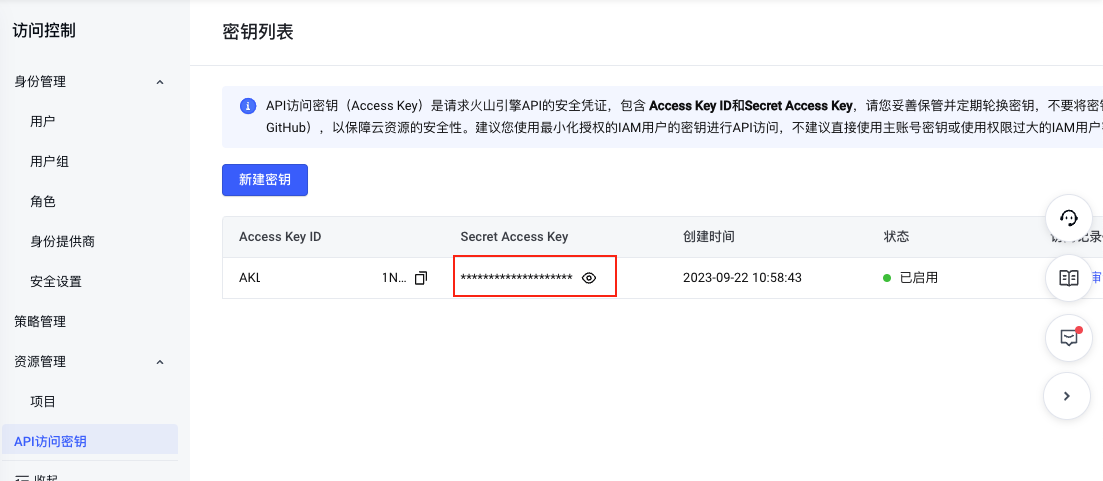
The Access Key Secret is hidden by default. Click the "Show" button, and Volcengine will send a verification code to the account owner's contact. The Access Key Secret will only be displayed after verification.
What Permissions Does the Cloud Account Need to Manage Volcengine Resources Through the Platform?
To manage Volcengine resources using the platform, the connected cloud account needs sufficient permissions. Below are the common permission policies used for managing cloud resources:
| Permission Notes | Read-Only Permission | Read-Write Permission |
|---|---|---|
| Permission to manage all Volcengine resources | ReadOnlyAccess | AdministratorAccess |
How to Authorize a Sub-Account
-
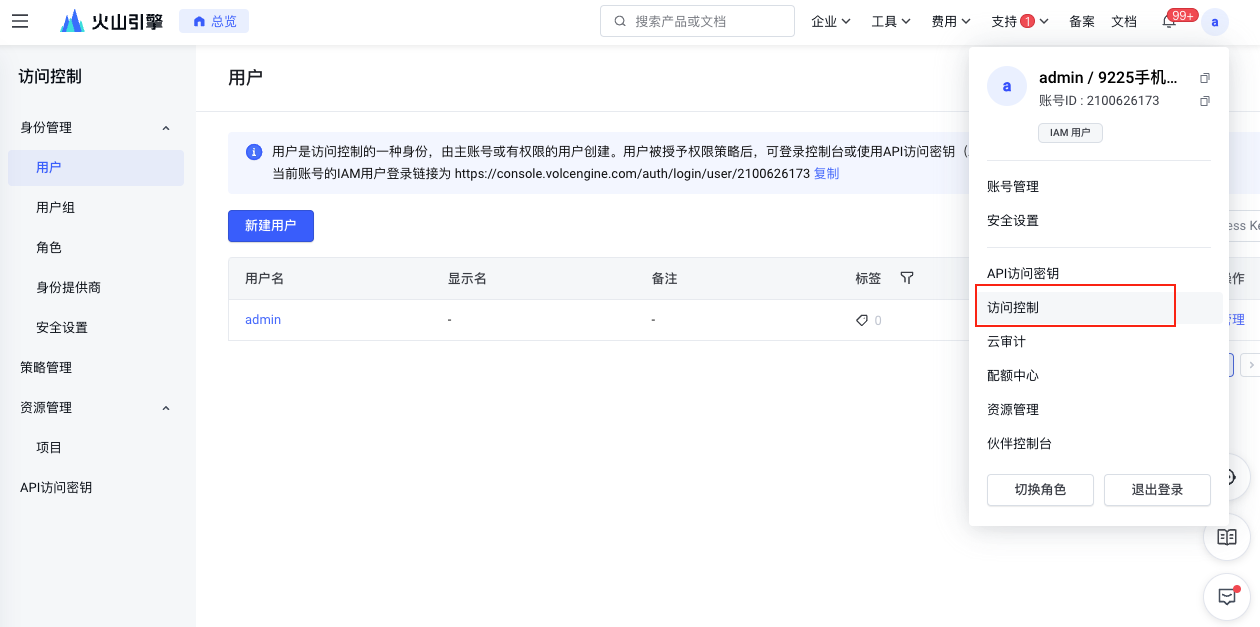
Log in to the Volcengine console using the primary account, click the personal information in the upper right corner of the page, expand the dropdown menu, and click the "Access Control" menu item to enter the Access Control page.
-
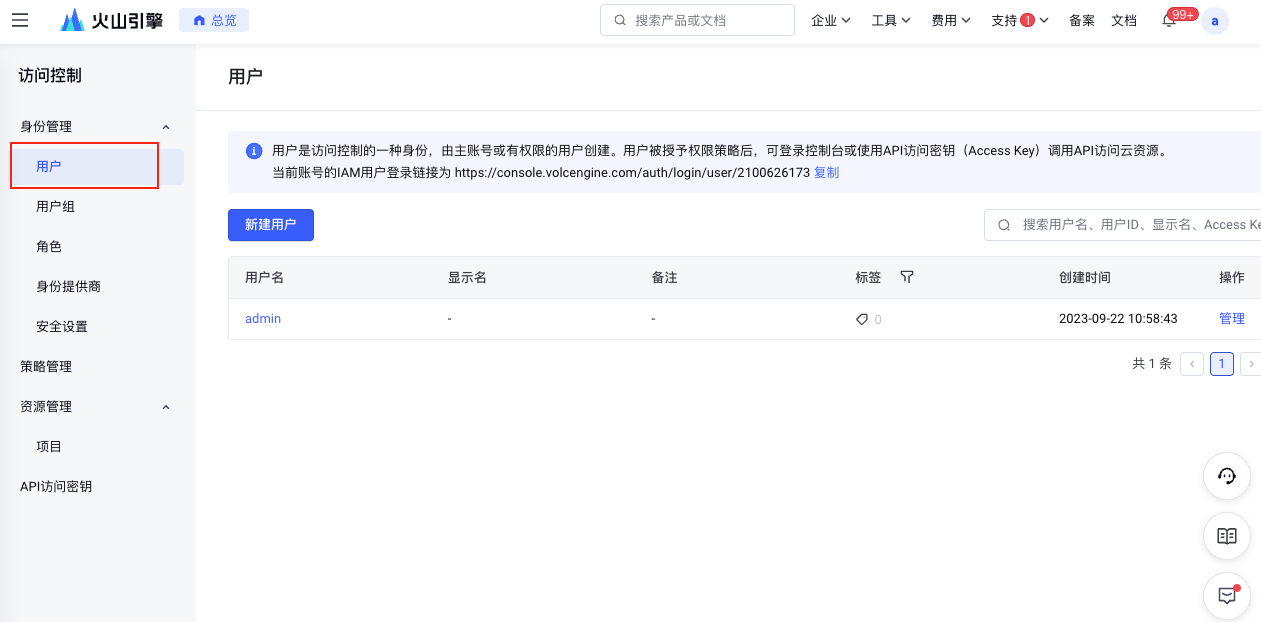
Click the "Users" menu item in the left menu bar to enter the User Management page.
-
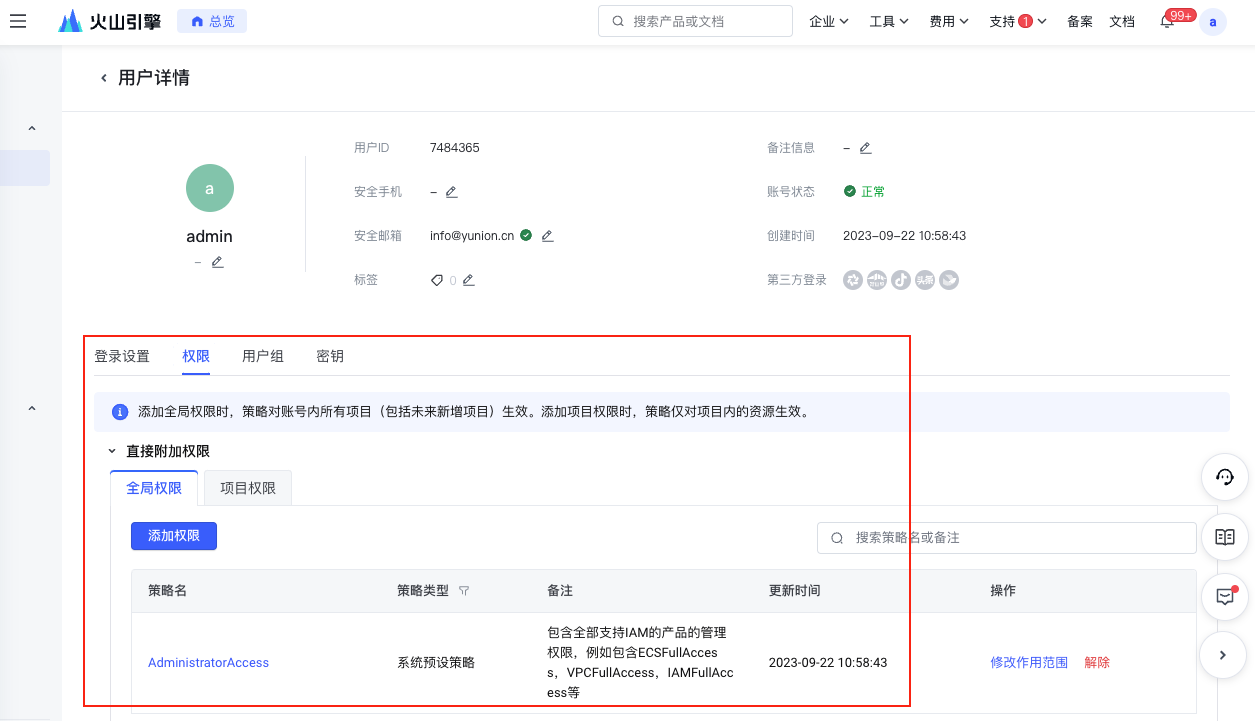
On the User Management page, click the "Manage" button in the operation column of the specified user to perform authorization.
How to Get the Volcengine Billing Bucket URL
-
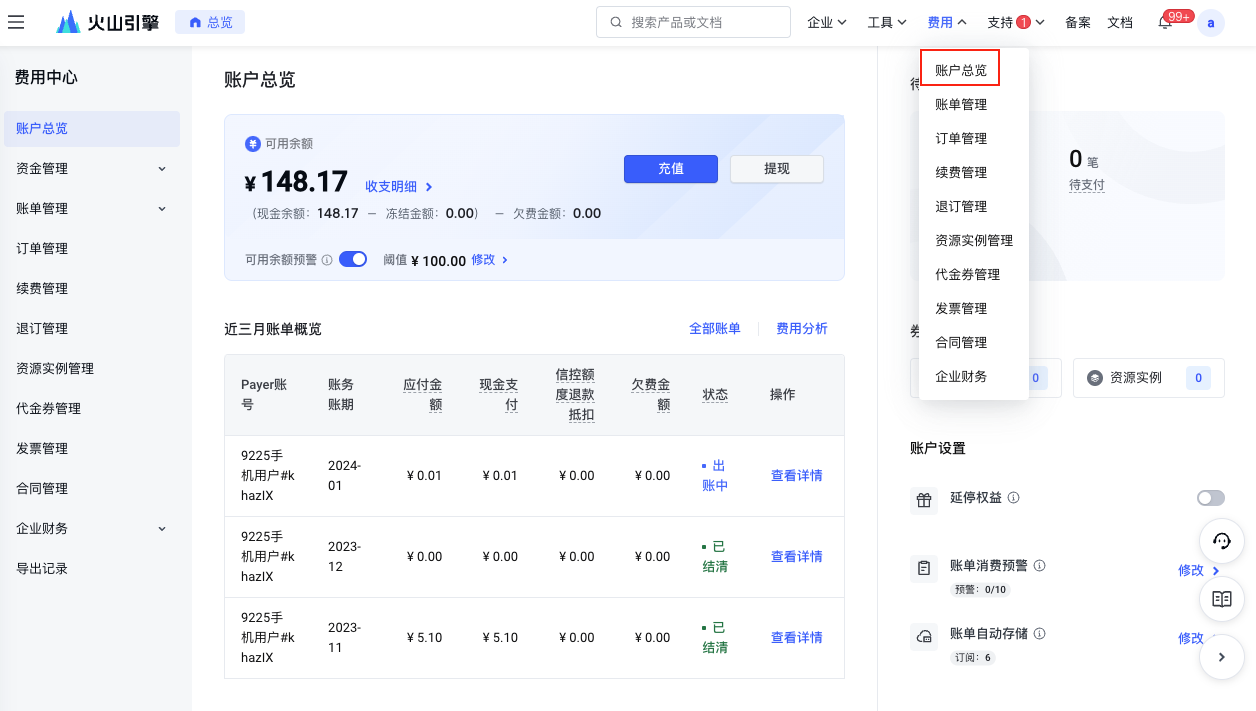
Log in to the Volcengine console, click the dropdown menu "Account Overview" under the top [Expenses] menu to enter the Expenses User Center page.
-
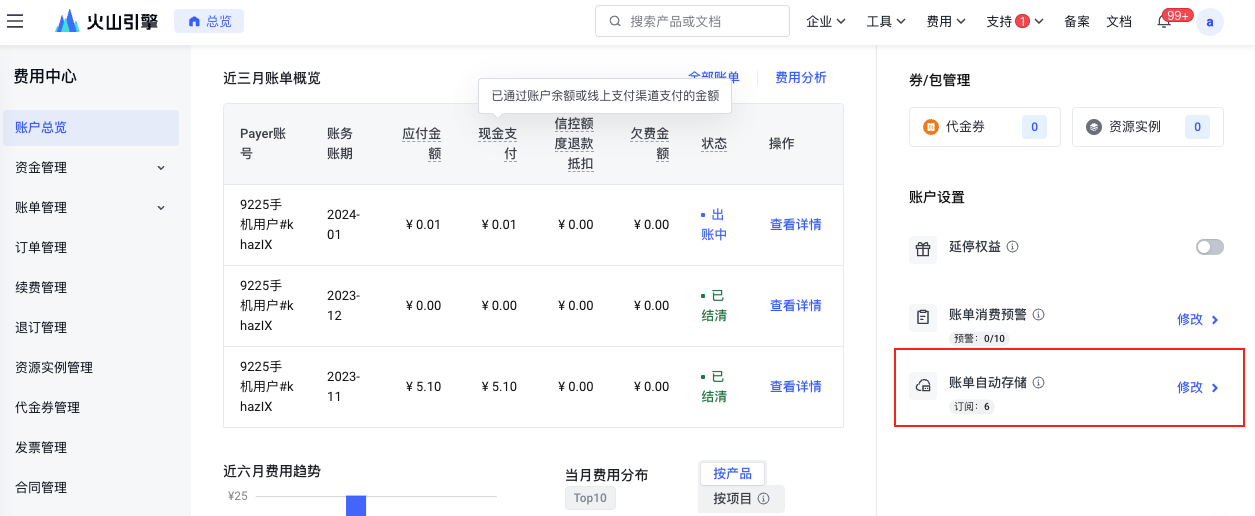
Click the "Set Auto Storage" button to enter the Bill Data Storage page.
-
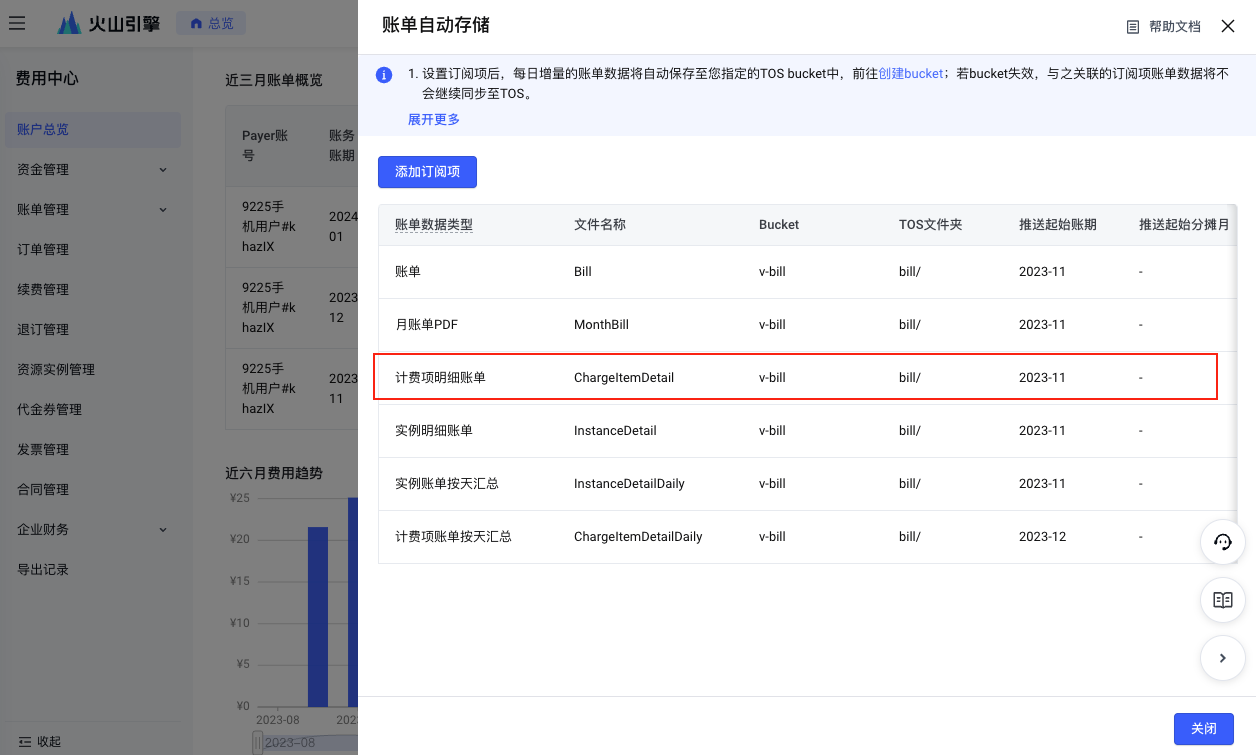
View and record the ChargeItemDetail bucket name. If not set, you need to subscribe to a bucket on this page. After setup, daily incremental billing data will be synchronized to the corresponding TOS. It is recommended that the bucket only stores billing files.
-
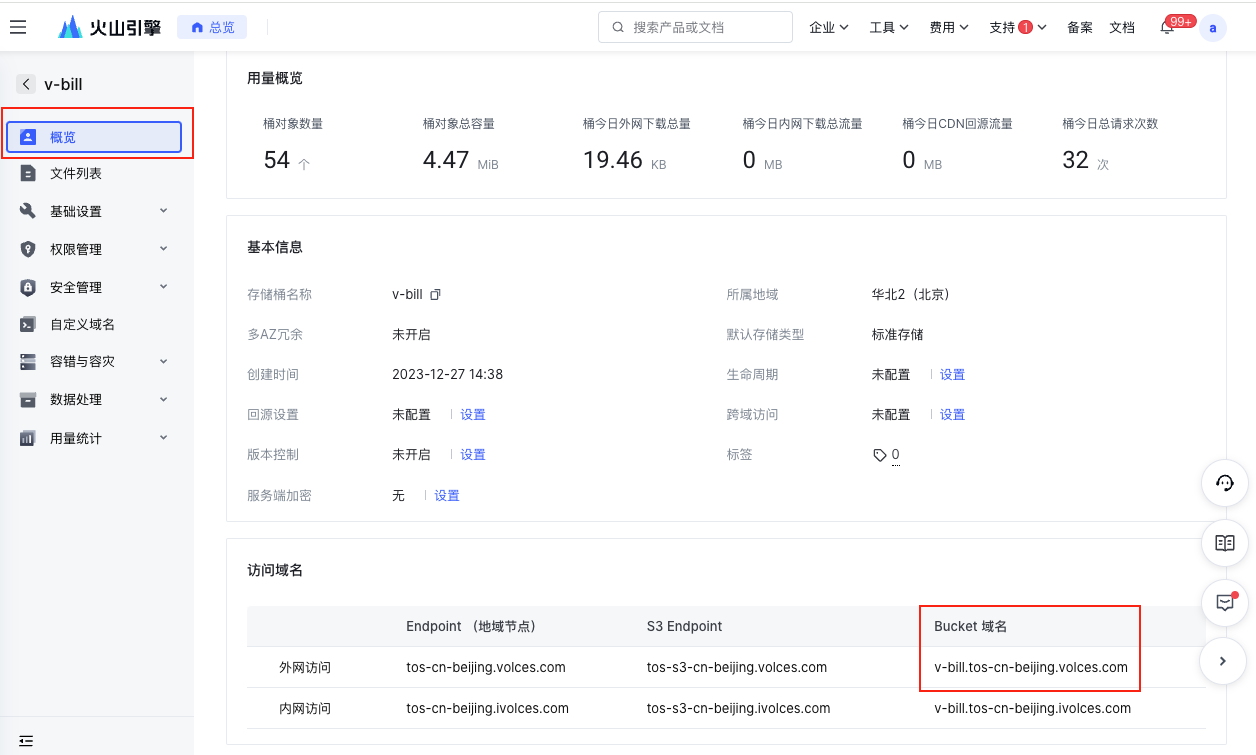
On the Object Storage page of the Volcengine console, view the overview information of the corresponding bucket. The bucket domain name is the bucket URL.
Create UCloud Account
- On the Public Cloud Accounts page, click the "Create" button above the list to enter the Create Cloud Account page.
- Select the cloud platform as UCloud, click the "Next: Configure Cloud Account" button to enter the Configure Cloud Account page.
- Configure the following parameters:
- Name: The name of the UCloud platform.
- Public Key/Private Key: For retrieval methods, please refer to UCloud Parameter Retrieval Methods.
- project_id: Required when using a UCloud sub-account. Not required when using a primary account.
- Domain: Select the domain to which the cloud account belongs. When the cloud account is in private state, all project users under the domain can use the cloud account to create resources.
- Resource Ownership Method: Defaults to specified project, also supports ownership based on cloud project.
- Resource Ownership Project: When the resource ownership method is set to specified project, you can select a local project on the platform to synchronize cloud account resources to. Local projects are filtered by domain. When the resource ownership method is set to based on cloud project, resources will be synchronized to local projects with the same name as the cloud project. If a resource has no cloud project attribute, it will belong to the specified project.
- Sync Policy: When enabled, resources are assigned to specified projects based on tag-to-resource-project mapping rules. The sync policy only takes effect during cloud account synchronization.
- Sync Policy Scope: Displayed after enabling sync policy, supports selecting resource tags and project tags.
- Block Sync Resources: When enabled, supports selecting resource types to block. Multiple selections are supported. Blocked resource types will not be synchronized during cloud account synchronization.
- Proxy: Set this when the cloud account requires a proxy for normal access. Leave empty for direct connection. If there is no suitable proxy, click the "Create" hyperlink directly, and set the relevant parameters in the pop-up Create Proxy dialog to create a proxy.
- Read-Only Mode: When enabled, the cloud account will only perform resource synchronization operations and cannot perform other task operations such as creating, deleting, or modifying.
- Sharing Scope: Set the sharing scope of the cloud account. The default is not shared, meaning only the domain where the cloud account resides can use the account. If set to global sharing, all users on the platform can use this cloud account to create resources.
- Click the "Connection Test" button to test whether the input parameters are correct.
- After successful testing, click the "Next: Configure Sync Resource Regions" button to enter the Configure Sync Resource Regions page. This configuration can be modified on the cloud account details page - Subscriptions - Regions (all regions are synchronized by default). To synchronize all regions by default on the platform, you can directly click the "Skip" button, and proceed to the Scheduled Sync Task Settings page to configure the cloud account's sync tasks to make the cloud account's automatic sync behavior more controllable.
- The Scheduled Sync Task Settings page is optional. If you do not need to set up automatic sync tasks on the platform, you can directly click the "Skip" button. If you need to set up automatic sync times for the cloud account on the platform, please configure the relevant parameters. After configuration is complete and the test is successful, click the "OK" button to create the UCloud account.
UCloud Parameter Retrieval Methods
How to Get the UCloud API Key
-
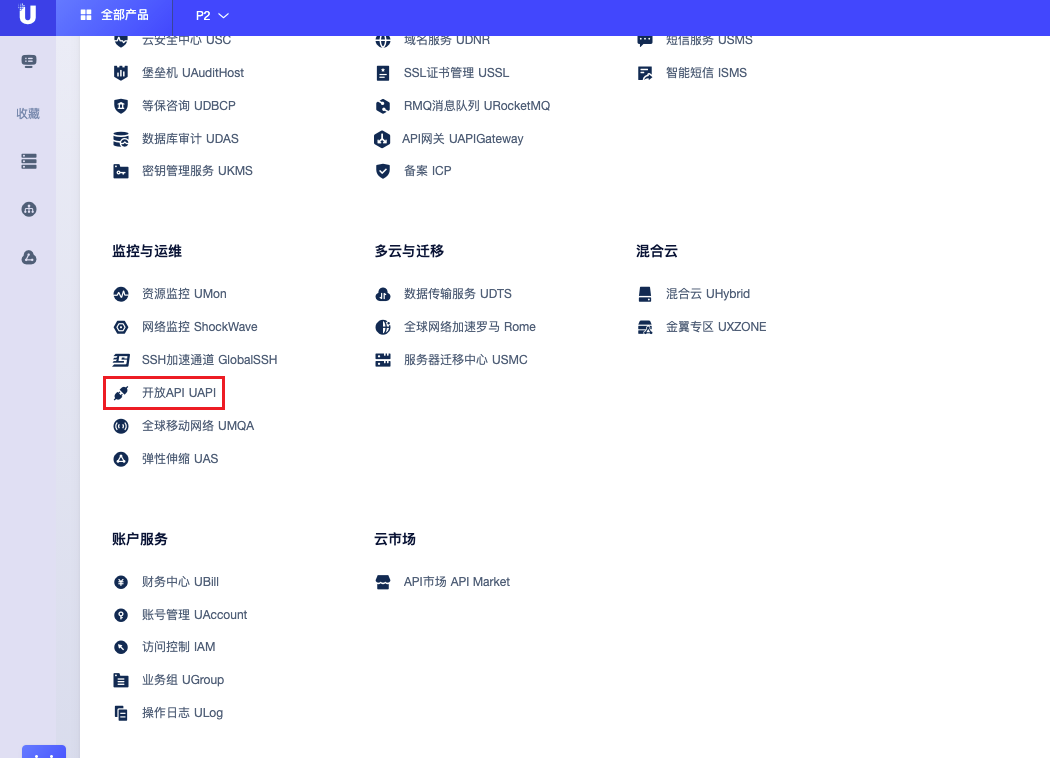
Log in to the UCloud console, click "All Products" at the top, search for or select the "Open API UAPI" menu item to enter the API product page.
-
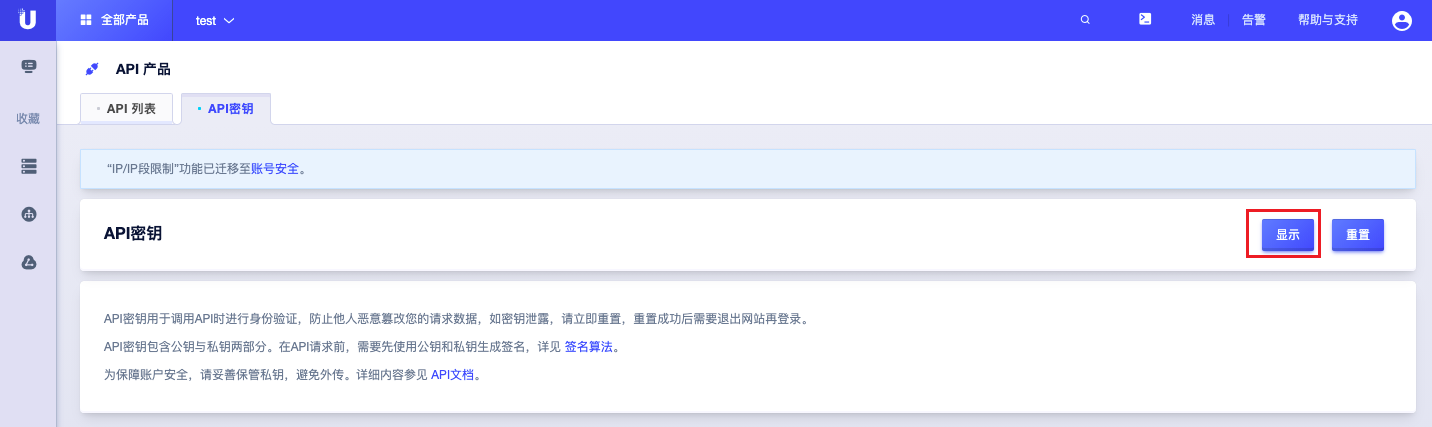
Click the "API Key" tab to enter the API Key page. Click the "Show" button and perform phone SMS secondary verification.
-
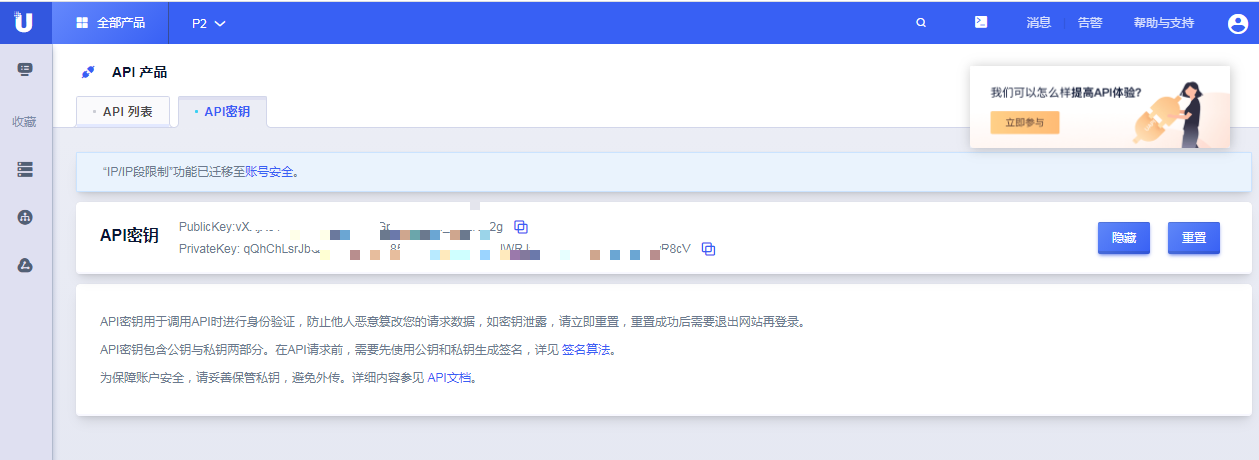
After phone verification, obtain the public key and private key values.
-
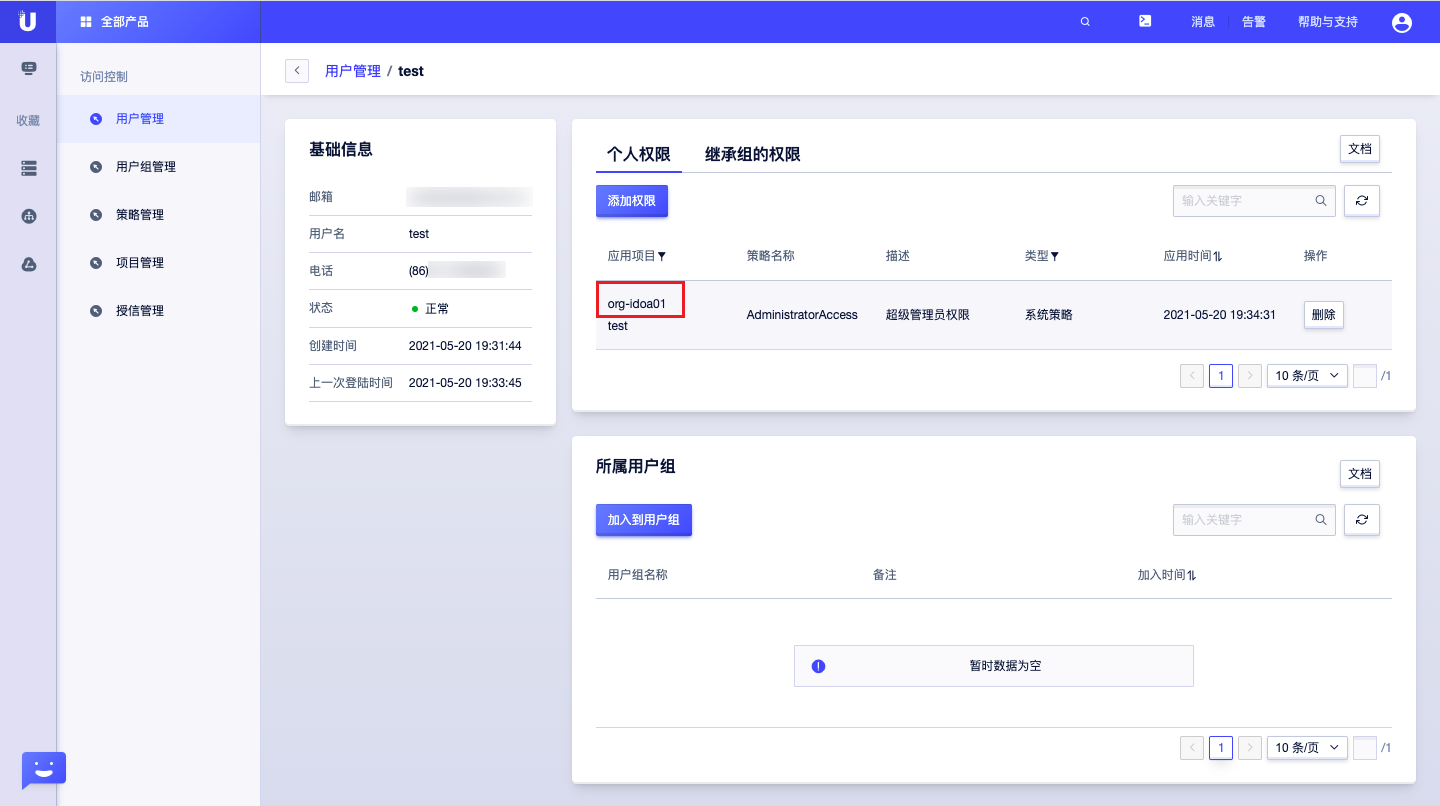
If using a sub-account, in addition to obtaining the public key or private key, you also need to obtain the project_id. Get the project_id from "Access Control - User Management - Sub-Account Details" as the project ID of the application project in personal permissions.
What Permissions Does the Cloud Account Need to Manage UCloud Resources?
| Permission Policy | Policy Description |
|---|---|
| AdministratorAccess | Super administrator permission |
Create Google Account
- Please ensure network connectivity between the platform and Google Cloud.
- If the platform cannot connect to Google Cloud, you can access Google Cloud through proxy configuration.
- On the Cloud Accounts page, click the "Create" button above the list to enter the Create Cloud Account page.
- Select the cloud platform as "Google", click the "Next: Configure Cloud Account" button to enter the Configure Cloud Account page.
- Configure the following parameters:
- Name: The name of the Google Cloud account.
- project_id, private_key_id, private_key, client_email and other parameters can be found in Google Parameter Retrieval Methods.
- Domain: Select the domain to which the cloud account belongs. When the cloud account is in private state, all project users under the domain can use the cloud account to create resources.
- Resource Ownership Method: Defaults to specified project, also supports ownership based on cloud project.
- Resource Ownership Project: When the resource ownership method is set to specified project, you can select a local project on the platform to synchronize cloud account resources to. Local projects are filtered by domain. When the resource ownership method is set to based on cloud project, resources will be synchronized to local projects with the same name as the cloud project. If a resource has no cloud project attribute, it will belong to the specified project.
- Sync Policy: When enabled, resources are assigned to specified projects based on tag-to-resource-project mapping rules. The sync policy only takes effect during cloud account synchronization.
- Sync Policy Scope: Displayed after enabling sync policy, supports selecting resource tags and project tags.
- Block Sync Resources: When enabled, supports selecting resource types to block. Multiple selections are supported. Blocked resource types will not be synchronized during cloud account synchronization.
- Proxy: Set this when the cloud account requires a proxy for normal access. Leave empty for direct connection. If there is no suitable proxy, click the "Create" hyperlink directly, and set the relevant parameters in the pop-up Create Proxy dialog to create a proxy.
- Read-Only Mode: When enabled, the cloud account will only perform resource synchronization operations and cannot perform other task operations such as creating, deleting, or modifying.
- Sharing Scope: Set the sharing scope of the cloud account. The default is not shared, meaning only the domain where the cloud account resides can use the account. If set to global sharing, all users on the platform can use this cloud account to create resources.
- Click the "Connection Test" button to test whether the input parameters are correct.
- After successful testing, click the "Next: Configure Sync Resource Regions" button to enter the Configure Sync Resource Regions page. This configuration can be modified on the cloud account details page - Subscriptions - Regions (all regions are synchronized by default). To synchronize all regions by default on the platform, you can directly click the "Skip" button.
- After successful configuration, click the "Next: Billing File Access Information (Optional)" button to enter the Billing File Access Information page to configure the cloud account's billing parameters so that users can view the cloud account's billing information in the Expenses section. The Billing File Access Information page is optional. If you do not need to view cloud account billing information on the platform, you can directly click the "Skip" button. If you need to view billing information on the platform, please configure the relevant parameters. After configuration is complete and the test is successful, click the "OK" button, and proceed to the Scheduled Sync Task Settings page to configure the cloud account's sync tasks to make the cloud account's automatic sync behavior more controllable.
- Billing Data Source: Select the storage path for Google billing, including Bigquery and bucket. Currently, Google billing no longer supports bucket.
- When the billing data source is "Bigquery", configure the following parameters:
- Cloud Account Type: Includes primary account and associated account. Before using an associated account, please ensure the primary account has been imported to the platform, and select the primary account when using the associated account.
- Bigquery Table ID: The table ID of the dataset storing Google billing. For details, please refer to How to Configure and Get Bigquery Configuration Information on the Google Cloud Platform?.
- Billing Analysis Scope: Set the scope for the platform to analyze cloud account billing. Currently only supports accounts managed by this platform.
- Accounts Managed by This Platform: Collects billing information for the primary account and sub-accounts associated with the primary account. If the primary account only serves as a payment account for other accounts, billing files collected from other accounts will be discarded.
- When the billing data source is "Bucket", configure the following parameters:
- Cloud Account Type: Includes primary account and associated account. Before using an associated account, please ensure the primary account has been imported to the platform, and select the primary account when using the associated account.
- Billing File/Bucket URL: The URL of the bucket where billing files are stored. For details, please refer to How to Get the Billing File Bucket URL and File Prefix?.
- Billing File/File Prefix: The report prefix information from the file export. When the billing bucket contains files other than billing files, you need to configure the file prefix to only retrieve billing files from the bucket.
- Billing Analysis Scope: Set the scope for the platform to analyze cloud account billing. Currently only supports accounts managed by this platform.
- Accounts Managed by This Platform: Collects billing information for the primary account and sub-accounts associated with the primary account. If the primary account only serves as a payment account for other accounts, billing files collected from other accounts will be discarded.
- Usage File/Bucket URL: The URL of the bucket where usage data is stored. For details, please refer to How to Get the Usage File Bucket URL and File Prefix?.
- Usage File/File Prefix: The report prefix information from the settings page. When the usage bucket contains files other than usage files, you need to configure the file prefix to only retrieve usage files from the bucket.
- Collect Bills Immediately: The platform automatically collects bills at 4 AM every day by default. After enabling this, bills will be collected immediately after configuring the billing file access information.
- Time Range: When immediate bill collection is enabled, you can set a time range to immediately collect bills within that range. Please ensure there is billing data within the selected time range. It is recommended to collect bills within 1-6 months, otherwise too much data may cause excessive system pressure and affect daily bill collection tasks.
- The Scheduled Sync Task Settings page is optional. If you do not need to set up automatic sync tasks on the platform, you can directly click the "Skip" button. If you need to set up automatic sync times for the cloud account on the platform, please configure the relevant parameters. After configuration is complete and the test is successful, click the "OK" button to create the Google Cloud account.
Google Parameter Retrieval Methods
How to Get the Google Cloud Service Account Key Information?
Managing Specified Projects
-
Open the "IAM & Admin - IAM page in GCP Console" page and log in.
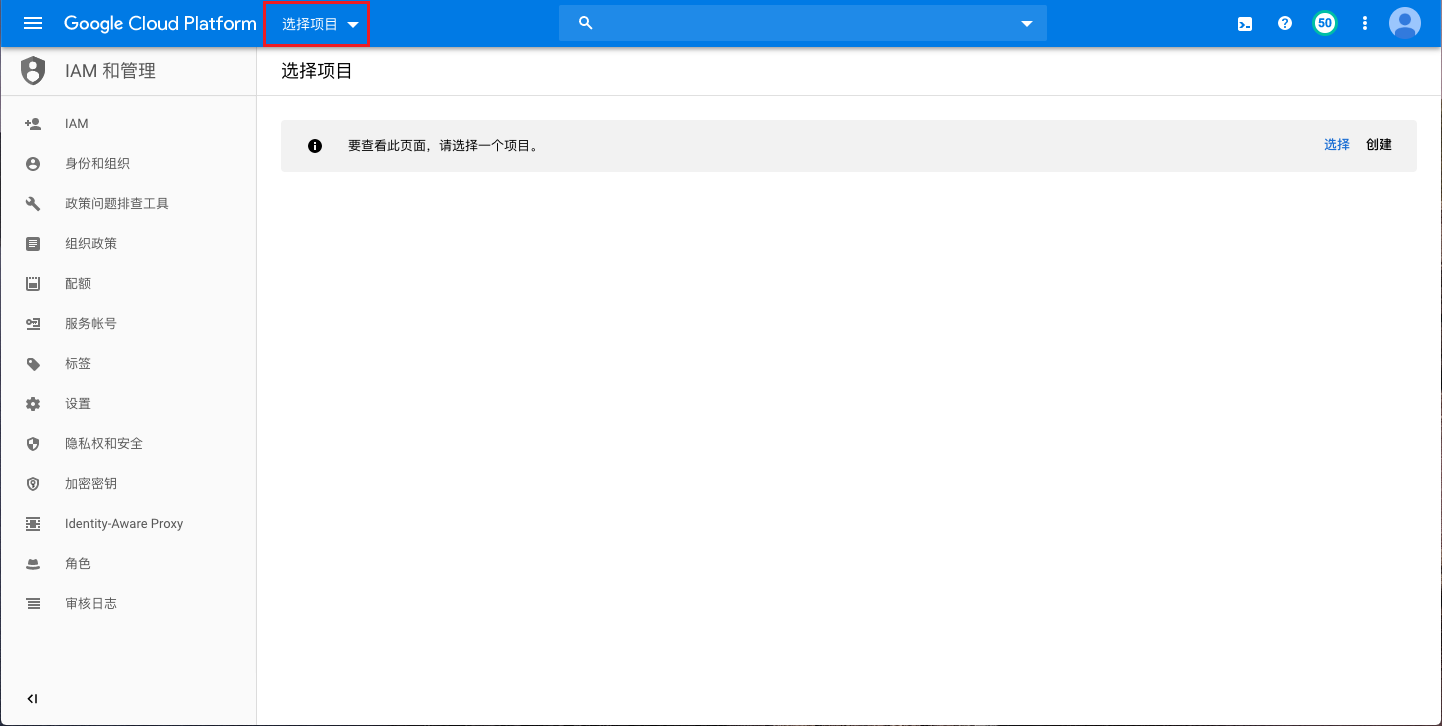
-
Click "Select a project" at the top and select the project to be authorized.
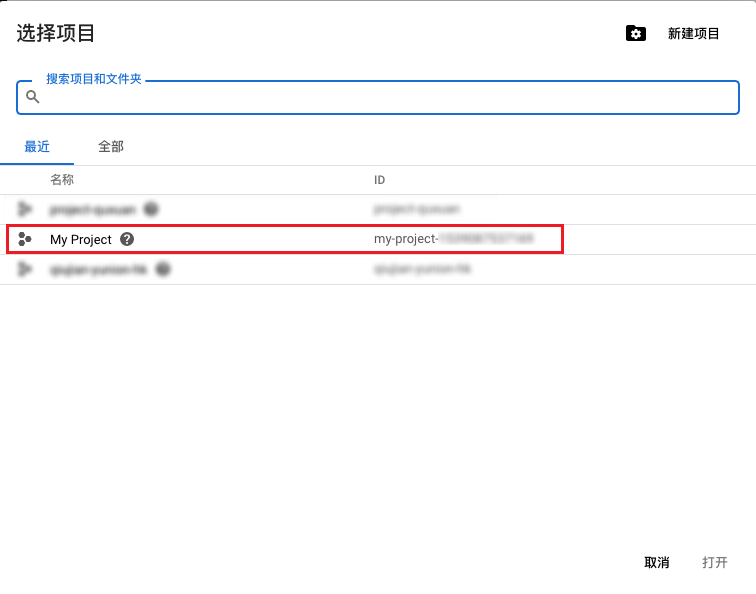
-
In the left navigation bar, go to the "IAM & Admin" page and click the "Service Accounts" button to enter the Service Accounts page.
-
Click the "Create Service Account" button to enter the Create Service Account page.
-
Configure the service account name, service account ID, service account description, etc., and click the "Create and Continue" button to create the service account and grant the service account access to the project.
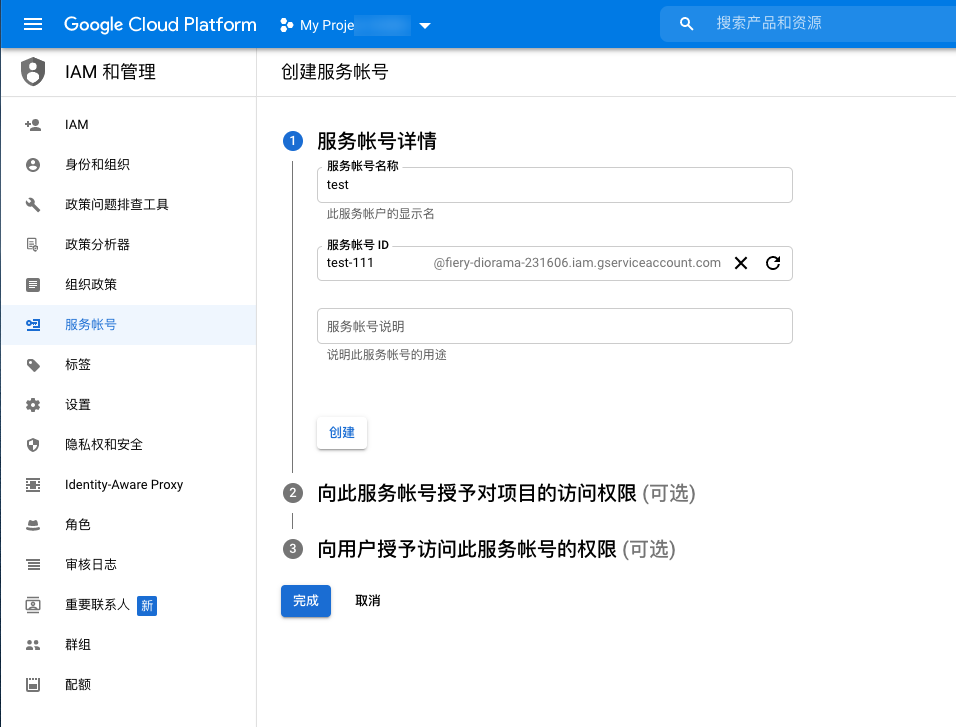
-
Select the Project-Owner or Project-Viewer role. Owner represents management permissions for the project, and Viewer represents read-only permissions. If the Cloud Management Platform needs to manage Google Cloud account resources, please select the Project-Owner role, and click the "Continue" button.
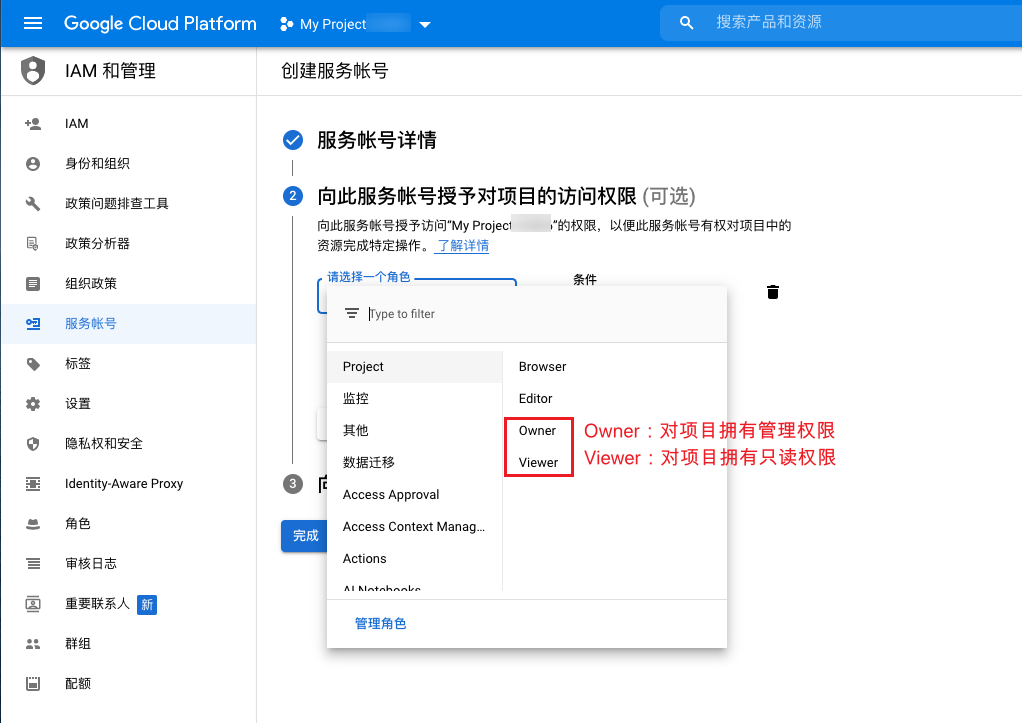
-
The step to grant users access to this service account (optional) does not affect the Cloud Management Platform. Please set it according to your needs. After configuration, click the "Continue" button.
-
On the Service Accounts page, click the action column button on the right side of the newly created service account, and click the "Manage keys" menu item.
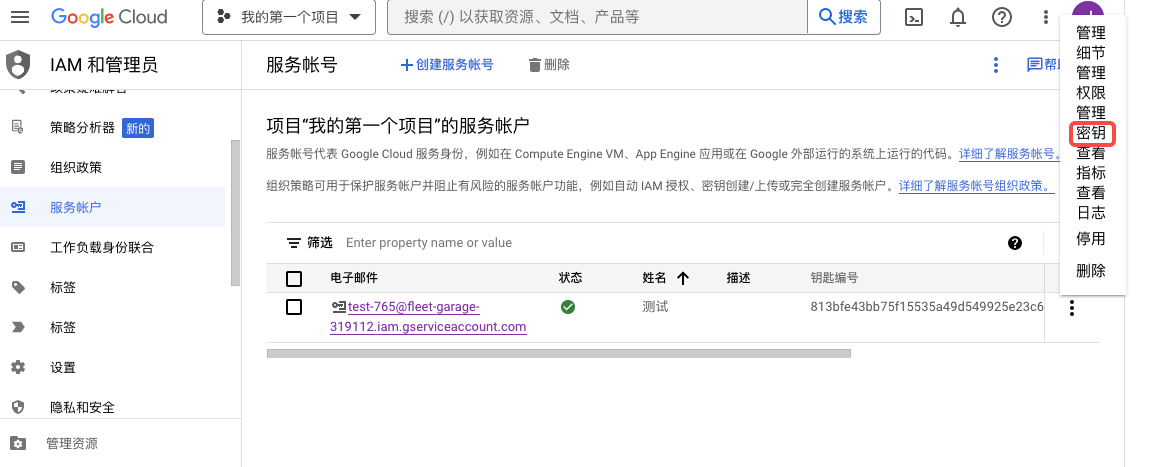
-
On the Keys page, click the "Add Key" button, click "Create new key" in the pop-up dialog, select the key type as "JSON", and click the "Create" button to download the JSON format key file with the following content. Obtain the project_id, private_key_id, private_key, client_email, etc.
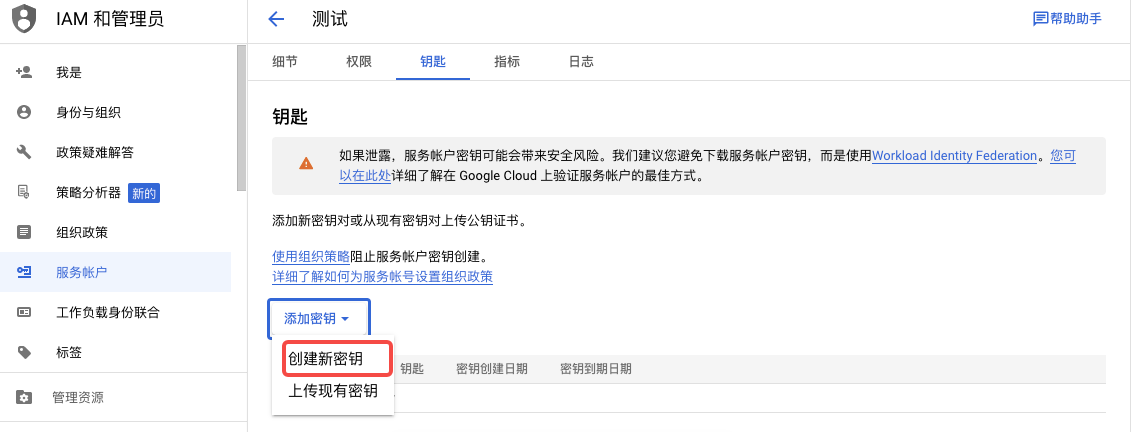
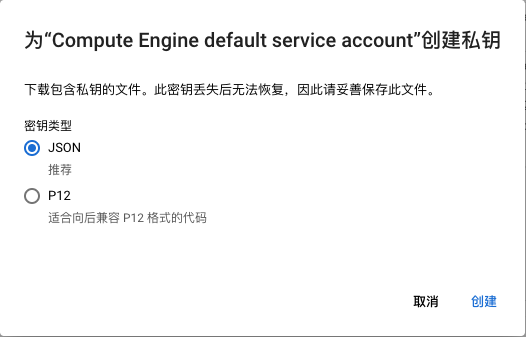 {"type": "service_account","project_id": "[PROJECT-ID]","private_key_id": "[KEY-ID]","private_key": "-----BEGIN PRIVATE KEY-----\n[PRIVATE-KEY]\n-----END PRIVATE KEY-----\n","client_email": "[SERVICE-ACCOUNT-EMAIL]","client_id": "[CLIENT-ID]","auth_uri": "https://accounts.google.com/o/oauth2/auth","token_uri": "https://accounts.google.com/o/oauth2/token","auth_provider_x509_cert_url": "https://www.googleapis.com/oauth2/v1/certs","client_x509_cert_url": "https://www.googleapis.com/robot/v1/metadata/x509/[SERVICE-ACCOUNT-EMAIL]"}
Managing Multiple Projects
To use the service account key obtained above to manage multiple projects, follow these steps.
-
Open the "IAM & Admin - IAM page in GCP Console" page and select another project to manage.
-
Click the "Add" button at the top, add the service account created in the above steps as a new member, and set the role to Project-Owner or Project-Viewer. Owner represents management permissions for the project, and Viewer represents read-only permissions. If the Cloud Management Platform needs to manage Google Cloud account resources, please select the Project-Owner role, and click the "Save" button.
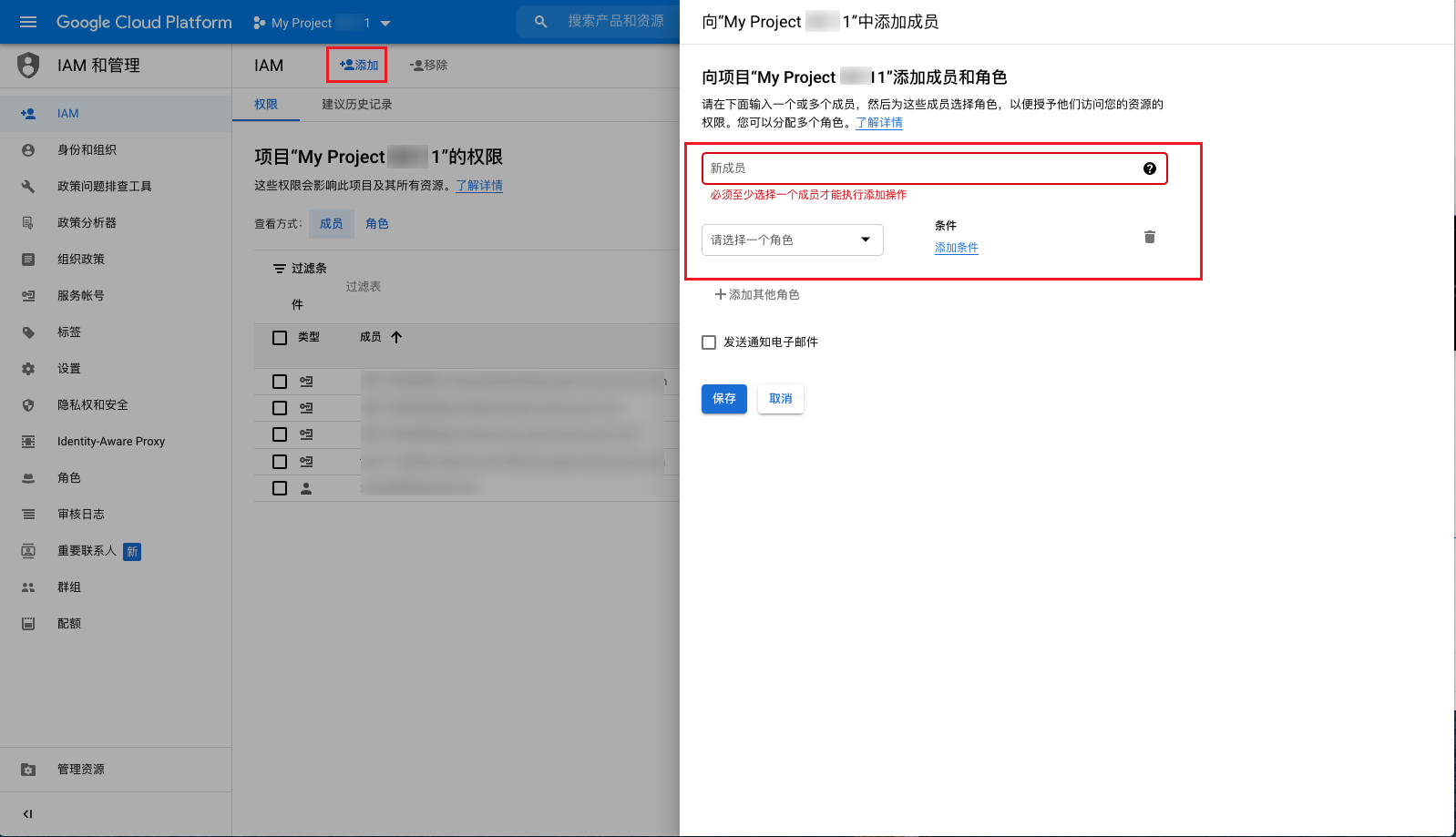
-
Repeat the above steps to manage more projects.
Enable Related APIs
Google Cloud APIs have project attributes. When managing multiple projects on Google Cloud, you need to enable related APIs in each project separately.
APIs Required for Managing Google Cloud:
After obtaining the key file, you also need to enable the Cloud Resource Manager API, Cloud Build API, and Compute Engine API for the authorized projects in the Google API Library. After enabling the APIs, users can manage and use Google Cloud on the platform.
-
Enable the Cloud Resource Manager API for the authorized project on the Cloud Resource Manager API page in the API Library. You can switch authorized projects at the top.
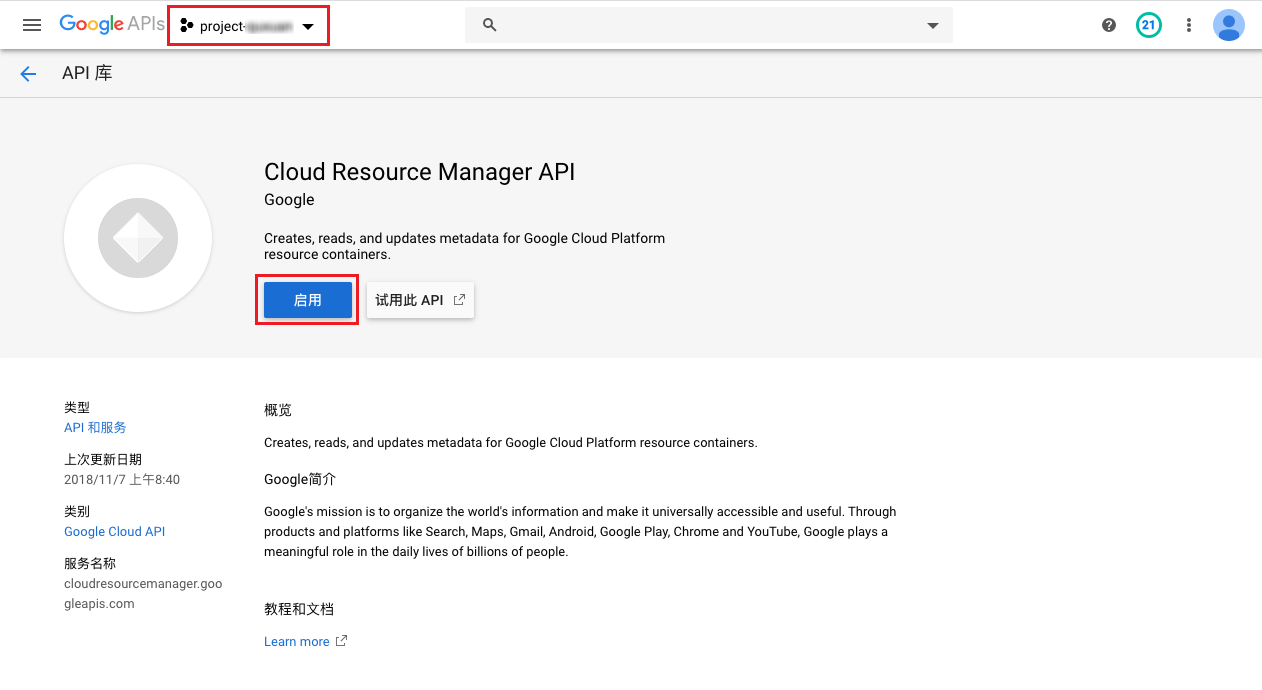
-
Enable the Cloud Build API for the authorized project on the Cloud Build API page in the API Library. You can switch authorized projects at the top.
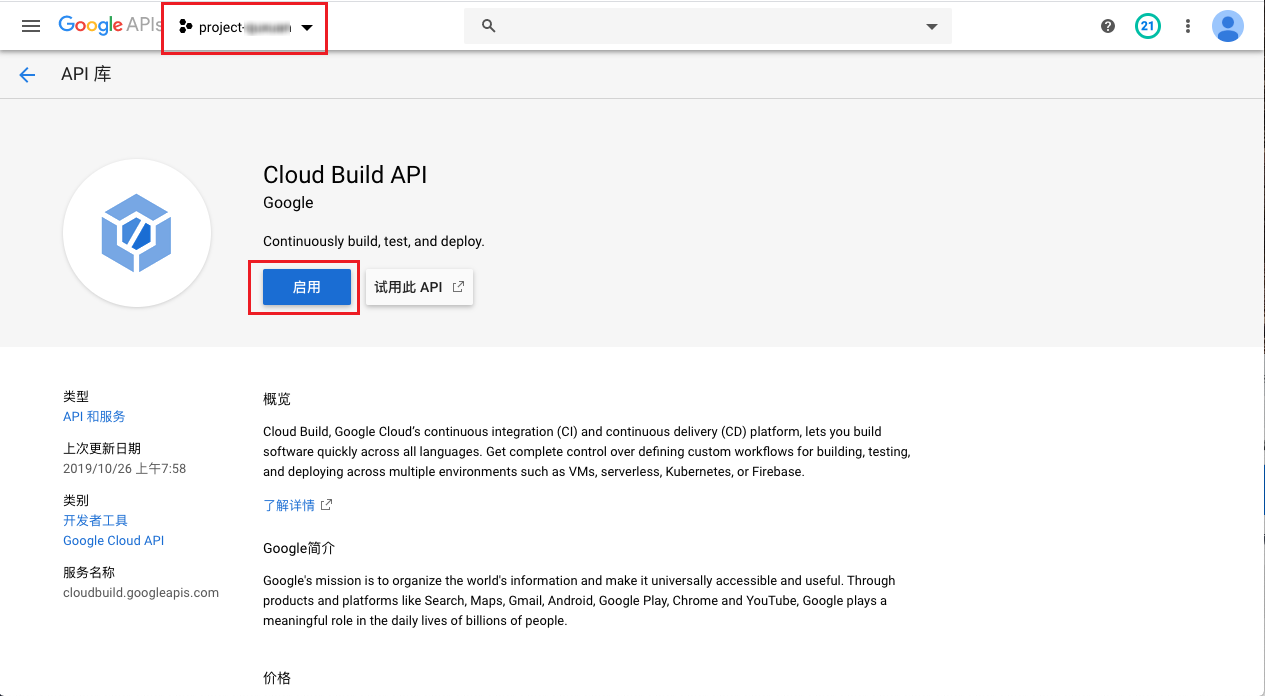
APIs Required for Managing Google Cloud RDS:
- Enable the Cloud SQL Admin API on the Cloud SQL Admin API page in the API Library. You can switch authorized projects at the top.
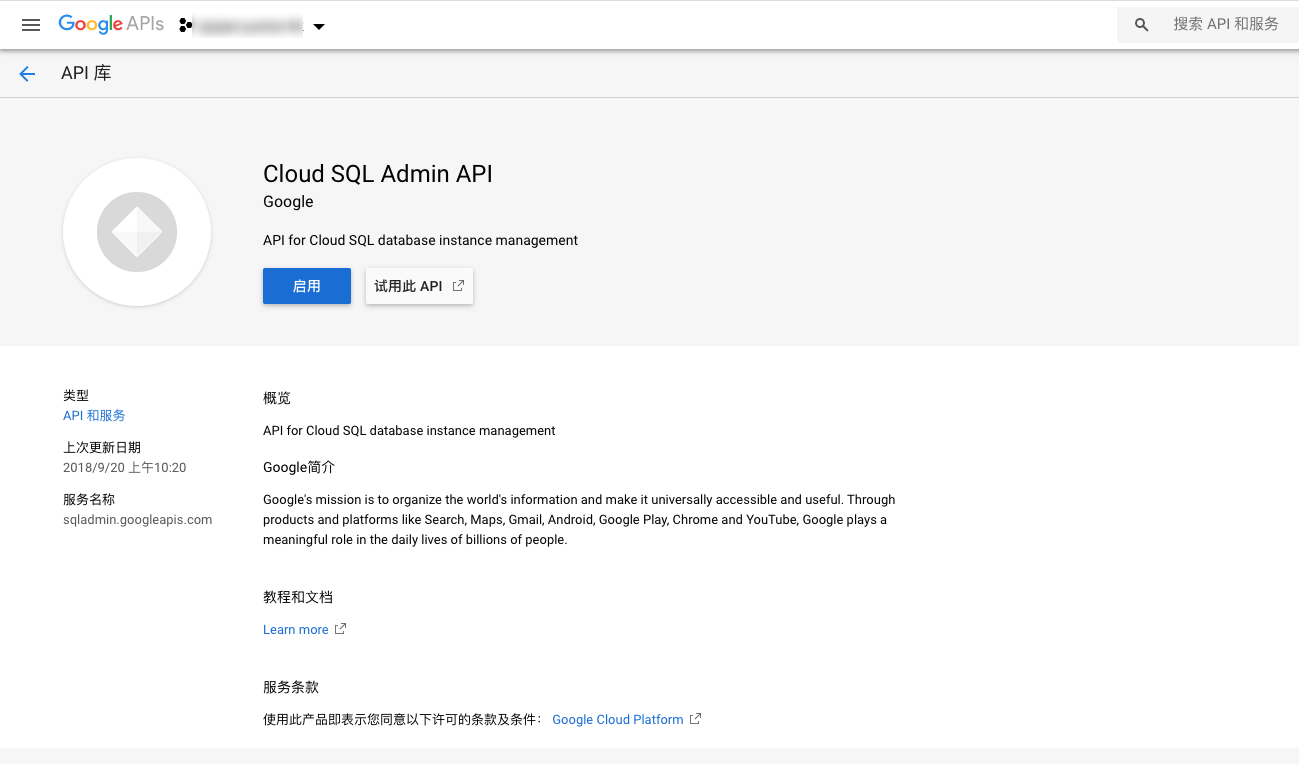
What Permissions Does the Cloud Account Need to Manage Google Cloud Resources Through the Platform?
| Permission Notes | Read-Only Permission | Read-Write Permission |
|---|---|---|
| Permission to manage all Google Cloud resources | Viewer | Editor |
| Permission to manage virtual machines | Compute Viewer | Compute Editor |
| Permission to manage network resources | Compute Network Viewer | Compute Network Admin |
| Permission to manage object storage resources | Storage Legacy Bucket Reader Storage Object Viewer | Storage Admin |
| Permission to manage cloud databases | Cloud SQL Viewer | Cloud SQL Admin |
| Permission to manage Redis | Redis Enterprise Cloud Viewer | Redis Enterprise Cloud Admin |
| Permission to manage logs | Logs Viewer | Logging Admin |
| Permission to manage file storage | Cloud Filestore Viewer | Cloud Filestore Editor |
| Permission to manage all custom roles in a project | Role Viewer | Role Administrator |
| Permission to manage DNS | DNS Reader | DNS Administrator |
| Permission to manage account billing | Billing Account Viewer | Billing Account Administrator |
| Permission to manage monitoring | Monitoring Viewer | Monitoring Admin |
How to Configure and Get Bigquery Configuration Information on the Google Cloud Platform?
-
Log in to the Google Cloud console, click the "Billing" menu item in the left menu to enter the Billing page.
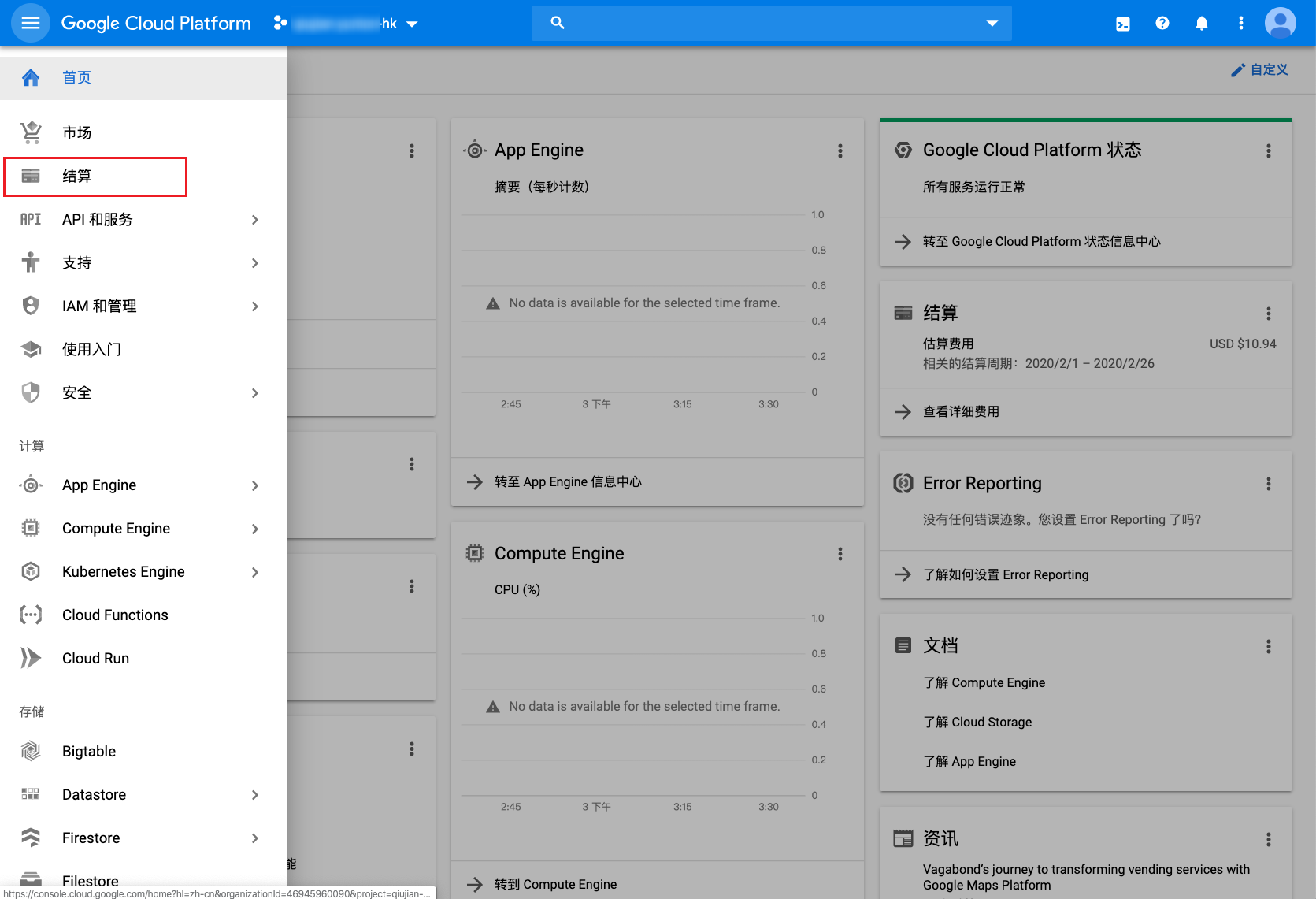
-
Click the [Billing export] menu on the left. On the BIGQUERY EXPORT tab, enable detailed usage cost and configure the project and dataset name.
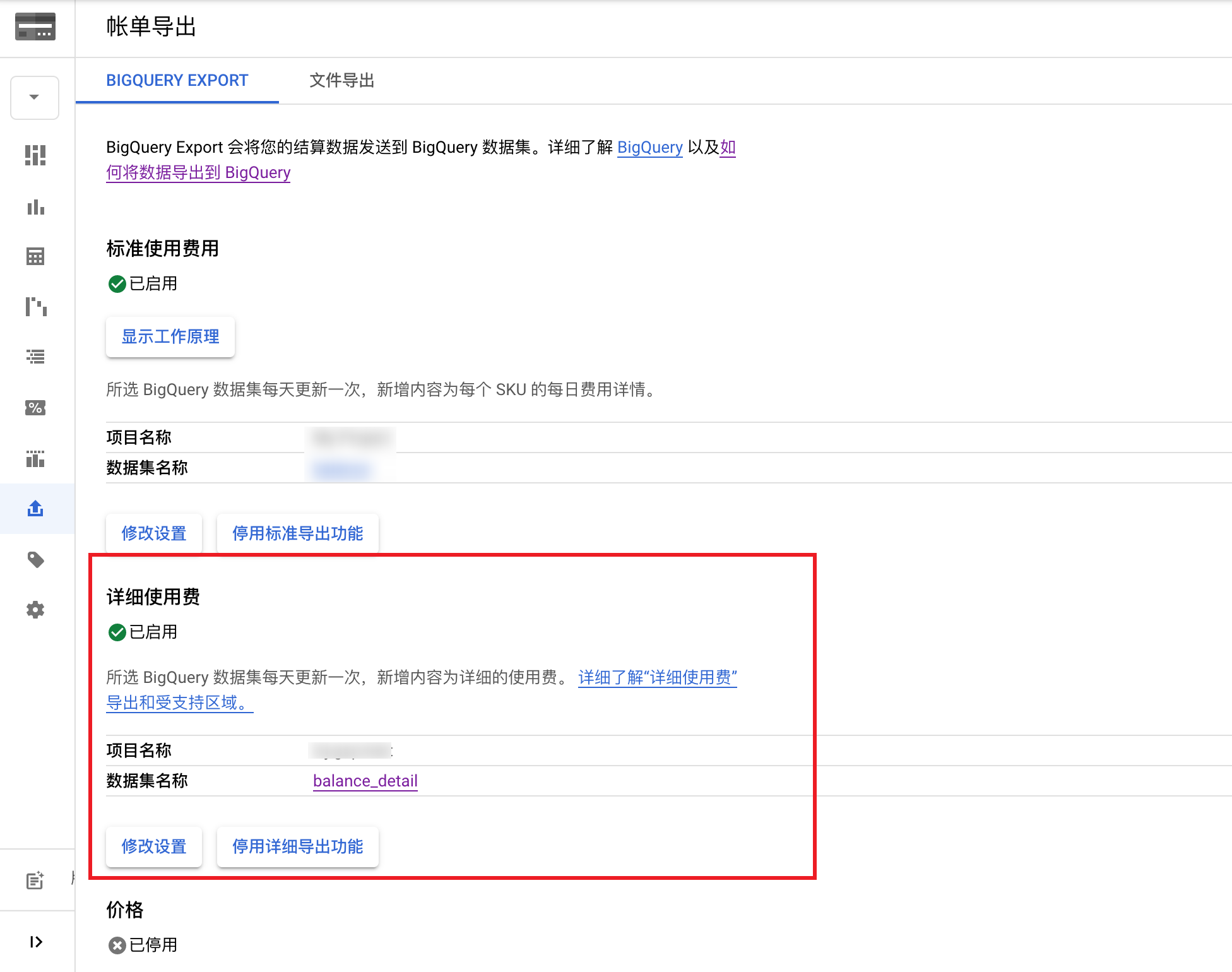
-
Click the dataset name to jump to Bigquery. Expand the right-side node, select the partitioned table under the dataset name, and on the page that opens, click the "Details" tab at the top to get the Table ID information.
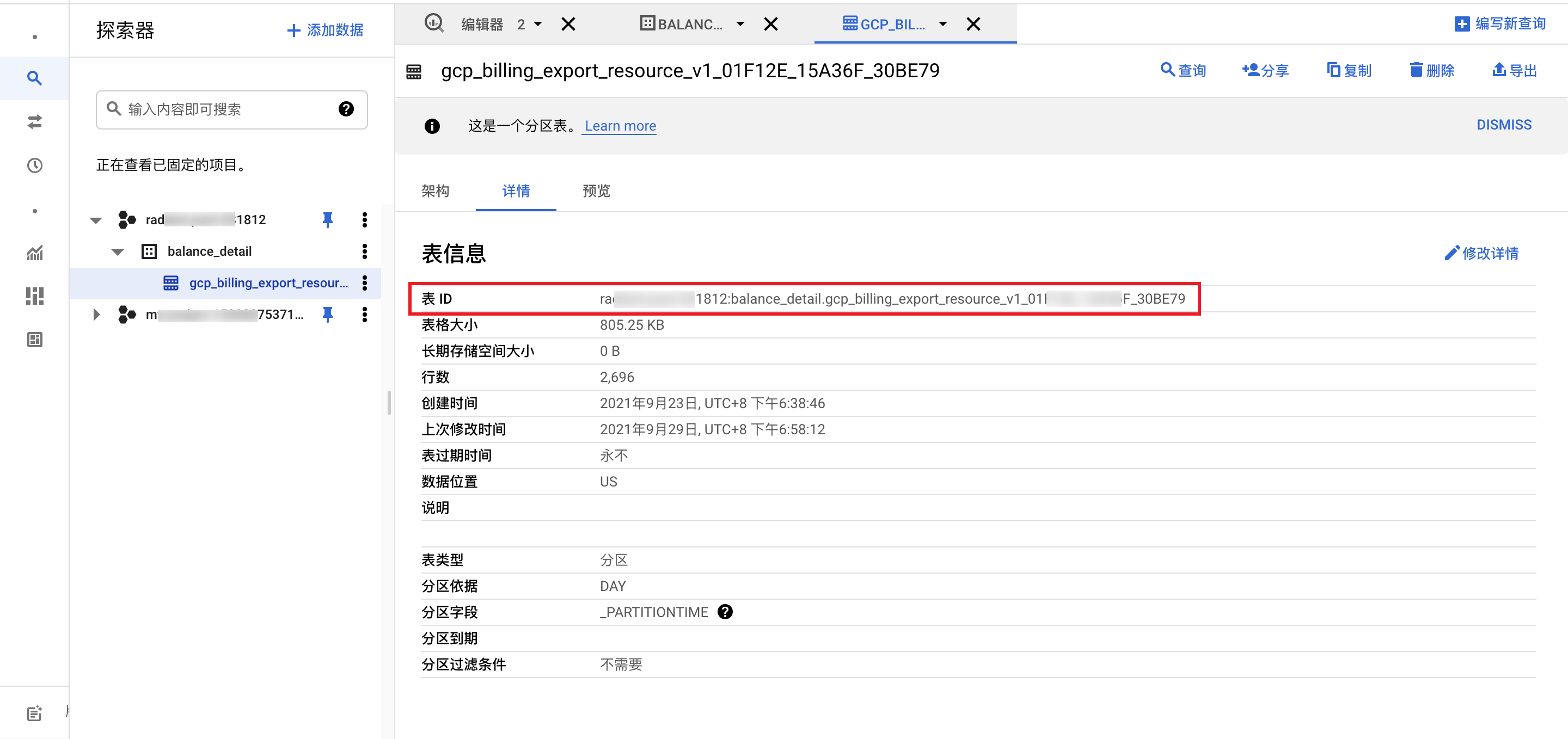
-
On the Table Details page, click the "Edit Details" button in the upper right corner, and set the expiration to None. If an expiration is set, expired data will be cleaned from Bigquery. Please set it carefully.
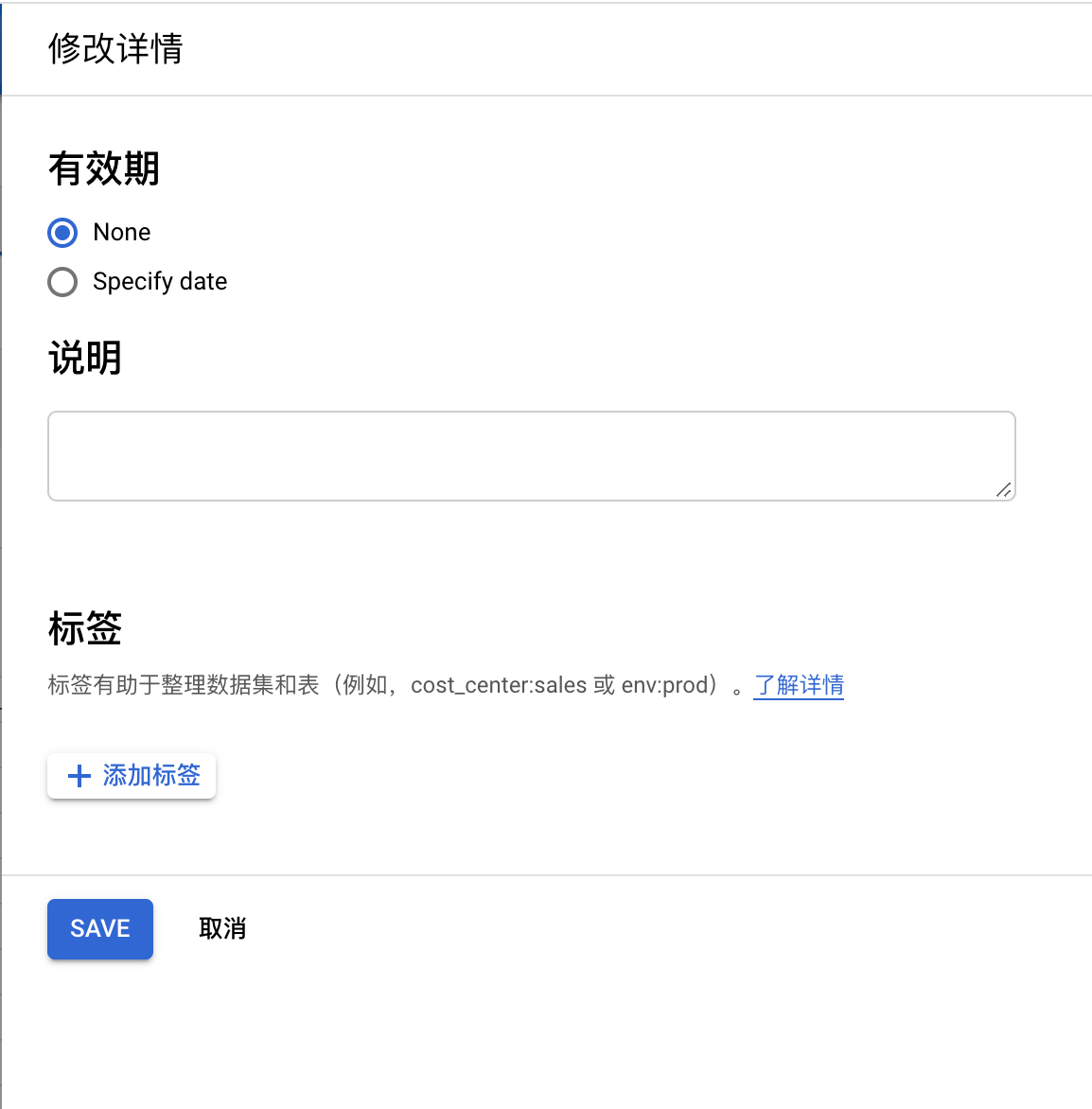
How to Get the Billing File Bucket URL and File Prefix?
-
Log in to the Google Cloud console, click the "Billing" menu item in the left menu to enter the Billing page.
-
Click the [Billing export] menu on the left. On the billing page that opens, click the "File export" tab to view and record the storage bucket name and report prefix information. The report prefix is the file prefix. If not set, you need to configure the storage bucket name and report prefix information on this page. After setup, daily incremental billing data will be synchronized to the corresponding storage. It is recommended that the bucket only stores billing files.
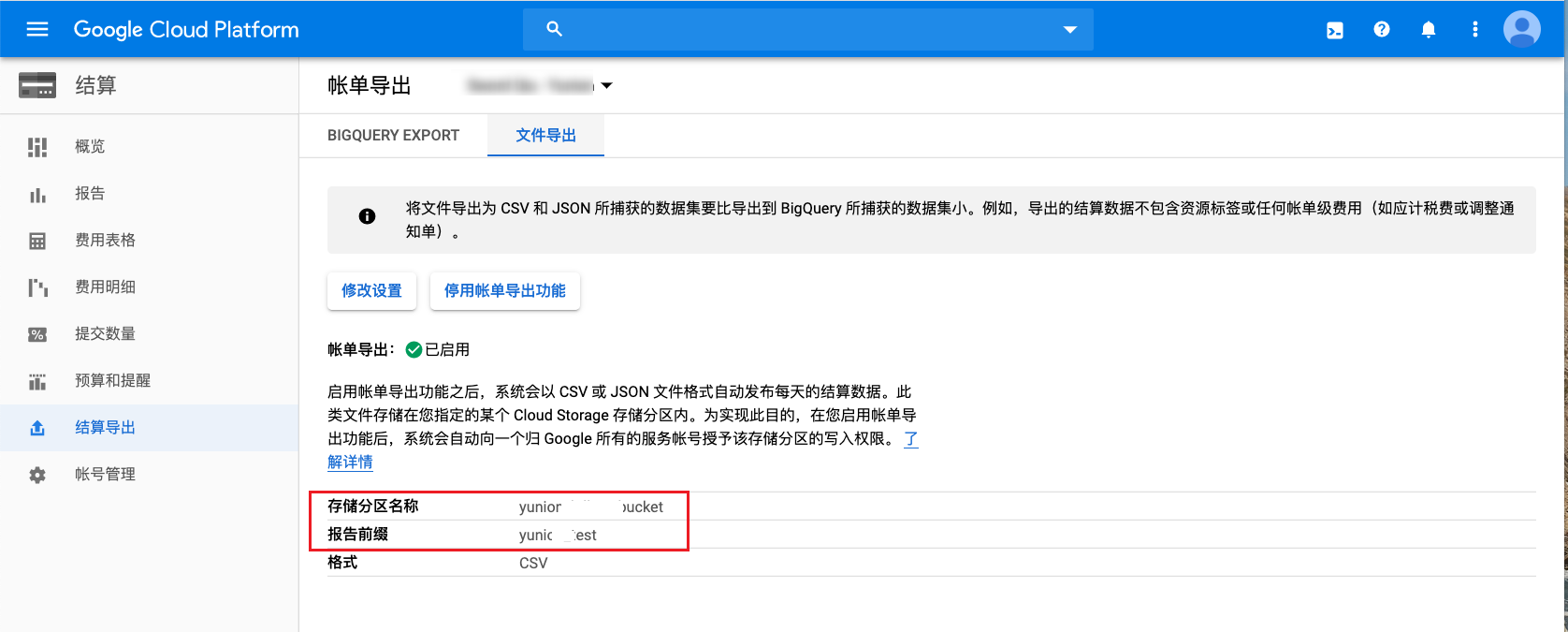
-
Click the [Storage/Browser] menu on the left. On the storage page that opens, click the corresponding storage bucket name and click the "Overview" tab to view the bucket overview information. The link URL is the bucket URL.
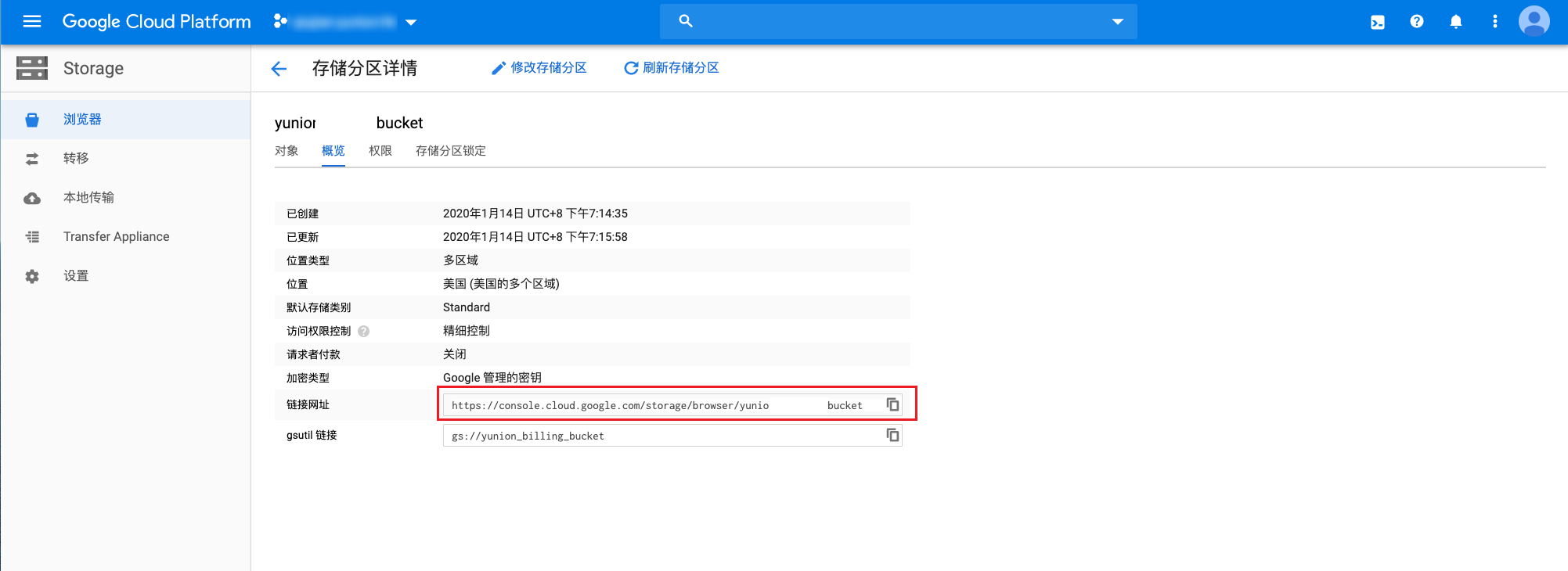
-
When the billing bucket contains files other than billing files, you need to configure the file prefix to only retrieve billing files from the bucket.
How to Get the Usage File Bucket URL and File Prefix?
-
In the Google Cloud console, click the [Compute Engine/Settings] menu on the left to enter the Settings page.
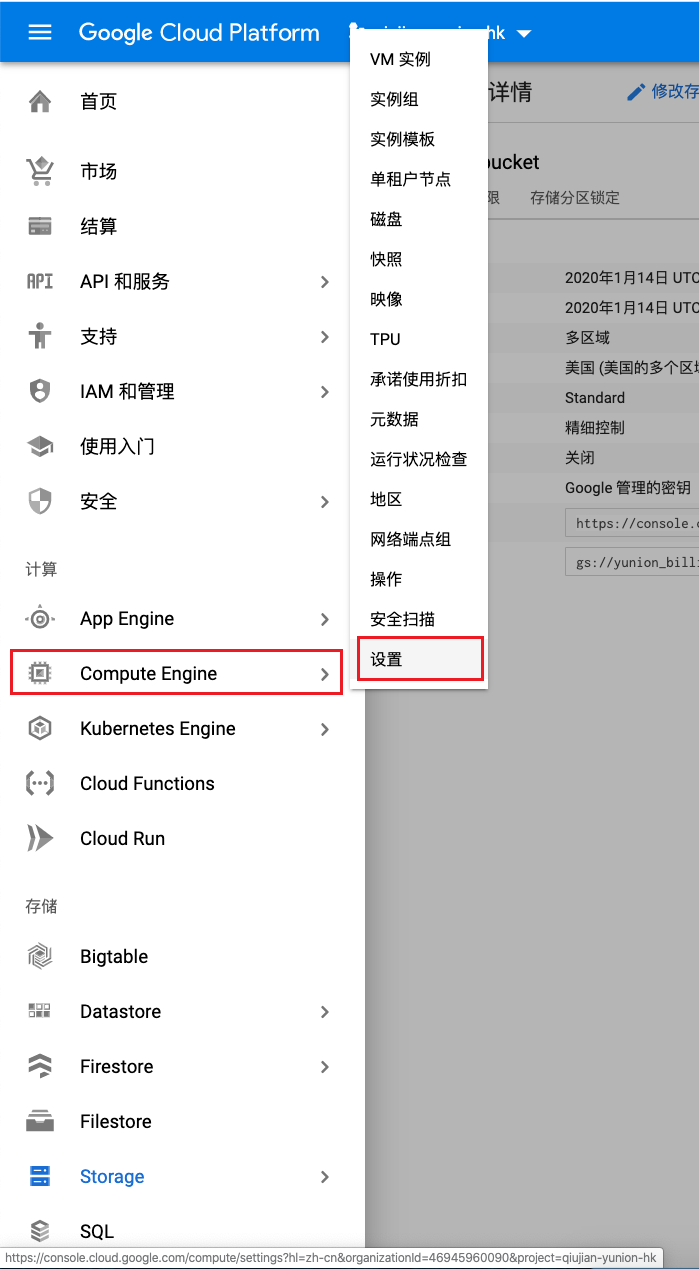
-
Please ensure "Enable usage export" is checked, and record the storage bucket name and report prefix information. The report prefix is the file prefix. If not configured, you need to check "Enable usage export" and configure the storage bucket.

-
Click the [Storage/Browser] menu on the left. On the storage page that opens, click the corresponding storage bucket name and click the "Overview" tab to view the bucket overview information. The link URL is the bucket URL.
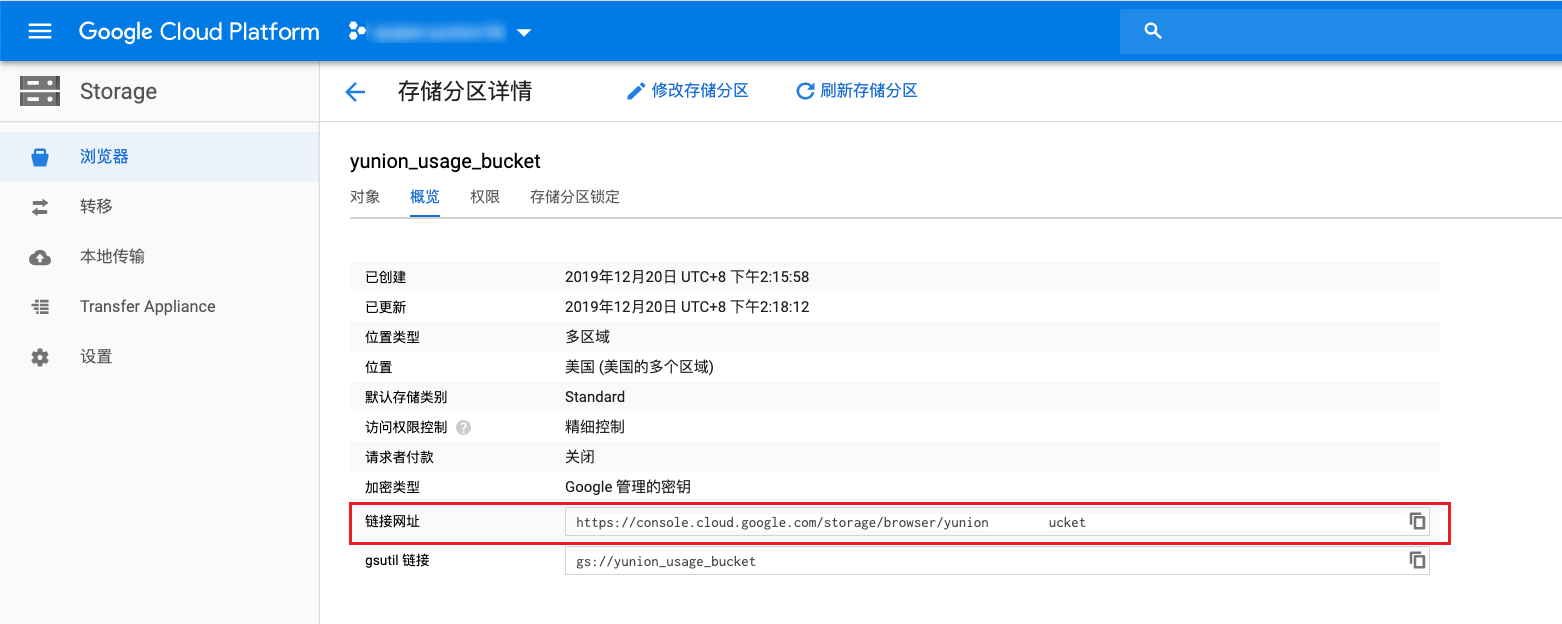
-
When the usage bucket contains files other than usage files, you need to configure the file prefix to only retrieve usage files from the bucket.
Create China Telecom Cloud Account
- On the Cloud Accounts page, click the "Create" button above the list to enter the Create Cloud Account page.
- Select the cloud platform as "China Telecom Cloud", click the "Next: Configure Cloud Account" button to enter the Configure Cloud Account page.
- Configure the following parameters:
- Name: The name of the China Telecom Cloud account.
- Account Type: Currently supports connecting to China Telecom Cloud accounts in the Global and China regions.
- Key ID, Secret: For retrieval methods, please refer to China Telecom Cloud Parameter Retrieval Methods.
- Domain: Select the domain to which the cloud account belongs. When the cloud account is in private state, all project users under the domain can use the cloud account to create resources.
- Resource Ownership Method: Defaults to specified project, also supports ownership based on cloud project.
- Resource Ownership Project: When the resource ownership method is set to specified project, you can select a local project on the platform to synchronize cloud account resources to. Local projects are filtered by domain. When the resource ownership method is set to based on cloud project, resources will be synchronized to local projects with the same name as the cloud project. If a resource has no cloud project attribute, it will belong to the specified project.
- Sync Policy: When enabled, resources are assigned to specified projects based on tag-to-resource-project mapping rules. The sync policy only takes effect during cloud account synchronization.
- Sync Policy Scope: Displayed after enabling sync policy, supports selecting resource tags and project tags.
- Block Sync Resources: When enabled, supports selecting resource types to block. Multiple selections are supported. Blocked resource types will not be synchronized during cloud account synchronization.
- Proxy: Set this when the cloud account requires a proxy for normal access. Leave empty for direct connection. If there is no suitable proxy, click the "Create" hyperlink directly, and set the relevant parameters in the pop-up Create Proxy dialog to create a proxy.
- Read-Only Mode: When enabled, the cloud account will only perform resource synchronization operations and cannot perform other task operations such as creating, deleting, or modifying.
- Sharing Scope: Set the sharing scope of the cloud account. The default is not shared, meaning only the domain where the cloud account resides can use the account. If set to global sharing, all users on the platform can use this cloud account to create resources.
- Click the "Connection Test" button to test whether the input parameters are correct.
- After successful testing, click the "Next: Configure Sync Resource Regions" button to enter the Configure Sync Resource Regions page. This configuration can be modified on the cloud account details page - Subscriptions - Regions (all regions are synchronized by default). To synchronize all regions by default on the platform, you can directly click the "Skip" button, and proceed to the Scheduled Sync Task Settings page to configure the cloud account's sync tasks to make the cloud account's automatic sync behavior more controllable.
- The Scheduled Sync Task Settings page is optional. If you do not need to set up automatic sync tasks on the platform, you can directly click the "Skip" button. If you need to set up automatic sync times for the cloud account on the platform, please configure the relevant parameters. After configuration is complete and the test is successful, click the "OK" button to create the China Telecom Cloud account.
Since China Telecom Cloud has not opened tier-2 node APIs, some regional information cannot be obtained via API.
China Telecom Cloud Parameter Retrieval Methods
How to Get the China Telecom Cloud API Key?
-
Log in to the China Telecom Cloud console, and select Security Settings from the user information in the upper right corner.
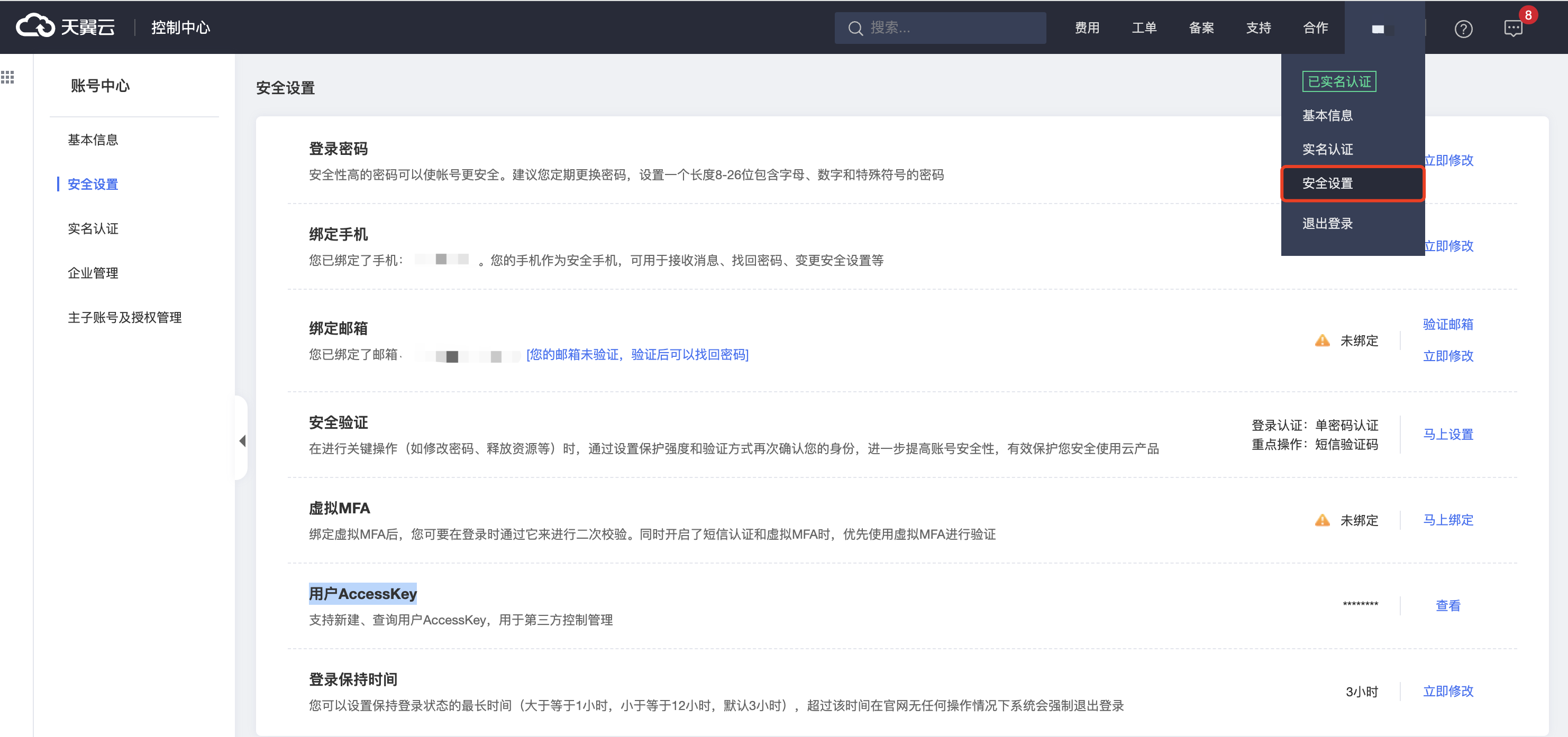
-
In Security Settings, click to view user AccessKey.
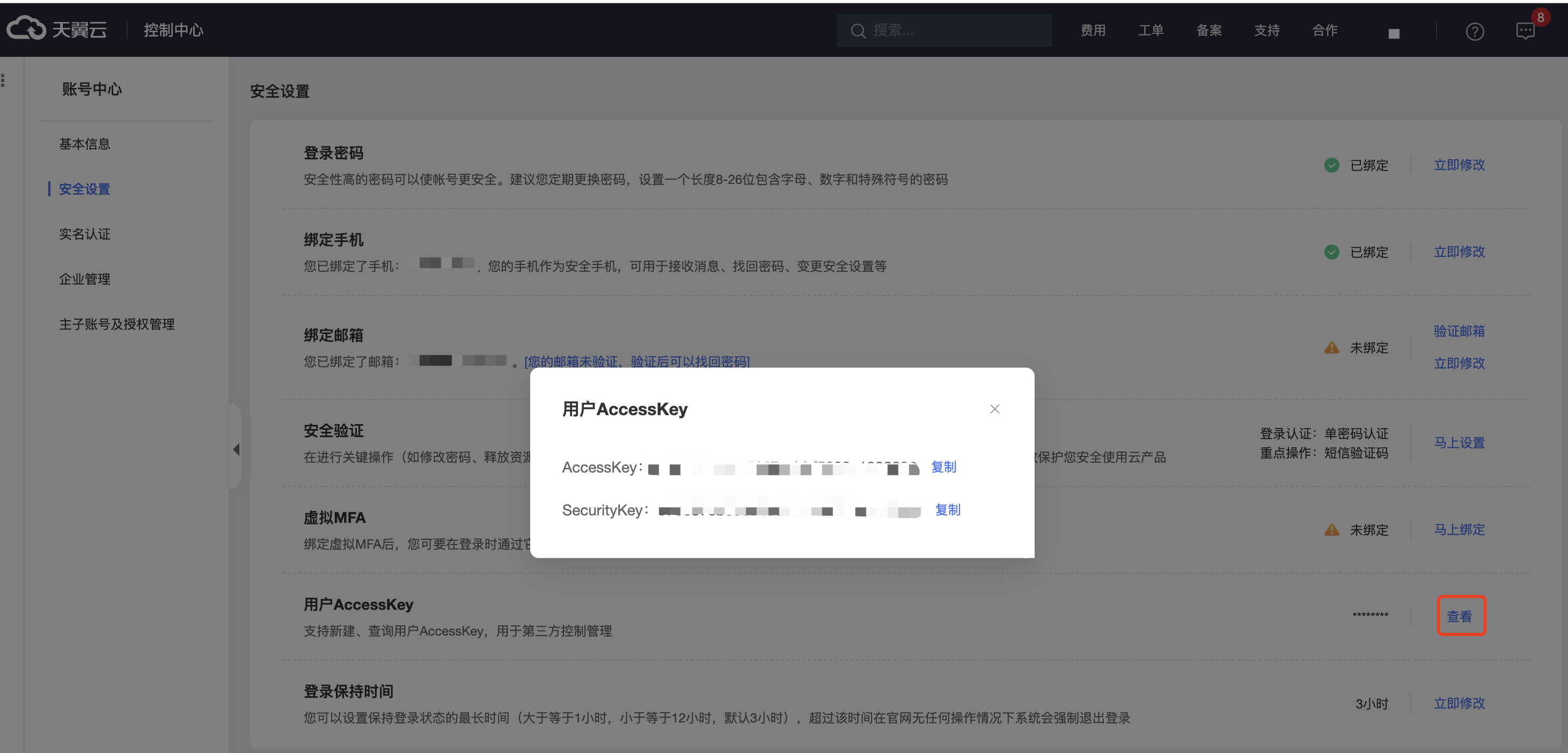
Create China Mobile Cloud Account
Currently, only synchronization of resources on China Mobile Cloud accounts is supported. Resource operations are not supported.
- On the Cloud Accounts page, click the "Create" button above the list to enter the Create Cloud Account page.
- Select the cloud platform as "China Mobile Cloud", click the "Next: Configure Cloud Account" button to enter the Configure Cloud Account page.
- Configure the following parameters:
- Name: The name of the China Mobile Cloud account.
- Key ID, Secret: For retrieval methods, please refer to China Mobile Cloud Parameter Retrieval Methods.
- Domain: Select the domain to which the cloud account belongs. When the cloud account is in private state, all project users under the domain can use the cloud account to create resources.
- Resource Ownership Method: Defaults to specified project, also supports ownership based on cloud project.
- Resource Ownership Project: When the resource ownership method is set to specified project, you can select a local project on the platform to synchronize cloud account resources to. Local projects are filtered by domain. When the resource ownership method is set to based on cloud project, resources will be synchronized to local projects with the same name as the cloud project. If a resource has no cloud project attribute, it will belong to the specified project.
- Sync Policy: When enabled, resources are assigned to specified projects based on tag-to-resource-project mapping rules. The sync policy only takes effect during cloud account synchronization.
- Sync Policy Scope: Displayed after enabling sync policy, supports selecting resource tags and project tags.
- Block Sync Resources: When enabled, supports selecting resource types to block. Multiple selections are supported. Blocked resource types will not be synchronized during cloud account synchronization.
- Proxy: Set this when the cloud account requires a proxy for normal access. Leave empty for direct connection. If there is no suitable proxy, click the "Create" hyperlink directly, and set the relevant parameters in the pop-up Create Proxy dialog to create a proxy.
- Read-Only Mode: When enabled, the cloud account will only perform resource synchronization operations and cannot perform other task operations such as creating, deleting, or modifying.
- Sharing Scope: Set the sharing scope of the cloud account. The default is not shared, meaning only the domain where the cloud account resides can use the account. If set to global sharing, all users on the platform can use this cloud account to create resources.
- Click the "Connection Test" button to test whether the input parameters are correct.
- After successful testing, click the "Next: Configure Sync Resource Regions" button to enter the Configure Sync Resource Regions page. This configuration can be modified on the cloud account details page - Subscriptions - Regions (all regions are synchronized by default). To synchronize all regions by default on the platform, you can directly click the "Skip" button, and proceed to the Scheduled Sync Task Settings page to configure the cloud account's sync tasks to make the cloud account's automatic sync behavior more controllable.
- The Scheduled Sync Task Settings page is optional. If you do not need to set up automatic sync tasks on the platform, you can directly click the "Skip" button. If you need to set up automatic sync times for the cloud account on the platform, please configure the relevant parameters. After configuration is complete and the test is successful, click the "OK" button to create the China Mobile Cloud account.
China Mobile Cloud Parameter Retrieval Methods
How to Get the China Mobile Cloud API Key?
-
Log in to the China Mobile Cloud console, search for "AK Management" in all products to enter the AccessKey Management page.
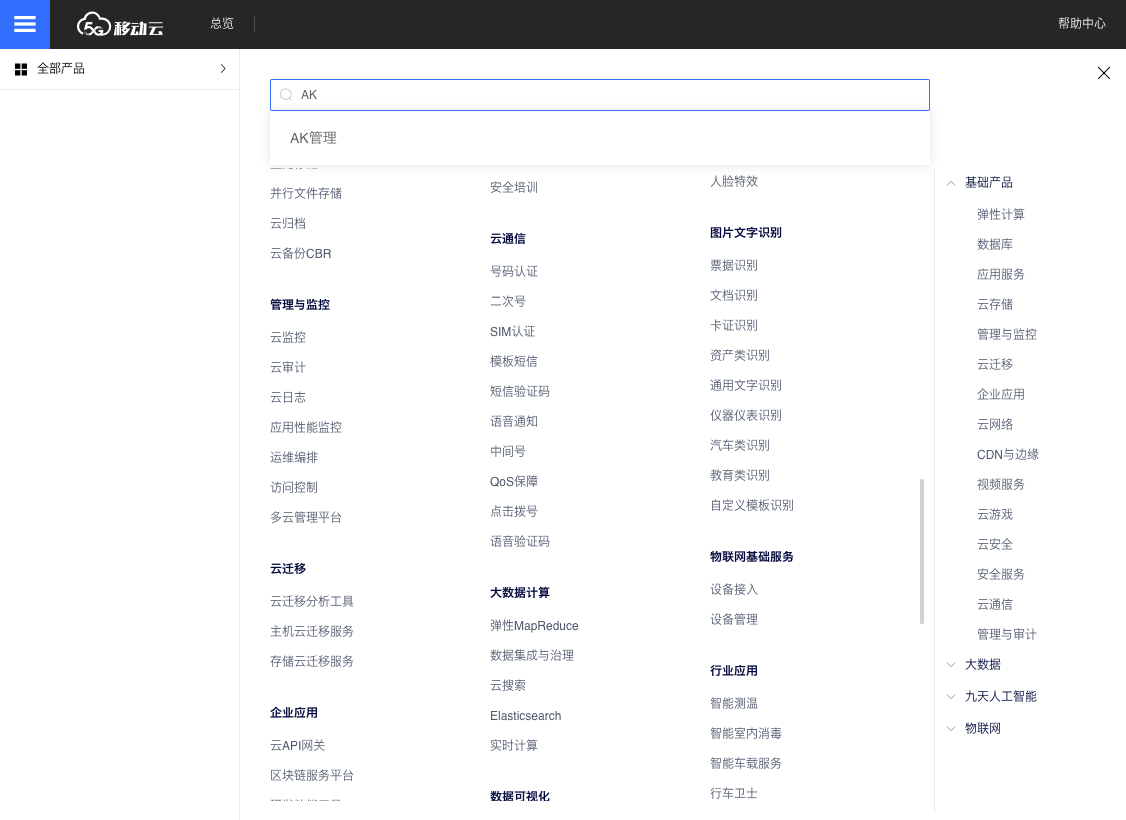
-
On the AccessKey Management page, create a key or view the Access key and Secret key of existing keys.
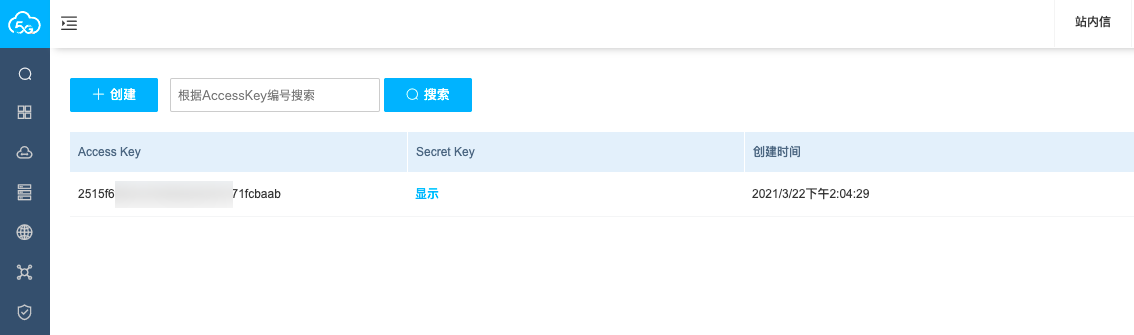
What Permissions Does the Cloud Account Need to Manage China Mobile Cloud Resources?
| Permission Policy | Policy Description |
|---|---|
| Admin | Administrator role |
Create JD Cloud Account
Currently, only synchronization of resources on JD Cloud accounts is supported. Resource operations are not supported.
- On the Cloud Accounts page, click the "Create" button above the list to enter the Create Cloud Account page.
- Select the cloud platform as "JD Cloud", click the "Next: Configure Cloud Account" button to enter the Configure Cloud Account page.
- Configure the following parameters:
- Name: The name of the JD Cloud account.
- Key ID, Secret: For retrieval methods, please refer to JD Cloud Parameter Retrieval Methods.
- Domain: Select the domain to which the cloud account belongs. When the cloud account is in private state, all project users under the domain can use the cloud account to create resources.
- Resource Ownership Method: Defaults to specified project, also supports ownership based on cloud project.
- Resource Ownership Project: When the resource ownership method is set to specified project, you can select a local project on the platform to synchronize cloud account resources to. Local projects are filtered by domain. When the resource ownership method is set to based on cloud project, resources will be synchronized to local projects with the same name as the cloud project. If a resource has no cloud project attribute, it will belong to the specified project.
- Sync Policy: When enabled, resources are assigned to specified projects based on tag-to-resource-project mapping rules. The sync policy only takes effect during cloud account synchronization.
- Sync Policy Scope: Displayed after enabling sync policy, supports selecting resource tags and project tags.
- Block Sync Resources: When enabled, supports selecting resource types to block. Multiple selections are supported. Blocked resource types will not be synchronized during cloud account synchronization.
- Proxy: Set this when the cloud account requires a proxy for normal access. Leave empty for direct connection. If there is no suitable proxy, click the "Create" hyperlink directly, and set the relevant parameters in the pop-up Create Proxy dialog to create a proxy.
- Read-Only Mode: When enabled, the cloud account will only perform resource synchronization operations and cannot perform other task operations such as creating, deleting, or modifying.
- Sharing Scope: Set the sharing scope of the cloud account. The default is not shared, meaning only the domain where the cloud account resides can use the account. If set to global sharing, all users on the platform can use this cloud account to create resources.
- Click the "Connection Test" button to test whether the input parameters are correct.
- After successful testing, click the "Next: Configure Sync Resource Regions" button to enter the Configure Sync Resource Regions page. This configuration can be modified on the cloud account details page - Subscriptions - Regions (all regions are synchronized by default). To synchronize all regions by default on the platform, you can directly click the "Skip" button.
- After successful configuration, click the "Next: Billing File Access Information (Optional)" button to enter the Billing File Access Information page to configure the cloud account's billing parameters so that users can view the cloud account's billing information in the Expenses section. The Billing File Access Information page is optional. If you do not need to view cloud account billing information on the platform, you can directly click the "Skip" button. If you need to view billing information on the platform, please configure the relevant parameters. After configuration is complete and the test is successful, click the "OK" button, and proceed to the Scheduled Sync Task Settings page to configure the cloud account's sync tasks to make the cloud account's automatic sync behavior more controllable.
- JD Cloud billing is obtained via API, so only the following parameters need to be configured on this page.
- Collect Bills Immediately: The platform automatically collects bills at 4 AM every day by default. After enabling this, bills will be collected immediately after configuring the billing file access information.
- Time Range: When immediate bill collection is enabled, you can set a time range to immediately collect bills within that range. Please ensure there is billing data within the selected time range. It is recommended to collect bills within 1-6 months, otherwise too much data may cause excessive system pressure and affect daily bill collection tasks.
- The Scheduled Sync Task Settings page is optional. If you do not need to set up automatic sync tasks on the platform, you can directly click the "Skip" button. If you need to set up automatic sync times for the cloud account on the platform, please configure the relevant parameters. After configuration is complete and the test is successful, click the "OK" button to create the JD Cloud account and collect billing.
JD Cloud Parameter Retrieval Methods
How to Get the JD Cloud API Key
-
Log in to the JD Cloud console, hover over the username in the upper right corner, and select the "Access Key Management" menu item from the dropdown menu to enter the Access Key Management page.
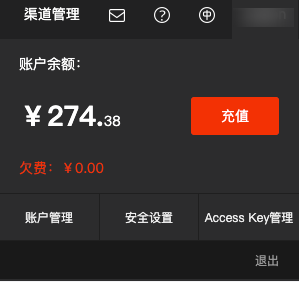
-
View existing Access Key information, or click the "Create" button to create a new Access Key. Click the "View" button to get the Access Key Secret information.
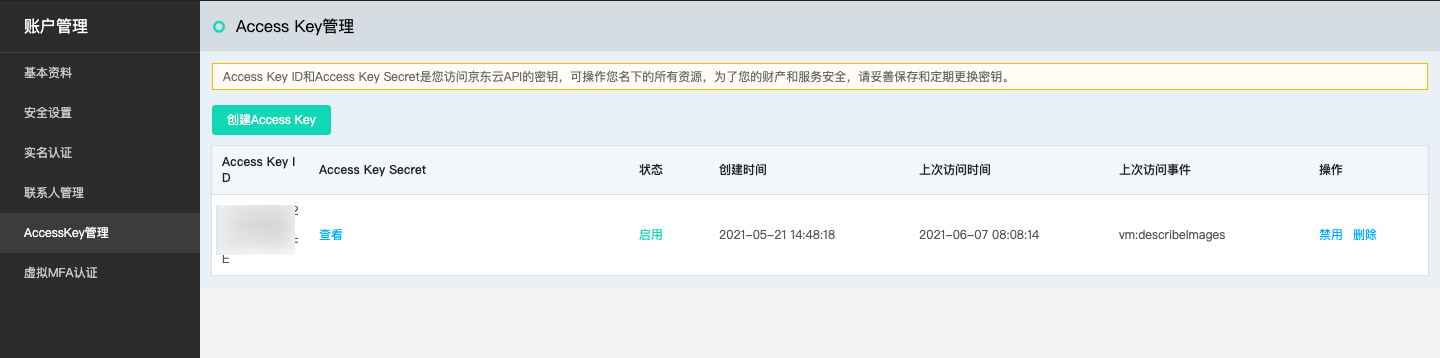
Create Baidu Cloud Account
- On the Cloud Accounts page, click the "Create" button above the list to enter the Create Cloud Account page.
- Select the cloud platform as Baidu Cloud, click the "Next: Configure Cloud Account" button to enter the Configure Cloud Account page.
- Configure the following parameters:
- Name: The name of the Baidu Cloud platform.
- Key ID/Secret: Connect to the Baidu Cloud platform through Access Key authentication. The Access Key consists of a Key ID (Access Key ID) and Secret (Access Key Secret). For details, please refer to Baidu Cloud Parameter Retrieval Methods.
- Domain: Select the domain to which the cloud account belongs. When the cloud account is in private state, all project users under the domain can use the cloud account to create resources.
- Resource Ownership Method: Defaults to specified project, also supports ownership based on cloud project.
- Resource Ownership Project: When the resource ownership method is set to specified project, you can select a local project on the platform to synchronize cloud account resources to. Local projects are filtered by domain. When the resource ownership method is set to based on cloud project, resources will be synchronized to local projects with the same name as the cloud project. If a resource has no cloud project attribute, it will belong to the specified project.
- Sync Policy: When enabled, resources are assigned to specified projects based on tag-to-resource-project mapping rules. The sync policy only takes effect during cloud account synchronization.
- Sync Policy Scope: Displayed after enabling sync policy, supports selecting resource tags and project tags.
- Block Sync Resources: When enabled, supports selecting resource types to block. Multiple selections are supported. Blocked resource types will not be synchronized during cloud account synchronization.
- Proxy: Set this when the cloud account requires a proxy for normal access. Leave empty for direct connection. If there is no suitable proxy, click the "Create" hyperlink directly, and set the relevant parameters in the pop-up Create Proxy dialog to create a proxy.
- Enable SSO Login: After enabling this, the system's SAML information will be automatically synchronized to the cloud account, becoming the identity provider for cloud login. This enables single sign-on from this system to the public cloud platform.
- Read-Only Mode: When enabled, the cloud account will only perform resource synchronization operations and cannot perform other task operations such as creating, deleting, or modifying.
- Sharing Scope: Set the sharing scope of the cloud account. The default is not shared, meaning only the domain where the cloud account resides can use the account. If set to global sharing, all users on the platform can use this cloud account to create resources.
- Click the "Connection Test" button to test whether the input parameters are correct.
- After successful testing, click the "Next: Configure Sync Resource Regions" button to enter the Configure Sync Resource Regions page. This configuration can be modified on the cloud account details page - Subscriptions - Regions (all regions are synchronized by default). To synchronize all regions by default on the platform, you can directly click the "Skip" button.
- After successful configuration, click the "Next: Billing File Access Information (Optional)" button to enter the Billing File Access Information page to configure the cloud account's billing parameters so that users can view the cloud account's billing information in the Expenses section. The Billing File Access Information page is optional. If you do not need to view cloud account billing information on the platform, you can directly click the "Skip" button. If you need to view billing information on the platform, please configure the relevant parameters. After configuration is complete and the test is successful, click the "OK" button, and proceed to the Scheduled Sync Task Settings page to configure the cloud account's sync tasks to make the cloud account's automatic sync behavior more controllable.
- Baidu Cloud billing is obtained via API, so only the following parameters need to be configured on this page.
- Collect Bills Immediately: The platform automatically collects bills at 4 AM every day by default. After enabling this, bills will be collected immediately after configuring the billing file access information.
- Time Range: When immediate bill collection is enabled, you can set a time range to immediately collect bills within that range. Please ensure there is billing data within the selected time range. It is recommended to collect bills within 1-6 months, otherwise too much data may cause excessive system pressure and affect daily bill collection tasks.
- The Scheduled Sync Task Settings page is optional. If you do not need to set up automatic sync tasks on the platform, you can directly click the "Skip" button. If you need to set up automatic sync times for the cloud account on the platform, please configure the relevant parameters. After configuration is complete and the test passes, click the "OK" button to create the Baidu Cloud account.
Baidu Cloud Parameter Retrieval Methods
How to Get the Baidu Cloud API Key
-
Log in to the Baidu Cloud console using the primary account, click the personal information in the upper right corner of the page, expand the dropdown menu, and click the "Security Authentication" menu item to enter the Access Key page.
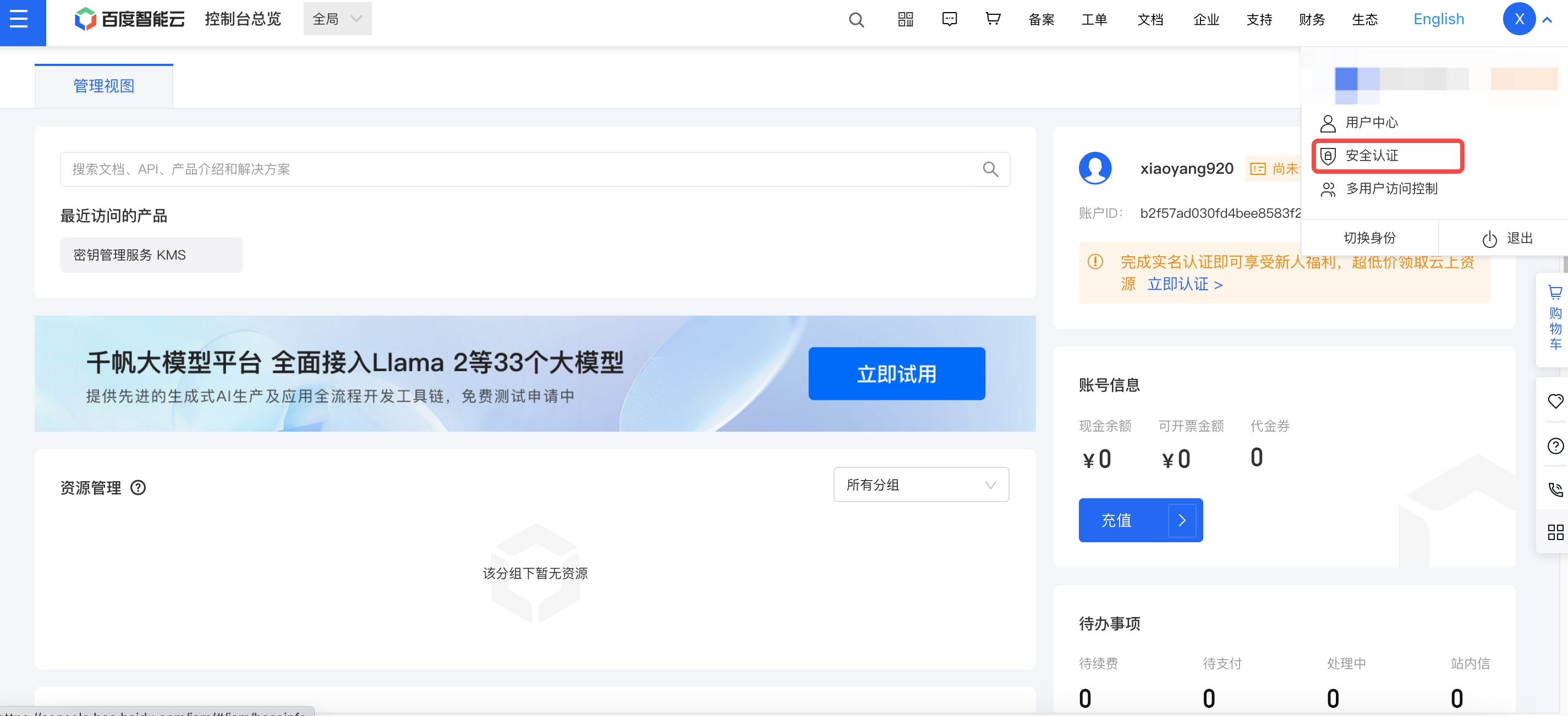
-
On the Access Key page, you can view existing Access Key information, or click the "Create AccessKey" button to create a new user AccessKey. When creating a new Access Key, Baidu Cloud will send a verification code to the account contact's phone. The AccessKey can only be created after verification.
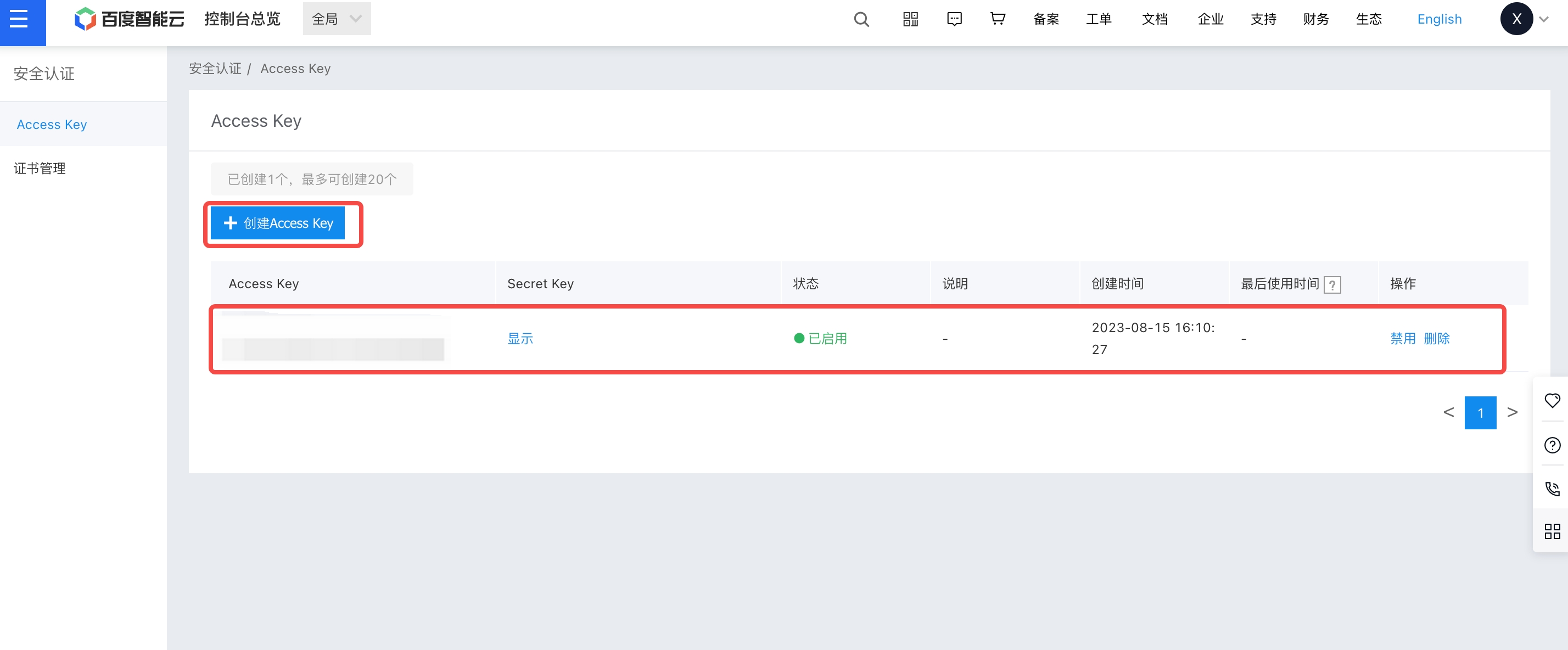
-
The Access Key Secret is hidden by default. Click the "Show" link, and Baidu Cloud will send a verification code to the account owner's contact phone. The Access Key Secret will only be displayed after verification.

Create China Unicom Cloud Account
- On the Cloud Accounts page, click the "Create" button above the list to enter the Create Cloud Account page.
- Select the cloud platform as China Unicom Cloud, click the "Next: Configure Cloud Account" button to enter the Configure Cloud Account page.
- Configure the following parameters:
- Name: The name of the China Unicom Cloud platform.
- Key ID/Secret: Connect to the China Unicom Cloud platform through Access Key authentication. The Access Key consists of a Key ID (Access Key ID) and Secret (Access Key Secret). For details, please refer to China Unicom Cloud Parameter Retrieval Methods.
- Domain: Select the domain to which the cloud account belongs. When the cloud account is in private state, all project users under the domain can use the cloud account to create resources.
- Resource Ownership Method: Defaults to specified project, also supports ownership based on cloud project.
- Resource Ownership Project: When the resource ownership method is set to specified project, you can select a local project on the platform to synchronize cloud account resources to. Local projects are filtered by domain. When the resource ownership method is set to based on cloud project, resources will be synchronized to local projects with the same name as the cloud project. If a resource has no cloud project attribute, it will belong to the specified project.
- Sync Policy: When enabled, resources are assigned to specified projects based on tag-to-resource-project mapping rules. The sync policy only takes effect during cloud account synchronization.
- Sync Policy Scope: Displayed after enabling sync policy, supports selecting resource tags and project tags.
- Block Sync Resources: When enabled, supports selecting resource types to block. Multiple selections are supported. Blocked resource types will not be synchronized during cloud account synchronization.
- Proxy: Set this when the cloud account requires a proxy for normal access. Leave empty for direct connection. If there is no suitable proxy, click the "Create" hyperlink directly, and set the relevant parameters in the pop-up Create Proxy dialog to create a proxy.
- Enable SSO Login: After enabling this, the system's SAML information will be automatically synchronized to the cloud account, becoming the identity provider for cloud login. This enables single sign-on from this system to the public cloud platform.
- Read-Only Mode: When enabled, the cloud account will only perform resource synchronization operations and cannot perform other task operations such as creating, deleting, or modifying.
- Sharing Scope: Set the sharing scope of the cloud account. The default is not shared, meaning only the domain where the cloud account resides can use the account. If set to global sharing, all users on the platform can use this cloud account to create resources.
- Click the "Connection Test" button to test whether the input parameters are correct.
- After successful testing, click the "Next: Configure Sync Resource Regions" button to enter the Configure Sync Resource Regions page. This configuration can be modified on the cloud account details page - Subscriptions - Regions (all regions are synchronized by default). To synchronize all regions by default on the platform, you can directly click the "Skip" button.
- After successful configuration, click the "Next: Billing File Access Information (Optional)" button to enter the Billing File Access Information page to configure the cloud account's billing parameters so that users can view the cloud account's billing information in the Expenses section. The Billing File Access Information page is optional. If you do not need to view cloud account billing information on the platform, you can directly click the "Skip" button. If you need to view billing information on the platform, please configure the relevant parameters. After configuration is complete and the test is successful, click the "OK" button, and proceed to the Scheduled Sync Task Settings page to configure the cloud account's sync tasks to make the cloud account's automatic sync behavior more controllable.
- China Unicom Cloud billing is obtained via API, so only the following parameters need to be configured on this page.
- Collect Bills Immediately: The platform automatically collects bills at 4 AM every day by default. After enabling this, bills will be collected immediately after configuring the billing file access information.
- Time Range: When immediate bill collection is enabled, you can set a time range to immediately collect bills within that range. Please ensure there is billing data within the selected time range. It is recommended to collect bills within 1-6 months, otherwise too much data may cause excessive system pressure and affect daily bill collection tasks.
- The Scheduled Sync Task Settings page is optional. If you do not need to set up automatic sync tasks on the platform, you can directly click the "Skip" button. If you need to set up automatic sync times for the cloud account on the platform, please configure the relevant parameters. After configuration is complete and the test passes, click the "OK" button to create the China Unicom Cloud account.
China Unicom Cloud Parameter Retrieval Methods
How to Get the China Unicom Cloud API Key
-
Log in to the China Unicom Cloud console using the primary account, click the personal information in the upper right corner of the page, expand the dropdown menu, and click the "Access Control" menu item to enter the IAM Access Control page.
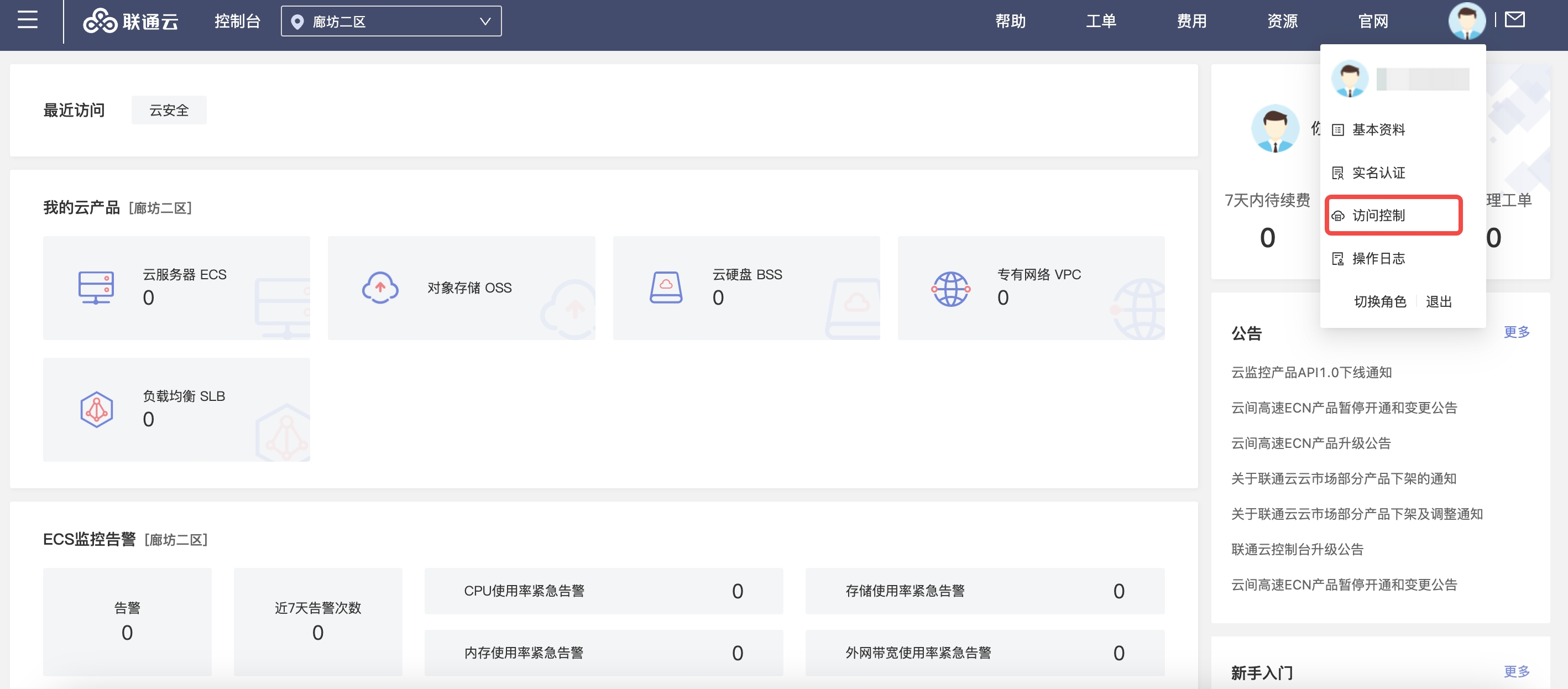
-
On the IAM Access Control page, click the "Security Settings" button in the operation column to the right of the username to enter the Security Settings page.
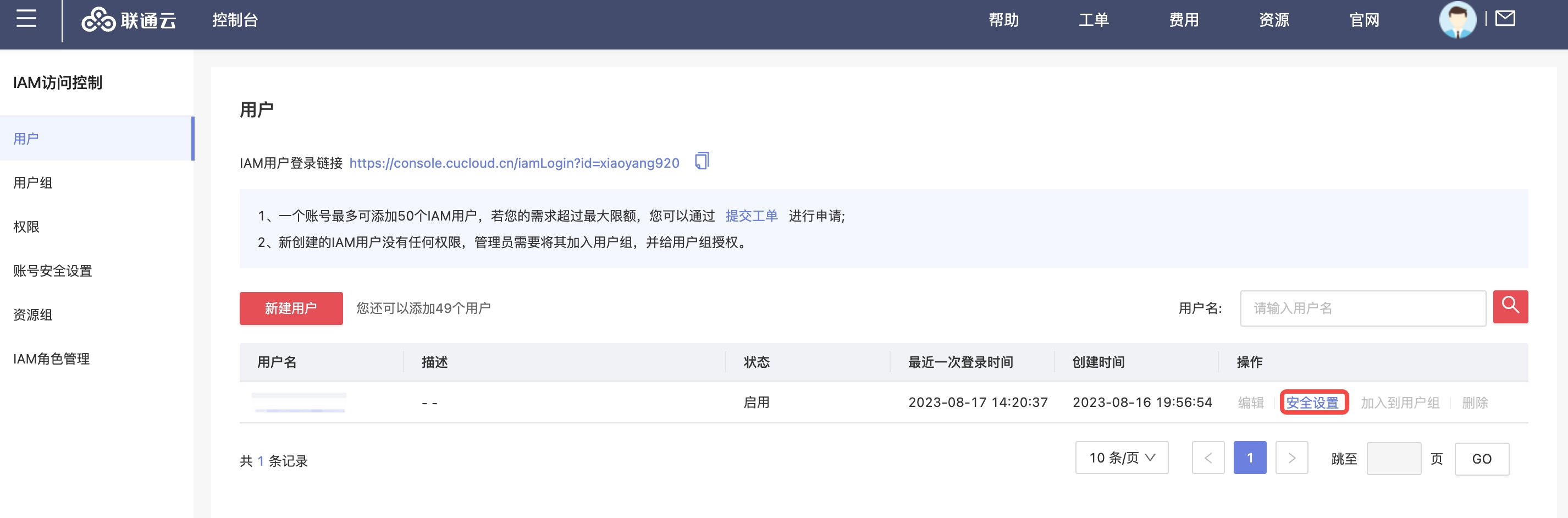
-
On the Security Settings page, click the "Create Access Key" button. When creating a new access key, China Unicom Cloud will send a verification code to the account contact's phone. After verification, the key information will be displayed in the pop-up New Access Key dialog, including the Key ID (Access Key ID) and Secret (Access Key Secret).
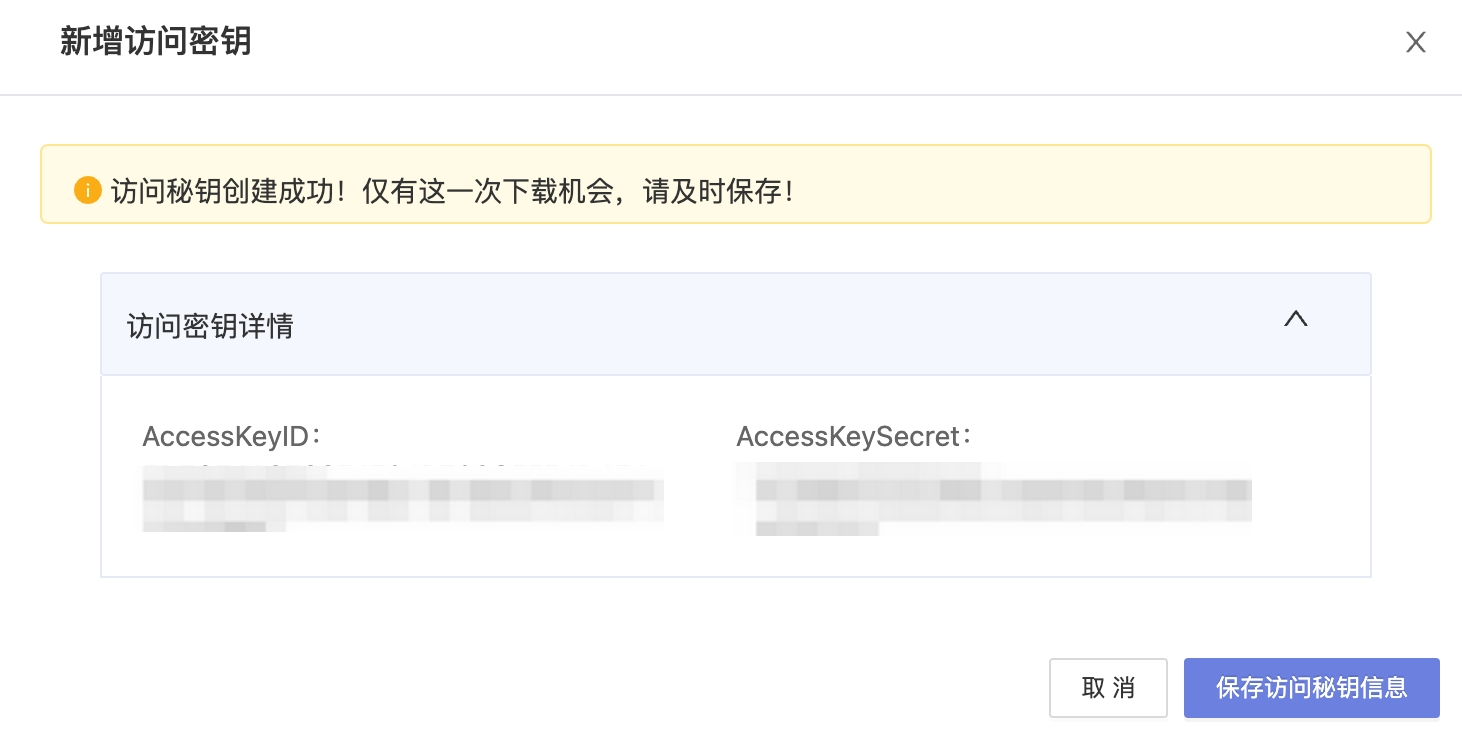
Create Kingsoft Cloud Account
- On the Cloud Accounts page, click the "Create" button above the list to enter the Create Cloud Account page.
- Select the cloud platform as Kingsoft Cloud, click the "Next: Configure Cloud Account" button to enter the Configure Cloud Account page.
- Configure the following parameters:
- Name: The name of the Kingsoft Cloud platform.
- Key ID/Secret: Connect to the Kingsoft Cloud platform through Access Key authentication. The Access Key consists of a Key ID (Access Key ID) and Secret (Access Key Secret). For details, please refer to Kingsoft Cloud Parameter Retrieval Methods.
- Domain: Select the domain to which the cloud account belongs. When the cloud account is in private state, all project users under the domain can use the cloud account to create resources.
- Resource Ownership Method: Defaults to specified project, also supports ownership based on cloud project.
- Resource Ownership Project: When the resource ownership method is set to specified project, you can select a local project on the platform to synchronize cloud account resources to. Local projects are filtered by domain. When the resource ownership method is set to based on cloud project, resources will be synchronized to local projects with the same name as the cloud project. If a resource has no cloud project attribute, it will belong to the specified project.
- Sync Policy: When enabled, resources are assigned to specified projects based on tag-to-resource-project mapping rules. The sync policy only takes effect during cloud account synchronization.
- Sync Policy Scope: Displayed after enabling sync policy, supports selecting resource tags and project tags.
- Block Sync Resources: When enabled, supports selecting resource types to block. Multiple selections are supported. Blocked resource types will not be synchronized during cloud account synchronization.
- Proxy: Set this when the cloud account requires a proxy for normal access. Leave empty for direct connection. If there is no suitable proxy, click the "Create" hyperlink directly, and set the relevant parameters in the pop-up Create Proxy dialog to create a proxy.
- Enable SSO Login: After enabling this, the system's SAML information will be automatically synchronized to the cloud account, becoming the identity provider for cloud login. This enables single sign-on from this system to the public cloud platform.
- Read-Only Mode: When enabled, the cloud account will only perform resource synchronization operations and cannot perform other task operations such as creating, deleting, or modifying.
- Sharing Scope: Set the sharing scope of the cloud account. The default is not shared, meaning only the domain where the cloud account resides can use the account. If set to global sharing, all users on the platform can use this cloud account to create resources.
- Click the "Connection Test" button to test whether the input parameters are correct.
- After successful testing, click the "Next: Configure Sync Resource Regions" button to enter the Configure Sync Resource Regions page. This configuration can be modified on the cloud account details page - Subscriptions - Regions (all regions are synchronized by default). To synchronize all regions by default on the platform, you can directly click the "Skip" button.
- After successful configuration, click the "Next: Billing File Access Information (Optional)" button to enter the Billing File Access Information page to configure the cloud account's billing parameters so that users can view the cloud account's billing information in the Expenses section. The Billing File Access Information page is optional. If you do not need to view cloud account billing information on the platform, you can directly click the "Skip" button. If you need to view billing information on the platform, please configure the relevant parameters. After configuration is complete and the test is successful, click the "OK" button, and proceed to the Scheduled Sync Task Settings page to configure the cloud account's sync tasks to make the cloud account's automatic sync behavior more controllable.
If the added Kingsoft Cloud account is a new account, please first enable Object Storage Service on the Kingsoft Cloud platform.
- Cloud Account Type: Includes primary account and associated account. Before using an associated account, please ensure the primary account has been imported to the platform, and select the primary account when using the associated account.
- Bucket URL: The URL of the bucket where billing files are stored. For details, please refer to How to Get the Kingsoft Cloud Billing Bucket URL?.
- File Prefix: When the billing bucket contains files other than billing files, you need to configure the file prefix to only retrieve billing files from the bucket. The billing file prefix for Alibaba Cloud is the account ID, which can be viewed in Account Management - Security Settings.
- Billing Analysis Scope: Set the scope for the platform to analyze cloud account billing. Currently only supports accounts managed by this platform.
- Accounts Managed by This Platform: Collects billing information for the primary account and sub-accounts associated with the primary account. If the primary account only serves as a payment account for other accounts, billing files collected from other accounts will be discarded.
- Collect Bills Immediately: The platform automatically collects bills at 4 AM every day by default. After enabling this, bills will be collected immediately after configuring the billing file access information.
- Time Range: When immediate bill collection is enabled, you can set a time range to immediately collect bills within that range. Please ensure there is billing data within the selected time range. It is recommended to collect bills within 1-6 months, otherwise too much data may cause excessive system pressure and affect daily bill collection tasks.
- The Scheduled Sync Task Settings page is optional. If you do not need to set up automatic sync tasks on the platform, you can directly click the "Skip" button. If you need to set up automatic sync times for the cloud account on the platform, please configure the relevant parameters. After configuration is complete and the test passes, click the "OK" button to create the Kingsoft Cloud account.
Kingsoft Cloud Parameter Retrieval Methods
How to Get the Kingsoft Cloud API Key
-
Log in to the Kingsoft Cloud console using the primary account, click the personal information in the upper right corner of the page, expand the dropdown menu, and click the "Access Keys" menu item to enter the AK Key Management page.
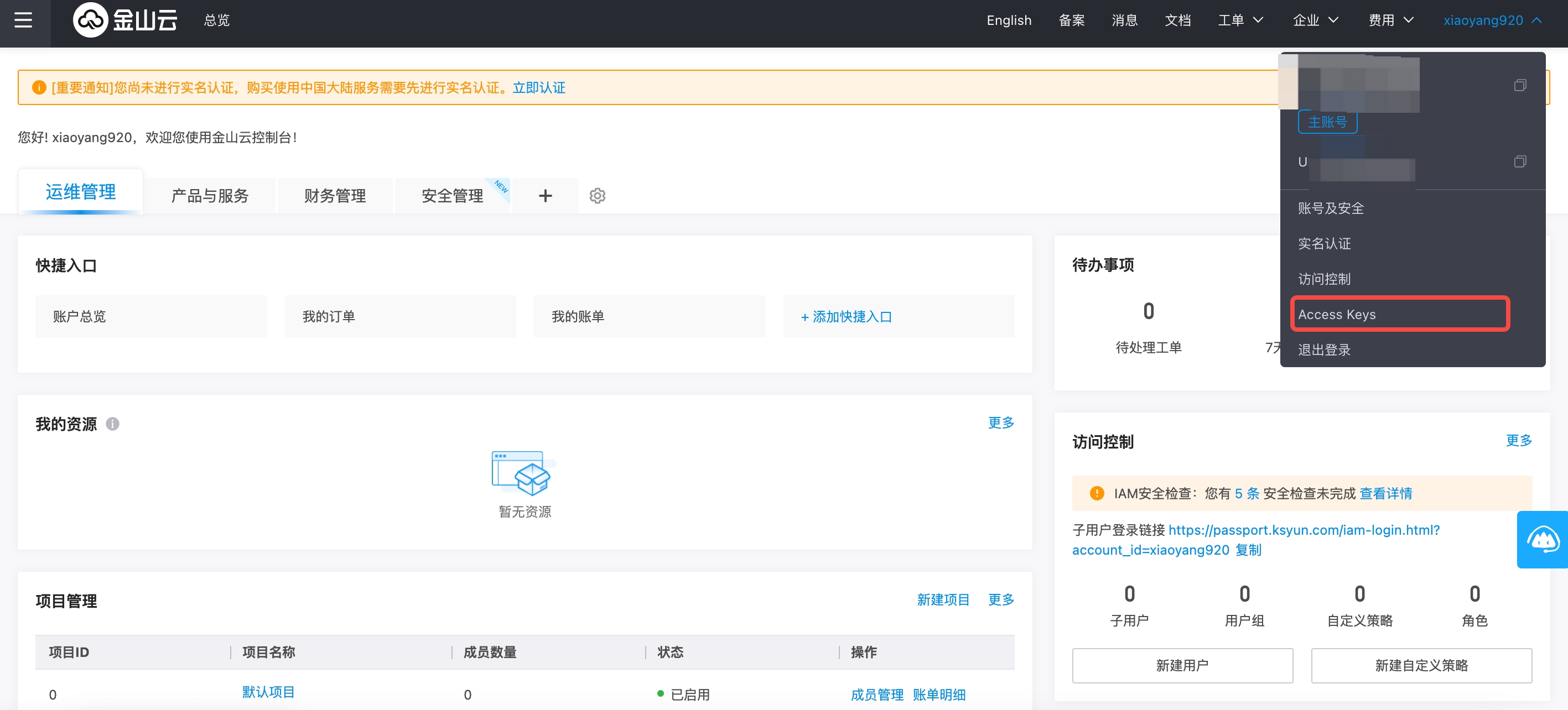
-
Click the "Create Key" button. In the pop-up Risk Warning dialog, click the "Continue" button. Kingsoft Cloud will send a verification code to the account owner's contact phone. After verification, a Generate Key dialog will pop up, which supports viewing AccessKey details and downloading.
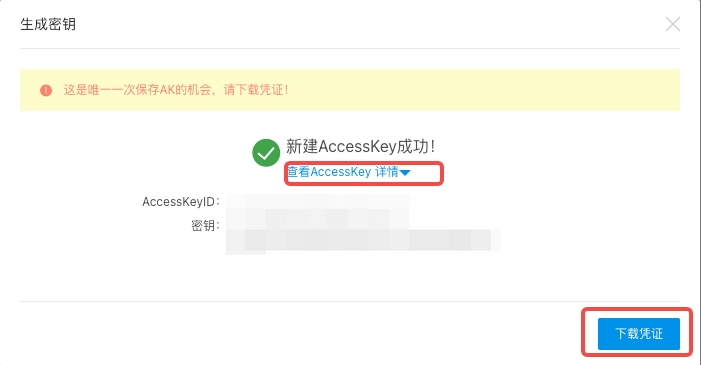
How to Get the Kingsoft Cloud Billing Bucket URL
-
Log in to the Kingsoft Cloud console, click the dropdown menu "Account Overview" under the top [Expenses] menu to enter the Expenses User Center page.
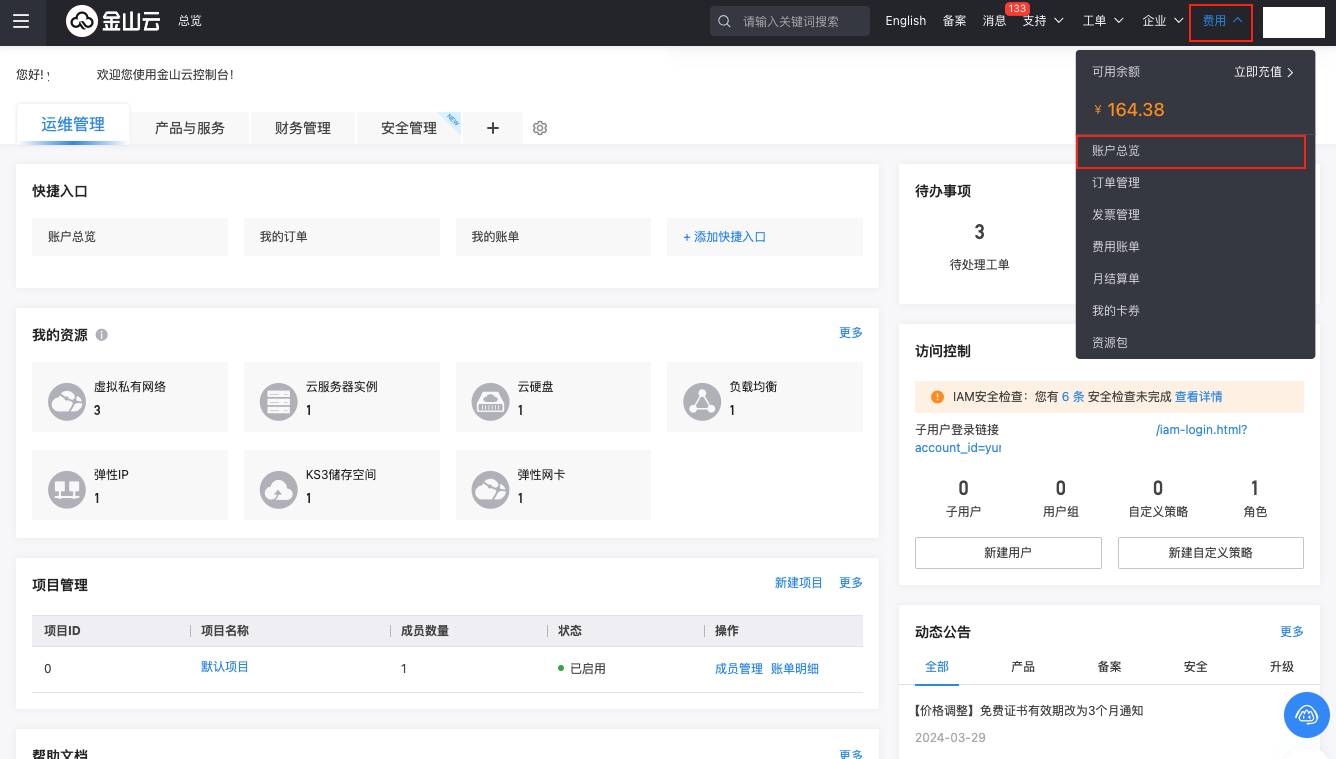
-
Click the "Set Bill Data Storage" button to enter the Bill Data Storage page.
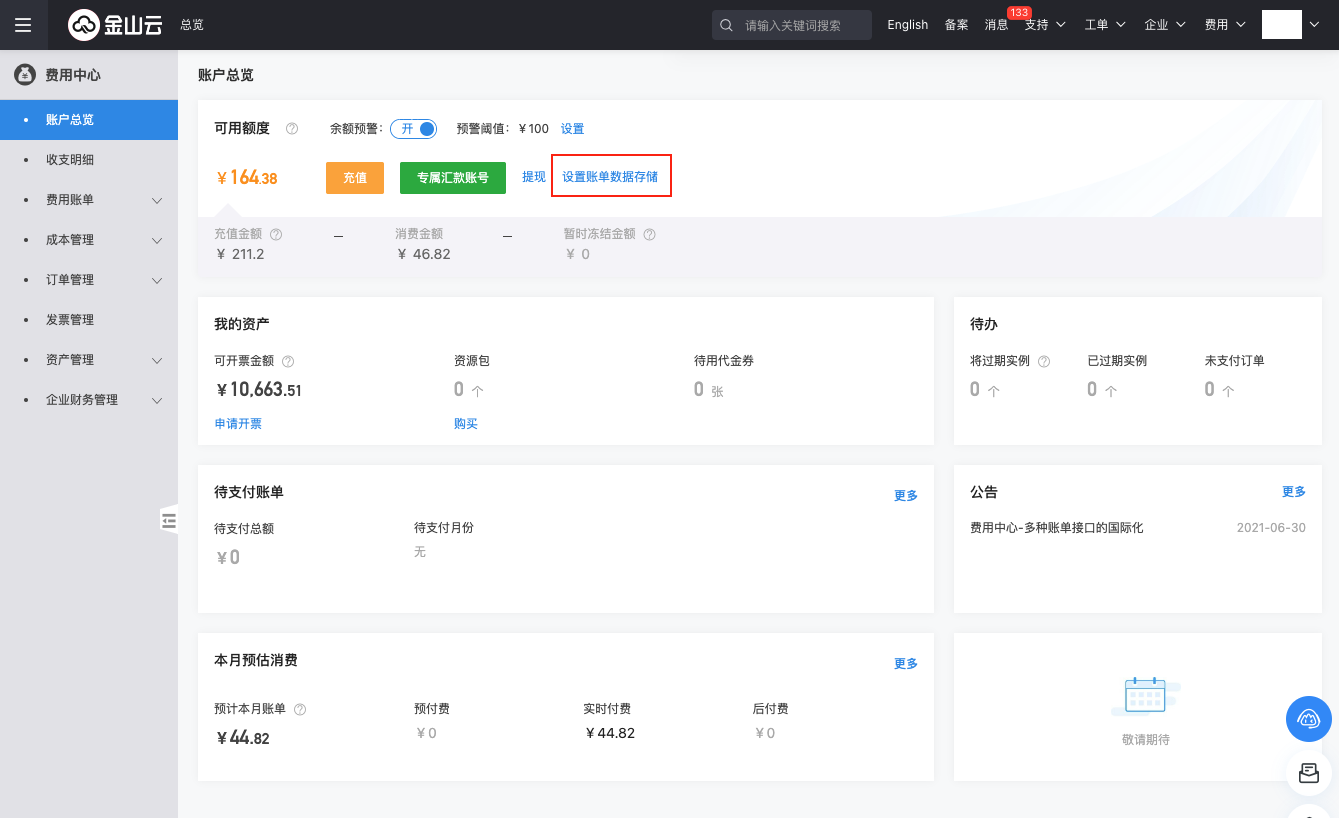
-
View and record the billing item detail bill bucket name. If not set, you need to subscribe to a bucket on this page. After setup, daily incremental billing data will be synchronized to the corresponding storage bucket. It is recommended that the bucket only stores billing files. Note that Kingsoft Cloud requires setting a KS3 directory, which can be custom input. It will be used when entering the address in the Cloud Management Platform, e.g., "details".
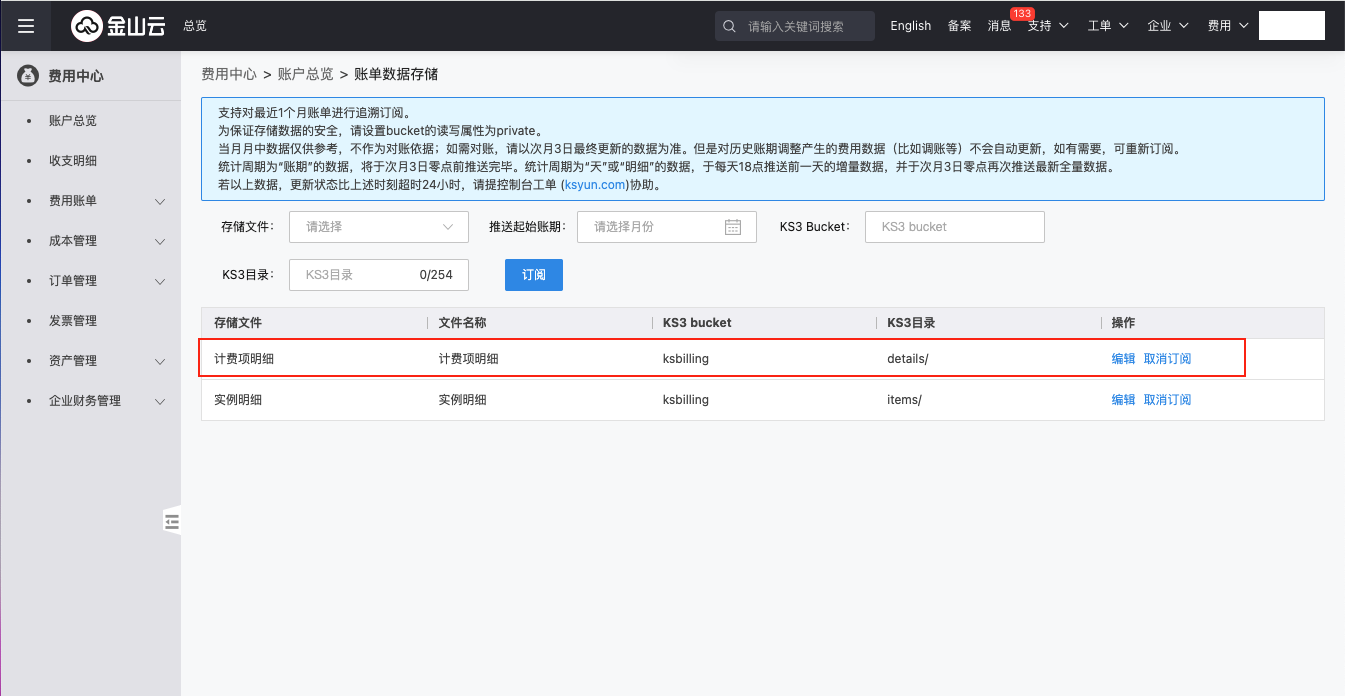
-
On the Object Storage page of the Kingsoft Cloud console, view the overview information of the corresponding bucket. The bucket domain name is the bucket URL. Note that when entering information in the Cloud Management Platform, you need to add the directory information. For example, if the previous step was set to "details", the address entered in the Cloud Management Platform needs to have /details appended after the object storage domain name. As shown in the figure below, the address to enter in the Cloud Management Platform would be: ksbilling.ks3-cn-beijing.ksyuncs.com/details
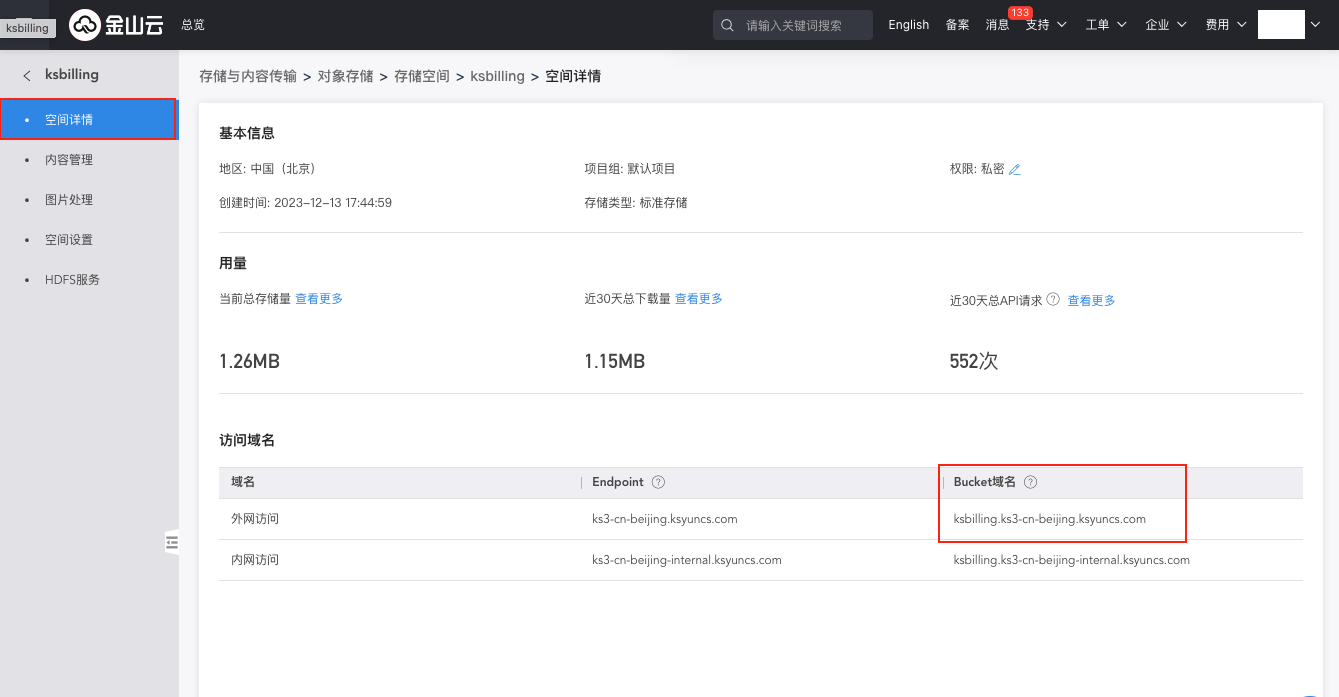
Create QingCloud Account
- On the Cloud Accounts page, click the "Create" button above the list to enter the Create Cloud Account page.
- Select the cloud platform as QingCloud, click the "Next: Configure Cloud Account" button to enter the Configure Cloud Account page.
- Configure the following parameters:
- Name: The name of the QingCloud platform.
- Key ID/Secret: Connect to the QingCloud platform through API Key (Access Key) authentication. The Access Key consists of a Key ID (Access Key ID) and Secret (Access Key Secret). For details, please refer to QingCloud Parameter Retrieval Methods.
- Domain: Select the domain to which the cloud account belongs. When the cloud account is in private state, all project users under the domain can use the cloud account to create resources.
- Resource Ownership Method: Defaults to specified project, also supports ownership based on cloud project.
- Resource Ownership Project: When the resource ownership method is set to specified project, you can select a local project on the platform to synchronize cloud account resources to. Local projects are filtered by domain. When the resource ownership method is set to based on cloud project, resources will be synchronized to local projects with the same name as the cloud project. If a resource has no cloud project attribute, it will belong to the specified project.
- Sync Policy: When enabled, resources are assigned to specified projects based on tag-to-resource-project mapping rules. The sync policy only takes effect during cloud account synchronization.
- Sync Policy Scope: Displayed after enabling sync policy, supports selecting resource tags and project tags.
- Block Sync Resources: When enabled, supports selecting resource types to block. Multiple selections are supported. Blocked resource types will not be synchronized during cloud account synchronization.
- Proxy: Set this when the cloud account requires a proxy for normal access. Leave empty for direct connection. If there is no suitable proxy, click the "Create" hyperlink directly, and set the relevant parameters in the pop-up Create Proxy dialog to create a proxy.
- Enable SSO Login: After enabling this, the system's SAML information will be automatically synchronized to the cloud account, becoming the identity provider for cloud login. This enables single sign-on from this system to the public cloud platform.
- Read-Only Mode: When enabled, the cloud account will only perform resource synchronization operations and cannot perform other task operations such as creating, deleting, or modifying.
- Sharing Scope: Set the sharing scope of the cloud account. The default is not shared, meaning only the domain where the cloud account resides can use the account. If set to global sharing, all users on the platform can use this cloud account to create resources.
- Click the "Connection Test" button to test whether the input parameters are correct.
- After successful testing, click the "Next: Configure Sync Resource Regions" button to enter the Configure Sync Resource Regions page. This configuration can be modified on the cloud account details page - Subscriptions - Regions (all regions are synchronized by default). To synchronize all regions by default on the platform, you can directly click the "Skip" button.
- After successful configuration, click the "Next: Billing File Access Information (Optional)" button to enter the Billing File Access Information page to configure the cloud account's billing parameters so that users can view the cloud account's billing information in the Expenses section. The Billing File Access Information page is optional. If you do not need to view cloud account billing information on the platform, you can directly click the "Skip" button. If you need to view billing information on the platform, please configure the relevant parameters. After configuration is complete and the test is successful, click the "OK" button, and proceed to the Scheduled Sync Task Settings page to configure the cloud account's sync tasks to make the cloud account's automatic sync behavior more controllable.
- QingCloud billing is obtained via API, so only the following parameters need to be configured on this page.
- Collect Bills Immediately: The platform automatically collects bills at 4 AM every day by default. After enabling this, bills will be collected immediately after configuring the billing file access information.
- Time Range: When immediate bill collection is enabled, you can set a time range to immediately collect bills within that range. Please ensure there is billing data within the selected time range. It is recommended to collect bills within 1-6 months, otherwise too much data may cause excessive system pressure and affect daily bill collection tasks.
- The Scheduled Sync Task Settings page is optional. If you do not need to set up automatic sync tasks on the platform, you can directly click the "Skip" button. If you need to set up automatic sync times for the cloud account on the platform, please configure the relevant parameters. After configuration is complete and the test passes, click the "OK" button to create the QingCloud account.
QingCloud Parameter Retrieval Methods
How to Get the QingCloud API Key
-
Log in to the QingCloud console using the primary account, click the personal information in the upper right corner of the page, expand the dropdown menu, and click the "API Keys" menu item to enter the API Key Management page.
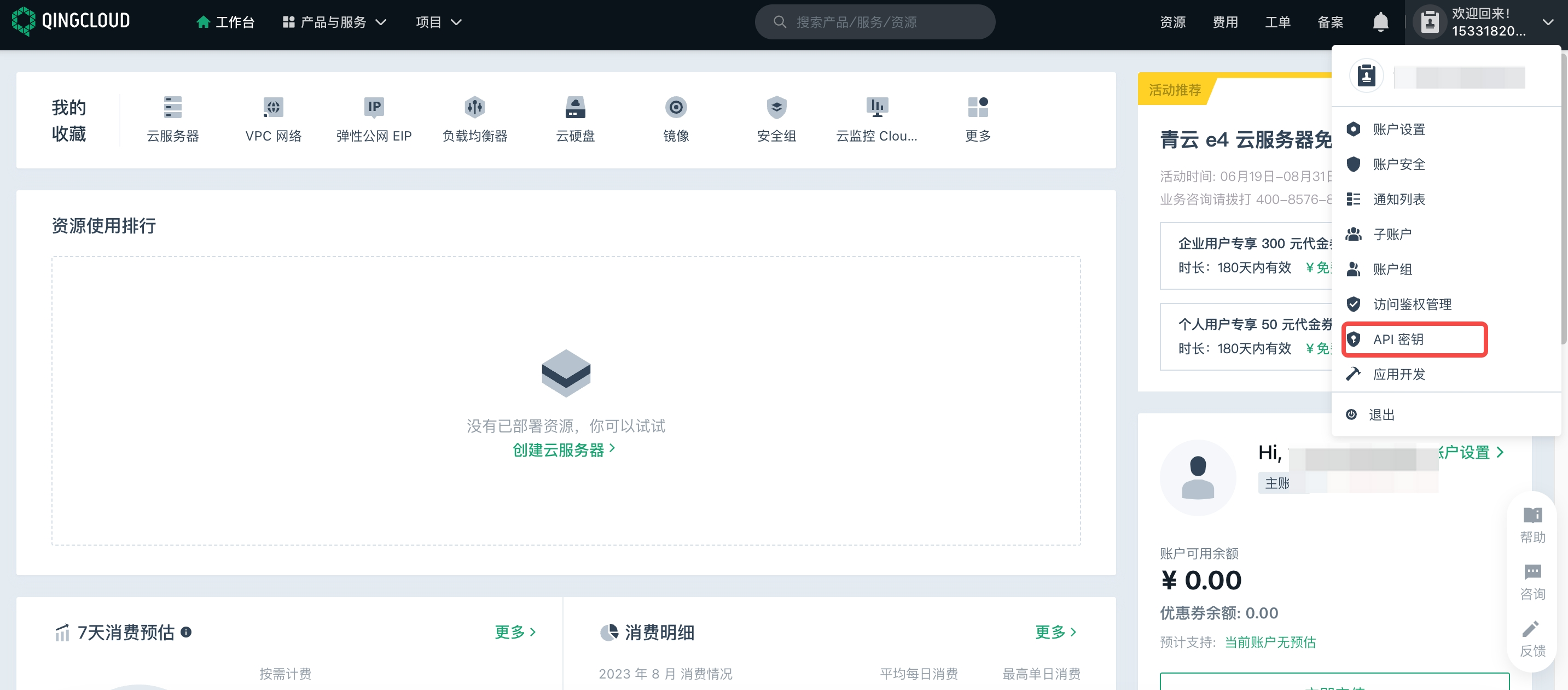
-
Click the "Create" button. In the pop-up Create API Key dialog, click the "Submit" button to generate the API key. Supports downloading to obtain the private key.
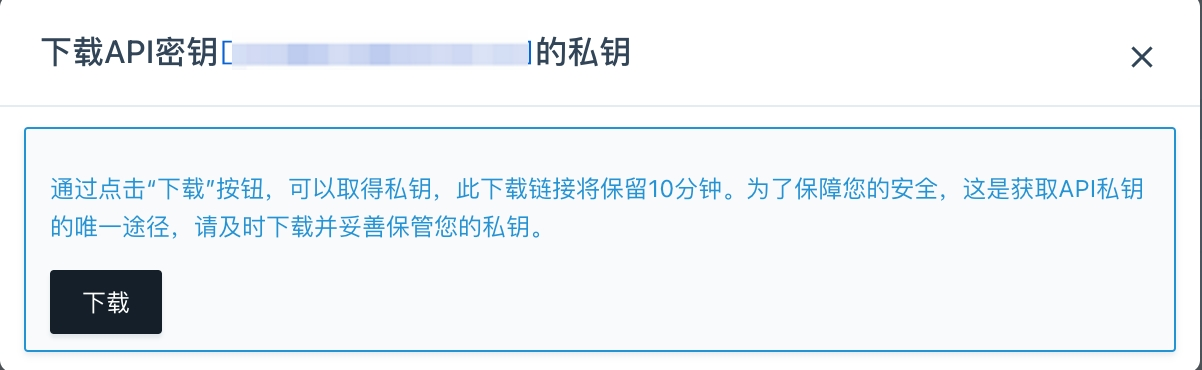
Create ORACLE Cloud Account
- On the Cloud Accounts page, click the "Create" button above the list to enter the Create Cloud Account page.
- Select the cloud platform as ORACLE, click the "Next: Configure Cloud Account" button to enter the Configure Cloud Account page.
- Configure the following parameters:
- Name: The name of the ORACLE platform.
- Key ID/Secret: Connect to the ORACLE platform through API Key (Access Key) authentication. The API key consists of user, tenancy, and key file. For details, please refer to ORACLE Parameter Retrieval Methods.
- Domain: Select the domain to which the cloud account belongs. When the cloud account is in private state, all project users under the domain can use the cloud account to create resources.
- Resource Ownership Method: Defaults to specified project, also supports ownership based on cloud project.
- Resource Ownership Project: When the resource ownership method is set to specified project, you can select a local project on the platform to synchronize cloud account resources to. Local projects are filtered by domain. When the resource ownership method is set to based on cloud project, resources will be synchronized to local projects with the same name as the cloud project. If a resource has no cloud project attribute, it will belong to the specified project.
- Sync Policy: When enabled, resources are assigned to specified projects based on tag-to-resource-project mapping rules. The sync policy only takes effect during cloud account synchronization.
- Sync Policy Scope: Displayed after enabling sync policy, supports selecting resource tags and project tags.
- Block Sync Resources: When enabled, supports selecting resource types to block. Multiple selections are supported. Blocked resource types will not be synchronized during cloud account synchronization.
- Proxy: Set this when the cloud account requires a proxy for normal access. Leave empty for direct connection. If there is no suitable proxy, click the "Create" hyperlink directly, and set the relevant parameters in the pop-up Create Proxy dialog to create a proxy.
- Enable SSO Login: After enabling this, the system's SAML information will be automatically synchronized to the cloud account, becoming the identity provider for cloud login. This enables single sign-on from this system to the public cloud platform.
- Read-Only Mode: When enabled, the cloud account will only perform resource synchronization operations and cannot perform other task operations such as creating, deleting, or modifying.
- Sharing Scope: Set the sharing scope of the cloud account. The default is not shared, meaning only the domain where the cloud account resides can use the account. If set to global sharing, all users on the platform can use this cloud account to create resources.
- Click the "Connection Test" button to test whether the input parameters are correct.
- After successful testing, click the "Next: Configure Sync Resource Regions" button to enter the Configure Sync Resource Regions page. This configuration can be modified on the cloud account details page - Subscriptions - Regions (all regions are synchronized by default). To synchronize all regions by default on the platform, you can directly click the "Skip" button.
- After successful configuration, click the "Next: Billing File Access Information (Optional)" button to enter the Billing File Access Information page to configure the cloud account's billing parameters so that users can view the cloud account's billing information in the Expenses section. The Billing File Access Information page is optional. If you do not need to view cloud account billing information on the platform, you can directly click the "Skip" button. If you need to view billing information on the platform, please configure the relevant parameters. After configuration is complete and the test is successful, click the "OK" button, and proceed to the Scheduled Sync Task Settings page to configure the cloud account's sync tasks to make the cloud account's automatic sync behavior more controllable.
- The Scheduled Sync Task Settings page is optional. If you do not need to set up automatic sync tasks on the platform, you can directly click the "Skip" button. If you need to set up automatic sync times for the cloud account on the platform, please configure the relevant parameters. After configuration is complete and the test passes, click the "OK" button to create the ORACLE Cloud account.
ORACLE Parameter Retrieval Methods
How to Get the ORACLE API Key
-
Log in to the ORACLE Cloud console using the primary account, click the personal information in the upper right corner of the page, expand the dropdown menu, click the "My Profile" menu, then click the "API Keys" menu item to enter the API Key Management page.
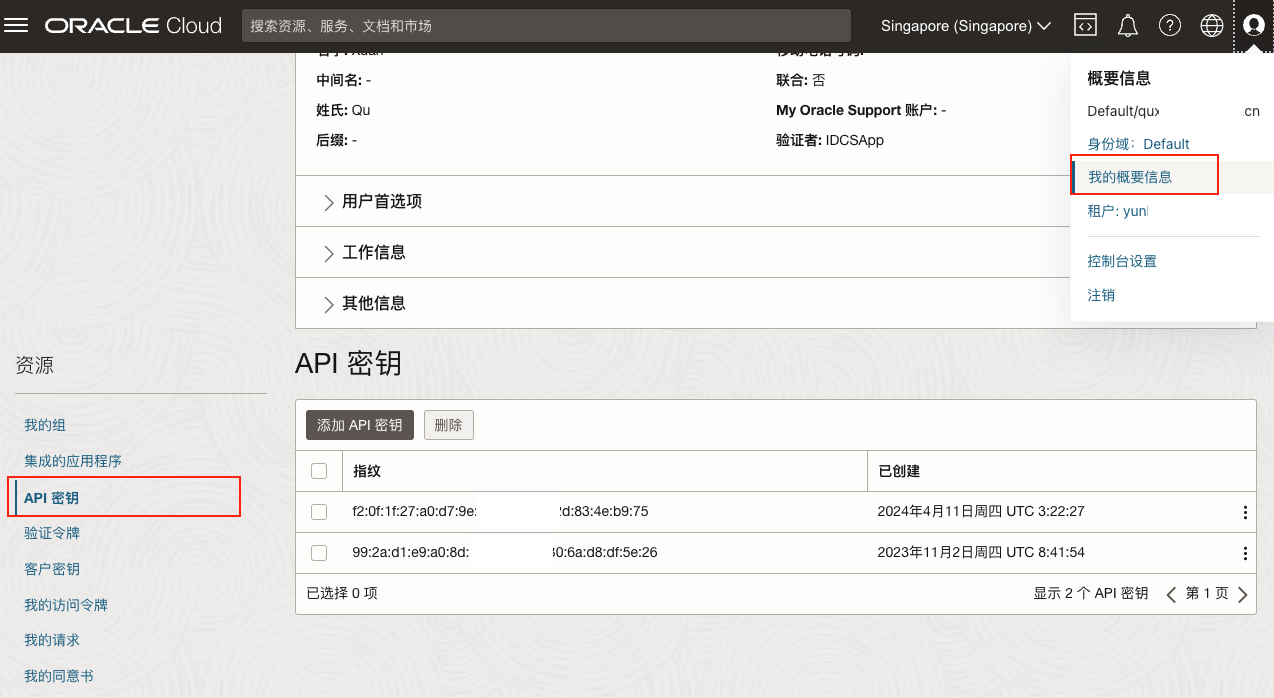
-
Click the "Add API Key" button. In the pop-up Add API Key dialog, click the "Add" button to generate the API key. Supports downloading the private key.
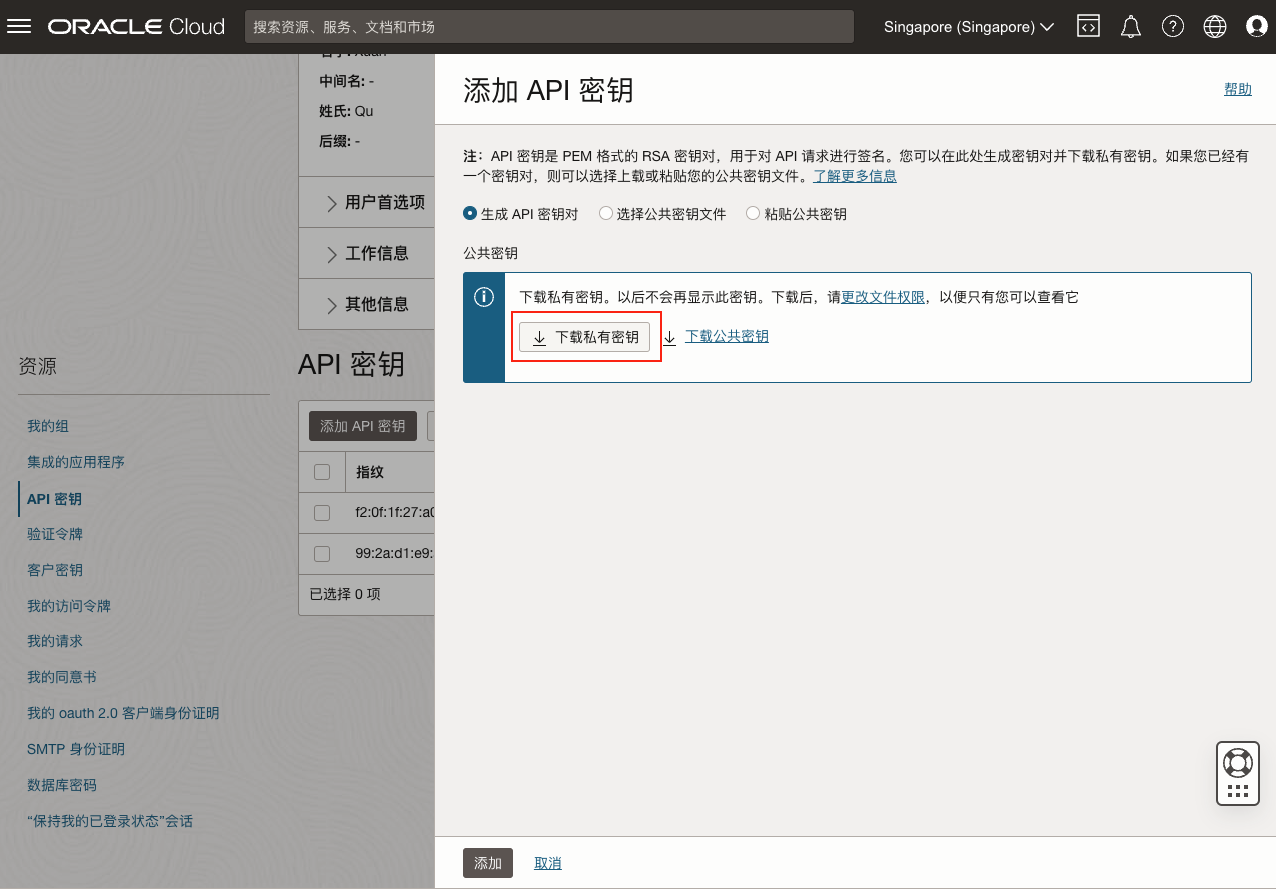
-
Click the "Add" button. In the pop-up Create API Key dialog, obtain the user and tenancy information needed for the Cloud Management Platform, and import the private key downloaded in the previous step.
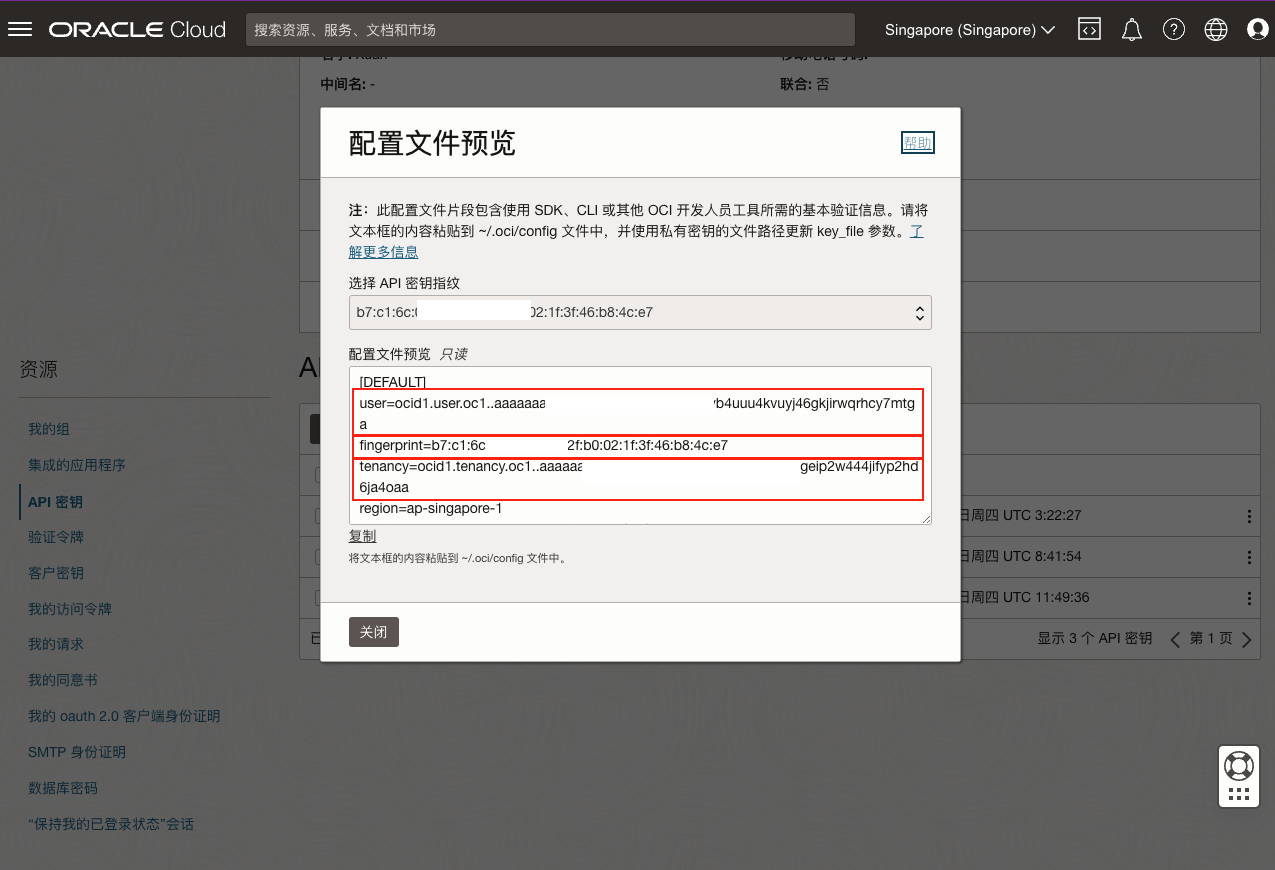
Create VMware Account
Supported Versions
Supports managing VMware versions 5.0 to 7.0.
VMware Resource Management Process
- Create a VMware cloud account, which automatically creates Layer 2 networks and IP subnets on the platform. The mapping between VMware networks and platform Layer 2 networks and IP subnets is as follows:
- One vSwitch or Distributed vSwitch corresponds to one Layer 2 network;
- Consecutive IP address ranges with the same VLAN under the same Layer 2 network form one IP subnet;
- After the VMware cloud account is added, if the automatically added Layer 2 networks and IP subnets do not meet the networking requirements, please merge wires and merge IP subnets according to the actual VMware network environment. The merge wire operation is irreversible. If configured incorrectly, please delete the cloud account and re-add it.
- For more VMware network-related issues, please refer to: VMware Network Principles.
Steps
- On the Cloud Accounts page, click the "Create" button above the list to enter the Create Cloud Account page.
- Select the cloud platform as VMware, click the "Next: Configure Cloud Account" button to enter the Configure Cloud Account page.
- Configure the following parameters:
- Name: The name of the VMware account.
- vCenter Address: The domain name or IP address of the vCenter server.
- Port: Default is 443.
- Account: The administrator username for vCenter.
- Password: The password for the vCenter administrator user.
- Domain: Select the domain to which the cloud account belongs. When the cloud account is in private state, all project users under the domain can use the cloud account to create resources.
- Resource Ownership Method: Defaults to specified project, also supports ownership based on cloud project.
- Resource Ownership Project: When the resource ownership method is set to specified project, you can select a local project on the platform to synchronize cloud account resources to. Local projects are filtered by domain. When the resource ownership method is set to based on cloud project, resources will be synchronized to local projects with the same name as the cloud project. If a resource has no cloud project attribute, it will belong to the specified project.
- Sync Policy: When enabled, resources are assigned to specified projects based on tag-to-resource-project mapping rules. The sync policy only takes effect during cloud account synchronization.
- Sync Policy Scope: Displayed after enabling sync policy, supports selecting resource tags and project tags.
- Block Sync Resources: When enabled, supports selecting resource types to block. Multiple selections are supported. Blocked resource types will not be synchronized during cloud account synchronization.
- Proxy: Set this when the cloud account requires a proxy for normal access. Leave empty for direct connection. If there is no suitable proxy, click the "Create" hyperlink directly, and set the relevant parameters in the pop-up Create Proxy dialog to create a proxy.
- Sharing Scope: Set the sharing scope of the cloud account. The default is not shared, meaning only the domain where the cloud account resides can use the account. If set to global sharing, all users on the platform can use this cloud account to create resources.
- Click the "Connection Test" button to test whether the input parameters are correct.
- After successful testing, click the "Next: Scheduled Sync Task Settings (Optional)" button to enter the Scheduled Sync Task Settings page to configure the cloud account's sync tasks to make the cloud account's automatic sync behavior more controllable. The Scheduled Sync Task Settings page is optional. If you do not need to set up automatic sync tasks on the platform, you can directly click the "Skip" button. If you need to set up automatic sync times for the cloud account on the platform, please configure the relevant parameters. After configuration is complete and the test is successful, click the "OK" button to start creating the VMware cloud account, related IP subnets, and begin synchronizing resources on the cloud account.
If no resources are found under the account after importing the cloud account, please check whether a non-administrator account was used.
Create OpenStack Account
Supported Versions
Supports managing OpenStack M release and later versions.
Notes
If the OpenStack platform's authentication address uses a domain name, you also need to configure DNS resolution on the control node. Otherwise, resources on the OpenStack platform cannot be synchronized because the domain name cannot be resolved.
Steps:
# Modify the coredns configmap
$ kubectl edit cm -n kube-system coredns

   Corefile: |
       .:53 {
           errors
           health
           kubernetes cluster.local in-addr.arpa ip6.arpa {
              pods insecure
              upstream
              fallthrough in-addr.arpa ip6.arpa
              ttl 30
           }
           hosts {
               192.168.1.2 domain

               fallthrough
           }
           prometheus :9153
           forward . /etc/resolv.conf
           cache 30
           loop
           reload
           loadbalance
       }

# Add hosts information above "prometheus :9153", configure IP address and domain name.
   hosts {
               192.168.1.2 domain

               fallthrough
           }
# After configuration, restart coredns
$ kubectl rollout restart deployment -n kube-system coredns
Steps
After successfully creating an OpenStack account, since the Cloud Management Platform cannot obtain the actual storage capacity on the OpenStack platform, you need to set the OpenStack storage capacity on the Storage - Block Storage page. Please set the storage capacity to the actual storage capacity as much as possible to maximize storage usage and avoid disk creation failures caused by setting the capacity beyond the actual storage capacity.
- On the Cloud Accounts page, click the "Create" button above the list to enter the Create Cloud Account page.
- Select the cloud platform as OpenStack, click the "Next: Configure Cloud Account" button to enter the Configure Cloud Account page.
- Configure the following parameters:
- Name: The name of the OpenStack account.
- Authentication URL: The authentication address of the OpenStack management platform, such as http://host:port/v3.
- Account: The administrator username of the OpenStack platform, such as admin.
- Password: The password for the OpenStack platform administrator user.
- Project: The project on the OpenStack platform, such as the admin project.
- Domain Name: The Domain name on the OpenStack platform, such as default.
- Domain: Select the domain to which the cloud account belongs. When the cloud account is in private state, all project users under the domain can use the cloud account to create resources.
- Resource Ownership Method: Defaults to specified project, also supports ownership based on cloud project.
- Resource Ownership Project: When the resource ownership method is set to specified project, you can select a local project on the platform to synchronize cloud account resources to. Local projects are filtered by domain. When the resource ownership method is set to based on cloud project, resources will be synchronized to local projects with the same name as the cloud project. If a resource has no cloud project attribute, it will belong to the specified project.
- Sync Policy: When enabled, resources are assigned to specified projects based on tag-to-resource-project mapping rules. The sync policy only takes effect during cloud account synchronization.
- Sync Policy Scope: Displayed after enabling sync policy, supports selecting resource tags and project tags.
- Block Sync Resources: When enabled, supports selecting resource types to block. Multiple selections are supported. Blocked resource types will not be synchronized during cloud account synchronization.
- Proxy: Set this when the cloud account requires a proxy for normal access. Leave empty for direct connection. If there is no suitable proxy, click the "Create" hyperlink directly, and set the relevant parameters in the pop-up Create Proxy dialog to create a proxy.
- Read-Only Mode: When enabled, the cloud account will only perform resource synchronization operations and cannot perform other task operations such as creating, deleting, or modifying.
- Sharing Scope: Set the sharing scope of the cloud account. The default is not shared, meaning only the domain where the cloud account resides can use the account. If set to global sharing, all users on the platform can use this cloud account to create resources.
- Click the "Connection Test" button to test whether the input parameters are correct.
- After successful testing, click the "Next: Scheduled Sync Task Settings (Optional)" button to enter the Scheduled Sync Task Settings page to configure the cloud account's sync tasks to make the cloud account's automatic sync behavior more controllable. The Scheduled Sync Task Settings page is optional. If you do not need to set up automatic sync tasks on the platform, you can directly click the "Skip" button. If you need to set up automatic sync times for the cloud account on the platform, please configure the relevant parameters. After configuration is complete and the test is successful, click the "OK" button to create the OpenStack account.
Create ZStack/DStack Account
Supported Versions
Supports managing ZStack version 3.5.0 and later.
Steps
-
On the Cloud Accounts page, click the "Create" button above the list to enter the Create Cloud Account page.
-
Select the cloud platform as ZStack or DStack, click the "Next: Configure Cloud Account" button to enter the Configure Cloud Account page.
-
Configure the following parameters:
- Name: The name of the ZStack or DStack account.
- Authentication URL: The authentication address of the ZStack or DStack platform, generally http://host:8080/, where host is the IP address of the ZStack or DStack control node.
- Key ID: The Access Key ID on the ZStack or DStack platform.
- Secret: The Access Key Secret on the ZStack or DStack platform.
Users can generate new Access Key information or use existing Access Keys on the [Platform Management - Access Key] page of the ZStack management platform.
- Domain: Select the domain to which the cloud account belongs. When the cloud account is in private state, all project users under the domain can use the cloud account to create resources.
- Resource Ownership Method: Defaults to specified project, also supports ownership based on cloud project.
- Resource Ownership Project: When the resource ownership method is set to specified project, you can select a local project on the platform to synchronize cloud account resources to. Local projects are filtered by domain. When the resource ownership method is set to based on cloud project, resources will be synchronized to local projects with the same name as the cloud project. If a resource has no cloud project attribute, it will belong to the specified project.
- Sync Policy: When enabled, resources are assigned to specified projects based on tag-to-resource-project mapping rules. The sync policy only takes effect during cloud account synchronization.
- Sync Policy Scope: Displayed after enabling sync policy, supports selecting resource tags and project tags.
- Block Sync Resources: When enabled, supports selecting resource types to block. Multiple selections are supported. Blocked resource types will not be synchronized during cloud account synchronization.
- Proxy: Set this when the cloud account requires a proxy for normal access. Leave empty for direct connection. If there is no suitable proxy, click the "Create" hyperlink directly, and set the relevant parameters in the pop-up Create Proxy dialog to create a proxy.
- Read-Only Mode: When enabled, the cloud account will only perform resource synchronization operations and cannot perform other task operations such as creating, deleting, or modifying.
- Sharing Scope: Set the sharing scope of the cloud account. The default is not shared, meaning only the domain where the cloud account resides can use the account. If set to global sharing, all users on the platform can use this cloud account to create resources.
- Click the "Connection Test" button to test whether the input parameters are correct.
- After successful testing, click the "Next: Scheduled Sync Task Settings (Optional)" button to enter the Scheduled Sync Task Settings page to configure the cloud account's sync tasks to make the cloud account's automatic sync behavior more controllable. The Scheduled Sync Task Settings page is optional. If you do not need to set up automatic sync tasks on the platform, you can directly click the "Skip" button. If you need to set up automatic sync times for the cloud account on the platform, please configure the relevant parameters. After configuration is complete and the test is successful, click the "OK" button to create the ZStack/DStack account.
Create Alibaba Apsara Stack
This feature is used to manage Alibaba Apsara Stack private cloud. Currently, only synchronization of resources on the Apsara Stack private cloud is supported.
Supported Versions
Supports managing Apsara Stack v3.12.0 and later.
Steps
- On the Cloud Accounts page, click the "Create" button above the list to enter the Create Cloud Account page.
- Select the cloud platform as Apsara Stack, click the "Next: Configure Cloud Account" button to enter the Configure Cloud Account page.
- Configure the following information:
- Name: The name of the Apsara Stack cloud account.
- Key ID/Secret: Connect to the Alibaba Cloud platform through Access Key authentication. The Access Key consists of a Key ID (Access Key ID) and Secret (Access Key Secret). For details, please refer to Apsara Stack Parameter Retrieval Methods.
- Key ID: Assuming the key is: NbzBaQ94MPzjZf5i and the highest viewable organization ID is: 4, the key should be entered as: NbzBaQ94MPzjZf5i/4.
- Domain: Select the domain to which the cloud account belongs. When the cloud account is in private state, all project users under the domain can use the cloud account to create resources.
- Resource Ownership Method: Defaults to specified project, also supports ownership based on cloud project.
- Resource Ownership Project: When the resource ownership method is set to specified project, you can select a local project on the platform to synchronize cloud account resources to. Local projects are filtered by domain. When the resource ownership method is set to based on cloud project, resources will be synchronized to local projects with the same name as the cloud project. If a resource has no cloud project attribute, it will belong to the specified project.
- Sync Policy: When enabled, resources are assigned to specified projects based on tag-to-resource-project mapping rules. The sync policy only takes effect during cloud account synchronization.
- Sync Policy Scope: Displayed after enabling sync policy, supports selecting resource tags and project tags.
- Block Sync Resources: When enabled, supports selecting resource types to block. Multiple selections are supported. Blocked resource types will not be synchronized during cloud account synchronization.
- Proxy: Set this when the cloud account requires a proxy for normal access. Leave empty for direct connection. If there is no suitable proxy, click the "Create" hyperlink directly, and set the relevant parameters in the pop-up Create Proxy dialog to create a proxy.
- Read-Only Mode: When enabled, the cloud account will only perform resource synchronization operations and cannot perform other task operations such as creating, deleting, or modifying.
- Sharing Scope: Set the sharing scope of the cloud account. The default is not shared, meaning only the domain where the cloud account resides can use the account. If set to global sharing, all users on the platform can use this cloud account to create resources.
- Click the "Connection Test" button to test whether the input parameters are correct.
- After successful testing, click the "Next: Scheduled Sync Task Settings (Optional)" button to enter the Scheduled Sync Task Settings page to configure the cloud account's sync tasks to make the cloud account's automatic sync behavior more controllable. The Scheduled Sync Task Settings page is optional. If you do not need to set up automatic sync tasks on the platform, you can directly click the "Skip" button. If you need to set up automatic sync times for the cloud account on the platform, please configure the relevant parameters. After configuration is complete and the test is successful, click the "OK" button to create the Alibaba Apsara Stack private cloud account.
Apsara Stack Parameter Retrieval Methods
Apsara Stack AccessKey Retrieval
Only operations administrators and first-level organization administrators can obtain organization AccessKeys.
- The administrator logs in to the ASCM console.
- Click "Enterprise" on the top menu bar of the page.
- In the left navigation bar of the "Enterprise" page, click "Organization Management".
- In the organization structure, click the settings icon after the parent organization you want to add.
- In the pop-up dropdown menu, select "Get AccessKey".
- In the pop-up dialog, view the organization AccessKey information.
- To get the organization ID, open the browser debugger, find the ListResourceGroup API request, and find the first organizationID in the return value.
Apsara Stack Endpoint Retrieval
- In the address bar, enter the ASO access address region-id.aso.intranet-domain-id.com and press Enter.
- Enter the correct username and password, click "Login" to enter the ASO page.
- In the left navigation bar of the page, click "Product Operation Management > Product List > Tianji" to jump to the Tianji console page.
- In the left navigation bar of the Tianji console, select "Reports".
- On the "All Reports" page, search for "Service Registration Variables". Click "Service Registration Variables".
- On the Service Registration Variables page, click the icon next to Service and search for the corresponding product service.
- In the Service Registration column of the service, right-click and select "Show More".
- On the "Details" page, view the product service's Endpoint address.
Create Cloudpods Cloud Account
This feature is used to manage Cloudpods accounts.
- On the Cloud Accounts page, click the "Create" button above the list to enter the Create Cloud Account page.
- Select the cloud platform as Cloudpods, click the "Next: Configure Cloud Account" button to enter the Configure Cloud Account page.
- Configure the following parameters:
- Name: The name of the Cloudpods cloud account.
- Authentication URL: The corresponding keystone service address. You can obtain OS_AUTH_URL on the Cloudpods control node by running
cat /root/.onecloud_rcadmin. Generally in the format http://domain(IP address):30500/v3. - Key ID/Secret: Connect to Cloudpods through Access Key authentication. For retrieval methods, please refer to Cloudpods Parameter Retrieval Methods.
- Domain: Select the domain to which the cloud account belongs. When the cloud account is in private state, all project users under the domain can use the cloud account to create resources.
- Resource Ownership Method: Defaults to specified project, also supports ownership based on cloud project.
- Resource Ownership Project: When the resource ownership method is set to specified project, you can select a local project on the platform to synchronize cloud account resources to. Local projects are filtered by domain. When the resource ownership method is set to based on cloud project, resources will be synchronized to local projects with the same name as the cloud project. If a resource has no cloud project attribute, it will belong to the specified project.
- Sync Policy: When enabled, resources are assigned to specified projects based on tag-to-resource-project mapping rules. The sync policy only takes effect during cloud account synchronization.
- Sync Policy Scope: Displayed after enabling sync policy, supports selecting resource tags and project tags.
- Block Sync Resources: When enabled, supports selecting resource types to block. Multiple selections are supported. Blocked resource types will not be synchronized during cloud account synchronization.
- Proxy: Set this when the cloud account requires a proxy for normal access. Leave empty for direct connection. If there is no suitable proxy, click the "Create" hyperlink directly, and set the relevant parameters in the pop-up Create Proxy dialog to create a proxy.
- Read-Only Mode: When enabled, the cloud account will only perform resource synchronization operations and cannot perform other task operations such as creating, deleting, or modifying.
- Sharing Scope: Set the sharing scope of the cloud account. The default is not shared, meaning only the domain where the cloud account resides can use the account. If set to global sharing, all users on the platform can use this cloud account to create resources.
- Click the "Connection Test" button to test whether the input parameters are correct.
- After successful testing, click the "Next: Scheduled Sync Task Settings (Optional)" button to enter the Scheduled Sync Task Settings page to configure the cloud account's sync tasks to make the cloud account's automatic sync behavior more controllable. The Scheduled Sync Task Settings page is optional. If you do not need to set up automatic sync tasks on the platform, you can directly click the "Skip" button. If you need to set up automatic sync times for the cloud account on the platform, please configure the relevant parameters. After configuration is complete and the test is successful, click the "OK" button to create the Cloudpods account.
Cloudpods Parameter Retrieval Methods
Cloudpods AccessKey Retrieval (Open Source Edition)
1. Use climc to create AKSK first
$ climc credential-create-aksk
+--------+----------------------------------------------+
| Field  |                    Value                     |
+--------+----------------------------------------------+
| expire | 0                                            |
| secret | OGVmTXNKQWpBWHpUejZTWDNKcndSdXlHQUNFeXhLVWI= |
+--------+----------------------------------------------+
2. Use climc to query the newly created AKSK
$ climc credential-get-aksk
+--------+----------------------------------+----------------------------------+----------------------------------------------+----------------------+
| expire |              key_id              |            project_id            |                    secret                    |      time_stamp      |
+--------+----------------------------------+----------------------------------+----------------------------------------------+----------------------+
| 0      | ba92f912922044268d4ad1dc70aafe57 | 0e4416c837644f5a8f0d67c9930ff228 | OGVmTXNKQWpBWHpUejZTWDNKcndSdXlHQUNFeXhLVWI= | 2022-02-20T17:12:26Z |
+--------+----------------------------------+----------------------------------+----------------------------------------------+----------------------+
Cloudpods AccessKey Retrieval (Enterprise Edition)
-
Log in to the Cloudpods platform, hover over the username in the upper right corner, and select the "Access Credentials" menu item from the dropdown menu to enter the Access Credentials page.
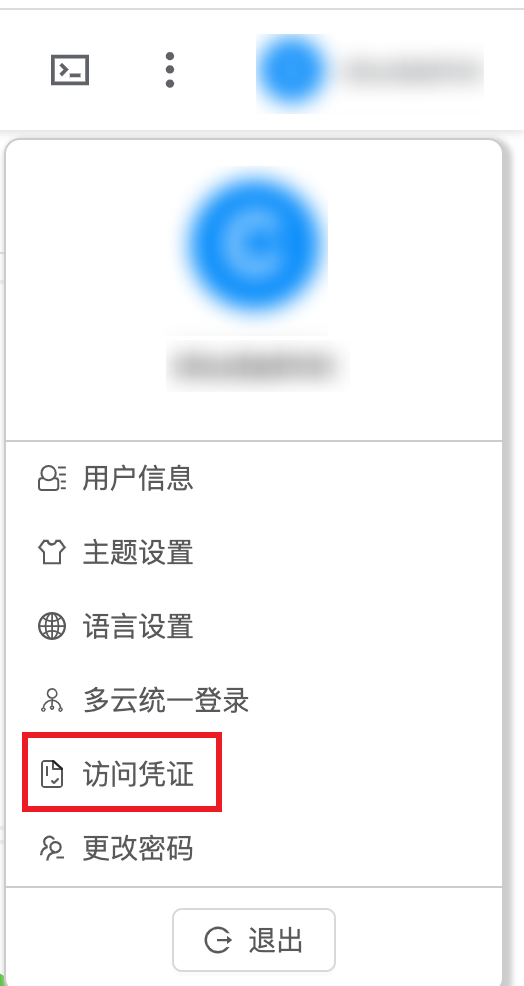
-
On the AccessKey Management page, click the "Create" button to create a new AccessKey.
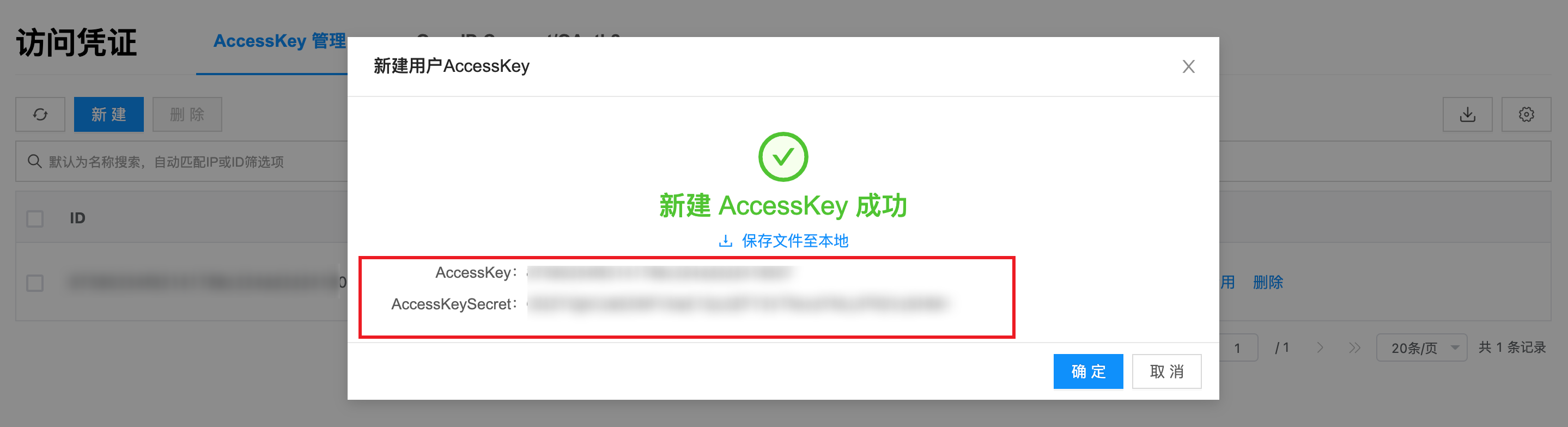
-
If an AccessKey already exists, the corresponding ID and Client Secret are the Key ID and Secret information.
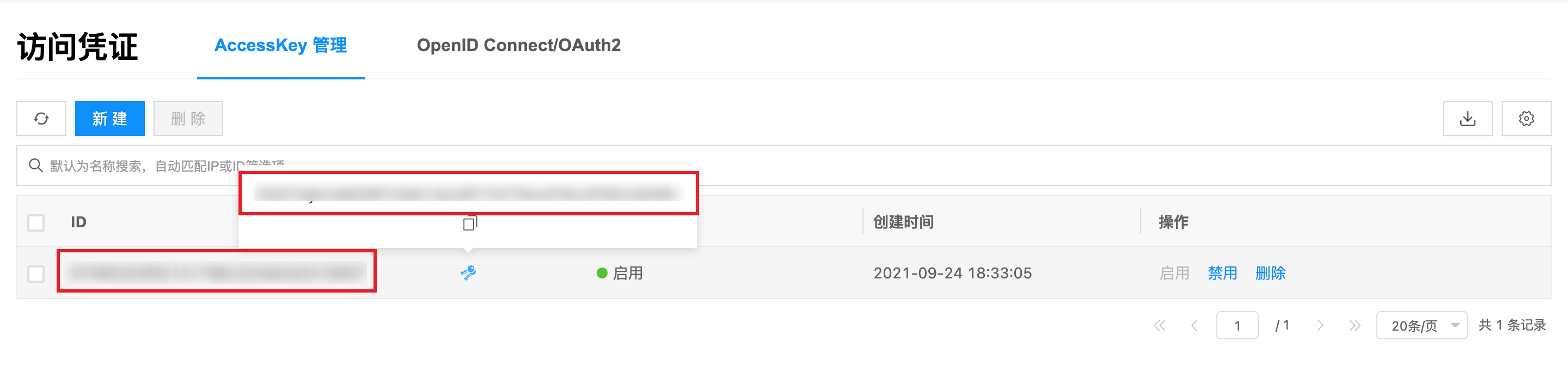
Create HCSO Account
This feature is used to manage HCSO accounts.
- On the Cloud Accounts page, click the "Create" button above the list to enter the Create Cloud Account page.
- Select the cloud platform as HCSO, click the "Next: Configure Cloud Account" button to enter the Configure Cloud Account page.
- Configure the following parameters:
- Name: The name of the HCSO account.
- Key ID/Secret: Connect to the HCSO platform through Access Key authentication. The Access Key consists of a Key ID (Access Key ID) and Secret (Access Key Secret). For details, please refer to HCSO Parameter Retrieval Methods.
- Default Region/Endpoint Domain: Taking the address iam.cn-north-1.test.com as an example,
iamrefers to the Identity and Access Management service,cn-north-1refers to the endpoint region, andtest.comis the endpoint domain name. - Identity Authentication Service Endpoint/Elastic Cloud Server Endpoint/Virtual Private Cloud Endpoint/Image Management Service Endpoint/Elastic Volume Service Endpoint/Distributed Cache Service Endpoint/Elastic Load Balance Endpoint/Object Storage Service Endpoint/Relational Database Service Endpoint/NAT Gateway Endpoint/Cloud Trace Service Endpoint/Cloud Eye Service Endpoint/Enterprise Project Endpoint/Scalable File Service (SFS Turbo) Endpoint: Optional. When using resources through APIs, you need to specify the corresponding endpoints. Please obtain endpoint information from the enterprise administrator.
- Subnet DNS: Set the default DNS address for subnets in the environment. A maximum of two can be set, separated by English commas. For example: 10.125.0.26,10.125.0.27.
- Domain: Select the domain to which the cloud account belongs. When the cloud account is in private state, all project users under the domain can use the cloud account to create resources.
- Resource Ownership Method: Defaults to specified project, also supports ownership based on cloud project.
- Resource Ownership Project: When the resource ownership method is set to specified project, you can select a local project on the platform to synchronize cloud account resources to. Local projects are filtered by domain. When the resource ownership method is set to based on cloud project, resources will be synchronized to local projects with the same name as the cloud project. If a resource has no cloud project attribute, it will belong to the specified project.
- Sync Policy: When enabled, resources are assigned to specified projects based on tag-to-resource-project mapping rules. The sync policy only takes effect during cloud account synchronization.
- Sync Policy Scope: Displayed after enabling sync policy, supports selecting resource tags and project tags.
- Block Sync Resources: When enabled, supports selecting resource types to block. Multiple selections are supported. Blocked resource types will not be synchronized during cloud account synchronization.
- Proxy: Set this when the cloud account requires a proxy for normal access. Leave empty for direct connection. If there is no suitable proxy, click the "Create" hyperlink directly, and set the relevant parameters in the pop-up Create Proxy dialog to create a proxy.
- Read-Only Mode: When enabled, the cloud account will only perform resource synchronization operations and cannot perform other task operations such as creating, deleting, or modifying.
- Sharing Scope: Set the sharing scope of the cloud account. The default is not shared, meaning only the domain where the cloud account resides can use the account. If set to global sharing, all users on the platform can use this cloud account to create resources.
- Click the "Connection Test" button to test whether the input parameters are correct.
- After successful testing, click the "Next: Scheduled Sync Task Settings (Optional)" button to enter the Scheduled Sync Task Settings page to configure the cloud account's sync tasks to make the cloud account's automatic sync behavior more controllable. The Scheduled Sync Task Settings page is optional. If you do not need to set up automatic sync tasks on the platform, you can directly click the "Skip" button. If you need to set up automatic sync times for the cloud account on the platform, please configure the relevant parameters. After configuration is complete and the test is successful, click the "OK" button to create the HCSO account.
HCSO Parameter Retrieval Methods
HCSO AccessKey Retrieval
-
Log in to the HCSO console, hover over the username in the upper right corner, and select the "My Credentials" menu item from the dropdown menu to enter the My Credentials page.
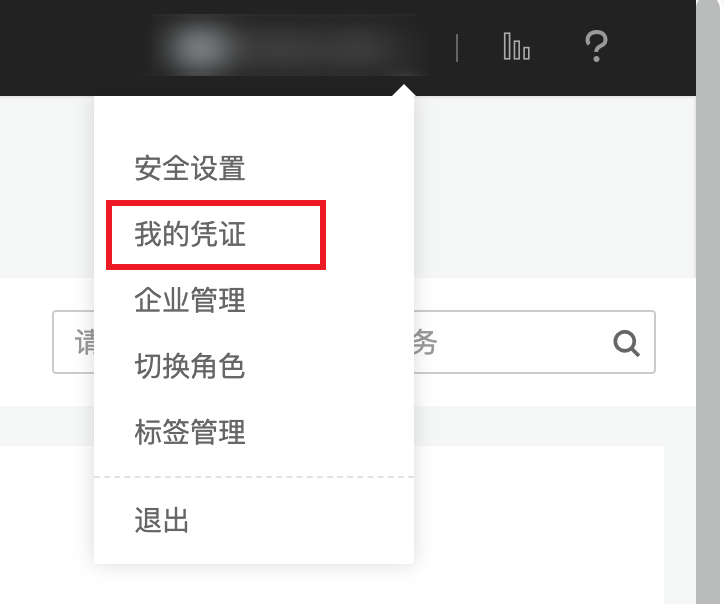
-
Click the [Access Keys] menu on the left, and on the Access Keys page, click the "Create Access Key" button.
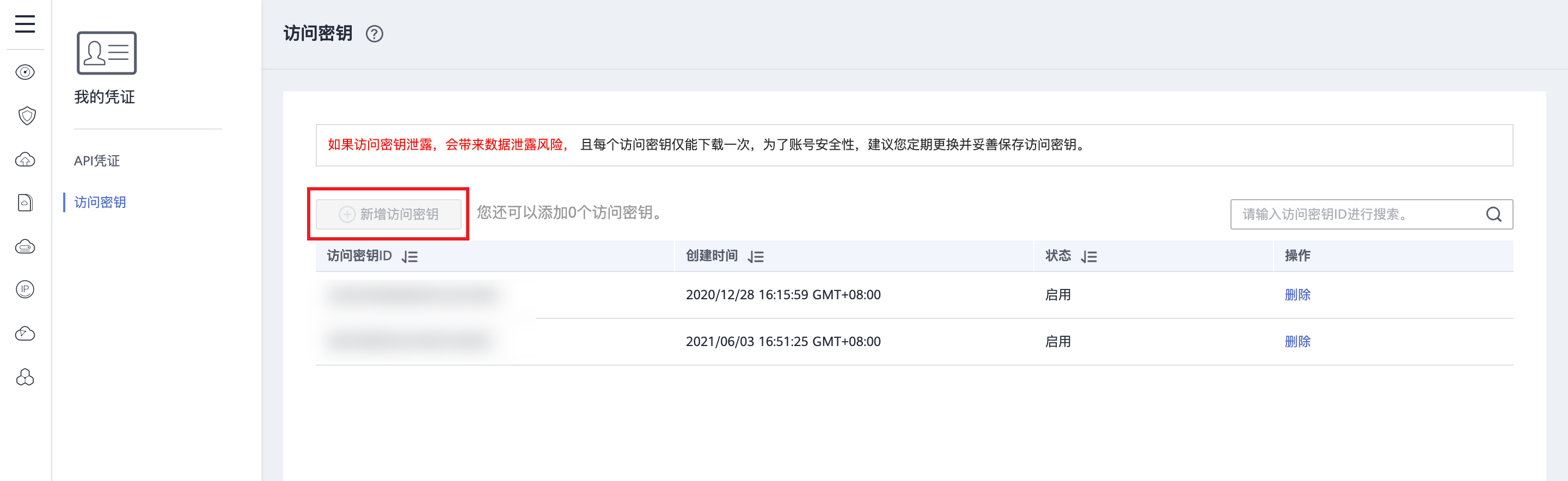
-
After verification, an Excel file named "credentials" will be downloaded. Open the file to get the Key ID (Access Key ID) and Secret (Secret Access Key).
Create HCS Account
This feature is used to manage HCS accounts.
- On the Cloud Accounts page, click the "Create" button above the list to enter the Create Cloud Account page.
- Select the cloud platform as HCS, click the "Next: Configure Cloud Account" button to enter the Configure Cloud Account page.
- Configure the following parameters:
- Name: The name of the HCS cloud account.
- Description: The description of the HCS cloud account.
- Key ID/Secret: Connect to the HCS platform through Access Key authentication. The Access Key consists of a Key ID (Access Key ID) and Secret (Access Key Secret). For details, please refer to HCS Parameter Retrieval Methods.
- Authentication URL: The authentication address of the HCS management platform, such as region1.example.com.
- Domain: Select the domain to which the cloud account belongs. When the cloud account is in private state, all project users under the domain can use the cloud account to create resources.
- Resource Ownership Method: Defaults to specified project, also supports ownership based on cloud project.
- Resource Ownership Project: When the resource ownership method is set to specified project, you can select a local project on the platform to synchronize cloud account resources to. Local projects are filtered by domain. When the resource ownership method is set to based on cloud project, resources will be synchronized to local projects with the same name as the cloud project. If a resource has no cloud project attribute, it will belong to the specified project.
- Sync Policy: When enabled, resources are assigned to specified projects based on tag-to-resource-project mapping rules. The sync policy only takes effect during cloud account synchronization.
- Sync Policy Scope: Displayed after enabling sync policy, supports selecting resource tags and project tags.
- Block Sync Resources: When enabled, supports selecting resource types to block. Multiple selections are supported. Blocked resource types will not be synchronized during cloud account synchronization.
- Proxy: Set this when the cloud account requires a proxy for normal access. Leave empty for direct connection. If there is no suitable proxy, click the "Create" hyperlink directly, and set the relevant parameters in the pop-up Create Proxy dialog to create a proxy.
- Read-Only Mode: When enabled, the cloud account will only perform resource synchronization operations and cannot perform other task operations such as creating, deleting, or modifying.
- Sharing Scope: Set the sharing scope of the cloud account. The default is not shared, meaning only the domain where the cloud account resides can use the account. If set to global sharing, all users on the platform can use this cloud account to create resources.
- Click the "Connection Test" button to test whether the input parameters are correct.
- After successful testing, click the "Next: Scheduled Sync Task Settings (Optional)" button to enter the Scheduled Sync Task Settings page to configure the cloud account's sync tasks to make the cloud account's automatic sync behavior more controllable. The Scheduled Sync Task Settings page is optional. If you do not need to set up automatic sync tasks on the platform, you can directly click the "Skip" button. If you need to set up automatic sync times for the cloud account on the platform, please configure the relevant parameters. After configuration is complete and the test is successful, click the "OK" button to create the HCS account.
HCS Parameter Retrieval Methods
HCS AccessKey Retrieval
-
Log in to the HCS console, hover over the user in the upper right corner, and select the "Personal Settings" menu item from the dropdown menu to enter the Personal Settings page.
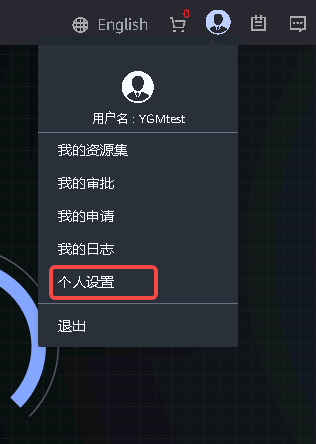
-
Click the "Manage Access Keys" menu under Basic Information, and on the Manage Access Keys page, click the "Create Access Key" button.
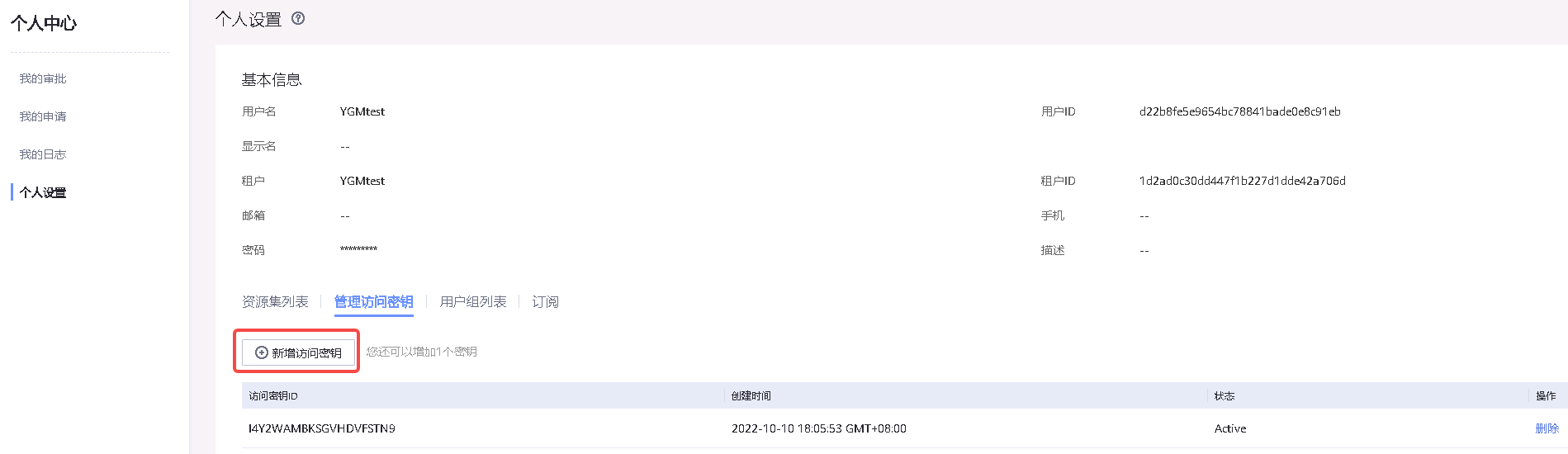
-
After clicking the "Create Access Key" button, the generated access key file will be downloaded locally (CSV file). Open it to get the Key ID (Access Key ID) and Secret (Secret Access Key).

Create Nutanix Account
This feature is used to manage Nutanix platform resources. Supports managing Nutanix V2 version.
- On the Cloud Accounts page, click the "Create" button above the list to enter the Create Cloud Account page.
- Select the cloud platform as Nutanix, click the "Next: Configure Cloud Account" button to enter the Configure Cloud Account page.
- Configure the following parameters:
- Name: The name of the Nutanix cloud account.
- Description: The description of the Nutanix cloud account.
- Prism Address: The address of the Nutanix platform's Prism web console.
- Port: The access port of the Prism web console, default is 9440.
- Account, Password: The account and password for logging into the Prism web console.
- Domain: Select the domain to which the cloud account belongs. When the cloud account is in private state, all project users under the domain can use the cloud account to create resources.
- Resource Ownership Method: Defaults to specified project, also supports ownership based on cloud project.
- Resource Ownership Project: When the resource ownership method is set to specified project, you can select a local project on the platform to synchronize cloud account resources to. Local projects are filtered by domain. When the resource ownership method is set to based on cloud project, resources will be synchronized to local projects with the same name as the cloud project. If a resource has no cloud project attribute, it will belong to the specified project.
- Sync Policy: When enabled, resources are assigned to specified projects based on tag-to-resource-project mapping rules. The sync policy only takes effect during cloud account synchronization.
- Sync Policy Scope: Displayed after enabling sync policy, supports selecting resource tags and project tags.
- Block Sync Resources: When enabled, supports selecting resource types to block. Multiple selections are supported. Blocked resource types will not be synchronized during cloud account synchronization.
- Proxy: Set this when the cloud account requires a proxy for normal access. Leave empty for direct connection. If there is no suitable proxy, click the "Create" hyperlink directly, and set the relevant parameters in the pop-up Create Proxy dialog to create a proxy.
- Sharing Scope: Set the sharing scope of the cloud account. The default is not shared, meaning only the domain where the cloud account resides can use the account. If set to global sharing, all users on the platform can use this cloud account to create resources.
- Click the "Connection Test" button to test whether the input parameters are correct.
- After successful testing, click the "Next: Scheduled Sync Task Settings (Optional)" button to enter the Scheduled Sync Task Settings page to configure the cloud account's sync tasks to make the cloud account's automatic sync behavior more controllable. The Scheduled Sync Task Settings page is optional. If you do not need to set up automatic sync tasks on the platform, you can directly click the "Skip" button. If you need to set up automatic sync times for the cloud account on the platform, please configure the relevant parameters. After configuration is complete and the test is successful, click the "OK" button to create the Nutanix platform account.
Create External Data Account
External data format: Reference: Developer Manual/Multi-Cloud Resource Integration/Import External Data; This feature is used to integrate and import external data resources. It requires the user to be able to access the external data HTTP server.
- On the Cloud Accounts page, click the "Create" button above the list to enter the Create Cloud Account page.
- Select the cloud platform as External Data, click the "Next: Configure Cloud Account" button to enter the Configure Cloud Account page.
- Configure the following parameters:
- Name: The name of the external data.
- Description: The description of the external data.
- Link Address: The access address of the external data HTTP server.
- Domain: Select the domain to which the cloud account belongs. When the cloud account is in private state, all project users under the domain can use the cloud account to create resources.
- Resource Ownership Method: Defaults to specified project, also supports ownership based on cloud project.
- Resource Ownership Project: When the resource ownership method is set to specified project, you can select a local project on the platform to synchronize cloud account resources to. Local projects are filtered by domain. When the resource ownership method is set to based on cloud project, resources will be synchronized to local projects with the same name as the cloud project. If a resource has no cloud project attribute, it will belong to the specified project.
- Sync Policy: When enabled, resources are assigned to specified projects based on tag-to-resource-project mapping rules. The sync policy only takes effect during cloud account synchronization.
- Sync Policy Scope: Displayed after enabling sync policy, supports selecting resource tags and project tags.
- Block Sync Resources: When enabled, supports selecting resource types to block. Multiple selections are supported. Blocked resource types will not be synchronized during cloud account synchronization.
- Proxy: Set this when the cloud account requires a proxy for normal access. Leave empty for direct connection. If there is no suitable proxy, click the "Create" hyperlink directly, and set the relevant parameters in the pop-up Create Proxy dialog to create a proxy.
- Click the "Connection Test" button to test whether the input parameters are correct.
- After successful testing, click the "OK" button to create the external data account.
Create Proxmox Account
This feature is used to manage Proxmox accounts.
- On the Cloud Accounts page, click the "Create" button above the list to enter the Create Cloud Account page.
- Select the cloud platform as Proxmox, click the "Next: Configure Cloud Account" button to enter the Configure Cloud Account page.
- Configure the following parameters:
- Name: The name of the Proxmox cloud account.
- Description: The description of the Proxmox cloud account.
- Access Address: The address of the Proxmox platform console.
- Port: The access port of the Proxmox console, default is 8006.
- Authentication Method: Proxmox supports PAM and PVE authentication methods.
- Account, Password: The account and password for logging into the Proxmox console.
- Domain: Select the domain to which the cloud account belongs. When the cloud account is in private state, all project users under the domain can use the cloud account to create resources.
- Resource Ownership Method: Defaults to specified project, also supports ownership based on cloud project.
- Resource Ownership Project: When the resource ownership method is set to specified project, you can select a local project on the platform to synchronize cloud account resources to. Local projects are filtered by domain. When the resource ownership method is set to based on cloud project, resources will be synchronized to local projects with the same name as the cloud project. If a resource has no cloud project attribute, it will belong to the specified project.
- Sync Policy: When enabled, resources are assigned to specified projects based on tag-to-resource-project mapping rules. The sync policy only takes effect during cloud account synchronization.
- Sync Policy Scope: Displayed after enabling sync policy, supports selecting resource tags and project tags.
- Block Sync Resources: When enabled, supports selecting resource types to block. Multiple selections are supported. Blocked resource types will not be synchronized during cloud account synchronization.
- Proxy: Set this when the cloud account requires a proxy for normal access. Leave empty for direct connection. If there is no suitable proxy, click the "Create" hyperlink directly, and set the relevant parameters in the pop-up Create Proxy dialog to create a proxy.
- Sharing Scope: Set the sharing scope of the cloud account. The default is not shared, meaning only the domain where the cloud account resides can use the account. If set to global sharing, all users on the platform can use this cloud account to create resources.
- Click the "Connection Test" button to test whether the input parameters are correct.
- After successful testing, click the "Next: Configure Sync Resource Regions" button to configure the relevant parameters.
- Click the "Next: Scheduled Sync Task Settings (Optional)" button to enter the Scheduled Sync Task Settings page to configure the cloud account's sync tasks to make the cloud account's automatic sync behavior more controllable. The Scheduled Sync Task Settings page is optional. If you do not need to set up automatic sync tasks on the platform, you can directly click the "Skip" button. If you need to set up automatic sync times for the cloud account on the platform, please configure the relevant parameters. After configuration is complete and the test is successful, click the "OK" button to create the Proxmox platform account.
Create H3C Account
This feature is used to manage H3C accounts.
- On the Cloud Accounts page, click the "Create" button above the list to enter the Create Cloud Account page.
- Select the cloud platform as H3C, click the "Next: Configure Cloud Account" button to enter the Configure Cloud Account page.
- Configure the following parameters:
- Name: The name of the H3C cloud account.
- Description: The description of the H3C cloud account.
- Access Address: The address of the H3C platform console.
- Port: The access port of the H3C console, default is 11000.
- Account, Password: The account and password for logging into the H3C console.
- Domain: Select the domain to which the cloud account belongs. When the cloud account is in private state, all project users under the domain can use the cloud account to create resources.
- Resource Ownership Method: Defaults to specified project, also supports ownership based on cloud project.
- Resource Ownership Project: When the resource ownership method is set to specified project, you can select a local project on the platform to synchronize cloud account resources to. Local projects are filtered by domain. When the resource ownership method is set to based on cloud project, resources will be synchronized to local projects with the same name as the cloud project. If a resource has no cloud project attribute, it will belong to the specified project.
- Sync Policy: When enabled, resources are assigned to specified projects based on tag-to-resource-project mapping rules. The sync policy only takes effect during cloud account synchronization.
- Sync Policy Scope: Displayed after enabling sync policy, supports selecting resource tags and project tags.
- Block Sync Resources: When enabled, supports selecting resource types to block. Multiple selections are supported. Blocked resource types will not be synchronized during cloud account synchronization.
- Proxy: Set this when the cloud account requires a proxy for normal access. Leave empty for direct connection. If there is no suitable proxy, click the "Create" hyperlink directly, and set the relevant parameters in the pop-up Create Proxy dialog to create a proxy.
- Sharing Scope: Set the sharing scope of the cloud account. The default is not shared, meaning only the domain where the cloud account resides can use the account. If set to global sharing, all users on the platform can use this cloud account to create resources.
- Click the "Connection Test" button to test whether the input parameters are correct.
- After successful testing, click the "Next: Configure Sync Resource Regions" button to configure the relevant parameters.
- Click the "Next: Scheduled Sync Task Settings (Optional)" button to enter the Scheduled Sync Task Settings page to configure the cloud account's sync tasks to make the cloud account's automatic sync behavior more controllable. The Scheduled Sync Task Settings page is optional. If you do not need to set up automatic sync tasks on the platform, you can directly click the "Skip" button. If you need to set up automatic sync times for the cloud account on the platform, please configure the relevant parameters. After configuration is complete and the test is successful, click the "OK" button to create the H3C platform account.
Create S3 Account
S3 stands for Simple Storage Service. Before creating an S3 account, you need to first deploy an object storage server based on the S3 protocol, such as MinIO. For MinIO installation and deployment, refer to this link.
-
On the Cloud Accounts page, click the "Create" button above the list to enter the Create Cloud Account page.
-
Select the cloud platform as S3, click the "Next: Configure Cloud Account" button to enter the Configure Cloud Account page.
-
Configure the following parameters:
- Name: The name of the S3 object storage server.
- Access Address: The access address of the S3 object storage server. If deploying a MinIO server, the access address format is http://IP-address:9000.
- Key ID: The Access Key.
- Secret: The Secret Key.
# Execute the following command on the MinIO storage server to get the Access Address (Endpoint), Key ID (Access Key), and Secret (Secret Key) information #$ ./minio server /mnt/dataEndpoint: http://10.127.10.201:9000 http://127.0.0.1:9000AccessKey: XRSN7GL67M70AM342UGVSecretKey: mUd+e+h0DS3oIDEvF27b2EE4l+WN5MuZ2ZI+VOag- Domain: Select the domain to which the cloud account belongs. When the cloud account is in private state, all project users under the domain can use the cloud account to create resources.
- Resource Ownership Project: Select a local project on the platform to synchronize the cloud account's resources to. If you need to classify cloud account resources by cloud project, please first specify the default resource ownership project and check auto-create projects. After checking, local projects with the same name as the cloud project will be created on the platform, and resources will be synchronized to the corresponding projects. Resources without a cloud project attribute will be synchronized to the default resource ownership project.
- Proxy: Set this when the cloud account requires a proxy for normal access. Leave empty for direct connection. If there is no suitable proxy, click the "Create" hyperlink directly, and set the relevant parameters in the pop-up Create Proxy dialog to create a proxy.
- Auto Sync: Set whether to automatically synchronize information on the S3 object storage server and set the auto sync interval.
- Sharing Scope: Set the sharing scope of the cloud account. The default is not shared, meaning only the domain where the cloud account resides can use the account. If set to global sharing, all users on the platform can use this cloud account to create resources.
-
Click the "Connection Test" button to test whether the input parameters are correct.
-
After successful testing, click the "Next: Scheduled Sync Task Settings (Optional)" button to enter the Scheduled Sync Task Settings page to configure the cloud account's sync tasks to make the cloud account's automatic sync behavior more controllable. The Scheduled Sync Task Settings page is optional. If you do not need to set up automatic sync tasks on the platform, you can directly click the "Skip" button. If you need to set up automatic sync times for the cloud account on the platform, please configure the relevant parameters. After configuration is complete and the test is successful, click the "OK" button to create the S3 account.
Create Ceph Account
This feature is used to integrate and import Ceph object storage resources.
- On the Cloud Accounts page, click the "Create" button above the list to enter the Create Cloud Account page.
- Select the cloud platform as Ceph, click the "Next: Configure Cloud Account" button to enter the Configure Cloud Account page.
- Configure the following parameters:
- Name: The name of the Ceph object storage server.
- Access Address: The access address of the Ceph object storage server.
- Key ID: The Key ID of the Ceph object storage server.
- Secret: The secret corresponding to the Key ID.
- Domain: Select the domain to which the cloud account belongs. When the cloud account is in private state, all project users under the domain can use the cloud account to create resources.
- Resource Ownership Method: Defaults to specified project, also supports ownership based on cloud project.
- Resource Ownership Project: When the resource ownership method is set to specified project, you can select a local project on the platform to synchronize cloud account resources to. Local projects are filtered by domain. When the resource ownership method is set to based on cloud project, resources will be synchronized to local projects with the same name as the cloud project. If a resource has no cloud project attribute, it will belong to the specified project.
- Sync Policy: When enabled, resources are assigned to specified projects based on tag-to-resource-project mapping rules. The sync policy only takes effect during cloud account synchronization.
- Sync Policy Scope: Displayed after enabling sync policy, supports selecting resource tags and project tags.
- Block Sync Resources: When enabled, supports selecting resource types to block. Multiple selections are supported. Blocked resource types will not be synchronized during cloud account synchronization.
- Proxy: Set this when the cloud account requires a proxy for normal access. Leave empty for direct connection. If there is no suitable proxy, click the "Create" hyperlink directly, and set the relevant parameters in the pop-up Create Proxy dialog to create a proxy.
- Sharing Scope: Set the sharing scope of the cloud account. The default is not shared, meaning only the domain where the cloud account resides can use the account. If set to global sharing, all users on the platform can use this cloud account to create resources.
- Click the "Connection Test" button to test whether the input parameters are correct.
- After successful testing, click the "OK" button to create the Ceph account.
Create XSKY Account
This feature is used to integrate and import XSKY storage resources. It requires the user environment to have XSKY object storage.
- On the Cloud Accounts page, click the "Create" button above the list to enter the Create Cloud Account page.
- Select the cloud platform as XSKY, click the "Next: Configure Cloud Account" button to enter the Configure Cloud Account page.
- Configure the following parameters:
- Name: The name of the XSKY storage server.
- Access Address: The access address of the XSKY storage server.
- Key ID: The Key ID of the XSKY object storage server.
- Secret: The secret corresponding to the Key ID.
- Domain: Select the domain to which the cloud account belongs. When the cloud account is in private state, all project users under the domain can use the cloud account to create resources.
- Resource Ownership Method: Defaults to specified project, also supports ownership based on cloud project.
- Resource Ownership Project: When the resource ownership method is set to specified project, you can select a local project on the platform to synchronize cloud account resources to. Local projects are filtered by domain. When the resource ownership method is set to based on cloud project, resources will be synchronized to local projects with the same name as the cloud project. If a resource has no cloud project attribute, it will belong to the specified project.
- Sync Policy: When enabled, resources are assigned to specified projects based on tag-to-resource-project mapping rules. The sync policy only takes effect during cloud account synchronization.
- Sync Policy Scope: Displayed after enabling sync policy, supports selecting resource tags and project tags.
- Block Sync Resources: When enabled, supports selecting resource types to block. Multiple selections are supported. Blocked resource types will not be synchronized during cloud account synchronization.
- Proxy: Set this when the cloud account requires a proxy for normal access. Leave empty for direct connection. If there is no suitable proxy, click the "Create" hyperlink directly, and set the relevant parameters in the pop-up Create Proxy dialog to create a proxy.
- Sharing Scope: Set the sharing scope of the cloud account. The default is not shared, meaning only the domain where the cloud account resides can use the account. If set to global sharing, all users on the platform can use this cloud account to create resources.
- Click the "Connection Test" button to test whether the input parameters are correct.
- After successful testing, click the "Next: Scheduled Sync Task Settings (Optional)" button to enter the Scheduled Sync Task Settings page to configure the cloud account's sync tasks to make the cloud account's automatic sync behavior more controllable. The Scheduled Sync Task Settings page is optional. If you do not need to set up automatic sync tasks on the platform, you can directly click the "Skip" button. If you need to set up automatic sync times for the cloud account on the platform, please configure the relevant parameters. After configuration is complete and the test is successful, click the "OK" button to create the XSKY account.
Sync Cloud Account
This feature is used to synchronize resource information on the cloud account.
- Cloud accounts in disabled state do not support syncing;
Single Cloud Account Sync
- On the Cloud Accounts page, click the "Sync Cloud Account" button in the operation column to the right of the cloud account to open the Sync Cloud Account dialog.
- Select the sync mode. Full sync and incremental sync are supported. Incremental sync only synchronizes newly added and deleted resources.
- Select the sync resource types, and click the "OK" button to complete the operation.
Batch Sync
- In the Cloud Accounts list, select one or more cloud accounts, click the "Batch Operations" button above the list, select the "Sync Cloud Account" menu item from the dropdown menu to open the Sync Cloud Account dialog.
- Select the sync mode. Full sync and incremental sync are supported. Incremental sync only synchronizes newly added and deleted resources.
- Select the sync resource types, and click the "OK" button to complete the operation.
Enable
This feature is used to enable cloud accounts in "Disabled" state. Resources of a disabled cloud account cannot be used.
Single Enable
- On the Cloud Accounts page, click the "More" button in the operation column to the right of a "Disabled" cloud account, select the "Status Settings" menu item from the dropdown menu, then select "Enable" to open the operation confirmation dialog.
- Click the "OK" button to enable the cloud account.
Batch Enable
- In the Cloud Accounts list, select one or more "Disabled" cloud accounts, click the "Batch Operations" button above the list, select the "Status Settings" menu item from the dropdown menu, then select "Enable" to open the operation confirmation dialog.
- Click the "OK" button to enable the cloud accounts.
Disable
This feature is used to disable cloud accounts in "Enabled" state. Cloud accounts must be disabled before they can be deleted.
Single Disable
- On the Cloud Accounts page, click the "More" button in the operation column to the right of an "Enabled" cloud account, select the "Status Settings" menu item from the dropdown menu, then select "Disable" to open the operation confirmation dialog.
- Click the "OK" button to disable the cloud account.
Batch Disable
- In the Cloud Accounts list, select one or more "Enabled" cloud accounts, click the "Batch Operations" button above the list, select the "Status Settings" menu item from the dropdown menu, then select "Disable" to open the operation confirmation dialog.
- Click the "OK" button to disable the cloud accounts.
Connection Test
This feature is used to test the connection status of an account and synchronize resource information on the cloud account. Cloud accounts in disabled state do not support this operation.
Single Cloud Account Connection Test
- On the Cloud Accounts page, click the "More" button in the operation column to the right of a cloud account, select the "Status Settings" menu item from the dropdown menu, then select "Connection Test" to test the account connection status. If the cloud account is connected, it will synchronize resource information on the cloud account.
Batch Connection Test
- In the Cloud Accounts list, select one or more cloud accounts, click the "Batch Operations" button above the list, select the "Status Settings" menu item from the dropdown menu, then select "Connection Test" to test the account connection status. If the cloud accounts are connected, it will synchronize resource information on the cloud accounts.
Set Auto Sync
This feature is used to set whether the cloud account enables auto sync and set the auto sync interval. Auto sync performs incremental synchronization of cloud account resources. Auto sync supports resource sync and billing tasks.
Cloud Account Set Resource Auto Sync
- On the Cloud Accounts page, click the "More" button in the operation column to the right of a cloud account, select the "Property Settings" menu item from the dropdown menu, then select "Auto Sync" to open the Set Scheduled Task dialog.
- Select the Resource Sync tab, click the "Create" button to enter the Configure Resource Auto Sync page.
- Configure the following parameters:
- Name: The name of the scheduled task.
- Type: Sync Cloud Account.
- Trigger Frequency: Supports single, daily, weekly, and monthly custom times.
- Trigger Time: Select a specific time as the trigger time, e.g., 2000-01-01 00:00.
- Valid Period: Can be left empty, meaning it is permanently valid.
- Click the "OK" button to complete the operation.
Cloud Account Set Billing Task
- On the Cloud Accounts page, click the "More" button in the operation column to the right of a cloud account, select the "Property Settings" menu item from the dropdown menu, then select "Auto Sync" to open the Set Scheduled Task dialog.
- Select the Billing Task tab, click the "Create" button to enter the Configure Billing Task page.
- Configure the following parameters:
- Task Type: Supports pulling bills, prepaid amortization, default project amortization, secondary pricing, and deleting bills.
- Time Range: Select the effective time range for the task type.
- Click the "OK" button to complete the operation.
Set Sync Policy
This feature is used to assign resources under the cloud account to specified projects by setting tag-to-resource-project mapping rules. Reference: Sync Policy Different Scenarios
- On the Cloud Accounts page, click the "More" button in the operation column to the right of a cloud account, select the "Property Settings" menu item from the dropdown menu, then select "Set Sync Policy" to open the Set Auto Sync dialog.
- Configure the following parameters:
- Resource Ownership Method: Defaults to specified project, also supports ownership based on cloud project.
- Resource Ownership Project: When the resource ownership method is set to specified project, you can select a local project on the platform to synchronize cloud account resources to. Local projects are filtered by domain. When the resource ownership method is set to based on cloud project, resources will be synchronized to local projects with the same name as the cloud project. If a resource has no cloud project attribute, it will belong to the specified project.
- Sync Policy: When enabled, resources are assigned to specified projects based on tag-to-resource-project mapping rules. The sync policy only takes effect during cloud account synchronization.
- Sync Policy Scope: Displayed after enabling sync policy, supports selecting resource tags and project tags.
- Click the "OK" button to complete the operation.
Update Account
This feature is used to update the account and password information of a cloud account. Different platforms have different cloud account parameters. For retrieval methods of different platform account passwords, please refer to the corresponding Create Cloud Account sections. Cloud accounts in disabled state do not support this operation.
VMware cloud accounts do not currently support updating account information.
- In the Cloud Accounts list, click the "More" button in the operation column for cloud accounts of different platforms, select the "Property Settings" menu item from the dropdown menu, then select "Update Account" to open the Update Account Password dialog.
- Modify the account password information for different platforms. After modification, click the "OK" button.
Read-Only Mode
This feature is used to set the cloud account to read-only mode. After enabling read-only mode, the cloud account will only perform resource synchronization operations and cannot perform other task operations such as creating, deleting, or modifying.
- On the Cloud Accounts page, click the "More" button in the operation column to the right of a cloud account, select the "Property Settings" menu item from the dropdown menu, then select "Read-Only Mode" to open the Read-Only Mode dialog.
- Set the read-only mode switch, and click the "OK" button to complete the operation.
Enable SSO Login
This feature is used to enable the SSO login functionality for a cloud account, synchronizing the system's SAML information to the cloud account and becoming the identity provider for cloud login. Once enabled, SSO login users added on the cloud account details - SSO Login page can log in to the public cloud platform without a password. Currently, disabling this feature is not supported.
Public cloud platforms currently supporting SSO login: Alibaba Cloud, Tencent Cloud, Huawei Cloud, AWS.
- On the Cloud Accounts page, click the "More" button in the operation column to the right of a cloud account, select the "Property Settings" menu item from the dropdown menu, then select "Enable SSO Login" to open the operation confirmation dialog.
- Click the "OK" button to complete the operation.
Set Sharing
This feature is used to set the sharing status of a cloud account.
Cloud accounts, unlike other domain resources, have 5 sharing scenarios.
- Not Shared (Private): Resources on the cloud account are only available to the domain the cloud account belongs to.
- Share Cloud Subscription - Partial (Multi-Domain Shared Cloud Subscription): When sharing cloud subscriptions and specifying partial domains, administrators can change the project on the subscription page. Only projects under the shared domains can be selected. After setting, cloud account resources are only available to users in the domain where the project resides.
- Share Cloud Subscription - All (Global Shared Cloud Subscription): When sharing cloud subscriptions and selecting all domains, administrators can change the project on the subscription page. Projects under any domain can be selected. After setting, cloud account resources are only available to users in the domain where the project resides.
- Share Cloud Account - Partial (Multi-Domain Shared Cloud Account): The cloud account can be shared to specified domains (one or more). Only users in the cloud account's domain and shared domains can use the cloud account.
- Share Cloud Account - All (Global Shared Cloud Account): The cloud account can be shared to all domains. All users in the system can use the cloud account.
Conditions for setting sharing: Both must be met
- The current user is in the admin backend.
- Three-level permissions are enabled on the platform.
The sharing scope of resources synchronized through cloud accounts (except security groups) is affected by the cloud account's sharing scope. Whether resources on the cloud account are available to other domains depends on the specific sharing scope of the resource.
- On the Cloud Accounts page, click the "More" button in the operation column to the right of a cloud account, select the "Property Settings" menu item from the dropdown menu, then select "Set Sharing" to open the Set Sharing dialog.
- Configure the following parameters:
- When the sharing scope is set to "Not Shared", the cloud account's sharing scope is private. Only the domain the cloud account belongs to can use the cloud account's resources.
- When the sharing scope is set to "Share Cloud Subscription", you need to select the shared domains.
- When selecting one or more domains, the cloud account's sharing scope is Share Cloud Subscription - Partial. When subsequently changing the subscription's project, the selectable range is any project under the shared domains. After changing the project, only the domain where the project belongs can use the cloud account's resources.
- When selecting All, the cloud account's sharing scope is Share Cloud Subscription - All. When subsequently changing the subscription's project, the selectable range is any project under any domain. After changing the project, only the domain where the project belongs can use the cloud account's resources.
- When the sharing scope is set to "Share Cloud Account", you need to select the shared domains.
- When selecting one or more domains, the cloud account's sharing scope is Share Cloud Account - Partial. Only users in the cloud account's domain and shared domains can use the cloud account's resources.
- When selecting All, the cloud account's sharing scope is Share Cloud Account - All. All users in the system can use the cloud account's resources.
- Click the "OK" button to complete the operation.
Set Proxy
This feature is used to bind a proxy to an already created cloud account.
- On the Cloud Accounts page, click the "More" button in the operation column to the right of a cloud account, select the "Property Settings" menu item from the dropdown menu, then select "Set Proxy" to open the Set Proxy dialog.
- Select the proxy, and click the "OK" button.
Update Billing
This feature is used to update the billing files of a cloud account. Only Alibaba Cloud, Huawei Cloud, AWS, Azure, and Google are supported. Different platforms have different billing file parameters. For retrieval methods of different platform account passwords, please refer to the corresponding Create Cloud Account sections.
- In the Cloud Accounts list, click the "More" button in the operation column for cloud accounts of different platforms, select the "Expense Settings" menu item from the dropdown menu, then select "Update Billing" to enter the Update Billing File page.
- Modify the billing file parameters for different platforms. After modification, click the "OK" button.
Set Discount Rate
This feature is used to set a discount rate for public cloud accounts. After setting the discount rate, the estimated price displayed when users create public cloud resources will be the discounted price.
- Setting a discount rate for a public cloud account will not affect the actual billing on the public cloud platform.
- Discounted prices are only displayed when creating resources within the cloud account's sharing scope.
- On the Cloud Accounts page, click the "More" button in the operation column to the right of a cloud account, select the "Expense Settings" menu item from the dropdown menu, then select "Set Discount Rate" to open the Set Discount Rate dialog.
- Set the discount rate (discounted price = original price * (1 - discount rate)), and click the "OK" button to complete the operation.
Delete
This feature is used to delete cloud accounts. Cloud accounts must be disabled before they can be deleted. Deleting a cloud account on the platform will not affect the resources on the cloud account.
Single Delete
- On the Cloud Accounts page, click the "More" button in the operation column to the right of a "Disabled" cloud account, select the "Delete" menu item from the dropdown menu, then select "Delete" to open the operation confirmation dialog.
- Click the "OK" button to complete the operation.
Batch Delete
- In the Cloud Accounts list, select one or more "Disabled" cloud accounts, click the "Batch Operations" button above the list, select the "Delete" menu item from the dropdown menu, then select "Delete" to open the operation confirmation dialog.
- Click the "OK" button to complete the operation.
View Cloud Account Details
This feature is used to view detailed information about a cloud account.
- On the Cloud Accounts page, click the specified cloud account name to enter the Cloud Account Details page.
- The top menu on the details page supports operations such as updating account password, full sync, setting auto sync, connection test, setting as shared, setting as private, enable, disable, delete, etc.
- View the following information:
- Basic Information: Includes Cloud ID, ID, Name, Status, Domain, Resource Ownership Project, Sharing Scope, Platform, Account, Proxy, Enabled Status, Sync Time, Created At, Updated At, Description, etc.
- Account Information: Includes Environment, Health Status, Balance, VM Count, Host Count.
View Host Information
This feature is used to view host information for private cloud platforms and VMware platforms. Public cloud accounts do not have this page.
- On the Cloud Accounts page, click the "Hosts" tab to enter the Hosts page.
- View host information and perform management operations on hosts.
View Resource Statistics
This feature is used to view resource statistics under a cloud account.
- On the Cloud Account Details page, click the "Resource Statistics" tab to enter the Resource Statistics page.
- View the following information:
- View VM count, LB instance count, RDS instance count, Redis instance count, bucket count, object storage capacity, EIP count, public IP count, snapshot count, VPC count, IP subnet count, and total IP count.
- View VM shutdown rate: The percentage of VMs in shutdown state compared to the total number of VMs. Includes the number of VMs in shutdown state, the number of VMs not in shutdown state (including abnormal, running, and other states), and the total VM count.
- Disk mount rate: The percentage of disks mounted to VMs compared to the total number of disks. Includes the number of disks mounted to VMs, the number of disks not mounted to VMs, and the total disk count.
- EIP usage rate: The percentage of EIPs mounted to VMs compared to the total number of EIPs. Includes the number of EIPs in use, the number not in use, and the total EIP count.
- IP usage rate: The percentage of IPs in use compared to the total number of IPs. Includes the number of IPs in use, the number not in use, and the total IP count.
Subscription Management
Subscriptions are similar to sub-accounts. Available resources on a public cloud are determined through cloud accounts and subscriptions. The Cloud Management Platform actually purchases resources on the corresponding public cloud platform through subscriptions. Subscriptions, like cloud accounts, are domain resources. Resources synchronized under a subscription belong to the same project as the cloud account, meaning users in the domain where the project resides have permissions to use the subscription to create resources.
- VMware, OpenStack, ZStack, DStack, AWS, Alibaba Cloud, and Tencent Cloud platform cloud accounts have only one subscription.
- Azure, Huawei Cloud, and UCloud platform cloud accounts support multiple subscriptions. For Huawei Cloud, one subscription belongs to one region.
Create Subscription
Currently, only Azure Global cloud accounts support creating subscriptions.
- On the Cloud Account Details page, click the "Subscriptions" tab to enter the Subscriptions page.
- Click the "Create" button above the list to open the Create Subscription dialog.
- Configure the following information:
- EA Account: Specify the EA account for creating the cloud subscription.
- Subscription Name: Set the name of the subscription.
- Purpose: Set the purpose of the subscription, including Dev/Test and Production.
- Click the "OK" button to complete the operation.
Change Project
This feature is used to change the project that a subscription belongs to, which essentially changes the domain of the subscription. When the cloud account is set to share cloud subscription with a specified sharing scope, administrators can change the subscription's domain through the Change Project feature. The selectable domains are within the cloud subscription's sharing scope. After modification, only users in the subscription's domain have permissions to use subscription resources.
Single Subscription Change Project
- On the Cloud Account Details page, click the "Subscriptions" tab to enter the Subscriptions page.
- Click the "Change Project" button in the operation column to the right of the subscription to open the Change Project dialog.
- Click the "OK" button to complete the operation.
Batch Change Project
- On the Cloud Account Details page, click the "Subscriptions" tab to enter the Subscriptions page.
- In the list, select one or more subscriptions, and click the "Change Project" button above the list to open the Change Project dialog.
- Click the "OK" button to complete the operation.
Sync Resources
This feature is used to synchronize resource information for a subscription.
- When a cloud account has only one subscription, syncing all resource types for the subscription is equivalent to a full sync of the cloud account.
- When a cloud account has multiple subscriptions, such as Huawei Cloud, syncing all resource types for a subscription only synchronizes region information under the subscription.
- On the Cloud Account Details page, click the "Subscriptions" tab to enter the Subscriptions page.
- Click the "Sync Resources" button in the operation column to the right of the subscription to open the Sync Resources dialog.
- Select the sync resource types, and click the "OK" button to complete the operation.
Enable Subscription
When a subscription is in "Enabled" state and its status is "Connected", users can normally use the subscription to create resources in the corresponding public cloud platform's region.
Single Enable
- On the Cloud Account Details page, click the "Subscriptions" tab to enter the Subscriptions page.
- Click the "More" button in the operation column to the right of a "Disabled" subscription, and select the "Enable" menu item from the dropdown menu to open the operation confirmation dialog.
- Click the "OK" button to complete the operation.
Batch Enable
- On the Cloud Account Details page, click the "Subscriptions" tab to enter the Subscriptions page.
- In the list, select one or more "Disabled" subscriptions, and click the "Enable" button above the list to open the operation confirmation dialog.
- Click the "OK" button to complete the operation.
Disable Subscription
When a subscription is in "Disabled" state, users cannot use the subscription to create resources in the corresponding public cloud platform's region.
Single Disable
- On the Cloud Account Details page, click the "Subscriptions" tab to enter the Subscriptions page.
- Click the "More" button in the operation column to the right of an "Enabled" subscription, and select "Disable" from the dropdown menu to open the operation confirmation dialog.
- Click the "OK" button to complete the operation.
Batch Disable
- On the Cloud Account Details page, click the "Subscriptions" tab to enter the Subscriptions page.
- In the list, select one or more "Enabled" subscriptions, and click the "Disable" button above the list to open the operation confirmation dialog.
- Click the "OK" button to complete the operation.
Delete Subscription
Currently, only Azure Global cloud accounts support deleting subscriptions. Deleting a subscription currently does not affect the cloud. If the subscription still exists on the cloud, it will reappear during the next sync.
- On the Cloud Account Details page, click the "Subscriptions" tab to enter the Subscriptions page.
- Click the "More" button in the operation column to the right of a subscription, and select "Delete" from the dropdown menu to open the operation confirmation dialog.
- Click the "OK" button to complete the operation.
View Subscription Details Page
- On the Cloud Account Details page, click the "Subscriptions" tab to enter the Subscriptions page.
- Click the subscription name to enter the Subscription Details page.
- View the following information.
- Basic Information: Includes Cloud ID, ID, Name, Status, Domain, Project, Platform, Account, Enabled Status, Sync Time, Created At, Updated At, Description.
- Other Information: Includes Health Status, etc.
View Regions Under a Subscription
This feature is used to view region information under a subscription. Different platforms support different regions for subscriptions. For public cloud platforms other than Huawei Cloud, one subscription supports multiple regions. For Huawei Cloud, one subscription supports one region. Users need to select the corresponding platform's availability zone based on geographic location when creating virtual machines on public cloud platforms.
Set Sync
Users can set whether to synchronize resources in a region based on usage. For example, if users do not use resources in Alibaba Cloud international regions, they can use the batch Set Sync feature to disable synchronization for Alibaba Cloud international regions. Subsequently, when users perform full sync on the cloud account or subscription, resources in Alibaba Cloud international regions will not be synchronized, saving full sync time.
Single Region Set Sync
- On the Subscription Details page, click the "Regions" tab to enter the Regions page.
- Click the "Set Sync" button in the operation column to the right of the region to open the Set Sync dialog.
- Select whether to sync resources for this region, and click the "OK" button.
Batch Set Sync
- On the Subscription Details page, click the "Regions" tab to enter the Regions page.
- In the list, select one or more regions, and click the "Set Sync" button above the list to open the Set Sync dialog.
- Select whether to sync resources for these regions, and click the "OK" button.
Full Sync
This feature is used to perform a full sync of resources in a specified region under a subscription.
- On the Subscription Details page, click the "Regions" tab to enter the Regions page.
- Click the "Full Sync" button in the operation column to the right of the region to fully synchronize resources in that region.
View Cloud Quotas for a Subscription
This feature is used to view quota information on the public cloud platform.
- On the Subscription Details page, click the "Cloud Quotas" tab to enter the Cloud Quotas page.
- View quota usage for different resources.
View Resource Statistics for a Subscription
This feature is used to view resource statistics under a subscription. When a cloud account has multiple subscriptions, the sum of resource statistics for all subscriptions equals the resource statistics of the cloud account.
- On the Subscription Details page, click the "Resource Statistics" tab to enter the Resource Statistics page.
- View the following information:
- View VM count, LB instance count, RDS instance count, Redis instance count, bucket count, object storage capacity, EIP count, public IP count, snapshot count, VPC count, IP subnet count, and total IP count.
- View VM shutdown rate: The percentage of VMs in shutdown state compared to the total number of VMs. Includes the number of VMs in shutdown state, the number of VMs not in shutdown state (including abnormal, running, and other states), and the total VM count.
- Disk mount rate: The percentage of disks mounted to VMs compared to the total number of disks. Includes the number of disks mounted to VMs, the number of disks not mounted to VMs, and the total disk count.
- EIP usage rate: The percentage of EIPs mounted to VMs compared to the total number of EIPs. Includes the number of EIPs in use, the number not in use, and the total EIP count.
- IP usage rate: The percentage of IPs in use compared to the total number of IPs. Includes the number of IPs in use, the number not in use, and the total IP count.
SSO Login User Management
This feature is used to manage system users who can log in to public cloud and HCSO platforms without a password.
Create SSO Login User
This feature is used to set a local user in the system as an SSO login user for the public cloud platform.
- On the Cloud Accounts page, click a public cloud platform cloud account name to enter the Cloud Account Details page.
- Click the "SSO Login Users" tab to enter the SSO Login Users page.
- Click the "Create" button to open the Create SSO Login User dialog.
- Associate a local user and select the corresponding cloud user group.
- Click the <OK> button to complete the operation.
Delete SSO Login User
This feature is used to delete SSO login users. After deletion, the system user will no longer be able to log in to the public cloud without a password.
Delete SSO Login User
- On the Cloud Accounts page, click a public cloud platform cloud account name to enter the Cloud Account Details page.
- Click the "SSO Login Users" tab to enter the SSO Login Users page.
- Click the "Delete" button in the operation column to the right of the user to open the operation confirmation dialog.
- Click the "OK" button to complete the operation.
Batch Delete SSO Login Users
- On the Cloud Accounts page, click a public cloud platform cloud account name to enter the Cloud Account Details page.
- Click the "SSO Login Users" tab to enter the SSO Login Users page.
- In the list, select one or more users, and click the "Delete" button to open the operation confirmation dialog.
- Click the "OK" button to complete the operation.
Cloud User Management
Cloud users are users on public cloud platforms (China Telecom Cloud and UCloud not supported). This feature is used to manage cloud user information under public cloud accounts.
Cloud User Sources
- When the Cloud Management Platform connects to a public cloud platform account, it will synchronize sub-accounts and collaborators from the public cloud platform to the Cloud Management Platform.
- Create cloud users.
- System administrators can manage cloud users in cloud accounts of any domain.
- Domain administrators can only manage cloud users in cloud accounts under their own domain.
Create Cloud User
This feature is used to create cloud users, i.e., create users on the corresponding public cloud platform, and supports associating the user with a local user on the platform. After associating with a local user, the local user can view the associated cloud user information in User Info - Multi-Cloud Unified Login and conveniently log in to the public cloud platform using the cloud user.
- On the Cloud Accounts page, click a public cloud platform cloud account name to enter the Cloud Account Details page.
- Click the "Cloud Users" tab to enter the Cloud Users page.
- Click the "Create" button above the list to open the Create Cloud User dialog.
- Configure the following parameters:
- Cloud Subscription: Only Google Cloud requires this parameter. Google Cloud subscriptions correspond to Google Cloud projects. Specifying a cloud subscription adds the corresponding project to the specified Google Cloud account.
- Username: Set the name of the cloud user. This name will be used to create a user on the corresponding public cloud platform (except Google Cloud). For Google Cloud, an existing account must be entered.
For Google Cloud, the Create Cloud User operation associates an existing Google Cloud account with the Google Cloud account connected to the platform through a project.
-
Cloud User Group: Add the cloud user to a cloud user group. The cloud user will have all permissions of that cloud user group.
-
Associate Local User: Select a local user who has joined a project. Admin Backend
-
When the cloud account sharing scope is private or shared cloud subscription, only users who have joined projects under the cloud account's domain can be selected.
-
When the cloud account sharing scope is global sharing, users who have joined projects under any domain can be selected.
Domain Admin Backend
- Regardless of the cloud account's sharing scope, only users who have joined projects under the local domain can be selected.
- Email: Configure the email address to receive the cloud user creation information. When "Send create cloud user email" is checked, the creation information will be sent to this email address. Please ensure that the email service has been configured in the notification channels.
- Click the "OK" button to complete the operation.
Sync Status
This feature is used to get the current status of a cloud user.
- On the Cloud Accounts page, click a public cloud platform cloud account name to enter the Cloud Account Details page.
- Click the "Cloud Users" tab to enter the Cloud Users page.
- Click the "Sync Status" button in the operation column to the right of the cloud user to synchronize the cloud user's status.
Create Access Key
This feature is used to create access keys for cloud users.
- Only Huawei Cloud accounts are supported.
- A maximum of two access keys can be created.
- On the Cloud Accounts page, click a public cloud platform cloud account name to enter the Cloud Account Details page.
- Click the "Cloud Users" tab to enter the Cloud Users page.
- Click the "Access Keys" tab to enter the Access Keys page.
- Click the "Create" button above the list to open the Create Access Key dialog. Enter a description and click the "OK" button to complete the operation.
- After the access key is created successfully, click the "Download" button to download the access key information.
Modify Local User
This feature is used to modify the local user associated with a cloud user. The Modify Local User operation will reset the cloud user's password.
Associating a local user with a Google Cloud platform cloud user will not reset the password.
- On the Cloud Accounts page, click a public cloud platform cloud account name to enter the Cloud Account Details page.
- Click the "Cloud Users" tab to enter the Cloud Users page.
- Click the "More" button in the operation column to the right of the cloud user, and select the "Modify Local User" menu item from the dropdown menu to open the Modify Local User dialog.
- Select a local user, and click the "OK" button.
Admin Backend
- When the cloud account sharing scope is private or shared cloud subscription, only users who have joined projects under the cloud account's domain can be selected.
- When the cloud account sharing scope is global sharing, users who have joined projects under any domain can be selected.
Domain Admin Backend
- Regardless of the cloud account's sharing scope, only users who have joined projects under the local domain can be selected.
Associate Cloud User Group
This feature is used to add a cloud user to a cloud user group. The cloud user will have all permissions of that cloud user group.
- On the Cloud Accounts page, click a public cloud platform cloud account name to enter the Cloud Account Details page.
- Click the "Cloud Users" tab to enter the Cloud Users page.
- Click the "More" button in the operation column to the right of the cloud user, and select the "Associate Cloud User Group" menu item from the dropdown menu to open the Associate Cloud User Group dialog.
- Select a cloud user group, and click the "OK" button to complete the operation.
Delete
This feature is used to delete cloud users. The delete operation will delete the corresponding user on the public cloud platform.
Single Delete
- On the Cloud Accounts page, click a public cloud platform cloud account name to enter the Cloud Account Details page.
- Click the "Cloud Users" tab to enter the Cloud Users page.
- Click the "More" button in the operation column to the right of the cloud user, and select the "Delete" menu item from the dropdown menu to open the operation confirmation dialog.
- Click the "OK" button to complete the operation.
Batch Delete
- On the Cloud Accounts page, click a public cloud platform cloud account name to enter the Cloud Account Details page.
- Click the "Cloud Users" tab to enter the Cloud Users page.
- In the list, select one or more cloud users, click the "Batch Operations" button above the list, and select the "Delete" menu item from the dropdown menu to open the operation confirmation dialog.
- Click the "OK" button to complete the operation.
View Cloud User Details
This feature is used to view detailed information about a cloud user.
- On the Cloud Accounts page, click a public cloud platform cloud account name to enter the Cloud Account Details page.
- Click the "Cloud Users" tab to enter the Cloud Users page.
- Click the cloud user name to enter the Cloud User Details page.
- View the following information: Cloud ID, ID, Name, Status, Domain, Project, Platform, Login URL, Associated Local User, Console Login, Created At, Updated At, Description.
View Cloud User Groups Associated with a Cloud User
This feature is used to view cloud user groups associated with a cloud user and supports removing the cloud user from cloud user groups.
Remove Cloud User Group
This feature is used to remove a cloud user from a cloud user group.
Single Remove
- On the Cloud Accounts page, click a public cloud platform cloud account name to enter the Cloud Account Details page.
- Click the "Cloud Users" tab to enter the Cloud Users page.
- Click the cloud user name to enter the Cloud User Details page.
- Click the "Cloud User Groups" tab to enter the Cloud User Groups page.
- Click the "Delete" button in the operation column to the right of the cloud user group to open the operation confirmation dialog.
- Click the "OK" button to complete the operation.
Batch Remove
- On the Cloud Accounts page, click a public cloud platform cloud account name to enter the Cloud Account Details page.
- Click the "Cloud Users" tab to enter the Cloud Users page.
- Click the cloud user name to enter the Cloud User Details page.
- Click the "Cloud User Groups" tab to enter the Cloud User Groups page.
- In the list, select one or more cloud user groups, and click the "Delete" button above the list to open the operation confirmation dialog.
- Click the "OK" button to complete the operation.
View Cloud User Operation Logs
This feature is used to view operation logs related to cloud user operations.
- On the Cloud Accounts page, click a public cloud platform cloud account name to enter the Cloud Account Details page.
- Click the "Cloud Users" tab to enter the Cloud Users page.
- Click the cloud user name to enter the Cloud User Details page.
- Click the "Operation Logs" tab to enter the Operation Logs page.
- Load More Logs: The list displays 20 operation log entries by default. To view more operation logs, click the "Load More" button to retrieve more log information.
- View Log Details: Click the "View" button in the operation column to the right of the operation log to view the log details. Supports copying the details content.
- View Logs for a Specific Time Period: To view operation logs for a specific time period, set the specific dates in the start date and end date fields in the upper right of the list to query log information for the specified time period.
- Export Logs: Currently only supports exporting logs displayed on the current page. Click the download icon in the upper right corner. In the pop-up Export Data dialog, set the export data columns, and click the "OK" button to export logs.
Cloud User Group Management
This feature is used to view available cloud user groups on the public cloud platform corresponding to the cloud account. If the current cloud user groups do not meet requirements, you can create new cloud user groups.
- On the Cloud Accounts page, click a public cloud platform cloud account name to enter the Cloud Account Details page.
- Click the "Cloud User Groups" tab to enter the Cloud User Groups page.
- Management operations can be performed on cloud user groups. For details, please refer to Cloud User Groups.
View Cloud Projects
This feature is used to view the mapping between cloud platform projects and local projects, and also supports creating cloud projects and associating them with local projects. Projects on VMware, OpenStack, Alibaba Cloud, Huawei Cloud, Tencent Cloud, and Azure platforms support bidirectional synchronization with local projects.
- Creating resources in the corresponding project of a cloud project will synchronize them to the corresponding cloud project;
- Creating resources in a project without a corresponding cloud project: if there is a project with the same name on the cloud platform, it will synchronize to the same-name project; if there is no same-name project, a same-name project will be created on the cloud and resources will be synchronized to it.
Create Cloud Project
This feature is used to create cloud projects and also supports associating cloud projects with local projects.
- Only supported for Alibaba Cloud, Tencent Cloud, Huawei Cloud, and Azure.
- On the Cloud Account Details page, click the "Cloud Projects" tab to enter the Cloud Projects page.
- Click the "Create" button in the corresponding operation column to open the Create Cloud Project dialog.
- Enter the cloud project name, and click the "Create" button to enter the Associate Local Project page.
- Configure the following parameters:
- Type: Supports selecting an existing local project or creating a new local project.
- Project: When type is "Select Existing Project", you need to select the domain and project; when type is "Create New Local Project", enter the name.
- Click the "OK" button to complete the operation. If you don't want to associate a local project at this time, you can click the "Skip" button.
Switch Local Project
This feature is used to change the mapping between a local project and a cloud project. After switching the local project, the cloud account's resources will also be synchronized to the new project.
- If resources on the cloud account have already been changed to a different project on the platform, switching the local project will not affect resources that have already been changed.
- After switching the local project, billing will also be synchronized to the new project.
- The selectable range of domains is related to the cloud account's sharing scope; when the cloud account is private, only the cloud account's own domain can be selected; when the cloud account shares cloud subscriptions, only the cloud subscription's domain can be selected; when the cloud account is multi-domain shared, the cloud account's own domain and shared domains can be selected.
Switch Local Project
- On the Cloud Account Details page, click the "Cloud Projects" tab to enter the Cloud Projects page.
- Click the "Switch Local Project" button in the corresponding operation column to open the Switch Local Project dialog.
- Select the domain and project, and click the "OK" button.
Batch Switch Local Project
- On the Cloud Account Details page, click the "Cloud Projects" tab to enter the Cloud Projects page.
- In the list, select one or more projects, and click the "Switch Local Project" button above the list to open the Switch Local Project dialog.
- Select the domain and project, and click the "OK" button.
Set Scheduled Tasks
This feature is used to create scheduled sync tasks and view billing sync tasks.
Cloud Account Set Resource Auto Sync
- On the Cloud Account Details page, click the "Scheduled Tasks" tab to enter the Scheduled Tasks - Resource Sync page.
- On the Scheduled Tasks - Resource Sync page, click the "Create" button above the list to enter the Create Scheduled Task - Resource Sync page.
- Configure the following parameters:
- Name: The name of the scheduled task.
- Type: Sync Cloud Account.
- Trigger Frequency: Supports selecting single, daily, weekly, and monthly.
- Trigger Time: When the trigger frequency is set to single, you need to set a specific time for a one-time reminder; when set to daily, you need to set a daily trigger time and the current task's valid period; when set to weekly, you need to set the specific day of the week, the specific trigger time, and the current task's valid period; when set to monthly, you need to set the specific date, the specific trigger time, and the current task's valid period.
- Valid Period: Can be left empty, meaning it is permanently valid.
- Click the "OK" button to complete the operation.
Cloud Account Set Billing Task
- On the Cloud Accounts page, click the "Scheduled Tasks" tab to enter the Scheduled Tasks - Resource Sync page.
- Select the Billing Task tab, click the "Create" button to enter the Configure Billing Task page.
- Configure the following parameters:
- Task Type: Supports pulling bills, prepaid amortization, default project amortization, secondary pricing, and deleting bills.
- Time Range: Select the effective time range for the task type.
- Click the "OK" button to complete the operation.
Enable Scheduled Task
Single Enable
- On the Cloud Account Details page, click the "Scheduled Tasks" tab to enter the Scheduled Tasks page.
- In the list, select a "Disabled" scheduled task, and click the "Enable" button in the operation column to the right of the scheduled task to open the operation confirmation dialog.
- Click the "OK" button to complete the operation.
Batch Enable
- On the Cloud Account Details page, click the "Scheduled Tasks" tab to enter the Scheduled Tasks page.
- In the list, select one or more "Disabled" scheduled tasks, and click the "Enable" button on the right side of the list to open the operation confirmation dialog.
- Click the "OK" button to complete the operation.
Disable Scheduled Task
Single Disable
- On the Cloud Account Details page, click the "Scheduled Tasks" tab to enter the Scheduled Tasks page.
- In the list, select an "Enabled" scheduled task, and click the "Disable" button in the operation column to the right of the scheduled task to open the operation confirmation dialog.
- Click the "OK" button to complete the operation.
Batch Disable
- On the Cloud Account Details page, click the "Scheduled Tasks" tab to enter the Scheduled Tasks page.
- In the list, select one or more "Enabled" scheduled tasks, and click the "Disable" button on the right side of the list to open the operation confirmation dialog.
- Click the "OK" button to complete the operation.
Delete Scheduled Task
Single Delete
- On the Cloud Account Details page, click the "Scheduled Tasks" tab to enter the Scheduled Tasks page.
- Click the "Delete" button in the operation column to the right of the scheduled task to open the operation confirmation dialog.
- Click the "OK" button to complete the operation.
Batch Delete
- On the Cloud Account Details page, click the "Scheduled Tasks" tab to enter the Scheduled Tasks page.
- In the list, select one or more scheduled tasks, click the "Batch Operations" button above the list, and select the "Delete" button from the dropdown menu to open the operation confirmation dialog.
- Click the "OK" button to complete the operation.
View Billing Sync Tasks
- On the Cloud Account Details page, click the "Scheduled Tasks" tab to enter the Scheduled Tasks - Resource Sync page.
- On the Scheduled Tasks - Resource Sync page, click the "Billing Sync" tab to enter the Scheduled Tasks - Billing Sync page.
View Operation Logs
This feature is used to view log information for cloud account-related operations.
- On the Cloud Accounts page, click the specified cloud account name to enter the Cloud Account Details page.
- Click the "Operation Logs" tab to enter the Operation Logs page.
- Load More Logs: The list displays 20 operation log entries by default. To view more operation logs, click the "Load More" button to retrieve more log information.
- View Log Details: Click the "View" button in the operation column to the right of the operation log to view the log details. Supports copying the details content.
- View Logs for a Specific Time Period: To view operation logs for a specific time period, set the specific dates in the start date and end date fields in the upper right of the list to query log information for the specified time period.
- Export Logs: Currently only supports exporting logs displayed on the current page. Click the download icon in the upper right corner. In the pop-up Export Data dialog, set the export data columns, and click the "OK" button to export logs.
How to Log in to Public Cloud Platform via SSO from This System?
Public cloud platforms support single sign-on based on the SAML protocol. Through the identity provider feature, enterprise users can log in to the public cloud platform using their own account system and manage public cloud platform resources.
Identity Provider
An Identity Provider (IdP) is used to provide identity authentication. External users can log in to the public cloud platform using roles after identity verification through a known identity provider. External users will access resources within the limited permissions of the role. Because external identity users log in to Tencent Cloud using roles, and roles use temporary keys, you can avoid security issues caused by long-term use of keys (such as Cloud API keys), which are difficult to rotate and can be compromised if intercepted.
Configure Azure External Identities
Set the platform to use domain name access and configure the access domain name in Global Settings - Console Address. A platform without domain name access cannot serve as Azure's External Identity.
-
Get the Azure account ID on the platform.
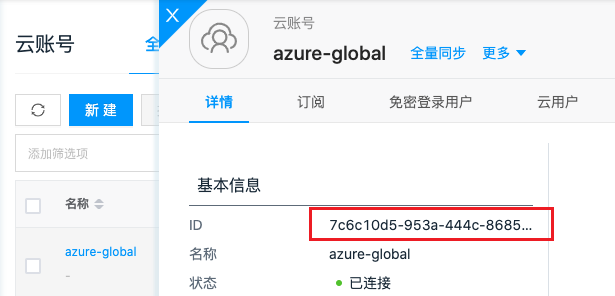
-
In the browser, enter "https://<domain-name>/api/saml/idp/metadata/<account-ID>". Save the displayed XML file content. For example: "https://saml.test.cn/api/saml/idp/metadata/7c6c10d5-953a-444c-8685-d0b8f53984b2", and save the file.
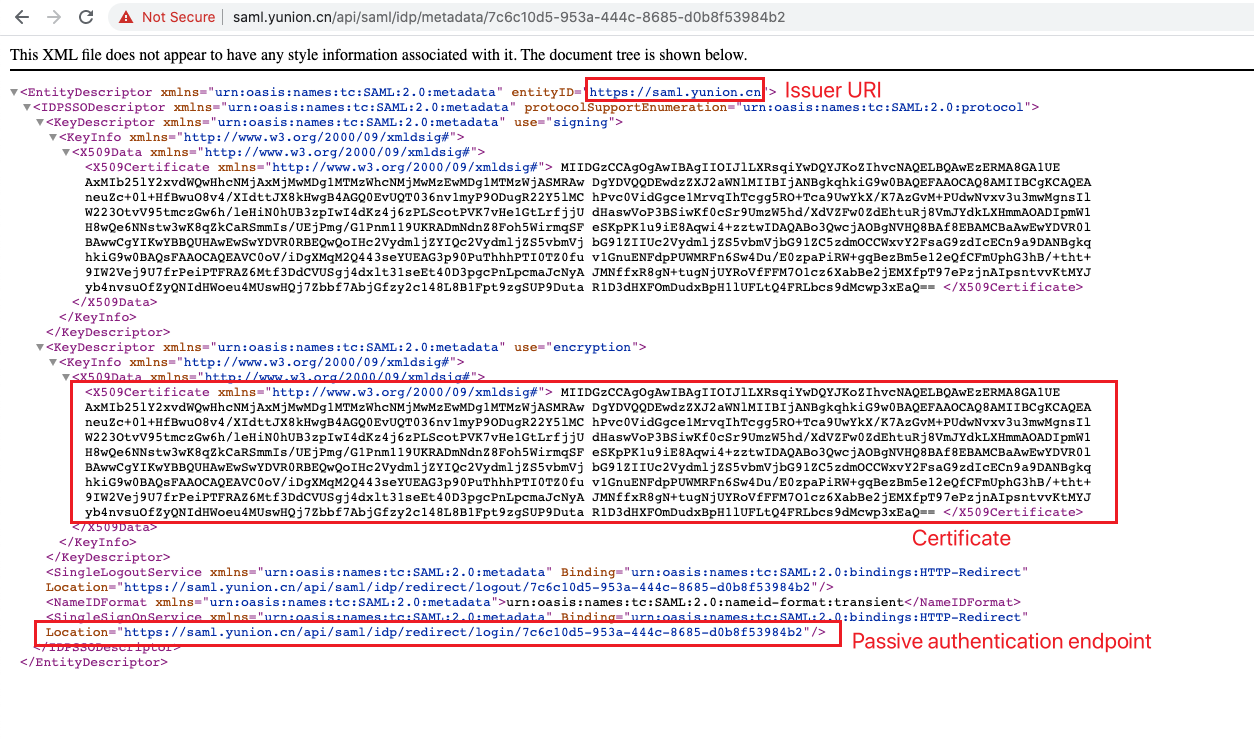
-
In the Azure console, search for "external identities" and enter the page.
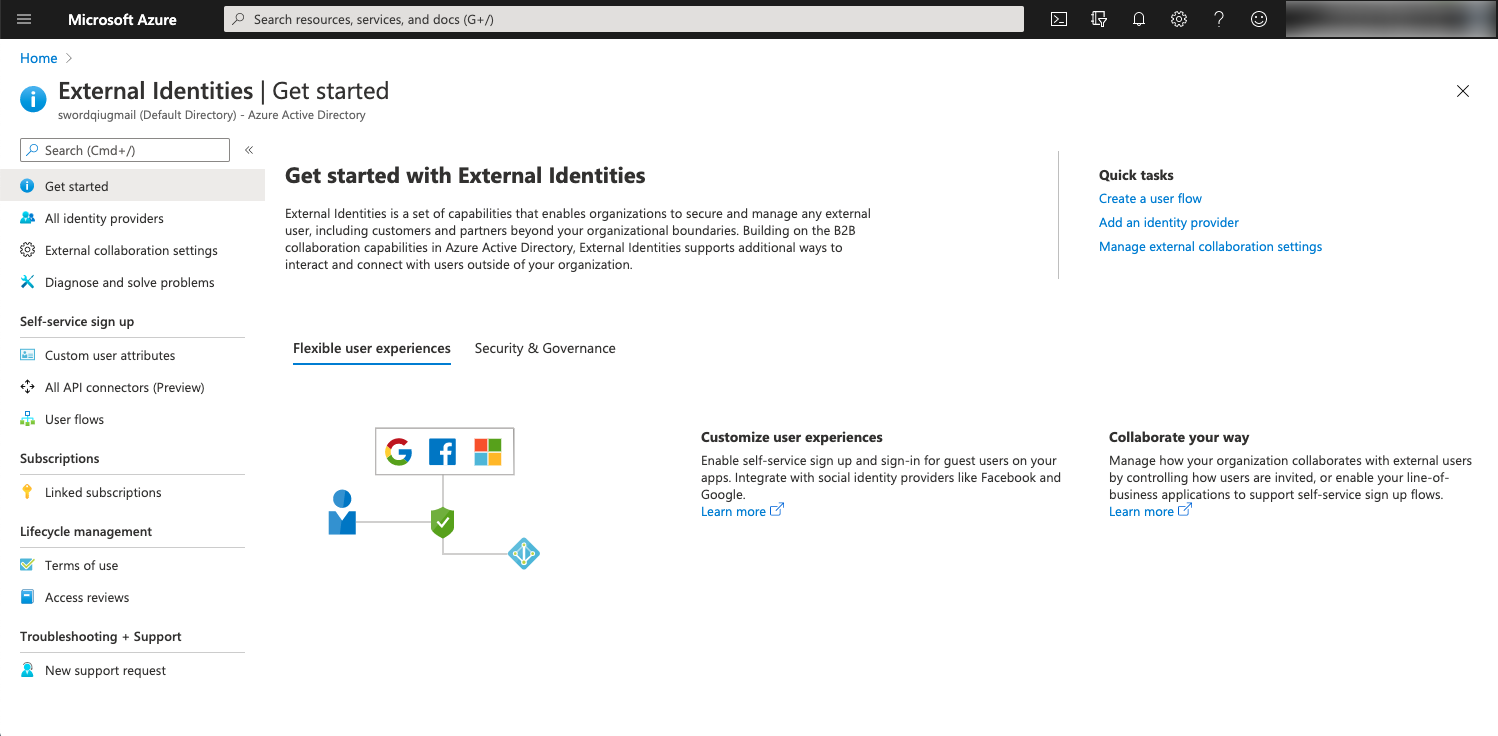
-
Click the "All identity providers" menu item on the left to enter the "All identity providers" page.
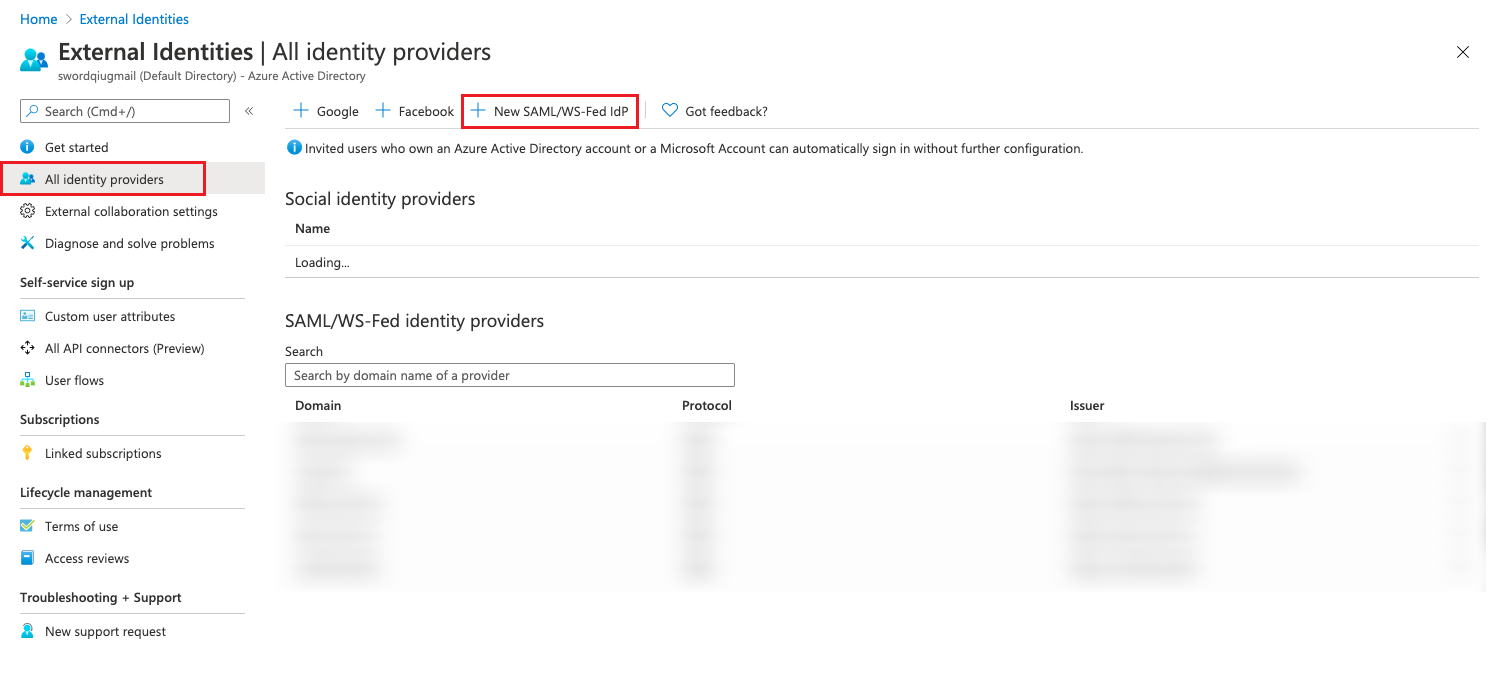
-
Click "New SAML/WS-Fed Idp" and configure the following parameters in the pop-up dialog.
- Identity provider protocol: Select SAML.
- Domain name of federating IdP: Set to the platform's domain name, e.g., saml.test.cn.
- Select a method for populating metadata: It is recommended to select "Parse metadata file", upload the XML file saved in the above steps, and click "Parse" to automatically populate the parameters below. If selecting "Input metadata manually", you need to fill in the fields according to the above screenshot. Note that the Certificate copied directly may have spaces, which need to be completely removed.
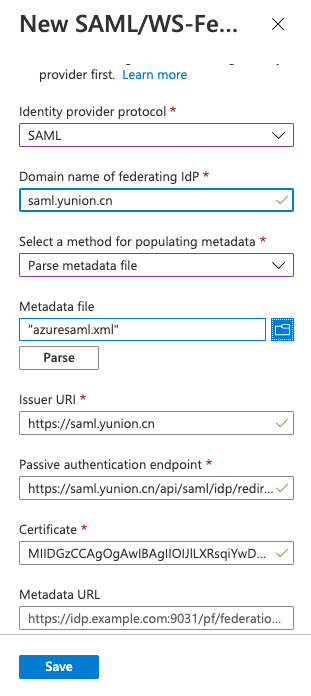
-
Additionally, you need to add user permissions to the Azure application. For Azure application details, please refer to Getting Azure Tenant ID and Client Information.
-
On the application details page, click "API permission" to enter the API permission page. Ensure the application has "User.Invite.ALL" and "User.ReadWrite.All" permissions under Microsoft Graph. If these permissions are missing, click "add a permission" to add the corresponding permissions.
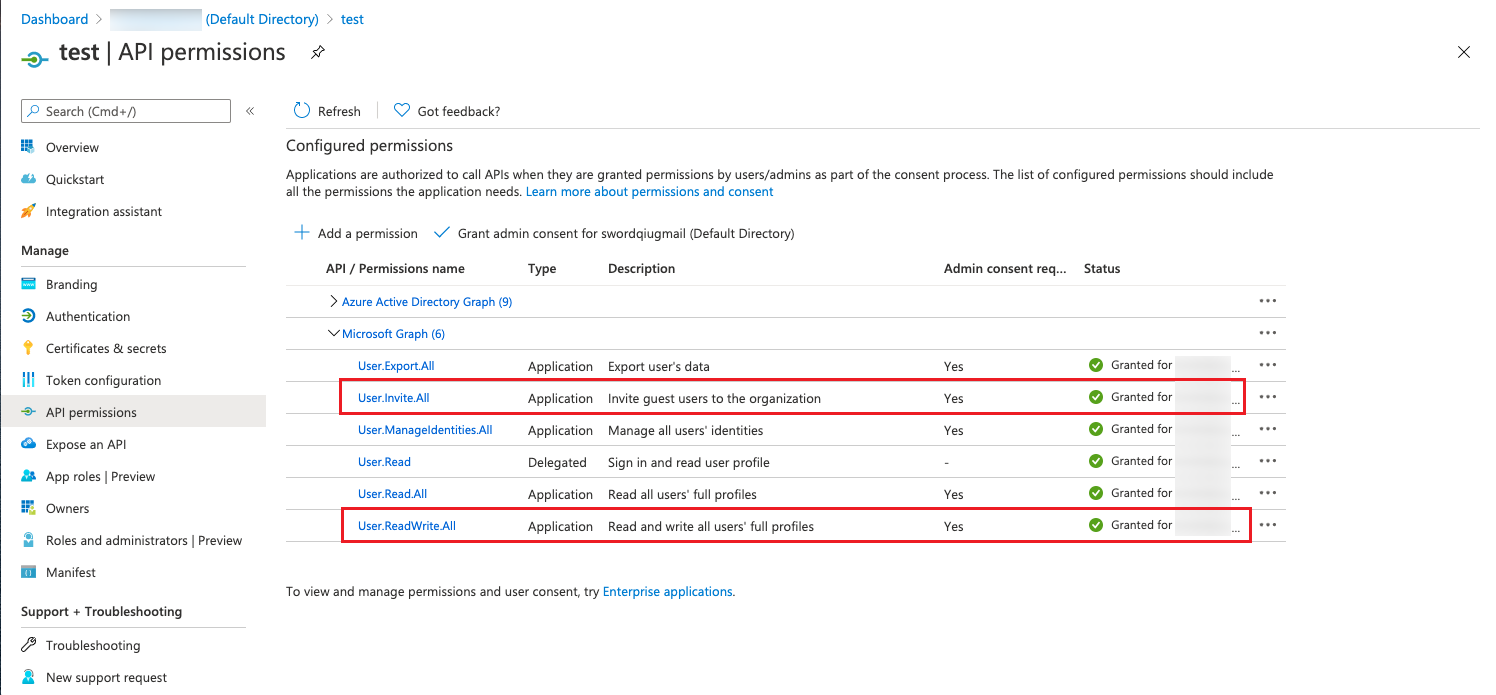
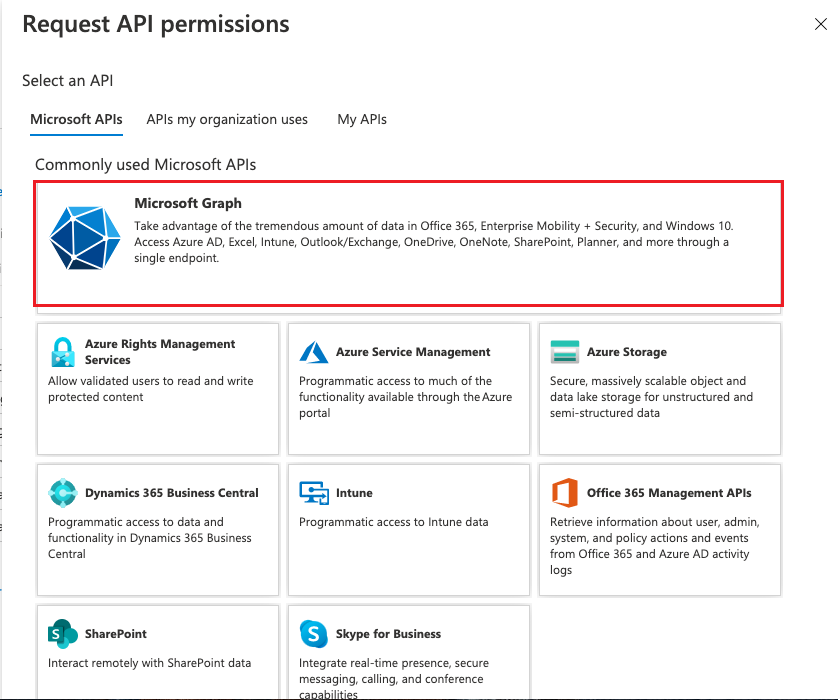
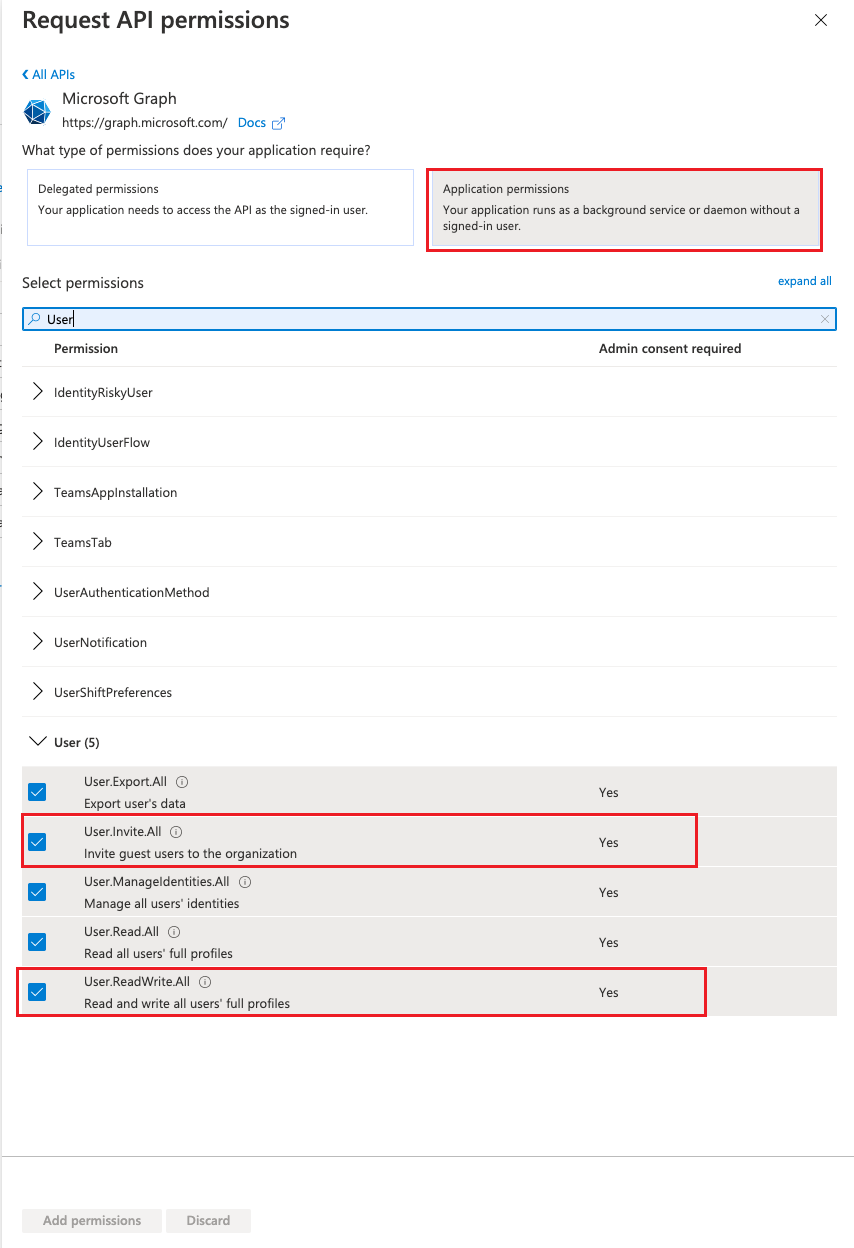
Configure Chrome Browser
When using SSO to log in to the Azure platform from this platform, Cookies need to be carried back to the platform during the Azure login process. Chrome browser does not allow cross-site Cookies by default, so the following configuration is needed:
-
In the Chrome browser address bar, enter "chrome://flags/" and search for "SameSite by default cookies".
-
Disable "SameSite by default cookies" and "Cookies without SameSite must be secure".
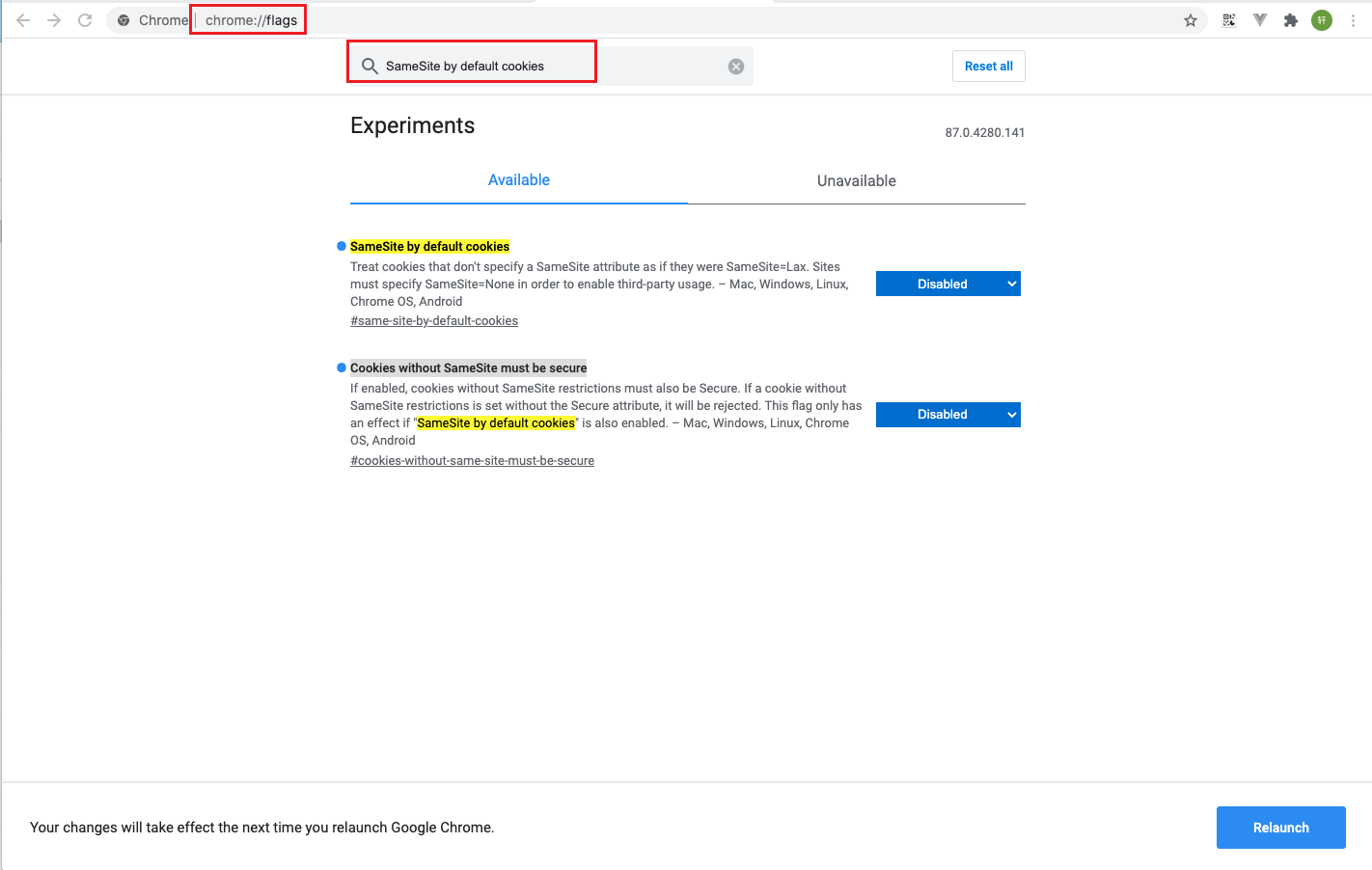
-
Restart the browser for the configuration to take effect.
Usage Process
- When creating a cloud account on the platform, enable the SSO login feature. This will upload the system's SAML information to the public cloud platform, making the system an identity provider for the public cloud platform.
- On the Cloud User Groups page, create the corresponding platform cloud user group and select the corresponding permissions.
- On the Cloud Account Details - SSO Login Users page, create SSO login users, associate local users, and specify the cloud user group the users belong to. This operation grants system users the permission to log in to the public cloud without a password.
- Subsequently, local users associated with cloud SAML users can click the "SSO Login" button in "User Info - Multi-Cloud Unified Login - SSO Login Users" to log in to the public cloud platform with the specified permissions without a password.
When using SSO to log in to the Azure platform from this platform, users still need to enter their account. Currently, the login account is not displayed on the frontend. The format is: username@domain-name. For example, for the test user on the saml.test.cn environment to access the Azure platform without a password, the user account would be test@saml.test.cn.