Host Network
Networks of hosts where private cloud virtual machines are located.
Classic Network
Hosts specify host network configuration through the host service's configuration item networks (/etc/yunion/host.conf). This configuration specifies which layer 2 network the host's specified physical network card corresponds to. There are two configuration methods:
-
Network card name/bridge name/network card IP, for example: eth0/br0/192.168.222.10. This configuration mode tells the system that the host's physical network card eth0 is connected to the layer 2 network corresponding to the IP subnet corresponding to IP 192.168.222.10, and bridges this physical network card with bridge br0. Physical network cards in this mode are used by the host to communicate with the outside world, so a valid IP address must be configured. When the host service starts, it will detect whether this IP is configured on this physical network card. If it doesn't match, the host service will abandon startup. This avoids misconfiguring this network card. After successful startup, the host service will automatically create a bridge, add the physical network card to this bridge, and migrate the IP configuration information on the physical network card to the bridge to maintain the host's normal network communication.
-
Network card name/bridge name/layer 2 network name, for example: eth1/brpub/wire1. This configuration mode tells the system that the host's physical network card eth1 is connected to layer 2 network wire1. This network card does not need to configure a valid IP address, and this physical network card is bridged with bridge brpub. Physical network cards in this mode are not used by the host for communication, so they do not need to explicitly configure valid IP addresses. When the host service starts, it will check whether this physical network card has no IP. If it has an IP, it will abandon startup. This avoids misoperation. After successful startup, it will automatically create a bridge, add the physical network card to this bridge, and automatically assign a 169.254.0.0/16 IP to this bridge.
Impact of Host Network Configuration on Scheduling
When creating a classic network virtual machine, the scheduler will check the IP subnet that the virtual machine is preparing to connect to, filter hosts connected according to the IP subnet's layer 2 network, and use these hosts as candidate hosts.
VLAN Support
Classic networks support VLAN (802.1Q). IP subnets under layer 2 networks in the same classic network can belong to different VLANs. In this case, you need to set the IP subnet's VLAN ID. The IP subnet's VLAN ID defaults to 1.
When an IP subnet's VLAN ID is not 1, the network interface that the virtual machine connects to this IP subnet will automatically join this VLAN. The underlying implementation principle is that when adding the virtual machine's virtual network interface to the OVS bridge, set this interface's VLAN tag to the specified tag. To allow virtual machines on a host to join different VLANs, you need to set the host's physical network port to Trunk mode to allow packets with different VLAN tags to pass through the same physical link simultaneously.
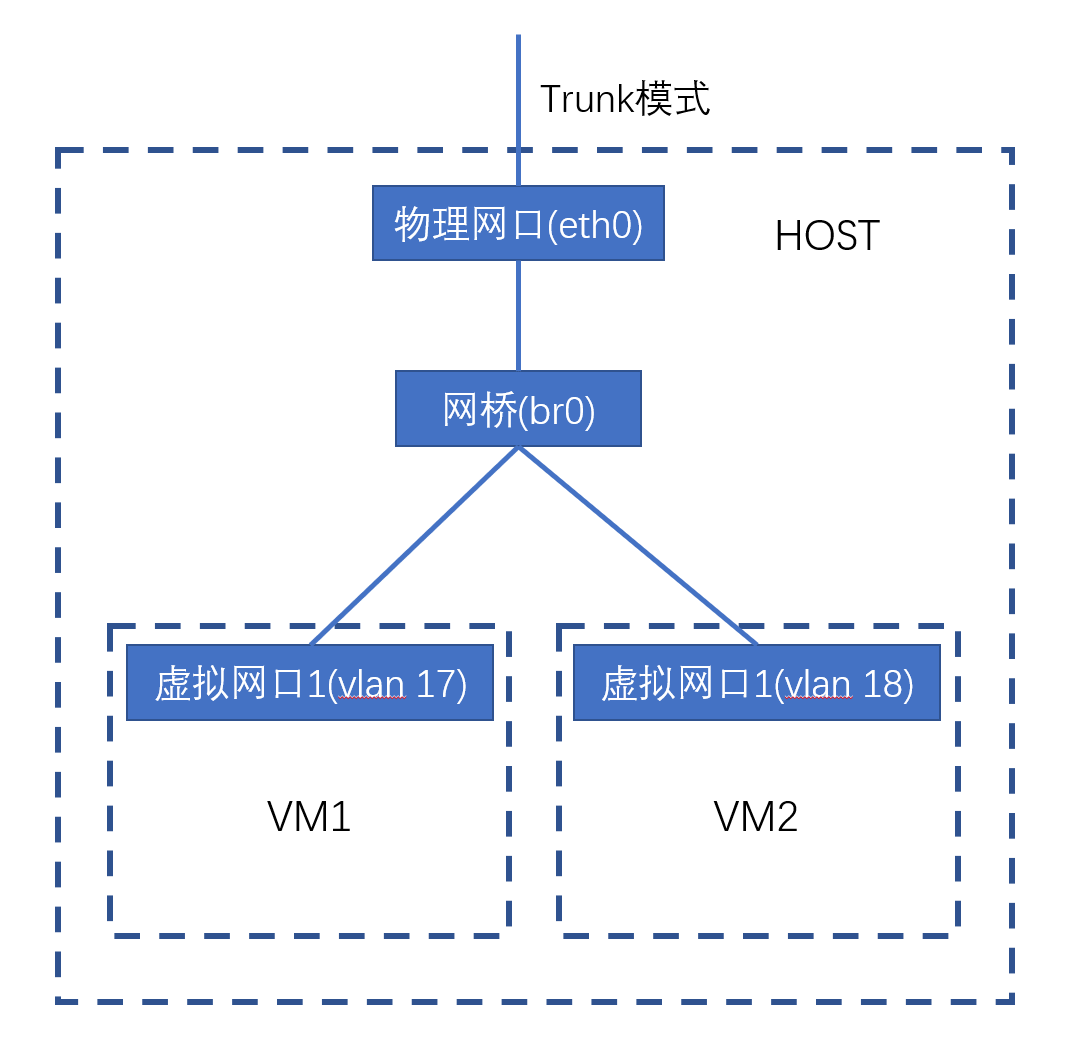
Host VLAN
To allow virtual machines to join different VLANs, the host's corresponding network interface must connect to the switch in TRUNK mode. At this time, if the host also needs to communicate through this network interface, it needs to be set according to the situation. 1) If the host's network interface's VLAN ID is the default VLAN (VLAN=1), then the host does not need special configuration. 2) If the host's network interface's VLAN ID is not 1, there are two solutions:
(1) Set a VLAN tag alias interface (Alias Interface) for this network interface with the host's VLAN, configure the host's IP address on this alias interface, and the host will use this alias interface for communication.
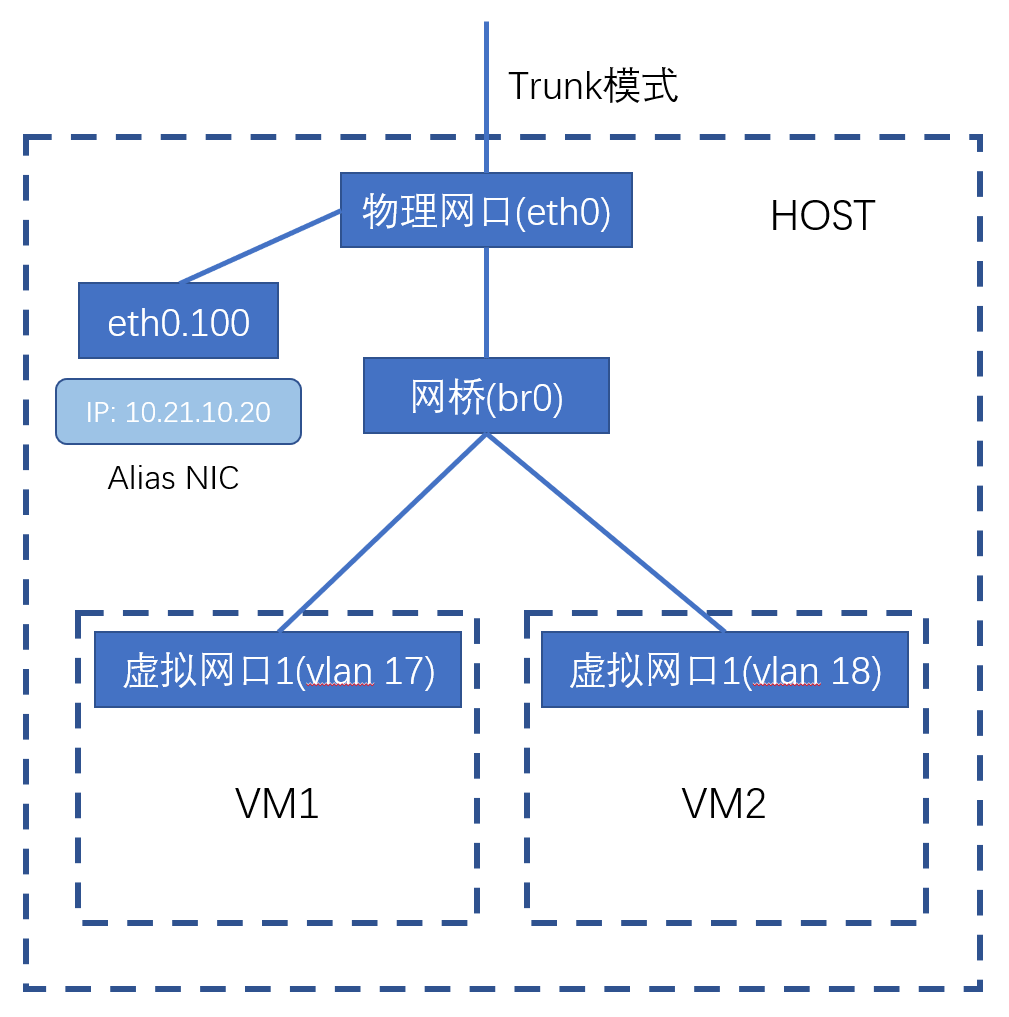
Using the physical machine's network port as em1, VLAN ID as 100, and em1's virtual machine bridge br0 as an example, the following is the configuration script:
ip link add link em1 name em1.100 type vlan id 100 && ip addr flush dev br0 && ip addr add 10.192.4.20/22 dev em1.100 && ip link set dev em1.100 up
(2) Set the switch's default VLAN ID for this trunk interface to the host's VLAN ID.
BRTRUNK Mode
In some application scenarios, for example, users provide network access for multiple containers through technologies such as macvlan or bridges in virtual machines. Users may need to virtualize multiple vlan interfaces on the same virtual machine network port and send packets with multiple VLAN tags. In this case, you need to make the following special settings to allow a virtual machine's network port to send packets carrying multiple different VLAN tags:
- The VLAN ID of the IP subnet corresponding to this network port is 1 (default VLAN), so packets sent from this network port will only be transparently forwarded by the OVS bridge and will not be tagged with VLAN tags.
- This virtual machine needs to disable "Source IP and MAC Address Check" (in the host menu: Network and Security - Set Source/Destination Check).
- The host's corresponding network port is in trunk mode.
- The switch allows corresponding VLAN tags on the corresponding network port.
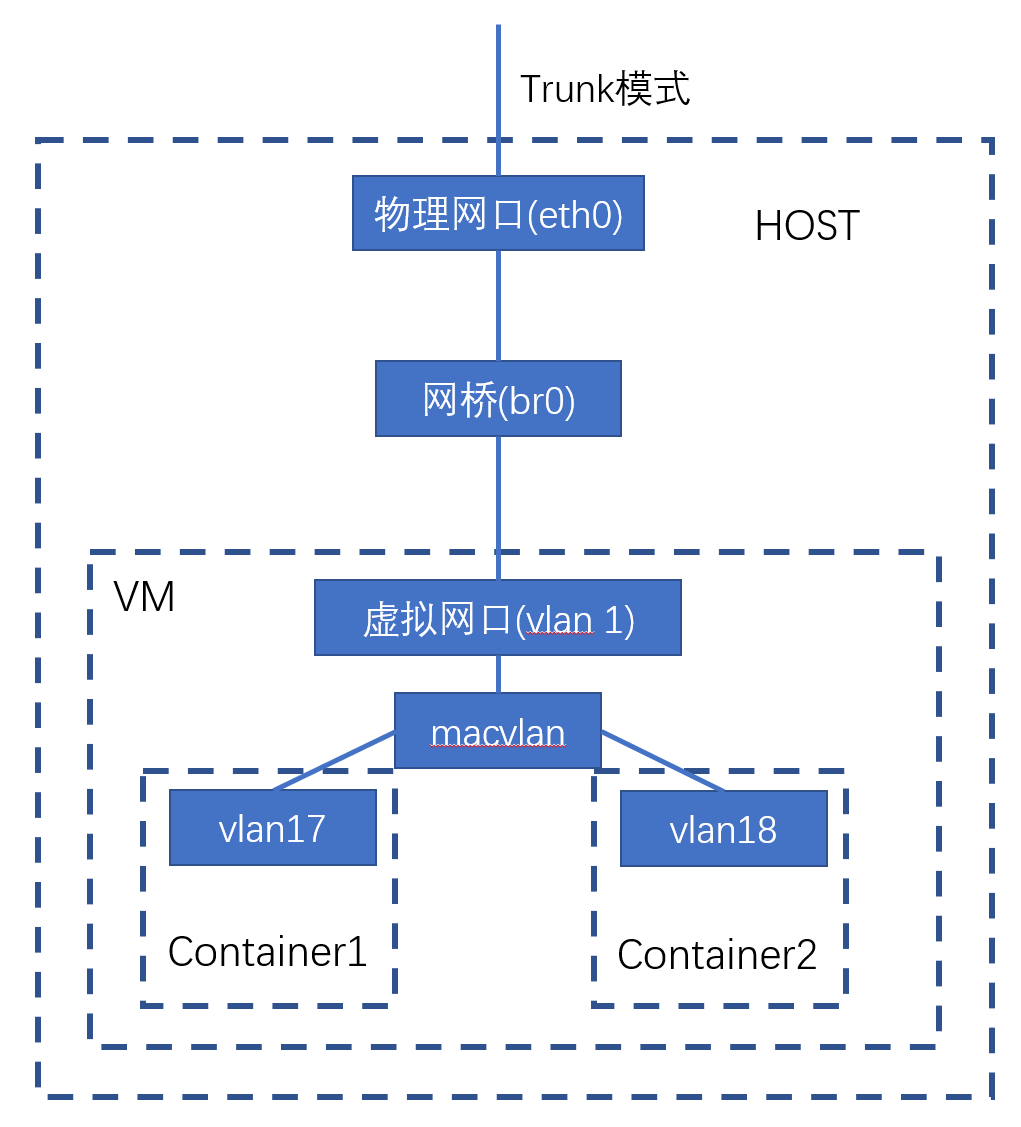
VPC Network
After the host service starts, it will create a bridge for vpc communication in the host (default name is brvpc). All virtual network cards of virtual machines connected to VPC networks must join this bridge.
For more VPC network related documentation, please refer to: VPC Network.