Login to Virtual Machine
After creating a virtual machine, login methods are roughly divided into the following types:
- ssh: Common for Linux, requires virtual machine network to be reachable.
- rdp: Windows remote desktop, requires virtual machine network to be reachable; Can connect to Windows operating system virtual machines through RDP corresponding clients.
- vnc: vnc link, no network requirements for virtual machine, as long as you can connect to the cloud platform frontend.
Login Through Frontend
VNC
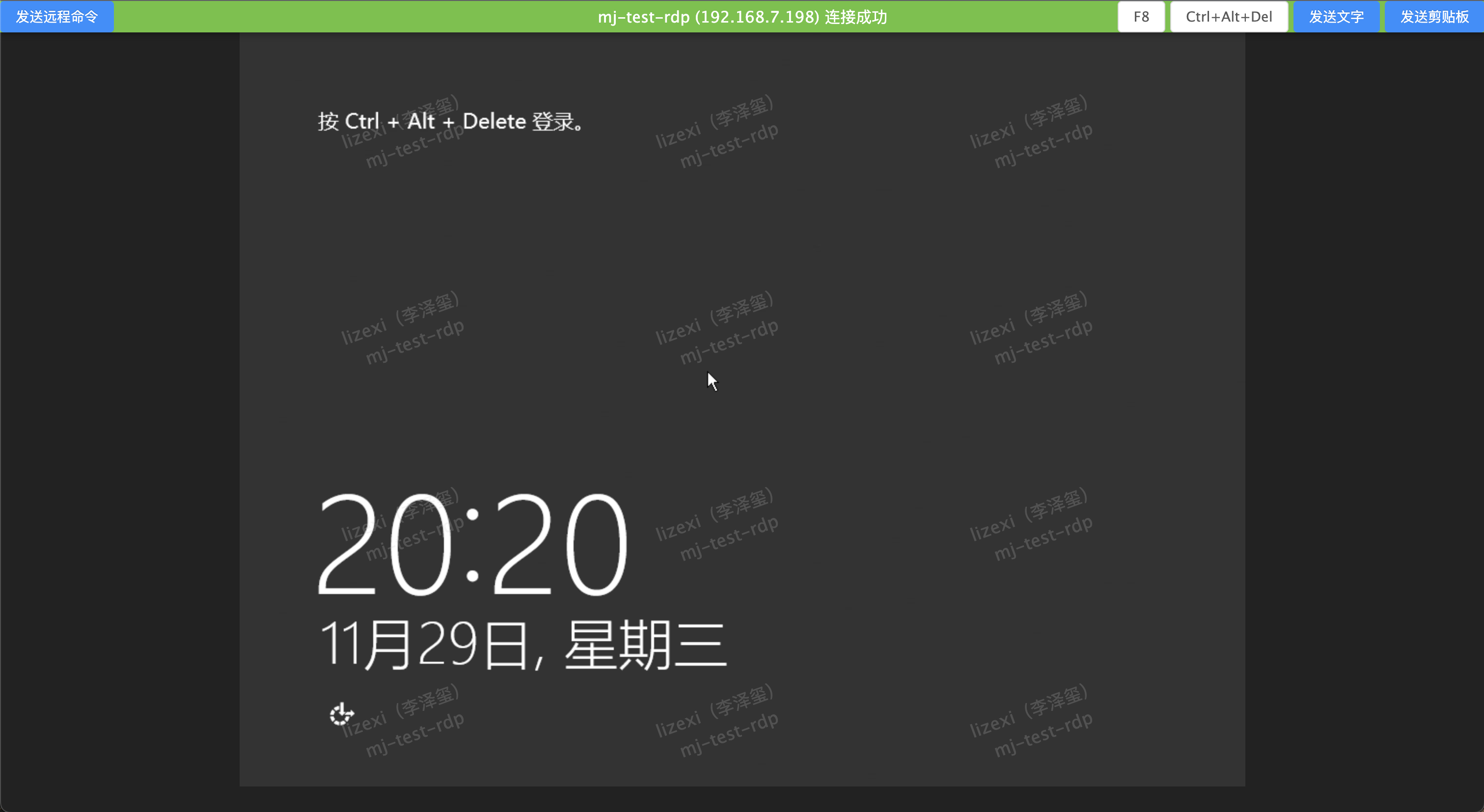
On the virtual machine page, click the "Remote Terminal" button in the operation column on the right side of the virtual machine, and select the "VNC Remote Terminal" menu item.
SSH
Click the "Remote Terminal" button, select the "SSH IP Address" menu item to establish a web SSH connection with the virtual machine.
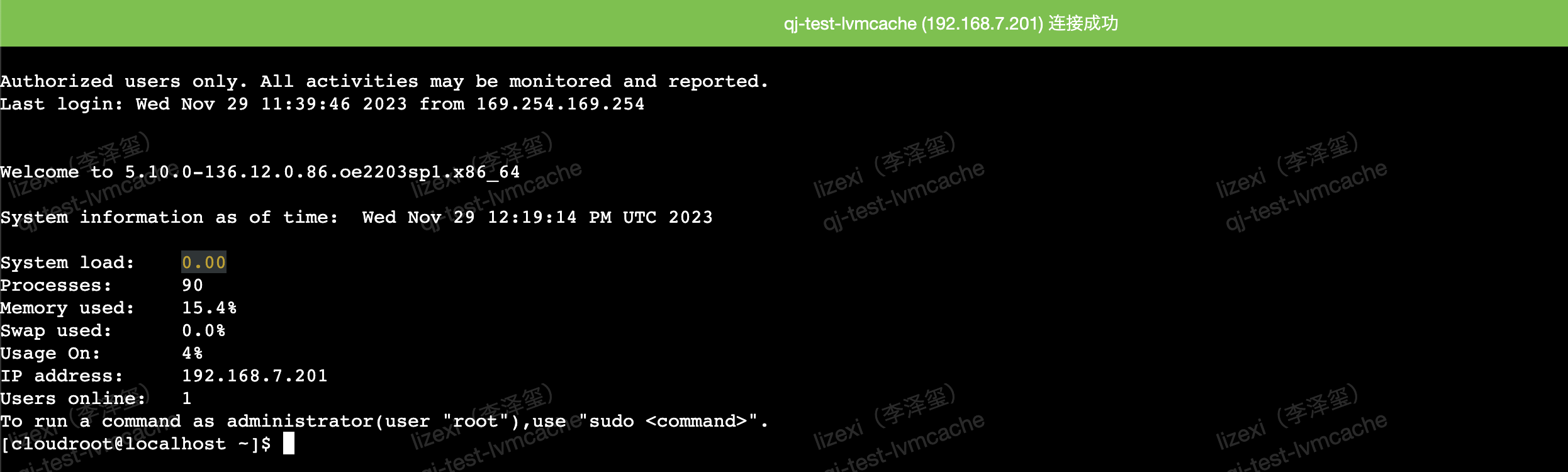
Created instances will automatically inject a cloudroot user and bind the public key of the user's project by default, so you can directly log in without password using the key
# Administrators can disable automatic login through the following command
$ climc service-config webconsole --conf 'enable_auto_login=false'
# Adjust login idle timeout to disconnect ssh connection time, default -1 means no timeout limit
$ climc service-config webconsole --conf 'ssh_session_timeout_minutes=30'
For instances installed through ISO, if you want to achieve automatic password-free login, you need to enter the system to create a cloudroot user, and get the public key through the command climc sshkeypair-show and place it under the cloudroot user
Login Through climc
For the above connection methods, we provide the following command line to connect to cloud virtual machines:
SSH Remote Login
Query server's ip
# Can find virtual machine's ip through server-list --search --details --scope system
$ climc server-list --search <server_name> --details --scope system

# Or get ip through server-show <server_id>
$ climc server-show <server_name> | grep ip
| ips                  | 10.168.222.226 |
Query server's login information
$ climc server-logininfo <server_name>
+----------+-----------------------------+
|  Field   |            Value            |
+----------+-----------------------------+
| password | @2aWXB6AmCbV                |
| updated  | 2019-07-03T10:00:20.801716Z |
| username | root                        |
+----------+-----------------------------+
ssh login
$ ssh root@10.168.222.226
SSH Direct Login
Because the platform automatically injects public keys into virtual machines, you can directly log in to Linux virtual machines without password. The command is as follows.
This command also works for virtual machines in VPC. For VPC virtual machines, forward tunnels will be automatically created.
$ climc server-ssh <server_name>