Climc Usage
Introduction to how to use the Climc command line tool.
Parameter Description
# View climc help information
$ climc --help | head
Usage: climc [--version] [--timeout TIMEOUT] [--insecure|-k] [--cert-file CERT_FILE] [--key-file KEY_FILE] [--completion {bash,zsh}] [--use-cached-token] [--os-username OS_USERNAME] [--os-password OS_PASSWORD] [--os-project-name OS_PROJECT_NAME] [--os-project-domain OS_PROJECT_DOMAIN] [--os-domain-name OS_DOMAIN_NAME] [--os-access-key OS_ACCESS_KEY] [--os-secret-key OS_SECRET_KEY] [--os-auth-token OS_AUTH_TOKEN] [--os-auth-url OS_AUTH_URL] [--os-region-name OS_REGION_NAME] [--os-zone-name OS_ZONE_NAME] [--os-endpoint-type {publicURL,internalURL,adminURL}] [--output-format {table,kv,json,flatten-table,flatten-kv}] [--parallel-run PARALLEL_RUN] [--help] [--debug] <SUBCOMMAND> ...

Command-line interface to the API server.

Positional arguments:
    <SUBCOMMAND>
        cloud-account-sync
          Sync cloudaccount
        lbbackend-list
          List lbbackends
# [--xxx] Parameters enclosed in square brackets are optional parameters, can be passed or not
# [--xxx|-x] This parameter does not need to be followed by any parameters, --xxx and -x have the same effect, can be used arbitrarily, for example: --debug, -k
# [--xxx XXX] This parameter must be followed by a parameter, for example: --timeout 300
# [--xxx {xxx,xxx,xxx}] This parameter must be followed by a parameter, and the parameter must be one within the braces, for example: --os-endpoint-type publicURL
# <XXXX> This parameter is required, if there are multiple angle bracket parameters, they need to be passed in order according to the angle bracket parameter order, for example, <SUBCOMMAND> above can be specified as cloud-account-sync
# The above parameters must follow the climc command

# Combine the above parameters into a command
$ climc --debug -k --timeout --os-endpoint-type publicURL cloud-account-sync

# View subcommand help information climc <SUBCOMMAND> --help, for example:
$ climc cloud-account-sync --help
Usage: climc cloud-account-sync [--full-sync] [--deep-sync] [--xor] [--region REGION] [--zone ZONE] [--host HOST] [--resources {project,compute,network,eip,loadbalancer,objectstore,rds,cache,event,cloudid,dnszone,public_ip,intervpcnetwork,saml_auth,quota,nat,nas,waf,mongodb,es,kafka,app,cdn,container,ipv6_gateway,tablestore,modelarts,vpcpeer,misc}] [--help] [--force] <ID>

Sync cloudaccount

Positional arguments:
    <ID>
        ID or Name of cloud account

Optional arguments:
    [--full-sync]

# At this time, all displayed parameters need to follow the subcommand. Note that there is a <ID> parameter that needs to be filled. Here we use aliyun-account as an example, for example
$ climc cloud-account-sync --full-sync aliyun-account

# <SUBCOMMAND> There are many subcommands. You can filter and search by keywords, for example, find availability zones:
$ climc --help | grep zone
Running Modes
climc has two running modes: command line and interactive.
- Command line mode: Exit after executing the corresponding resource operation command. In this mode, you know what you are doing and can use it as part of bash function/script.
# Delete server1, server2, server3
for id in server1 server2 server3; do
	climc server-update --delete enable $id
	climc server-delete $id
done
- Interactive mode: Enter climc in the shell to enter interactive mode. This mode has auto-completion and parameter hints.
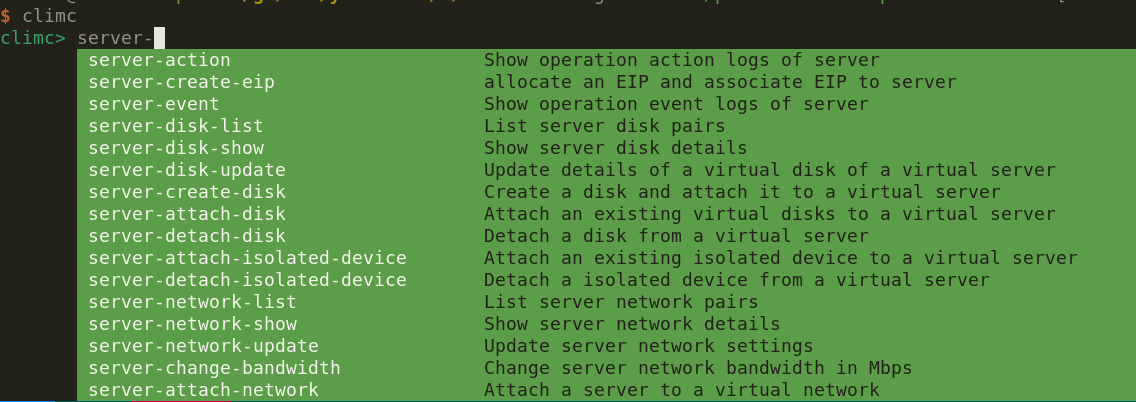
Subcommand Syntax
The cloud platform has many resources, corresponding to climc subcommands. For example, server-list in climc server-list is a subcommand that can query the VM list. The general format is as follows:
<Resource>-<Action>: Resource represents resource, Action represents action
Syntax examples:
- server-delete: Delete VM
- server is resource, delete is action
- host-list: Query host list
- host is resource, list is action
CRUD examples:
- C: server-create, disk-create Create resources
- R: server-show, disk-list Query resources
- U: server-update, host-update Update resources
- D: server-delete, image-delete Delete resources
Action examples:
Actions in Resource-Action correspond to resource operations. Different resources will be named according to the operations that can be performed.
- server-migrate: migrate means migrate VM
- server-change-config: change-config means adjust VM configuration
- host-ipmi: ipmi means query host IPMI information
To know what operations a resource has, you can enter interactive mode for completion queries.
Advanced Filtering filter
# filter parameters can refer to: https://github.com/yunionio/cloudpods/blob/master/pkg/apis/list.go#L132
$ climc <Resource>-list --filter 'condition1' --filter 'condition2'
Debug Mode
If you want to know what requests climc actually made to the server when operating resources, you can use the --debug parameter before the subcommand. Usage is as follows:
climc --debug <Resource>-<Action>
After adding the --debug parameter, the terminal will have colored output prompts. For example, climc --debug server-list output is as follows:
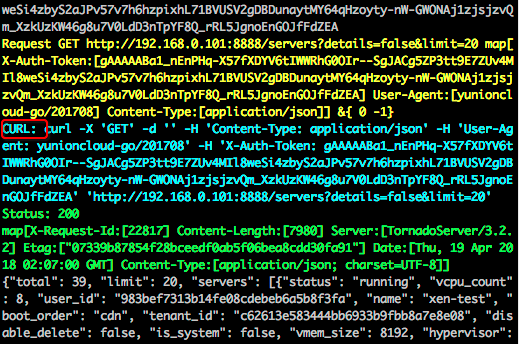
The CURL part can be directly pasted and executed on the command line.
Color Conventions
- Request uses yellow
- CURL uses cyan
- Display different colors according to status codes, refer to code: https://github.com/yunionio/pkg/blob/master/util/httputils/httputils.go#L754
Enable climc Auto-completion
climc supports command line parameter auto-completion for bash or zsh.
bash
Please install the bash-completion package in advance for bash.
source <(climc --completion bash)  # Enable command line auto-completion
echo "source <(climc --completion bash)" >> ~/.bashrc # Persist configuration
zsh
source <(climc --completion zsh)  # Enable auto-completion
echo 'source <(climc --completion zsh)' >> ~/.zshrc # Persist configuration
If you get an error command not found: compdef, please load compinit first:
# Add at the beginning of .zshrc
autoload -U compinit && compinit