Run DeepSeek V4 Flash on Ascend NPU
Overview
This page describes how to deploy DeepSeek-V4-Flash on Huawei Ascend NPU nodes using the vLLM Ascend image (example weight directory name: DeepSeek-V4-Flash-w8a8-mtp). Unlike the NVIDIA CUDA path, Ascend depends on the Ascend driver, NPU devices (such as /dev/davinci*), and related tools (such as npu-smi).
The platform workflow is: Inference Image → Inference Template (import from local path) → Inference Deployment. For fields and general operations, see Inference Images, Inference Templates/Import from Local Path, and Inference Deployments. For chat / curl verification, see AI Inference/Quick Start.
Prerequisites
- Ascend drivers are installed on the target host,
npu-smican query NPUs, and the platform has onboarded the node as a container compute node. - DeepSeek-V4-Flash weights are available on the host at an absolute path (example:
/opt/models/DeepSeek-V4-Flash-w8a8-mtp; use the path in your environment).

- The vLLM Ascend image can be pulled from a registry or is already synced (example tag:
v0.22.1rc1-linuxarm64).
Reference: Bare-Metal Docker Startup
The following commands are for comparison: how Ascend devices and driver directories are mounted on bare metal, and the vllm serve startup arguments.
When you create an inference deployment on the platform, the example --device … arguments (NPU devices and related) and -v … mounts (Ascend driver, tools, and config directories) are injected automatically by the platform runtime. You do not need to enter them in the template or custom parameters. Register the inference image, set the local model path, and configure custom parameters equivalent to the vllm serve arguments below.
# docker run command
docker run --rm \
  --name vllm-ascend \
  --net=host \
  --shm-size=512g \
  --device /dev/davinci0 \
  --device /dev/davinci1 \
  --device /dev/davinci2 \
  --device /dev/davinci3 \
  --device /dev/davinci4 \
  --device /dev/davinci5 \
  --device /dev/davinci6 \
  --device /dev/davinci7 \
  --device /dev/davinci_manager \
  --device /dev/devmm_svm \
  --device /dev/hisi_hdc \
  -v /usr/local/dcmi:/usr/local/dcmi \
  -v /usr/local/Ascend/driver/tools/hccn_tool:/usr/local/Ascend/driver/tools/hccn_tool \
  -v /usr/local/bin/npu-smi:/usr/local/bin/npu-smi \
  -v /usr/local/Ascend/driver/lib64/:/usr/local/Ascend/driver/lib64/ \
  -v /usr/local/Ascend/driver/version.info:/usr/local/Ascend/driver/version.info \
  -v /etc/ascend_install.info:/etc/ascend_install.info \
  -v /etc/hccn.conf:/etc/hccn.conf \
  -v /opt/models/DeepSeek-V4-Flash-w8a8-mtp:/model \
  docker.io/ascendai/vllm-ascend:v0.22.1rc1-linuxarm64 \

# vllm serve command
vllm serve /model \
    --tensor-parallel-size 8 \
    --served-model-name DeepSeek-V4-Flash \
    --port 8000 \
    --host 0.0.0.0 \
    --trust-remote-code \
    --max-model-len 8192 \
    --gpu-memory-utilization 0.9 \
    --enforce-eager \
    --speculative-config '{"method": "mtp", "num_speculative_tokens": 1}'
Notes:
--deviceand-vare listed only for bare-metal comparison; they are injected automatically on platform deployments and must not be entered as custom parameters.- The example uses 8 NPUs (
davinci0–davinci7) with--tensor-parallel-size 8; the card count and this parameter must match. - Replace the image and weight paths with your registry and host paths.
- Some environments also set
HCCL_*,VLLM_ASCEND_*,quantization ascend, a longermax-model-len, and similar options; follow the vLLM Ascend version you use.
Platform Operations
1. Create an Inference Image
- Go to Artificial Intelligence → Inference → Inference Images, and click Create.
- Set Type to vLLM.
- Fill in Name, Image, and Tag. Examples:
- Image:
private-registry.onecloud:5000/ascend/vllm-ascend(or publicdocker.io/ascendai/vllm-ascend) - Tag:
v0.22.1rc1-linuxarm64
- Image:
- Submit and save.
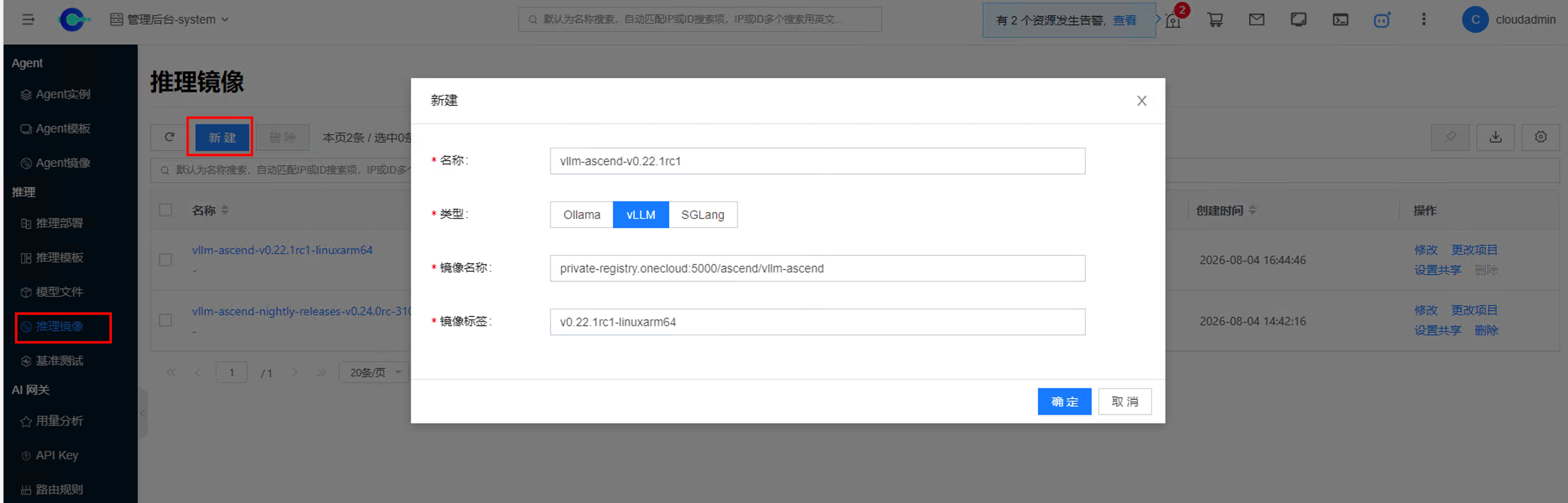
For field descriptions, see Inference Images/Create.
2. Import an Inference Template from a Local Path
- Go to Artificial Intelligence → Inference → Inference Templates, open Import Model, and choose From Local Path.
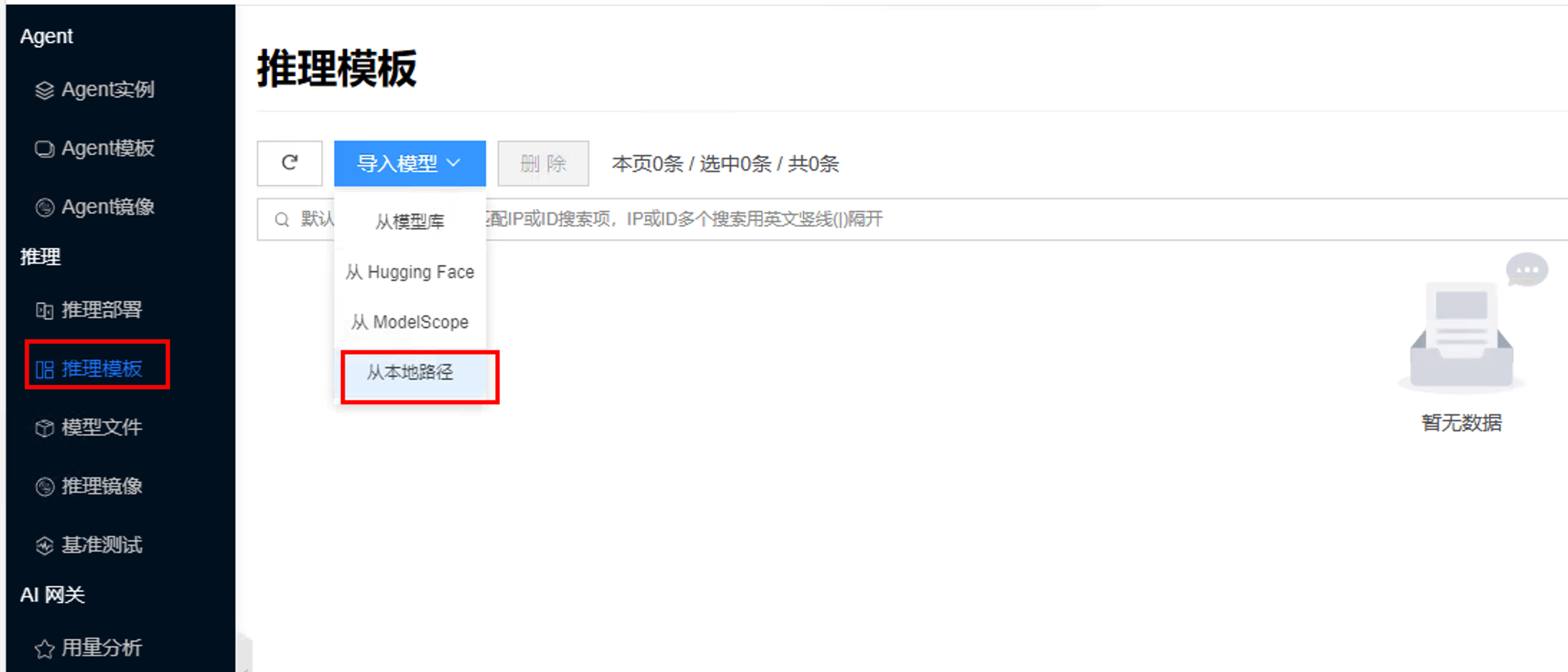
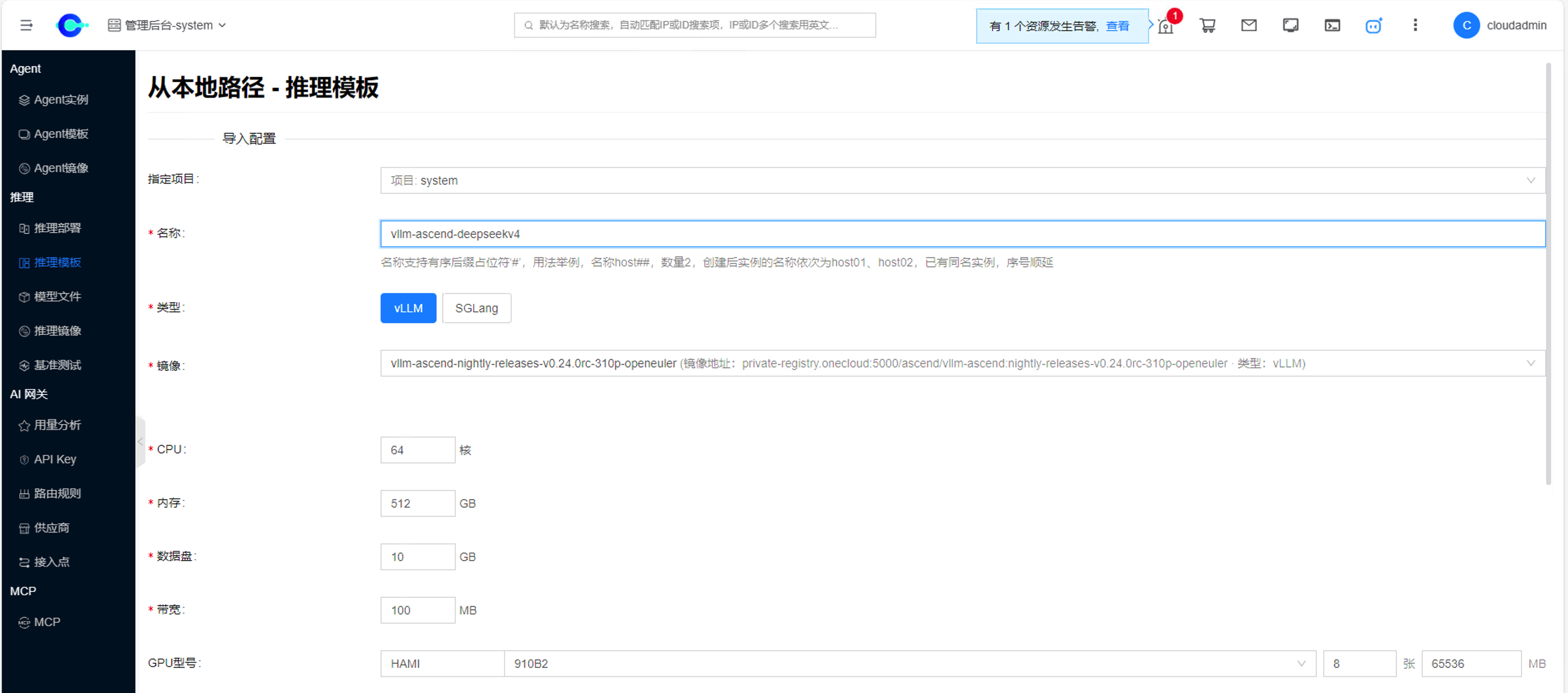
- Enter the host model path (example:
/opt/models/DeepSeek-V4-Flash-w8a8-mtp), set the engine to vLLM, and select the vLLM Ascend image registered above for Image. - Fill in CPU, memory, and other resources based on the node; for GPU Model, choose an Ascend-related specification (example: HAMI /
910B2× 8; set per-card memory as required by the UI, such as65536MiB). For local-path import in HAMI scenarios, per-card memory must be entered manually.
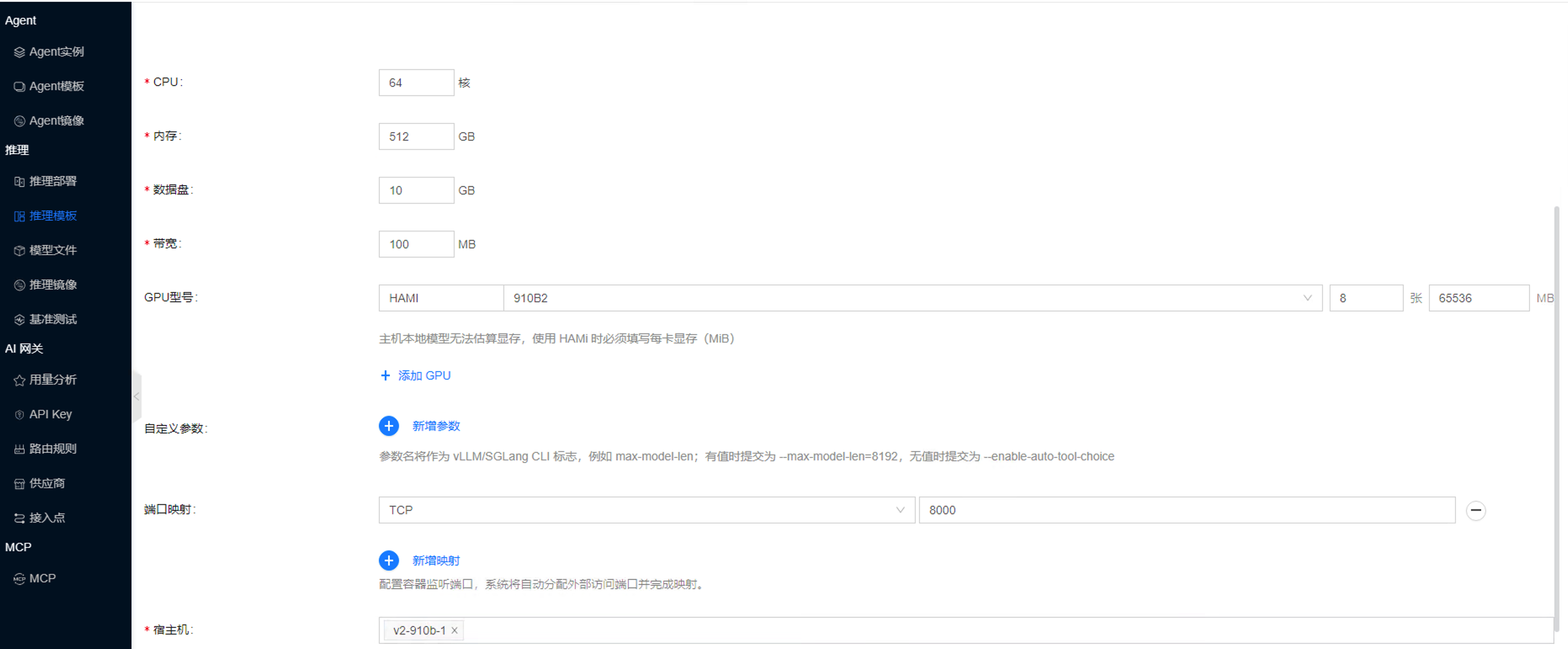
- Under Custom Parameters, add the key items equivalent to the
vllm servearguments above (examples). Device and driver mounts (--device/-v) do not need to be entered manually; see Reference: Bare-Metal Docker Startup.
| Parameter | Example value |
|---|---|
device | ascend |
trust-remote-code | (toggle-style; may be left empty per UI convention) |
max-model-len | 8192 |
gpu-memory-utilization | 0.9 |
enforce-eager | (toggle-style; may be left empty per UI convention) |
speculative-config | {"method": "mtp", "num_speculative_tokens": 1} |
tensor-parallel-size is usually set automatically by the platform from the GPU/NPU count; do not conflict with the card count.
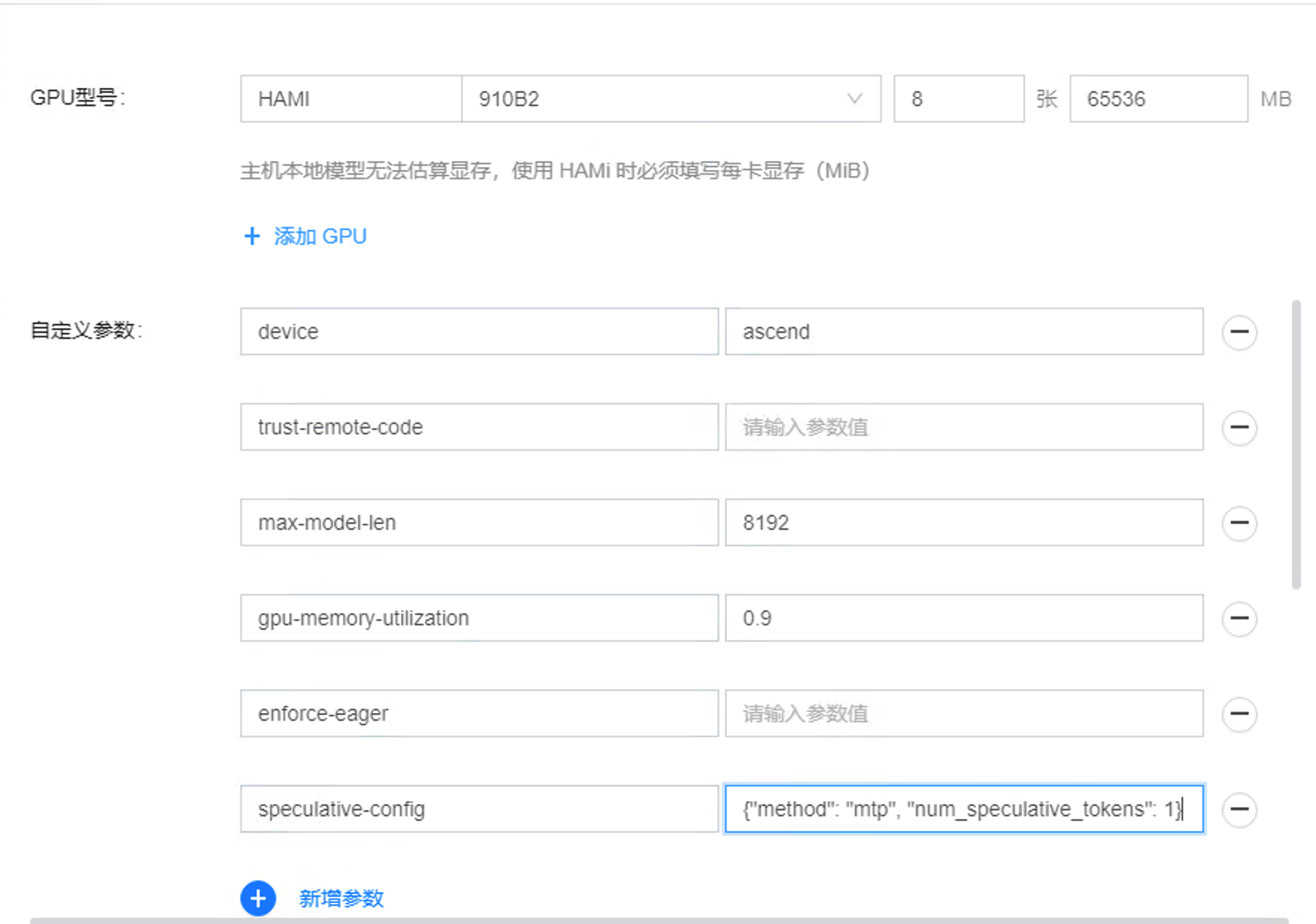
- Submit the import and wait until the template is ready (for example Ready vLLM). For more fields, see Inference Templates/Import from Local Path.
3. Create an Inference Deployment
- Click Deploy on the template card, or go to Artificial Intelligence → Inference → Inference Deployments → Create and select the template.
- Enter a name; set Host to the Ascend node where the model is stored (the model must exist at the same path on the selected host).
- Under Deployment Configuration → Network, select a NIC/subnet that can reach the inference service (example environment:
vh0; use your actual network), then submit.
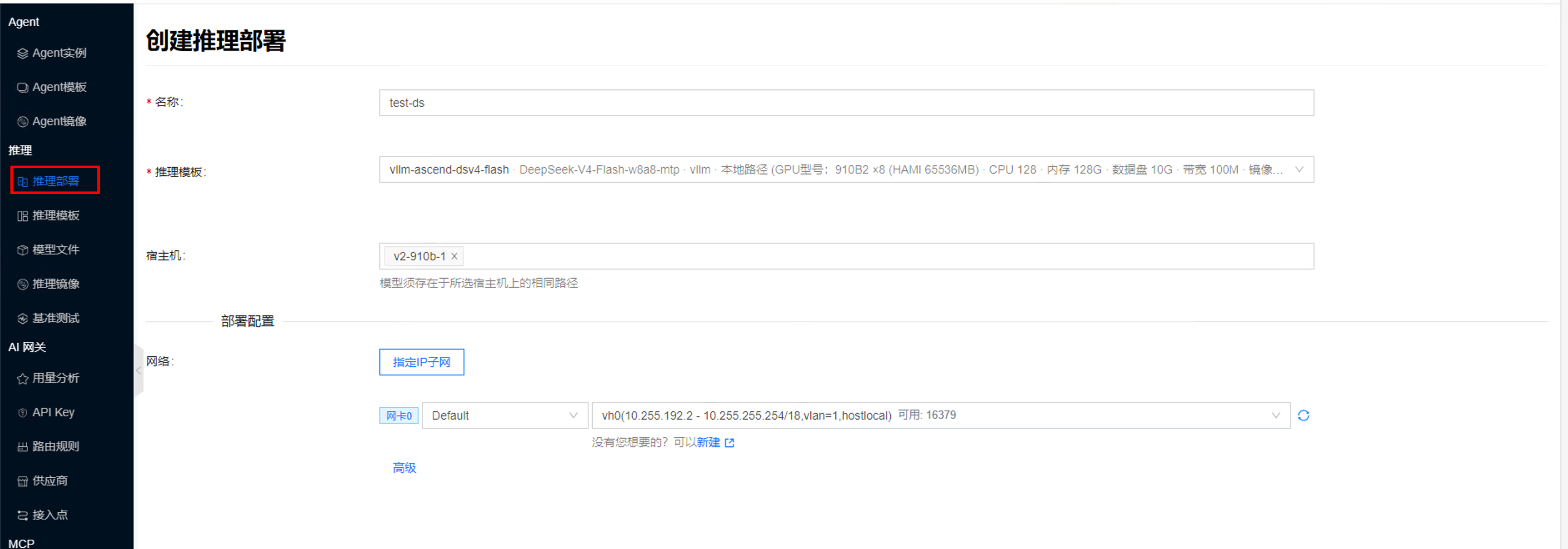
For operations and detail tabs, see Inference Deployments.
4. Verify
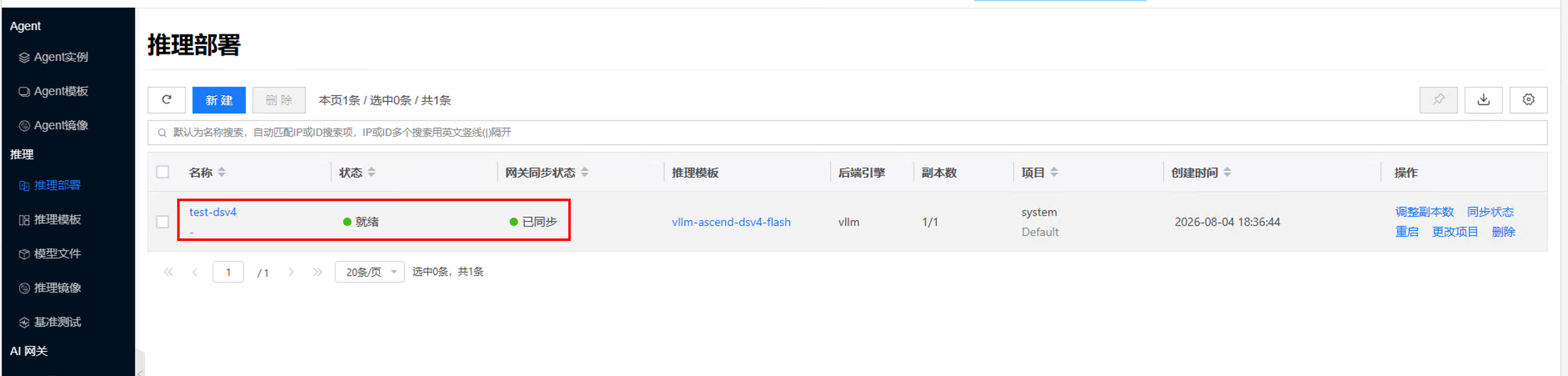
- Wait until the deployment Status is Ready and Gateway Sync Status is Synced.
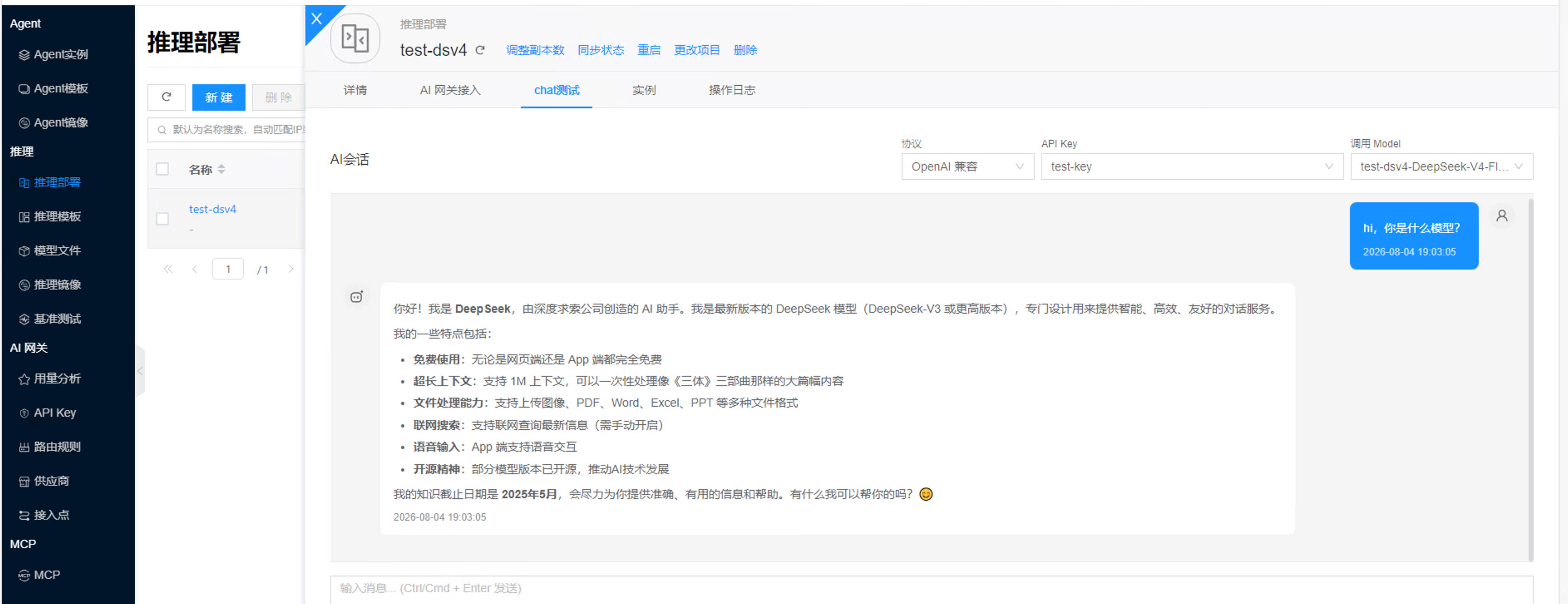
- Create an API Key, then run a chat test on the deployment details page. The
modelused in calls must match the model name shown in the UI (or theserved-model-nameused at startup).
Example chat with DeepSeek V4 Flash:
- On AI Gateway Access, select an API Key and copy the sample curl. For steps, see AI Inference/Quick Start/curl.
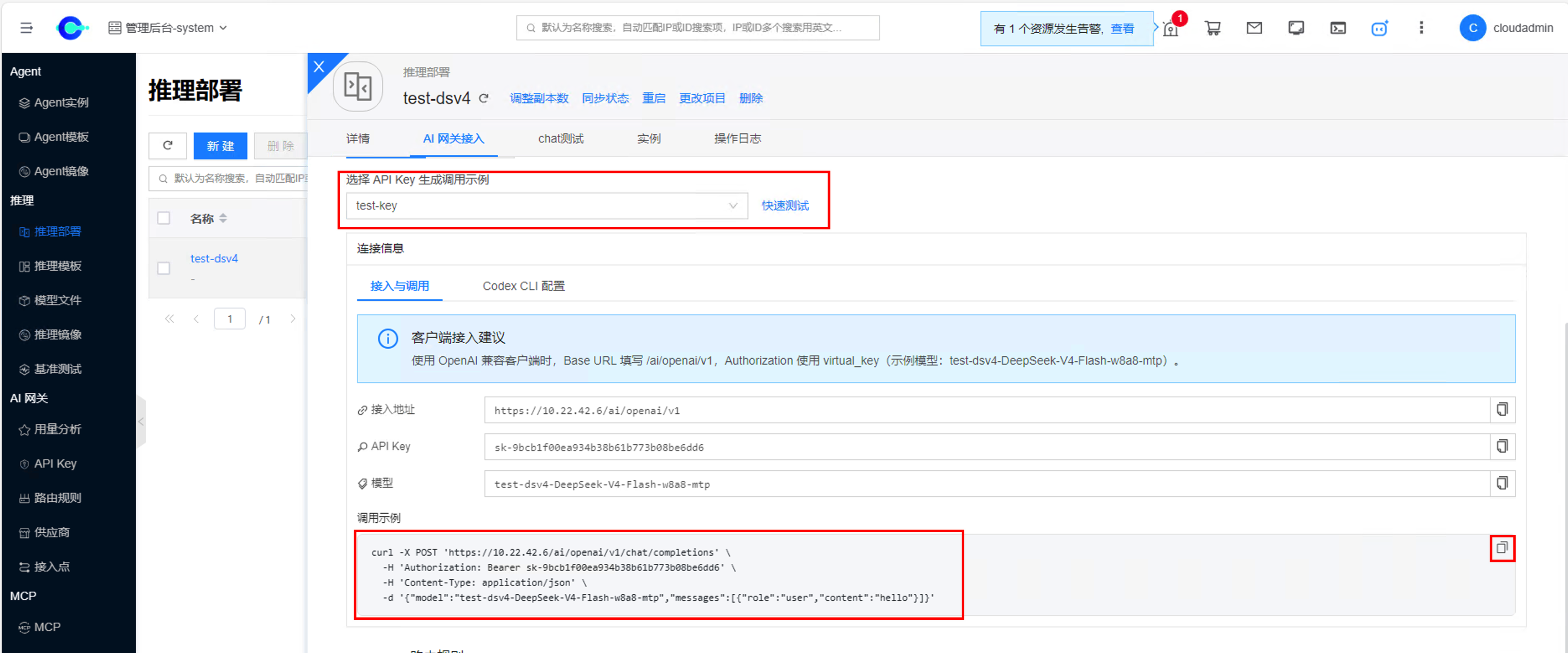
- Run the curl command in a terminal and confirm a normal response.

FAQ
NPU unavailable or scheduling failed
On the host, confirm the Ascend driver and npu-smi; check that the platform node is online and recognizes the NPU/Ascend device model; ensure the template card count matches allocatable cards on the node.
Import or startup reports an invalid model path
Confirm the same absolute path exists on the selected host and that the directory contains weights and config files; if a host is specified at deploy time, do not switch to a node without the model.
Custom parameters not applied or startup failed
Check that parameter names are supported by your vLLM Ascend version; verify boolean toggles and JSON parameters (such as speculative-config); inspect engine errors in the deployment/instance Logs. After changing the image version, re-check custom parameters.