Inference Templates
Overview
An inference template presets reusable runtime configuration for inference services. When creating an Inference Deployment, select a template to reuse type, image, CPU, memory, GPU, data disk, mounted models, and port mappings.
Relationships with deployments, models, and images:
- Inference Deployment: Created from a template. After editing a template, restart associated deployments for the new config to take effect; new deployments use the latest template directly.
- Model Files: When generating a template via Import Model (from model catalog / Hugging Face / ModelScope / local path), mountable model resources are usually created together.
- Inference Image: Must match the template type.
Console path: Artificial Intelligence → Inference → Inference Templates. New templates are created via Import Model; the list has no New action. End-to-end import and deploy steps: Quick Start.
Common Operations
Import Model
Primary list action. Import from model catalog, Hugging Face, ModelScope, or a local path to generate an inference template.
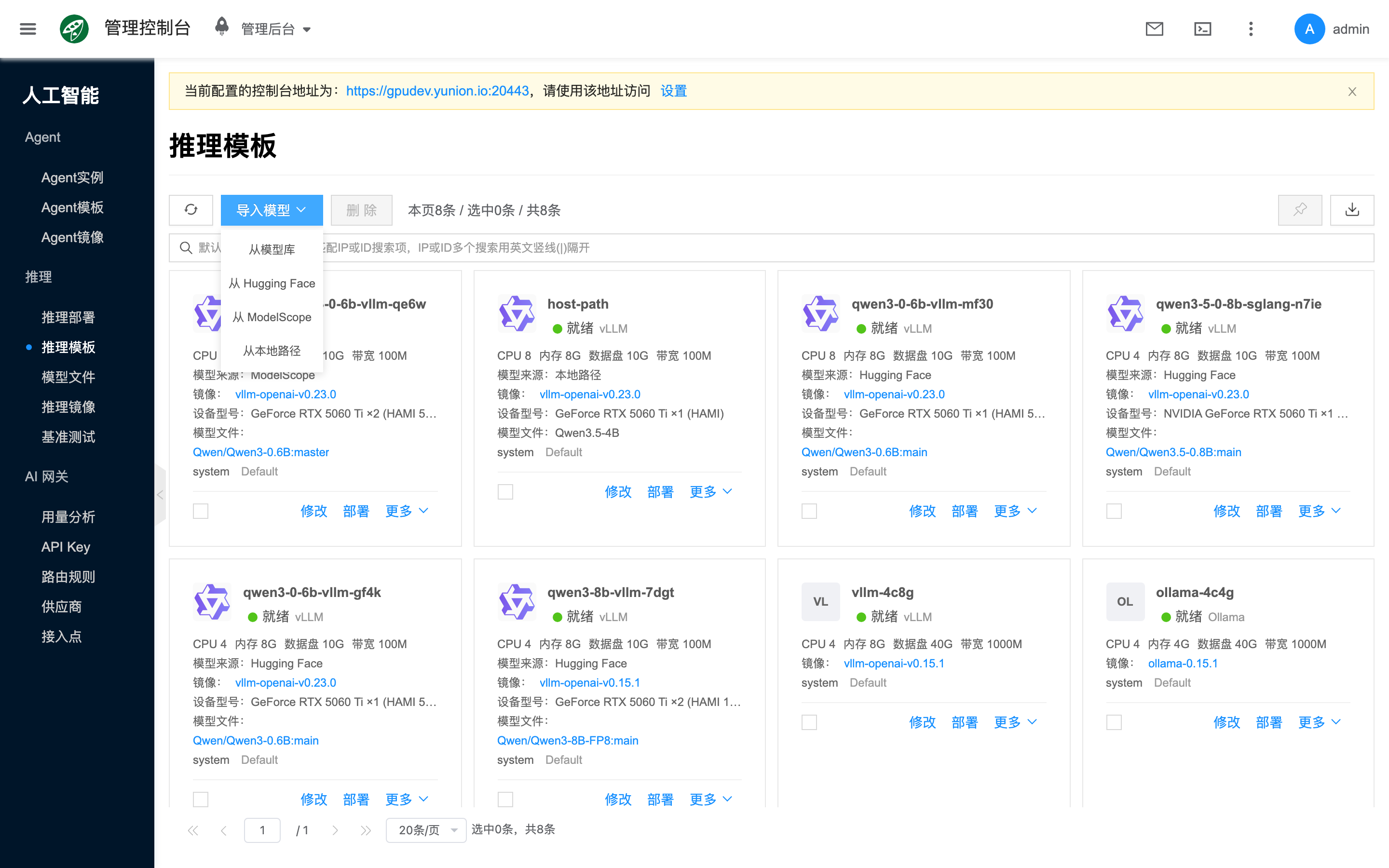
Configure the following fields in the import drawer (same meanings when Editing an existing template). Type must match the image and mounted model, or saving will fail.
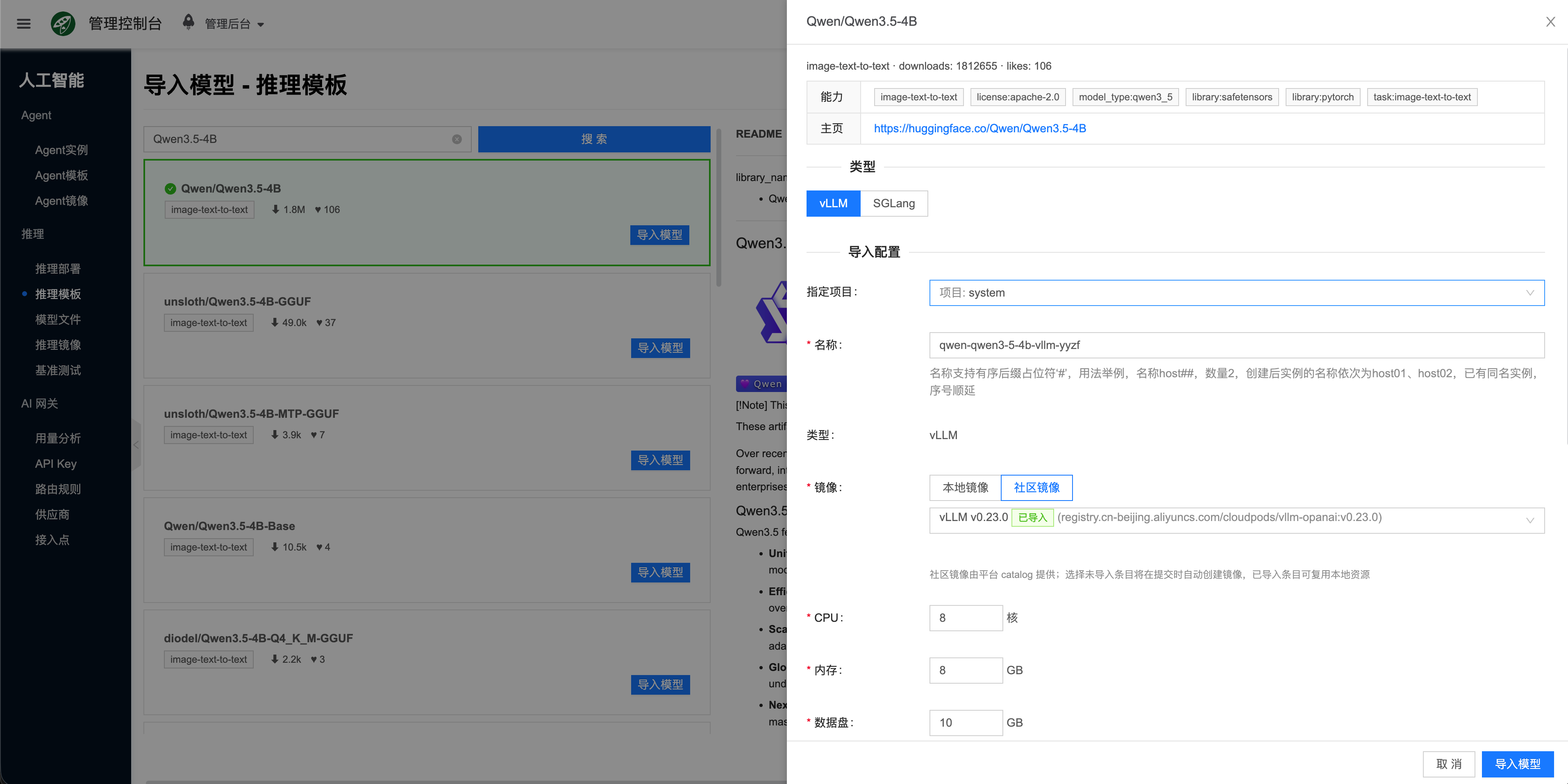
- Project: Project that owns the template; usually read-only when editing.
- Name: Template name; supports ordered
#suffixes; usually read-only when editing. - Type: Inference engine type; must match image and mounted model. When importing from Hugging Face / ModelScope / local path, choose vLLM or SGLang in Import Config (default vLLM); usually read-only when importing from the model catalog or editing an existing template.
- Image: Inference container runtime image. On import, choose source:
- Local image: An inference image already present in the environment.
- Community image: An image from the platform catalog; if missing locally, the platform can create / pull it on submit.
- When Editing: pick a matching type from existing Inference Images.
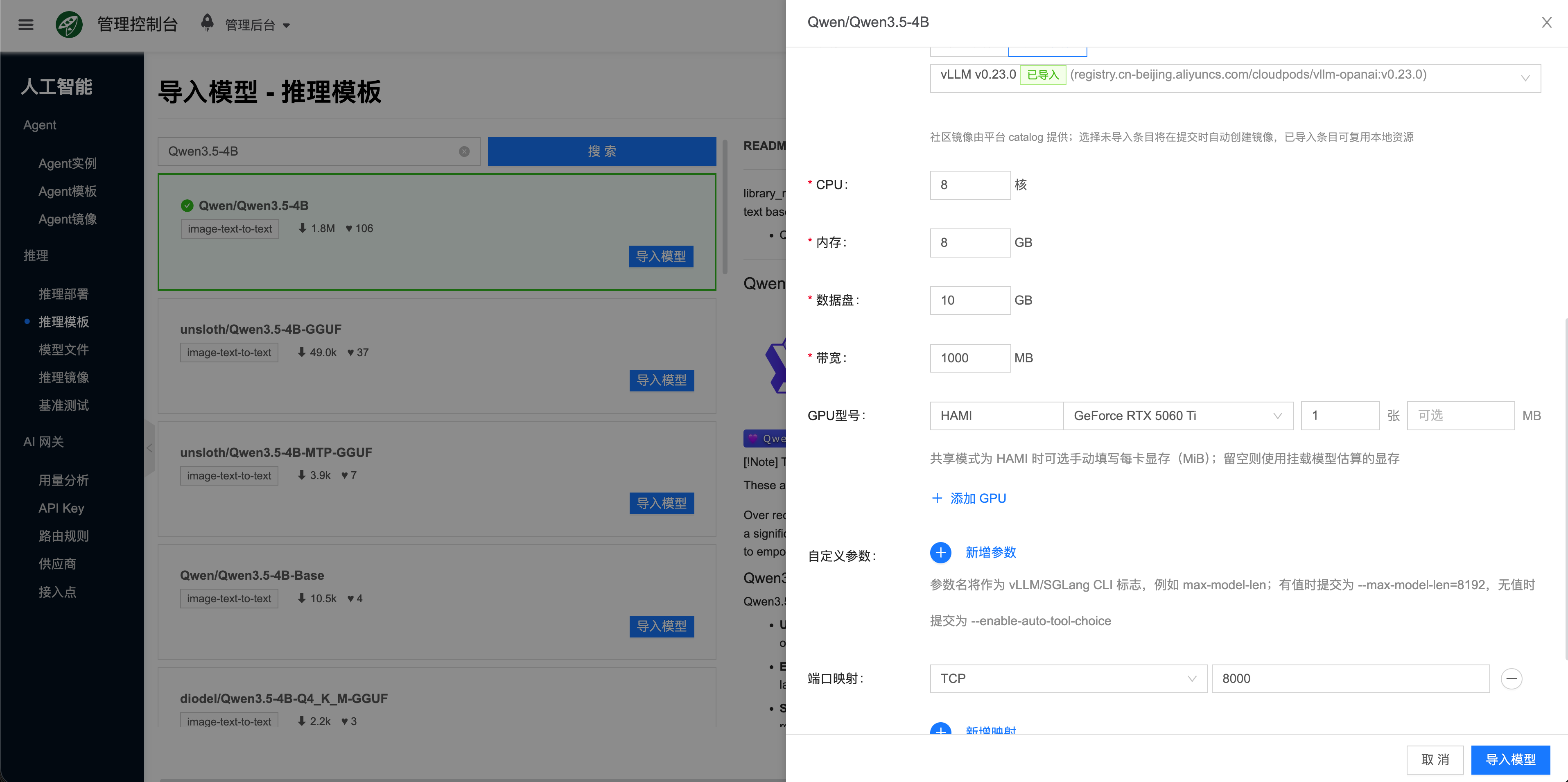
- CPU: Container CPU limit (cores).
- Memory: Container memory limit.
- Data disk: Container data-disk size. Models are mounted via overlay sharing and do not consume data-disk capacity; the disk is mainly for cache and temporary runtime data.
- Bandwidth: Network bandwidth limit.
- Model: Model data mounted on the template, determined by the Import Model entry (see below).
- Custom parameters: Extra CLI / engine parameters (if any).
- GPU model: GPU device config (sharing mode, model, count). Count is the number of GPUs occupied. Common sharing modes:
- HAMI: Shared GPU scheduling; can limit per-GPU VRAM (MiB). Fill manually or leave empty to estimate from the mounted model. After the deployment is ready, you can verify HAMI VRAM limits.
- Exclusive: Whole GPU dedicated to the workload.
- Unlimited: No HAMI-style VRAM slicing.
- MPS: NVIDIA MPS for multi-process GPU sharing.
- Port mapping: Container listen ports; the system allocates and maps external ports.
- vLLM defaults to TCP 8000; keep the default unless using a custom image with a different listen port.
- SGLang defaults to TCP 30000; keep the default unless using a custom image with a different listen port.
- For custom images, follow the image documentation for container ports.
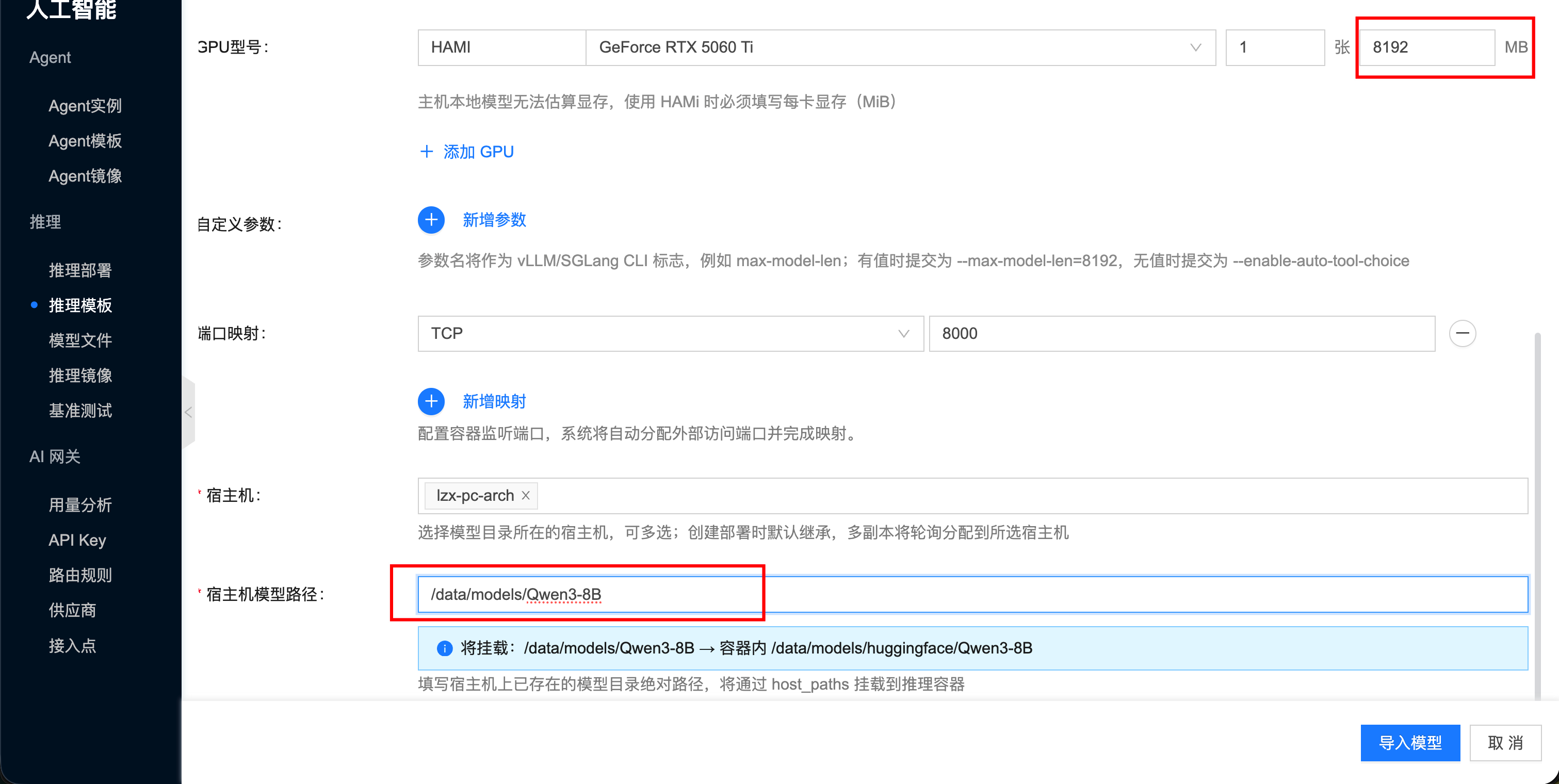
- Host path mount: Map a host directory into the container (optional; often used with local-path import).
Import from model catalog
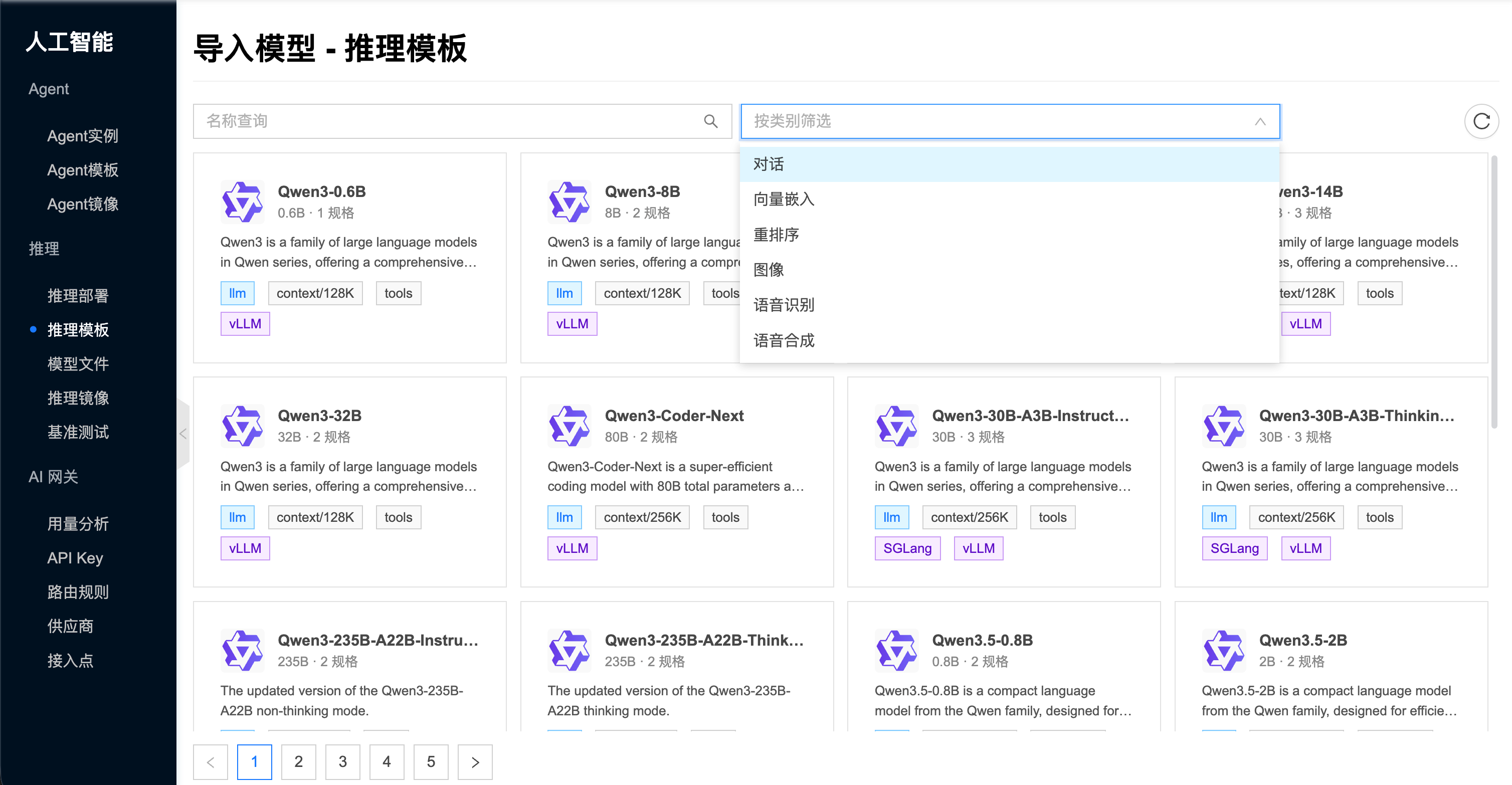
Search and pick a model from the platform model catalog, then choose a spec under that model (engine backend, quantization, source, etc.), configure image and resources, and submit to generate a template with the model mounted. Field meanings are as above.
Import from Hugging Face
Search Hugging Face online, choose vLLM or SGLang in import config, and generate mountable resources plus a template. Nodes must reach Hugging Face. Field meanings are as above.
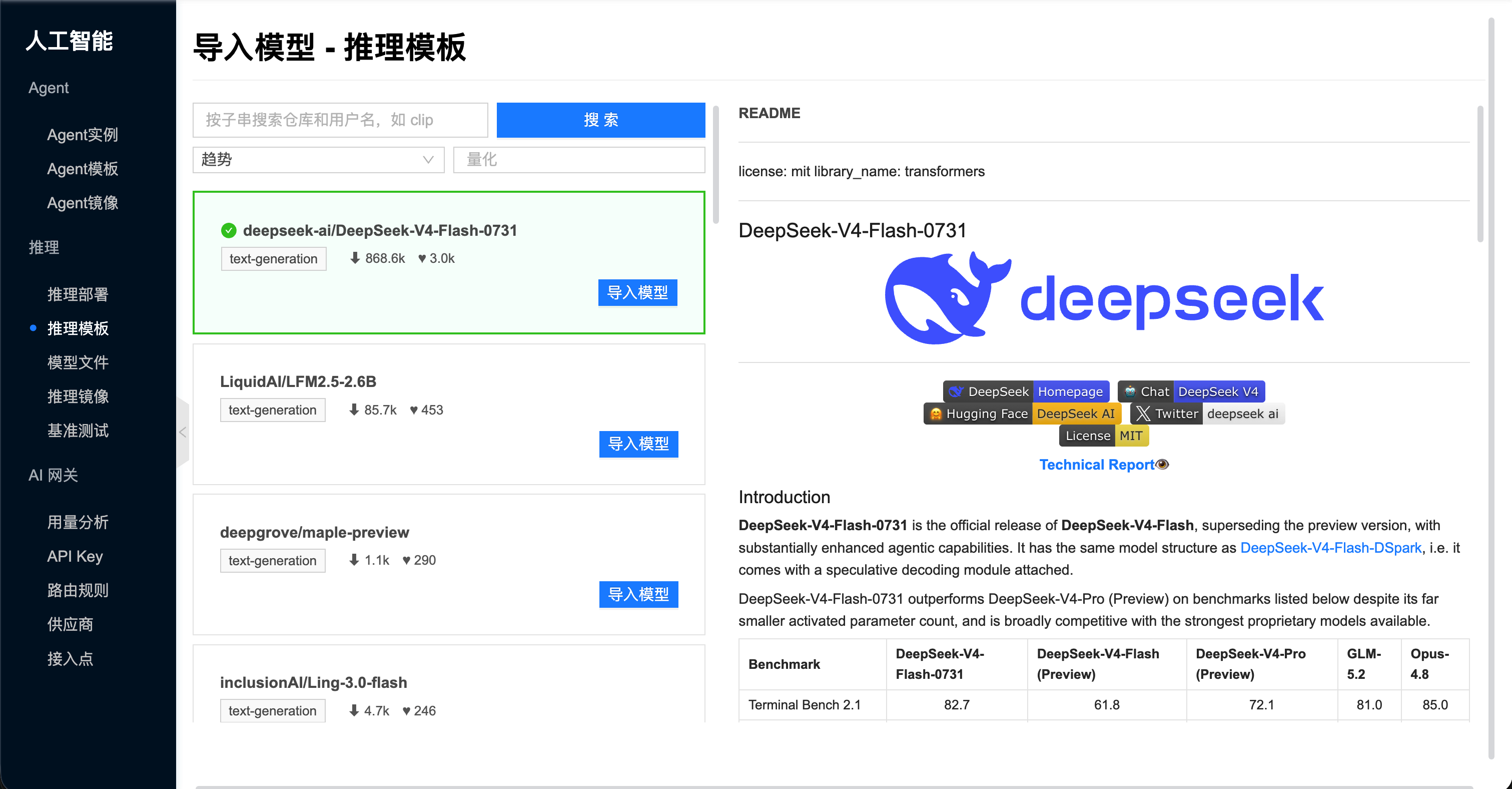
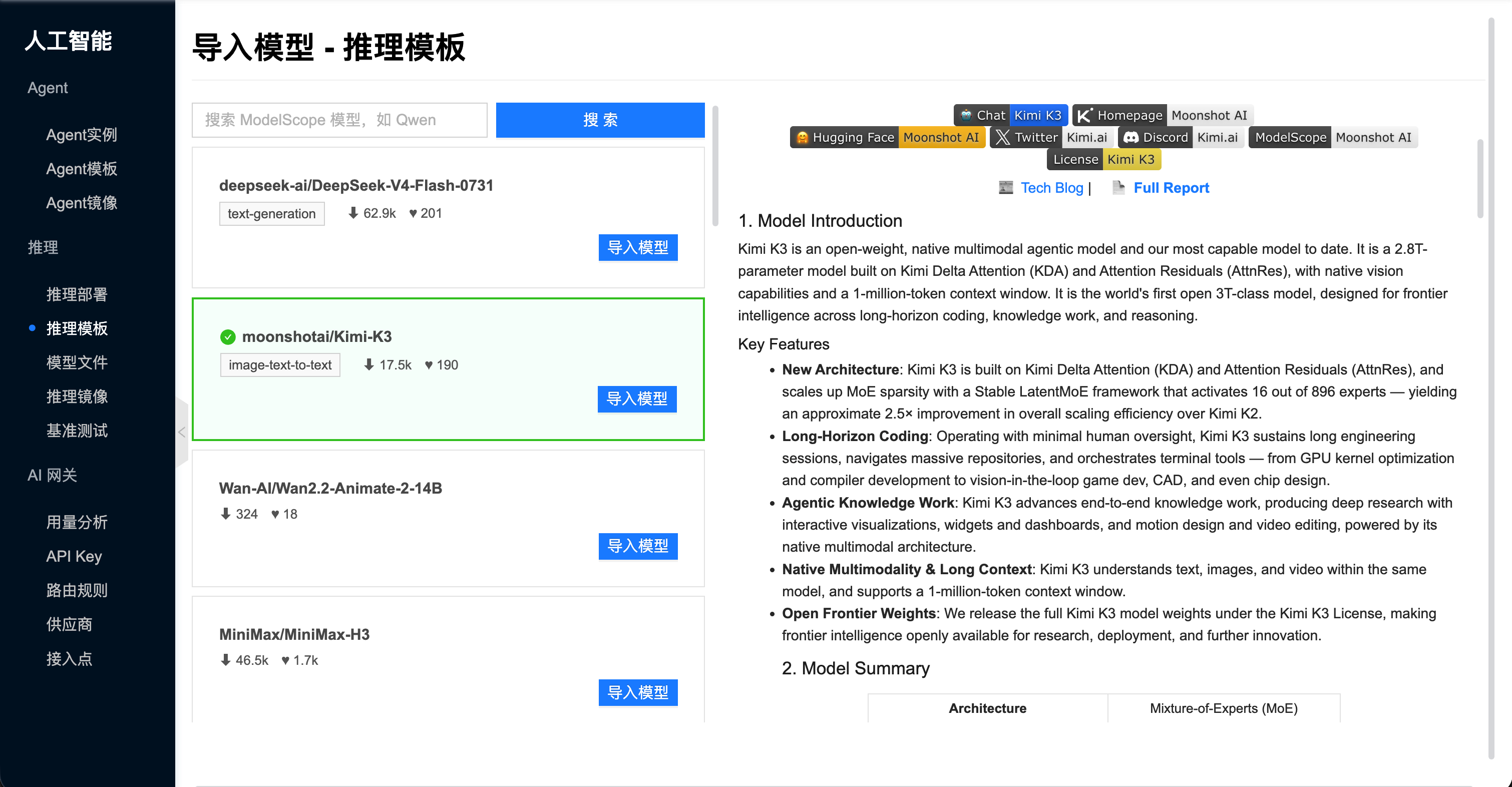
Import from ModelScope
Select a model from ModelScope, choose vLLM or SGLang, and generate a template with the model mounted (convenient for mainland China access). Field meanings are as above. Steps: Quick Start / Import from ModelScope.
Import from local path
Import a model already on the host filesystem. Provide an absolute host model path and optionally prefer a host for scheduling; combine with Host path mount to map the directory into the container. Field meanings are as above.
For local-path imports with HAMI shared VRAM, fill in the VRAM limit manually.
View Details
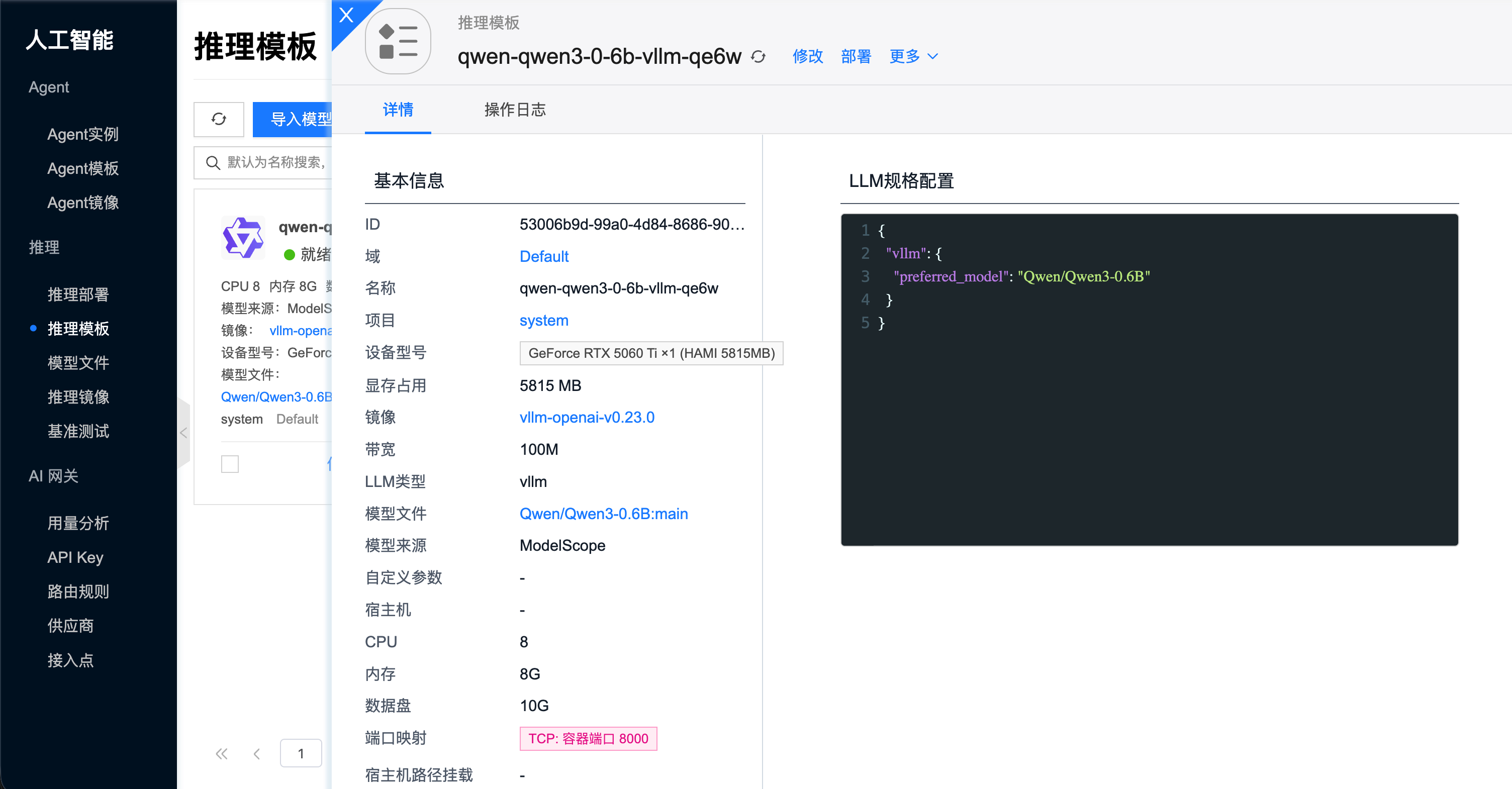
The list shows card status (e.g. Ready vLLM), resource specs, image, model source, and mounted models. Sidebar tabs commonly include:
- Details: Type, image, CPU/memory/GPU, data disk, mounted models, ports, etc.
- Operation logs: Import, edit, and related task events.
Other Operations
- Clone: Copy all specs from an existing template (type, image, CPU/memory/GPU, mounted models, source, custom parameters, etc.) and only set a new name. Mounted models are reused without re-download. Templates that are importing or failed to import cannot be cloned.
- Deploy: Jump to create an inference deployment with this template preselected.
- Edit: Adjust image, specs, mounted models, ports, etc. After saving, restart deployments that use the template for changes to take effect (see Inference Deployments / Common Operations).
- Change project / Set sharing scope: As needed for project and visibility management.
- Delete: Confirm no dependent deployments before deleting.
FAQ
Template save failed: image or model type mismatch
Check that template type, Inference Image, and Model Files belong to the same engine.
Template saved, but deployment scheduling failed
Check node GPU, VRAM, CPU, memory, and data disk; if a host is specified, confirm that host has allocatable resources.
Edited the template, but existing deployments did not change
Editing a template does not hot-update running replicas. Open the Inference Deployment and restart so the new config applies. New deployments use the latest template directly.
How to size the data disk
Models are overlay-mounted; model files do not consume the data disk. Reserve space for runtime cache and temporary files; too small a disk can fill up.
Import and deploy troubleshooting: Quick Start / FAQ.