Inference Model Library

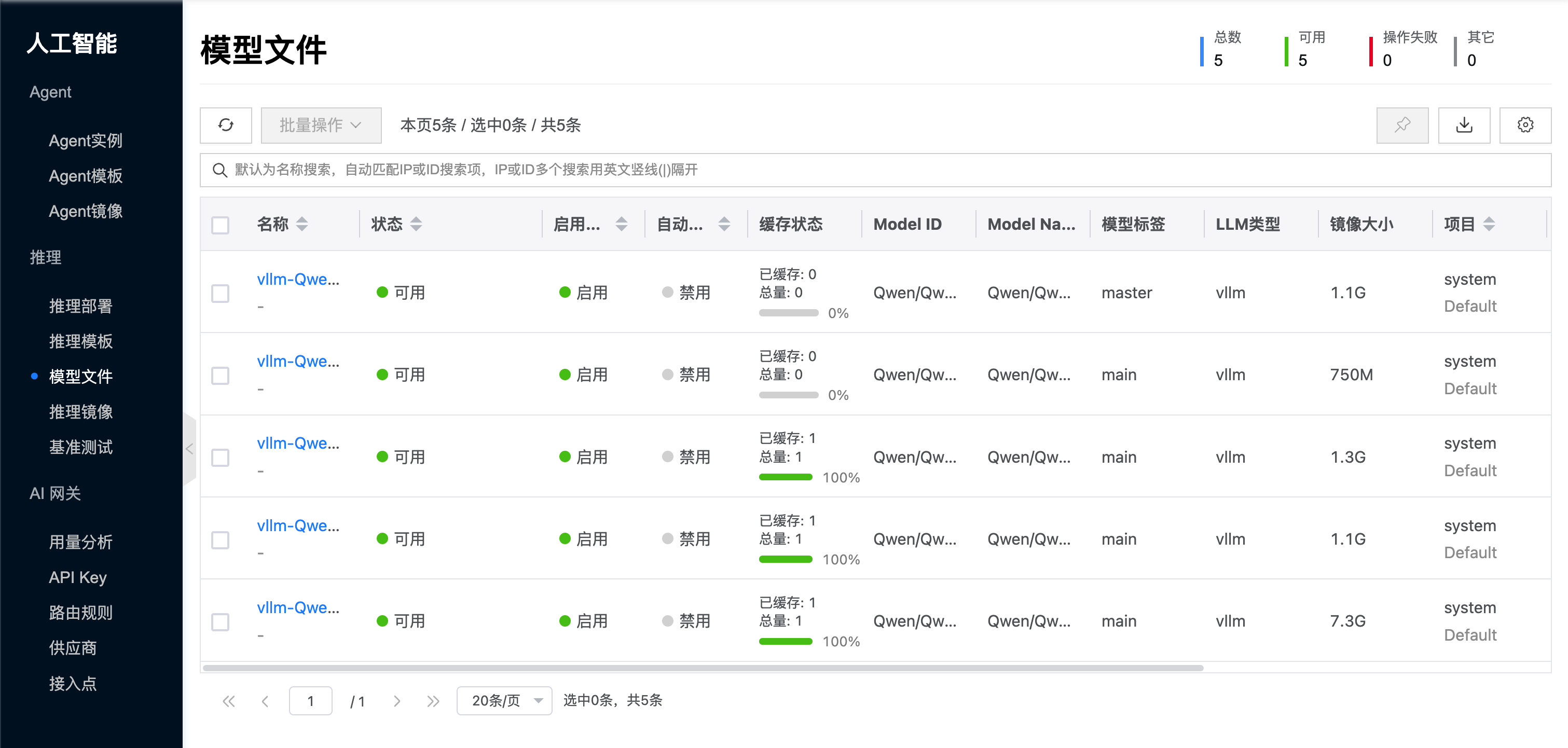
The inference model library is used to consolidate model data needed by inference instances into reusable, mountable, and cacheable model entries within the platform. This document currently focuses on the Ollama scenario as the main thread. It is responsible for centrally managing model sources, versions, model data images, and mount relationships, but does not directly provide inference interfaces.

If you want multiple inference templates or inference instances to reuse the same model, or need to prepare models in advance in intranet, offline, or controlled environments, using the inference model library is the more reliable approach. The console provides a default entry for the inference model library; whether you can directly select a model on the template or instance page depends on whether the model library already has an available model entry matching the current type.

Quick Start

Using the inference model library generally involves the following steps:

  1. Go to AI > Inference > Inference Model Library in the console.
  2. Create the target model entry via Import Community Model or Save from Model Instance.
  3. Wait for model data preparation to complete, and enable auto-caching as needed.
  4. Select the model to mount in the Inference Template or Ollama instance.
  5. After creating the instance, verify whether the model has been successfully loaded via ollama list or /api/tags.

When to Use the Model Library

The following scenarios are well-suited for preparing models through the model library:

  • Template Pre-mounting: Prepare models before creating an Inference Template, so subsequent new instances can directly reuse them.
  • Multi-instance Reuse: The same model is repeatedly used by multiple Ollama instances, avoiding each instance downloading it separately.
  • Version Governance: Unify model sources, versions, and default usage scope to reduce troubleshooting costs from "same model name but different versions".
  • Offline or Intranet Scenarios: Package models into the platform first, then distribute them to nodes that need them.
  • Reduce First Startup Wait: Combined with auto-caching, sync commonly used models to nodes in advance.

Problems Solved by the Model Library

The inference model library primarily addresses the following types of problems:

  • Unified Source: Consolidates community models, existing model data, or platform images into a single management entry point.
  • Unified Versioning: Model names, tags, images, and mount relationships are trackable, facilitating upgrades, rollbacks, and difference comparisons.
  • Reuse and Caching: After a model is imported once, it can be reused by multiple templates and instances, and combined with node caching to reduce startup wait times.
  • Permissions and Compliance: Model entries and their associated model data images are subject to platform project, sharing, and public scope constraints.

Two Import Methods

The console currently supports two primary methods for preparing models.

Import from Community Models

"Import Community Model" is suitable for the following situations:

  • The node can access community model sources, and you want the platform to automatically download and package them.
  • You want the platform to convert community models into reusable model library entries, rather than repeatedly pulling them online in each instance.
  • You later want to apply auto-caching, template pre-mounting, and version governance to these models.

After import, the platform first downloads the community model to a temporary directory, then automatically packages it into a model data image and fills it back into the model library entry. Subsequent template or instance mounting no longer depends on real-time online downloading.

tip

For production environments, intranet environments, or frequently reused models, it is recommended to import through the model library rather than having each instance download online during its first startup.

Save from Model Instance

"Save from Model Instance" is suitable for the following situations:

  • You have already pulled and verified a model in an Ollama instance via ollama pull.
  • You want to consolidate the currently available model in the instance as a reusable model entry within the platform.
  • You want to debug a model in a single instance first, then reuse it across other templates and instances.

The recommended workflow is:

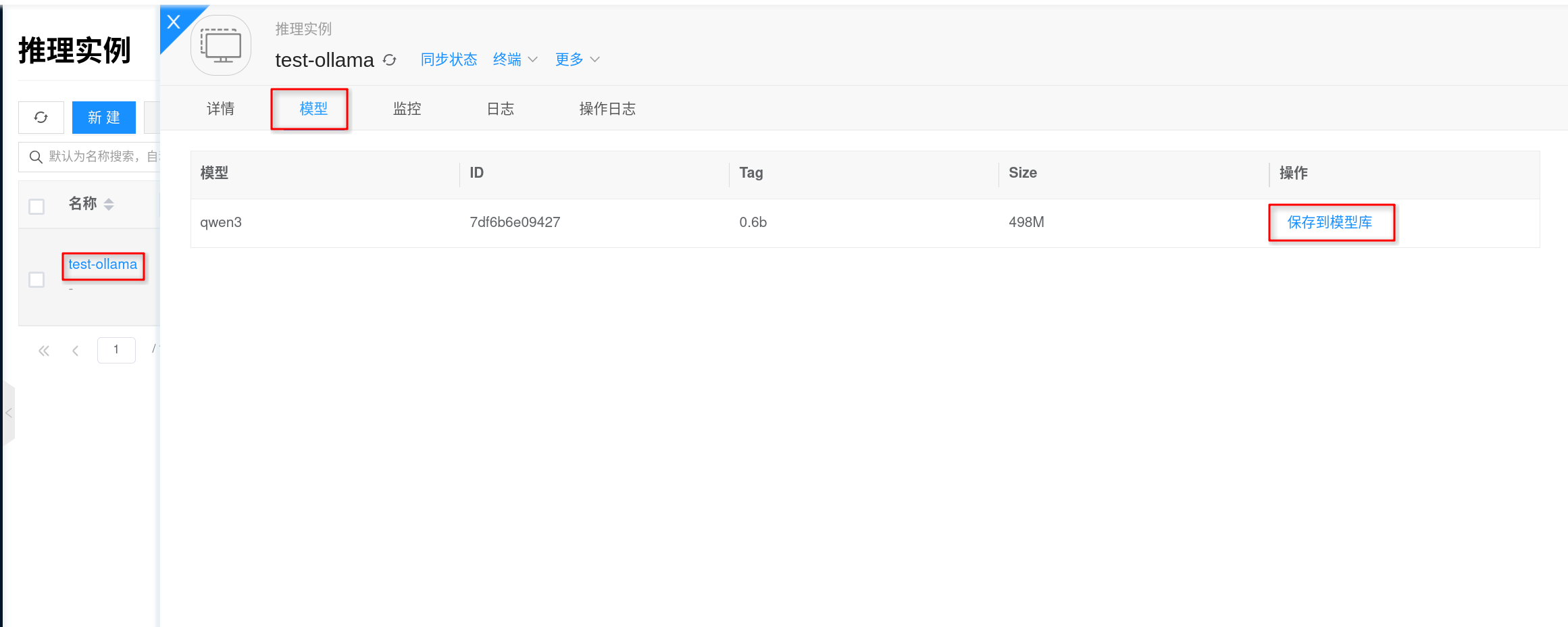
  1. Go to AI > Inference > Inference Instances and open the target test-ollama instance.
  2. On the instance details page, switch to test-ollama > Models and confirm the target model appears in the list.
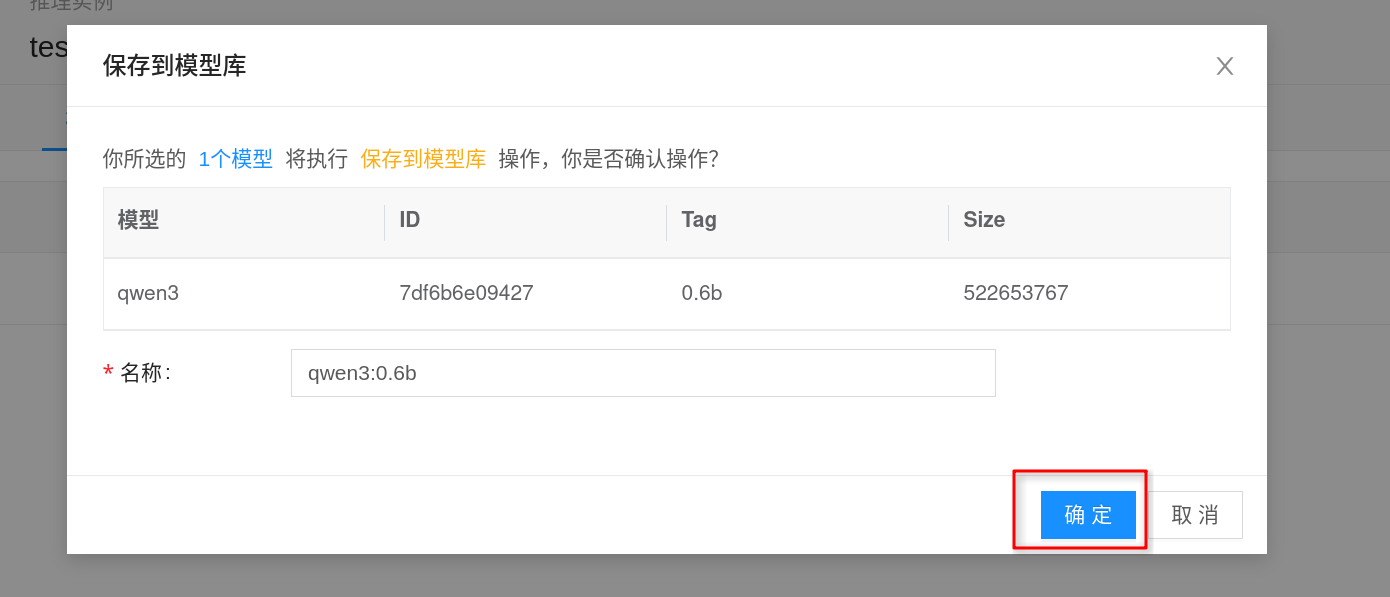
  3. Click Save to Model Library on the right side of the target model, fill in the name, version, and other information as prompted, and save.

After saving, this model can be directly selected in other Ollama inference templates or inference instances, without needing to manually run ollama pull again.

Relationship with Ollama and Inference Templates

The relationship between the inference model library and runtime can be understood as the relationship between the "model asset layer" and the "inference runtime layer":

  • Inference Model Library: Responsible for preparing, managing, and distributing model data.
  • Inference Templates: Responsible for combining images, specifications, and models into a standard runtime configuration.
  • Inference Instances: Responsible for actually starting the Ollama service and loading models into the runtime.

Therefore:

  • The model library addresses "where models come from, how to reuse them, and how to cache them".
  • Ollama addresses "how models are loaded and served for inference".

If you are more interested in runtime configuration itself, continue reading:

Operations Notes

Network and Offline Preparation

  • Ollama community model import depends on access to the corresponding model sources.
  • If outbound network access is restricted in your environment, it is recommended to first pull models in an Ollama instance that can access model sources, then consolidate them via "Save to Model Library" as reusable entries.

Cache and Disk Planning

  • Models in the model library ultimately correspond to a model data image.
  • After enabling auto-caching, node-side cache replicas will consume additional space.
  • If a template mounts multiple models, or a model is repeatedly scheduled across multiple nodes, disk planning should be more conservative than single-instance online downloading.

Type Consistency

  • The types of model, template, and image must all be consistent.
  • If you encounter issues like "the model has been imported but cannot be selected in the template", first check whether the types match.

Version Management

  • It is recommended to clearly manage model names and tags to avoid duplicate imports of the same model under similar names.
  • For Ollama, the model name used in requests should still be consistent with the version in the model library.

Deletion and Changes

  • Models already referenced by templates or instances should not be directly deleted.
  • If you need to replace a model version, it is usually better to add a new version entry and gradually switch the template or instance references.
  • For long-term reused models, it is recommended to manage them together with template and image versions, rather than frequently modifying the same entry.

FAQ

Community model import is slow or fails

First check the following:

  • Whether the node has network connectivity to the model source.
  • Whether bandwidth is sufficient, and whether there are proxy or firewall restrictions.
  • Whether the target model itself is too large, causing long download and packaging times.
  • Whether data disk space is sufficient to accommodate temporary downloads, model images, and subsequent caches.

If the environment does not support direct online import from the model library, it is recommended to first complete ollama pull in a network-connected Ollama instance, then consolidate it via "Save to Model Library" for reuse.

Why are there no selectable models on the template or instance page?

Typically check the following:

  • There are no model entries in the current model library matching the template or instance type.
  • The model data image is not fully prepared yet, and the entry is temporarily unavailable.
  • The model type and template type are inconsistent.

Model has been imported successfully, but why can't it be used in the template?

Typically check the following:

  • The model type and template type are inconsistent.
  • The model data image is not fully prepared yet.
  • The model has been replaced, disabled, or the reference relationship has not been refreshed.
  • You did not actually select a template containing that model when creating the instance.

After mounting from the model library, why is the model still not visible in the instance?

First check whether the mount relationship has taken effect and whether the instance has completed startup and warmup.

If the issue persists, enter the instance and run ollama list, and check the logs to confirm whether there are mount failures, insufficient VRAM, or startup anomalies.

Why is startup still slow after using the model library?

Even if the model is already in the model library, the first startup may still be slow. Common reasons include:

  • The node does not yet have a local cache of this model data image.
  • The model is large, and the first mount and extraction take time.
  • Data disk or node storage performance is slow.
  • Instance startup also involves model probing, service initialization, and GPU warmup.

If this is a frequently used model, it is recommended to use auto-caching and template pre-mounting together.

Why does disk usage keep growing?

Disk growth usually comes not only from model files themselves, but also from:

  • Model data images
  • Node-side cache
  • The inference engine's own cache directory
  • New model versions accumulating while old versions are not cleaned up

It is recommended to periodically review model versions that are no longer in use and check whether templates and instances are still referencing the corresponding entries.