Notification Channel Settings
Notification channels are used to configure ways to receive platform message notifications. Currently supports email, SMS, DingTalk, Feishu, Enterprise WeChat and other channels.
The process for users to receive platform messages is as follows:
- Configure email, SMS, DingTalk, Feishu, Enterprise WeChat and other notification channels in notification channels.
- Create recipients in recipient management and enable email, SMS, DingTalk, Feishu, Enterprise WeChat and other notification channels for users.
- Message notifications in the platform, such as alert messages, when recipients are selected to receive alert messages, will push messages to users through email, SMS, DingTalk, Feishu, Enterprise WeChat and other notification channels.
Entry: In the cloud management platform, click the navigation menu in the upper left corner, and click the "System Configuration/Message Center/Notification Channel Settings" menu item in the pop-up left menu bar to enter the notification channel settings page.
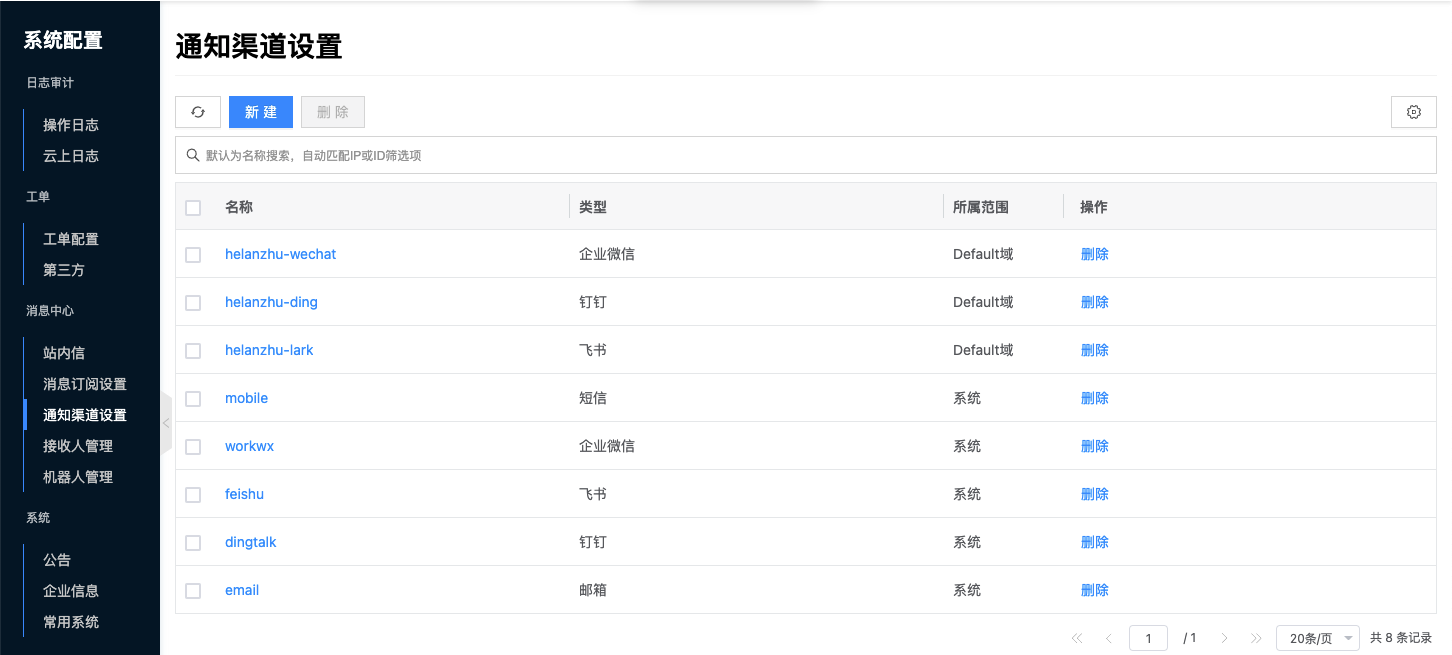
Create Notification Channel
This function is used to set notification channels for the platform.
- On the notification channel settings page, click the "Create" button above the list to enter the create notification channel page.
- Configure the following parameters:
- Ownership: Set the ownership of the notification channel. When the notification channel belongs to the system, it is globally available; when the notification channel belongs to a domain, it is available under the domain; email and SMS are only allowed to belong to the system, DingTalk, Feishu, Enterprise WeChat can belong to the system or domain. When DingTalk, Feishu, Enterprise WeChat are configured in both system and domain, the domain configuration takes precedence.
- Name: Name of the notification channel.
- Type: Including email, SMS, DingTalk, Feishu, Enterprise WeChat. Configure corresponding parameters after selecting different types.
- When type is "Email", configure the following parameters:
- SMTP Server: Set the server address for sending emails.
- SSL: Whether to connect to the SMTP server through SSL encryption.
- Port: Configure port number, default is 465.
- Username: Set the username for connecting to the email server.
- Password: Set the user password for connecting to the email server.
- Sender Email: Configure the sender email address for sending emails.
- When type is "SMS", configure the following parameters:
- Access key ID/Secret: Key information for connecting to Alibaba Cloud SMS platform. For how to obtain, please refer to Alibaba Cloud SMS Parameter Steps.
- Signature: Generally the company abbreviation, need to obtain corresponding information in Alibaba Cloud Platform -> Products & Services -> SMS Service -> Signature Management.
- Domestic Message Template: When sending messages domestically, need to configure corresponding message templates. Currently supports verification code, alert template and abnormal login template.
- International Message Template: When sending messages internationally or to Hong Kong, Macao and Taiwan, need to configure corresponding message templates. Currently supports verification code, alert template and abnormal login template.
- When type is "DingTalk", configure the following parameters:
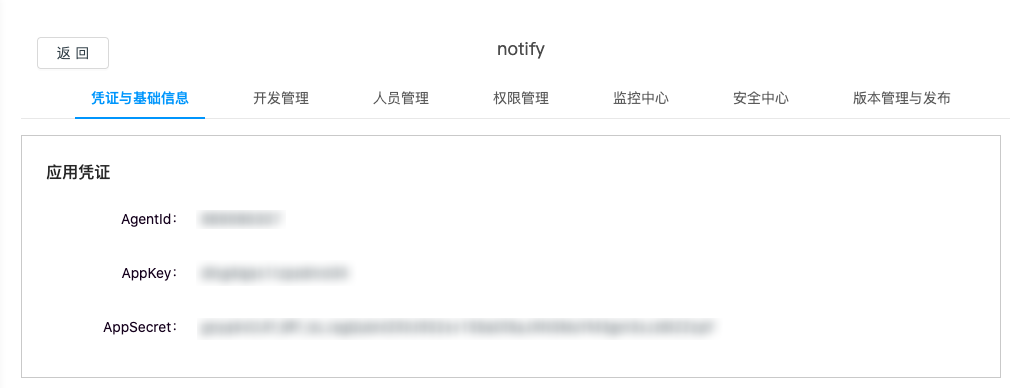
- AgentId: When creating an application, the system will automatically generate an AgentId, which can be used for scenarios such as sending enterprise session messages. For how to obtain, please refer to DingTalk Platform Parameter Steps.
- AppKey: When creating an application, the system will automatically assign a pair of AppKey and AppSecret. This AppKey is the unique identifier in the application development process.
- AppSecret: AppSecret is generated together with the above AppKey, used together with AppKey and AppSecret to exchange for access_token.
- When type is "Feishu", configure the following parameters:
- AppId: Application id identifier. For how to obtain, please refer to Feishu Platform Parameter Steps.
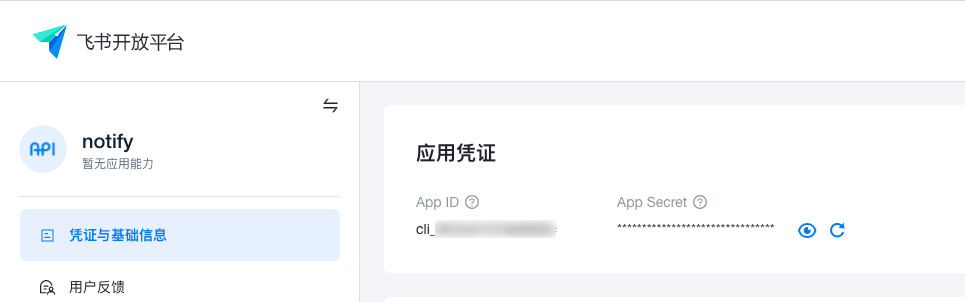
- AppSecret: Application secret key, generated by Feishu Open Platform when creating the app, can be used to obtain app_access_token. Can be viewed in Application Details Page > Credentials & Basic Information > Application Credentials module.
- When type is "Enterprise WeChat", configure the following parameters:
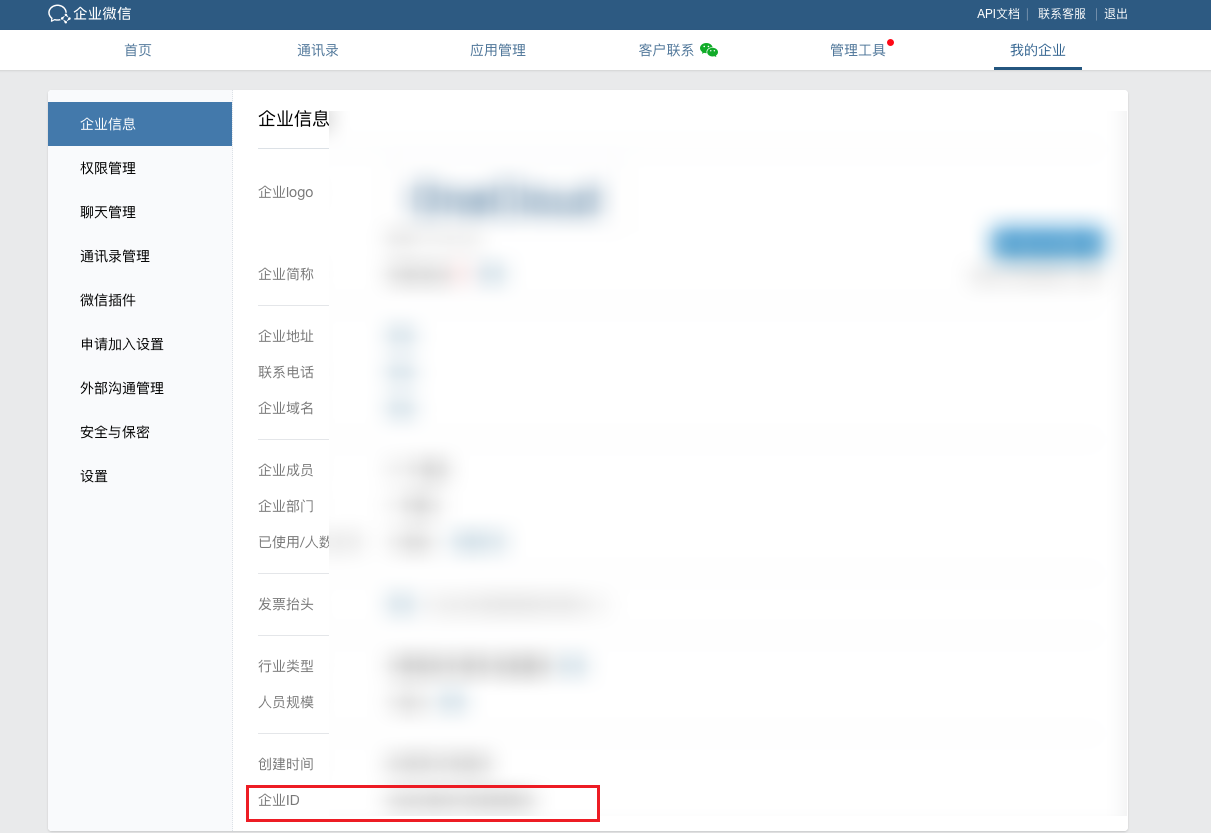
- Enterprise ID: Used to identify the enterprise. For how to obtain, please refer to Enterprise WeChat Platform Parameter Steps.
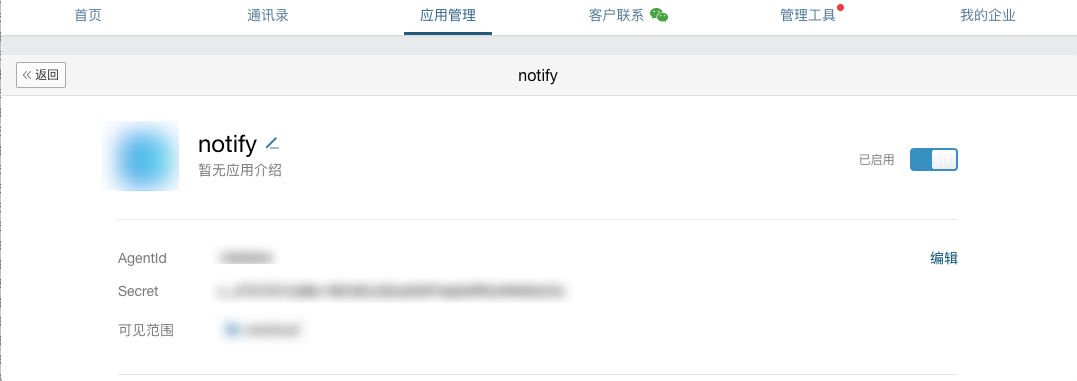
- AgentId: Application id identifier.
- Secret: Application secret key.
- When type is "Email", configure the following parameters:
- After configuration is complete, click the "Connection Test" button to test the connectivity between the cloud management platform and the notification channel.
- After the connection test is successful, click the "OK" button.
Alibaba Cloud SMS Parameter Steps
Before configuring SMS service, you need to purchase SMS service on Alibaba Cloud platform to obtain Access Key ID, Access Key Secret, and configure SMS templates on Alibaba Cloud platform.
- Obtain Access Key ID/Access Key Secret:
- Log in to Alibaba Cloud Console, click the "User Avatar" icon in the upper right corner of the page, select the "accesskeys" menu item from the dropdown menu to enter the security information management page.
- Obtain Access Key ID and Access Key Secret. If they don't exist, you can click the "Create Accesskey" button to create an AccessKey.
- Configure Signature:
- Log in to Alibaba Cloud Console, click the "Products & Services/SMS Service" menu item in the left menu bar to enter the SMS service console.
- Configure signature in the signature management page of domestic SMS or international/Hong Kong, Macao and Taiwan messages. Signature is generally the company abbreviation.
- Configure SMS Template:
- Log in to Alibaba Cloud Console, click the "Products & Services/SMS Service" menu item in the left menu bar to enter the SMS service console.
- Configure SMS templates in the template management page of domestic SMS or international/Hong Kong, Macao and Taiwan messages. It is recommended to use the following three template formats. After creation, obtain the template CODE, such as SMS_126462297.
| Name | Format | Description |
|---|---|---|
| Verification Code | Template Type: Verification Code Template Content: Your registration code: ${code}, if this is not your operation, please ignore this SMS! | SMS verification code template |
| Alert Template | Template Type: SMS Notification Template Content: ${alert_name} of ${type} triggered an alert, please log in to the platform to view in time. | SMS alert template |
| Abnormal Login | Template Type: Account ${user} under ${domain} domain has been locked due to abnormal login, please verify the situation. | SMS alert template |
Huawei Cloud SMS Parameter Steps
Before configuring SMS service, you need to purchase SMS service on Huawei Cloud platform to obtain Application_Key, Application_Secret, App access address, and configure SMS signature, SMS templates on Huawei Cloud platform.
- Obtain Application Key, Application Secret, App Access Address:
- Log in to Huawei Cloud Console, click the "Messages & SMS MSGSMS" menu item in the service list on the left side of the page to enter the SMS console.
- Click Application Management in domestic SMS or international/Hong Kong, Macao and Taiwan SMS on the left, obtain Application_Key, Application_Secret and APP access address. If they don't exist, you can click the "Add Application" button to create an application and obtain.
- Configure Signature:
- Log in to Huawei Cloud Console, click the "Messages & SMS MSGSMS" menu item in the service list on the left side of the page to enter the SMS console.
- Click Signature Management page in domestic SMS or international/Hong Kong, Macao and Taiwan SMS on the left to configure signature. Signature is generally the company abbreviation.
- Configure SMS Template:
- Log in to Huawei Cloud Console, click the "Messages & SMS MSGSMS" menu item in the service list on the left side of the page to enter the SMS console.
- Click Template Management page in domestic SMS or international/Hong Kong, Macao and Taiwan SMS on the left to configure SMS templates. It is recommended to use the following three template formats. After creation, obtain template channel number and template Id, such as 8822082909133/d7001c8d7ada43cc917e0478e40583e5.
| Name | Format | Description |
|---|---|---|
| Verification Code | Template Type: Verification Code Template Content: Your registration code: ${code}, if this is not your operation, please ignore this SMS! | SMS verification code template |
| Alert Template | Template Type: SMS Notification Template Content: ${alert_name} of ${type} triggered an alert, please log in to the platform to view in time. | SMS alert template |
| Abnormal Login | Template Type: Account ${user} under ${domain} domain has been locked due to abnormal login, please verify the situation. | SMS alert template |
DingTalk Platform Parameter Steps
Taking creating a new application as an example, introduce how to create a new application on DingTalk Open Platform to receive platform message notifications.
For more information, please refer to DingTalk Official Documentation
-
Log in to DingTalk Open Platform as an administrator.
-
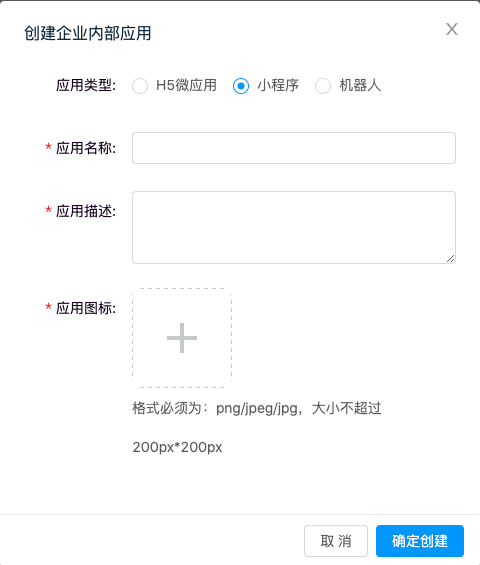
Create an application in the "Application Development" page under Enterprise Internal Applications - Mini Program page.
-
Set application type to "Mini Program", set application name, description, icon, etc. according to requirements, click the "OK Create" button.
-
Obtain application credentials on the "Credentials & Basic Information" page of the newly created application.
-
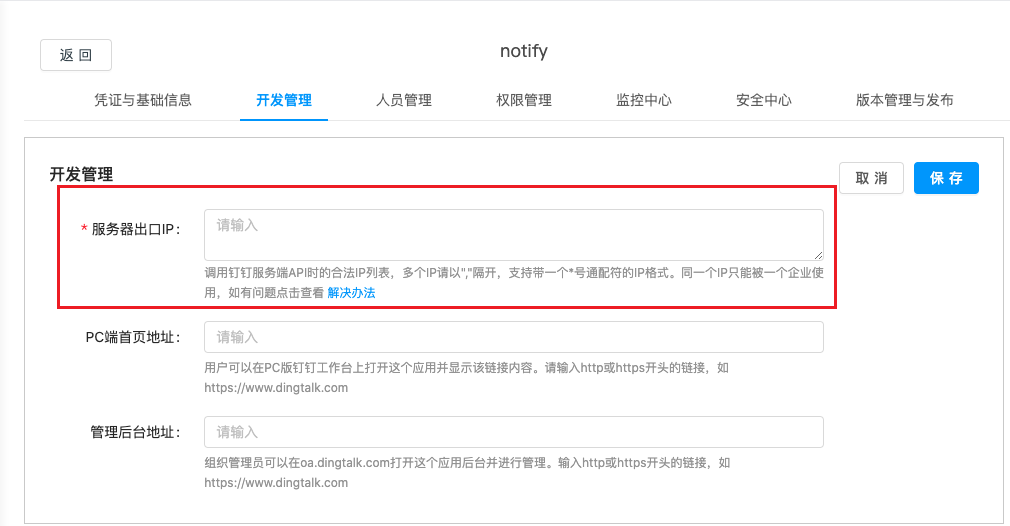
On the Development Management page, add the platform's external access IP to Server Exit IP.
-
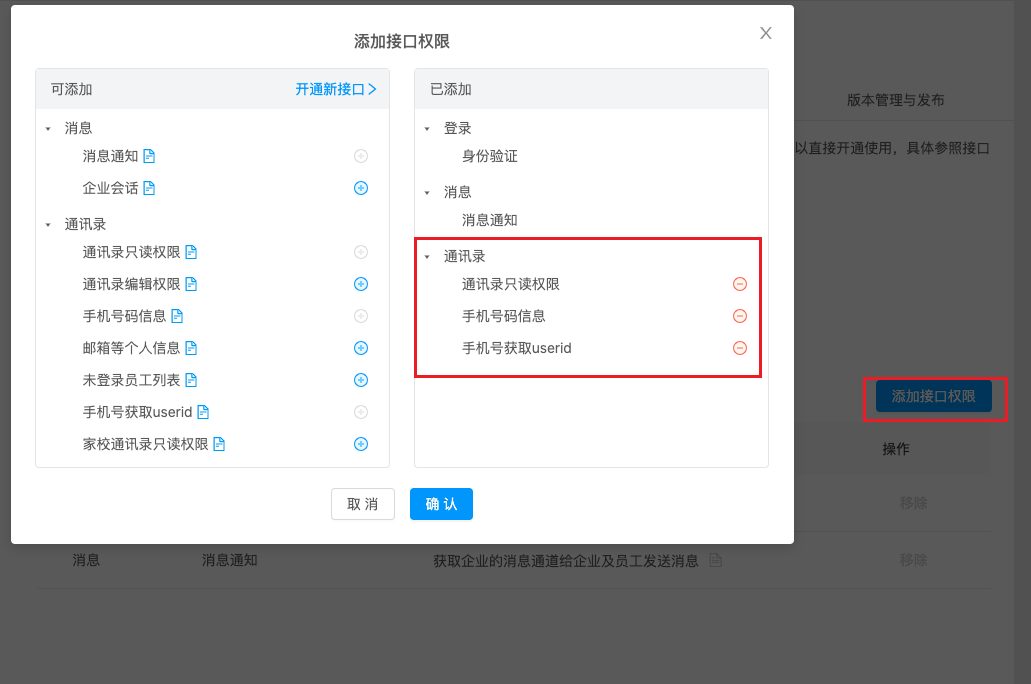
On the Permission Management page, it is recommended that the permission scope applies to "All Employees", or can be set according to requirements. Add interface permissions for the application as needed, at least add "Address Book Read-Only Permission", "Phone Number Information", "Get User ID by Phone Number", add other permissions as needed.
Feishu Platform Parameter Steps
Taking creating a new application as an example, introduce how to create a new application on Feishu Open Platform to receive platform message notifications.
For more information, please refer to Feishu Official Documentation
-
Enterprise users (no administrator user required) log in to Feishu Open Platform.
-
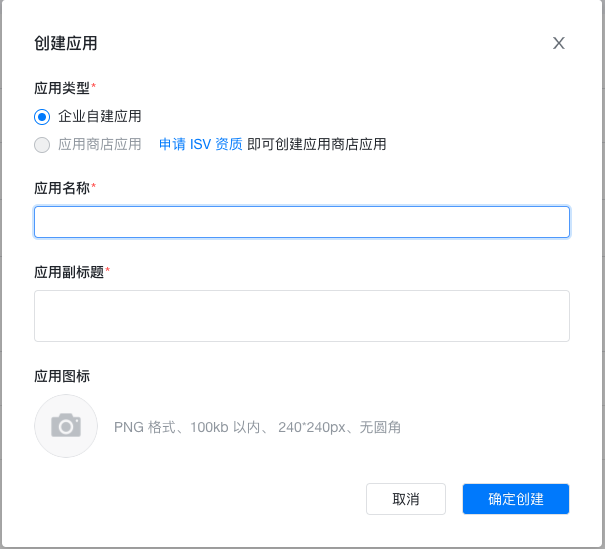
On the My Backend - Developer Backend page, create an enterprise self-built application.
-
Obtain application credentials on the "Credentials & Basic Information" page of the newly created application.
-
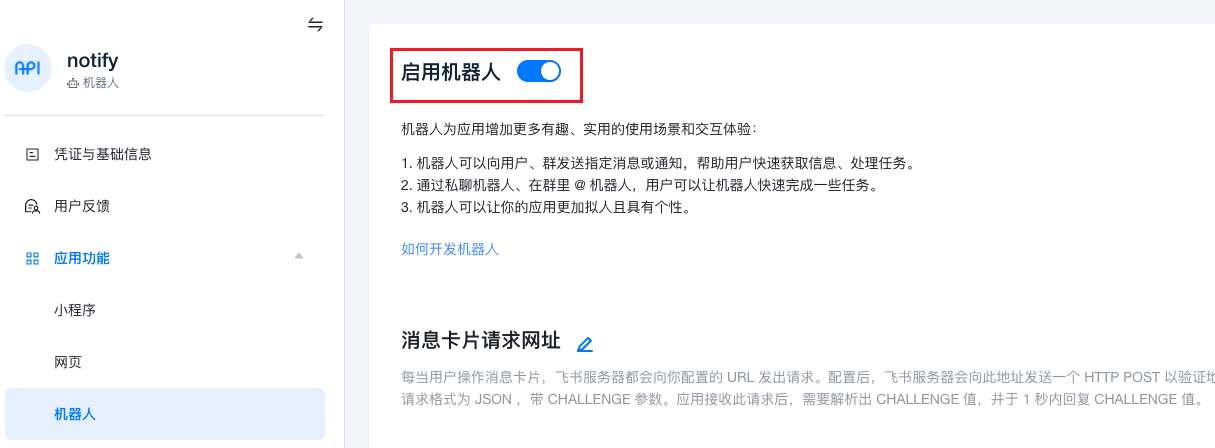
Enable notification channel in Application Features - Notification Channel.
-
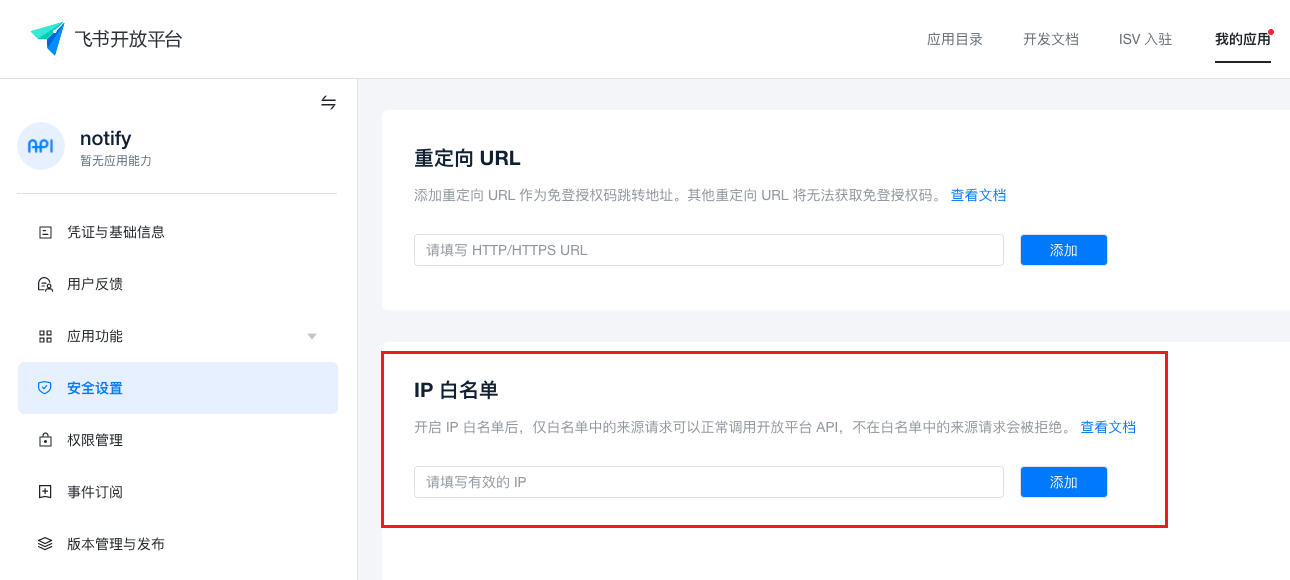
Add the platform's external access IP to IP whitelist in Security Settings.
-
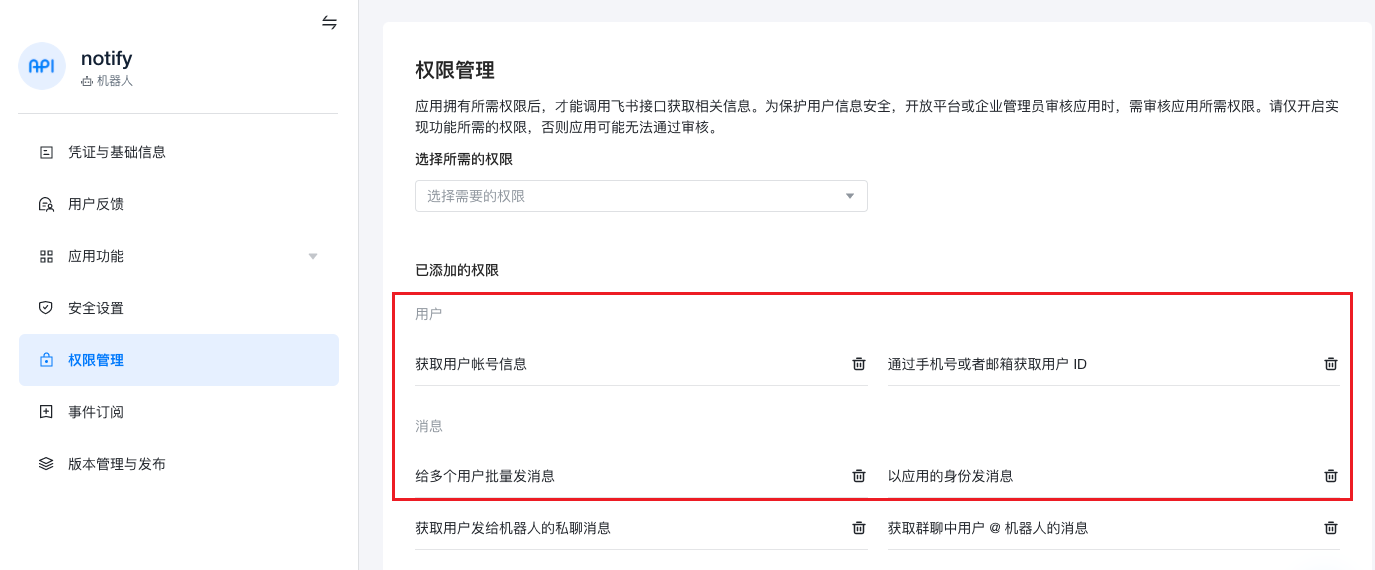
Add permissions for the application as needed in Permission Management, at least add "Get User Account Information", "Get User ID by Phone Number or Email", "Send Messages to Multiple Users in Batch", "Send Messages as Application", add other permissions as needed.
-
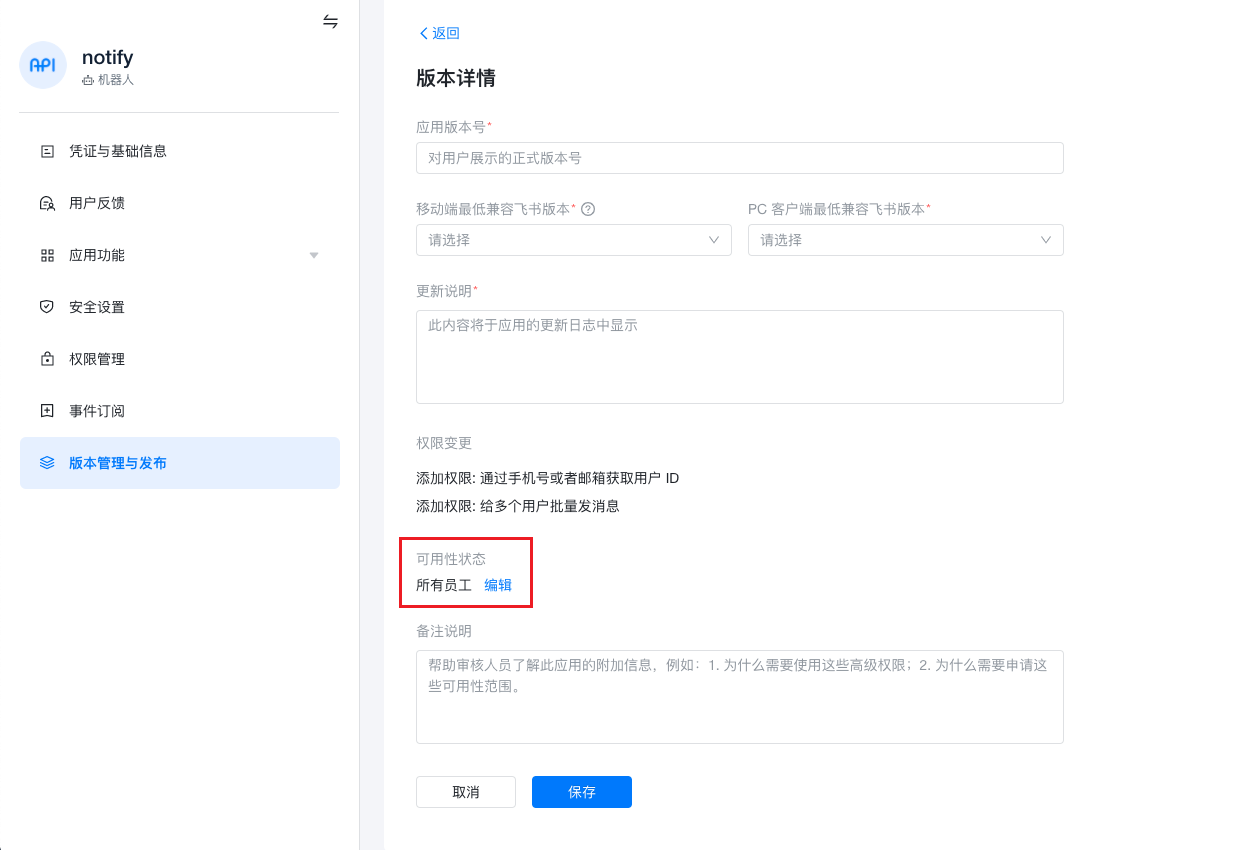
On the Version Management & Release page, create a version, configure relevant information, note to set availability status to "All Employees" or organizations applicable to the application, click the "Save" button, wait for administrator review and release the application.
Enterprise WeChat Platform Parameter Steps
Taking creating a new application as an example, introduce how to create a new application on Enterprise WeChat platform to receive platform message notifications.
For more information, please refer to Enterprise WeChat Official Documentation
-
Log in to Enterprise WeChat Management Backend as an administrator user
-
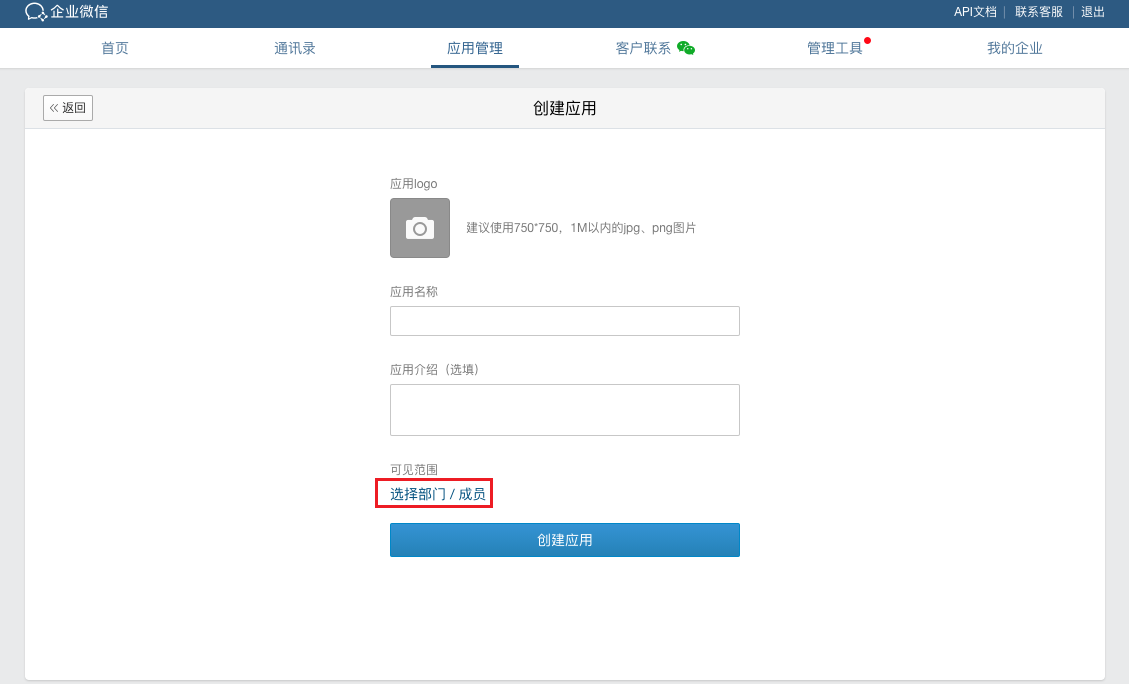
Under the Application Management tab, select Application - Create Self-Built Application, and configure the application's logo, name, application introduction and visible scope. It is recommended to set visible scope to "All Employees" or organizations applicable to the application.
-
Obtain AgentId and Secret information in Application Details.
-
Obtain Enterprise ID on the My Enterprise page.
Delete Notification Channel
This function is used to delete notification channels.
Delete
- On the notification channel settings page, click the "Delete" button in the operation column on the right side of the notification channel to pop up the operation confirmation dialog.
- Click the "OK" button to complete the operation.
Batch Delete
- Select one or more notification channels in the notification channel list, click the "Delete" button above the list to pop up the operation confirmation dialog.
- Click the "OK" button to complete the operation.
View Notification Channel Details
This function is used to view detailed information about notification channels.
- On the notification channel settings page, click the notification channel name item to enter the notification channel details page.
- View the following information:
- Basic Information: Including ID, name, type, ownership scope, creation time, update time.
- Configuration Information: Different types of notification channels have different configuration information.
- Email: Including SMTP server, port, username, SSL.
- SMS: Including Access Key ID, signature, domestic message template, international/Hong Kong, Macao and Taiwan templates, etc.
- DingTalk: Including AgentID, Appkey.
- Feishu: Including AppID.
- Enterprise WeChat: Including Enterprise ID, AgentID.
View Operation Logs
This function is used to view operation logs related to notification channels.
- On the notification channel settings page, click the notification channel name item to enter the notification channel details page.
- Click the "Operation Logs" tab to enter the operation logs page.
- Load More Logs: The list displays 20 operation log entries by default. To view more operation logs, click the "Load More" button to get more log information.
- View Log Details: Click the "View" button in the operation column on the right side of the operation log to view the log's detailed information. Supports copying detail content.
- View Logs for a Specific Time Period: To view operation logs for a certain time period, set specific dates in the start date and end date in the upper right corner of the list to query log information for the specified time period.
- Export Logs: Currently only supports exporting logs displayed on this page. Click the download icon in the upper right corner, set the export data columns in the pop-up export data dialog, click the "OK" button to export logs.