Message Subscription Settings
Message subscription settings are used to customize receiving message notifications caused by resource changes. Currently supports sending message notifications for resource creation, deletion, configuration adjustment, password changes, operation failures, expiration release, scheduled tasks, automatic snapshots, scaling policies, etc., and supports configuring recipients or robots to receive message notifications for resource messages.
Entry: In the cloud management platform, click the navigation menu in the upper left corner, and click the "System Configuration/Message Center/Message Subscription Settings" menu item in the pop-up left menu bar to enter the message subscription settings page.
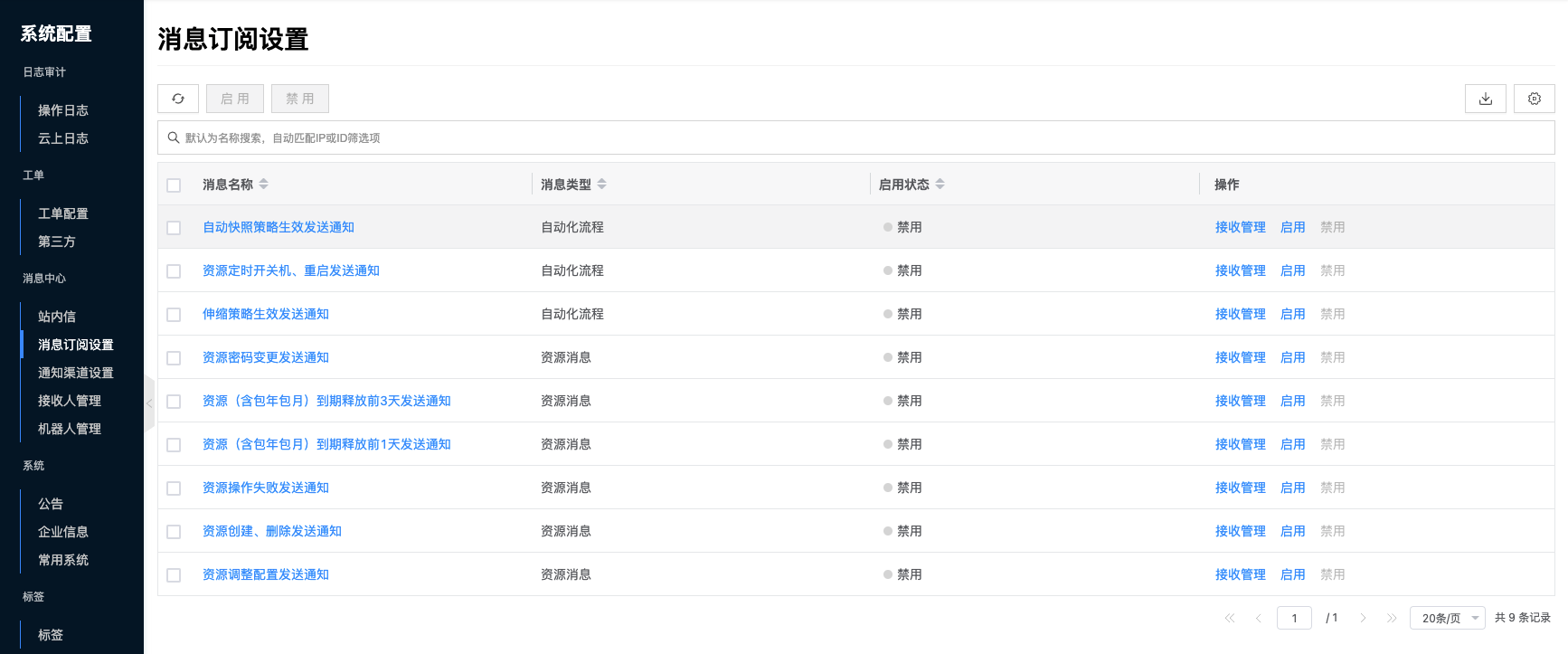
Recipient Management
This function is used to manage recipients or robots that receive message notifications.
Create Recipient
This function is used to create recipients or robots that receive message notifications.
All message subscriptions support admin roles of global resources receiving messages by default.
- On the message subscription settings page, click the "Recipient Management" button in the operation column on the right side of the message to enter the details - recipient management page.
- Click the "Create" button above the list to pop up the create recipient dialog.
- Configure the following parameters:
- Resource Scope: Limit the resource scope for sending message notifications.
- When resource scope is "System", all resource changes in the system will send message notifications.
- When resource scope is "Domain" and a specific domain is selected, only resource changes under the specified domain will send message notifications.
- When resource scope is "Project" and a specific project is selected, only resource changes under the specified project will send message notifications.
- Type: Select the type of message notification receiver, including recipient, role, robot.
- Recipient: When type is "Recipient", you need to select the user who receives resource message notifications.
- Role: When type is "Role", you need to specify the scope and role of the role.
- When scope is "Global", users with corresponding roles in the entire system will be notified.
- When scope is "Domain", users with corresponding roles under the domain where the resource is located will be notified.
- When scope is "Project", users with corresponding roles under the project where the resource is located will be notified.
- Robot: When type is "Robot", you need to select the robot that receives resource message notifications.
- Resource Scope: Limit the resource scope for sending message notifications.
- Click the "OK" button to complete the operation.
Modify Recipient
This function is used to modify recipients set in recipient management.
- On the message subscription settings page, click the "Recipient Management" button in the operation column on the right side of the message to enter the details - recipient management page.
- Click the "Modify" button in the operation column on the right to pop up the modify recipient dialog.
- Resource scope and type cannot be modified, only specific recipients, roles, robots, etc. can be modified.
- Click the "OK" button to complete the operation.
Enable Recipient
This function is used to enable recipients in "Disabled" state. Recipients in disabled state will not receive resource message notifications.
Single Enable
- On the message subscription settings page, click the "Recipient Management" button in the operation column on the right side of the message to enter the details - recipient management page.
- Click the "More" button in the operation column on the right side of the recipient in "Disabled" state, select the "Enable" menu item from the dropdown menu, and pop up the operation confirmation dialog.
- Click the "OK" button to complete the operation.
Batch Enable
- On the message subscription settings page, click the "Recipient Management" button in the operation column on the right side of the message to enter the details - recipient management page.
- Select one or more recipients in the list, click the "More" button above the list, select the "Enable" menu item from the dropdown menu, and pop up the operation confirmation dialog.
- Click the "OK" button to complete the operation.
Disable Recipient
This function is used to disable recipients in "Enabled" state. Recipients in disabled state will not receive resource message notifications.
Single Disable
- On the message subscription settings page, click the "Recipient Management" button in the operation column on the right side of the message to enter the details - recipient management page.
- Click the "More" button in the operation column on the right side of the recipient in "Enabled" state, select the "Disable" menu item from the dropdown menu, and pop up the operation confirmation dialog.
- Click the "OK" button to complete the operation.
Batch Disable
- On the message subscription settings page, click the "Recipient Management" button in the operation column on the right side of the message to enter the details - recipient management page.
- Select one or more recipients in the list, click the "More" button above the list, select the "Disable" menu item from the dropdown menu, and pop up the operation confirmation dialog.
- Click the "OK" button to complete the operation.
Delete Recipient
This function is used to delete recipients in recipient management.
Delete
- On the message subscription settings page, click the "Recipient Management" button in the operation column on the right side of the message to enter the details - recipient management page.
- Click the "More" button in the operation column on the right, select the "Delete" menu item from the dropdown menu, and pop up the operation confirmation dialog.
- Click the "OK" button to complete the operation.
Batch Delete
- On the message subscription settings page, click the "Recipient Management" button in the operation column on the right side of the message to enter the details - recipient management page.
- Select one or more recipients in the list, click the "More" button above the list, select the "Delete" menu item from the dropdown menu, and pop up the operation confirmation dialog.
- Click the "OK" button to complete the operation.
Enable Message Subscription
This function is used to enable messages in "Disabled" state. When a message is disabled, all recipients under the message will not receive the corresponding message notifications for resources.
Single Enable
- On the message subscription settings page, click the "Enable" button in the operation column on the right side of the message in "Disabled" state to pop up the operation confirmation dialog.
- Click the "OK" button to complete the operation.
Batch Enable
- Select one or more messages on the message subscription page, click the "Enable" button above the list to pop up the operation confirmation dialog.
- Click the "OK" button to complete the operation.
Disable Message Subscription
This function is used to disable messages in "Enabled" state. When a message is disabled, all recipients under the message will not receive the corresponding message notifications for resources.
Single Disable
- On the message subscription settings page, click the "Disable" button in the operation column on the right side of the message in "Enabled" state to pop up the operation confirmation dialog.
- Click the "OK" button to complete the operation.
Batch Disable
- Select one or more messages on the message subscription page, click the "Disable" button above the list to pop up the operation confirmation dialog.
- Click the "OK" button to complete the operation.
View Message Subscription Details
This function is used to view detailed information about messages.
- On the message subscription settings page, click the message name item to enter the message subscription details page.
- View the following information:
- Basic Information: Including ID, message name, name, message type, enable status, creation time, update time.
- Resource List: Used to display resource types that send this message.
View Operation Logs
This function is used to view operation logs related to message subscriptions.
- On the message subscription settings page, click the message name item to enter the message subscription details page.
- Click the "Operation Logs" tab to enter the operation logs page.
- Load More Logs: The list displays 20 operation log entries by default. To view more operation logs, click the "Load More" button to get more log information.
- View Log Details: Click the "View" button in the operation column on the right side of the operation log to view the log's detailed information. Supports copying detail content.
- View Logs for a Specific Time Period: To view operation logs for a certain time period, set specific dates in the start date and end date in the upper right corner of the list to query log information for the specified time period.
- Export Logs: Currently only supports exporting logs displayed on this page. Click the
 icon in the upper right corner, set the export data columns in the pop-up export data dialog, click the "OK" button to export logs.