HermesAgent
Hermes Agent is an open-source autonomous AI agent from Nous Research. It supports persistent memory, tool use, and gateways to WeChat, QQ, Telegram, Discord, and more. On Cloudpods, Hermes is deployed as application type hermes-agent: the platform runs a container with a Web desktop and the Hermes Agent service.
Quick Start
1. Create an application instance
- Go to AI → Applications → Application Instances, click Create, and select HermesAgent as the type.
- Application template: The platform usually provides a preset HermesAgent template; pick the default template when creating the instance.
To customize the image, resources, or parameters, create or edit a template under AI → Applications → Application Templates first.
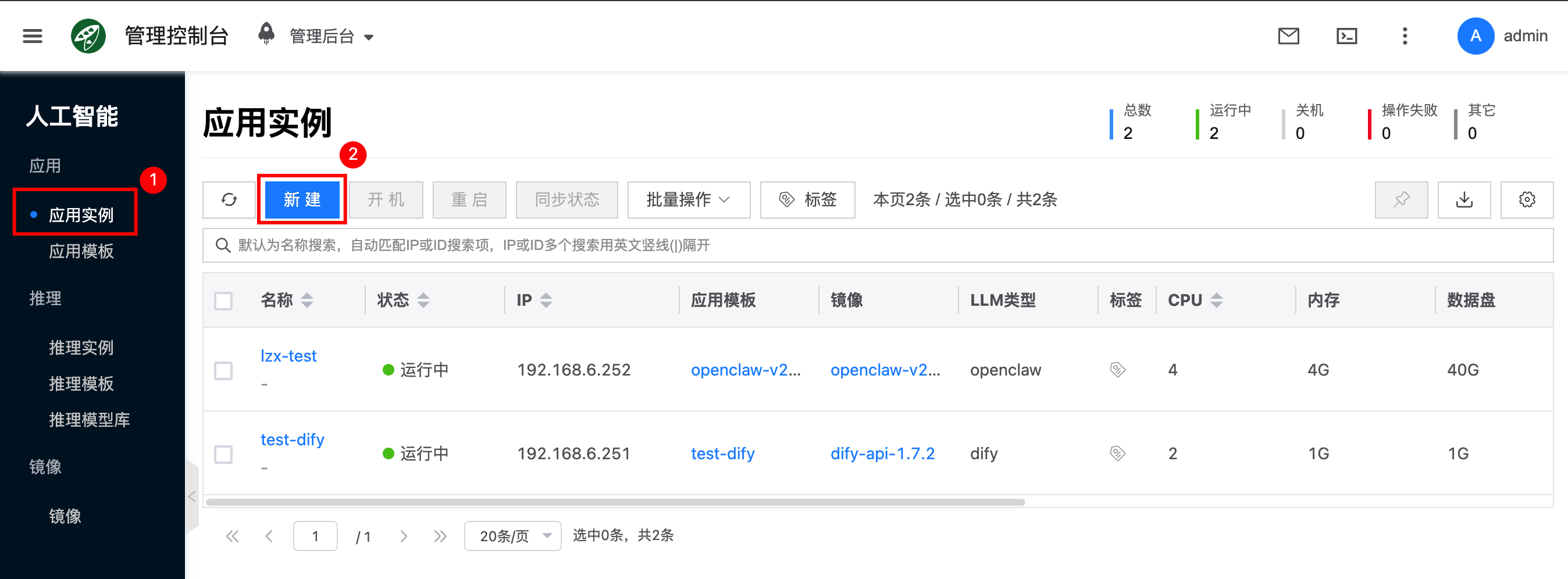
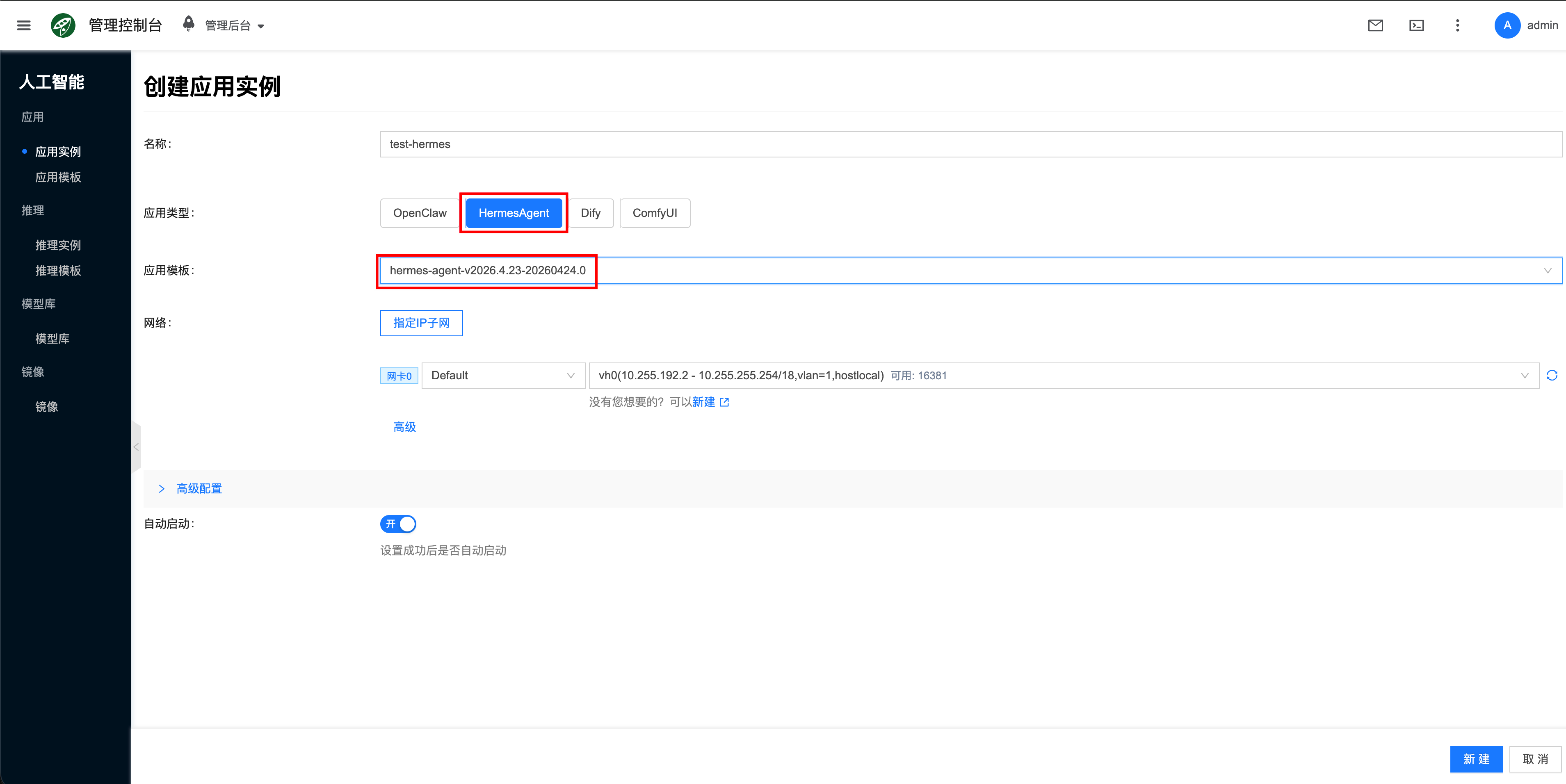
The create flow is shared with OpenClaw and other AI apps; choose HermesAgent in the type dropdown. Adjust images or specs in Application Templates first if needed.
2. Access the Web desktop
After the instance is running, open Login Info on the details page:
- URL:
https://<node or mapped address>:3001 - Username:
admin - Password: 9-digit value derived from the instance ID (same rules as the OpenClaw desktop stack)
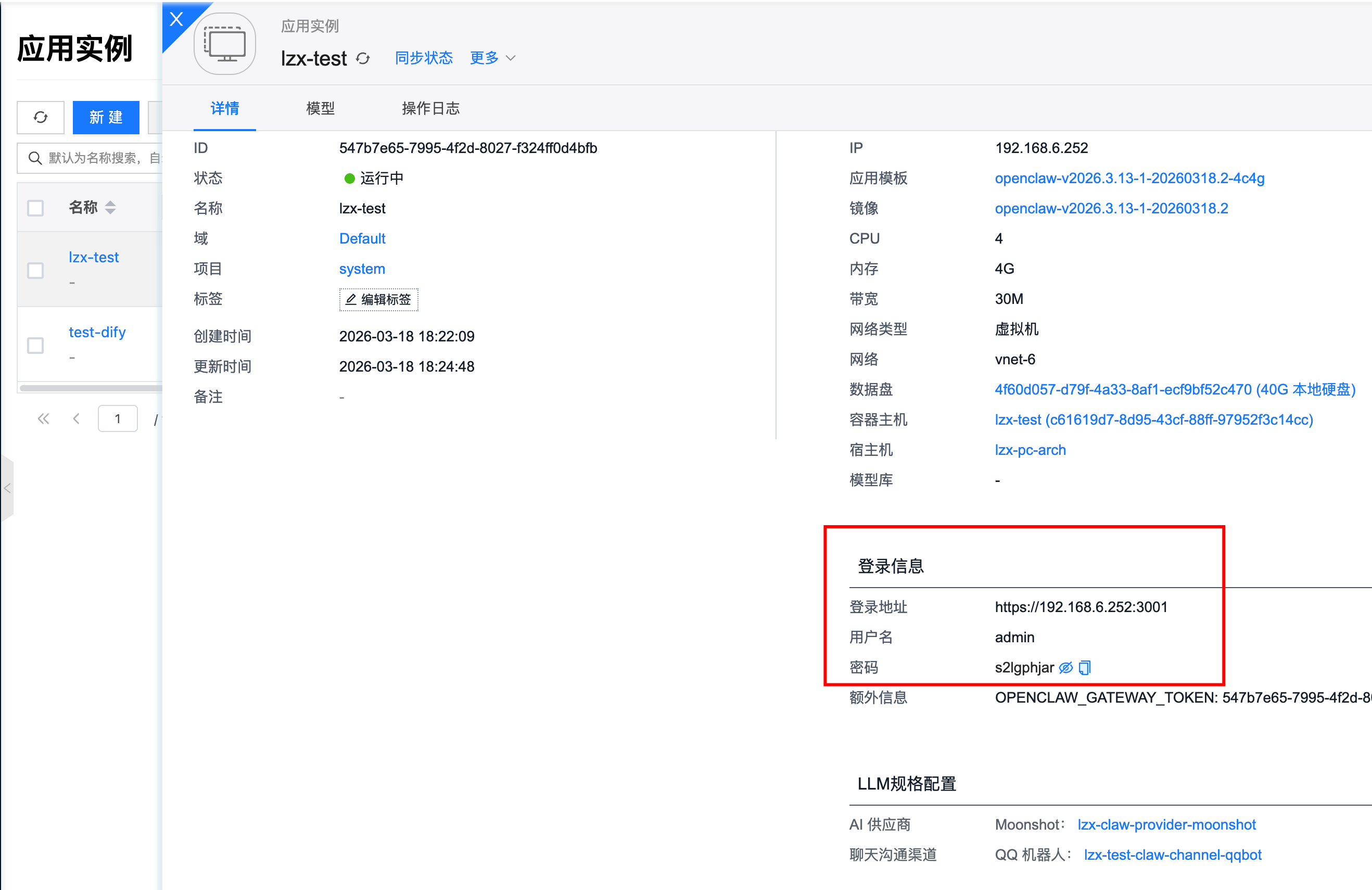
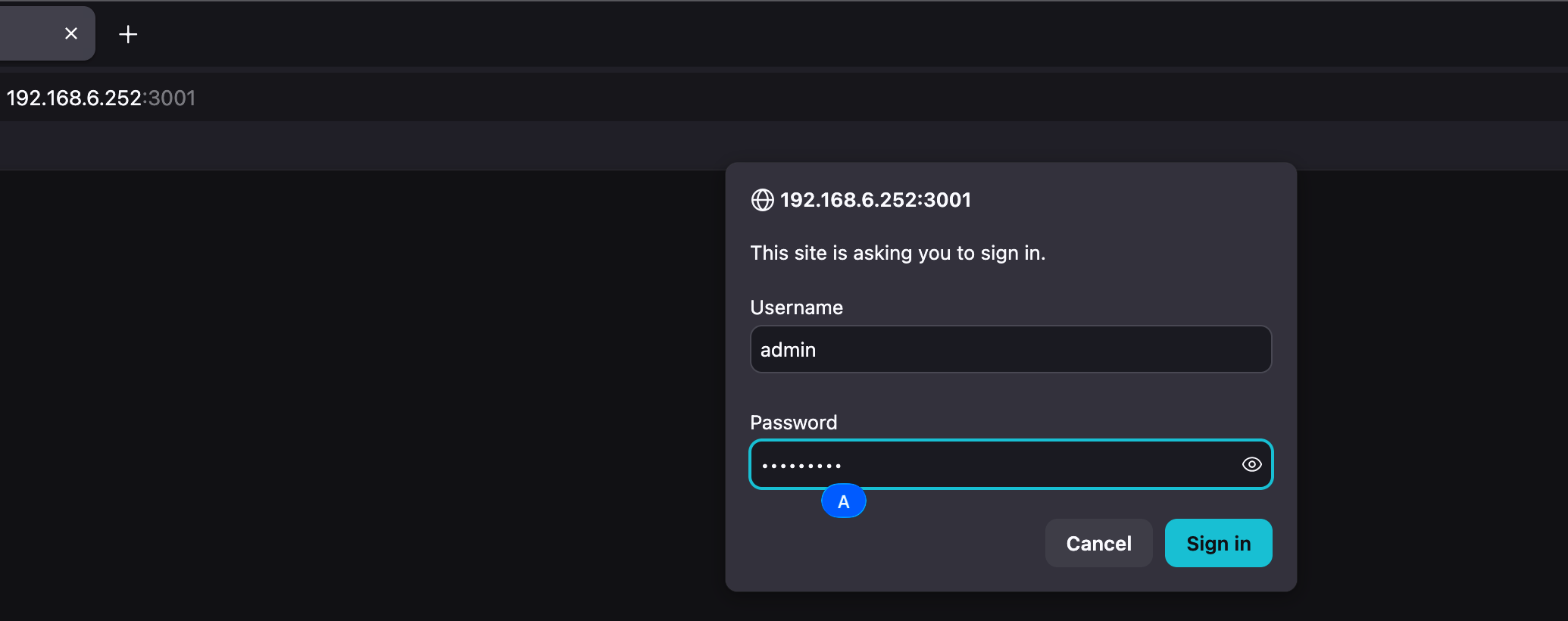
Complete HTTP authentication in the browser:
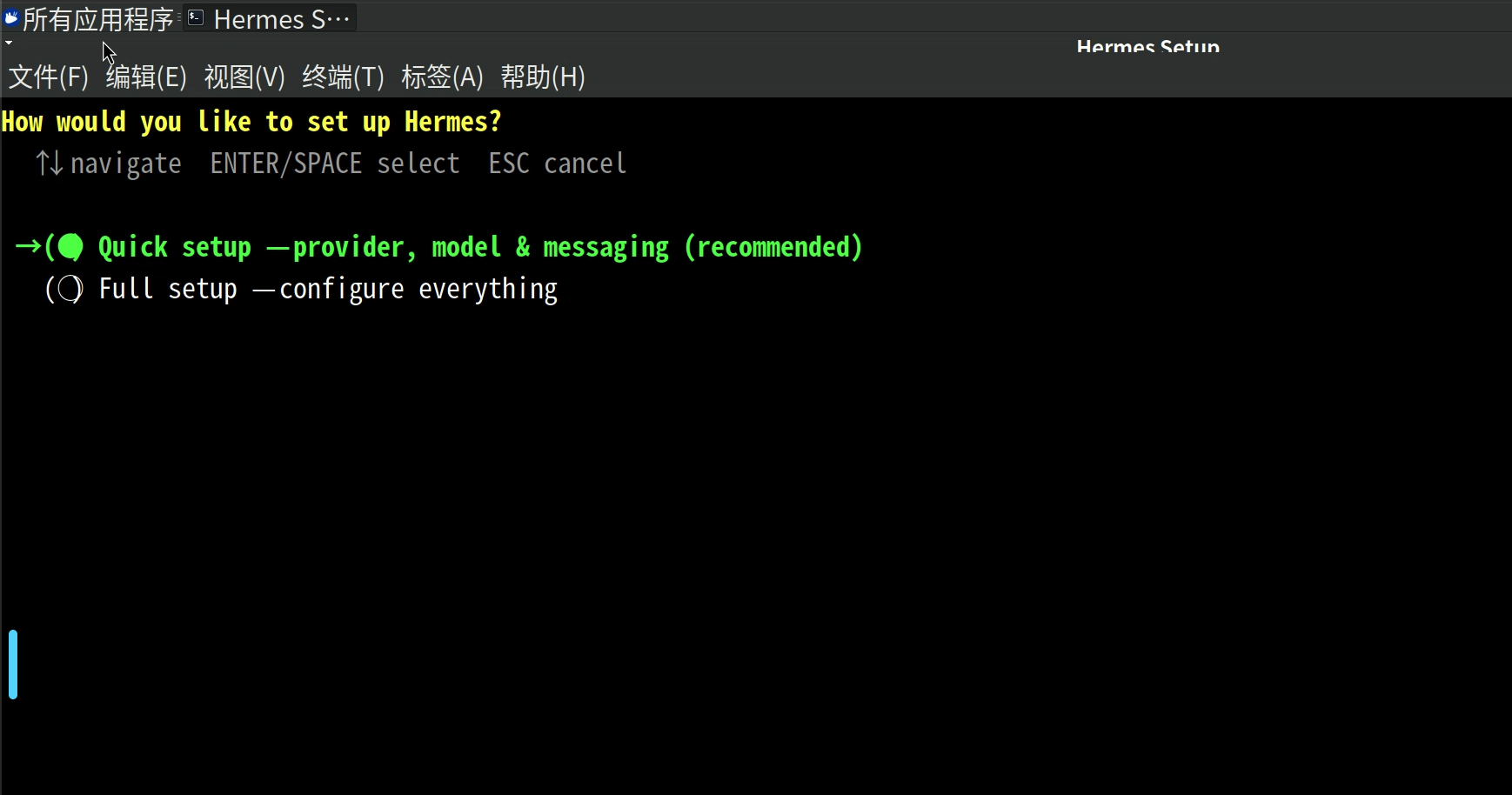
On the desktop, a Hermes setup window opens by default. Configure the model provider, notification channels, and other options as needed:
Configuration example
The following walks through using DeepSeek v4 Pro as the model provider and WeChat as the messaging channel.
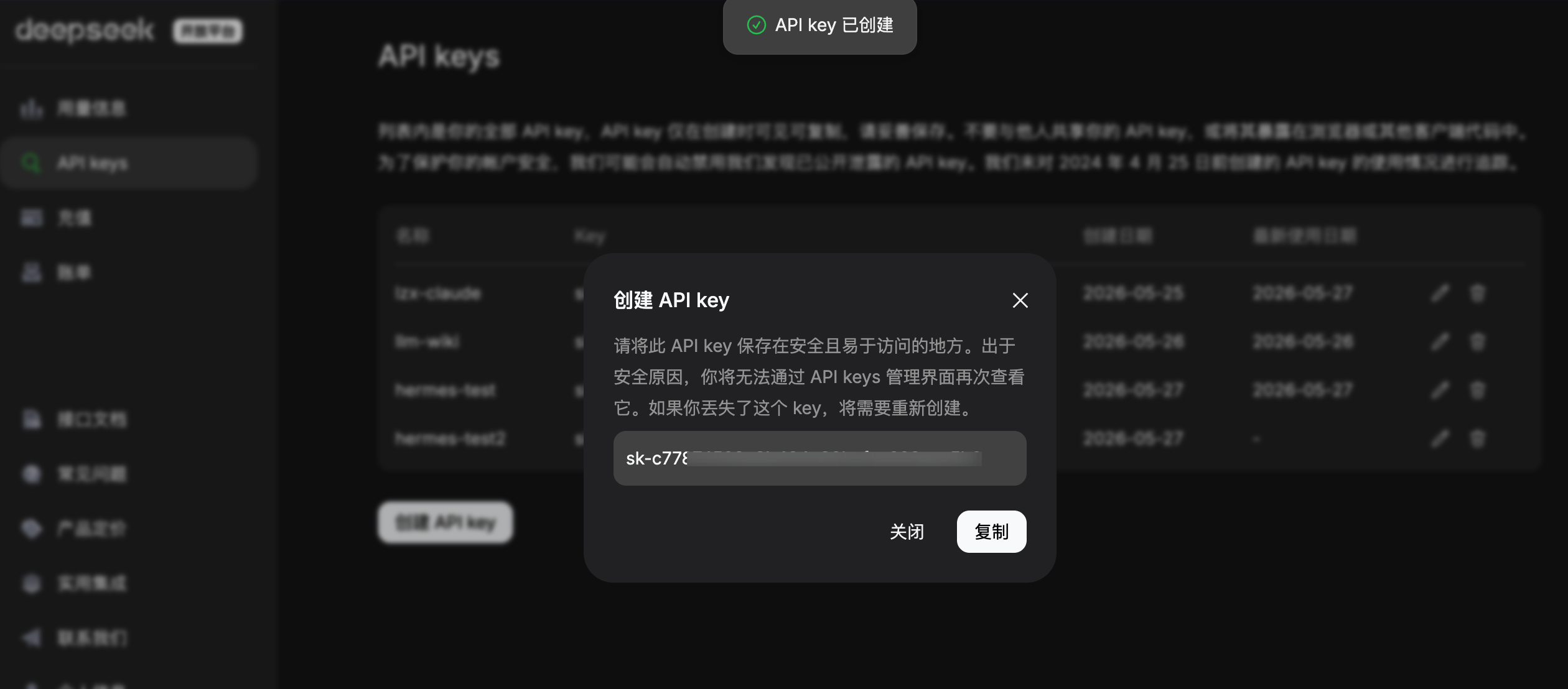
1. Obtain a DeepSeek API key
Create a DeepSeek API key and save it:
2. Configure Hermes Agent
- Choose Quick Setup.
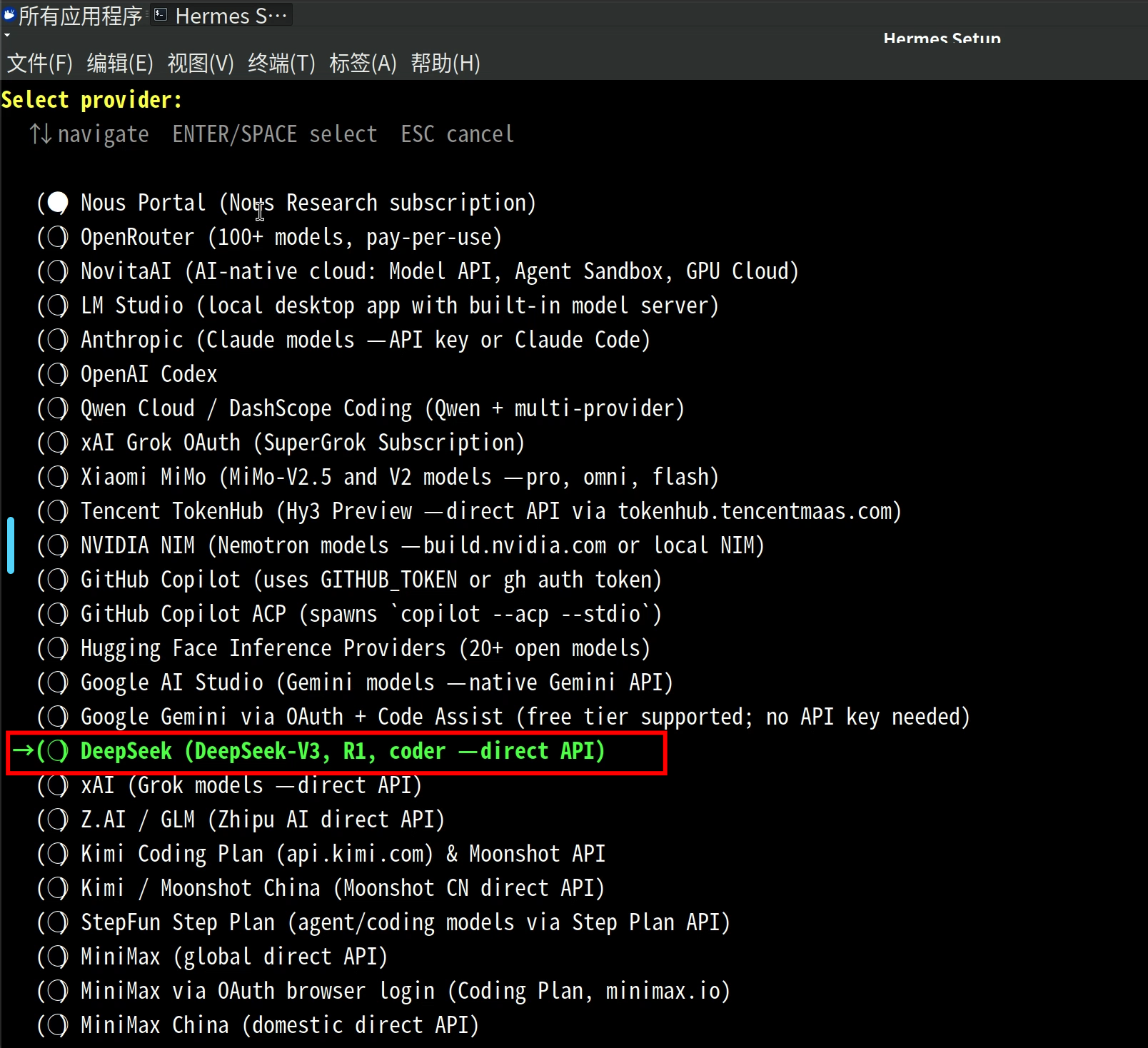
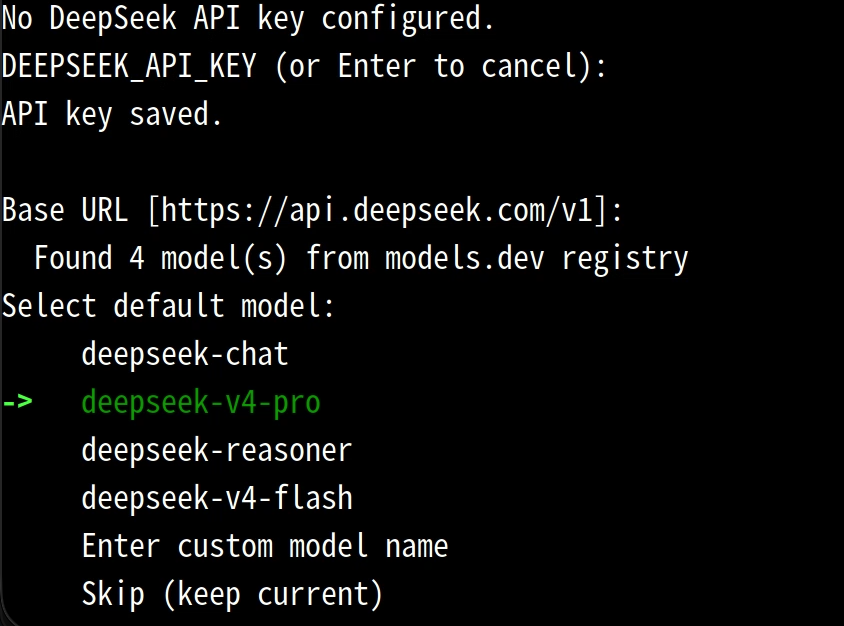
- When prompted for a model provider, select DeepSeek, enter your API key, and choose the deepseek-v4-pro model.
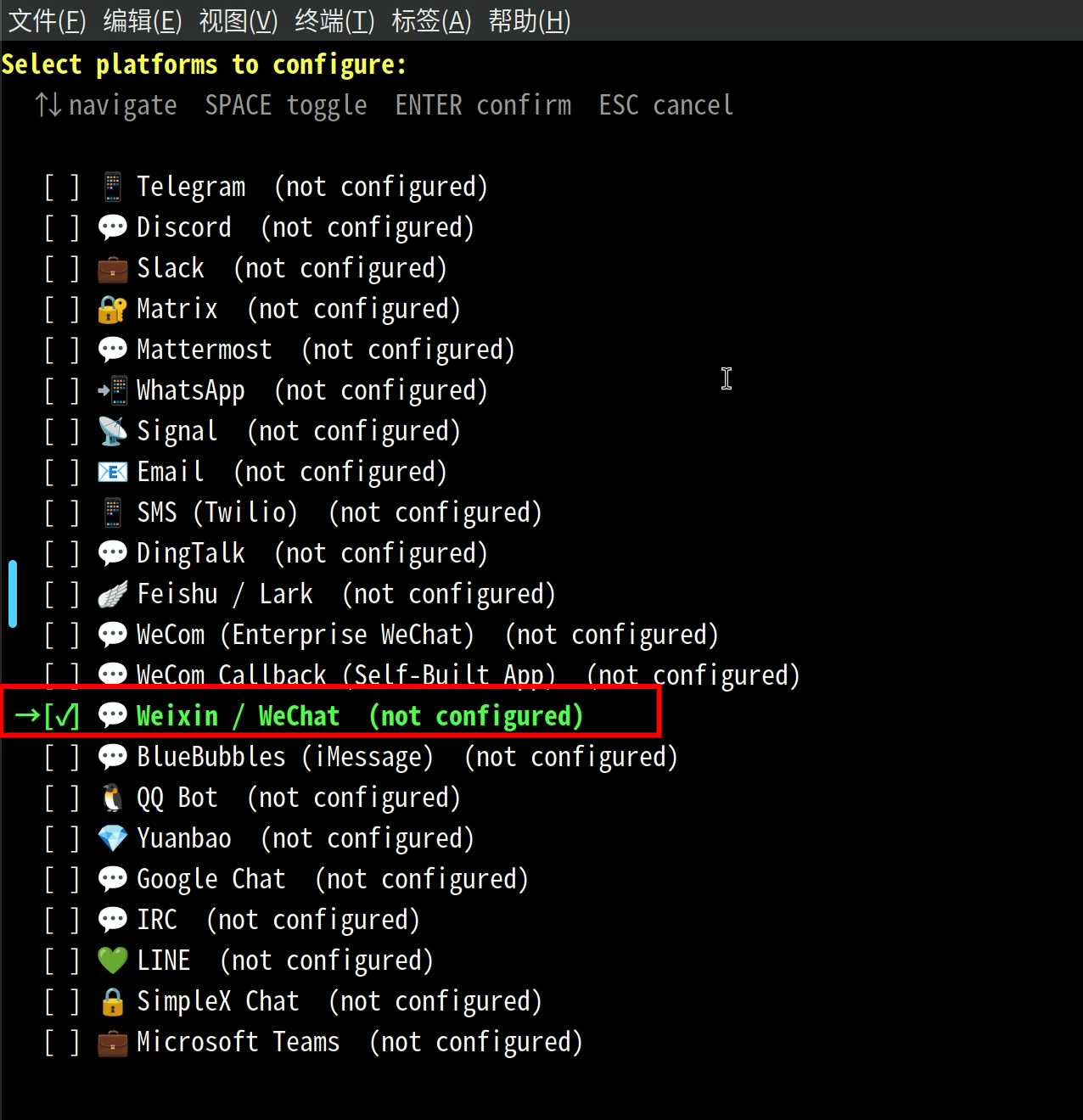
- Configure notification channels: press Space to select Weixin/WeChat. A QR code appears; scan it with WeChat to bind the account.
- Finish the remaining steps as prompted; the Hermes gateway starts automatically.
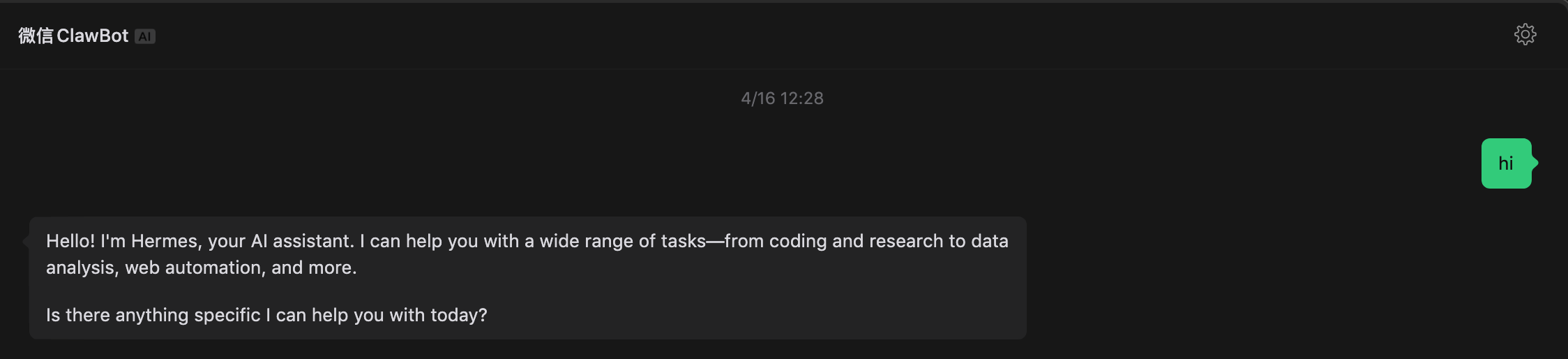
- Send messages in the WeChat ClawBot chat window.
Platform behavior
Persistent directories in the container
/config: default user home directory/opt/data: Hermes Agent configuration directory/opt/data/config.yaml: default Hermes configuration file
Community images
Import different Hermes image versions from the platform via Images → Import Community Image.
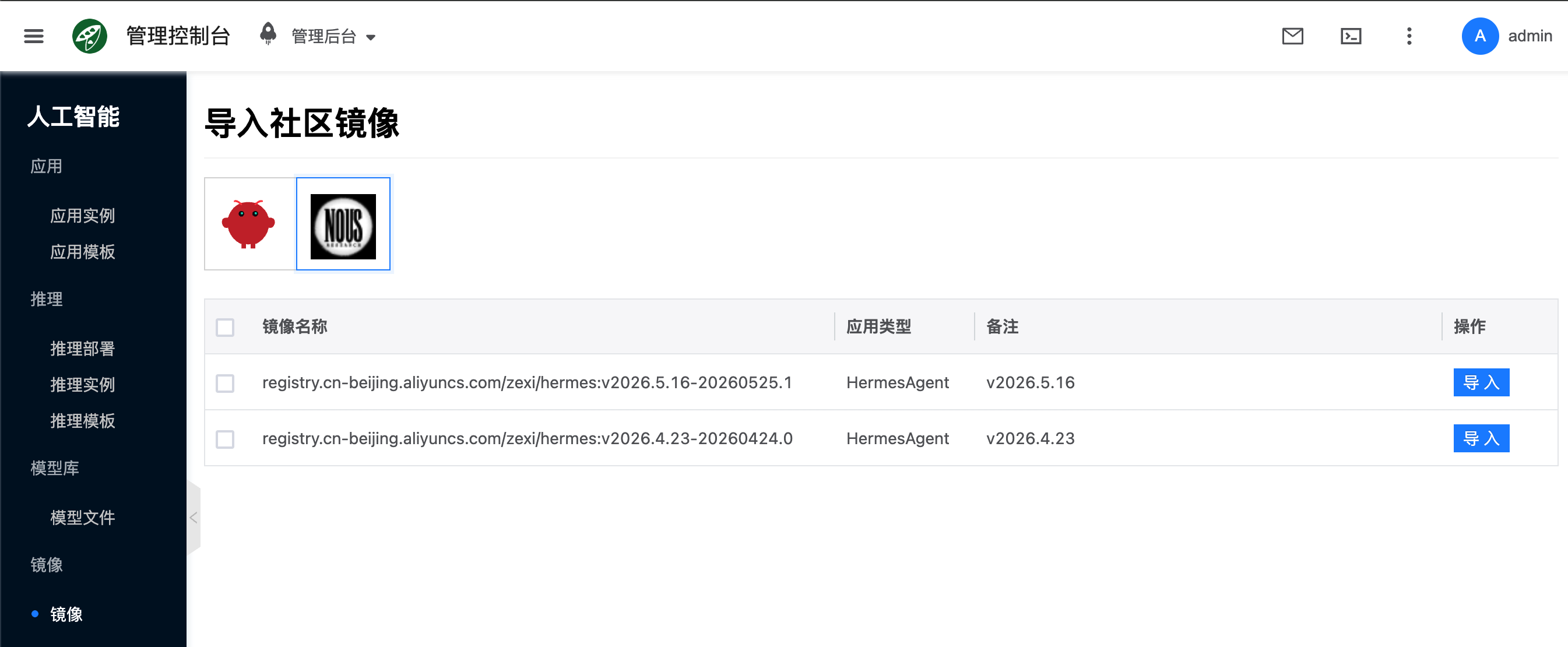
Community images are listed in llmimages.yaml under llm_type: hermes-agent.
FAQ
How do I reconfigure?
Open the terminal emulator on the container desktop and run hermes setup to enter the setup wizard again.
How do I view logs?
- Console: instance details → Logs.
- Inside the container: on the desktop terminal, run
hermes logs --follow.
How do I open a container shell?
Instance details → Terminal (same entry as OpenClaw).
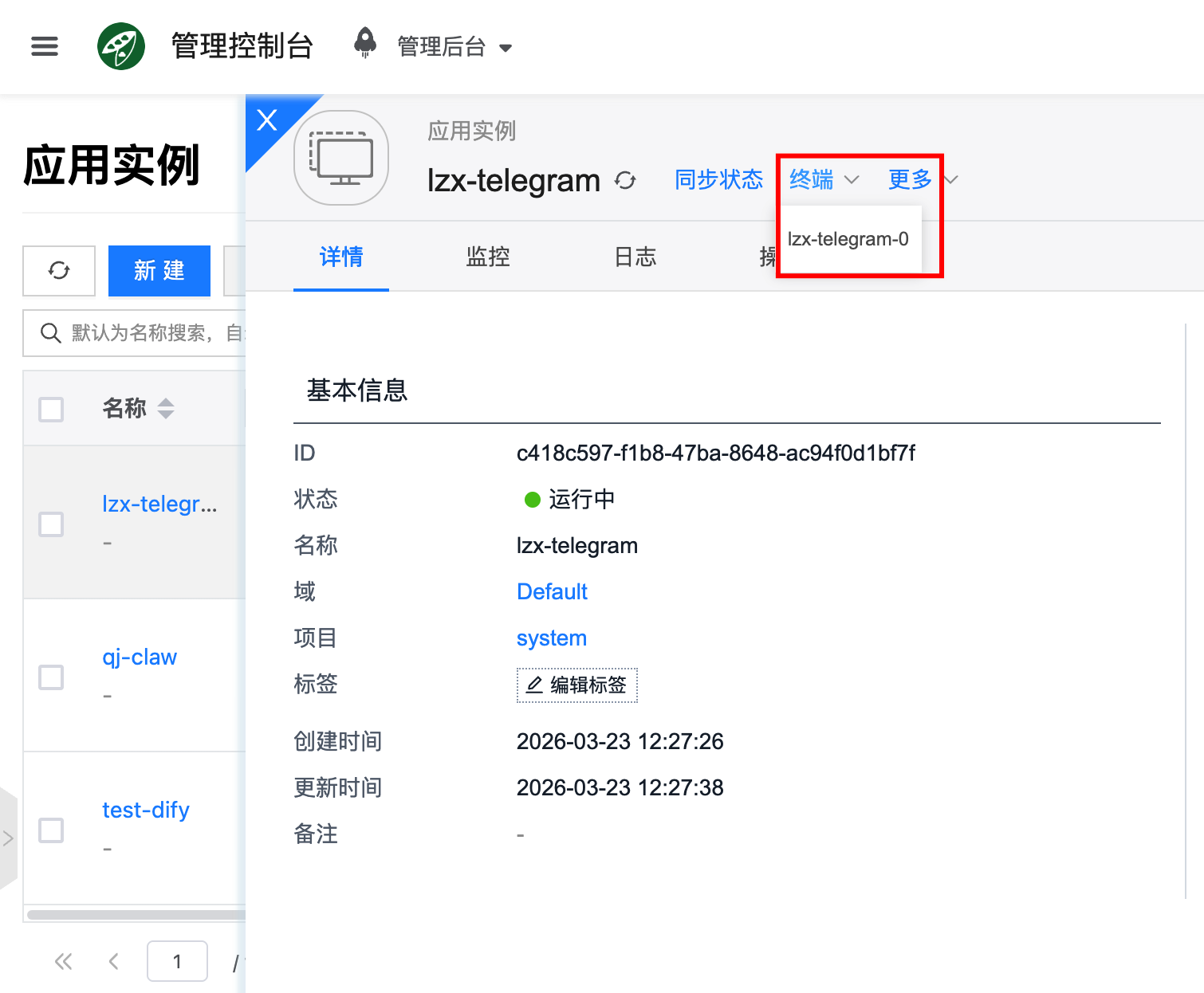
The web terminal may run with elevated privileges. Understand the impact before running commands.