Dify
Dify is an LLM application development and orchestration platform that supports building conversational, Agent, and workflow applications. Dify itself does not require a GPU and can run on nodes without an NVIDIA environment configured. Only when downstream inference services require a GPU do the corresponding inference instances need to meet GPU requirements.
Quick Start
Creating a Dify application instance generally involves the following steps:
- Create an application instance: In the console, go to Artificial Intelligence → Applications → Application Instances, create a new instance and select the Dify template.
- The platform usually provides preset templates. If you need to customize the image, specs, or advanced environment variables, go to Artificial Intelligence → Applications → Application Templates to create or edit one.
- Access and complete initialization: Go to the instance details page, open "Connection Info" to get the access URL, open the Dify initialization page in a browser, and complete the administrator account and workspace initialization.
- Install model plugins and configure model providers: To connect to OpenAI, OpenAI-compatible services, or platform-internal inference services such as Ollama, first install the corresponding plugin in the Dify web backend under Plugins → Marketplace, then configure the model provider and downstream inference service.
- Verify the application pipeline: Create a minimal conversational application or workflow in Dify, make a test call, and confirm that the application, model, and toolchain are all working properly.
1. Create an Application Instance
The console entry point is Artificial Intelligence → Applications → Application Instances.
- Click Create.
- Select the application template or application type for
Dify. - Fill in the instance name and select the project, region, network, and other general configurations as required.
- Confirm the template, image, specs, and advanced configuration, then submit.
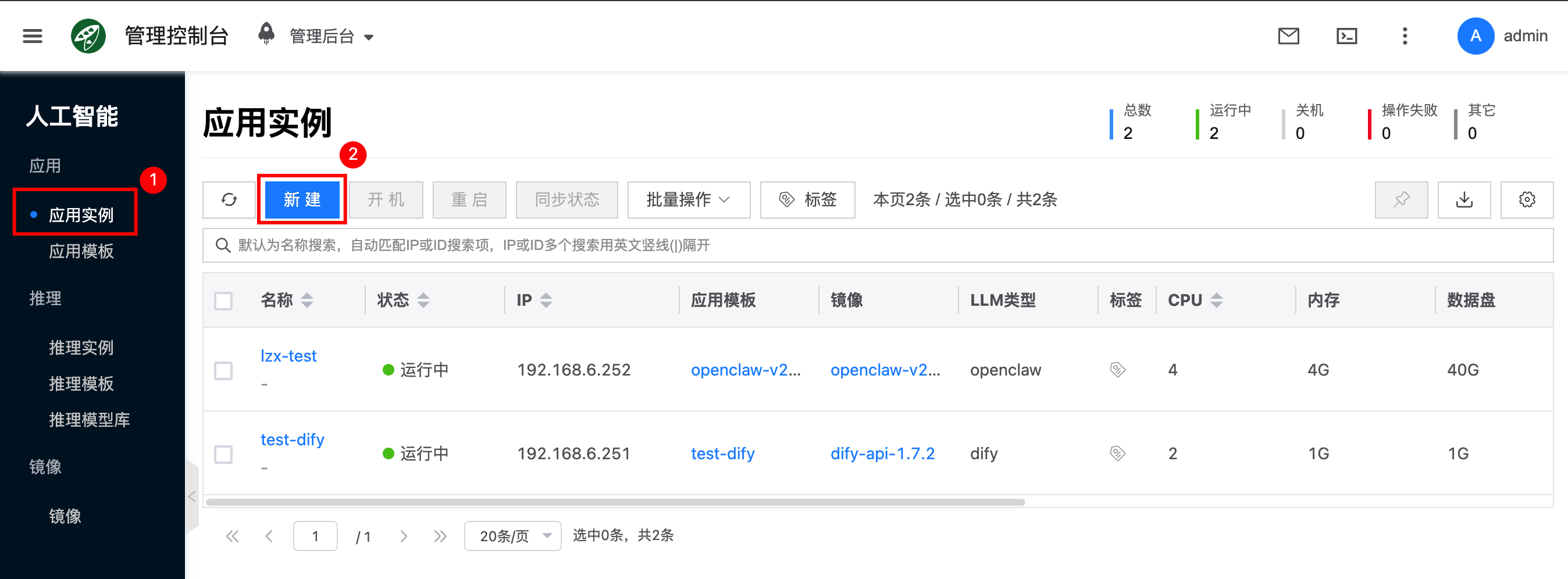
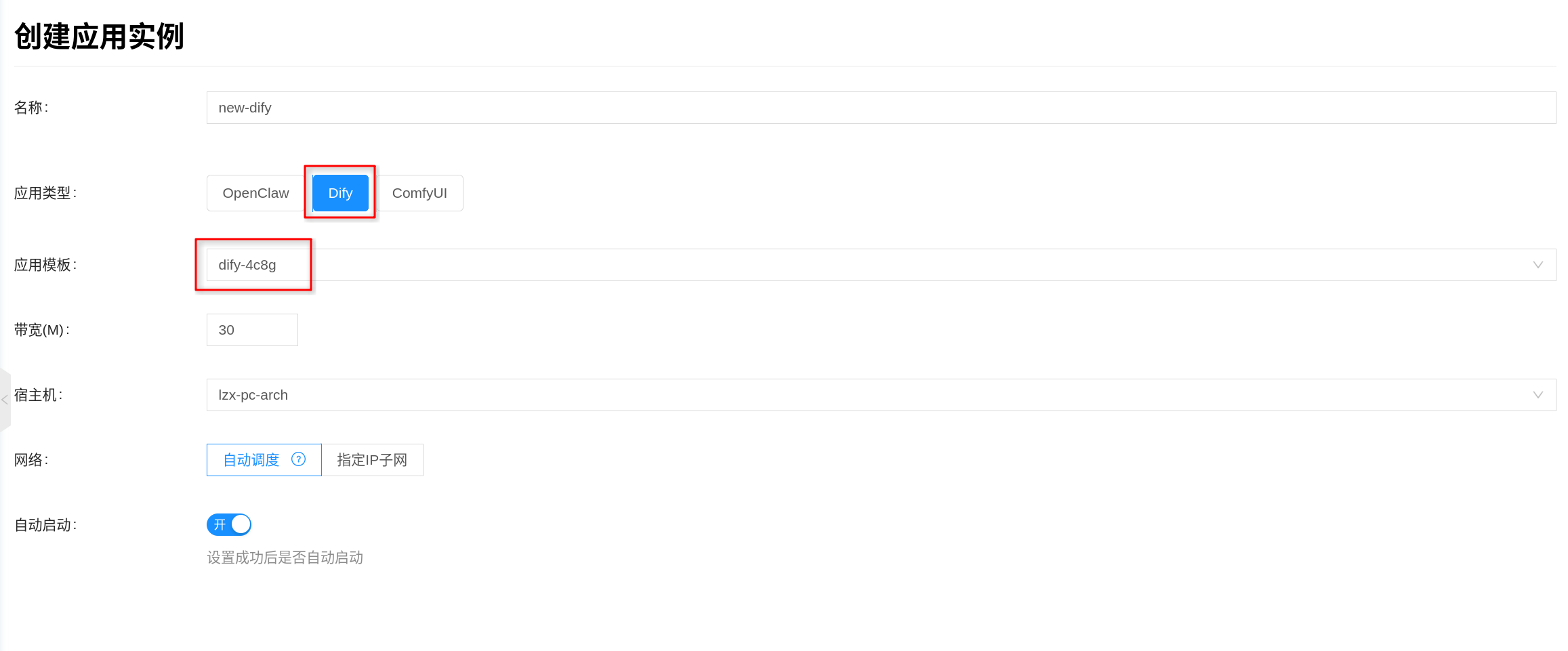
If there is no available Dify template in the console yet, first go to Artificial Intelligence → Applications → Application Templates to create or edit a template, then return to the instance page to create one.
The common fields on the page can be configured based on your actual scenario:
- Bandwidth: Used to limit container network bandwidth; fill in based on business traffic volume.
- Host (optional): If you need to pin the instance to a specific node, you can manually specify one; otherwise, the platform will schedule automatically.
- Network: You can use automatic allocation or specify an existing IP subnet.
Dify is a multi-container application. In addition to the frontend and API, it also starts database, Redis, vector store, plugin daemon, and code execution sandbox components simultaneously. Although it does not require a GPU, you should still reserve sufficient CPU, memory, and data disk capacity.
2. Access and Complete Initialization
After the instance is created successfully, go to the instance details page and open Connection Info to get the Dify access URL. Per the current platform implementation, external access goes through the nginx container, which exposes port 80 by default.
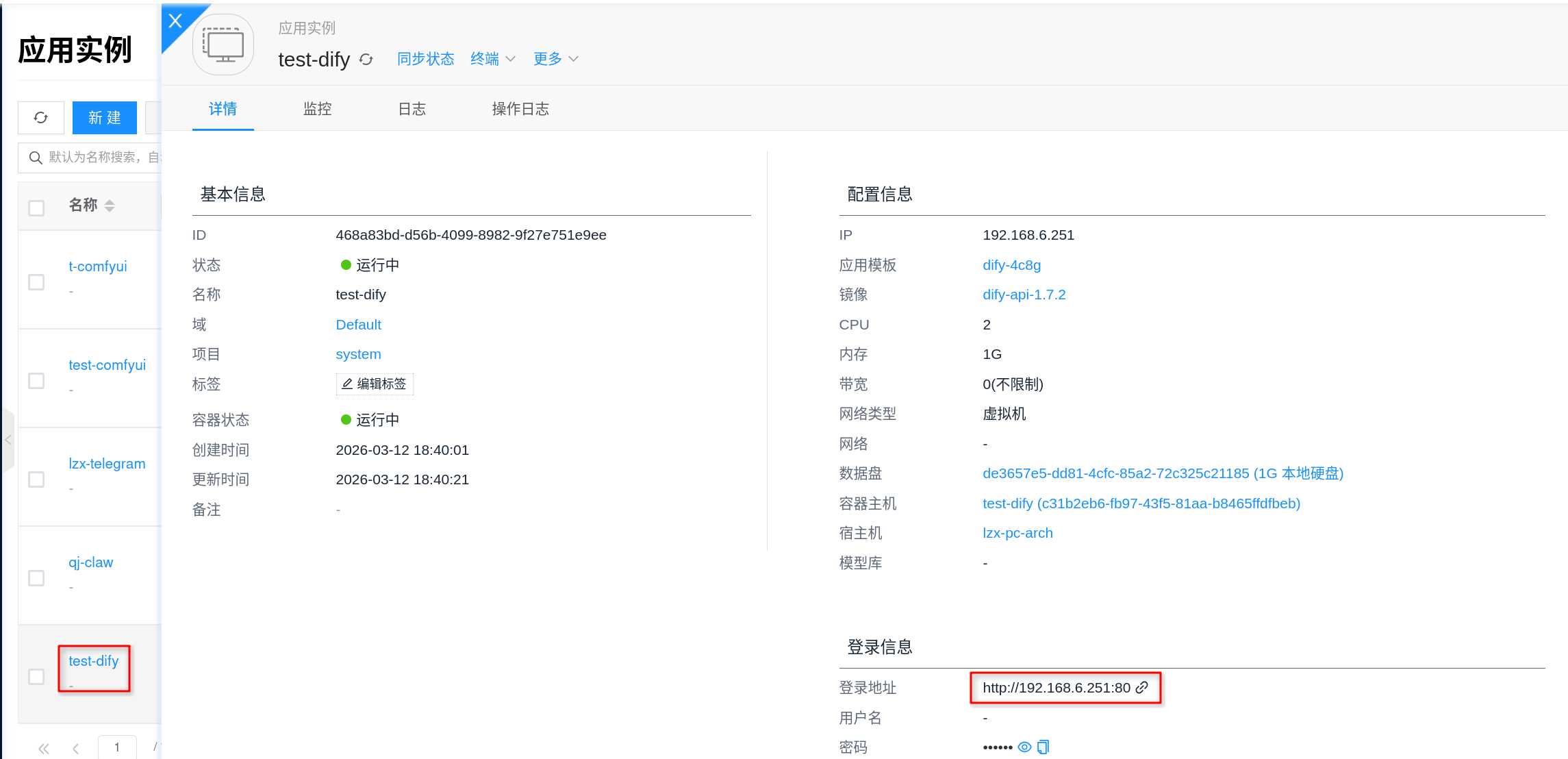
After opening the access URL in a browser, you will typically see the Dify first-time initialization wizard. You can follow the on-screen prompts to complete the following actions:
- Create an administrator account.
- Log in with the administrator account.
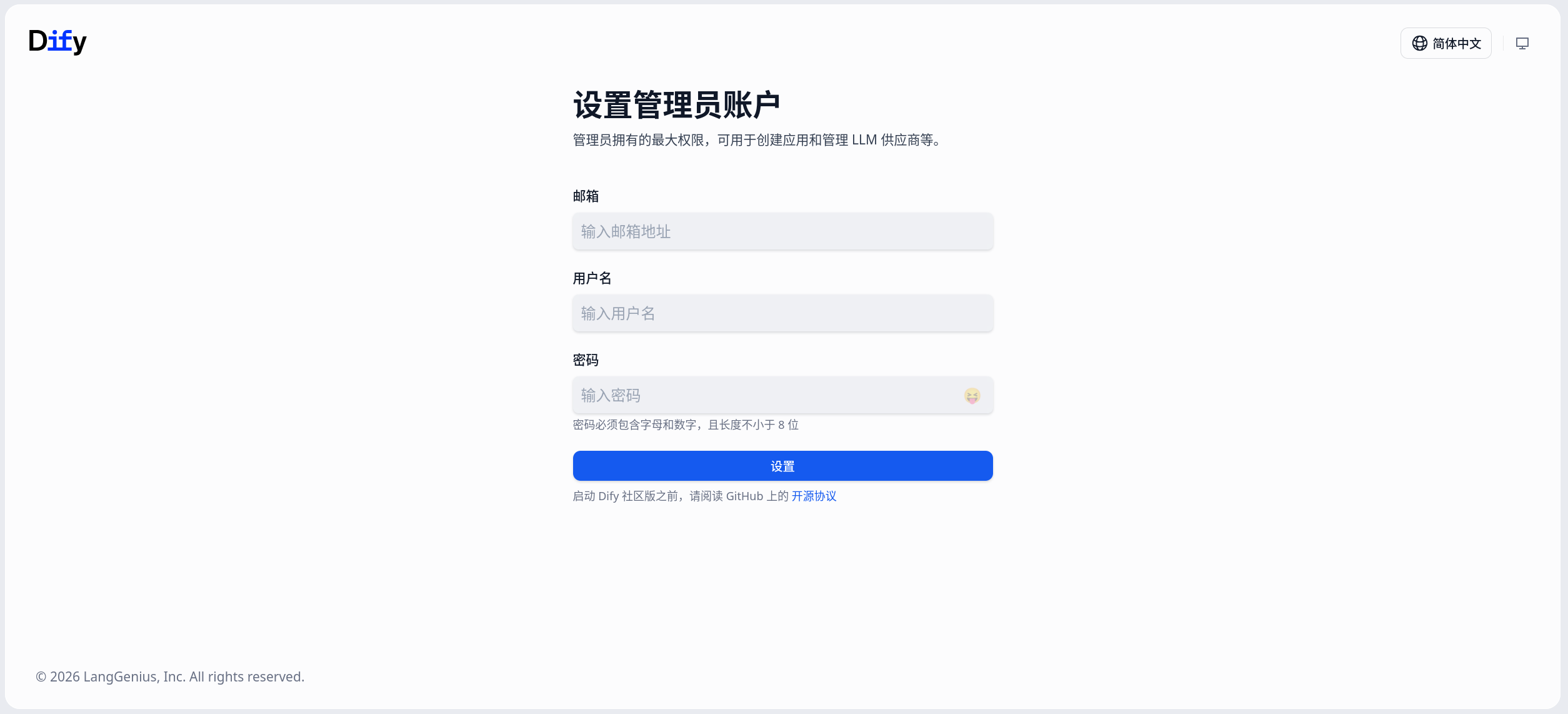
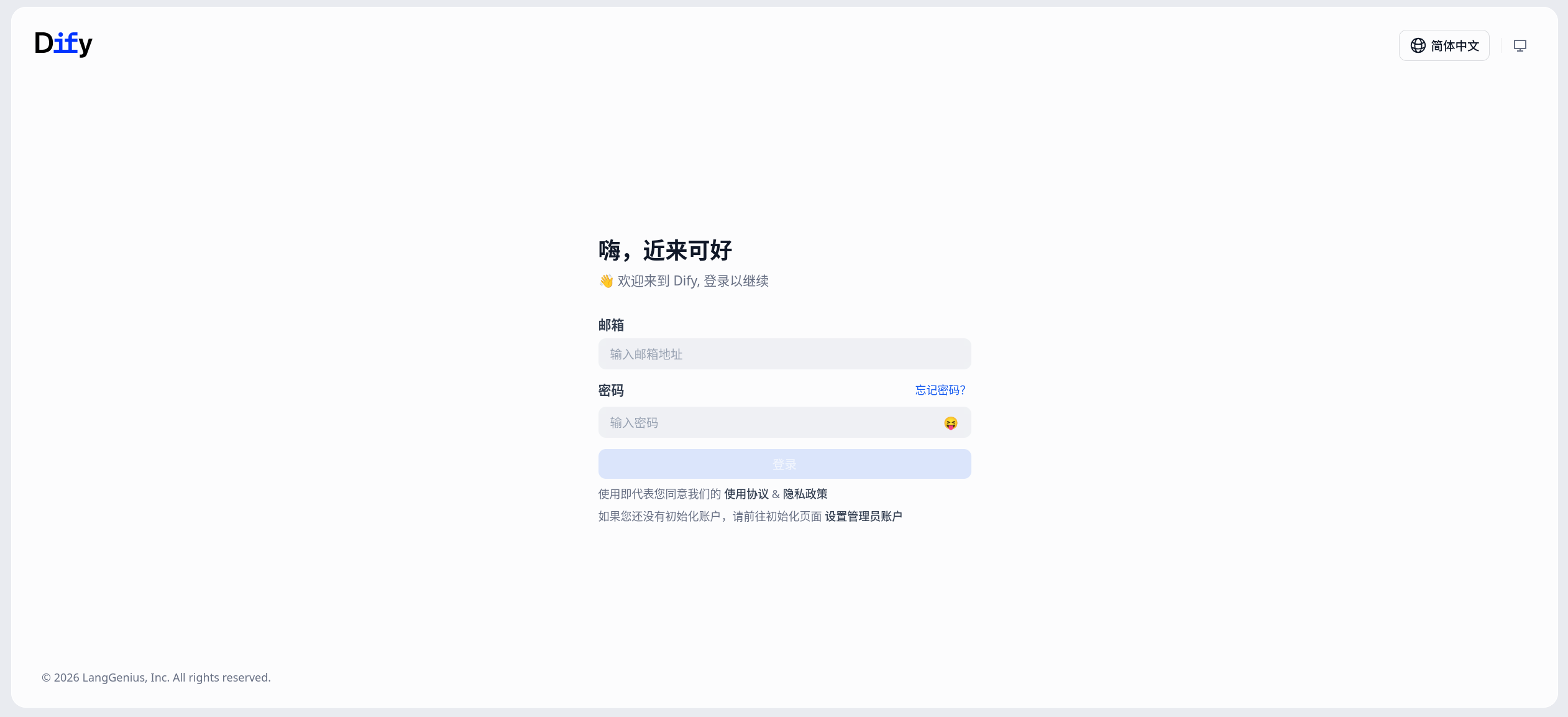
The platform automatically generates the required internal keys for Dify's internal components, so you generally do not need to fill them in manually. For example, SECRET_KEY, internal API keys, Plugin Server Key, and Weaviate's internal authentication key are all prepared during the deployment phase.
Dify's web pages, API, file access, and other paths share the same external entry URL by default. In addition to accessing the homepage via browser, subsequent Dify API calls typically also access /api, /v1, /files, and other paths under the same address.
3. Install Model Plugins and Configure Model Providers
Dify itself does not directly mount model directories or run model weights. It functions more like an application orchestration platform, with actual model inference handled by external model providers or other inference instances within the platform.
After completing initialization, it is recommended to first confirm that downstream inference services are available. Whether you are connecting to external OpenAI, other OpenAI-compatible services, or platform-internal Ollama instances, you typically need to first install the corresponding model plugin in the Dify web backend, then go to the model provider page to complete the integration. Common approaches include:
- Using the
OpenAIorOpenAI-API-compatibleplugin to connect to external model services, such as OpenAI or other services compatible with the OpenAI API. - Connecting to platform-internal Ollama inference instances.
Recommended workflow:
- Log in to the Dify console.
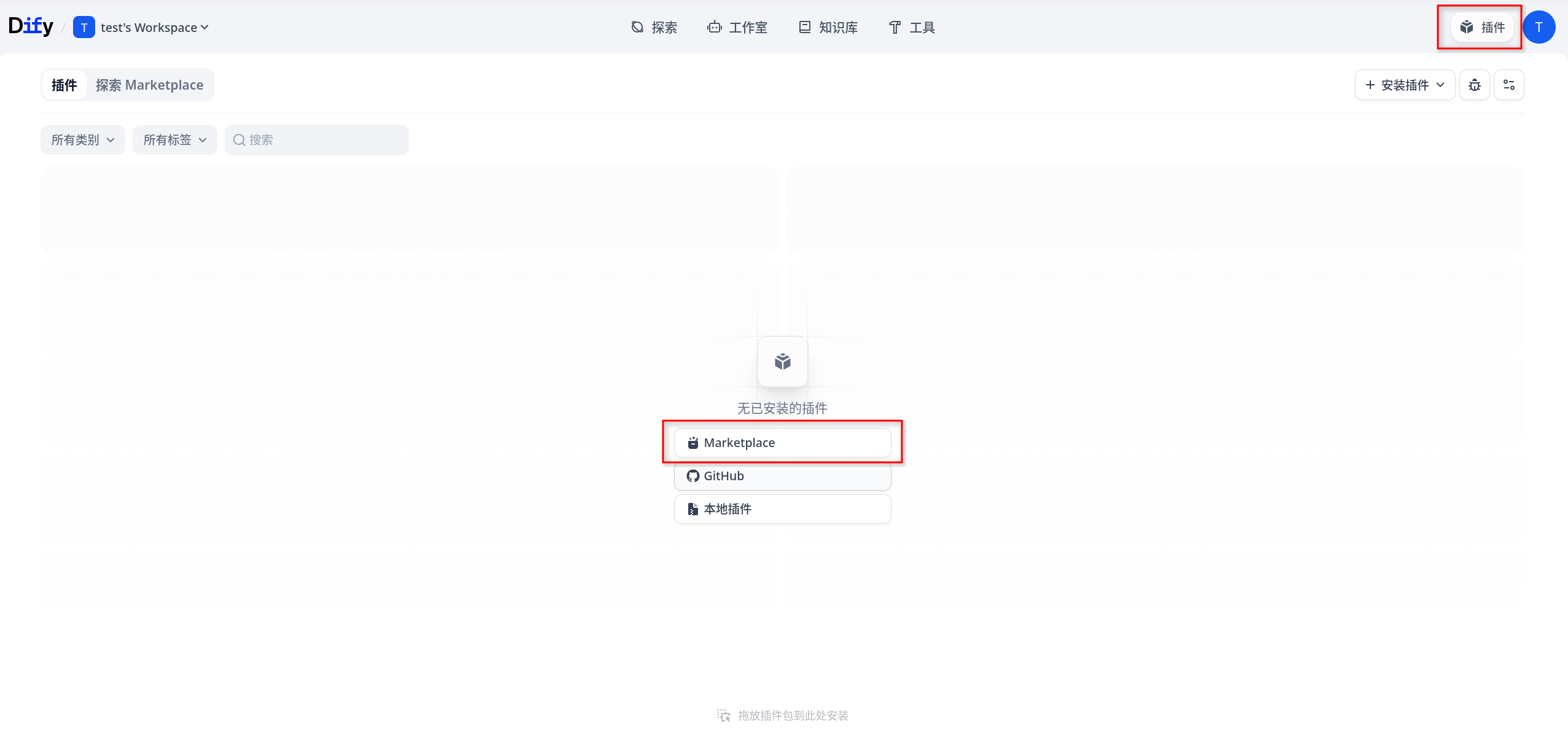
- Go to Plugins → Marketplace.
- Search for and install the corresponding plugin in the Marketplace, such as
OpenAI,OpenAI-API-compatible, orOllama. - After the plugin is installed, go to the model configuration page of the model provider.
- Select the provider type you want to integrate.
- Fill in the
Base URL, model name, API Key, or other authentication fields as prompted. - Run a connection test first, then save.
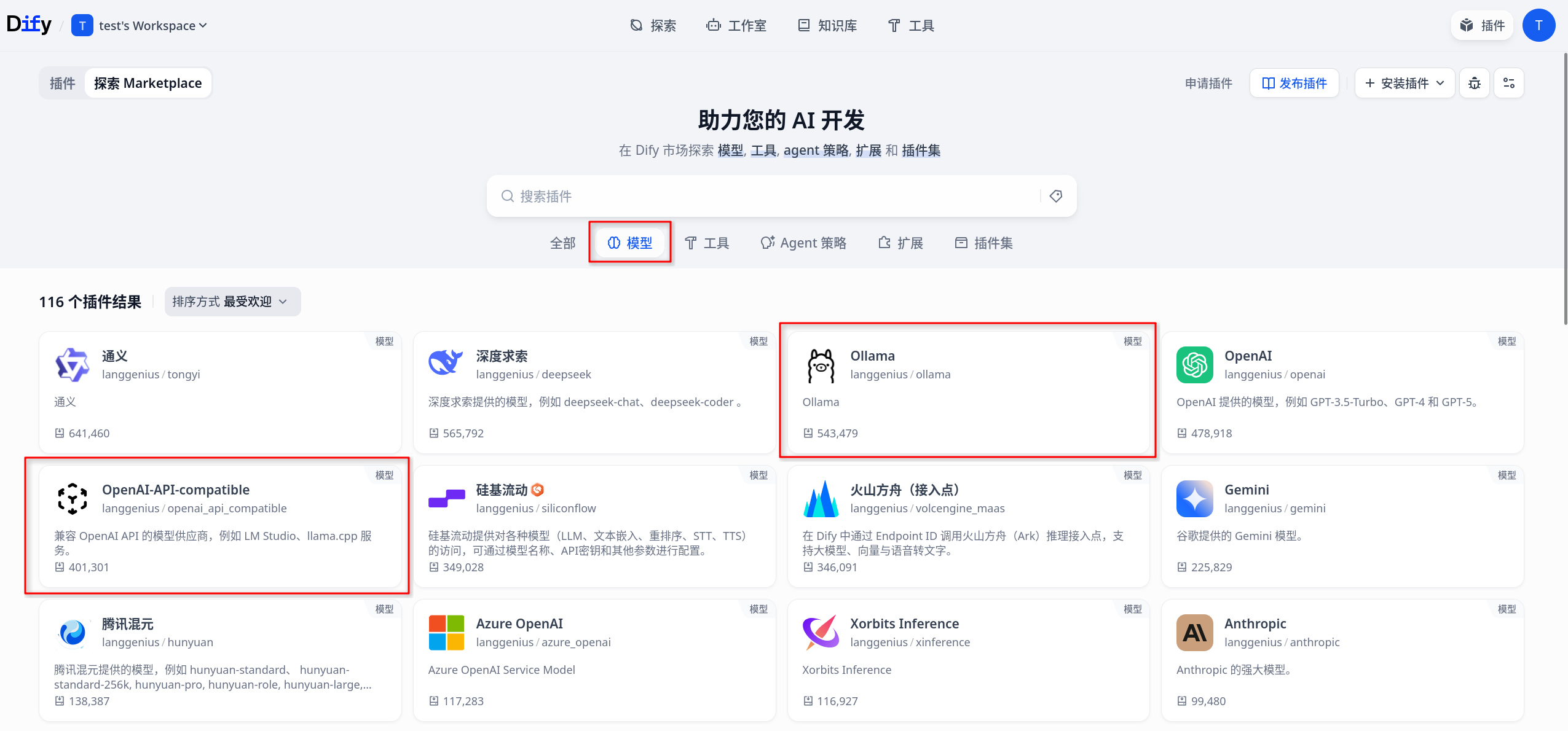
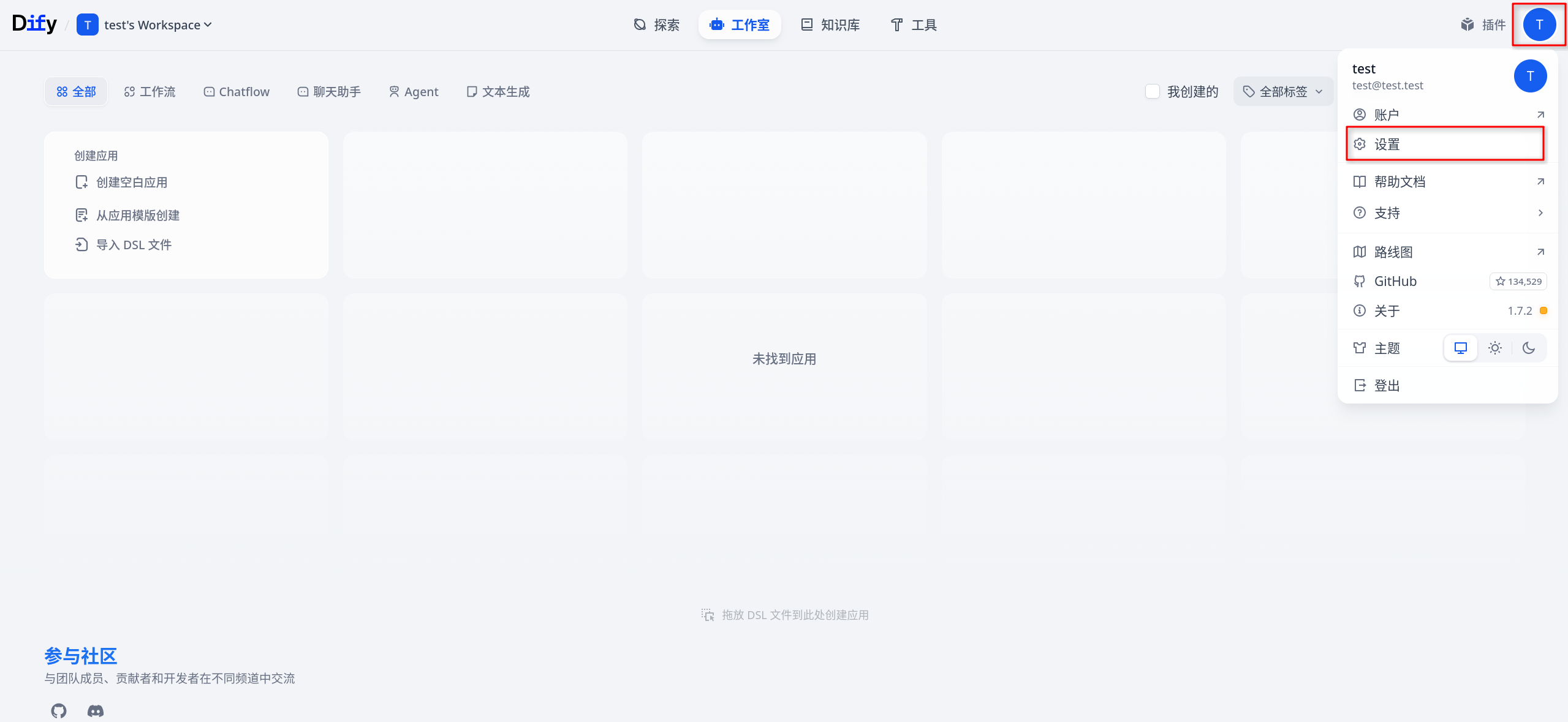
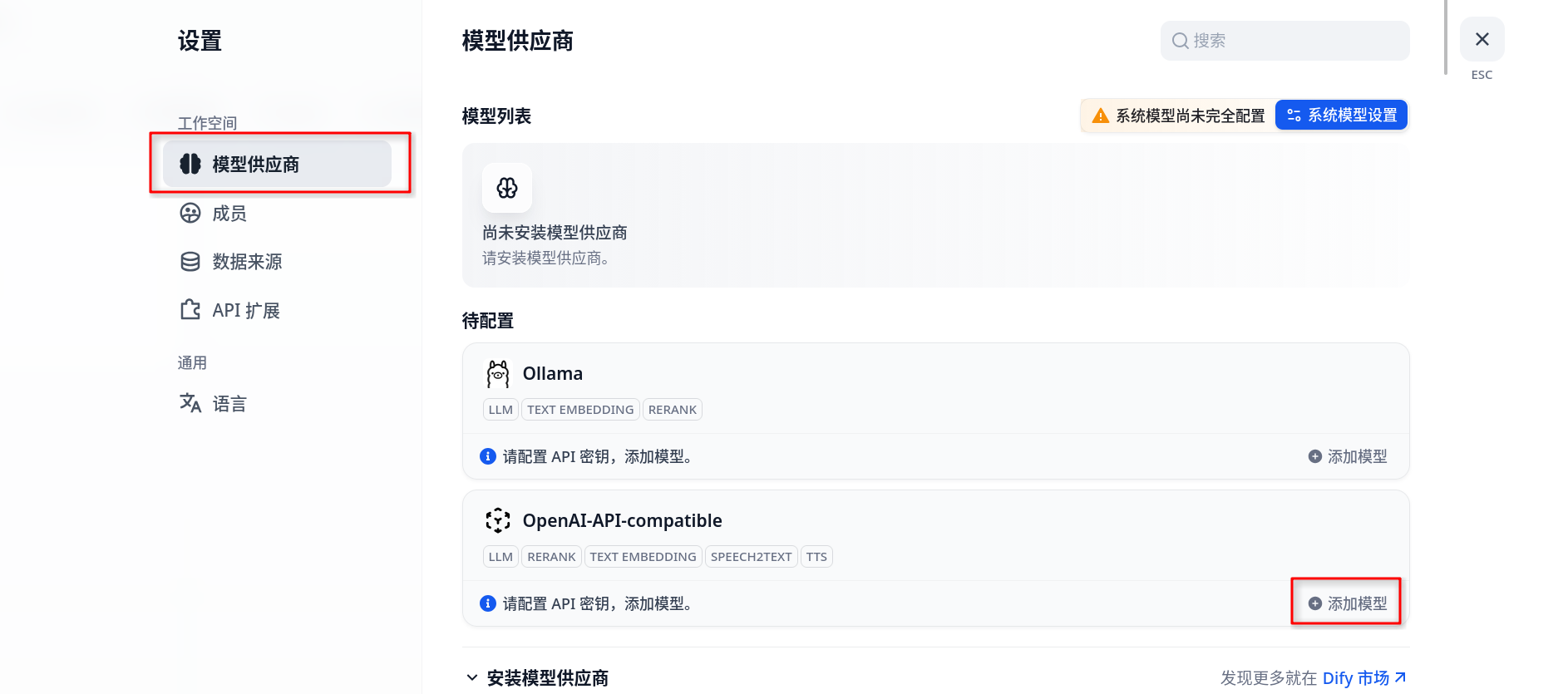
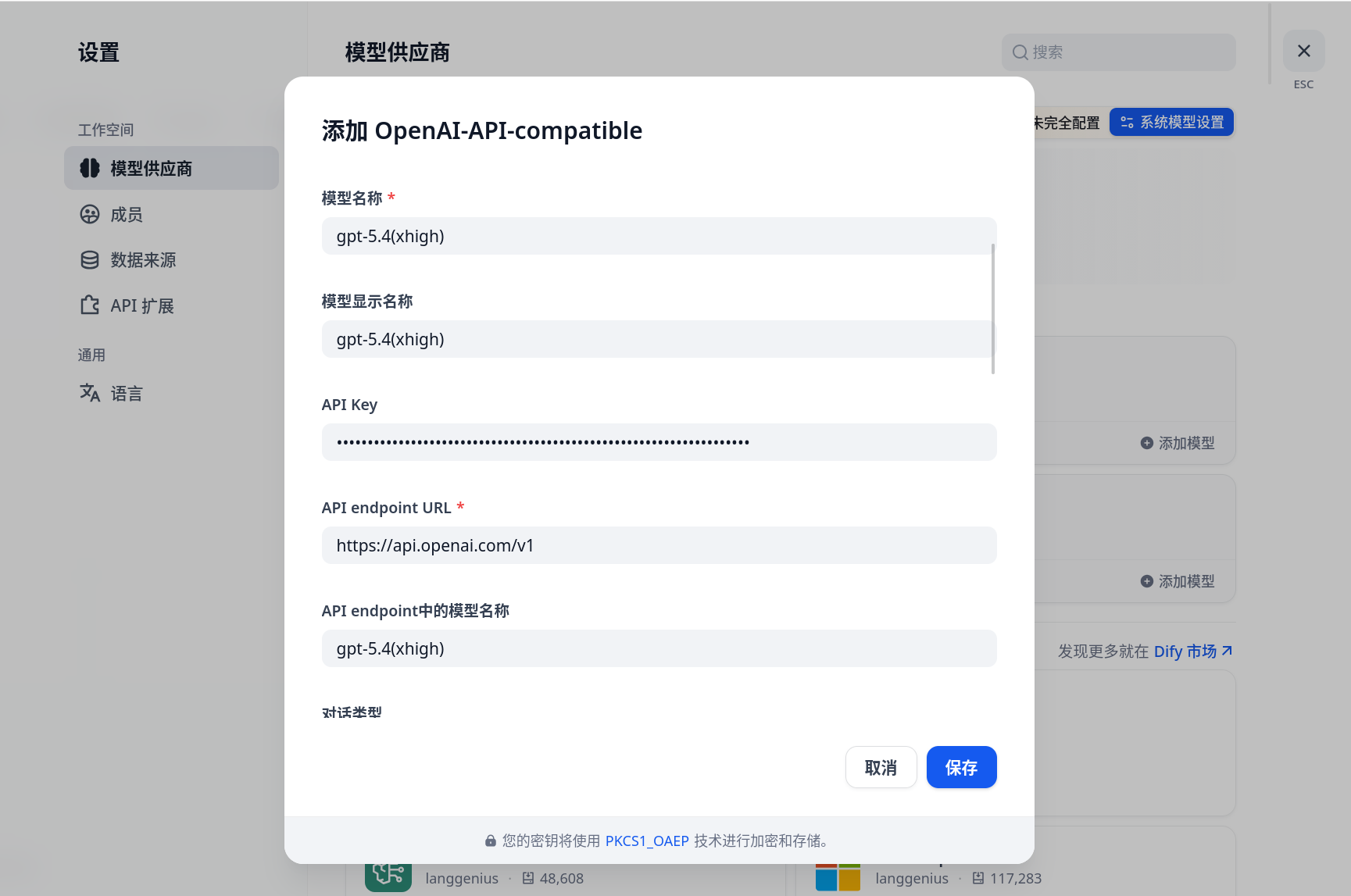
Here is how to understand the different provider types:
- Connecting to Ollama: Typically, first install the
Ollamaplugin in Plugins → Marketplace; then select the corresponding Ollama provider type in Dify and fill in the Ollama service address. - Connecting to OpenAI or OpenAI-compatible services: Typically, first install the
OpenAIorOpenAI-API-compatibleplugin in Plugins → Marketplace; then select the corresponding type on the model provider page and fill in the official address or compatible service'sBase URL, model name, and API Key as required.
Model provider API Keys are typically configured and stored in the Dify web backend, rather than by directly mounting model files through application templates. For Dify, the key is that it can access the target inference service and the model provider configuration is correct.
If the downstream is a GPU inference service, the node where the inference service runs still needs to have the GPU environment prepared according to Configure NVIDIA and CUDA Environment.
4. Verify the Application Pipeline
After completing the model provider configuration, it is recommended to create a minimal application for end-to-end verification. You can check as follows:
- Create a simple chat application in Dify, or create a workflow containing only a basic LLM node.
- Select the model you just configured.
- Enter a simple prompt, such as "Please introduce yourself in one sentence."
- Click Debug or Preview and observe whether the response is normal.
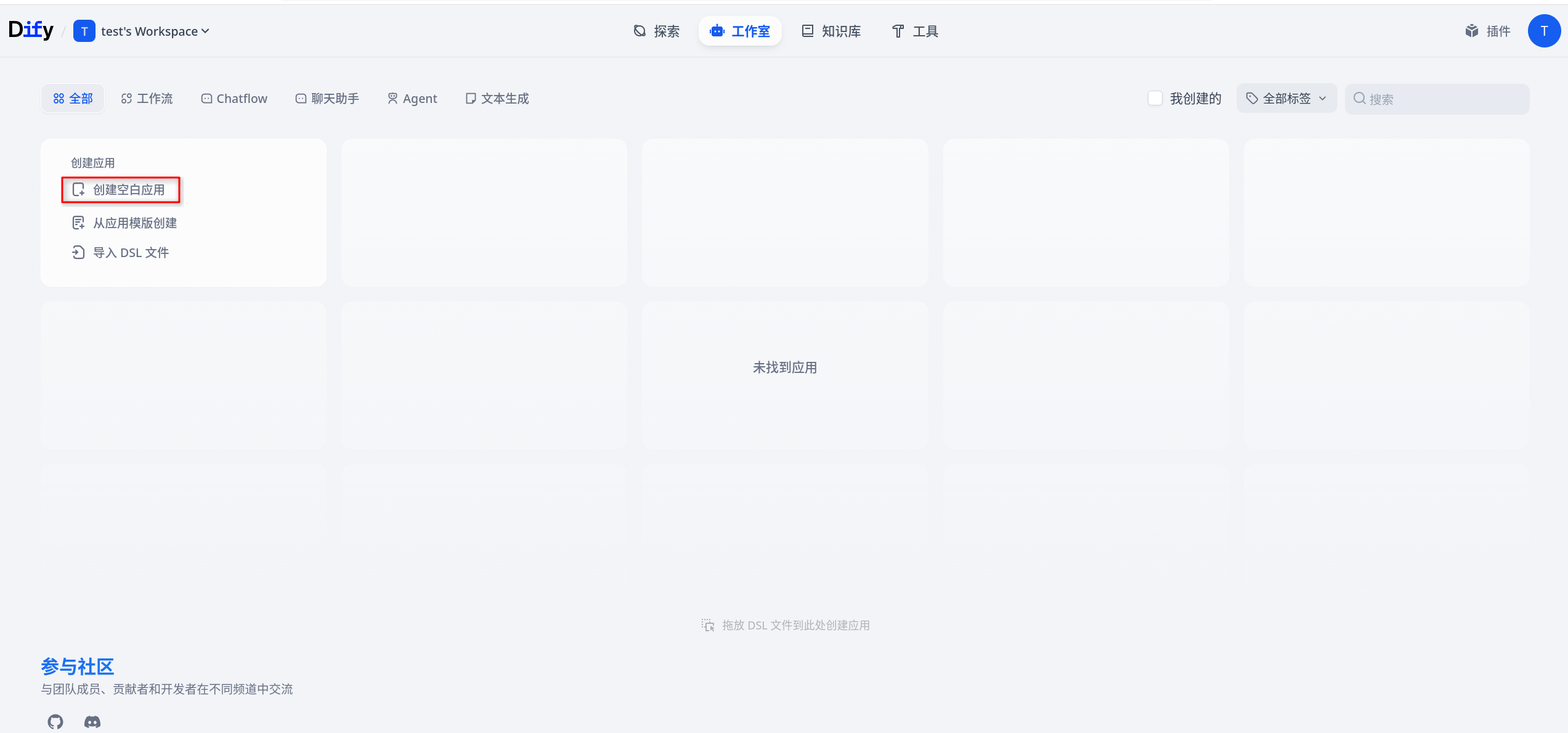
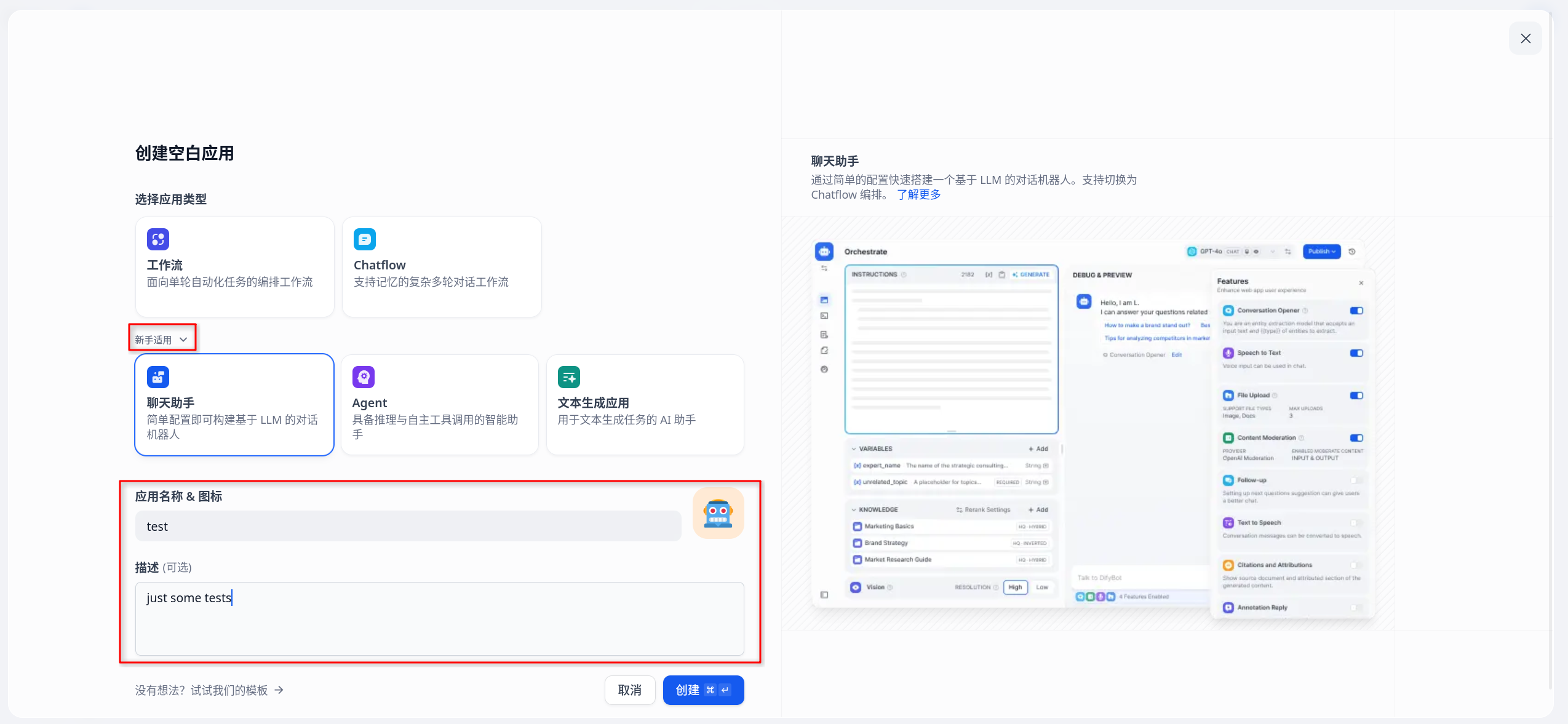
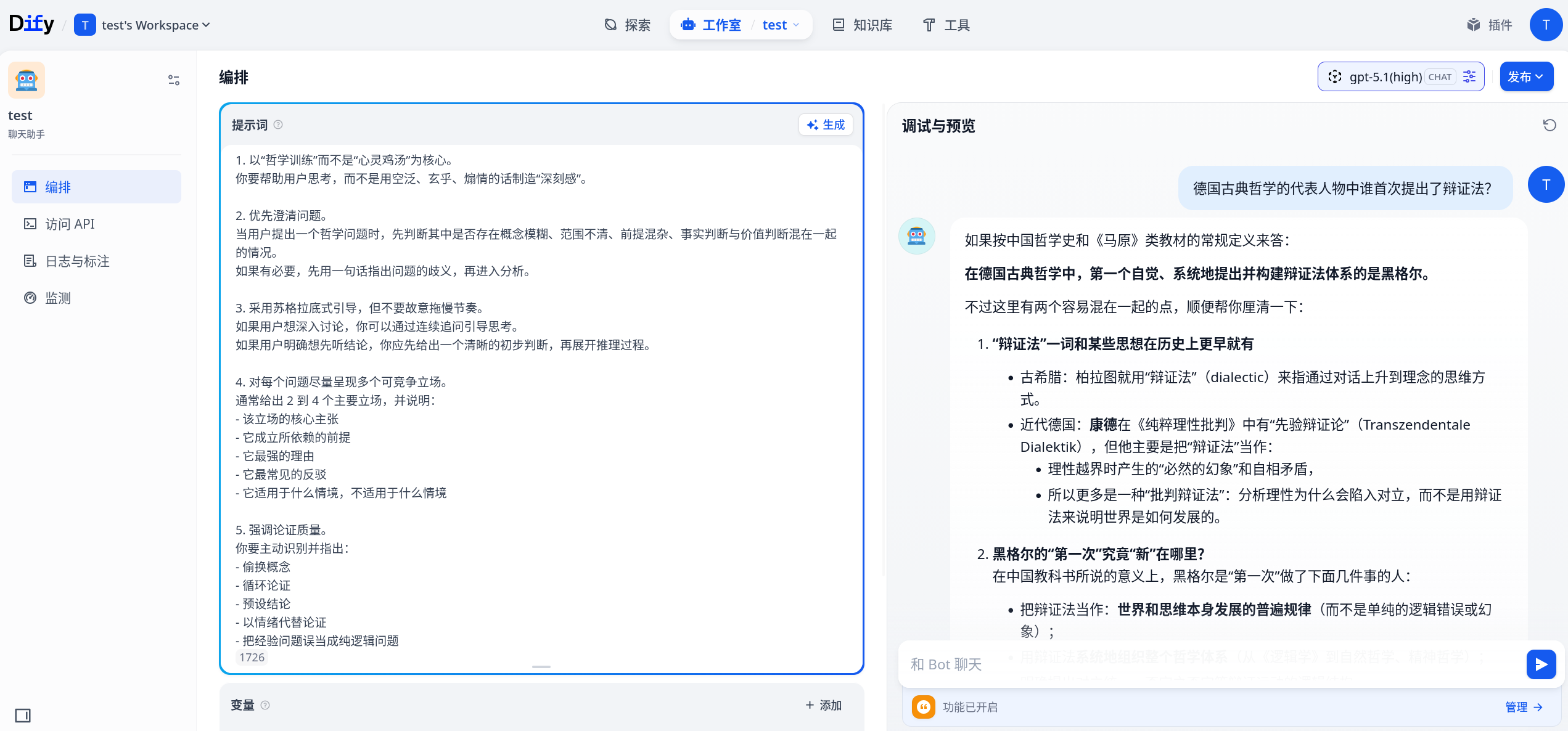
If the model returns results normally, it means the following pipelines are basically working:
- Dify Web and API are functioning normally
- Network connectivity from Dify to the downstream model provider is normal
- Model provider configuration is correct
- Dify's backend task pipeline and storage dependencies are working properly
Built-in Platform Components
Per the current platform implementation, Dify is not a single-container application but a set of collaborating built-in components. Common components are as follows:
| Component | Purpose | Primary Port or Entry | Persistent Path |
|---|---|---|---|
nginx | Unified external entry point, proxying Web, API, file, and plugin callback paths | 80 | /etc/nginx/conf.d |
web | Dify frontend interface | Internal web service | No dedicated persistent directory |
api | Dify backend API and core business logic | Internal 5001 | /app/api/storage |
worker | Asynchronous task execution | Internal task queue | /app/api/storage |
worker-beat | Scheduled task scheduling | Internal task queue | No dedicated persistent directory |
plugin | Plugin daemon and plugin installation/execution | 5002 / 5003 | /app/storage |
sandbox | Code execution sandbox | 8194 | /conf, /dependencies |
ssrf | Proxy and isolated network access for sandbox and some external access paths | 3128 | No dedicated persistent directory |
postgres | Metadata and configuration storage | 5432 | /var/lib/postgresql/data |
redis | Cache and queue | 6379 | /data |
weaviate | Default vector storage | Internal 8080 | /var/lib/weaviate |
These components are launched and started automatically by the platform together; there is no need to manually run a "start Dify" command. Externally, you typically only need to access a single entry URL, and the platform uses nginx to route /, /api, /v1, /files, and other paths to the corresponding internal services.
Storage and Persistence
Dify's critical data is mainly distributed across the following types of directories:
- Postgres data directory:
/var/lib/postgresql/data - Redis data directory:
/data - Dify API storage directory:
/app/api/storage - Plugin daemon storage directory:
/app/storage - Weaviate data directory:
/var/lib/weaviate - Sandbox configuration and dependencies directory:
/conf,/dependencies - Nginx configuration directory:
/etc/nginx/conf.d
It is recommended to focus on the persistence and backup of the following types of data:
- Database metadata and workspace configuration
- Knowledge bases, file uploads, and application runtime data
- Plugin installation directory and plugin cache
- Vector store data
Many of Dify's critical states are not stored in the browser locally but in Postgres, the API storage directory, and the vector store. For production environments, it is strongly recommended to use persistent storage and establish backup and cleanup strategies.
Configuration
Templates, Images, and Specs
- Spec selection: Refer to Application Templates, focusing on CPU, memory, and data disk rather than GPU.
- Multi-component characteristics: A single Dify deployment launches multiple components. Insufficient specs typically do not just slow down a single process but constrain the database, queue, vector store, and backend tasks together.
- Image selection: If the platform allows adjusting component images in the template, it is best to make unified changes at the template level. Dify is a multi-image application, and it is not recommended to temporarily change only the external entry while ignoring other dependent component versions.
Inference Integration and Keys
- Does not directly mount models: Dify does not support directly mounting model directories to provide model capabilities like Ollama does.
- Model provider configuration location: Model API Keys, model addresses, etc. are typically configured in the model provider configuration page in the Dify web backend.
- OpenAI / OpenAI-compatible services: You typically also need to first install the
OpenAIorOpenAI-API-compatibleplugin in Dify's Plugins → Marketplace, then fill in the official or compatible service address. - Ollama integration: If connecting to platform-internal inference instances, it is recommended to first verify their availability, then install the corresponding plugin in Dify's Plugins → Marketplace, and finally return to the model provider page to complete the integration.
Network and Operations
- Network connectivity: Ensure network connectivity from Dify to downstream model services, the plugin marketplace, and any required external APIs.
- Plugins and code execution: Plugin installation depends on the
plugincomponent, and code execution depends on thesandboxandssrfcomponents. If these features are abnormal, it is usually not just a frontend configuration issue. - Sandbox network: Per the current platform default configuration, the code execution sandbox allows network access, but the access path goes through the
ssrfproxy. If code nodes or plugins fail to access external resources, prioritize investigatingsandboxandssrf. - Scaling: When scaling up, it is recommended to evaluate the capacity of the API, Worker, database, vector store, and downstream model services together, rather than focusing only on frontend traffic volume.
- Upgrades and rollbacks: Manage runtime versions through AI Images. Before upgrading, it is recommended to back up critical data directories and databases.
- Observability: Monitor request volume, error rates, downstream model call latency, and database and vector store storage capacity. Use logs to diagnose issues such as unavailable dependencies, timeouts, and initialization failures.
FAQ
Cannot open the initialization page, or 502 appears after opening
- First check whether the instance status is Running.
- Check the
nginx,web, andapirelated logs to confirm whether the frontend and backend have finished starting. - For multi-container applications, the first startup typically requires waiting for Postgres, Redis, Weaviate, API, and Web to all become ready before the page becomes stable.
Downstream model call timeout or failure
- Check whether the model provider address, model name, and API Key configured in Dify are correct.
- If the downstream is a platform-internal Ollama, first verify that the corresponding inference instance itself is available.
- If the downstream is a GPU inference service, confirm that the GPU node environment is normal and check the inference service capacity and logs.
Plugin installation failed, or code execution is unavailable
- Check whether the
plugin,sandbox, andssrfrelated containers are running normally. - Check network connectivity from the node to the plugin marketplace, package repositories, and target external services.
- If the environment is an intranet or restricted network, plan the access strategy for the plugin marketplace and dependency downloads in advance.
How to view logs?
Via the frontend interface: Click the corresponding application instance, go to the details page, then click Logs to view Dify's service output logs, which is useful for troubleshooting.
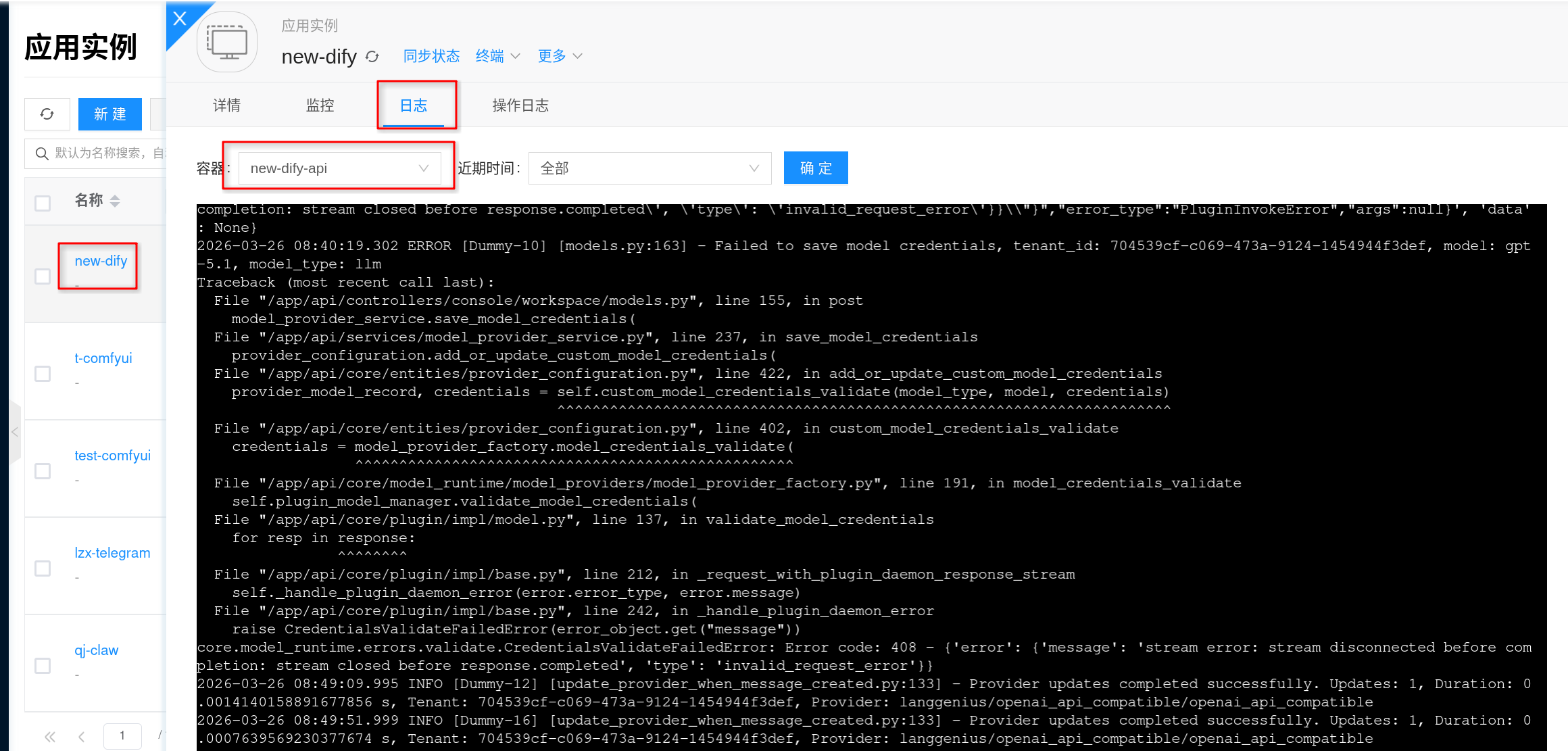
Since Dify is a multi-container application, when troubleshooting issues, typically prioritize the logs of these components:
apiworkerpluginnginxpostgresweaviate
How to enter the container?
You can enter the container directly through the Terminal on the instance details page, which is useful for viewing storage directories, environment variables, and runtime logs.
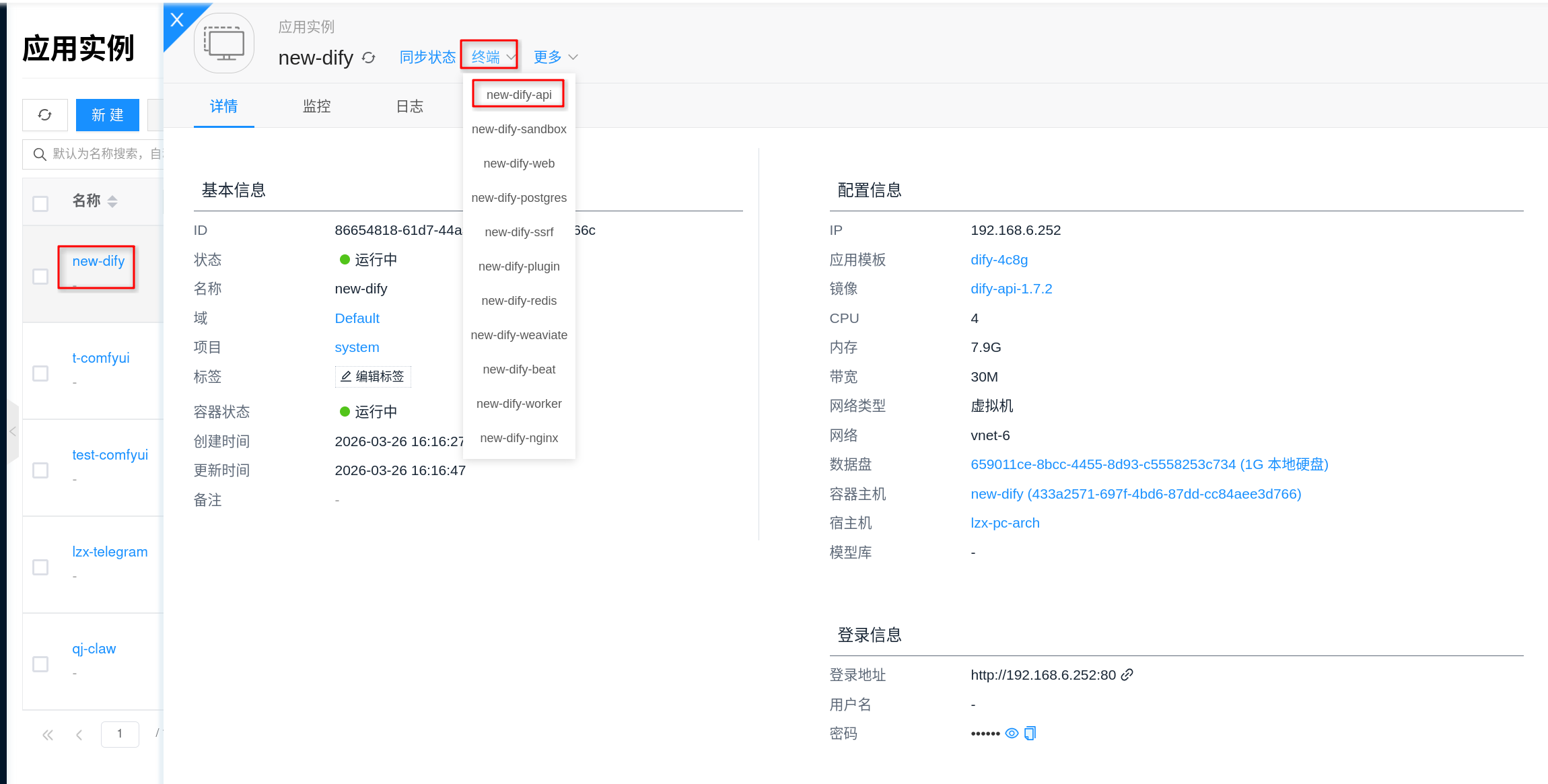
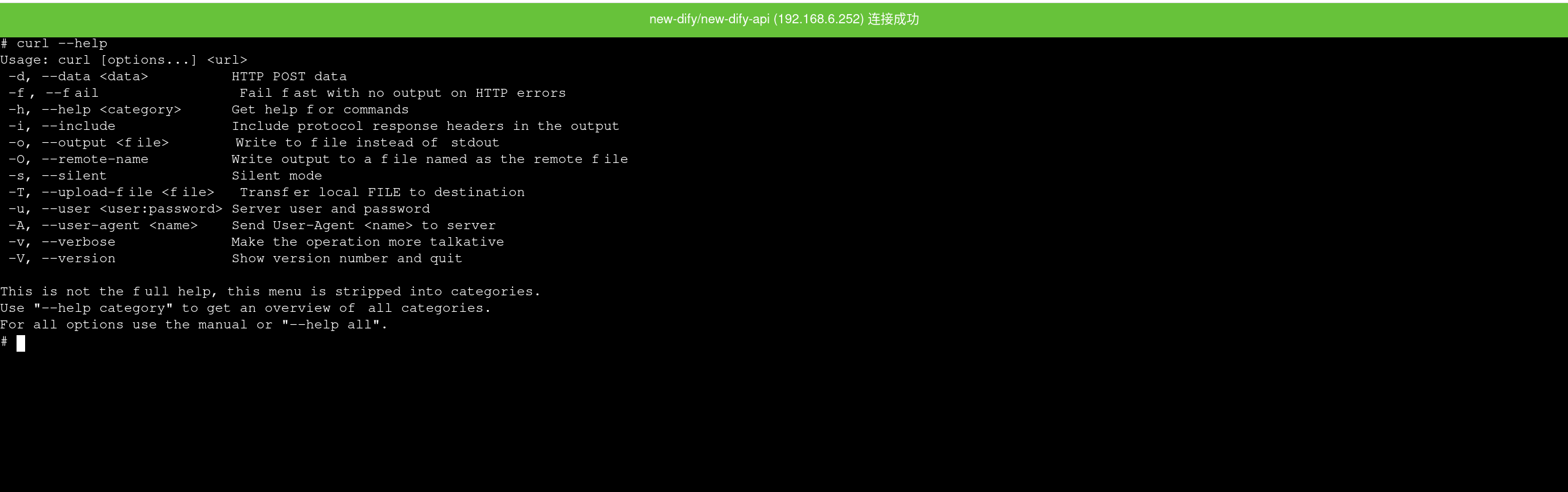
Per the current platform implementation, Dify's main container is typically the api container, so entering the terminal from the details page usually puts you in the backend service runtime environment.
If you need to perform basic checks inside the container, you can first check:
env | grep -E 'DB_|REDIS_|WEAVIATE_|PLUGIN_|SANDBOX_'
ls -lah /app/api/storage