ComfyUI
ComfyUI is an image generation and visual workflow application that supports node-based workflow orchestration, suitable for image generation, workflow reuse, and visual debugging.
Quick Start
0. Prerequisites
Image generation depends on a GPU environment. Please first complete Configure NVIDIA and CUDA Environment.
1. Configure the Template
After configuring the GPU environment, simply update the GPU model in the platform's default ComfyUI template comfyui-8c16g. The process is as follows:
- Go to the console Artificial Intelligence → Applications → Application Templates, find the default template
comfyui-8c16g, and click Edit.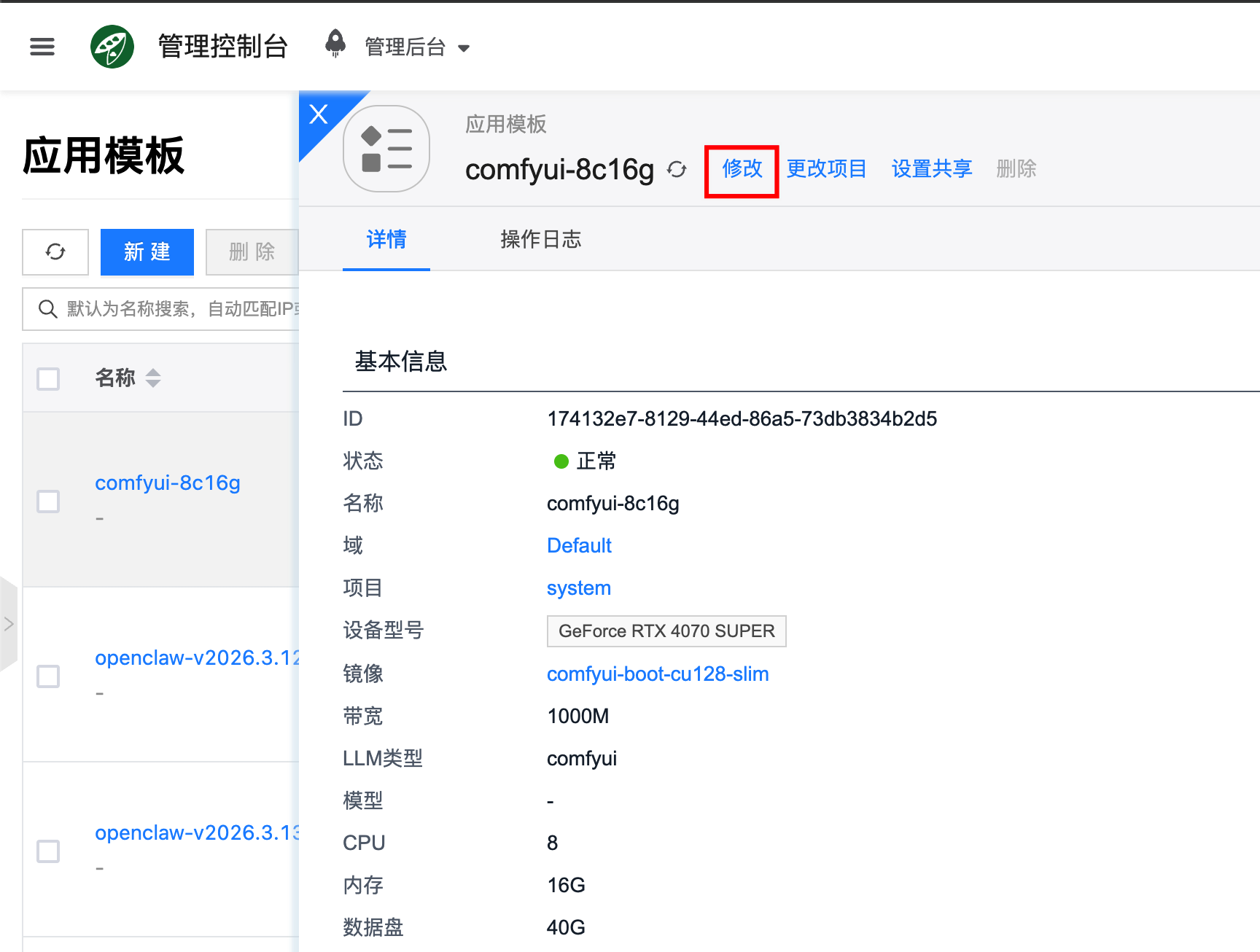
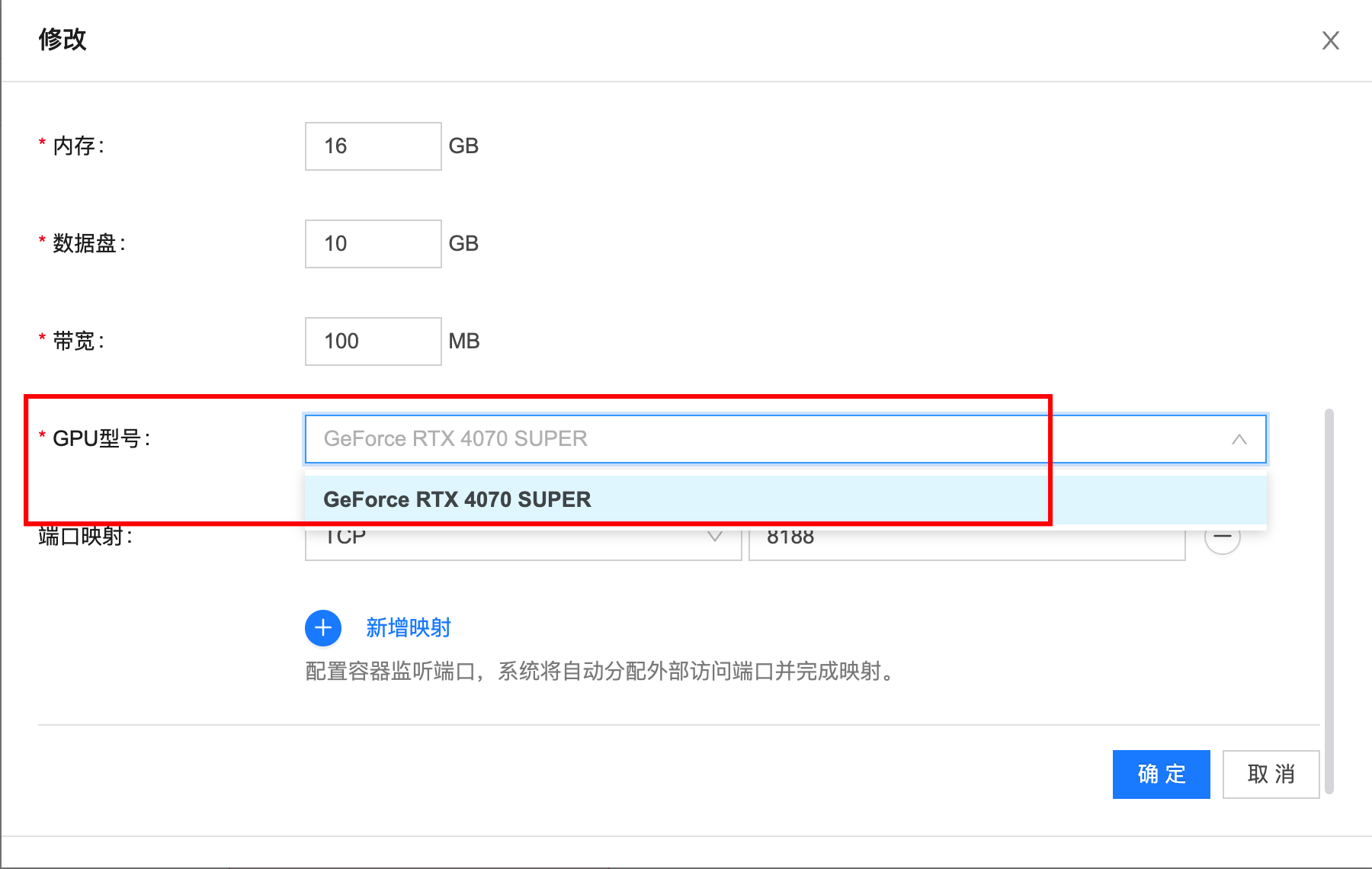
- In the template configuration, change the GPU model to the one you want to use.
2. Create an Instance
After updating the default template's GPU model, go to Artificial Intelligence → Applications → Application Instances, create a new instance, and select the updated comfyui-8c16g template.
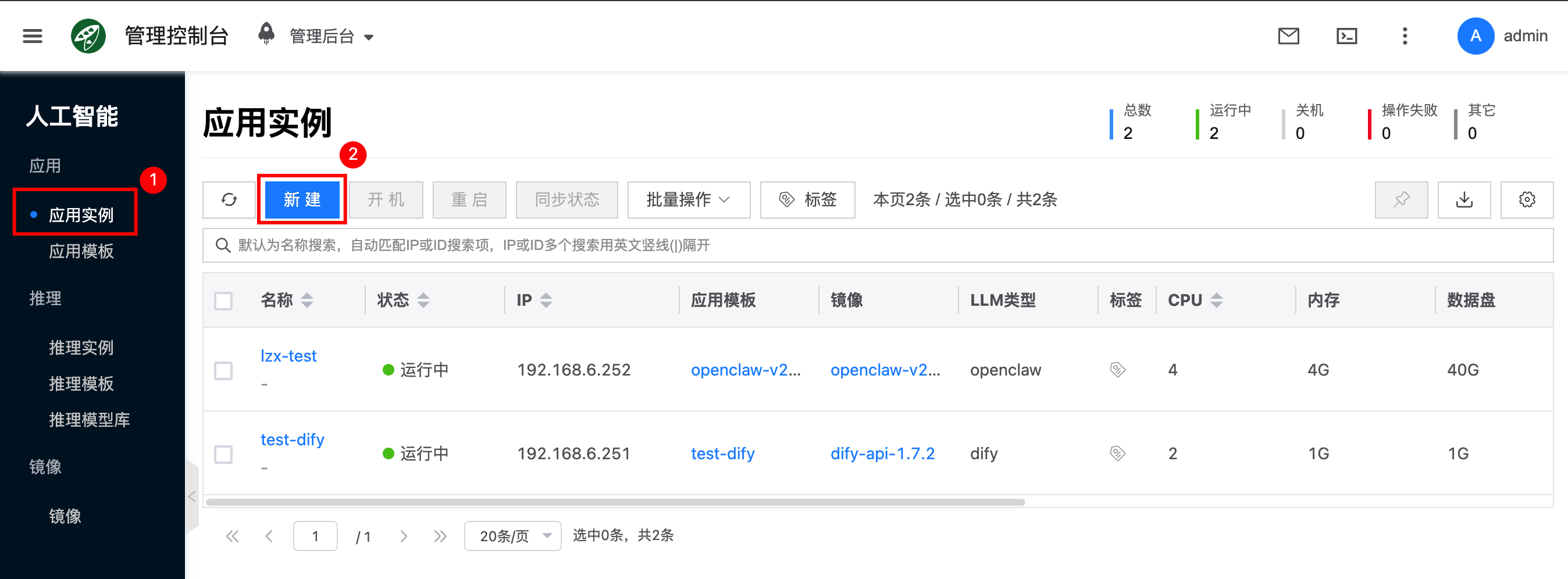
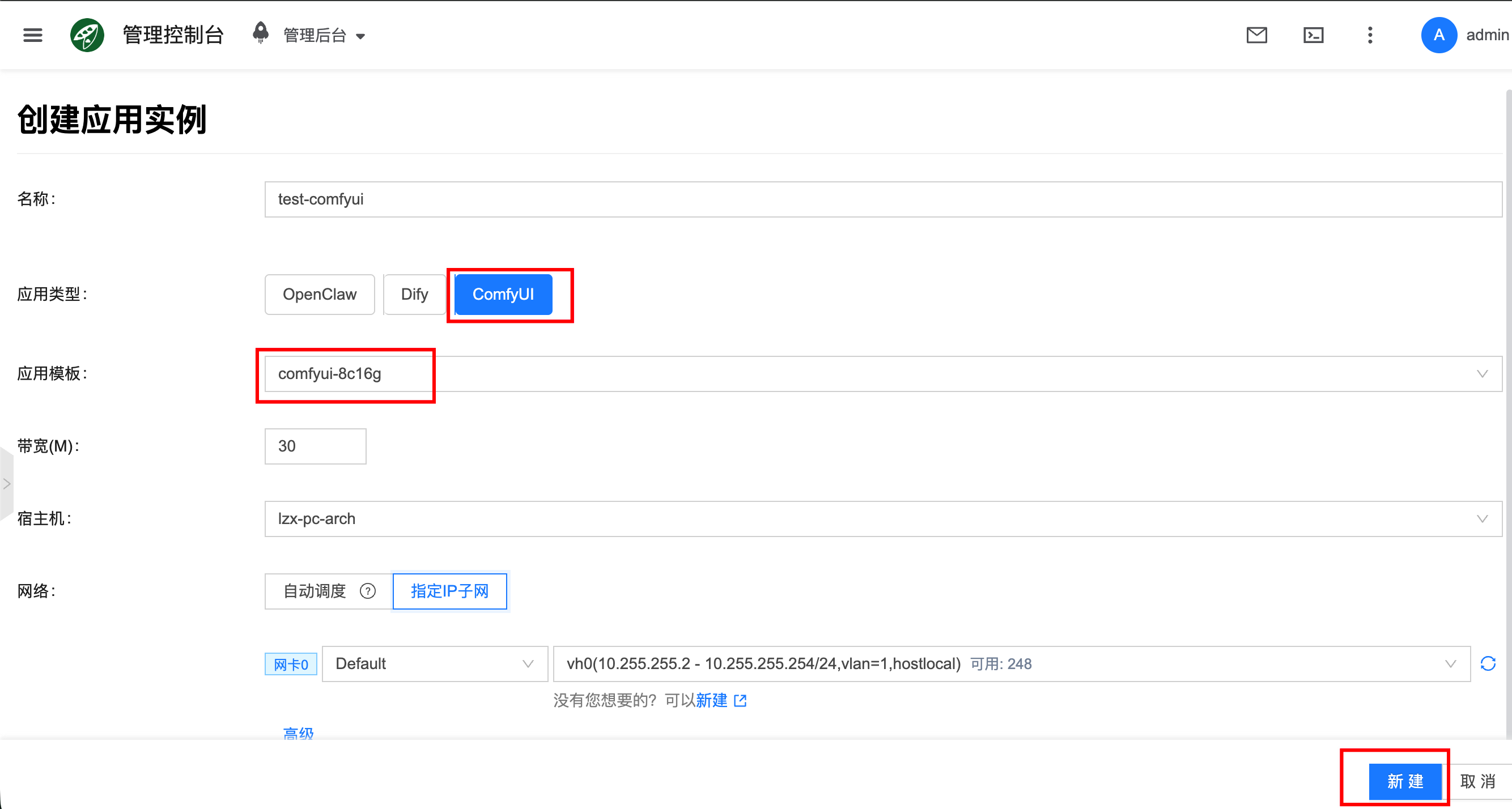
- Bandwidth: Rate-limits the container network; fill in based on actual needs.
- Host (optional): You can specify a host to run the container instance on; if not selected, it will be automatically scheduled.
- Network: You can choose automatic scheduling or specify an IP subnet.
3. Access the ComfyUI Web Interface
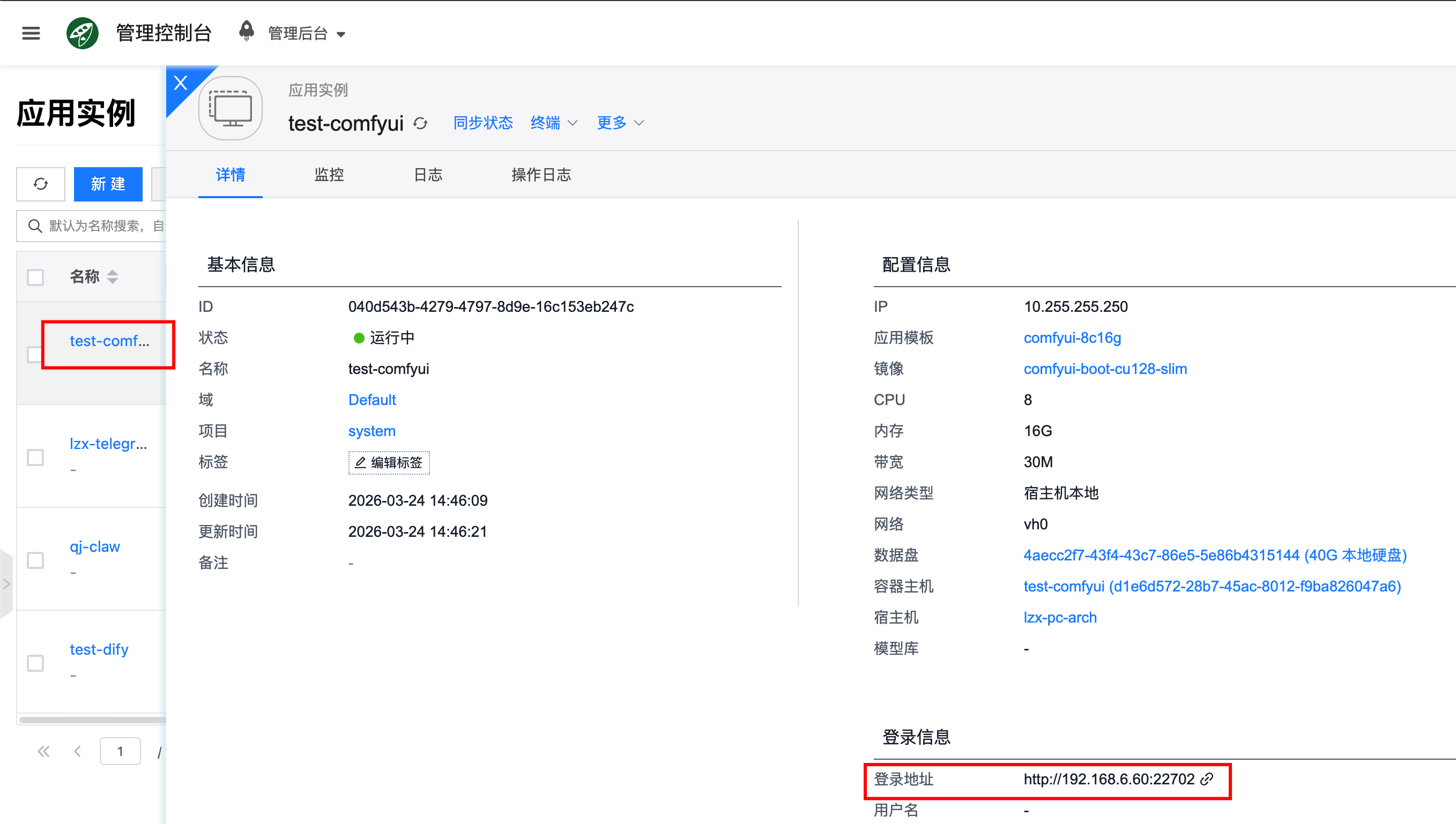
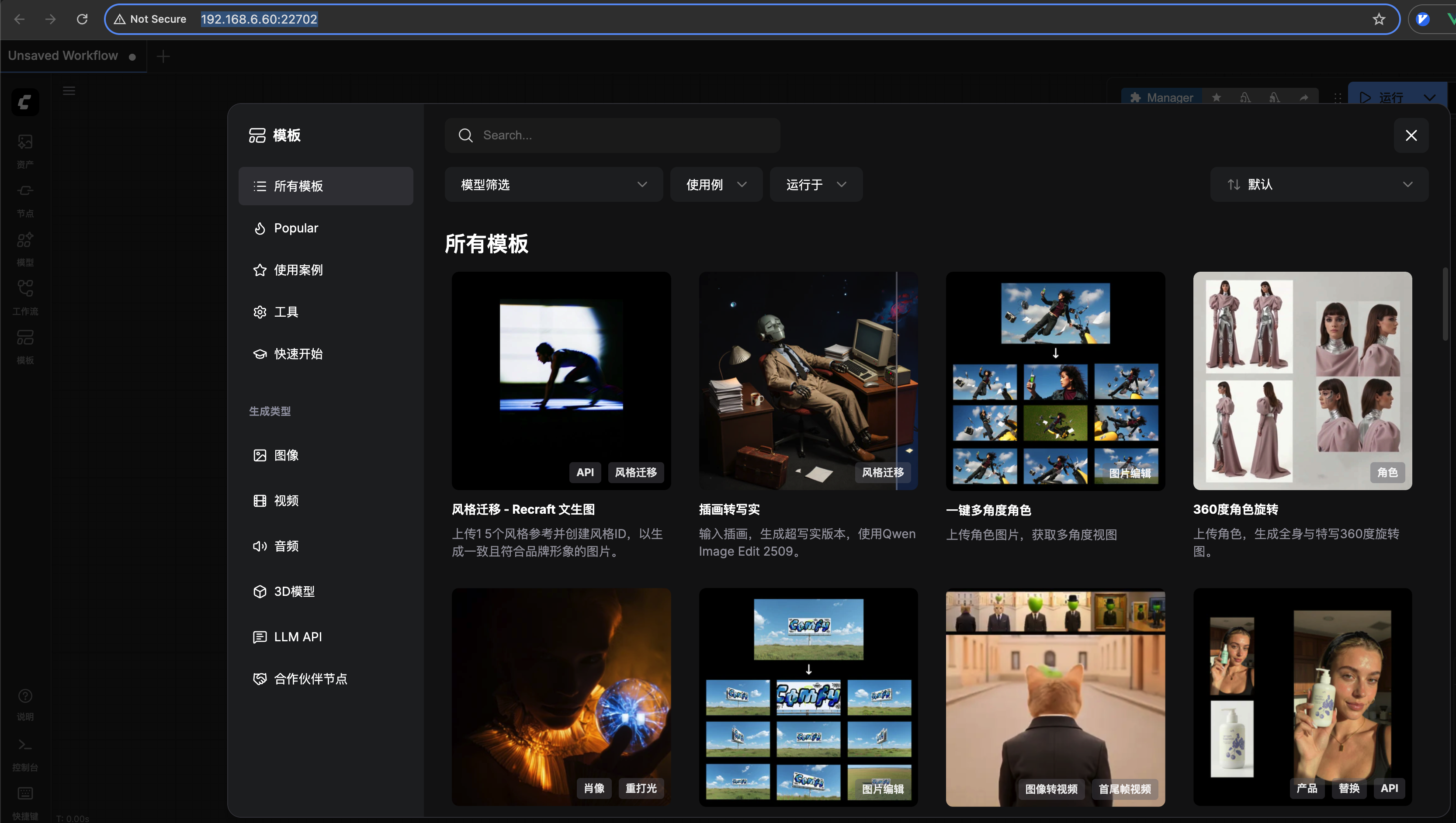
After creation is complete, go to the instance details page to get the login information. Open the corresponding address in a browser to access the ComfyUI web interface.
4. Download Models
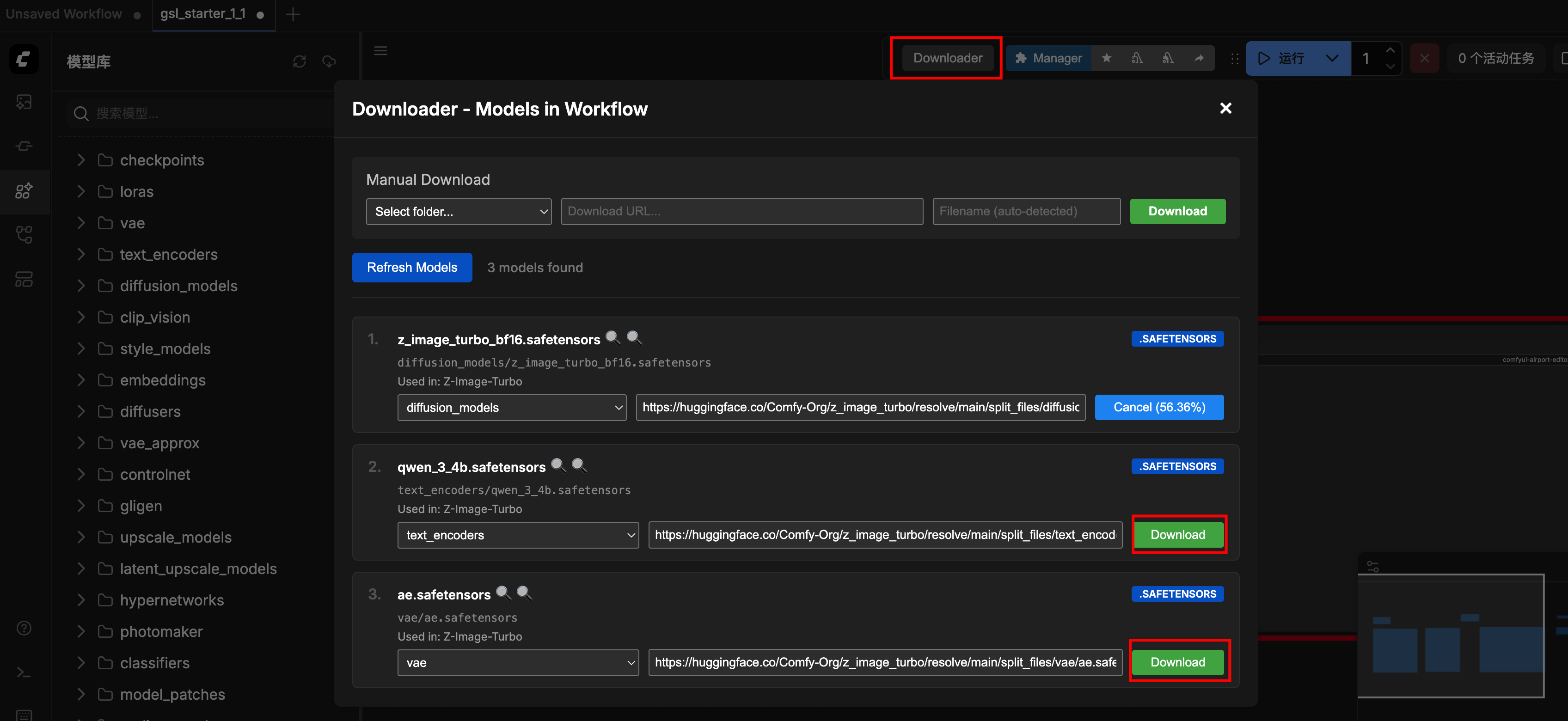
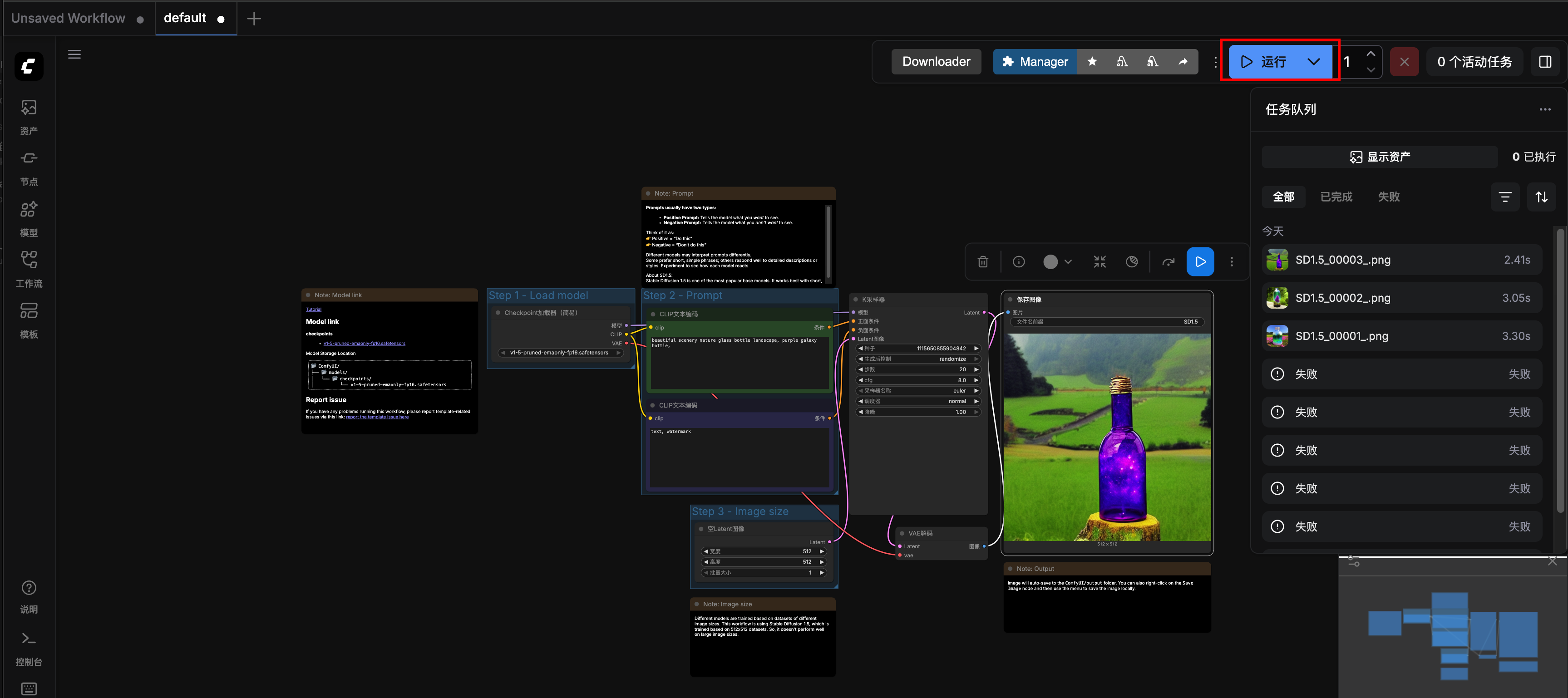
The ComfyUI container image comes with the ComfyUI-Downloader plugin pre-installed, making it easy to download components directly from the UI.
After selecting a template, click Downloader, which will automatically detect the models required by the template, then click Download.
5. Generate Images
After models are imported, click Run to start generating images. Once image generation is complete, you can download the results directly to your local machine via the browser.
Models and Data
Persistent Paths
The following directories inside the ComfyUI container are persistent and will not be lost after container restart. They are used to store models and other data state files:
/root/ComfyUI/models: Stores model files/root/ComfyUI/input: Stores input data/root/ComfyUI/output: Stores output data/root/ComfyUI/user/default/workflows: Stores workflow state files/root: Root user home directory/root/.cache/huggingface/hub: Huggingface related persistent data/root/.cache/torch/hub: Torch related persistent data
FAQ
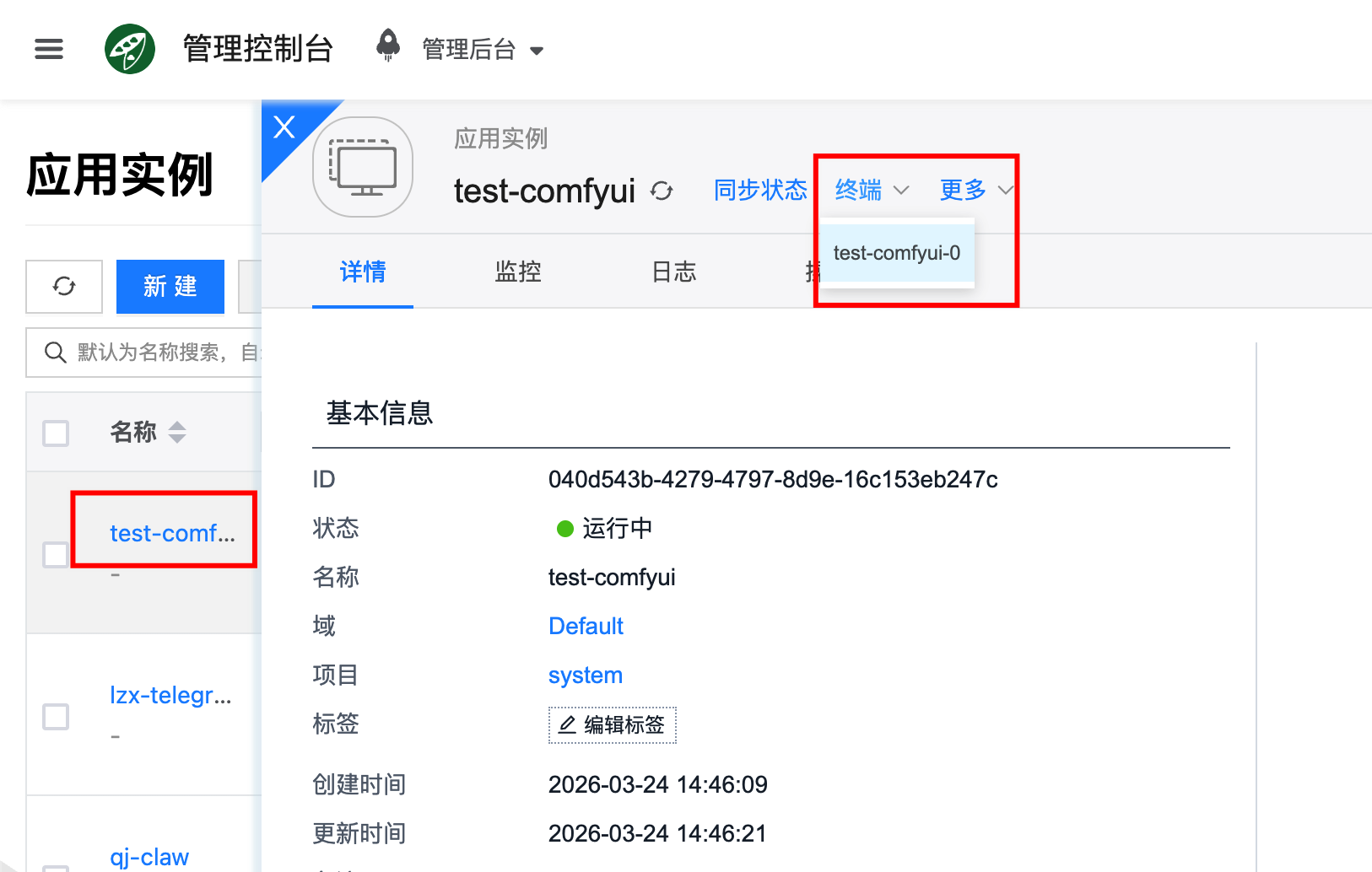
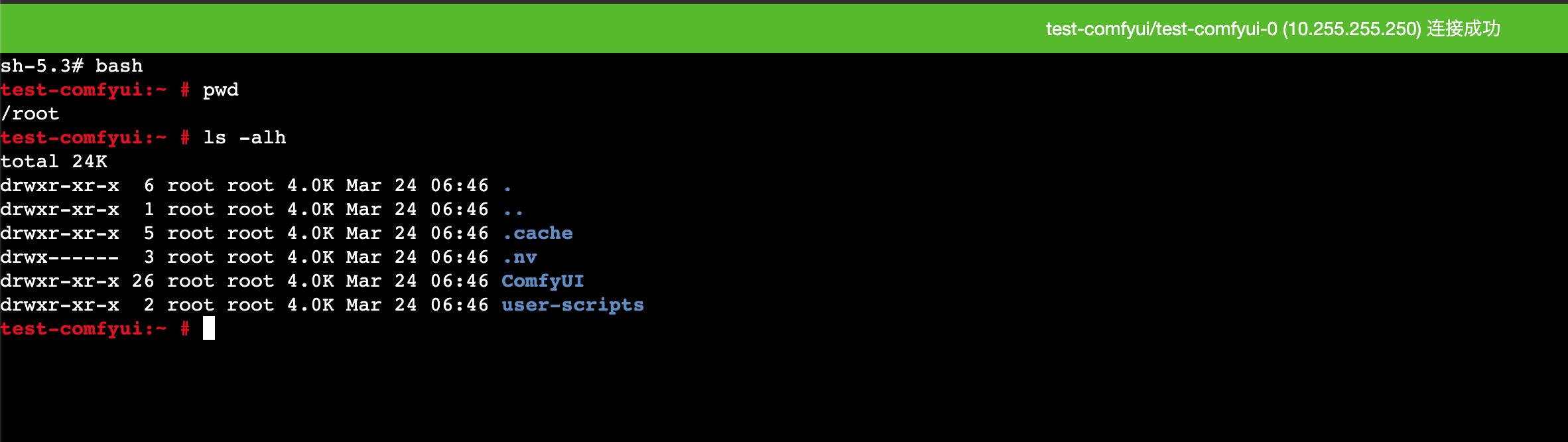
How to enter the container?
You can enter the container directly through the "Terminal" on the details page:
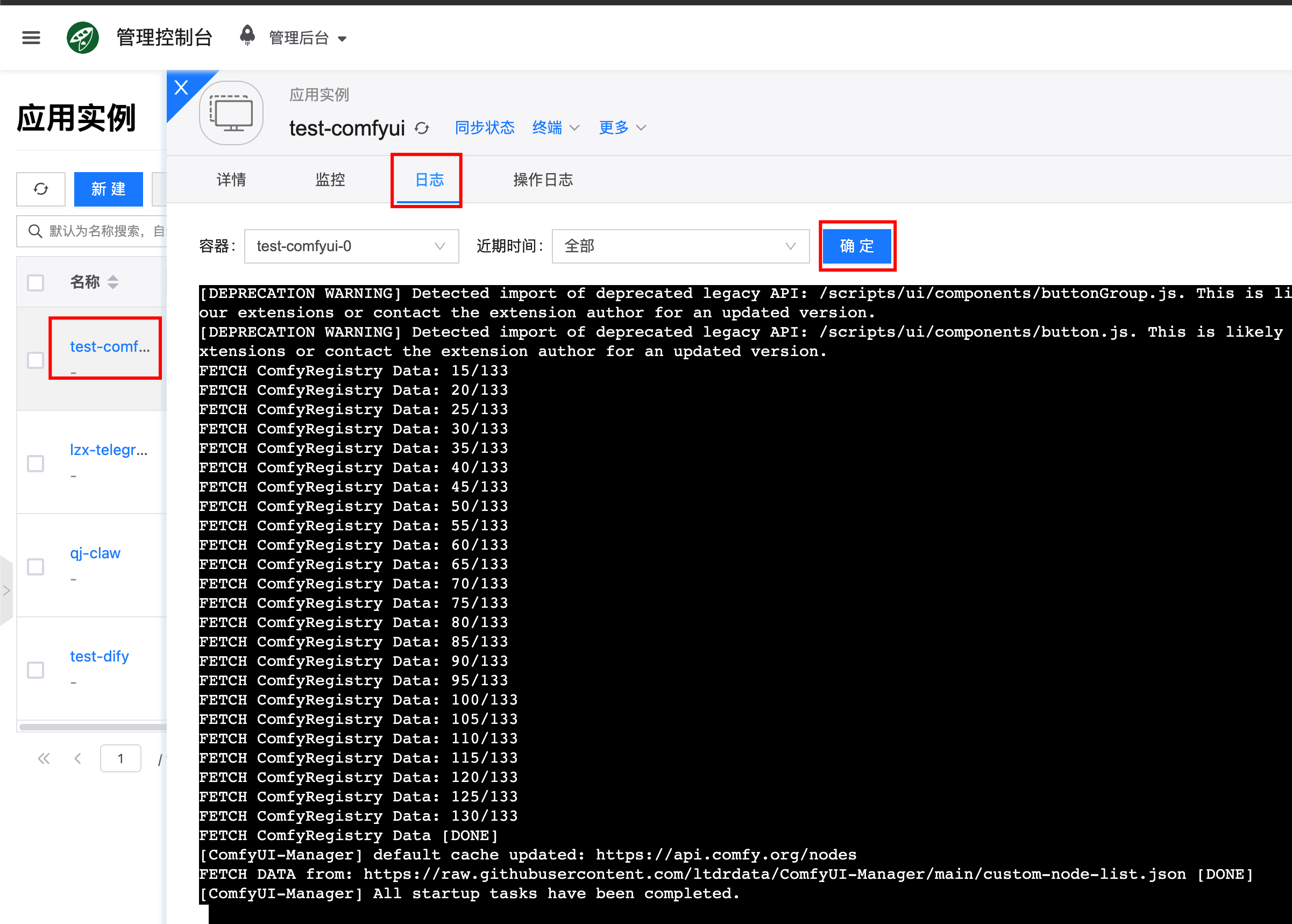
How to view service logs?
Via the frontend interface: Click the corresponding application instance, go to the details page, then click Logs to view the service output logs, which is useful for troubleshooting.