Register Physical Machines
Introduction to how to register physical servers into the cloud platform's physical machine resource pool.
The platform supports registering physical servers and creating bare metal servers based on physical servers (installing Linux distributions on physical machines).
Please ensure that the baremetal-agent service is enabled in the environment. This service provides PXE Server, DHCP, TFTP, http and other functions, used to complete physical machine registration operations and manage physical machines.
If the baremetal-agent service is not started, please first refer to the documentation: Enable Physical Machine Management Service or use docker compose to deploy physical machine service.
Physical Machine Registration Methods Introduction
The platform currently supports 5 methods of registering physical machines and their registration principles. Please choose the appropriate method according to the specific situation.
| Method | Provide IPMI Info | Boot Method | Need DHCP Relay | Depend on Redfish API | Network Allocation |
|---|---|---|---|---|---|
| ISO Boot Registration | Yes | ISO | No | Yes | Static Allocation |
| PXE Boot Registration | Yes | PXE | Yes | No | DHCP Allocation |
| Pre-registration | No | PXE | Yes | No | DHCP Allocation |
| Auto Registration | No | PXE | Yes | No | DHCP Allocation |
| Hosting | Yes | - | - | - | - |
PXE Boot Registration (Recommended Method)
This method requires that the user environment has DHCP Relay, and requires that the physical machine has BMC information configured, and the BMC information of the physical machine will not change during the boot registration process. If the server does not support Redfish, you also need to provide the server's MAC address.
- Configure the physical server's BMC information on the platform and set the server to PXE boot, etc.
- Baremetal verifies the physical server's BMC information through IPMI.
- After verification passes, collect a small amount of server information, set the physical server to boot on startup, and the physical server configures management port IP address through DHCP.
- Boot the physical server into the PXE boot system through the management network, and report SSH login information.
- Baremetal calls tools in the PXE boot system through SSH to collect server information and perform management operations, etc.
- At this point, the physical server is successfully registered to the platform.
ISO Boot Registration
This method has no network requirements, but requires that the physical machine has BMC information configured, and the server supports Redfish API.
- Configure the physical server's BMC information and management network card IP address on the platform.
- Baremetal will verify the physical server's BMC information through Redfish API, and then obtain the physical server's configuration information, such as server SN, vendor model, and network card information, etc.
- After verification passes, the physical server's Redfish API will load the ISO of the PXE boot system provided by Baremetal through the out-of-band network.
- After entering the PXE boot system, set the management port IP address according to configuration, so that the physical server can access Baremetal through the management network and report the server's SSH login information.
- Baremetal calls tools in the PXE boot system through SSH to collect server information and perform management operations, etc.
- At this point, the physical server is successfully registered to the platform.
Auto Registration
This method is suitable for large-scale automatic server registration to the cloud management platform. It only requires that the user environment has DHCP Relay, and BMC information will be reset during the boot registration process.
- After new physical servers are set to PXE boot and powered on, the DHCP Relay on the layer 3 gateway where the physical server is connected will forward the physical server's PXE request to Baremetal.
- After the Baremetal service receives the request, it will respond to the PXE request, boot the physical server to load the PXE boot system from the network and restart into the PXE boot system, and report the server's ssh information.
- Baremetal calls tools in the PXE boot system through SSH to collect server information and reset the server BMC information (if BMC information is not provided, it will be configured according to default information).
- At this point, the physical server is successfully registered to the platform.
Pre-registration
This method is suitable for small-scale server registration to the cloud management platform. This method requires that the user environment has DHCP Relay, and provides the server's MAC address. BMC information will be reset during the boot process.
- After new physical servers are set to PXE boot and powered on, the DHCP Relay on the layer 3 gateway where the physical server is connected will forward the physical server's PXE request to Baremetal.
- After the Baremetal service receives the request, it will verify whether the physical server's MAC address matches. After successful matching, it will record the physical server's basic information and respond to the PXE request, boot the physical server to load the PXE boot system from the network and restart into the PXE boot system, and report the server's ssh information.
- Baremetal calls tools in the PXE boot system through SSH to collect server information and reset the server BMC information (if BMC information is not provided, it will be configured according to default information).
- At this point, the physical server is successfully registered to the platform.
Hosting
This method is suitable for servers that already have an operating system installed. This method has no network requirements. After executing the hosting script, container technology will be used to run the PXE boot system in the physical server to collect server information, without affecting the physical machine's original operating system.
Typical Networking Introduction
- IPMI network is used for remote access to BMC (Baseboard Management Controller). Through the IPMI network, you can remotely control physical server power on/off, etc.
- Management network: Network for executing physical server management operations, such as configuring physical servers, installing software, etc.
- PXE network: Send PXE requests, obtain IP addresses, etc. PXE network is generally the same network as the management network.
- Business network: Network required for running business on physical servers.
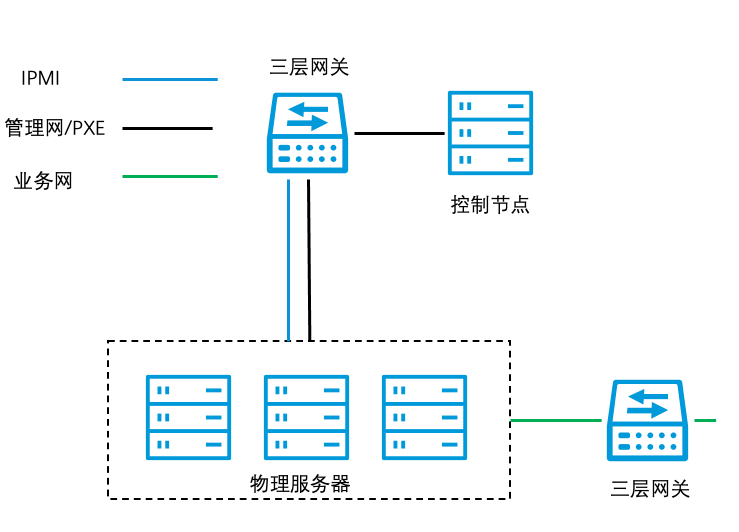
Physical Machine Registration Operation Steps
Configure Network
Regardless of which method is used to register physical machines, you need to configure physical machine type, IPMI, and PXE type IP subnets on the platform. The PXE network segment can share a network segment with the physical machine type. Please configure IP subnets according to network planning.
Create IPMI Subnet
- Click the "Network/Basic Network/IP Subnet" menu item in the platform's left menu bar to enter the IP subnet page.
- Click the "New" button above the list to enter the create IP subnet page.
- Set the following parameters:
- Subnet name: Used to identify the IPMI subnet.
- Platform: Select local IDC.
- Layer 2 network: Please select region, VPC, and available layer 2 network according to planning. When users apply for bare metal later, they need to select from the region and availability zone where the layer 2 network is located.
- Server type: Select IPMI.
- IP subnet: Set IP subnet network segment, subnet mask, gateway, and VLAN ID, etc.
- Click the "OK" button.
Create PXE IP Subnet
- Click the "Network/Basic Network/IP Subnet" menu item in the platform's left menu bar to enter the IP subnet page.
- Click the "New" button above the list to enter the create IP subnet page.
- Set the following parameters:
- Subnet name: Used to identify the IPMI subnet.
- Platform: Select local IDC.
- Layer 2 network: Please select region, VPC, and available layer 2 network according to planning. When users apply for bare metal later, they need to select from the region and availability zone where the layer 2 network is located.
- Server type: Select PXE.
- IP subnet: Set IP subnet network segment, subnet mask, gateway, and VLAN ID, etc.
- Click the "OK" button.
Create Physical Machine or Virtual Machine IP Subnet
When users create bare metal equipment, physical machine IP subnets will be used preferentially. If there are no available physical machine IP subnets in the environment, virtual machine IP subnets will be used.
- Click the "Network/Basic Network/IP Subnet" menu item in the platform's left menu bar to enter the IP subnet page.
- Click the "New" button above the list to enter the create IP subnet page.
- Set the following parameters:
- Subnet name: Used to identify the IPMI subnet.
- Platform: Select local IDC.
- Layer 2 network: Please select region, VPC, and available layer 2 network according to planning. When users apply for bare metal later, they need to select from the region and availability zone where the layer 2 network is located.
- Server type: Select physical machine or virtual machine IP subnet. When creating new bare metal servers, physical machine IP subnets are used by default. When there are no available physical machine IP subnets, virtual machine IP subnets will be used.
- IP subnet: Set IP subnet network segment, subnet mask, gateway, and VLAN ID, etc.
- Click the "OK" button.
Register Physical Machine
ISO Boot Registration
Before ISO boot registration, administrators should prepare the following information in advance:
- Physical server's BMC information.
- Physical server management port IP address, IP subnet or layer 2 network, etc.
- In the left navigation bar, select the "Host/Basic Resources/Physical Machine" menu item to enter the physical machine page.
- Click the "Add" button to enter the add physical machine page, and select the add method as "ISO Boot Registration".
- Configure the following information:
- Specify domain: Select the domain to which the physical machine belongs.
- Single entry: Configure the following parameters.
- Physical machine name: Set the physical server's name.
- Remarks: Set the physical machine's remarks information.
- IPMI address: Enter the IPMI address already configured on the server.
- IPMI username: Enter the IPMI username already configured on the server.
- IPMI password: Enter the IPMI password information already configured on the server. If the entered BMC information is incorrect, boot registration cannot be completed correctly.
- Tags: Support binding tags to newly created physical machines. Support selecting existing tags and creating new tags.
- Create new tag: Click the New button above the list, set tag key and tag value, click the "Add" button to create a tag and bind it to the resource.
- Select existing tag: Click the "Existing Tags" button to select tag key and value.
- Management port IP: Select IP subnet. If you need to specify a static IP, you can click the "Manual IP Configuration" button, set the IP address, and click the "OK" button. Since ISO boot registration is suitable for environments without DHCP Relay, users must configure and provide the IP subnet or IP address information for the server management port connection.
- Register only without boot: Do not restart and boot into the PXE boot system. After checking this option, only partial server information is collected. At this time, the server cannot be used to create bare metal, and hardware configuration detection operations need to be performed to put it into production use.
- Template import: Support importing template files in XLSX format containing physical machine registration information.
- Importing physical machine information needs to follow a pre-set format. Please download the template first.
- Supplement physical machine information in the downloaded host_template.xlsx file. All physical machine information should be placed in the same sheet page.
- Click the dotted box or drag the template file to the dotted box, click the "OK" button to upload the template file.
- Register only without boot: Do not restart and boot into the PXE boot system. After checking this option, only partial server information is collected. At this time, the server cannot be used to create bare metal, and hardware configuration detection operations need to be performed to put it into production use.
- Click the "OK" button to complete boot registration.
PXE Boot Registration
Before PXE boot registration, administrators should prepare the following information in advance:
- Physical server's BMC information.
- In the left navigation bar, select the "Host/Basic Resources/Physical Machine" menu item to enter the physical machine page.
- Click the "Add" button to enter the add physical machine page, and select the add method as "PXE Boot Registration".
- Configure the following information:
- Specify domain: Select the domain to which the physical machine belongs.
- Single entry: Configure the following parameters.
- Physical machine name: Set the physical server's name.
- Remarks: Set the physical machine's remarks information.
- IPMI address: Enter the IPMI address already configured on the server.
- IPMI username: Enter the IPMI username already configured on the server.
- IPMI password: Enter the IPMI password information already configured on the server. If the entered BMC information is incorrect, boot registration cannot be completed correctly.
- Management port MAC address: Set the server's management port MAC address. Servers supporting Redfish do not need to fill in this item.
- Management port IP: Optional. Support selecting IP subnet. If you need to specify a static IP, you can click the "Manual IP Configuration" button, set the IP address, and click the "OK" button. Leave blank to automatically assign IP through DHCP.
- Tags: Support binding tags to newly created physical machines. Support selecting existing tags and creating new tags.
- Create new tag: Click the New button above the list, set tag key and tag value, click the "Add" button to create a tag and bind it to the resource.
- Select existing tag: Click the "Existing Tags" button to select tag key and value.
- Register only without boot: Do not restart and boot into the PXE boot system. After checking this option, only partial server information is collected. At this time, the server cannot be used to create bare metal, and hardware configuration detection operations need to be performed to put it into production use.
- Template import: Support importing template files in XLSX format containing physical machine registration information.
- Importing physical machine information needs to follow a pre-set format. Please download the template first.
- Supplement physical machine information in the downloaded host_template.xlsx file. All physical machine information should be placed in the same sheet page.
- Click the dotted box or drag the template file to the dotted box, click the "OK" button to upload the template file.
- Register only without boot: Do not restart and boot into the PXE boot system. After checking this option, only partial server information is collected. At this time, the server cannot be used to create bare metal, and hardware configuration detection operations need to be performed to put it into production use.
- Click the "OK" button to complete boot registration.
Pre-registration
Pre-registration operation only pre-registers server information and does not mean the physical machine has been registered to the platform. Actual registration needs to wait until the server is powered on and started.
Before pre-registering physical machines, administrators should prepare the following information in advance:
- Physical server's MAC address and name, required.
- BMC information (IPMI address, username, password, etc.) planned by the administrator. Physical servers can not configure BMC information in advance. During subsequent virtual machine boot registration, the physical server's BMC information will be reset to the BMC information set when registering the physical machine.
-
In the left navigation bar, select "Host/Basic Resources/Physical Machine" menu item to enter the physical machine page.
-
Click the "Add" button to enter the add physical machine page, and select the add method as "Pre-registration".
-
Support 3 ways to import physical machine information. Single entry is suitable for hosting a single server scenario. Batch import and file import are suitable for hosting multiple servers at once.
- Specify domain: Select the domain to which the physical machine belongs.
- Single entry: Configure the following parameters.
- MAC address: Physical machine device's MAC address.
- Physical machine name: Physical machine device's name.
- Remarks: Set the physical machine's remarks information.
- IPMI address: Set the physical machine's IPMI address. When this parameter is not set, if there is an IPMI IP subnet on the platform, the system will automatically assign an IP address. Generally, it is recommended to leave it blank for new machines and set the previous IP address for old machines.
- IPMI username: Set IPMI management username. When this parameter is not set, the system uses root user login by default. Generally, it is recommended to leave it blank for new machines and set the previous username for old machines.
- IPMI password: Set IPMI user's password. When this parameter is not set, the system default password is YunionDev@123. Generally, it is recommended to leave it blank for new machines and set the previous password for old machines.
- Tags: Support binding tags to newly created physical machines. Support selecting existing tags and creating new tags.
- Create new tag: Click the New button above the list, set tag key and tag value, click the "Add" button to create a tag and bind it to the resource.
- Select existing tag: Click the "Existing Tags" button to select tag key and value.
- After setting is complete, click the "OK" button.
- Batch entry: Please note the following.
- One line is one physical machine record, supporting up to 100 records imported at once.
- Entry information format is "MAC address,Name,IPMI address,IPMI username,IPMI password", separated by English comma ",". If the password contains Chinese comma ",", you need to use the single entry function for registration.
- MAC address and name are required fields, other parameters can be omitted.
- Example: ee:b3:f4:48:1c:f5,gpuhost01,192.168.1.1,root,admin123
- Example: ee:b3:f4:48:1c:f5,gpuhost01,,, -- omitted IPMI address, IPMI username and IPMI password
- After entry is complete, click the "OK" button.
- Template import: Support importing template files in XLSX format containing physical machine registration information.
- Importing physical machine information needs to follow a pre-set format. Please download the template first.
- Supplement physical machine information in the downloaded host_template.xlsx file. All physical machine information should be placed in the same sheet page.
- Click the dotted box or drag the template file to the dotted box, click the "OK" button to upload the template file.
-
At this point, server pre-registration preparation is complete.
-
Wait for the administrator to set the server to PXE boot and power on the server, then the actual physical machine registration operation will be performed, and basic server information will be obtained, etc.
-
After the server displays information on the platform, administrators can perform management operations on the physical machine on the platform, etc.
Currently, the frontend does not support setting the PXE boot IP of pre-registered physical machines. You can specify it through the command line on the backend. The operation is as follows:
# Create physical machine record through host-create command
# Corresponding physical machine name is bm1
# PXE boot network card MAC is 2c:ea:7f:af:77:5b
# --access-ip specifies pxe boot IP
# --ipmi-addr sets IPMI IP that needs to be configured
# --ipmi-user sets IPMI user that needs to be configured
# --ipmi-passwd sets corresponding IPMI user password
# --no-probe means do not perform IPMI probe, separate from boot registration
$ climc host-create \
    --access-ip 10.2.0.35 \
    --ipmi-addr 10.3.0.25 \
    --ipmi-user root \
    --ipmi-passwd YunionDev@123 \
    --no-probe \
    bm1 2c:ea:7f:af:77:5b
Auto Registration
The platform does not enable auto registration by default. If you need to use this function, you can enable auto registration through the climc command.
# Command line enable auto registration
$ climc service-edit-config baremetal
    ...
    # Auto registration option, default is false
    auto_register_baremetal: true
    ...
Host Physical Machine
Host physical machine operation can register physical servers that already have an operating system installed. Before registering the server, users need to understand the physical server's BMC (IPMI address, username, password) information, etc.
Before hosting the server, please ensure the following conditions:
- IP subnets of IPMI type and physical machine type containing physical servers have been created on the platform;
- Physical servers have BMC information configured (IPMI address, username, password);
- Physical servers have opened port 2222 or later ports; if port 2222 is already occupied, then port 2222 or later ports need to be opened.
The domain where the hosted physical machine is located is related to the operating user.
-
In the left navigation bar, select "Host/Basic Resources/Physical Machine" menu item to enter the physical machine page.
-
Click the "Add" button to enter the add physical machine page, and select the add method as "Hosting".
-
Click the "Click to copy" link to copy the command.
-
Connect to the physical server remotely through ssh, etc., and execute the copied command in the server.

-
During command execution, you need to enter the server's IPMI username, password, and IPMI IP. After setting is complete, wait for a period of time. The physical machine will be registered to the platform, and a bare metal server with the same configuration as the previous physical machine will be created.